Tag: iphone

  • Upgrade iPhone 6S 16GB Storage to 128GB

    Upgrade iPhone 6S 16GB Storage to 128GB

    Where there is a demand, there is an opportunity. As more and more iPhone 16G users are not satisfied with its storage, a new iPhone memory upgrade technique arose. REWA tell you how to upgrade your iPhone 6s 16GB memory storage to 128GB.

    Attention:

    • Apple official after-sale support does not accept the phone repaired by third-party.
    • There is a possible risk for upgrading iPhone. If this technology was widely applied, Apple official may take some measures to stop this.
    • Skilled repair techs are required for the operation.
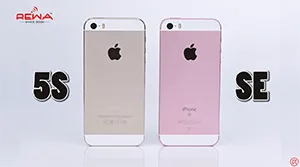
  • iPhone SE VS 5S Spare Parts Comparison

    iPhone SE VS 5S Spare Parts Comparison

    We all know that the iPhone SE is similar to the iPhone 5s in appearance and internal structure. What surprised us most is that they have many compatible components, which will reduce repair shops’ maintenance costs and supply chain pressure.

  • Upgrade iPhone X 64GB Storage to 256GB

    Upgrade iPhone X 64GB Storage to 256GB

    Today we will show you how to upgrade the storage of iPhone X from 64GB to 256GB with the help of iREPAIR DFU Box instead of traditional NAND chip programmers.

  • iOS 15.2 Beta No Longer Disables Face ID on iPhone 13 after DIY Screen Replacement

    iOS 15.2 Beta No Longer Disables Face ID on iPhone 13 after DIY Screen Replacement

    A few days ago, we confirmed that Face ID would be disabled after a screen replacement on iPhone 13. As iOS 15.2 is coming, Apple has patched the problem.

  • Troubleshooting iOS 15 Upgrade Issues on Apple Devices

    Troubleshooting iOS 15 Upgrade Issues on Apple Devices

    Upgrading to the latest iOS version, such as iOS 15, can bring exciting new features and improvements to your Apple mobile device. However, sometimes users encounter issues during the update process. In this guide, we’ll walk you through common problems and their solutions to ensure a smooth iOS 15 upgrade experience.

    1. Update Push Not Received

    Check Device Compatibility

    Before attempting to update to iOS 15, ensure that your device supports this version. Not all older devices may be compatible with the latest iOS updates.

    Remove the Beta Description Files

    If you have previously installed a beta version, go to “Settings” > “General,” tap on “Description Files and Device Management,” and remove the beta description file. Afterward, restart your device and check for updates in “Software Update.”

    2. Insufficient Space

    Clear Storage Space

    A lack of storage space can prevent you from updating your device. iOS will attempt to free up space by removing non-essential files, but it’s crucial to have enough storage to avoid potential data loss.

    To free up space, go to “Settings” > “General” > “[Device Name] Storage” to view and remove unused content and apps. Make sufficient space available for the update.

    3. Slow Download Progress

    Connect to the Internet

    Ensure a stable internet connection while downloading updates. The download speed can vary based on the update size and your network speed. For faster downloads, avoid using the device for other content and use a Wi-Fi network if possible.

    Wait for Installation Prompt

    You can continue using your device while downloading updates, and it will notify you when the installation is ready. Be patient, as the download time depends on the update’s size and the number of files on your device.

    4. Unable to Connect to Update Server or Verify Updates

    Network Issues

    If you encounter messages like “You can’t check the update” or “You cannot install updates,” try the following steps:

    • Attempt the update on the same network again.
    • If issues persist, switch to a different network.
    • Consider updating your device through 3uTools.

    If problems persist across multiple networks, try removing the update and attempting the download and installation again.

    5. Incomplete Update

    Slow Progress Bar

    During the update installation, the progress bar may move slowly, especially if you have a large number of files on your device. To ensure a smooth update, keep your device connected to a power source during wireless updates.

    Conclusion

    Upgrading to iOS 15 can enhance your Apple device’s performance and functionality, but it’s essential to address any issues that may arise during the process. By following these troubleshooting tips, you can resolve common problems and enjoy the benefits of the latest iOS version without hassle. Ensure your device is compatible, has enough storage space, and maintains a stable internet connection for a successful update experience.

  • iPhone 13 Series Users Encounter Apple Watch Unlocking Bug: What You Need to Know

    iPhone 13 Series Users Encounter Apple Watch Unlocking Bug: What You Need to Know

    The recent official release of the iPhone 13 series has left many users excited to experience the latest Apple technology. However, some users have run into an unexpected hiccup: they are unable to use the Apple Watch unlocking function, and an error message reading “Unable to connect with Apple Watch communication” appears. In this article, we’ll delve into the issue, its possible causes, and Apple’s plans for a solution.

    When the iPhone 13 series was released, some users were thrilled to get their hands on the new device. However, a few of them experienced an issue with the Apple Watch unlocking feature. This feature was introduced in April with iOS 14.5 and WatchOS 7.4, enabling users to unlock their iPhone using their Apple Watch. This feature is especially convenient during times when wearing a mask is necessary.

    The Requirements

    To use the Apple Watch unlocking feature, you need the following:

    1. An iPhone running iOS 14.5 or higher
    2. An Apple Watch with WatchOS 7.4 or higher
    3. An Apple Watch Series 3 or a more recent model
    4. A paired Apple Watch that’s being worn, even with a mask

    The Glitch

    Many users have reported encountering an error message that disrupts the Apple Watch unlocking process. The message states, “Unable to connect with Apple Watch communication.” This issue has left users frustrated as they are forced to manually enter their passwords while wearing masks, causing inconvenience.

    Possible Causes

    Apple’s commitment to security means that inter-device communication requires complex authentication. One possible cause of this problem stems from users either transferring data directly to their new iPhone or first backing up their original device and then restoring it to the new iPhone. In these scenarios, it’s possible that security certificates or signature files, originally bound to the old device, are carried over, leading to authentication problems between the Apple Watch and the new iPhone.

    Apple’s Response

    Thankfully, Apple has acknowledged this issue and plans to resolve it in a future software update. They have officially confirmed that the “Using Apple Watch Unlock” function is not working correctly on the iPhone 13 and have assured users that the problem will be addressed in an upcoming update.

    Conclusion

    For iPhone 13 users experiencing difficulties with the Apple Watch unlocking function, patience is key. Apple is actively working on a solution, and a software update is on the horizon. Until then, users may need to rely on traditional manual password entry when their Apple Watch can’t assist them. Stay tuned for updates from Apple, and soon, this inconvenience will be a thing of the past.

    In the meantime, if you’re still encountering issues, be sure to keep an eye on Apple’s official communications for news of the update release. Your Apple Watch may soon be your trusty companion in unlocking your iPhone once again.

  • iOS 15.2 Beta Update: Enhancing Privacy, Emergency SOS, and More

    iOS 15.2 Beta Update: Enhancing Privacy, Emergency SOS, and More

    Apple has recently rolled out the first beta test version of iOS 15.2, marked with the version number 19c5026i. This update brings several noteworthy features and improvements, with a primary focus on enhancing user privacy and safety. In this article, we will delve into the key highlights of the iOS 15.2 beta update.

    key highlights of the iOS 15.2 beta update.

    App Privacy Report

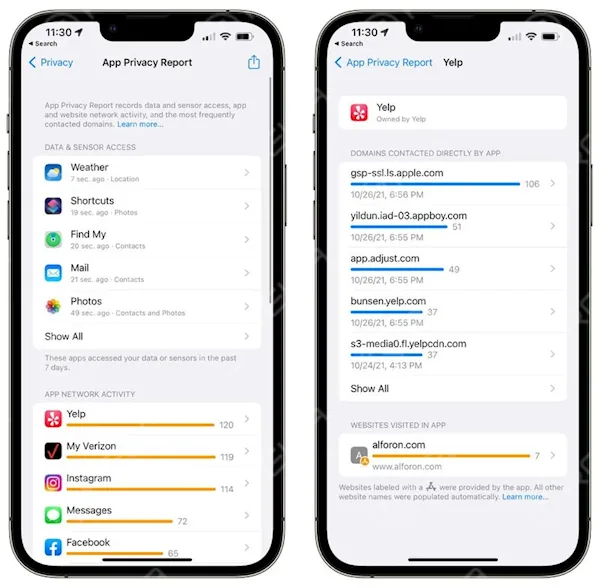
    Privacy has been a core concern for smartphone users, and Apple continues to address this with the iOS 15.2 beta update. One of the standout features is the App Privacy Report, which empowers users to gain insights into their applications’ activities, including data network usage, location information, access to address books, and more.

    To access this feature after updating your device to iOS 15.2:

    1. Go to “Settings.”

    2. Select “Privacy.”

    3. Tap on “App Privacy Report.”

    4. Enable “Open Application Privacy Report.”

    ios 15 beta update enhancing privacy emergency sos more

    Once activated, this feature will begin displaying the data whenever you use an application. This transparency gives users a better understanding of how apps interact with their data.

    Emergency SOS

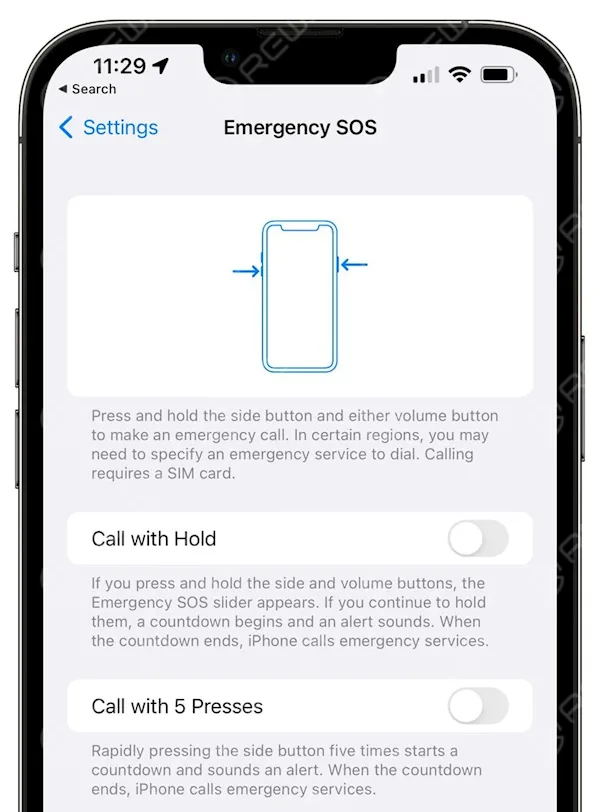
    The Emergency SOS feature on iPhones plays a critical role in ensuring user safety. When activated, it automatically dials the local emergency number and shares your current location with your emergency contacts via SMS.

    In the iOS 15.2 beta, the SOS Emergency Call function receives some notable updates for even quicker access and enhanced safety:

    Activation: Now, you can activate Emergency SOS by using a combination of the power button and volume keys. Alternatively, a quick press of the power button five times will activate it.

    Countdown Timer: The automatic dialing countdown has been extended from 3 seconds to 8 seconds. This gives users more time to cancel the call if it was accidentally triggered.

    ios 15 beta update enhancing privacy emergency sos more 2

    Notification Summary

    Managing notifications is made more efficient and organized with the iOS 15.2 beta. The Notification Summary feature receives an update with improved card appearances. This means that your notifications are presented in a cleaner and more visually appealing manner.

    Information Security

    For parents concerned about their child’s online safety, the iOS 15.2 beta offers a valuable feature. When parental controls are enabled on a device used by a child, the system will notify parents if it detects the transmission or receipt of inappropriate content, such as indecent images.

    This proactive approach empowers parents to stay informed and take necessary actions to protect their children online.

    Conclusion

    The iOS 15.2 beta update from Apple introduces significant enhancements in user privacy, safety, and notification management. With the new App Privacy Report, users can gain insights into app activities, while the updates to Emergency SOS and Notification Summary streamline important functions. Additionally, the focus on information security ensures a safer digital environment for young users.

    As you explore these features in the iOS 15.2 beta, remember to provide feedback to Apple to help shape the final release, and stay tuned for further improvements as the beta testing progresses. Your data privacy and safety are at the forefront of Apple’s efforts, and these updates reflect their commitment to delivering a secure and user-friendly experience.

    Disclaimer: This article discusses features in the iOS 15.2 beta, and some details may be subject to change in the final release. Please keep your device updated and refer to official Apple resources for the latest information.

  • A Cheaper Solution To Fix iPhone 6s 3D Touch Backlight

    A Cheaper Solution To Fix iPhone 6s 3D Touch Backlight

    There is now a way to transfer iPhone 6 backlight to iPhone 6S backlight, which can save you a considerable amount on each piece. Check it out today if you are looking for more information about repair and refurbishing.

  • Fix iPhone X Wireless Charging via Jumper Wires

    Fix iPhone X Wireless Charging via Jumper Wires

    Jumping wire is a classic repair technique used to fix many kinds of phone problems. This video shows you how to fix iPhone X wireless charging with jumper wires.

  • Unlock iPad Air

    Unlock iPad Air

    It is for technical sharing only; if you have a locked iCloud, please contact Apple’s official customer service. With a 64-bit system repair tool, you can remove the activation lock of iPhone 5s/6/6 plus/iPad Air/Air 2/mini/mini 2/mini 3/mini 4 by changing the serial number.

  • Things You Don’t Know About iPhone 13

    Things You Don’t Know About iPhone 13

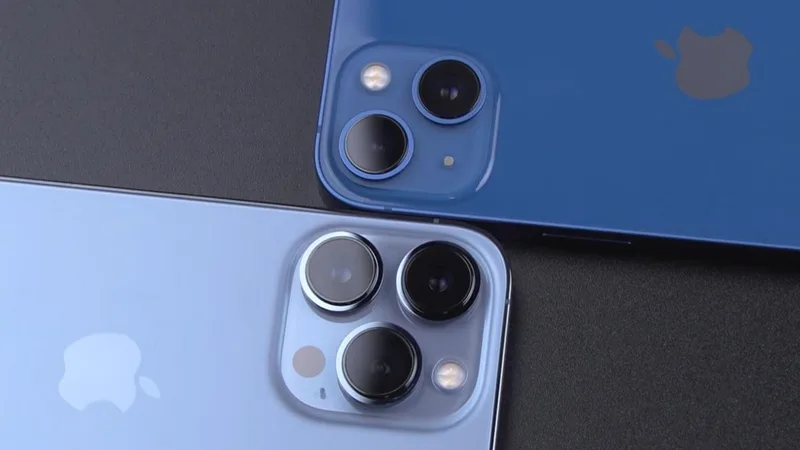
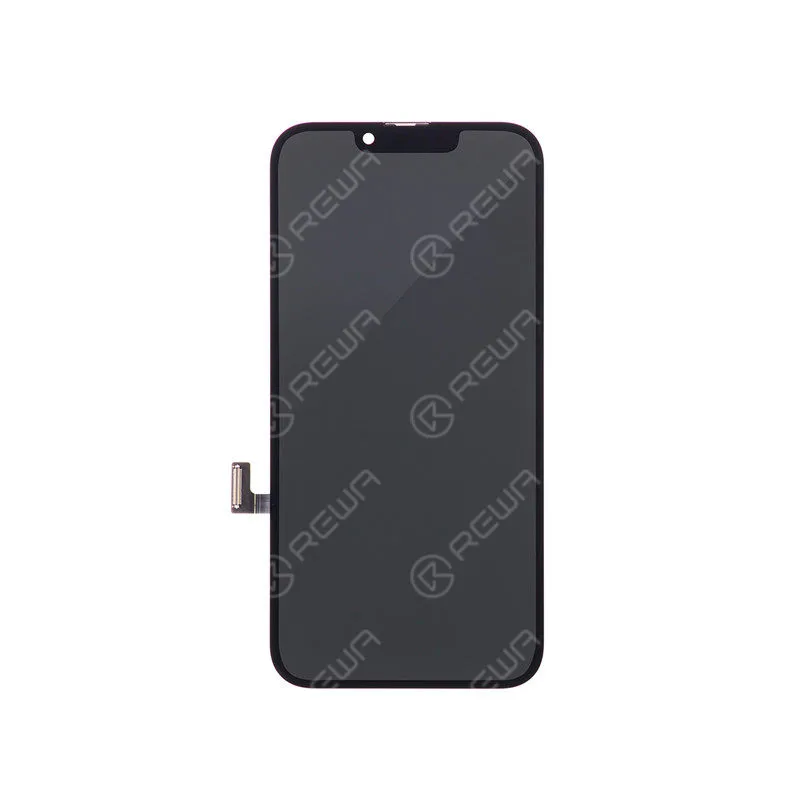
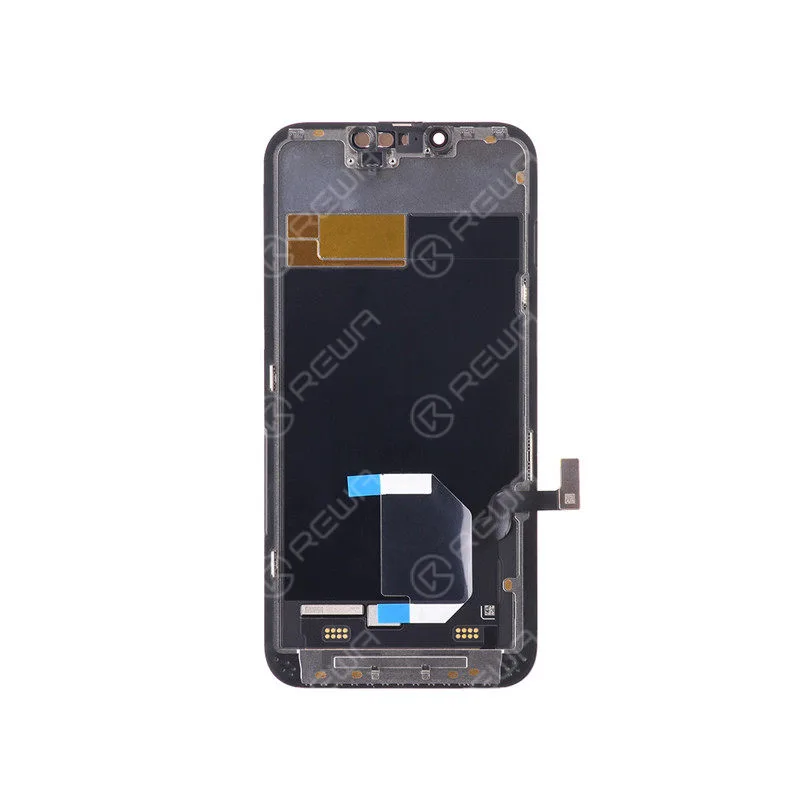
    The iPhone 13 lineup brings an impressive array of features, but what many users don’t realize is that not all screens are created equal. In this guide, we’ll walk through the different screen types used in the iPhone 13/13 mini and iPhone 13 Pro/Pro Max, their manufacturers, and some lesser-known facts that can affect repairs and functionality.

    iPhone 13 and iPhone 13 Mini Screen Variants

    The iPhone 13 and iPhone 13 Mini models use five different screen types from two manufacturers:

    iphone 13
    • G9N: Made by Samsung, this is the highest-quality screen used in the iPhone 13 lineup. It offers superior clarity, color accuracy, and durability.
    • G9Q: Also from Samsung, this is a second-tier screen. While still good, it doesn’t quite match the G9N in terms of overall quality.
    • GVC: This is LG’s best screen, but it ranks as a third-class screen compared to Samsung’s G9N and G9Q.
    • G9P: Another Samsung-manufactured screen, this fourth-tier display has lower quality control standards, making it less reliable.
    • GH3: Manufactured by LG, this fifth-class screen is the lowest in the lineup. It’s less durable and has poorer color accuracy.

    iPhone 13 Pro and iPhone 13 Pro Max Screen Variants

    The iPhone 13 Pro and Pro Max use three different screens:

    • G9N: Samsung’s top-tier screen.
    • G9Q: The second-tier screen from Samsung.
    • G9P: A lower-quality screen from Samsung, similar to the one used in the iPhone 13/13 mini.
    iphone 13

    Understanding Screen Quality Differences

    The difference in screen quality across the iPhone 13 lineup is subtle but significant. If you ever need to replace your screen, be aware that not all screens perform the same. Choosing a G9N screen from Samsung ensures the best performance, while GVC and GH3 from LG provide a more budget-friendly but lower-quality option.

    Things You Didn’t Know About iPhone 13 Screen and Face ID

    1. Face ID & Screen Replacement
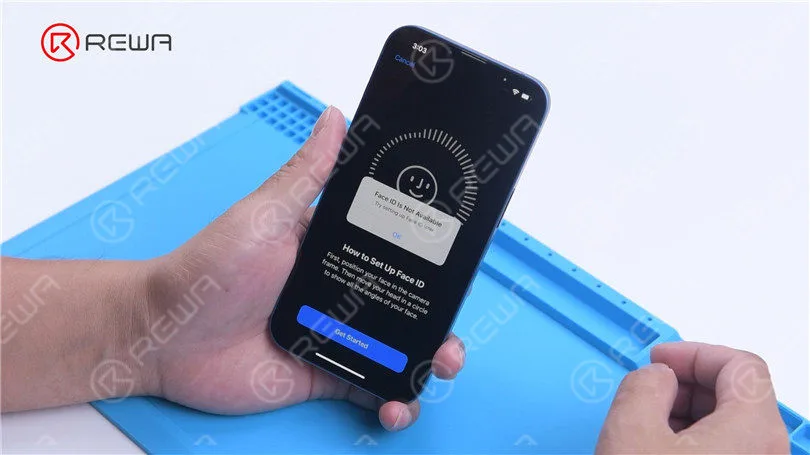
      Replacing the screen on any iPhone 13 model will disable Face ID. This is a critical consideration for both technicians and DIY repairers. The issue arises because the Face ID hardware is calibrated to each individual screen.
    2. Front Camera and Sensor Replacement
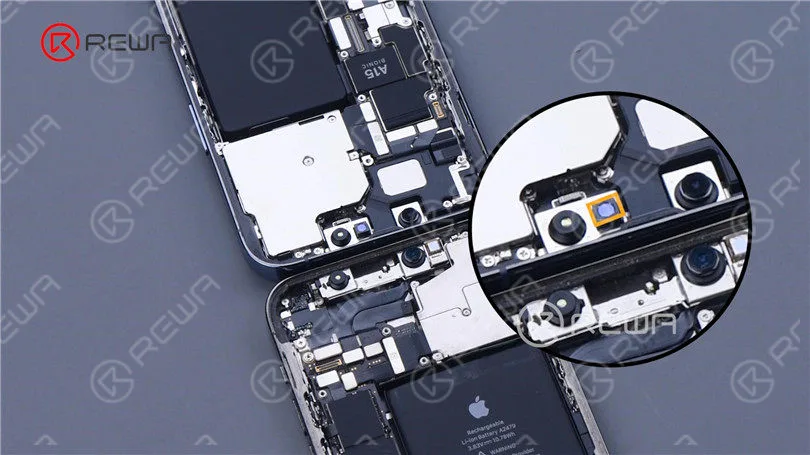
      Good news! Replacing the front camera or sensor on an iPhone 13 will not affect Face ID functionality, unlike previous models where it was tightly integrated.
    3. Dot Projector & Flood Illuminator Integration
      The dot projector (part of the Face ID system) is now integrated with the flood illuminator. When performing a teardown, extreme caution is necessary. Any damage to these components will result in a complete Face ID failure.

    iPhone 13 Boot-Up Time

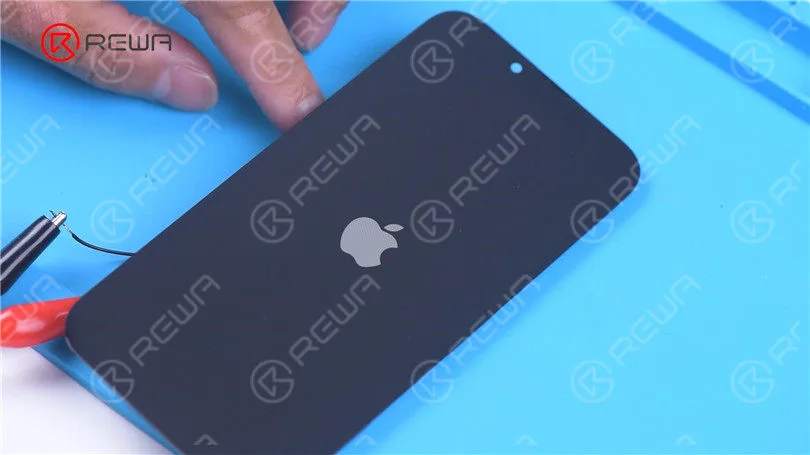
    One peculiar quirk with the iPhone 13 lineup is its longer boot-up time. It takes 8-10 seconds for the Apple logo to appear on the screen after powering on, which is longer than previous iPhone models. This delay is due to updates in internal hardware and boot processes.

    Things You Don't Know About iPhone 13

    iPhone 13 NAND Interchangeability

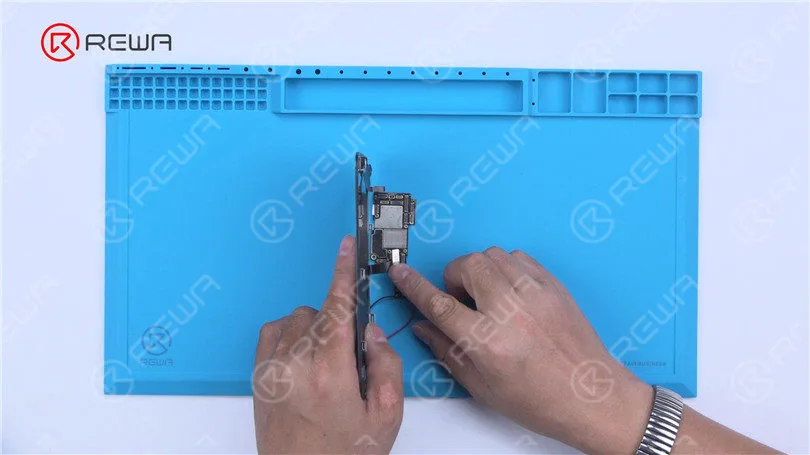
    Another unique feature is that the NAND memory in the iPhone 13 lineup is interchangeable, meaning you can swap the storage chip between devices. This allows for potential upgrades or repairs without needing specialized components.

    Things You Don't Know About iPhone 13

    Conclusion

    The iPhone 13 series brings a lot of impressive tech but also introduces complexities with its varied screen types and sensitive Face ID system. If you’re planning a screen replacement or teardown, ensure you’re aware of these factors to avoid functionality issues. Knowing which screen is best for your device and how repairs can affect features like Face ID will help you keep your iPhone 13 running smoothly.

  • iPhone XS Signal (RF) Board Swap

    iPhone XS Signal (RF) Board Swap

    For iPhone XS signal board swap, just swap the baseband CPU and EPROM.