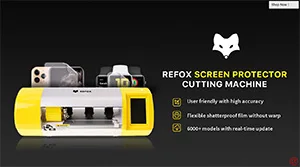
For repair shops, mobile phone accessories account for a particularly high percentage of sales volume. And screen protectors are unquestionably the most popular among all accessories. Are you tired of stocking screen protectors of different models and worrying about the sales volume of them? Well, REFOX Screen Protector Film Cutter Machine Set at your service. Check out our video today and you will understand how this amazing machine can meet screen protector needs of different users and help with your inventory problems!
Tag: iphone
-
iPhone XR Water Damage (iTunes Error 14) | iPhone Repair Tips
More than a week ago, we ran a poll on our YouTube community to gather suggestions for our next video and iPhone XR water damage won the highest votes. And here it comes. Check out our video today and you will learn how to pinpoint the faulty cause with the help of the error code and troubleshoot iPhone XR water damage step by step. Hope this video can enlighten you in your daily repair work.
-

A Rare Case Of iPhone X Stuck On Apple Logo(iTunes Error 4013)
iPhone gets stuck on the Apple logo, which usually means that there is a problem with the operating system or hardware of the phone. Check out our video today and we will show you how to diagnose and fix the problem step by step.
-
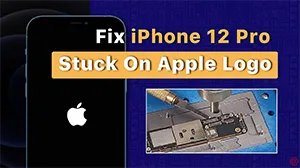
How to Fix iPhone 12 Pro Stuck on Apple Logo?
Today we will share a repair case of an iPhone 12 Pro that gets stuck on the Apple logo. The phone could be turned on before, but it got stuck on the Apple logo during startup after charging. Through testing, the fault was confirmed on the USB charging circuit. After USB IC replacement, the fault has been eliminated. Let’s check it out!
Products recommended in this video:
-
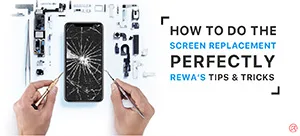
iPhone Screen Replacement Tools and Tips (iPhone XS Demo)
Screen replacement is the most basic but common business of repair shops. Professional screen refurbishing operations can not only reduce the failure rate of screen replacement but also improve repair efficiency. Today REWA LAB will take iPhone XS as an example and walk you through the latest technology of flat-screen replacement. Check our video and power your repair business now!
- 00:00 Intro
- 00:19 iPhone XS Screen Replacement Tutorial
- 00:29 Tools & Materials
- 01:24 Screen Removing
- 03:39 Transplant the Earpiece Speaker and Sensor Assembly
- 05:41 True Tone Restoration
- 06:49 Screen Installation
-
How to Fix iPhone XS No Service
Today we will share a case about repairing an iPhone XS that has no service. The phone had no service after being dropped and couldn’t be activated after a system upgrade.
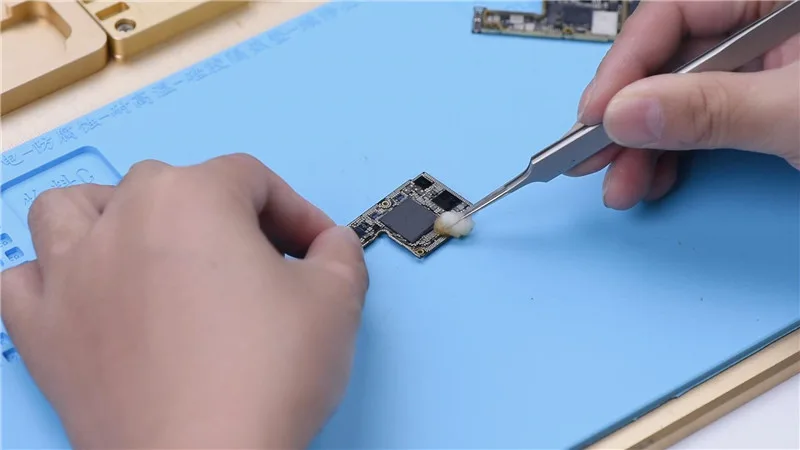
Firstly, inspect the appearance of the motherboard. The motherboard is not deformed or water damaged.
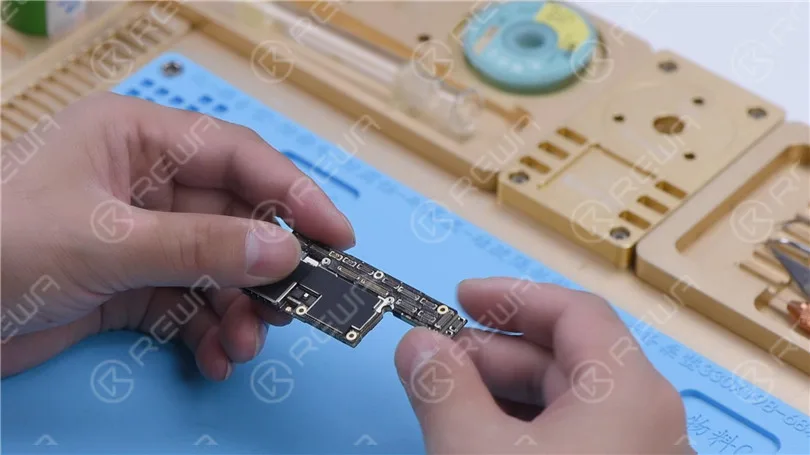
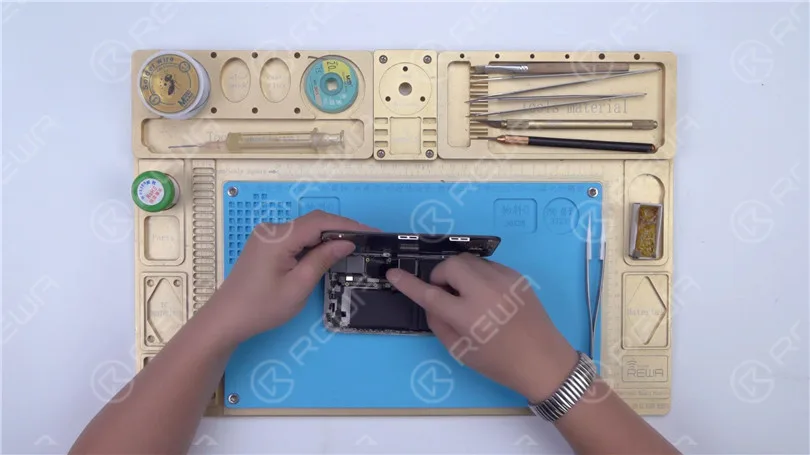
Then we install the motherboard on the phone to test. Connect the display and battery. Insert the SIM card. The phone can be turned on. However, the ICCID is not showing, which indicates that the SIM card is not read.
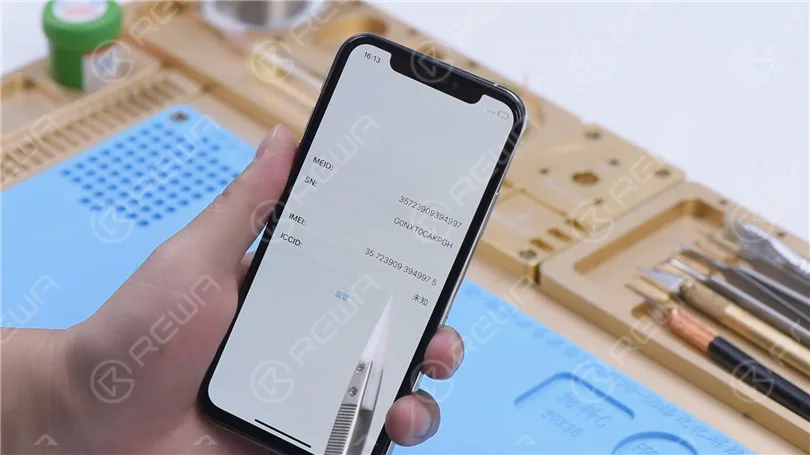
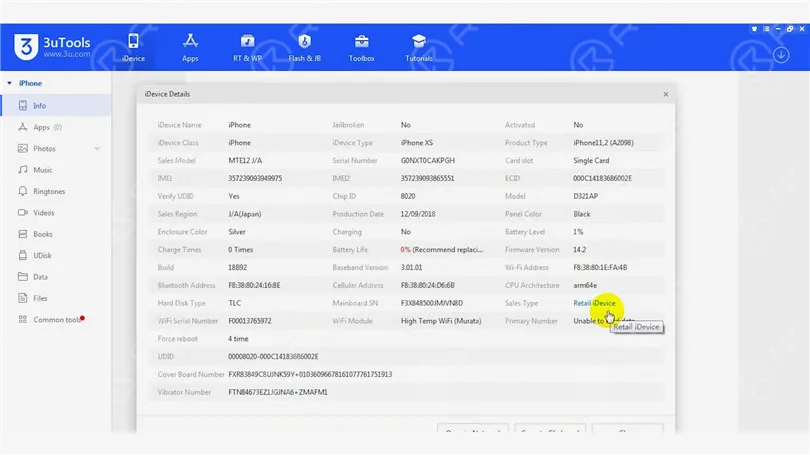
Connect the phone to the computer. Open 3uTools and view device details. 3uTools is unable to read data of the baseband version and Wi-Fi module.
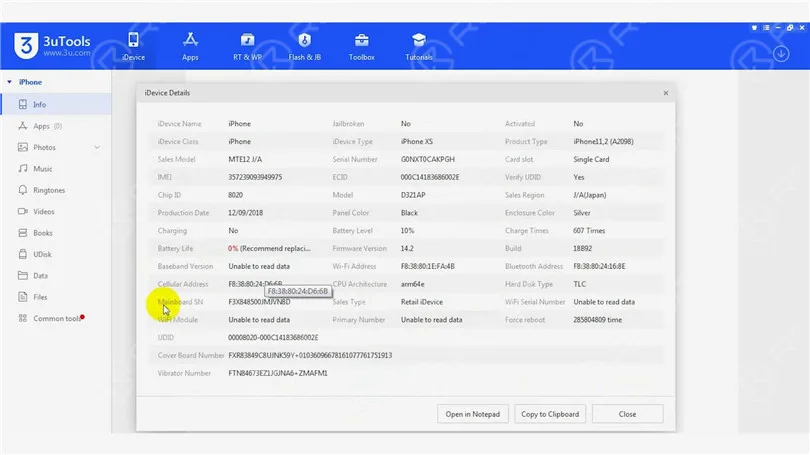
Because the phone had no service after being dropped. It can be preliminarily judged that the pseudo-soldering of the middle layer may cause the trouble. Next, we need to separate the motherboard. Put the motherboard on the Heating Platform and peel off the foam.
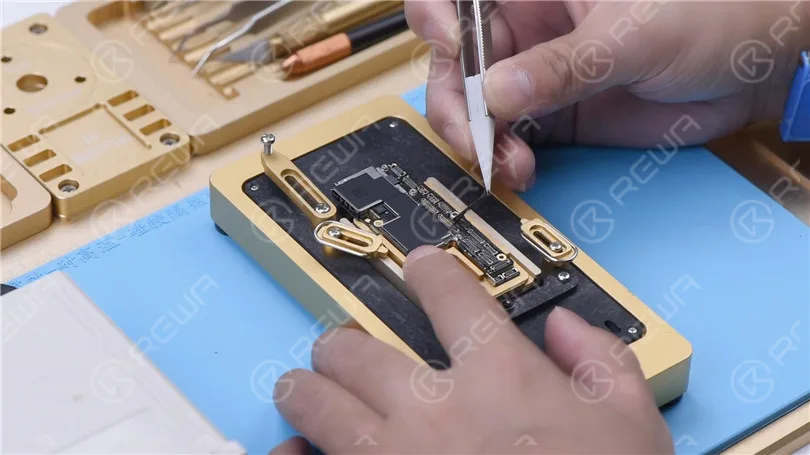
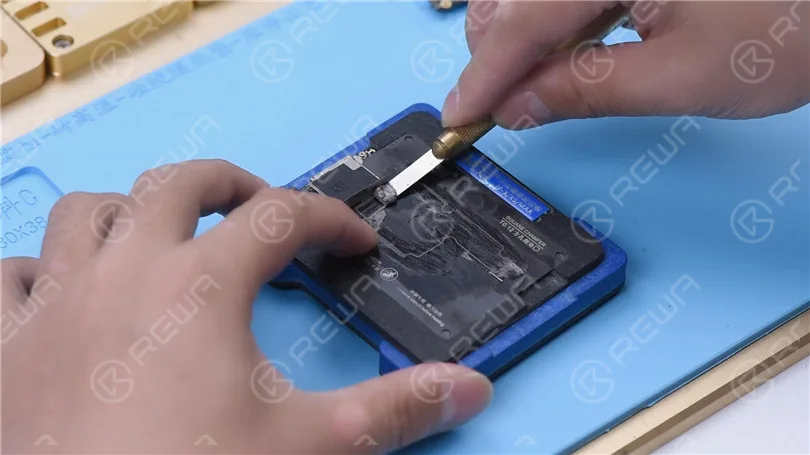
To make it easier to remove the logic board after separation, drive a screw on the logic board. Cut through the tape with a sculpture knife.
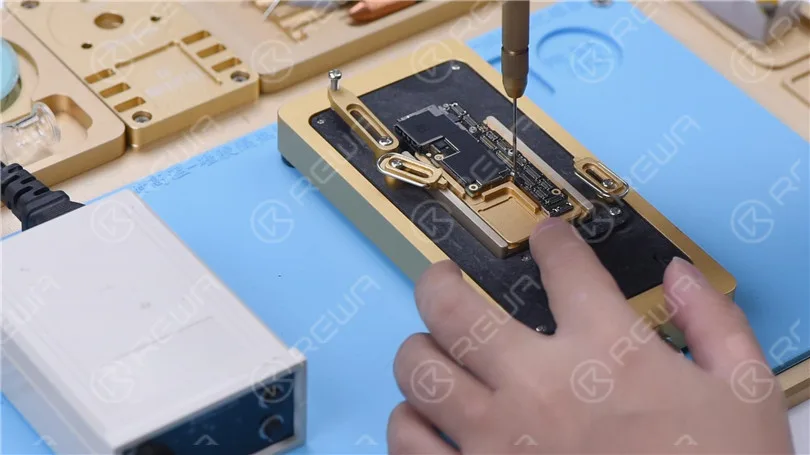
Set the temperature of the Heating Platform to 180℃ to heat the motherboard. When the temperature reaches 180℃, press the signal board with a pair of tweezers. Clamp the screw to remove the logic board with another pair of tweezers. Then turn off the power and take down the signal board.
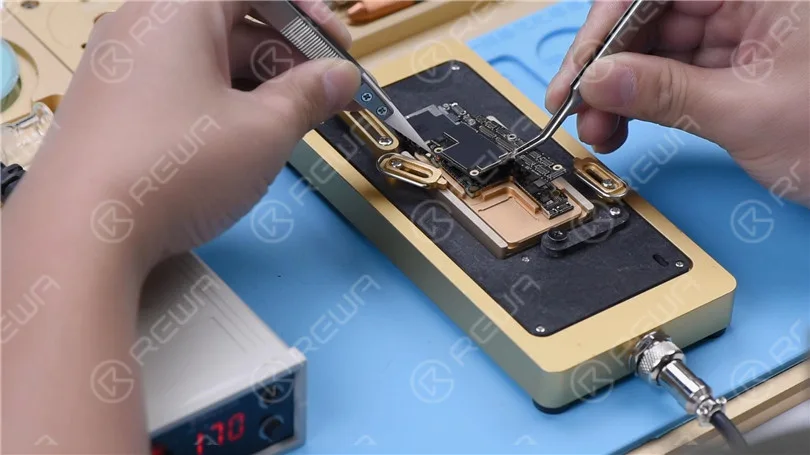
Remove thermal grease on the logic board and signal board. Attach the signal board to the holder. Dip rosin with Soldering Iron at 365℃ and solder wick to remove tin on the bonding pad. Remove tin on the logic board with the same method.
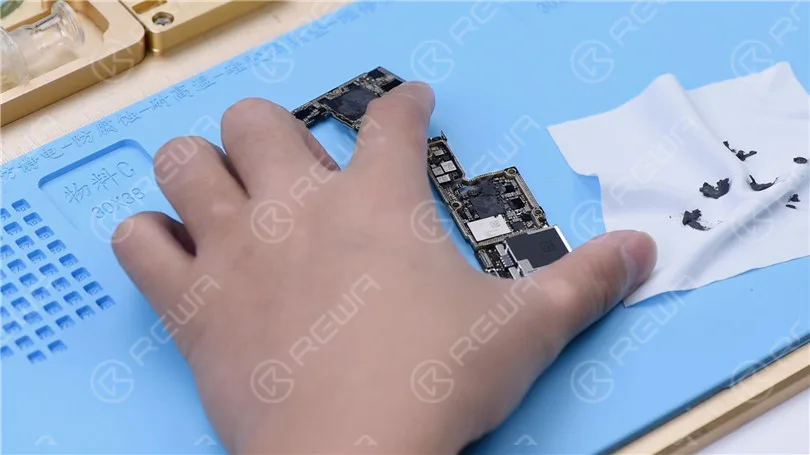
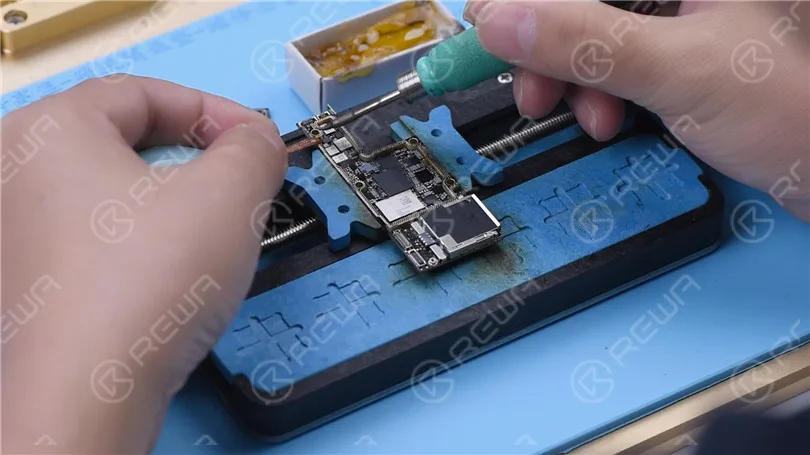
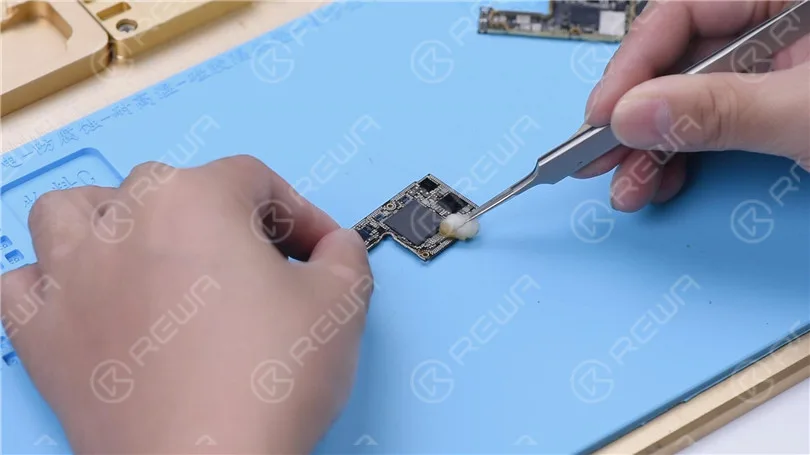
Clean the logic board with PCB Cleaner and remove the screw. Clean the signal board with PCB Cleaner.
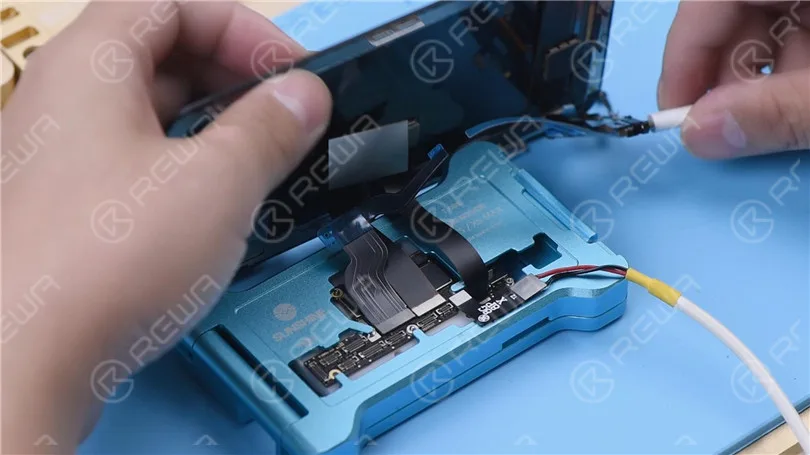
Attach the signal board and logic board to the Testing Fixture. Connect the screen to the motherboard with a Test Extension Cable. Connect the charging port flex cable and power cable. Then turn the phone on by connecting it with the computer.
Open 3uTools and view device details. The baseband version and Wi-Fi module can be read. It can be confirmed that the pseudo soldering causes the absence of the baseband version.
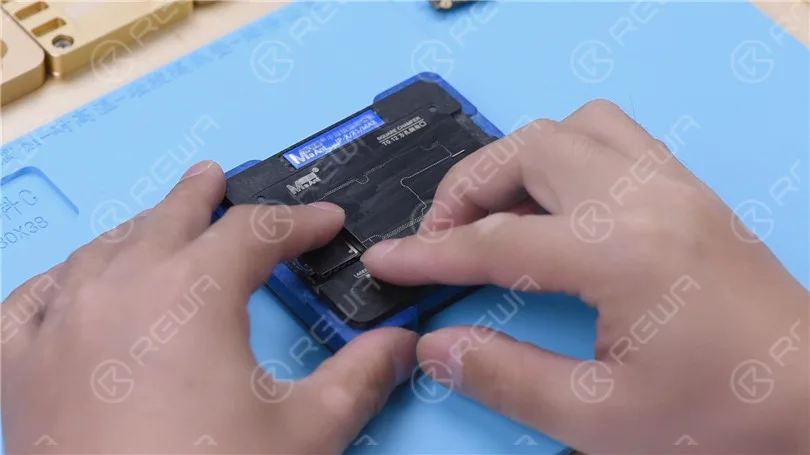
The next thing we need to do is to recombine the logic board and signal board. Put the signal board on the Reballing Platform. Put the Reballing Stencil in position. To prevent the solder paste from flowing into the motherboard crevices, insert a metal plate.
Apply a layer of low-temperature Solder Paste. Wipe off excess solder paste with an anti-static wipe. Remove the Reballing Stencil and signal board.
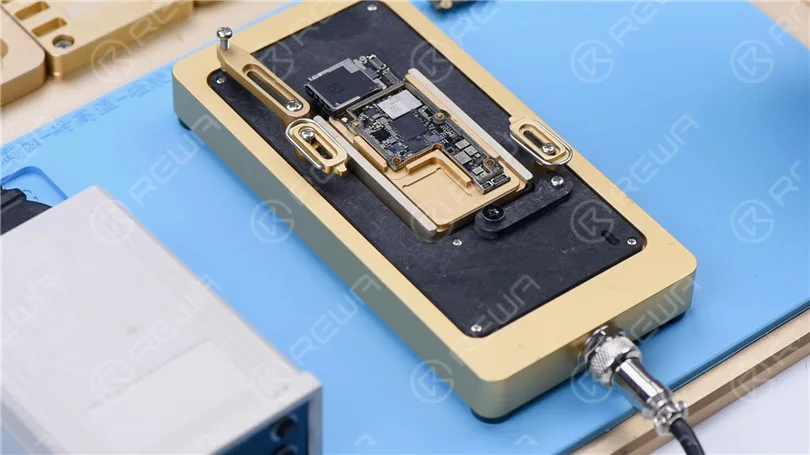
Put the signal board on the Heating Platform. Set the temperature to 180℃ to heat. After the solder balls are formed, turn off the power and cool the signal board. Apply some Paste Flux. Align the logic board with the signal board. Keep heating the motherboard at 180 ℃. When the temperature has risen to 180℃, keep heating for one minute. Turn off the power and cool the motherboard for five minutes.
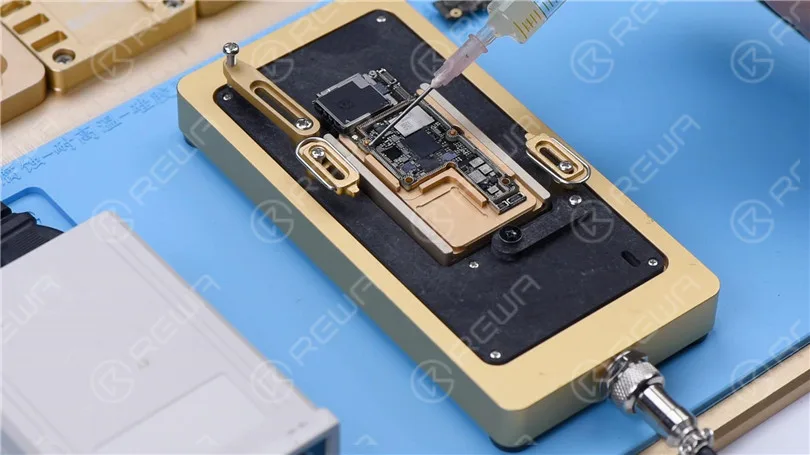
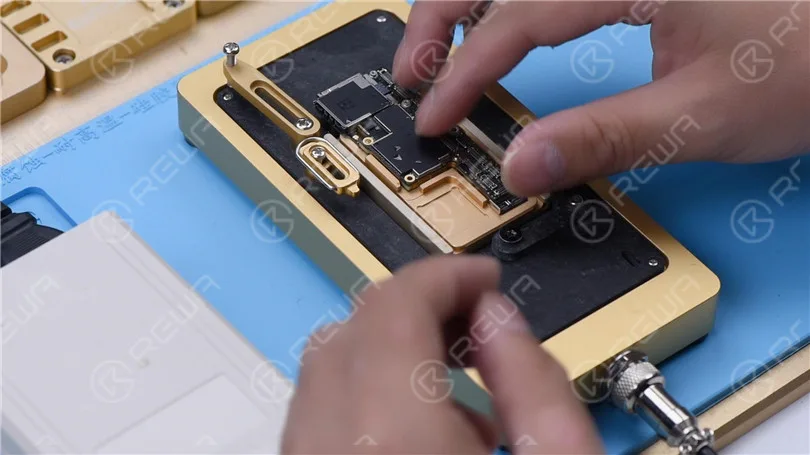
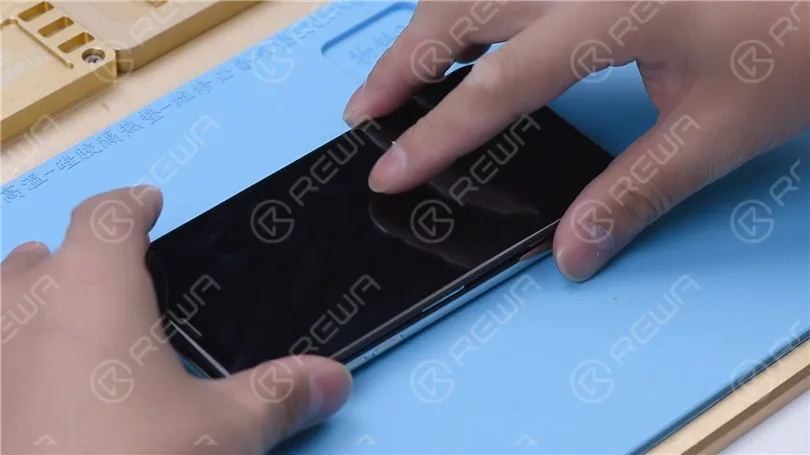
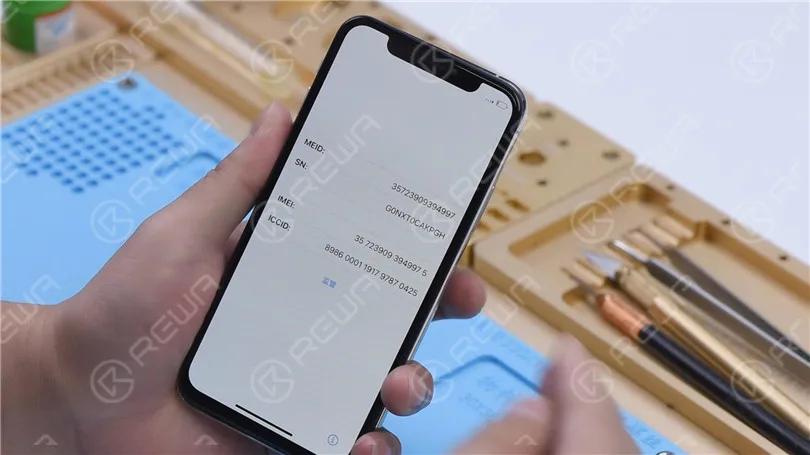
After recombination, install the motherboard on the phone. The phone can be turned on. Insert the SIM card. ICCID is showing. Because the phone has a network lock and we don’t have a SIM card of the carrier. No further tests can be conducted.
Conslusion
The iPhone XS had no service after being dropped. 3uTools couldn’t read the baseband version when we connected the phone to the computer. Through motherboard separation and testing the phone on the testing fixture, we confirmed that the no service trouble was caused by the pseudo soldering of the motherboard middle layer. ICCID came back to normal and the fault was cleared after we recombined the logic board and signal board.
Please visit our academy to learn more about phone repair knowledge.
-
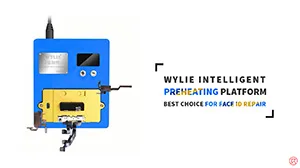
For Safe & Efficient FACE ID Repair – REWA SELECTED WYLIE Intelligent Preheating Platform
Hot Air Guns are commonly used for desoldering/soldering in Face ID repair. However, the operation of a hot air gun is difficult and it can easily bring damage to components. And that’s why REWA LAB brings you this brand-new Heating Platform. Specially designed for Face ID repair, the heating platform can heat Face ID parts evenly and efficiently with simple operation. Check out our video now and you will definitely be surprised!
- 00:00 Intro
- 00:18 WYLIE Intelligent Preheating Platform
- 00:35 Temperature Setting
- 01:27 Ambient Light Sensor&Flood Illuminator Repair
- 02:29 Front Camera&Infrared Camera& Dot Projector Removing
- 04:08 Dot Projector Repair
- 05:13 Separating/recombining of double-stacked motherboards
-
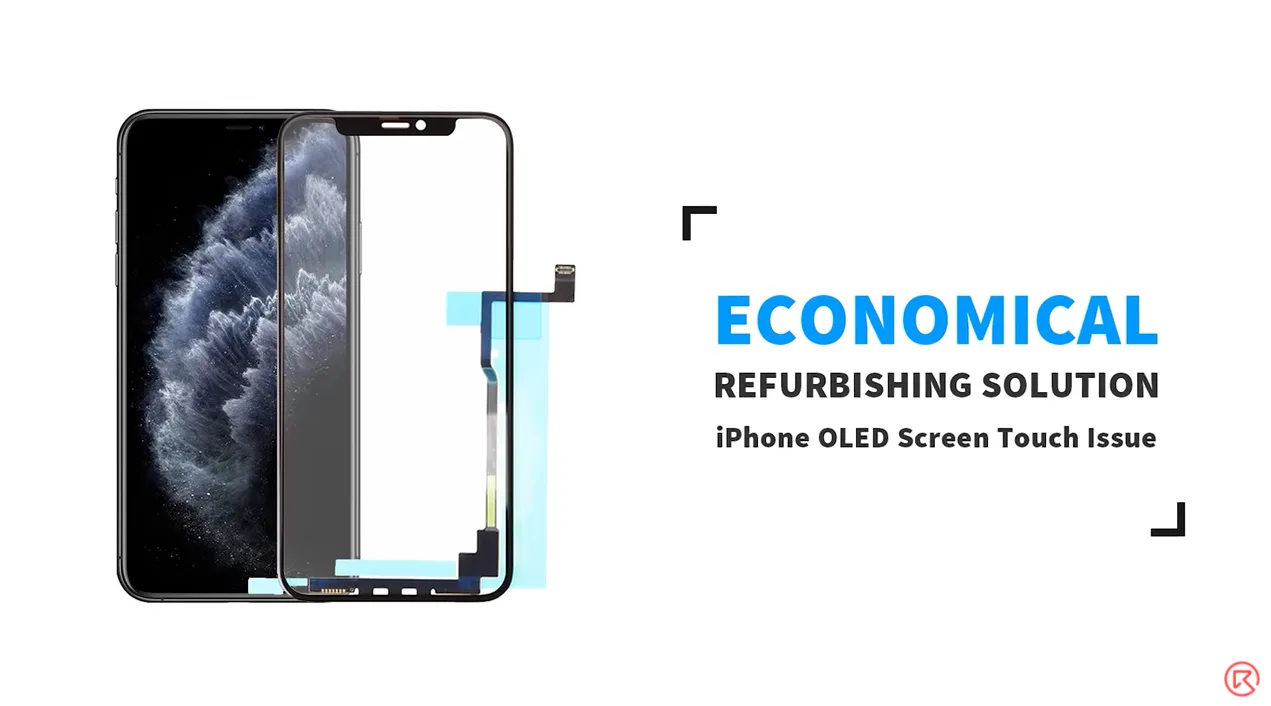
The Cost-effective Refurbishing Solution for iPhone Screen Touch Issue (iPhone 11 Pro Max Demo)
Most of the time the touch issue of iPhone X and above is a screen/motherboard issue. For touch issues caused by screen malfunction, a screen replacement is usually the solution adopted by repair shops. The operation of screen replacement is simple but the price of a new screen is high. It’s time for you to make a change and stand out from competitors in your city with this brand new and cost-effective refurbishing solution – touch panel replacement.
- 00:00 Intro
- 01:11 Bezel Removing
- 03:15 TP Separating
- 05:10 Glue Removing
- 07:00 Laminating
- 13:03 Test
-
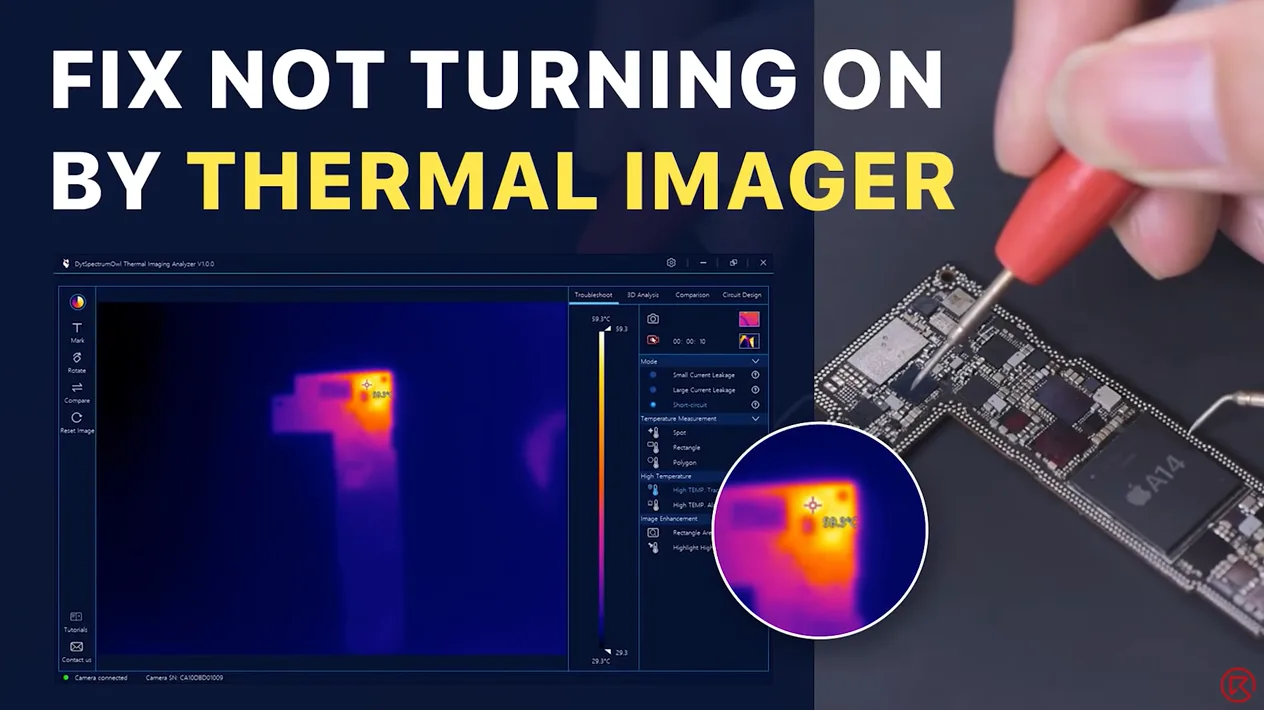
Fix iPhone 12 Won’t Turn On By Infrared Thermal Imaging Camera
Today we will share a repair case of an iPhone 12 that won’t turn on. After multiple attempts to turn on the iPhone 12, the iPhone 12 still won’t turn on. We have excluded the possibility of the display assembly and battery faults, so we speculate the cause is the short circuit of the motherboard. To find the faulty part, we have used the latest infrared thermal imager camera that differs from the complicated rosin detecting. Let’s check it out!
-
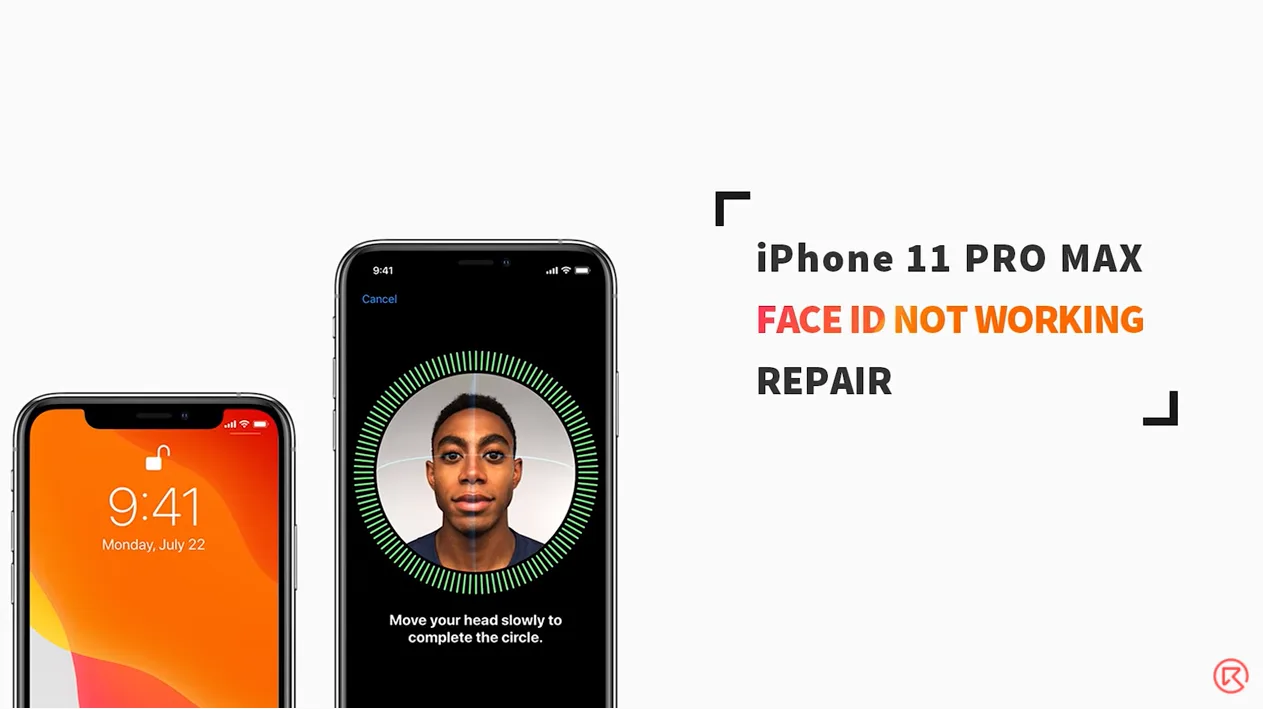
How To Fix iPhone 11 Pro Max Face ID Not Available – Motherboard Repair
As we all know, iPhone X and later models can easily come with Face ID failure after being dropped or water damaged. However, it should also be noted that improper operation during daily repair might also bring damage to Face ID relevant components and therefore result in Face ID failure. And that’s what our iPhone 11 Pro Max Face ID repair video is about today. Check it out now!
- 00:00 Intro
- 00:14 How to Fix iPhone 11 Pro Max Face ID Not Available
- 00:26 Tools & Materials
- 00:50 Diagnosis
- 05:58 Motherboard Repair
- 08:00 Assemble the Phone and Test
 English
 Español
 Français
 Deutsch
 Italiano