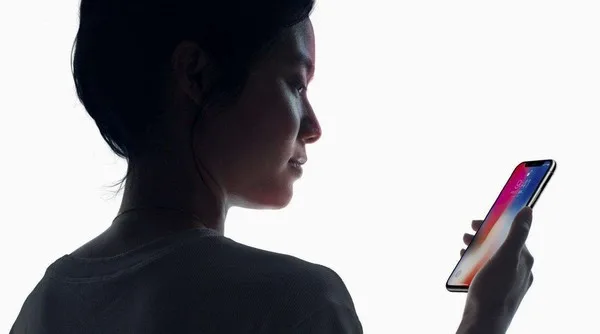
Tag: iphone

  • Exploring Face ID on iPhone: A Secure Facial Recognition System

    Exploring Face ID on iPhone: A Secure Facial Recognition System

    Face ID is a facial recognition system that replaces Apple’s Touch ID fingerprint scanner on certain devices. It uses sensors located near the iPhone’s front-facing camera to scan your face and, if the scan matches the stored data, perform actions such as unlocking the phone or authorizing an Apple Pay transaction.

    How Does Face ID Work?

    Face ID relies on sensors located in the notch at the top of compatible iPhone screens. These sensors include:

    1. Dot Projector: This projects over 30,000 invisible dots onto your face, creating a 3D facial map.
    2. Infrared Camera: It reads the dots from the Dot Projector and captures an image.
    3. Flood Illuminator: This additional infrared light ensures that Face ID works even in low-light conditions.

    The facial map created by the infrared camera is then compared to the data stored on your iPhone to unlock the device or authorize an Apple Pay transaction. It’s also used for features like creating animated emojis based on your facial expressions.

    Apple claims that Face ID is intelligent and sensitive enough to recognize you even if you change your hairstyle, wear glasses, grow or shave facial hair, or age. However, there have been some instances where Face ID has misidentified individuals, including twins and children who closely resemble their parents.

    What Is Face ID Used for on an iPhone?

    Face ID is used for various purposes, similar to Touch ID, including:

    • Authorizing Apple Pay transactions.
    • Unlocking the iPhone without using a passcode.
    • Providing access to your Apple ID and passwords

    What Devices Support Face ID?

    Face ID is supported on the iPhone X and newer models. It’s possible that, like Touch ID, Face ID may eventually be added to other Apple devices like the iPad.

    Is My Face Scan Stored in the Cloud?

    No, Face ID data is not stored in the cloud. All face scans are kept directly on your iPhone, specifically in the “Secure Enclave,” a chip dedicated to securing sensitive data. This is also where fingerprint data from Touch ID is stored.

    How Secure Is My Face Scan?

    Face ID is highly secure due to the way the Secure Enclave functions. Your actual facial scan isn’t stored on your iPhone. Instead, it’s transformed into a numerical representation that is stored on your device. Even if someone were to somehow access the Secure Enclave data (which is extremely unlikely), they would only find a numerical code, not an actual scan of your face. This makes it nearly impossible to misuse the data in other facial recognition systems.

    How to Set up and Use Face ID

    Setting up Face ID is straightforward, and you likely did it during the initial iPhone setup. You position your face within the onscreen frame and rotate your head until the circle is filled in. Repeat this process as instructed by the phone. If you skipped this step during setup, you can later add Face ID by going to Settings > Face ID and Passcode and following the onscreen instructions. You can also add alternative appearances to Face ID, such as someone you trust or different photos of yourself with varying facial features.

    How to Disable Face ID

    To quickly disable Face ID, press the side button and volume down buttons simultaneously. To re-enable Face ID, you’ll need to enter your passcode.

    How Does Face ID Compare to Other Smartphone Facial Recognition Systems?

    Face ID has been widely praised for its accuracy, speed, and ease of use. The transition from Touch ID to Face ID was smoother than anticipated. In contrast, some other facial recognition systems, such as those used by Samsung, have been shown to be less secure and easier to trick, even with a simple photo. Samsung does not allow its facial scans to authorize financial transactions, as Touch ID can on an iPhone.

    Using Face ID When Wearing a Face Mask

    With the iOS 14.5 update, users can unlock their iPhone X and later use Face ID while wearing a face mask. This feature requires an unlocked Apple Watch Series 3 or later to be nearby. Simply glance at your iPhone, and your Apple Watch will provide haptic feedback to confirm that the iPhone is unlocked.

    Frequently Asked Questions

    How does Apple Face ID work with a scarf?

    Face ID is designed to work with head coverings like scarves and eyewear. It should be able to recognize your face even if you are wearing a hat, scarf, glasses, contact lenses, or many types of sunglasses.

    Does Apple Face ID work when eyes are closed?

    No, it doesn’t. Face ID is attention-aware and can detect if your eyes are open and your attention is directed toward the device. This feature helps prevent someone from unlocking your device without your knowledge.
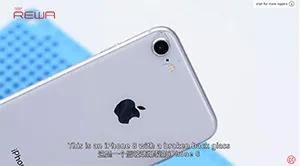
  • iPhone 8/8P/X Broken Back Glass Repair – A New Cost-effective Way

    iPhone 8/8P/X Broken Back Glass Repair – A New Cost-effective Way

    iPhone 8/8P/X back glass is fragile and difficult to repair because it is connected to the housing with welds and glue. We have already released a video about how to repair iPhone 8 broken back glass with a Separator for large quantities of broken back glass refurbishment.Today we are going to introduce a new Grinding Tool to finish iPhone X back glass refurbishing in a cost-effective way.

    Warning: Safety glasses and Anti-cutting Gloves are recommended during the iPhone X Back Glass Repair Process.

  • REWA iPhone Screen & Flex Compatibility Test On iOS 12

    REWA iPhone Screen & Flex Compatibility Test On iOS 12

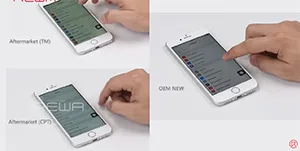
    Since iOS 12 has been released recently, REWA LAB has conducted a series of compatibility tests for iPhone series from iPhone 6s to iPhone X with OEM NEW, OEM REFURB and aftermarket screens respectively. According to the test results, common functionality like touch functionality, 3D Touch, proximity sensor functionality and light sensor functionality function normally on iOS 12. Now, let’s take iPhone 8 and iPhone X as examples and show you how the test goes.

  • Fix iPhone 7 Plus Won’t Turn On After Water Damage – Rosin Smoke Method

    Fix iPhone 7 Plus Won’t Turn On After Water Damage – Rosin Smoke Method

    As we all know, when supplying the short-circuited logic board with power, faulty components on it will get hot. For logic board bearing significant fever, we can locate the faulty component quickly and precisely with ‘rosin smoking’ method or freeze spray method. Today we are going to introduce a repair case for iPhone 7 won’t turn on after water damage. For more detailed application, check our video and we will show you how to fix iPhone 7 Plus can’t power on in an efficient way.
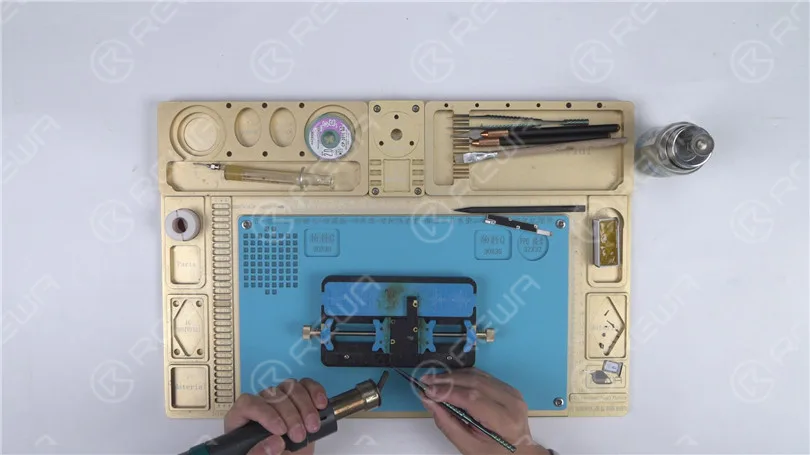
  • iPhone X Bottom Speaker Not Working Repair – Pseudo Soldering

    iPhone X Bottom Speaker Not Working Repair – Pseudo Soldering

    iPhone X no speaker sound issue may occur due to a defective hardware component, like pseudo soldering. Whereas, pseudo soldering components may relate to several reasons: pseudo soldering while the iPhone leaving factory, misoperation in the repairing process or personal habits of users etc.. This time we will share you with an iPhone X no bottom speaker sound repair case caused by pseudo soldering of the logic board after being dropped.

  • iPhone X Broken Glass Screen Refurbishing

    iPhone X Broken Glass Screen Refurbishing

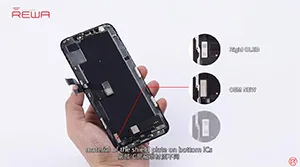
    Since the release of iPhone X, OLED screen has been adopted as a refreshing feature for Apple, both now and in the future. The mature iPhone OLED broken screen refurbishing technology is therefore especially important for repair shops all around the world. And that’s what our video is going to be about today – detailed and mature iPhone X broken glass only repair.
    Please be noted that the whole iPhone X glass screen replacement process was operated by professional technicians. For those who are green hands, please look before you leap.

  • Power On a Wet iPhone – Stop with the Rice!

    Power On a Wet iPhone – Stop with the Rice!

    When talking about a water-damaged device, putting it in rice is just a myth. Rice is unable to pull moisture from inside your device. Check out this video to see what will happen when you try to power on a wet/water-damaged iPhone!

  • Comprehensive iPhone XS China Aftermarket Screens Comparison Test

    Comprehensive iPhone XS China Aftermarket Screens Comparison Test

    iPhone XS China Aftermarket OLED Screens have emerged in the market, which falls into two types, the flexible one and the rigid one. As usual, REWA LAB has got samples right the first time and conducted strict comparison tests. We are happy to share with you the test result about the iPhone XS Aftermarket Screen in our video today.

  • Remove iPhone Scratches with Polishing Paste

    Remove iPhone Scratches with Polishing Paste

    The polishing paste is only suitable for iPhone silver models of iPhone X/XS/XS Max/11Pro/11ProMax.The material of the iPhone Frame in ‘Silver’ is natural stainless steel. The scratches on the frame could be removed by the polishing paste easily. Check out this video to see how the polishing paste works!

  • iPhone X Data Recovery From Logic Board – Chips Transferring

    iPhone X Data Recovery From Logic Board – Chips Transferring

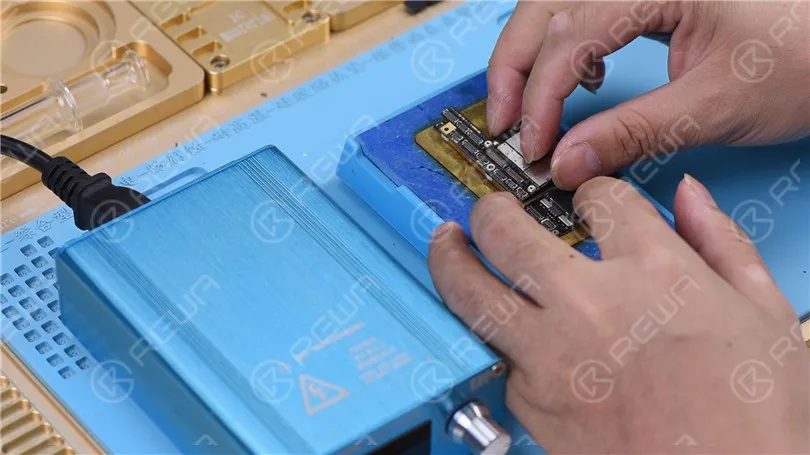
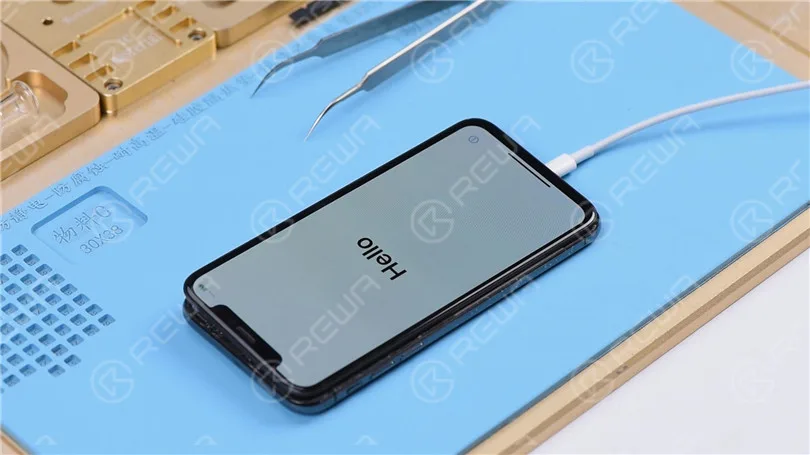
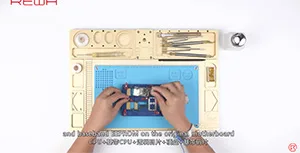
    As we all know, it is very difficult for repair technicians to extract data from a logic board that cannot be powered up, which requires precise operation with circumspection. And that’s what our iPhone X data recovery case is about today. The iPhone X won’t turn on after water damage. And the problem remains the same after several times of logic board repair. Well, let’s see what REWA LAB can do to recover data from iPhone X.

  • Troubleshooting iPhone X Not Responding in Sleep Mode

    Troubleshooting iPhone X Not Responding in Sleep Mode

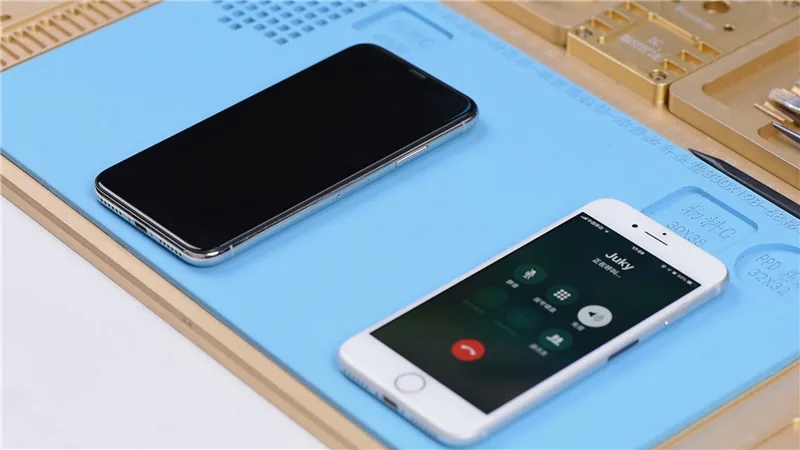
    Hello guys, today we will walk you through the troubleshooting of a rare case of iPhone X not responding in sleep mode when getting incoming calls.

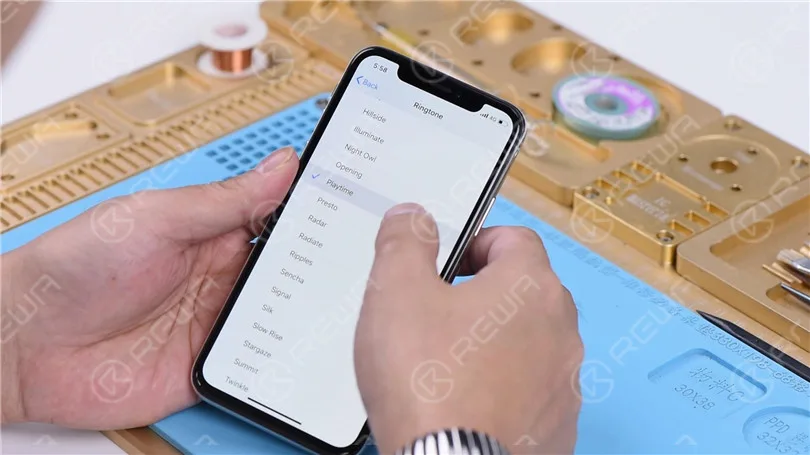
    Go to Settings>Sounds & Haptics. All going well.

    How to Fix iPhone X Not Responding in Sleep Mode When Getting Incoming Calls

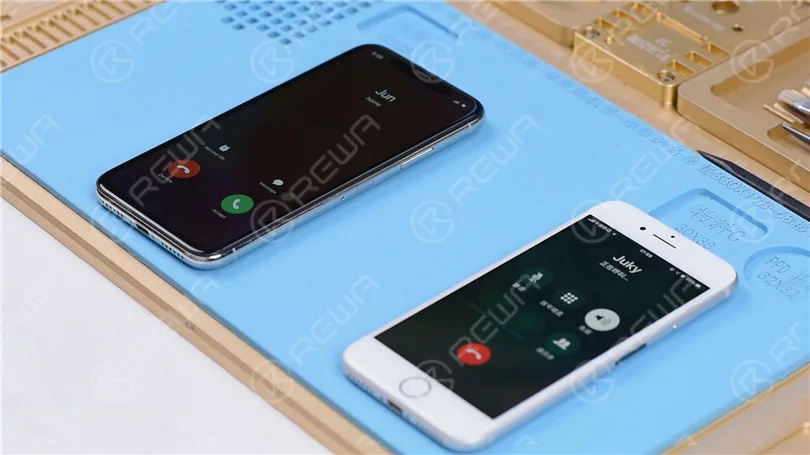
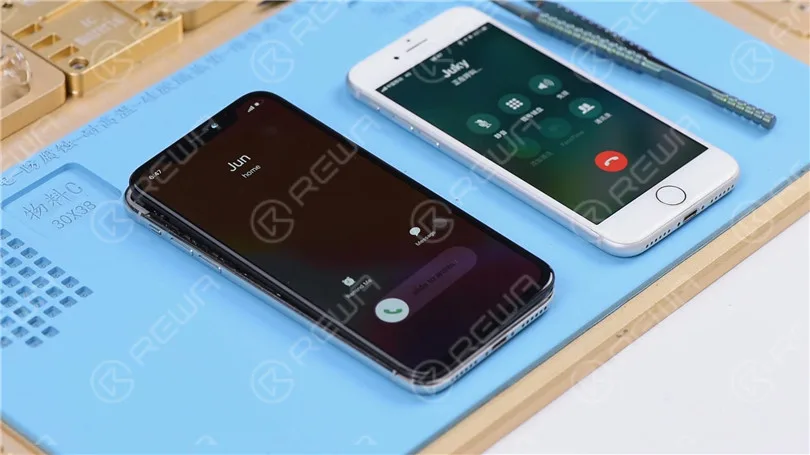
    With the screen on, place a call to the phone using a known-good phone. The decline and answer buttons appear on the screen.

    How to Fix iPhone X Not Responding in Sleep Mode When Getting Incoming Calls

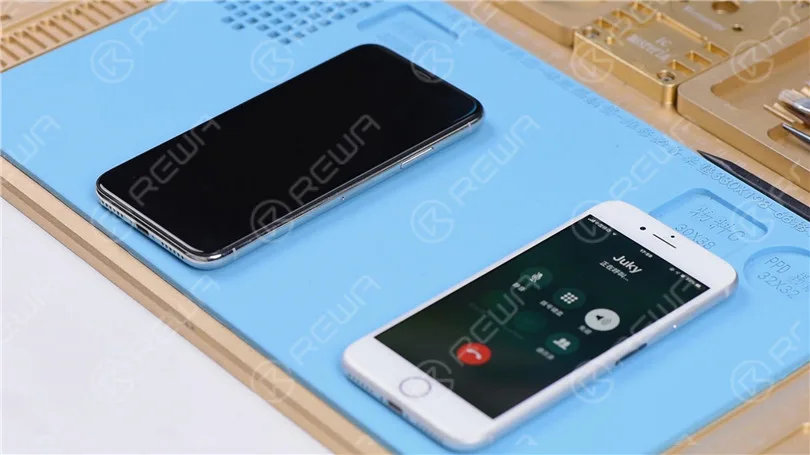
    Turn the screen off. Place a call to the phone using a known-good phone. The phone is not responding at all. Press the power button to turn the screen on. We can see the decline and answer buttons on the screen.

    How to Fix iPhone X Not Responding in Sleep Mode When Getting Incoming Calls

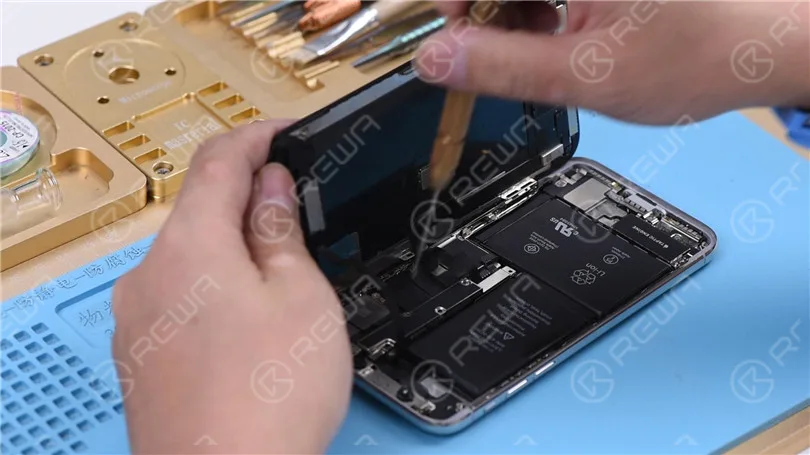
    Judging by this, relevant circuits of the baseband wake signal might have malfunctioned. Take apart the phone and disconnect the battery. Remove the display assembly and take out the motherboard.

    How to Fix iPhone X Not Responding in Sleep Mode When Getting Incoming Calls

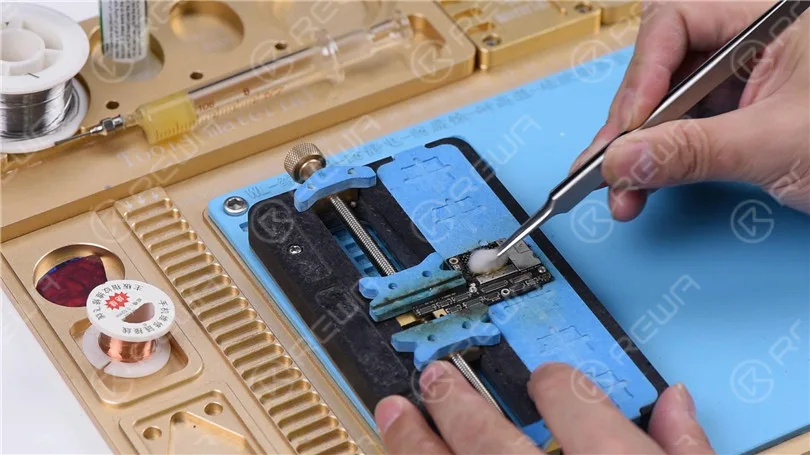
    Attach the motherboard to the PCB Holder. Heat with Hot Air Gun at 200℃, air flow 3. Tear off the heat dissipation sticker on the backside of the motherboard.

    How to Fix iPhone X Not Responding in Sleep Mode When Getting Incoming Calls

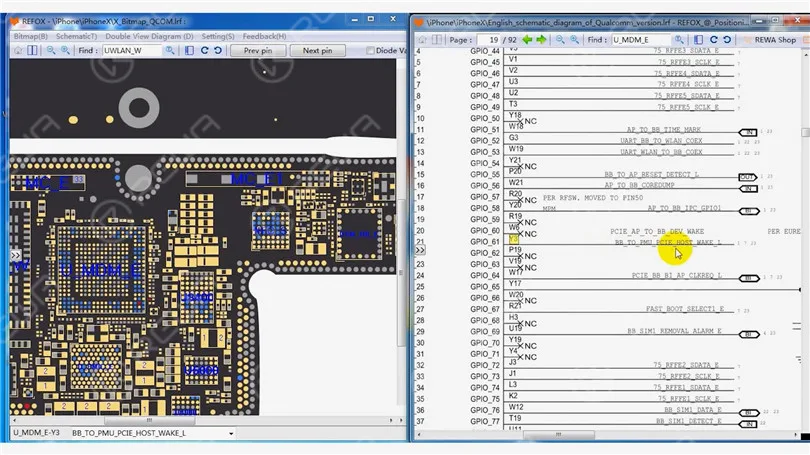
    Open the bitmap software. Locate BB_TO_PMU_PCIE_HOST_WAKE_L. Since relevant circuits of the wake signal might have malfunctioned, we can try to borrow the wake signal from WiFi relevant circuits.

    How to Fix iPhone X Not Responding in Sleep Mode When Getting Incoming Calls

    Locate WLAN_TO_PMU_HOST_WAKE. We can connect PP101_E-1 (the test point of the baseband wake signal) with PP7611_W-1 (the test point of the WiFi wake signal) by jumping a wire.

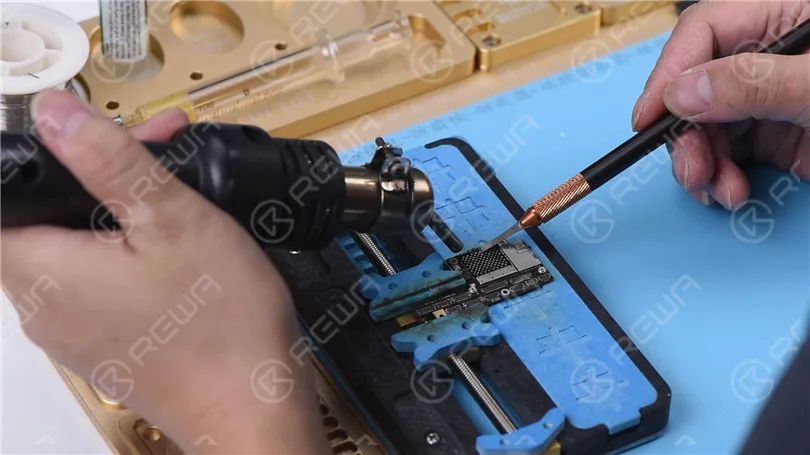
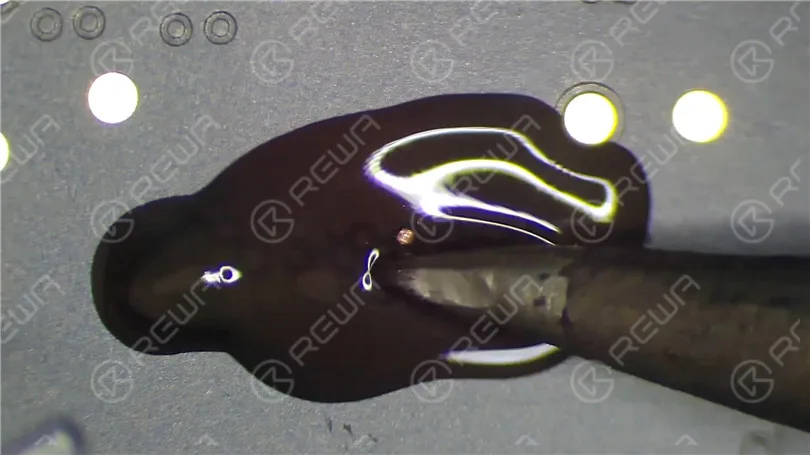
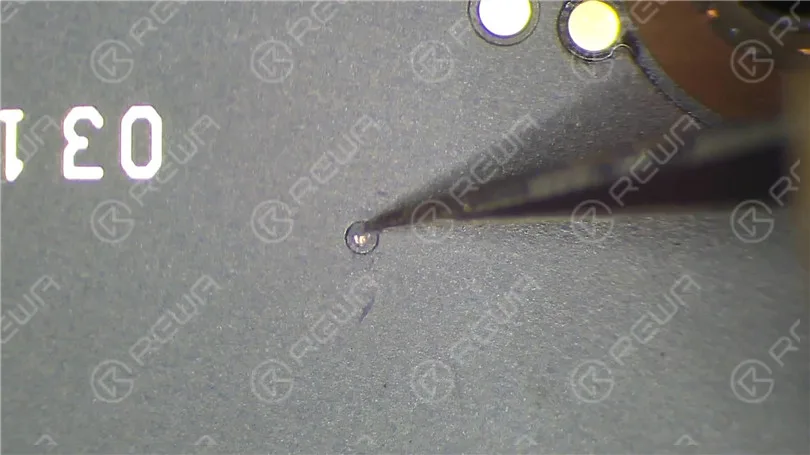
    Scrape off the insulating coating on the two test points first. Then apply some solder paste to the two bonding pads. Heat with Soldering Iron at 365℃. Tin the two bonding pads with solder paste.

    How to Fix iPhone X Not Responding in Sleep Mode When Getting Incoming Calls
    How to Fix iPhone X Not Responding in Sleep Mode When Getting Incoming Calls

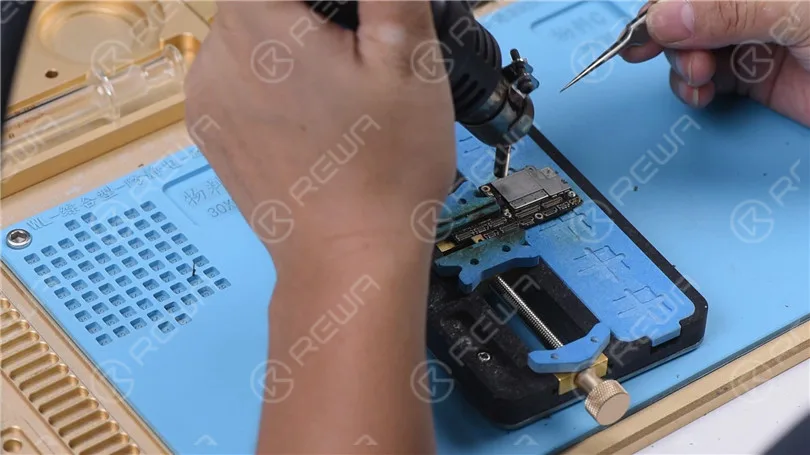
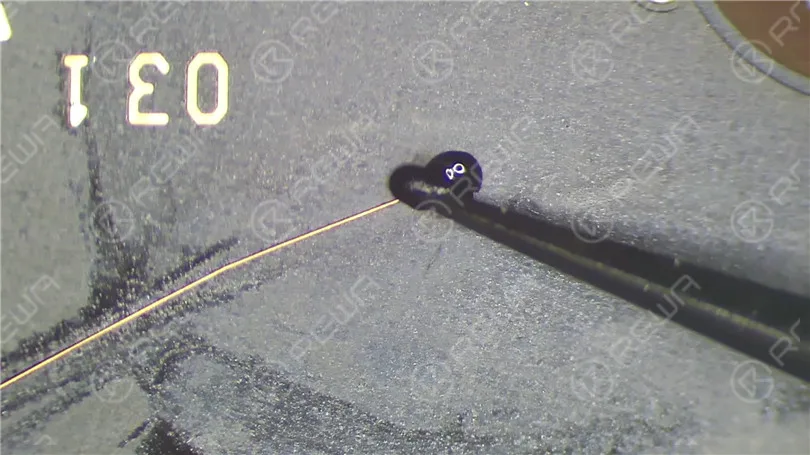
    Connect PP101_E-1 to PP7611_W-1 with 0.02mm Enameled Copper Wire.

    How to Fix iPhone X Not Responding in Sleep Mode When Getting Incoming Calls

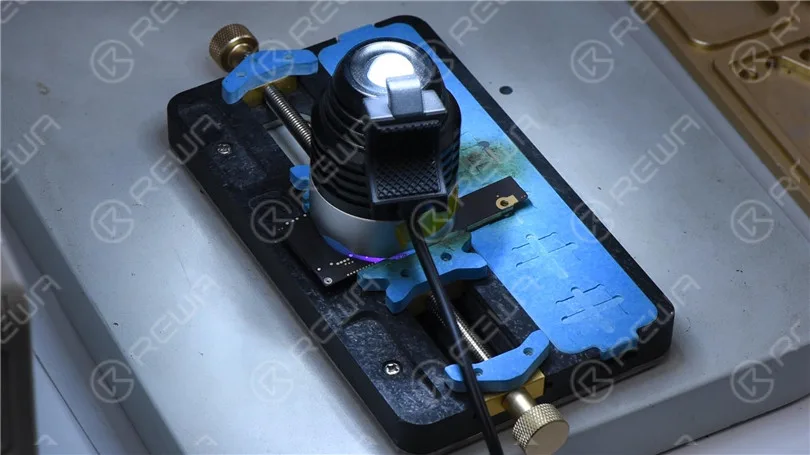
    Then coat the wire with the UV Curable Solder Mask.

    How to Fix iPhone X Not Responding in Sleep Mode When Getting Incoming Calls

    Now we can assemble the phone and test. With the screen off, test again. All going well. Fault cleared.

    How to Fix iPhone X Not Responding in Sleep Mode When Getting Incoming Calls