Tag: iphone

  • iPhone X Broken Glass Screen Repair – Updated Faster Solution

    iPhone X Broken Glass Screen Repair – Updated Faster Solution

    Since the release of iPhone X, OLED screen has been adopted as a refreshing feature for Apple, both now and in the future. The mature iPhone OLED broken screen refurbishing technology is therefore especially important for repair shops all around the world. And that’s what our video is going to be about today – detailed and mature iPhone X broken glass only repair. Please be noted that the whole iPhone X glass screen replacement process was operated by professional technicians. For those who are green hands, please look before you leap.

    Tools Used:

    • LCD Cutting Wire
    • LCM Cleaner
    • Manual LCD Separator
    • Bubble Removing Autoclave
    • Curved Screen Laminating Machine
    • Apple iPhone X Spare Parts
    • Apple iPhone X Front Bezel with Glue Replacement
  • Fix iPhone 7 Plus Wont Turn On After Water Damage – Rosin Smoke

    Fix iPhone 7 Plus Wont Turn On After Water Damage – Rosin Smoke

    As we all know, when supplying the short-circuited logic board with power, faulty components on it will get hot. For logic board bearing significant fever, we can locate the faulty component quickly and precisely with ‘rosin smoking’ method or freeze spray method. Today we are going to introduce a repair case for iPhone 7 won’t turn on after water damage. For more detailed application, check our video and we will show you how to fix iPhone 7 Plus can’t power on in a efficient way.

    Tools Used:

    • Communication Maintenance Power Supply
    • 4 in 1 Integrated Rework Station
    • Integrated Mobile Phone Repair Platform
    • Digital Multimeter
    • Straight Tweezer
    • BGA Strip Flux Soldering Paste
    • High Purity Rosin Soldering Flux
    • Repairing Drawings
  • Troubleshooting Guide: iPhone XS Max Issues & Fixes

    Troubleshooting Guide: iPhone XS Max Issues & Fixes

    For each generation of iPhone, they updated great features to its new devices. However, each new handset is encountered with specific problems from its release day.

    Since the launching of iPhone XS/iPhone XS Max, users have experienced several problems and faults. Let’s see what are the problems are and how to fix them.

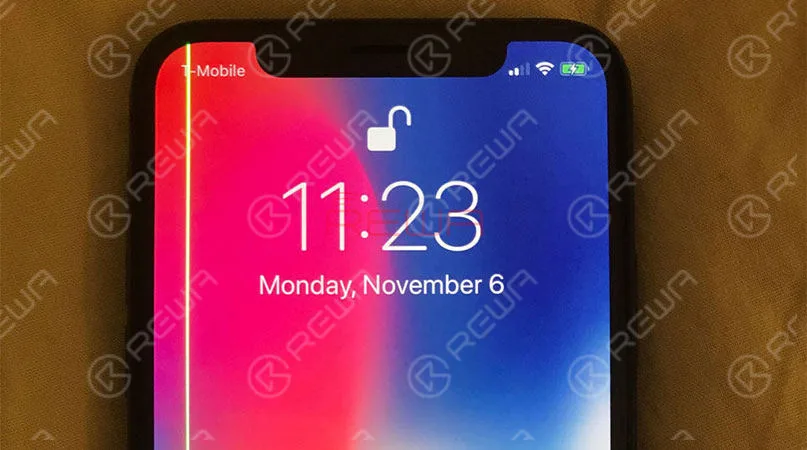
    Annoying green line on the display

    Apple shifted to OLED display since iPhone X in 2018.

    However, a user in Australia reported that a bright green line running vertically across the screen of his iPhone XS Max after a period of use.

    A number of customers encounter this issue after this.

    Solution

    For this problem, Apple will replace the device in warranty.

    If you are experiencing this vertical green line of pixels on the side of your iPhone, it’s time to make an appointment with the Apple Store.

    troubleshooting guide iphone xs max issues fixes the newest common and

    Poor Cellular Connection and slow WIFI speed

    According to users of iPhone XS/iPhone XS Max, their devices featured fewer bars and poorer signal compared to its last generations.

    Sometimes even shows “no service”, especially in the area of the weak signals. While these claims are rapidly growing in number, In addition to LTE problem, other users claimed that their devices appear to be slower WIFI speed.

    The majority of people experiencing slower speeds found that their iPhone XS models were connected to the 2.4GHz network rather than the 5GHz network.

    Solution

    Some speculated that Apple switch from Qualcomm to Intel for the iPhone’s modem may be to blame.

    Others pointed out that this is unlikely to be the root of the problem. Anyway, Apple has pushed out IOS 12.0.1, which fixes the LTE and WIFI issues.

    6 Common Issues & Fixes of iPhone XS/iPhone XS Max

    Charging gate

    Some users have trouble charging the devices over a wired connection.

    They find their iPhone XS can’t charge with their charging ports plugged in.

    Unless unplug the charger, wake up the screen, and then plug it in all over again, it begins to charge. But not all iPhone XS models are experiencing the problem.

    What’s more, some people with older handsets are reporting with similar behavior. That suggests the issue might actually be with the latest software update iOS 12.

    Solution

    That means it could be fixed with a software update.

    6 Common Issues & Fixes of iPhone XS/iPhone XS Max

    Beauty gate

    Users taking to the forums are saying Apple’s new iPhone selfie camera automatically smoothens the skin in photos shooting from the front camera, which makes them look too good. And there is no way to disable it. This is the most unacceptable

    Solution

    According to Apple, the selfie camera system on the iPhone X uses faster sensor improved chips, and “advanced algorithms” to make your photos look better with a feature called “Smart HDR.” users can go Setting > camera > Smart HDR to disable the beauty mode.

    6 Common Issues & Fixes of iPhone XS/iPhone XS Max

    Audio connectivity issue caused by Bluetooth

    A small number of iPhone XS and iPhone XS Max owners are enduring Bluetooth connectivity issues where their iPhones fail to communicate with their car’s entertainment system properly.

    Solution

    This problem does not yet have an Apple-supplied solution.

    6 Common Issues & Fixes of iPhone XS/iPhone XS Max

    Dust inside the camera lens

    This is a minor issue actually. Some users claimed that dust getting inside the camera lens continuously. Which make the camera not perform well.

    Actually, just because they’re sealed up tight doesn’t make the iPhone immune to dust and dirt. The environment gets involved too.

    Solution

    To get rid of this problem, take it to the Apple Store to get it cleaned out.

    6 Common Issues & Fixes of iPhone XS/iPhone XS Max

    If you have an iPhone XS and XS Max that are facing any of the above issues, do let us know in the comments section.

  • First-hand Test on New iPhone Aftermarket Screen – Panda Screen

    First-hand Test on New iPhone Aftermarket Screen – Panda Screen

    Recently, a newly developed iPhone Aftermarket screen – Panda screen has appeared in the market, which covers iPhone 6, 6s, 7 and 8. REWA LAB has carried out a series of tests on our exclusive Panda screen samples. Let’s take a look at the test results with iPhone 6s as an example.

    According to the test report, the Panda screen basically performed well during the test. Still, as a new product, there lies the uncertain about its quality. The recommendation, therefore, is for you to get some samples or try with a small quantity if have any interests. Bulk stock is not suggested.

  • iPhone 8/8P/X Broken Back Glass Repair – A Cost-effective Way

    iPhone 8/8P/X Broken Back Glass Repair – A Cost-effective Way

    iPhone 8/8P/X back glass is fragile and difficult to repair because it is connected to the housing with welds and glue. We have already released a video about how to repair iPhone 8 broken back glass with a Separator for large quantities of broken back glass refurbishment. Today we are going to introduce a new Grinding Tool to finish iPhone X back glass refurbishing in a cost-effective way.

    Warning: Safety glasses and Anti-cutting Gloves are recommended during the iPhone X Back Glass Repair Process. 

    Tools Used:

    • Mini Electric Grinder for iPhone 8/8 Plus/X Back Glass Refurbishing
    • Manual LCD Separator – (vacuum pump built-in)
    • Sculpture Knife
    • Soft Brush
    • iPhone 8 Back Glass
    • Hot Air Gun
  • REWA iPhone Screen & Flex Compatibility Test On iOS 12

    REWA iPhone Screen & Flex Compatibility Test On iOS 12

    Since iOS 12 has been released recently, REWA LAB has conducted a series of compatibility tests for iPhone series from iPhone 6s to iPhone X with OEM NEW, OEM REFURB and aftermarket screens respectively. According to the test results, common functionality like touch functionality, 3D Touch, proximity sensor functionality and light sensor functionality function normally on iOS 12. Now, let’s take iPhone 8 and iPhone X as examples and show you how the test goes. 

  • REWA iPhone Logic Board Repair Training Review – 2018 Course Ⅲ

    REWA iPhone Logic Board Repair Training Review – 2018 Course Ⅲ

    REWA Offline iPhone Logic Board Repair Training Course has come to an end. We had a short interview with our customers towards the 12 days’ chip level repair training. In this video, they will go over their feedback on our iPhone repair training as well as show insights within the course. What do our customers say? Does REWA Training really deserve your enrollment ? Check the video for the details. 

  • Cool Gadget: Repair Your iPhone 7 Home Button Return Function

    Cool Gadget: Repair Your iPhone 7 Home Button Return Function

    Home button of iPhone 7 can be paired only with one specific logic board,which means that home button replacement will result in a non-functional home button. No Touch ID and no return-to-home functionality.Thus, most of the iPhone 7 home button not working issue can not be repaired properly for a long time. Don’t worry. With our customized charging flex cable, return-to-home functionality of the home button can be successfully restored. Let’s check the video to see how to fix your iPhone 7 home button.

    Tools & Parts:

    • Customized Charging Port Flex Cable
    • Integrated Mobile Phone Repair Platform
    • Anti-static Plastic Pry Bar
    • Straight Tweezer
  • iPhone 6 Wont Turn On – Water Damage Repair

    iPhone 6 Wont Turn On – Water Damage Repair

    iPhone water damage is a very common repair case, and it can result in different issues. For case today, iPhone 6 can’t turn on after water damage. We start the repair work from moldy components. As it is often suggested that we should always begin with simple, then complex. However, the problem remains unresolved. Run further measurement and the faulty position is finally confirmed. We can complete the iPhone 6 water damage repair work by replacing faulty components. Let’s check the video to see how to fix iPhone 6 won’t turn on caused by water damage.

  • How To Fix iPhone X Keeps Restarting Logic Board Repair

    How To Fix iPhone X Keeps Restarting Logic Board Repair

    The unique design and structure of motherboard have made any repairs to iPhone X far more difficult than previous series. However, our newly launched iPhone X Motherboard Soldering&Desoldering Rework Station can help greatly with the repair work. With our repair case iPhone X keeps restarting today, abnormal boot current of the upper layer indicates that the fault is probably caused by USB IC. We can fix the iPhone X stuck on restarting issue by USB IC replacing and motherboard re-soldering. 

  • Fix iTunes Error 4013 on iPhone 7/7 Plus – Complete Guide

    Fix iTunes Error 4013 on iPhone 7/7 Plus – Complete Guide

    Are you ever trapped into the situation that iTunes Error 4013 on iPhone 7/7 Plus?

    Actually, it is one of the most common problems for iPhone users.

    Also, we have sort out and released all the iTunes error codes of iPhone 6/ 6 Plus, as well as all the meaning of iPhone error codes.

    iTunes Error 4013 of iPhone 7/7 Plus is usually caused by pseudo soldering or damage of CPU.

    The problem might also be related to power supply of baseband PMU or NAND flash.

    Since CPU repair is quite difficult, to start with we can check the power supply of baseband PMU and NAND flash. Let’s check the details.

    Malfunction Display

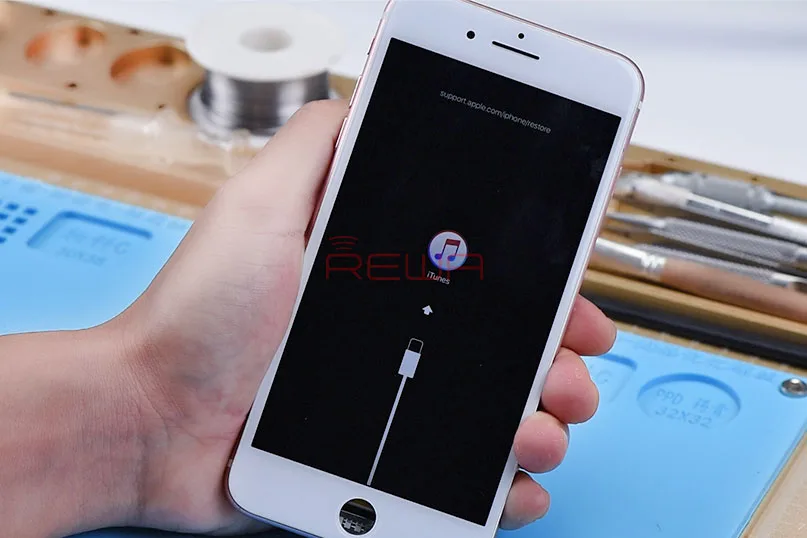
    First, press power button to power on, the phone gets stuck with iTunes Recovery Mode and has no access to the system.

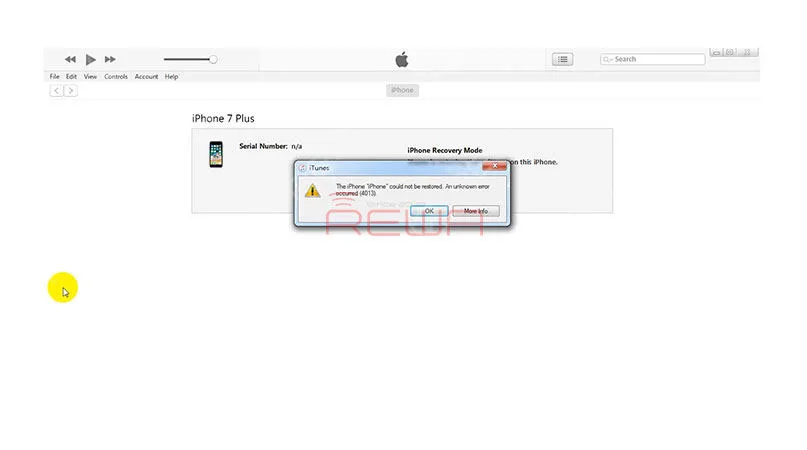
    Next, connect it with computer and restore via iTunes, error 4013 appears during the restoring process. The phone restarts afterward.
    How to Fix iTunes Error 4013 on iPhone 7/7 Plus

    Malfunction Analysis

    iTunes Error 4013 of iPhone 7/7 Plus is usually caused by pseudo soldering or damage of CPU.

    The problem might also be related to power supply of baseband PMU or NAND flash.

    Since CPU repair is quite difficult, to start with we can check power supply of baseband PMU and NAND flash.

    Connect battery connector with Power Supplier, and press power button on the Power Supplier. The system will then detect power button press.

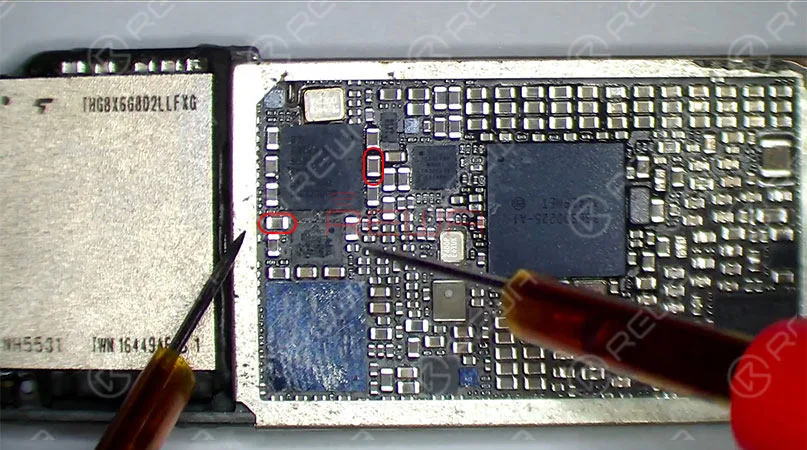
    The run voltage measurement of baseband PMU test points C5623 and C5631, the measured value of C5623 and C5631 are normal. Judging by this, power supply of baseband PMU is normal.
    How to Fix iTunes Error 4013 on iPhone 7/7 Plus

    Malfunction Repair

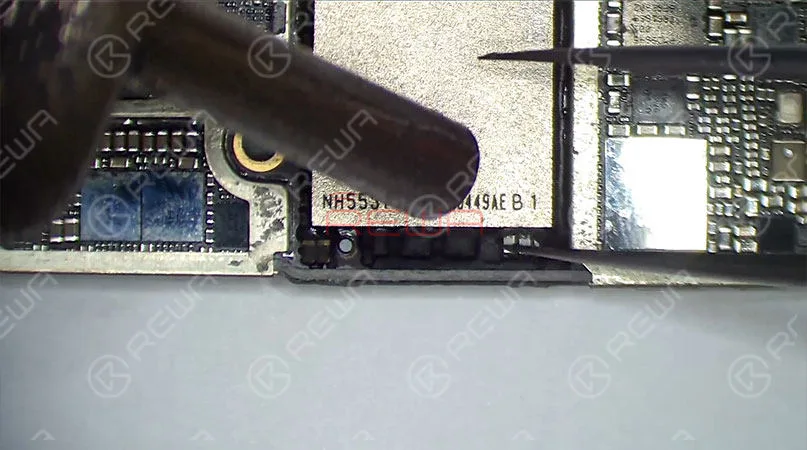
    Let’s move to the power supply of NAND Flash, let’s remove black adhesive around NAND Flash with Hot Air Gun.
    How to Fix iTunes Error 4013 on iPhone 7/7 Plus

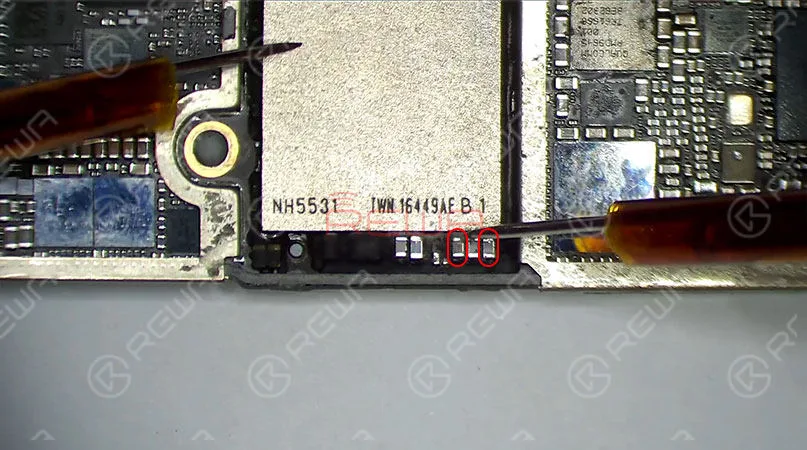
    Then continue to measure voltage of NAND Flash test points C1701, C1721 and C1704. Judging by the measured value, power supply of NAND Flash is also normal.
    How to Fix iTunes Error 4013 on iPhone 7/7 Plus

    Let’s try to replace the baseband PMU and see how it works.

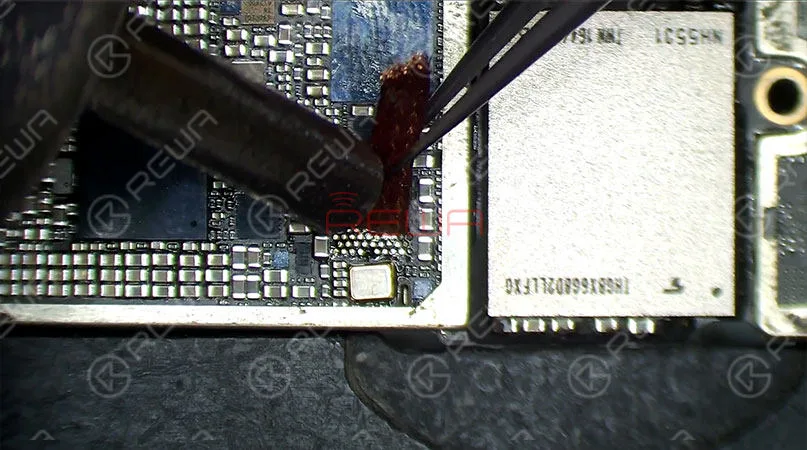
    Detach baseband PMU from the board with Hot Air Gun, then clean the bonding pad with resin-soaked Solder Wick.

    Tips: some chips are sealed to the bonding pad with black adhesive, be careful with your operation to avoid knocking pads off the board.

    Clean with PCB Cleaner afterward.
    How to Fix iTunes Error 4013 on iPhone 7/7 Plus

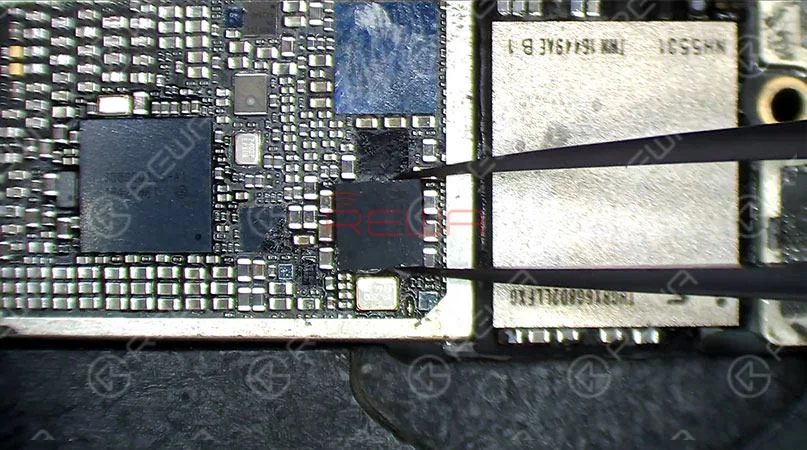
    Apply some Paste Flux to the bonding pad, get a new baseband PMU in position(be careful with the direction). then solder with Hot Air Gun.
    How to Fix iTunes Error 4013 on iPhone 7/7 Plus

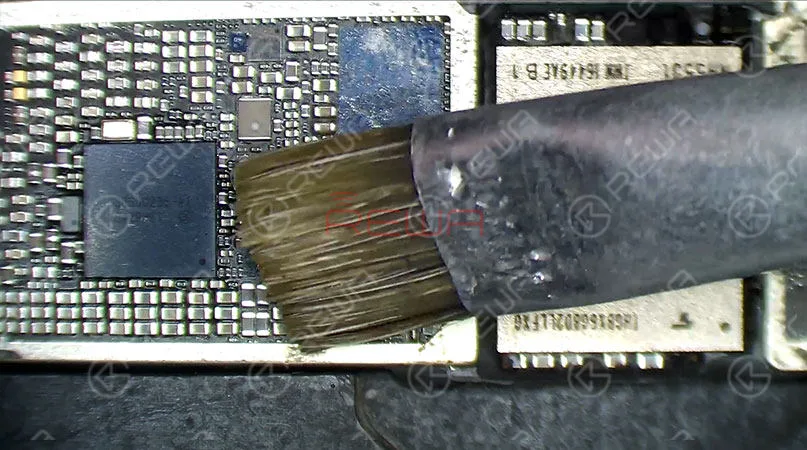
    Once done, wait for the logic board to cool for 5 minutes and clean thoroughly with PCB Cleaner afterward.
    How to Fix iTunes Error 4013 on iPhone 7/7 Plus

    Assemble and Test

    Till now, the whole repair process is fully finished, let’s get the logic board and display assembly installed.

    Connect the battery and press power button to power on, the phone gets stuck with iTunes Recovery Mode.

    We need to connect it with computer and restore via iTunes.

    The phone can be restored normally.
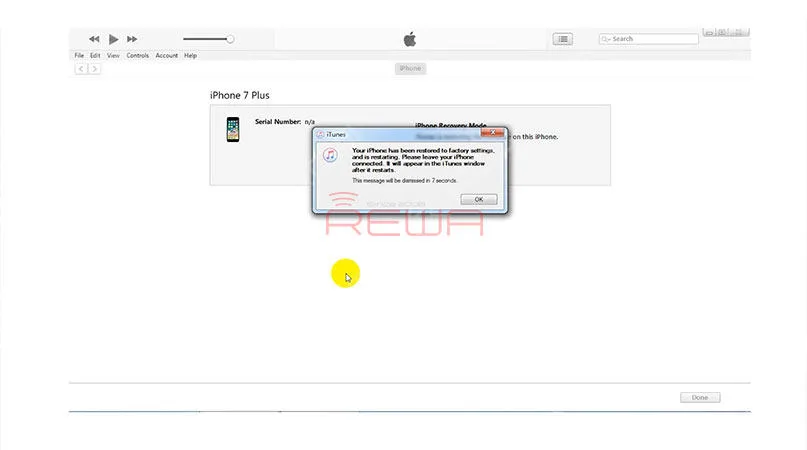
    How to Fix iTunes Error 4013 on iPhone 7/7 Plus

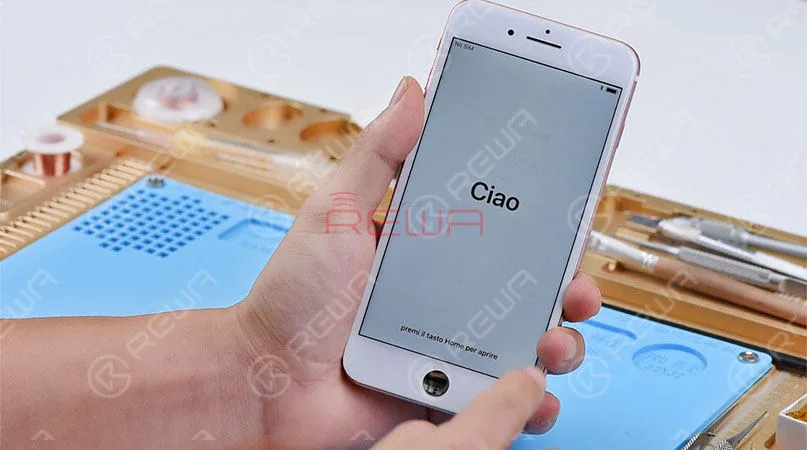
    Once completed, the phone restarts automatically, fault cleared. (Warm tips: get the phone full assembled after confirmation of fault clearance.)
    How to Fix iTunes Error 4013 on iPhone 7/7 Plus

    iPhone 7 Plus Error 4013 fixed perfectly.

    For more details about fix iPhone 7 Plus Error 4013 please check our video.

    Any suggestions or questions please comment below or go to ASK Forum to post an ask, we will try our best to help you and answer you in time.

    Tools List Used:

    * Electron Microscope

    * Digital Multimeter

    * PCB holder

    * Straight Tweezer

    * Paste Flux

    * Rosin

    * Solder Wick

    * Cutting Nipper

    * Anti-static Plastic Pry Bar

    * Soft Brush

  • Fix iTunes Error 4013 on iPhone 7/7 Plus

    Fix iTunes Error 4013 on iPhone 7/7 Plus

    iTunes error 4013 is one of the most common problems for iPhone users. iPhone 7 error 4013 is usually caused by pseudo soldering or damage of CPU, and also might be related to power supply of baseband PMU or NAND Flash. Since CPU repair is quite difficult, we can check power supply of baseband PMU and NAND Flash first. If nothing goes wrong, try to replace a new baseband PMU. In this iPhone iTunes 4013 error case, the problem is fixed after baseband PMU replacement. If the problem remains unresolved, we can try to replace the NAND Flash. If still not, then check the CPU.

    Tools Used:

    • 4 in 1 Integrated Rework Station
    • Electron Microscope
    • Digital Multimeter
    • PCB holder
    • Straight Tweezer
    • Paste Flux
    • Rosin
    • Solder Wick
    • PCB Cleaner
    • Cutting Nipper
    • Anti-static Plastic Pry Bar
    • Soft Brush
    • Sculpture Knife