La réduction de la capacité de la batterie de l'iPhone 12 affecte directement la durée de vie de la batterie du téléphone, de sorte que la capacité de la batterie est une préoccupation principale dans notre utilisation quotidienne, voulant savoir combien de puissance actuelle est restante. Par défaut, l'iPhone affichera la puissance d'une manière graphique. Comment afficher le pourcentage de la batterie sur l'iPhone 12 ? REWA vous montre comment faire.
1.régler le pourcentage de la batterie
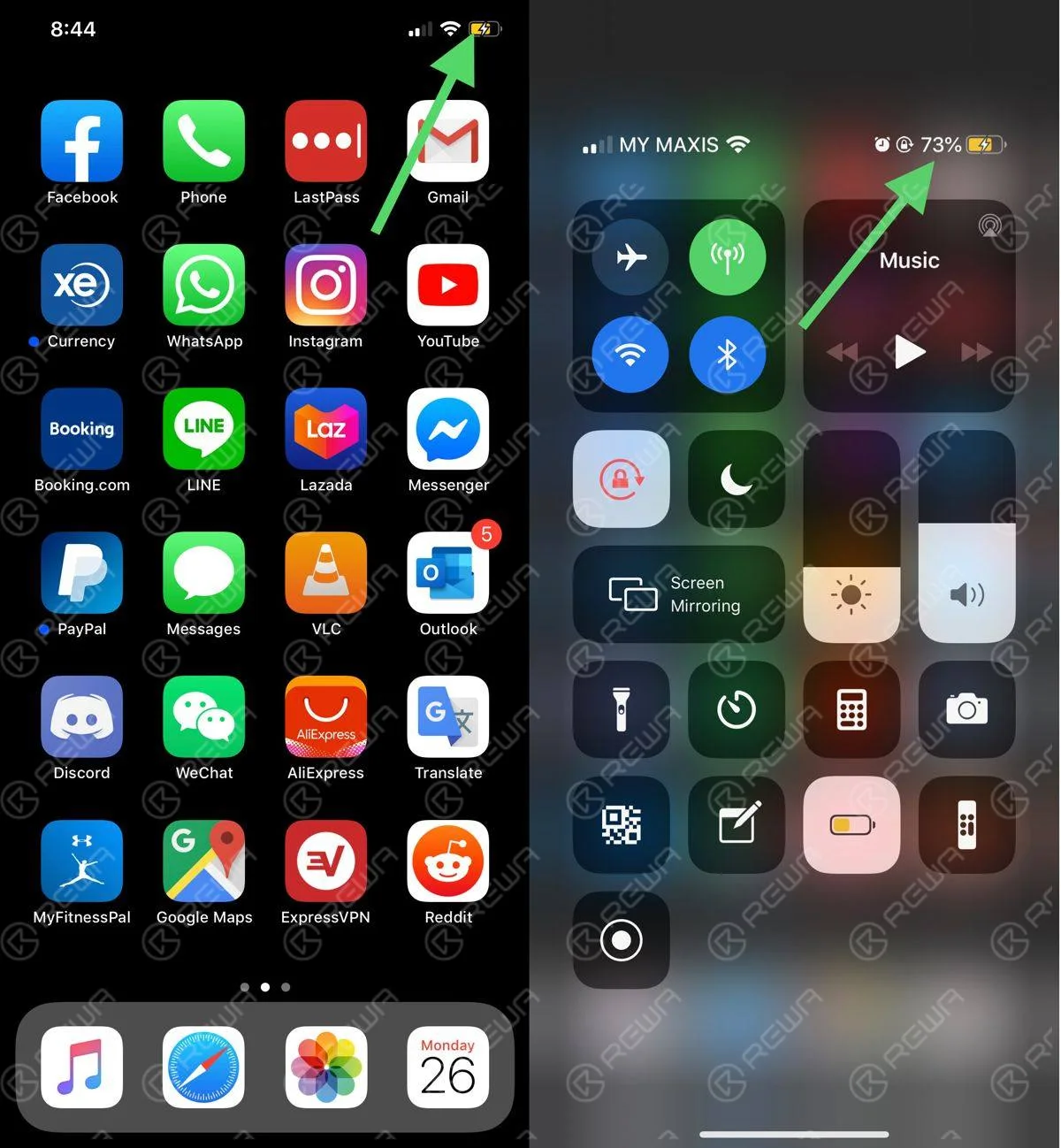
Tout d'abord, allumez le téléphone. Allez dans Réglages > Batterie, et vous pourrez voir le bouton du pourcentage de la batterie vers le bas dans les réglages. La fonction est désactivée par défaut. Appuyez sur le bouton et la fonction est activée. Vous pouvez voir le pourcentage de la batterie en appuyant sur le bouton, ce qui est très facile.
2. afficher rapidement le pourcentage de la batterie
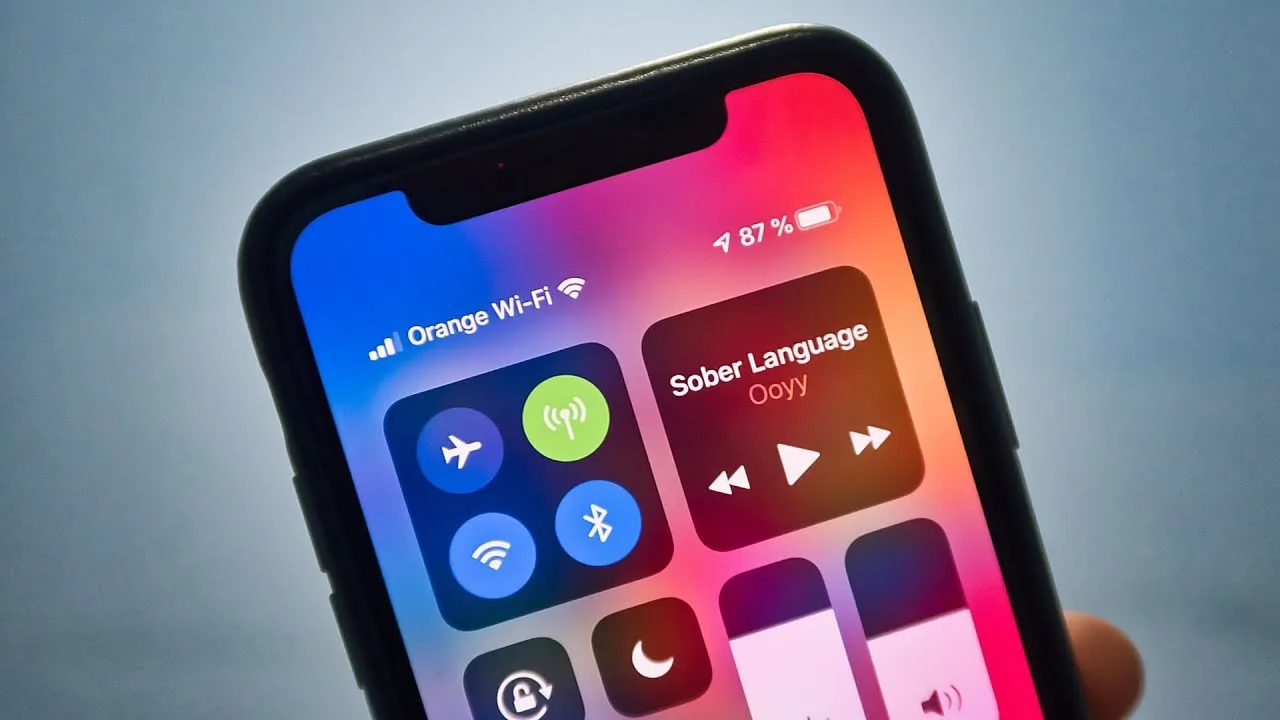
Allumez l'iPhone 12. La batterie n'est pas affichée dans le coin supérieur droit. Nous devons faire défiler l'écran vers le bas. Faites défiler vers le bas et vous verrez le pourcentage de la batterie dans le coin inférieur droit, ce qui ne nécessite pas les réglages.
3. se connecter au chargeur pour visualiser le pourcentage de la batterie
Lorsque le téléphone est connecté au chargeur, il est également possible de voir le pourcentage de la batterie. Bien entendu, vous devez faire défiler l'écran vers le bas. La méthode est aussi simple et pratique que la seconde. Le signe de charge devient vert pendant la charge.
C'est tout pour savoir comment afficher le pourcentage de la batterie sur l'iPhone 12. J'espère que le contenu ci-dessus est utile.
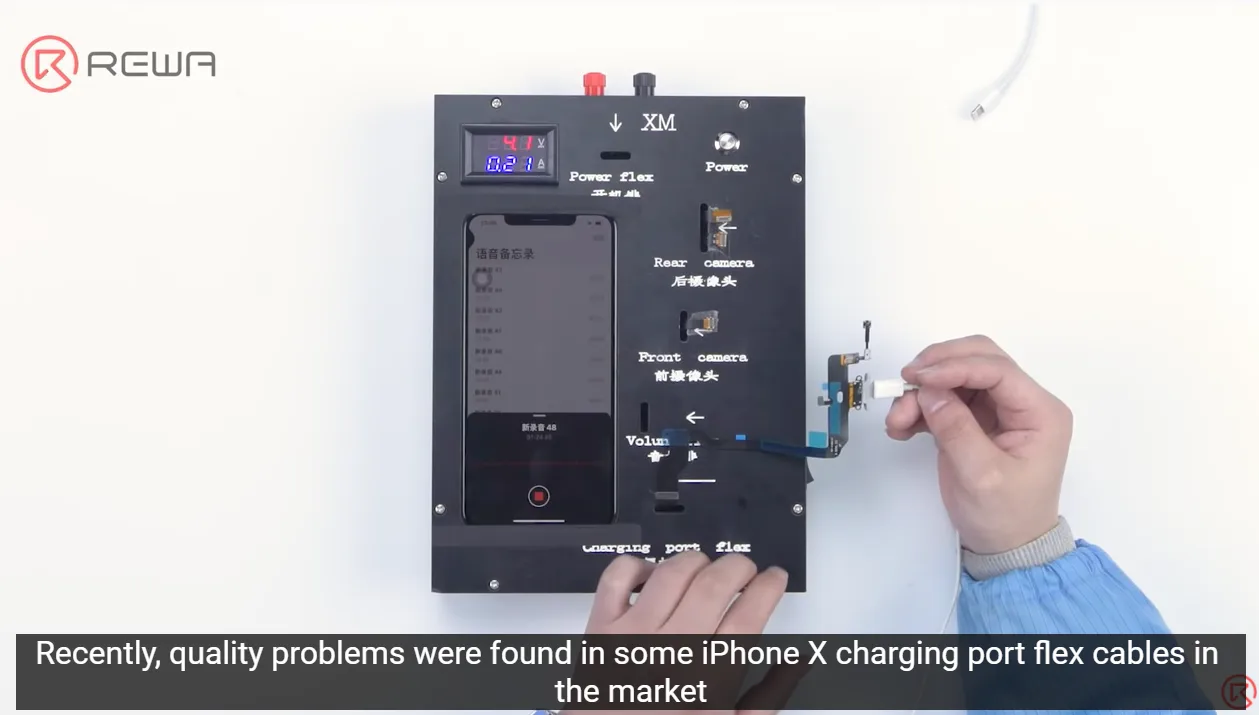
Les clients se soucient de la qualité des pièces comme toujours, car la qualité des pièces sur le marché est constamment inégale. Récemment, des problèmes de qualité ont été constatés sur certaines flex de connecteur de charge pour iPhone X présentes sur le marché. Les téléphones équipés de ces nappes flexibles redémarraient sans cesse ou s'éteignaient pendant l'enregistrement. Pour garantir la qualité des pièces reçues par les clients, REWA ne ménage aucun effort pour appliquer strictement un système complet d'inspection de contrôle de qualité. Jetons-y un œil !
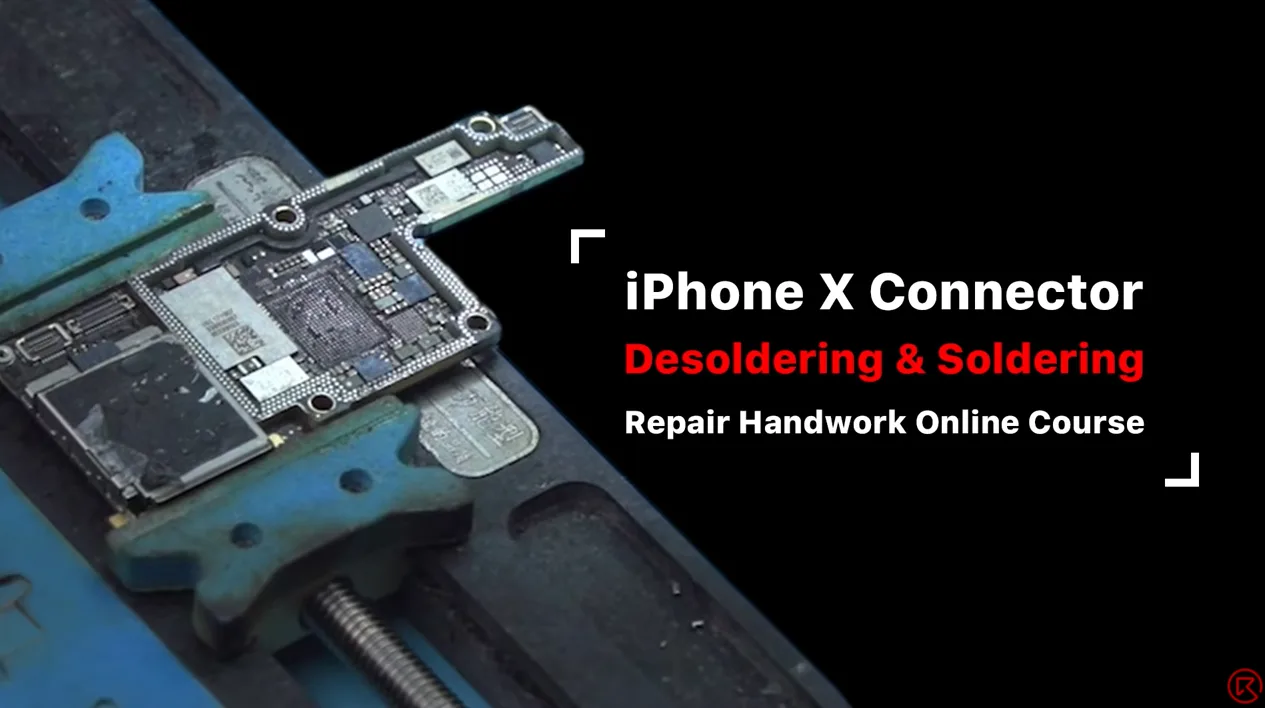
Today, REWA Academy open course will share some handwork techniques about iPhone motherboard repair. By taking the desoldering and soldering of iPhone X series Wi-Fi FPC connector and touch connector for example and combining some mistakes that junior repair technicians may make, we will also share some more direct and efficient tips.
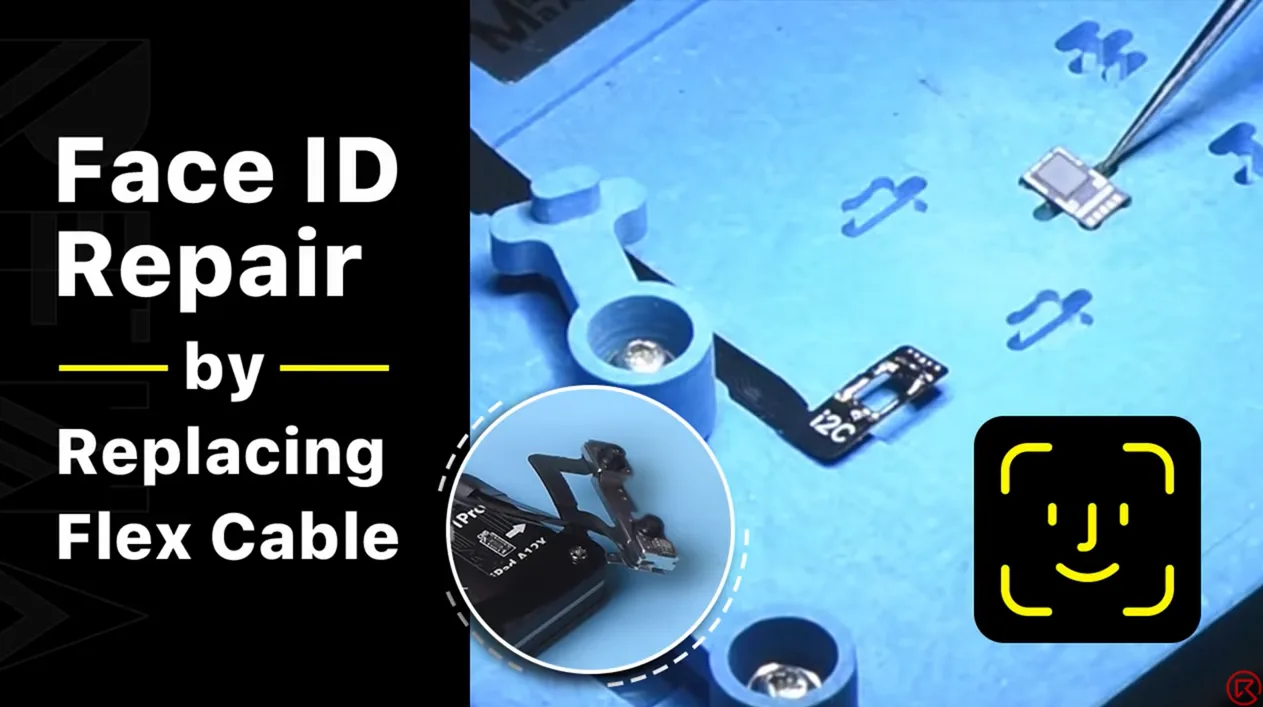
Dot projector parts are extremely fragile. A fall or water damage may harm dot projector parts, inducing Face ID malfunction. Since the dot projector IC is encrypted and replacement requires data encryption bonding for the new IC, repair technicians find it a challenge to repair the Face ID. The good news is that REWA LAB has developed a simple and efficient method to repair the Face ID. Let’s check it out!
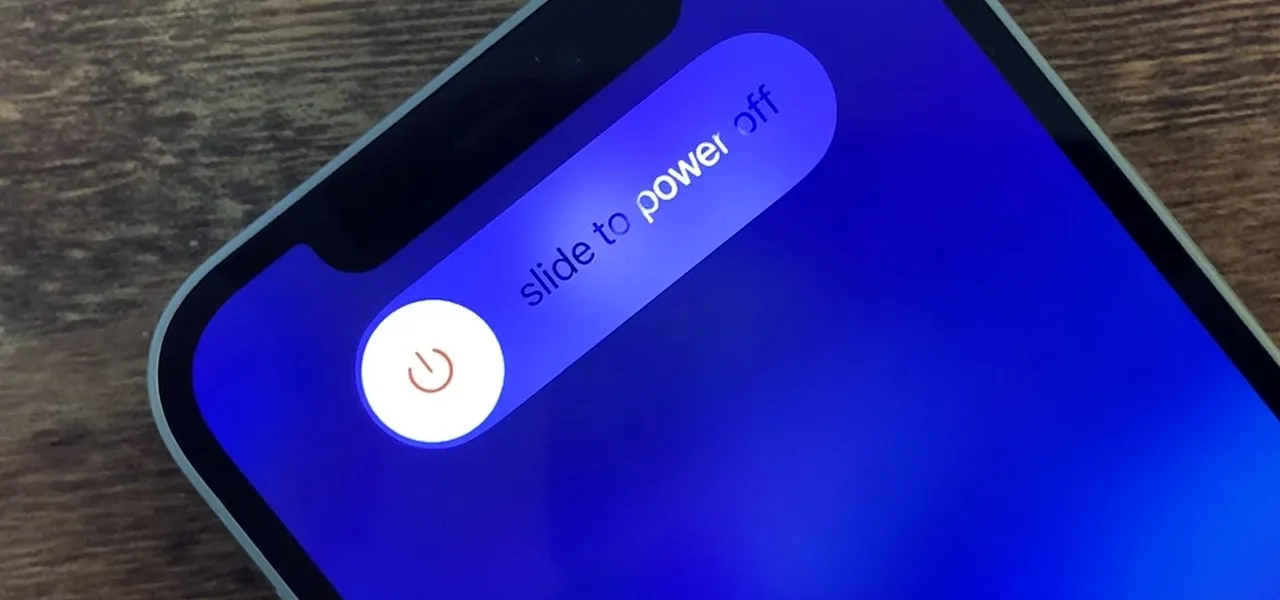
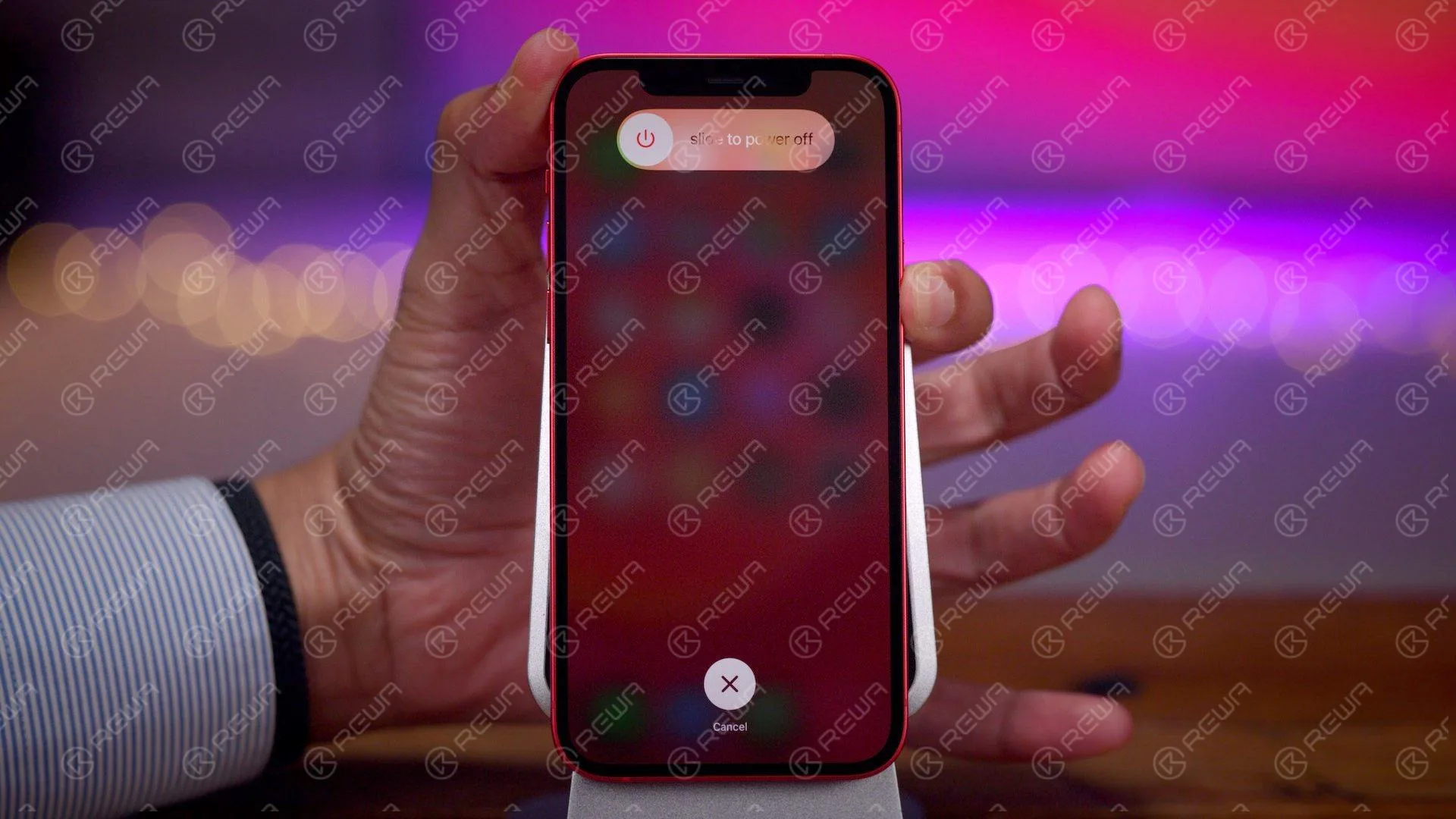
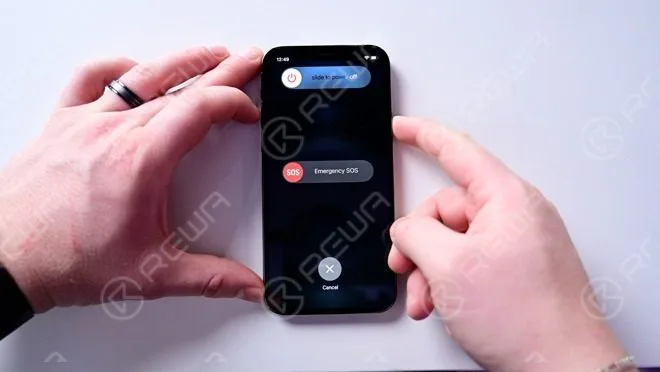
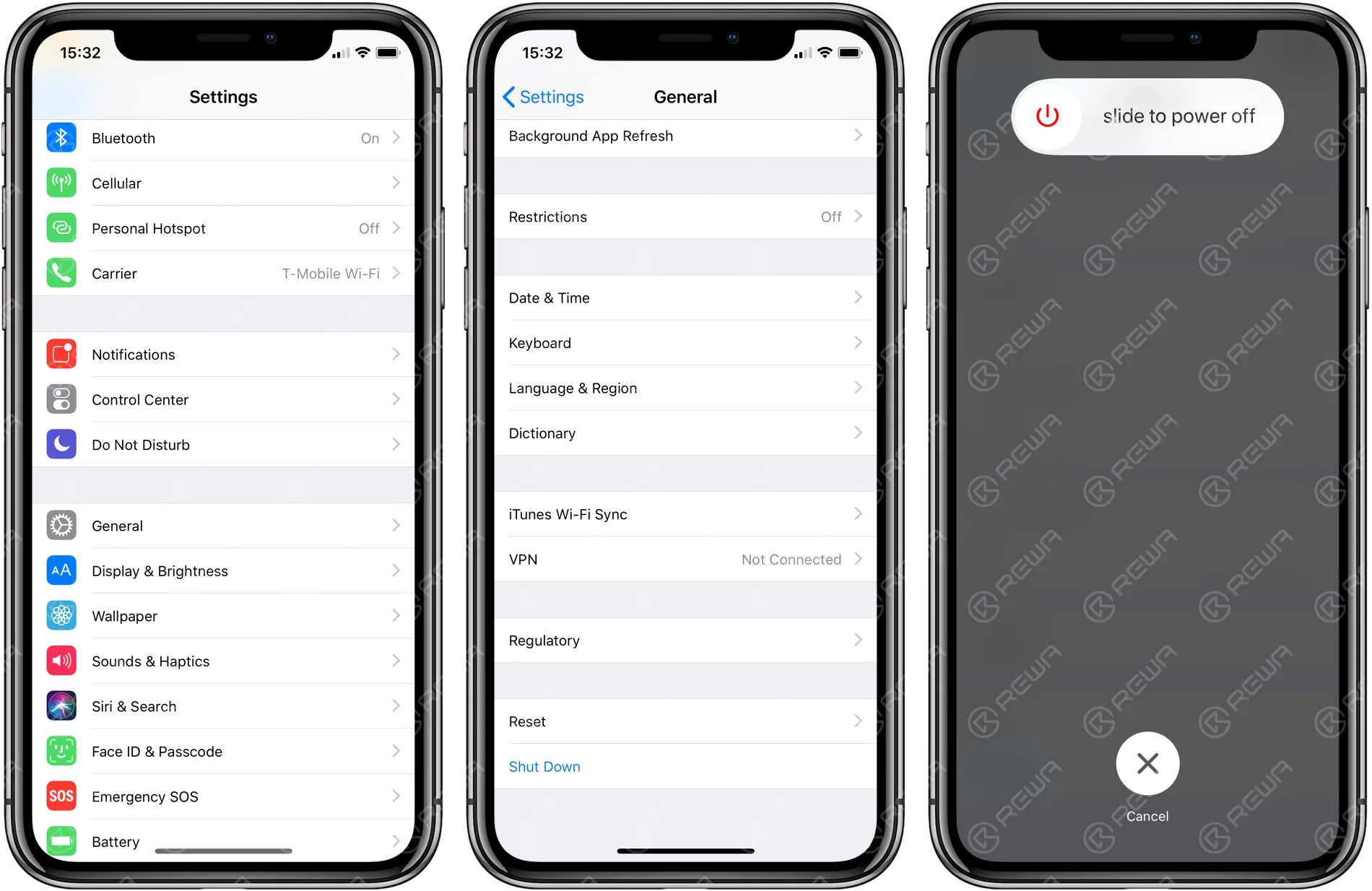
Comment éteindre l'iPhone 12 ? Cet article présente principalement les cinq façons d'éteindre/de forcer l'arrêt de l'iPhone 12. Consultez-le pour vos propres besoins.
1. Utiliser Siri pour éteindre l'appareil.
Ouvrez Siri et dites "Arrêter". Vous verrez les étapes à suivre pour éteindre le téléphone. Suivez les étapes pour éteindre le téléphone.
2. Bouton d'alimentation + bouton d'augmentation du volume
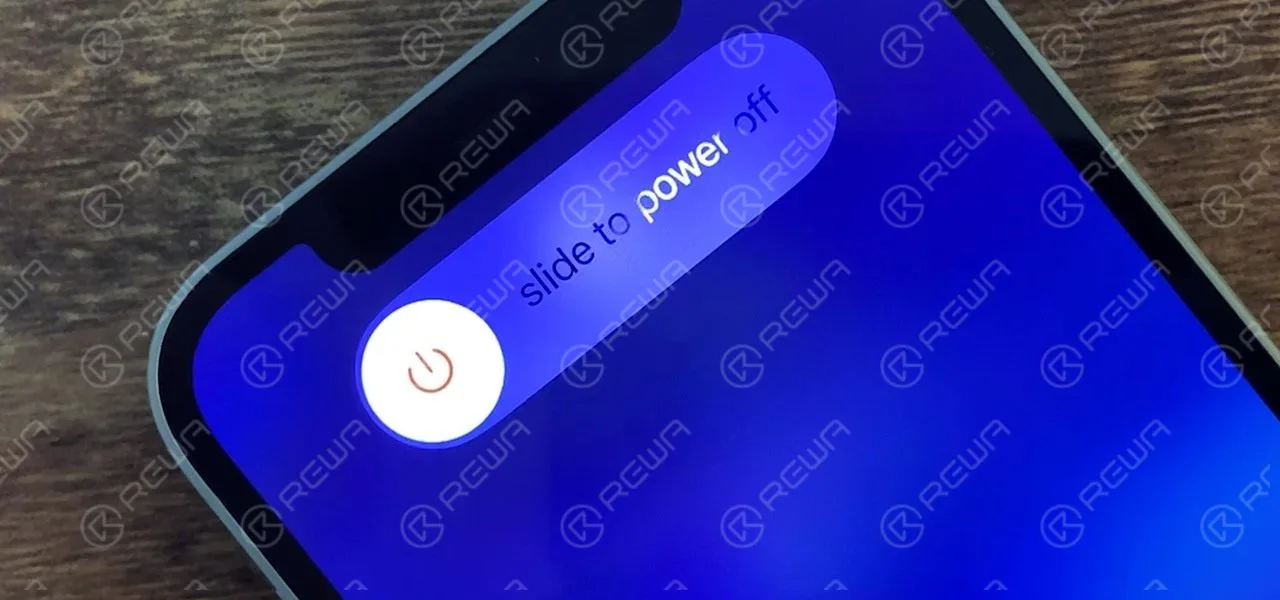
Maintenez enfoncés le bouton Veille/Réveil et le bouton d'augmentation du volume. Cliquez sur la glissière pour éteindre l'appareil.
3. Bouton d'alimentation + bouton de réduction du volume
Maintenez enfoncés le bouton Veille/Réveil et le bouton de réduction du volume. Cliquez sur la glissière pour éteindre l'appareil.
4. Éteindre l'iPhone dans les réglages
Allez dans Paramètres > Général > Arrêter.
5. Forcer le redémarrage
Tout d'abord, appuyez sur le bouton d'augmentation du volume et maintenez-le enfoncé, puis appuyez rapidement sur le bouton de réduction du volume, et enfin maintenez enfoncé le bouton d'alimentation.
C'est tout pour les cinq façons d'éteindre/fermer de force l'iPhone 12.
Today, our case is about fixing an iPhone XR that has no signal and motherboard electricity leakage. When we inserted the SIM card and tested, the ICCID and IMEI number could be checked. Our initial judgment was that the problem was probably related to the signal power amplifier circuit. We continued to check the circuit and we found that the power amplifier IC had burnt out. Next, we connected the burnt bonding pads by jumping wires and replaced with a new power amplifier IC.
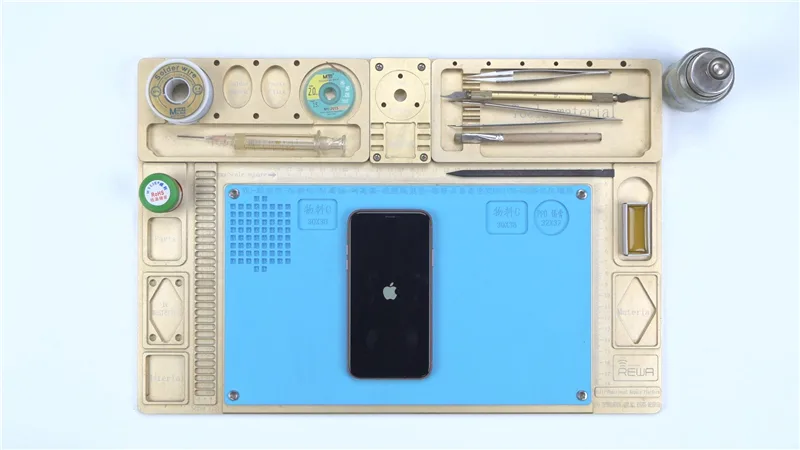
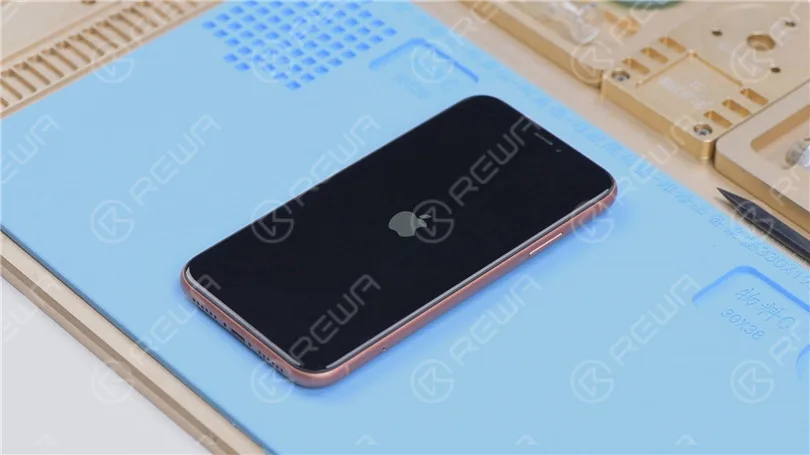
In this guide, we’ll walk you through how to repair an iPhone XR stuck on Apple logo and keeps restarting—a common issue that occurs after the phone has been dropped or charged. If flashing the phone hasn’t worked, and it still keeps rebooting, the issue likely lies with the motherboard or the USB IC. Follow these step-by-step instructions to resolve the problem and get the phone working again.
How to Repair an iPhone XR Stuck on the Apple Logo and Restarting
If your iPhone XR stuck on Apple logo and keeps restarting after being dropped or charged, there’s likely an issue with the phone’s motherboard. Here’s how to troubleshoot and repair it:
Étape 1 : Diagnostic initial
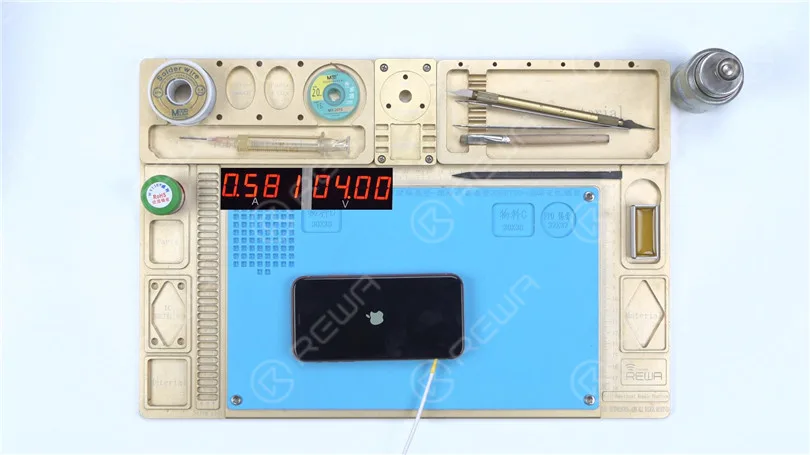
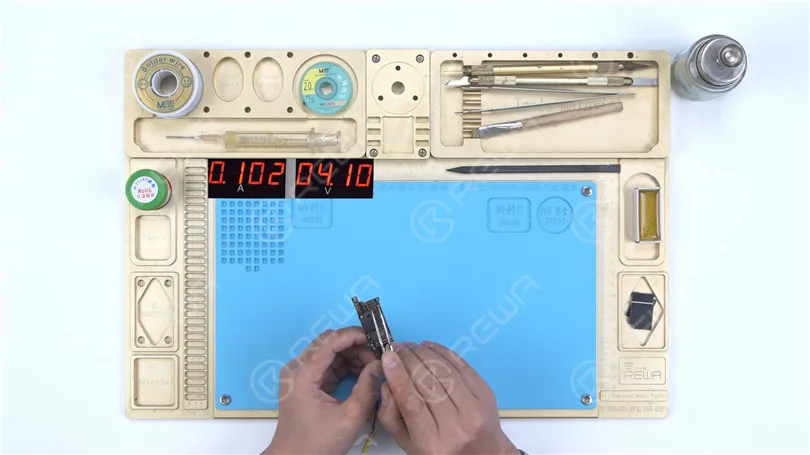
Connect the Power Cable: First, connect the power cable to the motherboard. Check for any signs of electricity leakage or large current. In this case, everything appears normal
Flash the Phone: Connect the iPhone XR to a computer and try flashing the device to see if there’s system damage. Use a Restore-Easy Cable to enter recovery mode and begin the flashing process.
The phone can be flashed successfully, but it still won’t turn on and continues restarting. This indicates that the issue is hardware-related, specifically the motherboard.
Step 2: Motherboard Inspection
Remove the Motherboard: Disconnect the flex cable, remove the foam and rubber, and attach the motherboard to a holder.
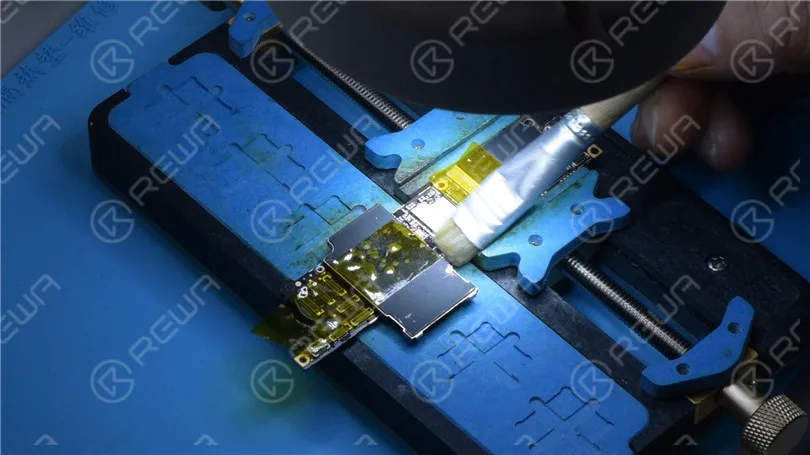
Protect the Connectors: Use high-temperature tape to protect the connector before continuing.
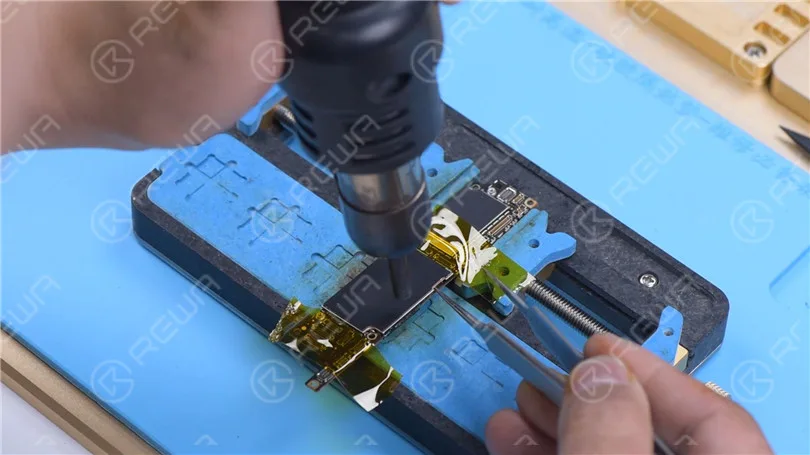
Remove Shield Cover: Remove the shielding cover with vertical Hot Air Gun at 380℃.
Check Inductances Around Power IC: Use a Pistolet à air chaud at 280°C to inspect the inductances around the power IC for loose connections. If the inductances are loose, it indicates pseudo-soldering. However, in this case, the inductances are solid.
Step 3: USB IC Replacement
Since the phone restarts after charging, the USB IC (which is part of the charging circuit) is the most likely culprit. Here’s how to replace it:
Remove Thermal Grease: Use a sculpture knife to carefully remove any thermal grease.
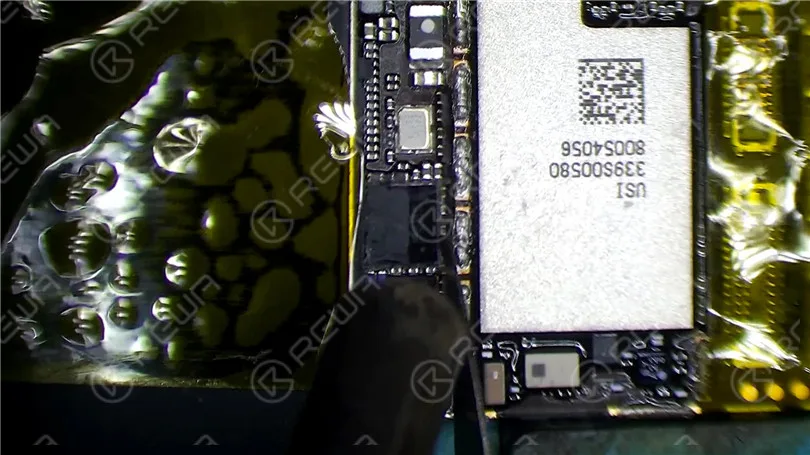
Prepare the USB IC Area: Protect the CPU with a shielding cover and secure it with high-temperature tape. Heat the black adhesive around the USB IC using a Hot Air Gun at 280°C.
Remove the USB IC:
Pry up the USB IC using a Hot Air Gun at 380°C.
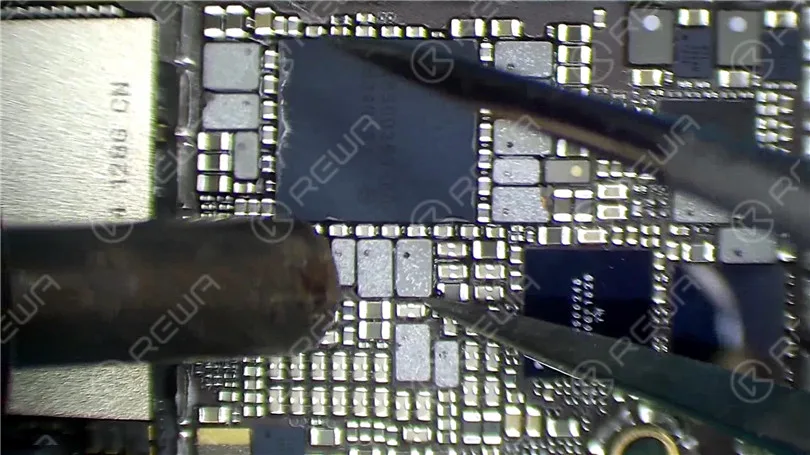
Apply paste flux, then remove the tin on the bonding pad with a fer à souder set to 365°C.
Clean the Area: Use solder wick soaked in rosin and heat it with the Hot Air Gun at 380°C to remove any excess tin. Clean the area with PCB Cleaner once cooled.
Installer le nouveau circuit intégré USB:
Apply paste flux and place the new USB IC in position.
Solder it in place using the Hot Air Gun at 380°C.
Clean the area with PCB Cleaner once the motherboard cools down.
Step 4: Testing and Reassembly
Test the Motherboard: Reconnect the motherboard to the power cable and short the ground of pin 10 on J4300 to trigger the boot-up. Check for normal boot current.
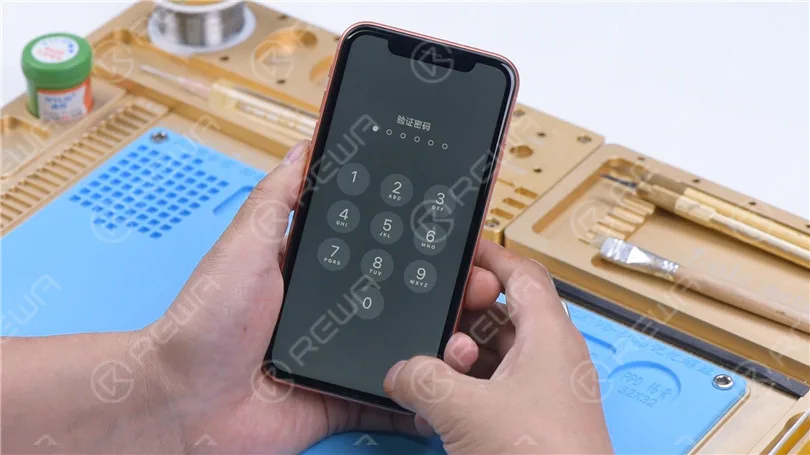
Reassemble the Phone: Reinstall the motherboard, connect the display and battery, and power on the phone. If everything works as expected, the phone should turn on normally.
Conclusion :
The issue with this iPhone XR was traced back to a faulty USB IC, which is a common failure point after the phone has been dropped or charged. While the phone could be flashed, it still kept restarting due to hardware failure. Replacing the USB IC resolved the issue, allowing the phone to turn on normally and function as expected. This guide highlights the importance of diagnosing hardware issues in cases where flashing the system doesn’t fix the problem.
Séparer et recombiner la carte mère à double empilement est une étape très importante pour la réparation de la carte mère de l'iPhone X et des modèles supérieurs. De légères erreurs peuvent entraîner une pseudo soudure ou d'autres problèmes. Par conséquent, cette vidéo vous aidera à maîtriser les astuces de réparation de la carte mère et à améliorer la réparabilité en partageant des méthodes et des notes détaillées sur la séparation et la recombinaison. Les conseils de cette vidéo s'appliquent à l'iPhone X et aux modèles ci-dessus.
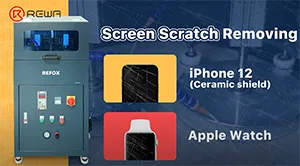
REFOX grinding and polishing machine, a new product selected by REWA, has recently gained attention from numerous customers and been sought after by clients of refurbishment, recycle, and repair all over the world because of its outstanding grinding effect and excellent work efficiency. Apple has covered its new iPhone 12 with a ceramic shield screen, which it says is the toughest glass ever on a smartphone. Today we’re going to show you how the machine refurbishes iPhone 12 and Apple Watch.
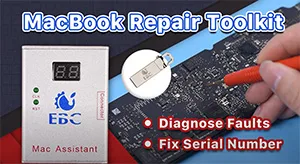
Dans la réparation quotidienne des MacBook, la panne de composants de la carte mère est le problème le plus courant. Pour les techniciens de réparation, le processus le plus compliqué n'est pas la réparation, mais la recherche de la panne. Face à cette situation, nous vous présentons l'assistant de réparation de MacBook EBC-820, qui peut aider les techniciens à identifier précisément la panne avant la réparation. Regardez cette vidéo pour voir comment fonctionne l'EBC-820 !
From first iPhone to iPhone 11, Apple has stored serial number, WiFi address, and Bluetooth address on NAND. However, REWA technicians recently discovered that the NAND on iPhone 12 does not store serial number, WiFi address, and Bluetooth address, which means that the NAND of iPhone 12 can directly be replaced by an iPhone 12 NAND and activated. Therefore, REWA technicians speculate that the storage upgrade of the iPhone 12 will be easier than previous models. Check out this video to verify our speculation!
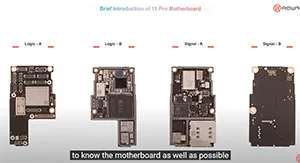
Some repair technicians repair motherboards according to experience and thus the repair result cannot be guaranteed. Only when you comprehend the phone working principles can the motherboard problems be fully resolved. REWA Academy is about to launch the iPhone 11 Pro motherboard repair online course, providing technicians with systematic motherboard repair knowledge.
We've detected you might be speaking a different language. Do you want to change to:


 English
 Español
 Français
 Deutsch
 Italiano