
Tag: macbook

  • Riparazione del MacBook senza display - Risoluzione del problema dello schermo nero

    Riparazione del MacBook senza display - Risoluzione del problema dello schermo nero

    MacBook No Display Repair

    Recently we noticed some complaints about MacBook air black screen issue during system boot.

    Instead of a traditional blue screen, the MacBook air is booting to a completely black screen with the initial “chime” sound.

    And keyboard backlights are also on.

    Which means the MacBook is on, well supplied by power and runs normally, and you just can’t see that it is.

    Our previous post How To Fix MacBook Pro Won’t Turn On explained some kind of power-related issue that prevented the MacBook from turning on as expected.

    Different from that, however, this time the MacBook is well turned on and booted to a completely dark screen due to some display issue.

    The situation may be rare, but we take it a good opportunity to share the potential logic board solutions for MacBook No Display Repair.

    If you have different opinions or solutions, please leave a comment below.

    MacBook No Display Repair

    Disassembling

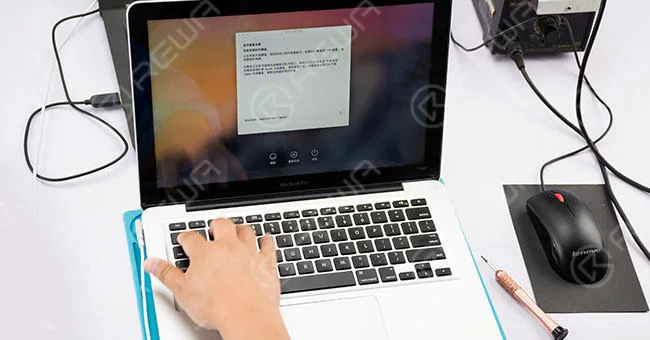
    Power button power up.

    The MacBook is booted to a completely dark screen.

    Yet keyboard backlights are on, which indicates that the MacBook is on with no screen display.

    Disassemble the MacBook.

    Disconnect flex cables and remove screws.

    Then detach the logic board and remove the SSD and WiFi modules.
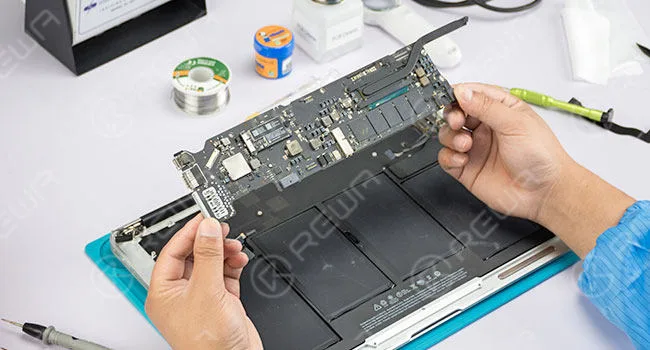
    Disconnect flex cables and remove screws

    Diagnosi

    Run a cosmetic inspection—whether there are mildew, component missing or burnout on the logic board. No particular damage.
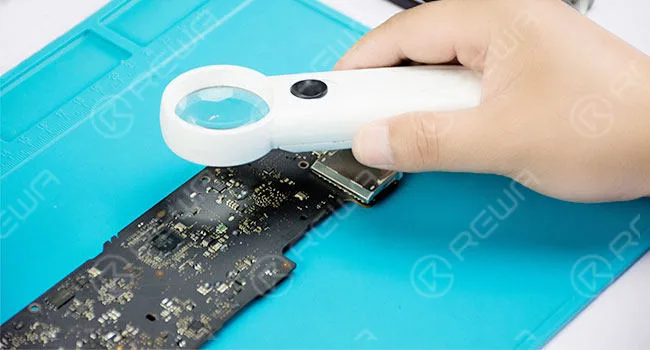
    Run a cosmetic inspection

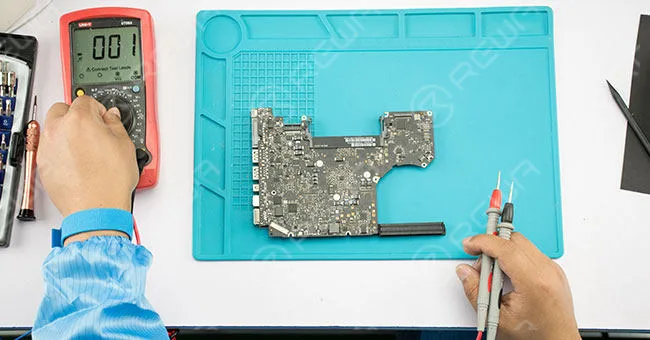
    The test grounding resistance value of fuse F7700 with diode mode and the value proves to be normal.
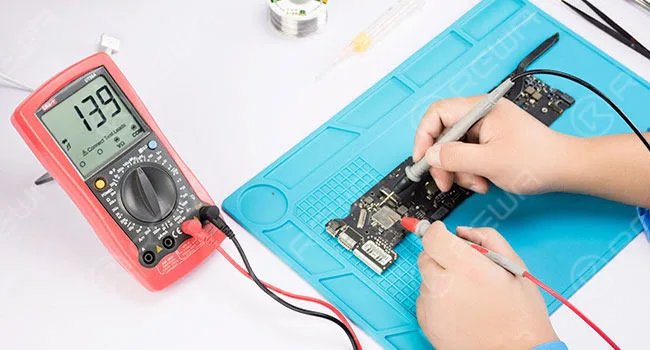
    test grounding resistance value

    Then connect AC adapter and test voltage value of fuse F7700, the displayed value is 8.58V—normal value.
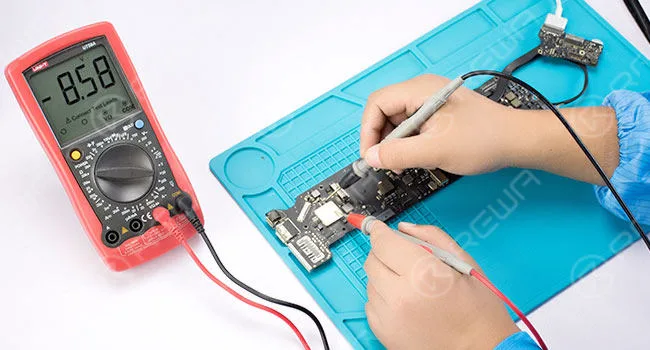
    connect AC adapter

    Test grounding resistance value of logic board display port pins with diode mode.

    All display normal value.

    A test grounding resistance value of backlight resistors with diode mode. All display normal value.
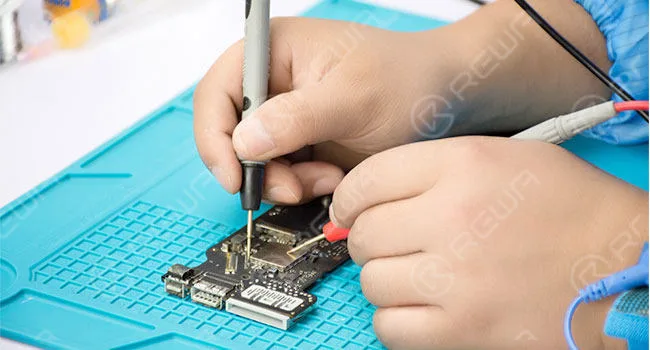
    Test grounding resistance value

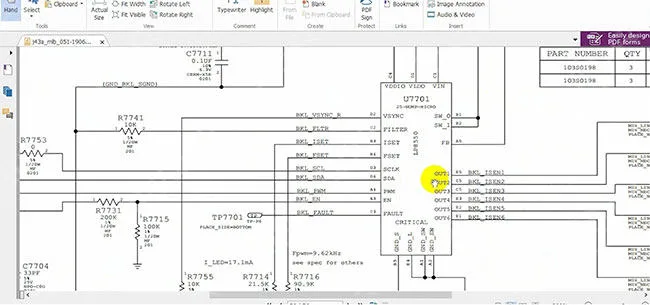
    Connect AC adapter and test voltage values of display chip U7701 and nearby components. BKL_SCL displays abnormal voltage value (3.3V under normal circumstances).
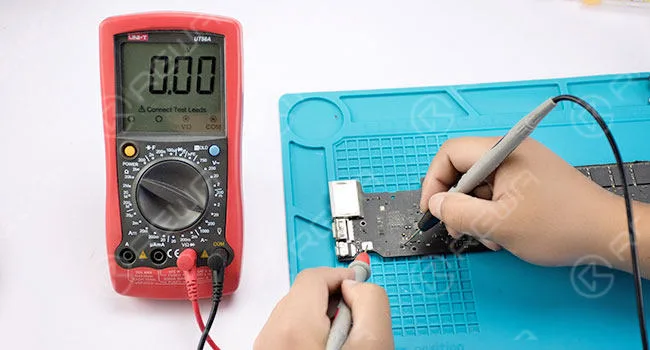
    Connect AC adapter

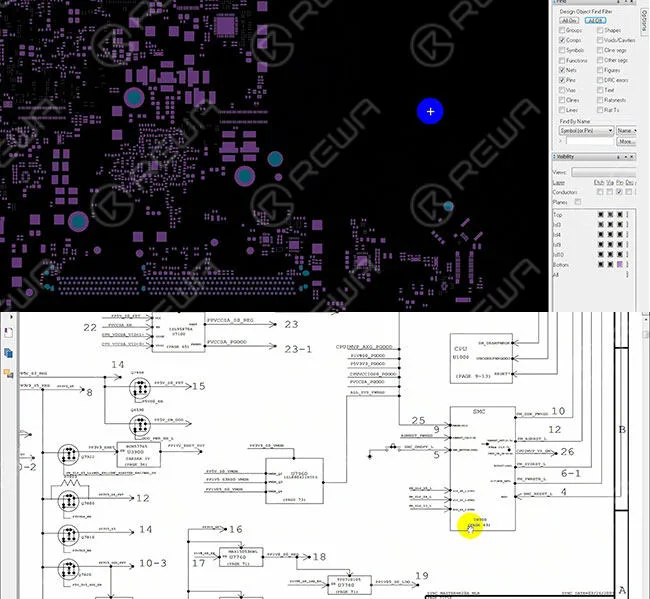
    Roll out the maintenance bitmap and locate BKL_SCL.

    Confirm the corresponding resistor as R7753.

    Then roll out the circuit diagram.

    Analyzing the circuit network, we find that SCL is connected to pin D3 of U7701 via resistor R7753.

    Then we can infer that U7701 might broke down.
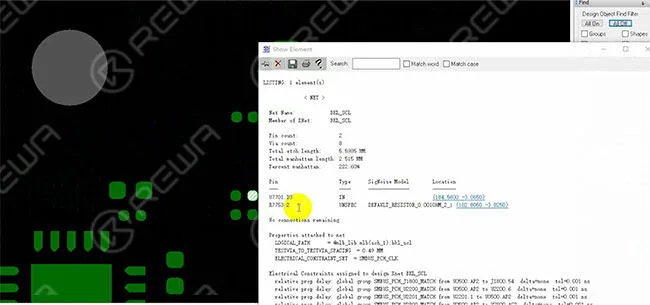
    Roll out

     U7701 might broke down

    Riparazione

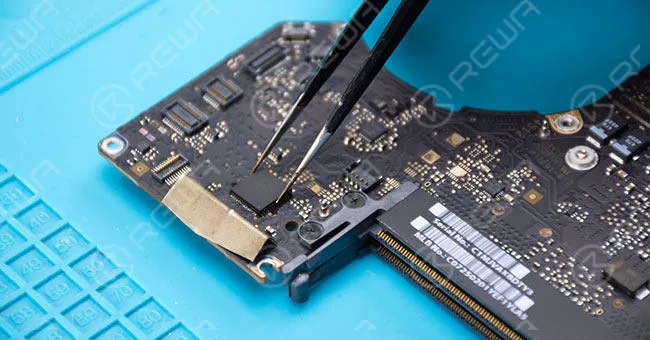
    Remove the sealing adhesive around display chip U7701.

    Take down display chip U7701 with the help of some BGA paste flux.
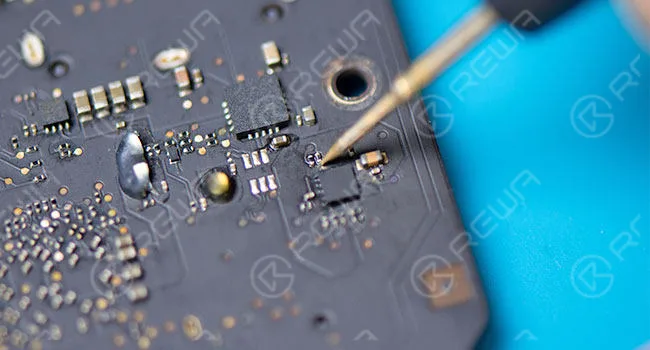
    Repairing Remove the sealing adhesive

    Use a soldering iron to flat the bonding pad and then clean the bonding pad with PCB Cleaner.

    Apply some BGA paste flux to the bonding pad and align the new display chip with a hot air gun.

    Cool down the logic board with the ion fan.

    Connect AC adapter and test voltage values of display chip U7701 and nearby components.

    All display normal value.

    Test

    Insert the SSD and WiFi modules and assemble the MacBook.

    Power button power up, the screen displays normally. The fault has been cleared.

    For more details on MacBook no display repair guide, please go to REWA YouTube channel.

  • Problemi comuni dei MacBook Pro 2016 riscontrati dagli utenti

    Problemi comuni dei MacBook Pro 2016 riscontrati dagli utenti

    The sleeker design with the thinner bezels, brighter retina screen, impressive audio quality, and fast performance, the new 2016 MacBook Pros prove clear departure from the previous generation. With last year’s 2016 MacBook Pro family proving to be one of the fastest selling laptops of the year, some unpleasant issues also emerged. Today we will introduce some of the most mentioned 2016 MacBook pro common problems. Since problems may be annoying, solutions can be expected.

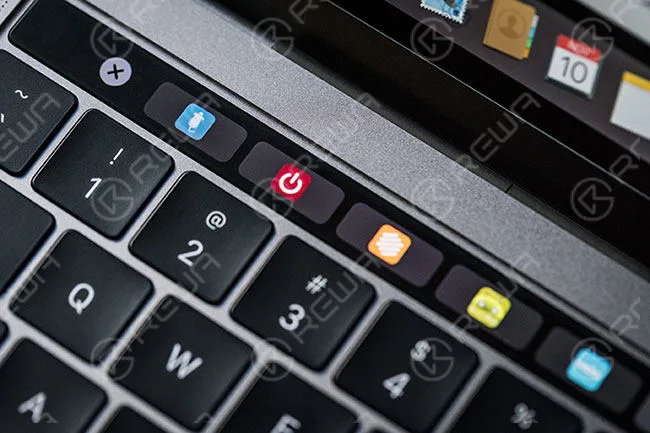
    Keyboard Issues

    ‘I have had my new MacBook Pro 2016 w. Touch bar for almost 2 weeks. The first week I really loved the 2nd generation butterfly keyboard but the feel has changed. It seems to me some buttons doesn’t feel like the other ones like they aren’t moving deep enough. For instance the Enter button. Cant really tell if its imagination.’

    2016 macbook pro common problems users have experienced 2

    The keyboard of the 2016 MacBook Pros is totally different from previous-generation MacBook Pro models, and the new butterfly mechanism also appeared to be less reliable compared to older construction techniques. A growing number of customers are running into issues with the keyboard. For example, the new MacBook Pros’ butterfly mechanism keys are noisy, and there are also keys that make different higher-pitched sounds than other keys in some cases, etc.

    Popping Speakers

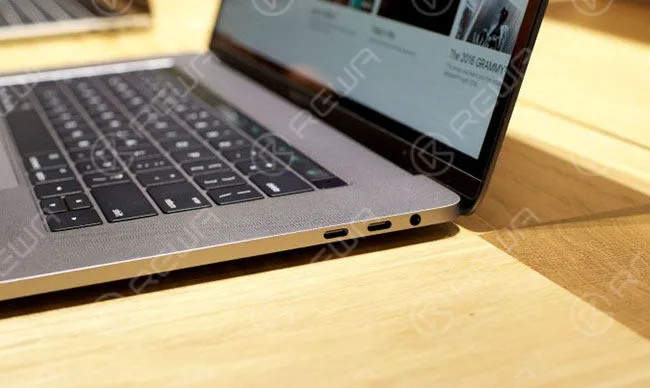
    When it comes to the question that what an Apple Mac can do when Windows 10 machines can’t do easily and completely legally? The answer should be running both Windows and MacOS. Apple’s Boot Camp makes it easy for MacBooks to run the Windows operating system. However, it appears that Boot Camp might be causing some serious and uncharacteristic audio issues for those who like to dual boot. Reports of loud crackling and popping noises increased day by day and some even reported a permanent physical damage to their speakers by the annoying pop.

    2016 macbook pro common problems users have experienced 3

    Durata della batteria

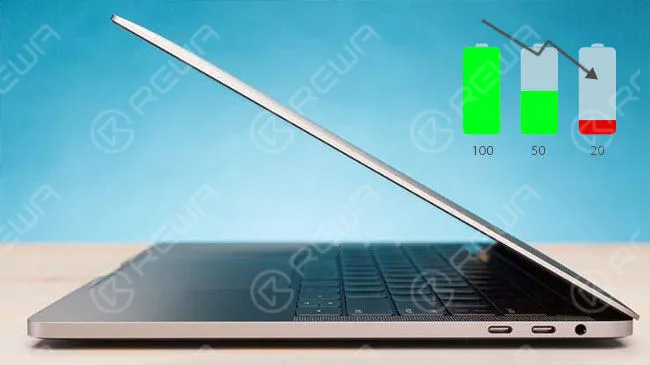
    Here comes the most frequent complaints leveled at the new MacBook Pros, battery life. Battery life is an important attribute for a laptop, and it represents a significant portion of the overall score. Users of the Touch Bar model, in particular, realize that battery life is falling short of Apple’s 10-hour estimates for Web browsing and movie playback. According to Apple’s data, the new Pros’ battery life will be determined by what you’re using the machine for. That has always been the case. However, things are different for the new MacBook pros this time because of three things: smaller batteries, a more power efficient screen, Intel’s recent CPU stagnation, and the 15-inch models’ mandatory dedicated GPU. Each element can be listed as a reason for short battery life.

    2016 macbook pro common problems users have experienced 4

    Graphics Issues

    Since new MacBook Pro models launched last year, a variety of graphics issues have been reported from some buyers of the new MacBook Pro models, ranging from brightly colored flickering, full-screen checkerboard patterns and screen tearing to corrupt textures and tearing. Although it is not entirely clear if the issues are a hardware or software problem, the result can be annoying. The graphics appear to act up most when users are completing intensive tasks and affected systems may subsequently experience unresponsiveness or a kernel panic, sometimes resulting in the MacBook Pro crashing.

    2016 macbook pro common problems users have experienced 5

    What other 2016 MacBook pro common problems you have run into with? Leave a comment below and share your puzzle with us. Trust REWA and solutions will be on the way. We also provide MacBook air ram upgrade, you can have a check!

  • Come risolvere il problema dell'accensione del MacBook Pro

    Come risolvere il problema dell'accensione del MacBook Pro

    “Every day starts, my eyes open and I reload the program of misery.

    I open my eyes, remember who I am, what I’m like, and I just go, ‘Ugh’.”

    You may have heard this famous sentence from a popular TV show or read it in a daily newspaper.

    We human beings start a day from opening our eyes, whereas computers start their day with the power button on their body.

    It is well known that Macs are well built and for the most part reliable.

    Still, they are computers and computers need to wake up before getting to work.

    However, we’ve noticed a number of “My MacBook Pro won’t turn on” posts, and solutions are not so easy to be found.

    Theoretically speaking, ‘MacBook Pro won’t turn on’ problem usually relates to one of two things.

    Either the display is malfunctioning, which means the computer is on, and you just can’t see that it is.

    Or there is some kind of power-related issue that is preventing it from turning on as expected.

    REWA LAB has been working on MacBook repair these days, and in this tutorial, we look at the steps you need to take to fix your MacBook Pro 13″ A1278  if it won’t turn on when pressing the power button.

    Power Button Power Up

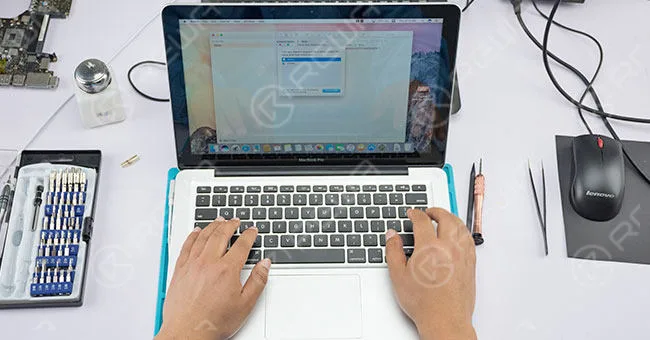
    TestingPower button power up-failed. Plug in AC power adapter to power up- successful.

    Fix MacBook Pro

    Keyboard And Trackpad TestingKeyboard and Trackpad no function.

    Fix MacBook Pro Won't Turn On

    Preliminary  DiagnosisTrackpad and keyboard module broke down.

    Smontaggio del MacBook

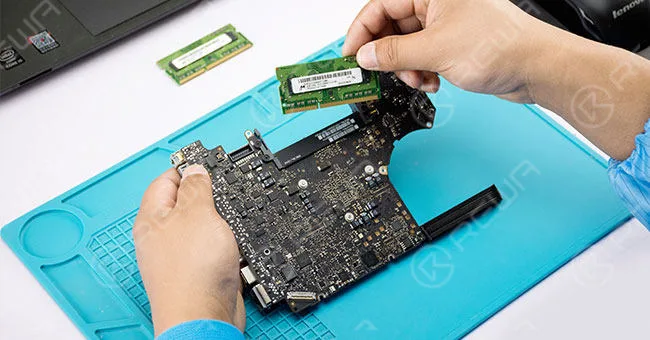
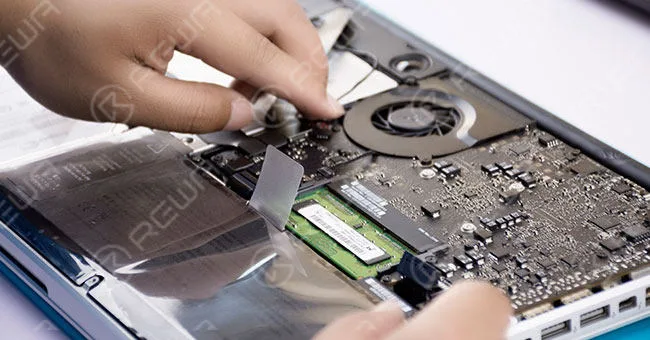
    Disassemble the MacBook and disconnect flex cables. Remove screws and detach the motherboard. Then remove the memory.

    DiagnosisTrackpad and keyboard module broke down

    Motherboard Superficial Inspection

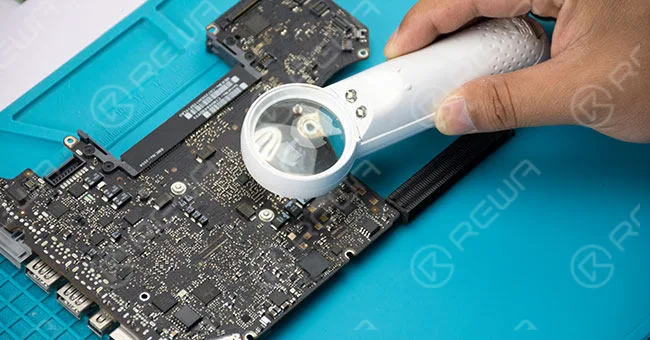
    Motherboard superficial inspection with the help of a handheld magnifier.

    Motherboard Superficial InspectionMotherboard

    Maintenance Drawing

    ReferringRoll out the maintenance bitmap and the circuit diagram for reference.

    Roll out Motherboard framework drawing and motherboard power system architecture afterward.

    Maintenance Drawing ReferringRoll out

    Motherboard Voltage Testing

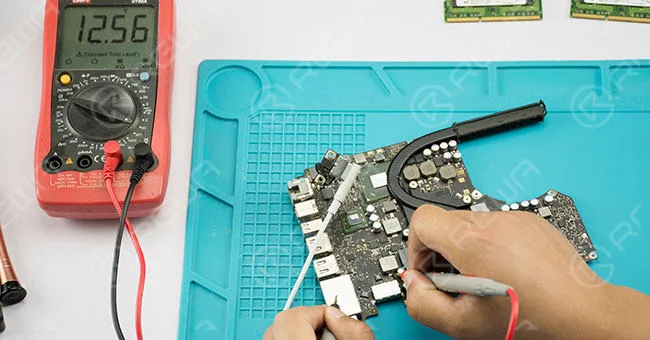
    Locate voltage 12.56 V, common point voltage 3.42V, voltage 5V, voltage 3.3V, voltage 1.5V, voltage 1.0V, voltage 0.9V, voltage 1.1V.

    Connect AC adapter and test them with a digital multimeter – all display normal value.

    Motherboard Voltage TestingLocate voltage 12.56 V

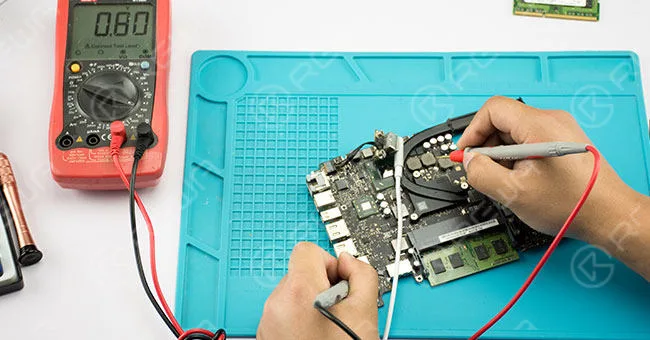
    Disconnect AC adapter and install the memory. Then connect AC adapter and test, voltage value jumps from 1.1V to 0.8V- normal circuit.

    Disconnect AC adapter and install the memory

    Resistance Testing

    Test keyboard port pins and peripheral component value with diode mode.

    Then connect AC adapter and test keyboard port power supply voltage with a digital multimeter.

    Resistor R5704.1 displays no voltage (3.3V under normal circumstances).
    Resistance TestingTest keyboard port pins and peripheral component

    Diagnosi

    Analyze with the help of maintenance bitmap and circuit diagram – U5701 broke down.

    U5701 IC Replacing

    Use a metal plate to protect keyboard port from high temperature, then take down the damaged U5701 IC with hot air gun.

    Apply some BGA paste flux to the bonding pad and align the new IC with a hot air gun.

    DiagnosisAnalyze with the help of maintenance bitmap and circuit diagram

    After that, test R5704.1 with digital multimeter again – 3.3V (normal value).

    Assemblaggio e collaudo

    Assemble the MacBook. Power button power up-failed. Plug in AC adapter to power up- successful.

    After that, test R5704.1

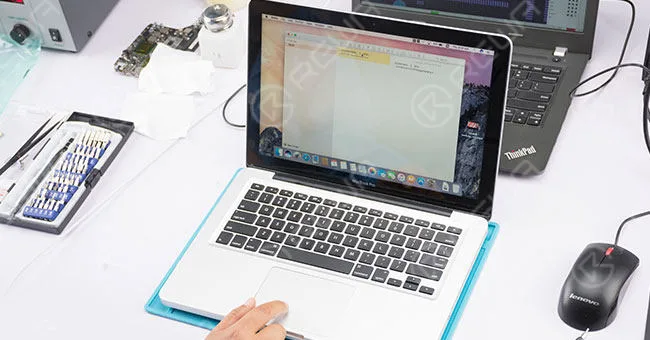
    Keyboard and Trackpad work normally.

    Keyboard and Trackpad work normally

    Diagnosi

    Keyboard power button no response – keyboard need to be replaced.

    Keyboard Replacing

    Disconnect flex cables and detach the motherboard.

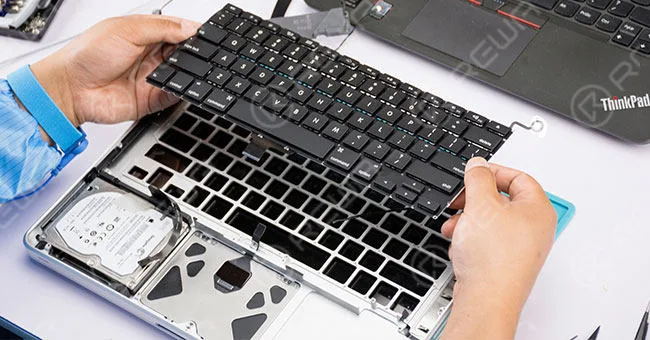
    Then detach the old keyboard and install a new keyboard.

    DiagnosisKeyboard power button no response

    Assemblaggio e collaudo

    Assemble the MacBook. Power button power up-successful. Keyboard and Trackpad work normally.

    Assembling and TestingAssemble the MacBook

    Final Fault Diagnosis

    Keyboard and motherboard IC broke down resulting in the ‘not turning on’ problem.

    Click to watch the video of MacBook Pro Won’t Turn on:

    • Strumenti e parti utilizzati:
    • Handheld Magnifier
    • Replacement Keyboard for MacBook Pro 13″ A1278
    • Multimetro digitale
    • Heat Resistant Insulation Pad
    • Pistola ad aria calda
    • Flusso di pasta BGA

    If you want to order the tools used in the video please go to  https://shop.rewa.tech/ For more details on repairing guide, please go to Canale YouTube di REWA .

    REWA LAB provides screen repair services as well as motherboard repair services for those in need.

    As for LCD refurbish machines, materials, demo videos and technical support, please feel free to contact us via service@rewa.tech or comment below.