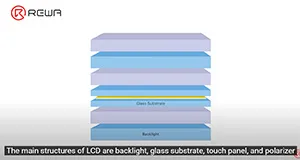
There are various kinds of screen assembly products with uneven quality, which makes many customers confused when placing orders. Therefore, REWA has set a stringent standard for selecting products to ensure customers’ shopping experience, aiming to select the best quality screen assembly product with the highest cost performance on the market. REWA hopes to make customers shop without worries and rest assured to use assembly products selected by REWA.
Tag: iPhone
-
How To Fixing iPhone X Unable to Activate By Jumping Wires
The iPhone X has been dropped and can’t work normally. After restoring, the phone can’t be activated. REWA Lab technicians suspect that the motherboard was damaged after the phone was dropped. This video will share how we locate and eliminate the fault. Let’s check it out!
Products recommended in this video
-
Fix iPhone X with Distorted Sound
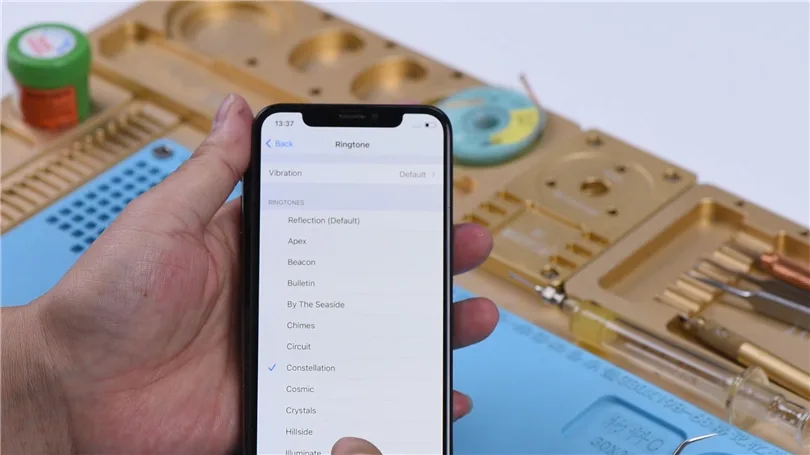
Hello everyone! Today we will share how to fix an iPhone X with distorted sound.
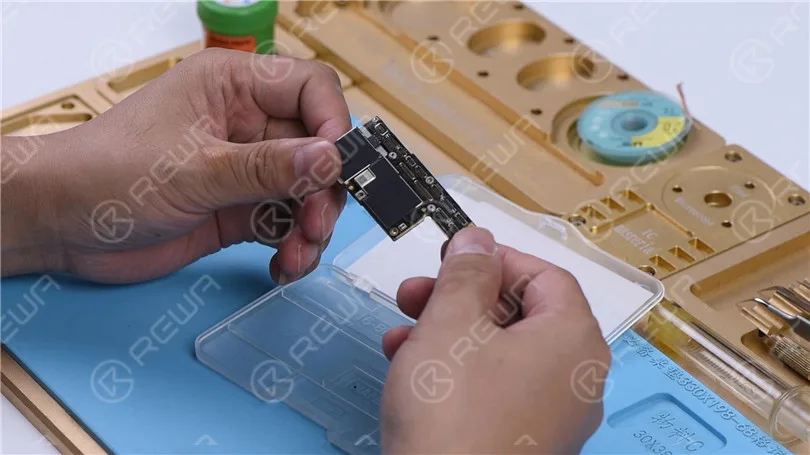
First of all, run a cosmetic inspection of the motherboard. The motherboard is not deformed or water damaged.
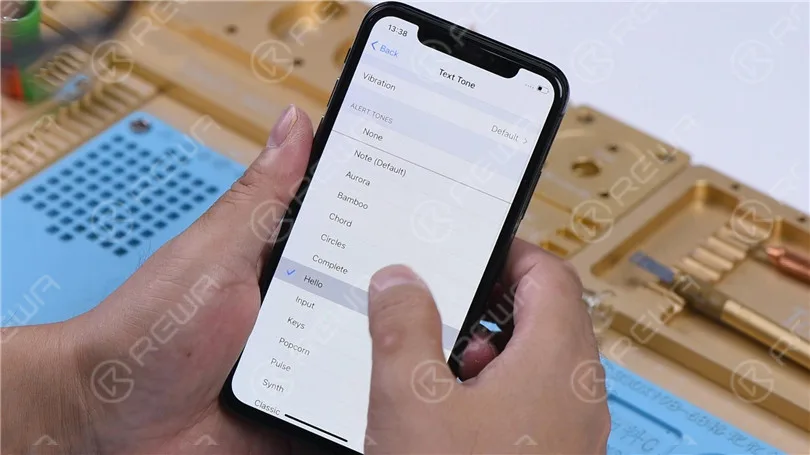
Then we install the motherboard on the phone to test. The phone turns on normally. Go to Settings > Sounds & Haptics. Turn the volume up. Play the ringtones. There is noise in the sound.
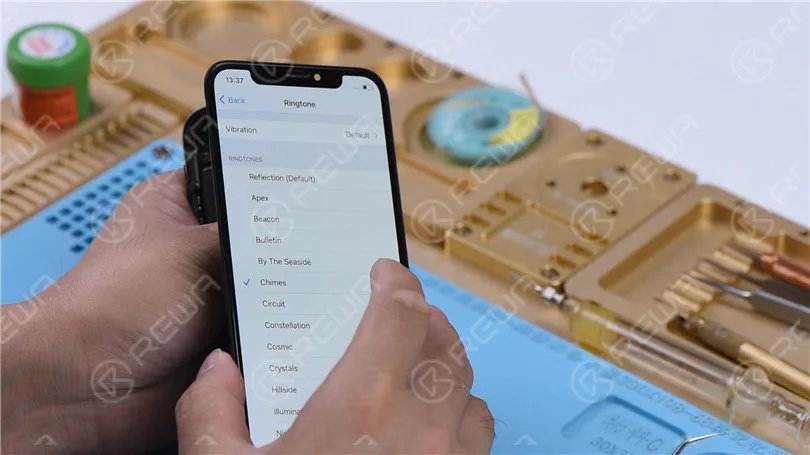
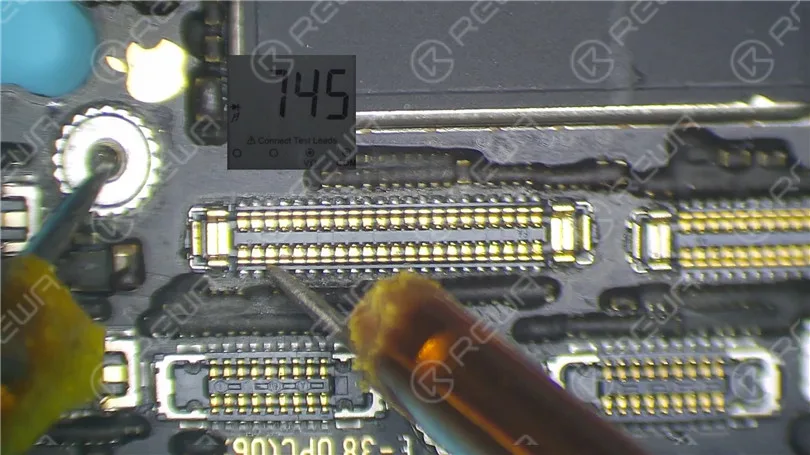
Next, measure circuits that are related to the speaker on the charging port connector.
Turn the phone off. Detach the motherboard. Run diode mode measurement of the pin 1, pin 3, pin 5, and pin 45 on the J6400. The diode values are normal.
Next, we need to separate the motherboard for further testing.
Cut through the shielding paper with a Coltello da scultura. Heat the motherboard on the Piattaforma di riscaldamento at 165℃. When the temperature has risen to 165℃, remove the logic board and signal board.
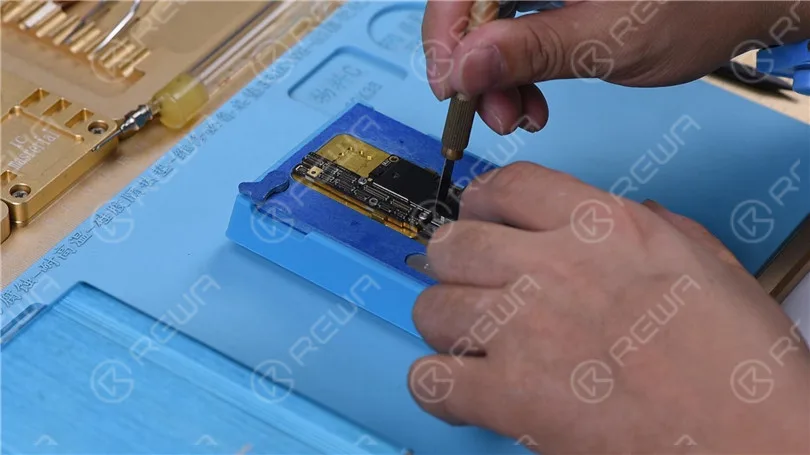
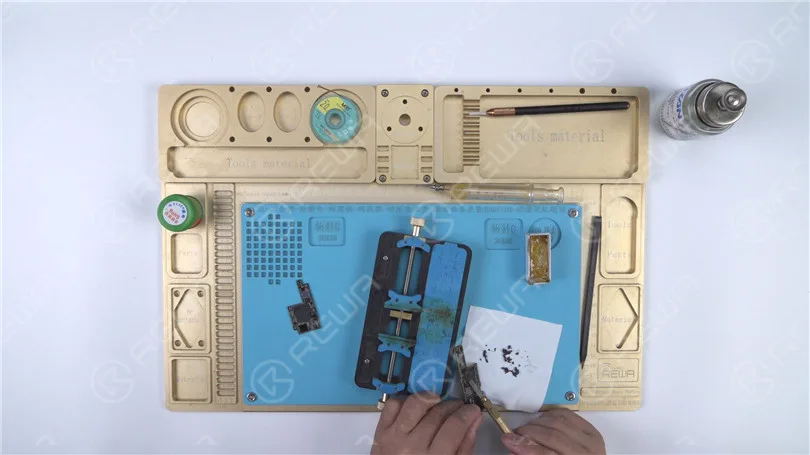
Attach the signal board to the holder. Smear rosin with Saldatore at 365℃ and solder wick to remove tin on the bonding pad. Remove tin on the bonding pad of the logic board with the same method.
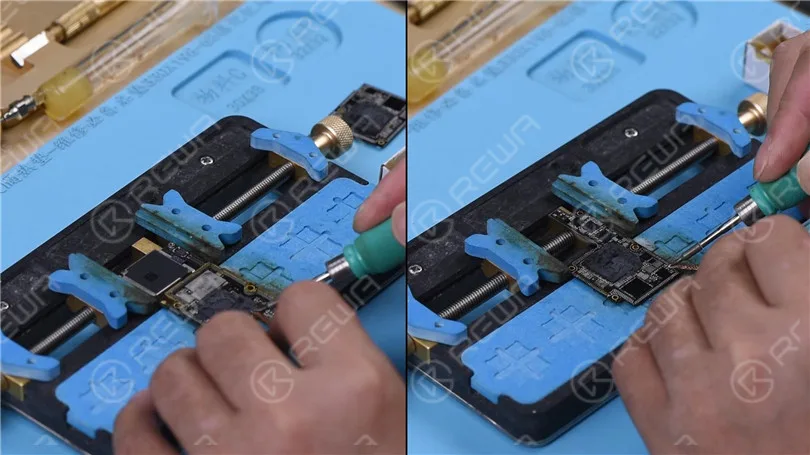
Remove thermal grease with a Sculpture Knife. Clean the motherboard with PCB Cleaner. Attach the signal board and logic board to the Apparecchio di prova.
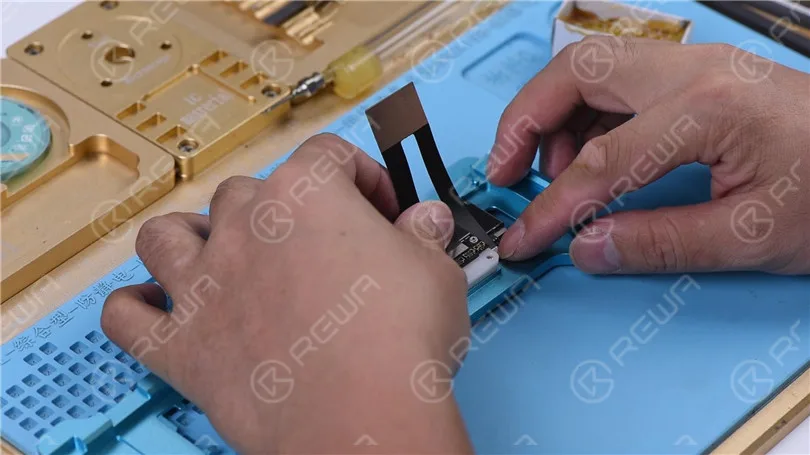
Collega il Test Extension Cable. Close the Testing Fixture. Connect the charging port flex cable. Then connect the battery and the display. Short to the ground of the J4300 pin 9 to trigger the boot-up. The phone turns on normally.
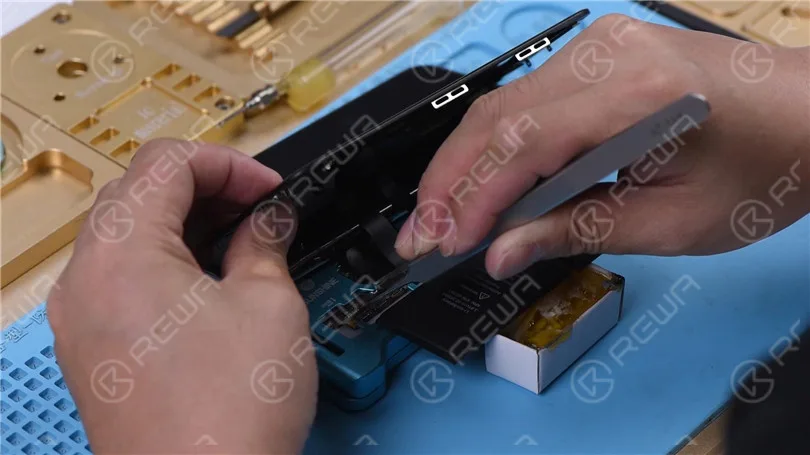
Go to Settings > Sounds & Haptics. The ringtones play normally. It can be judged that the noise is caused by pseudo soldering of the motherboard middle layer. All we need to do next is to recombine the logic board with the signal board. First of all, we need to reball the signal ball. Attach the signal board to the Reballing Platform. Put the Reballing Stencil in position. Apply a layer of low-temperature Solder Paste evenly. Remove the Reballing Stencil.
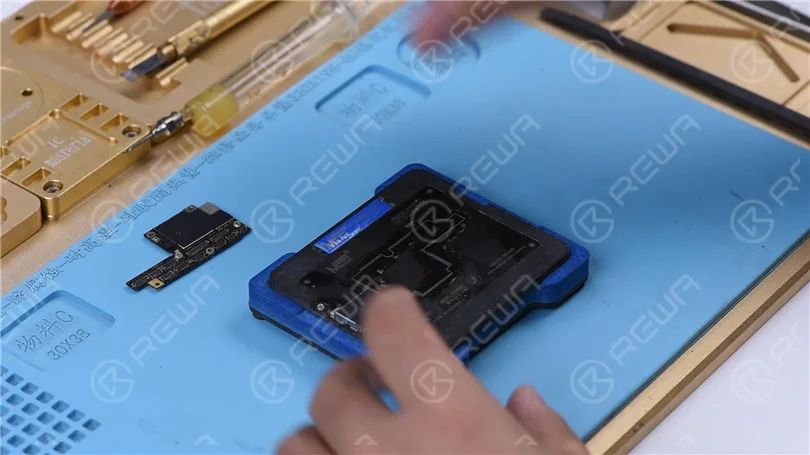
Put the signal board on the Heating Platform. Heat the signal board on the Heating Platform at 165℃. After the solder balls are formed, turn the power off and cool the motherboard for 5 minutes. Apply some Paste Flux. Align the logic board with the signal board. Keep heating the motherboard on the 165℃ Heating Platform. When the temperature reaches 165℃, keep heating for 1 minute. This step is to ensure that the logic board and the signal board fit closely. Turn the power off and cool the motherboard for 5 minutes. Then remove the motherboard.
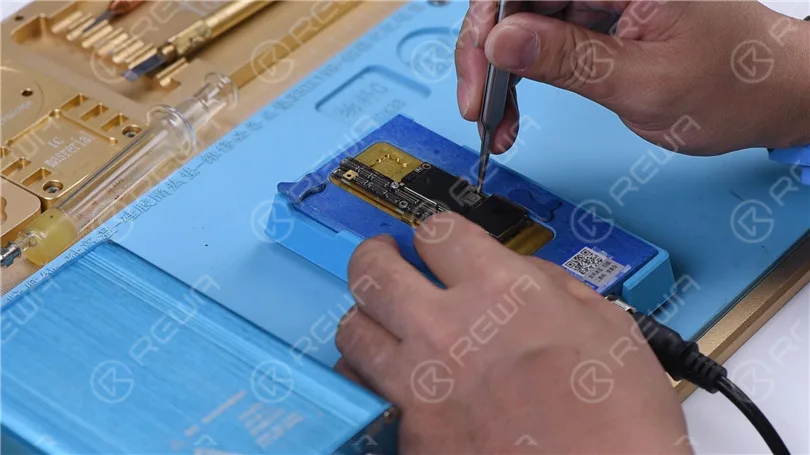
Put the motherboard on the phone. Connect the display and battery. The phone turns on normally. Test the sound. The sound gets back to normal and has no noise.
Conclusione:
The sound of the iPhone X was distorted. When measuring circuits that were related to the speaker on the charging port connector by pressing the motherboard with multimeter probes, the diode values were normal and we couldn’t find the fault. But the sound remained normal after we separated the motherboard and tested the motherboard with the holding fixture. Therefore, we could conclude that the noise was caused by pseudo soldering of the motherboard middle layer. The fault was cleared after we recombined the logic board with the signal board.
-
Come cancellare la cache di iPhone 12 Pro Max
Some users find storage space more and more insufficient while using. Then how to clear iPhone 12 Pro max cache? Let’s check it out!
1. Clear “Recently Deleted”
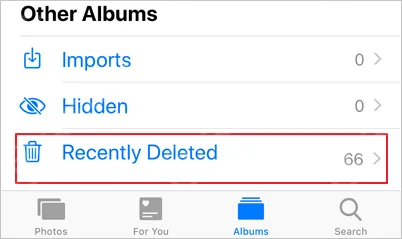
In the “Recently Deleted” album, photos that are deleted within recent 30 days will be stored. Photography hobbyists will stack this part with photos or videos. Regular clearance can be performed according to the actual situation.
2. Clear Safari cache
Go to “Settings” – “Safari” – “Clear History and Website Data” to clear the cache in the Safari browser.
3. Delete Apps that Are Not Used Frequently
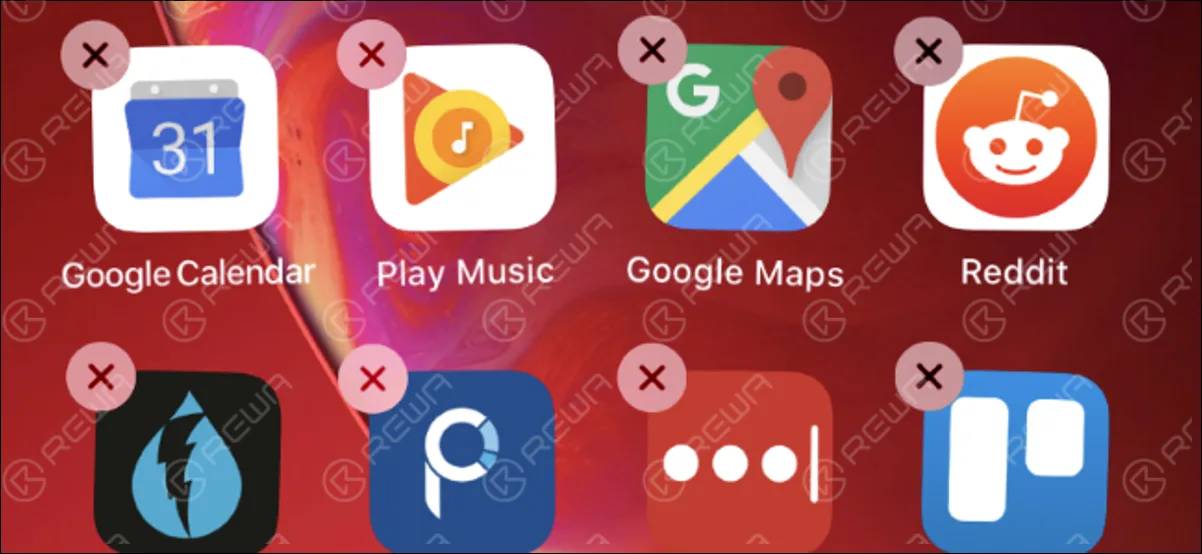
A lot of apps that take up storage space are not used frequently. Users can develop habits to remove this kind of App.
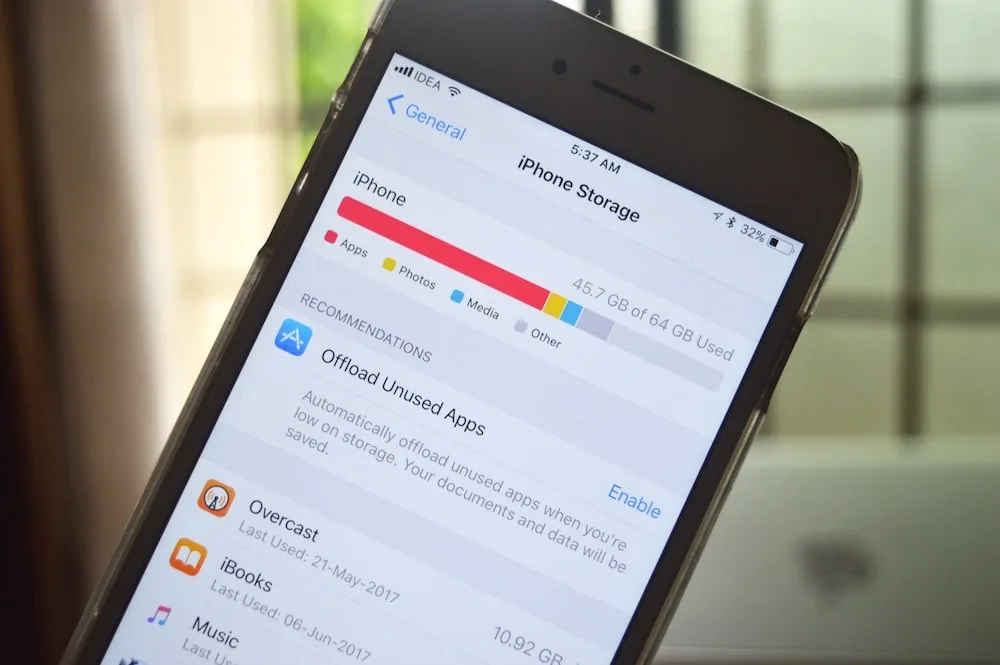
Go to “iPhone Storage”, you can view the storage size of each app. You can choose to delete according to your needs.
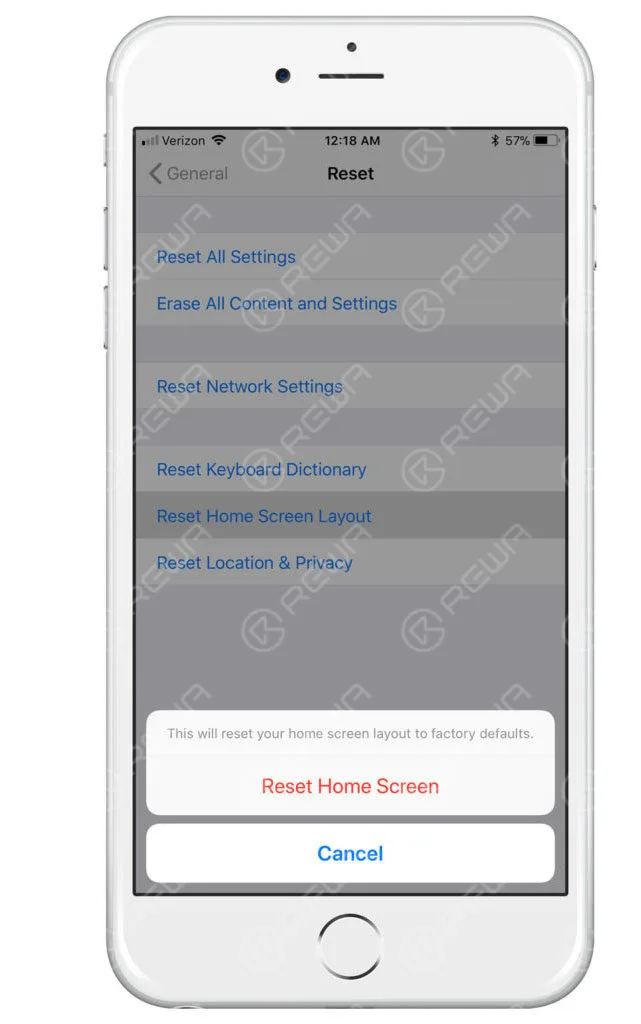
4. Reset the Phone Directly
After the mobile phone is completely reset, the data will be completely removed and the phone will be restored to factory settings.
Suggerimenti:
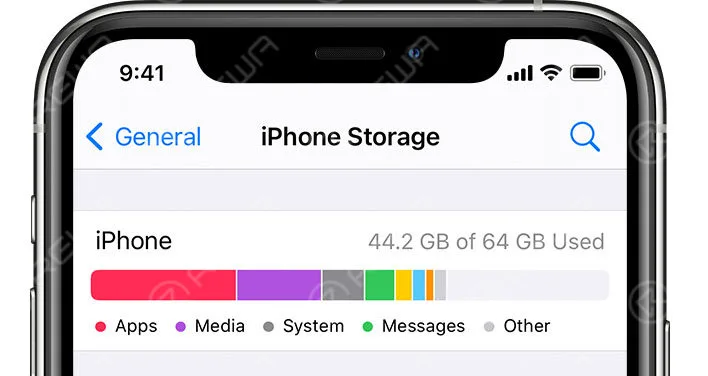
It is recommended to upgrade to the latest system and then clear the cache.
You can also use other applications for backup if there is no sufficient storage space for updates.
-
How to unlock iPhone with Apple Watch when wearing a mask
Because of the ongoing pandemic, face masks have created a challenge for iPhone users who rely on Face ID for unlocking their devices. Fortunately, Apple has introduced a convenient solution that allows you to unlock your iPhone using your Apple Watch, even while wearing a mask. In this guide, we will walk you through the steps required to set up this feature on your iPhone running iOS 14.5 and Apple Watch with WatchOS 7.4.
Our lives are now deeply intertwined with smartphones in the digital era. However, the use of face masks during the pandemic has posed a problem for iPhone users who depend on Face ID to unlock their devices. Thankfully, Apple has provided a practical solution that enables iPhone unlocking through an Apple Watch, even when wearing a mask. This guide outlines the necessary steps to configure this functionality on an iPhone running iOS 14.5 and an Apple Watch with WatchOS 7.4.
Describe how to unlock in the configuration app.
Set in “FACE ID and Pass Code” of the setting app
ne and installed WatchOS 7.4 to Apple Watch, if you have installed Apple Watch when wearing a mask, the unlocked function of the iPhone is not enabled.
You need the following settings to use this function.
Enable “Unlock Locking” with Apple Watch
Check the Apple Watch toggle switch to use to unlock the iPhone at “Locking with Apple Watch” in the Configuration App.
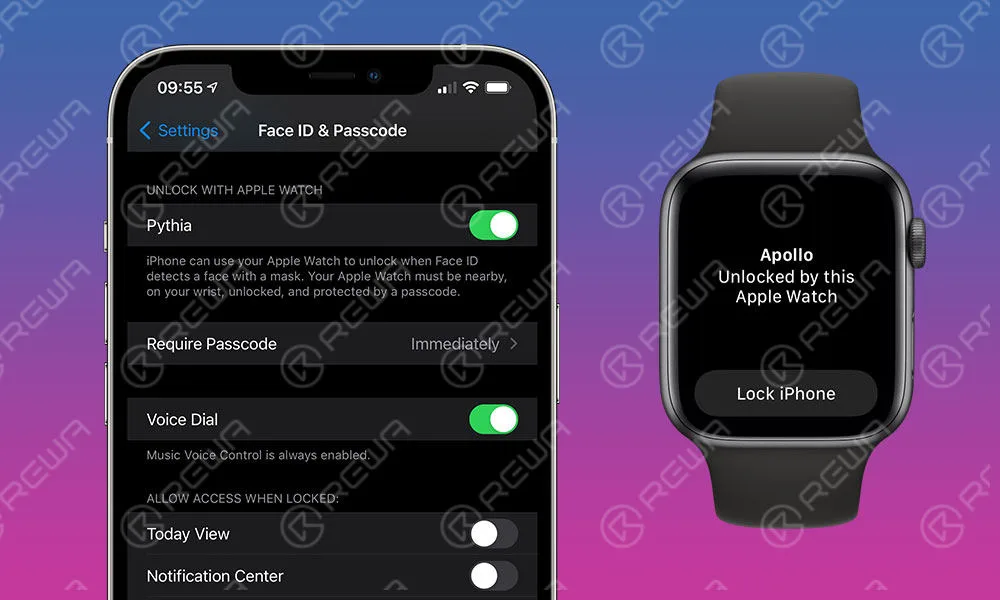
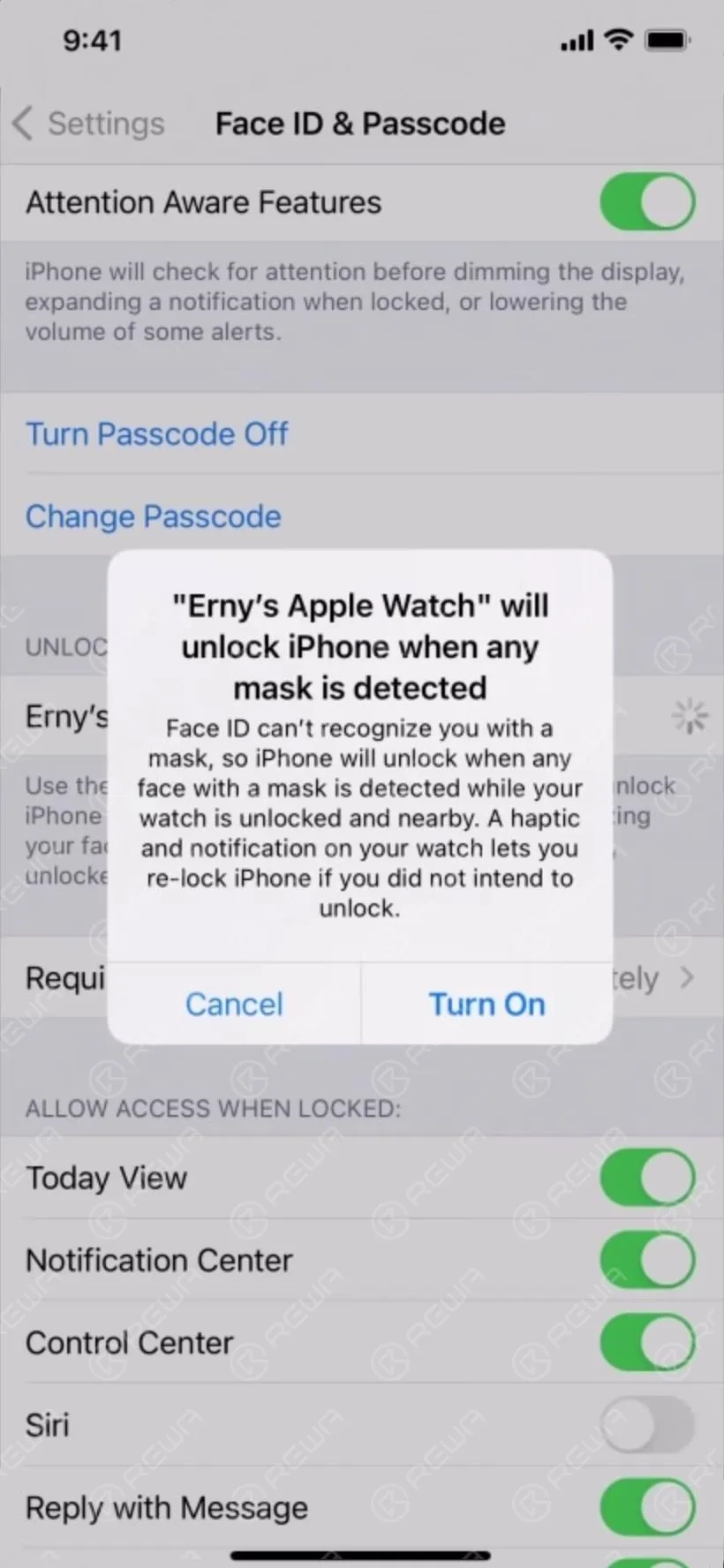
Display message display
You may also enable unlocking at Apple Watch or a confirmation message. If there is no problem, select Turn On.
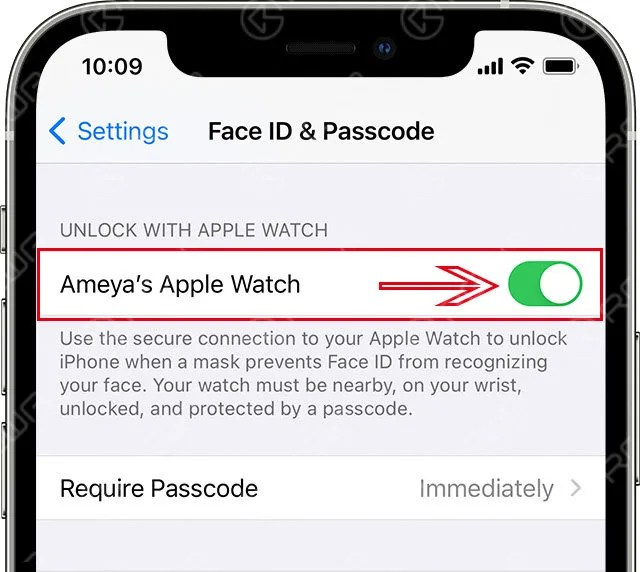
“Unlock unlocked with Apple Watch” is activated
The Apple Watch toggle switch used to unlock the iPhone is turned on.
In the corresponding Apple Watch, if WatchOS is an older version, “Software update is required”,
such as the lower level of Apple Watch below.
Unlock notification in Apple Watch
Wear a mask and wear Apple Watch and gaze the iPhone12 Pro screen.
The iPhone12 Pro has been unlocked with the light vibration of Apple Watch.
Light vibrations when canceled were the same as the vibrations when the MAC lock was unlocked at Apple Watch.
-
Confronto tra iPhone 13 e iPhone 12 sulla durata della batteria
Apple ha spedito quattro iPhone 13, iPhone 13 MINI, iPhone 13 Pro e iPhone 13 Pro Max nel 2021, nonostante lo sviluppo della batteria.
Ha Allo stesso modo ha acquisito una tonnellata di miglioramenti e di aggiornamenti della batteria con una durata maggiore. Vediamo le differenze rispetto a l'iPhone 12.
Il modello Apple iPhone 13 è indistinguibile dall'aspetto dell'iPhone 12, la cosa che conta è che l'iPhone 13 ha uno spessore di 0,25 mm rispetto all'iPhone 12, che è fondamentalmente influenzato da una batteria di maggiore capacità e da un altro modulo fotocamera.
iPhone 13 spessore: 7,65 mm
iPhone 12 spessore: 7,4 mm
iPhone La capacità della batteria dell'iPhone 13 è aumentata, con un incremento di 8% nell'iPhone 13, 9% nell'iPhone 13 e nell'iPhone 13, dove la capacità della batteria dell'iPhone 13 Pro Max raggiunge i 18%, eppure, in aggiunta, il Per la prima volta l'iPhone ha una batteria con capacità superiore a 4000 mAh.
iPhone La capacità della batteria 13 mini è di 2406 mAh
iPhone 13 La capacità della batteria è di 3095 mAh
iPhone La capacità della batteria del 13 Pro è di 3095 mAh
iPhone La capacità della batteria del 13 Pro Max è di 4352mAh
iPhone 13 Confronto della durata della batteria con iPhone 12
Come indicato dall'evento “California streaming” completamente digitale di Apple del 14 settembre, la durata della batteria dell'iPhone serie 13 sulla fortificazione 1,5 ore a 2,5 ore in più rispetto all'iPhone Serie 12, le informazioni sono come come segue:
iPhone La durata della batteria del 13 mini è aumentata di 1,5 ore rispetto all'iPhone 12 mini
iPhone 13 durata della batteria è aumentato di 2,5 ore rispetto all'iPhone 12
iPhone 13 Pro durata della batteria per incrementare 1,5 ore rispetto all'iPhone 12 Pro
iPhone 13 Pro Max la durata della batteria è superiore a 2,5 ore rispetto all'iPhone 12 Pro Max
La serie iPhone 13 migliora completamente la capacità della batteria ed è dotata di 5 chip bionici A15 in versione nano potenziata per ridurre il consumo energetico, che fare Batteria iPhone 13 rafforzamento della vita.
Lo spessore di 0,25 mm si contrappone a quello dell'iPhone 12, che è fondamentalmente influenzato da una batteria di maggiore capacità e da un altro modulo fotocamera.
Spessore dell'iPhone 13: 7,65 mm
Spessore dell'iPhone 12: 7,4 mm
La capacità della batteria dell'iPhone 13 è aumentata, con un incremento di 8% nell'iPhone 13, 9% nell'iPhone 13 e nell'iPhone 13, dove la capacità della batteria dell'iPhone 13 Pro Max ha raggiunto complessivamente 18%, ma per la prima volta l'iPhone ha una capacità della batteria superiore a 4000mAh.
La capacità della batteria dell'iPhone 13 mini è di 2406mAh
La capacità della batteria dell'iPhone 13 è di 3095 mAh
La capacità della batteria dell'iPhone 13 pro è di 3095mAh
La capacità della batteria di iPhone 13 Pro Max è di 4352mAh
iPhone 13: confronto della durata della batteria con iPhone 12
Come indicato dall'evento “California streaming” completamente digitale di Apple del 14 settembre, la durata della batteria dell'iPhone 13 Series è aumentata da 1,5 a 2,5 ore rispetto all'iPhone 12 Series:
La durata della batteria dell'iPhone 13 mini aumenterà di 1,5 ore rispetto all'iPhone 12 mini
La durata della batteria dell'iPhone 13 è aumentata di 2,5 ore rispetto all'iPhone 12
La durata della batteria di iPhone 13 Pro aumenterà di 1,5 ore rispetto a quella di iPhone 12 Pro
La durata della batteria di iPhone 13 Pro Max è superiore a 2,5 ore rispetto a quella di iPhone 12 Pro Max
La serie iPhone 13 migliora completamente la capacità della batteria ed è dotata di 5 chip bionici A15 in versione nano potenziata per ridurre il consumo energetico, il che renderà la durata della batteria dell'iPhone 13 più intensa.
-
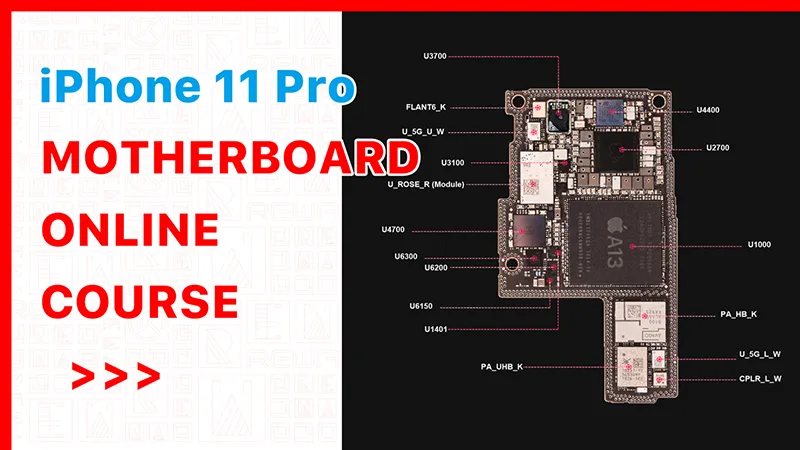
Distribuzione dei chip della scheda madre di iPhone 11 Pro
Dopo mesi di sviluppo, il corso di riparazione online dell'iPhone 11 Pro di REWA Academy è in arrivo e dovrebbe essere lanciato il 14 maggio.
Prima del corso, vi illustreremo la distribuzione dei chip della scheda madre dell'iPhone 11 Pro.
Innanzitutto, facciamo una breve introduzione a questo corso. In questo corso, impareremo i seguenti circuiti uno per uno. Si tratta di circa 14 circuiti che dovremmo imparare insieme. Per ogni circuito sono previste due parti. Nella prima parte, impareremo il processo di funzionamento del circuito. Nella seconda parte impareremo il processo di risoluzione dei problemi.
Quindi il corso dovrebbe contenere un totale di 30 lezioni. E imparare 30 lezioni non costerà molto tempo. Quindi, durante il processo di apprendimento, se avete domande e quando è necessario, potete semplicemente interrompere il video. E controllare le bitmap e gli schemi o provare a realizzare da soli i disegni degli schemi a blocchi, in modo da conoscere meglio il processo di funzionamento e di risoluzione dei problemi. E questo sarà molto utile per la vostra futura attività di riparazione.
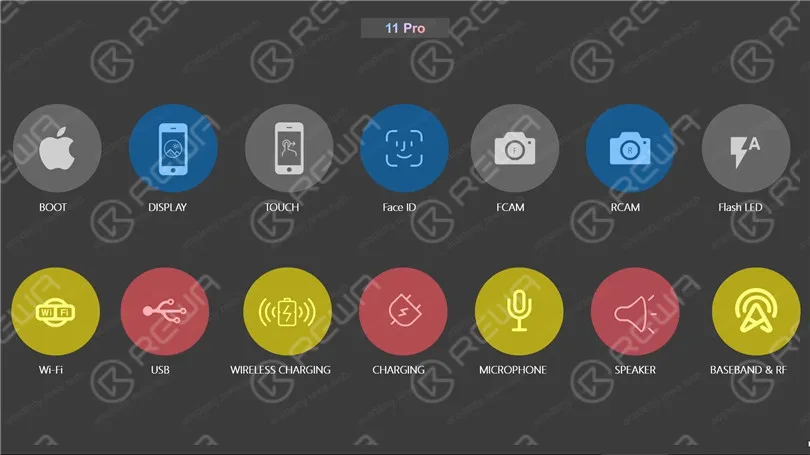
Per il primo corso, non introdurremo i dettagli del circuito. Prima faremo un'introduzione sulla scheda madre.
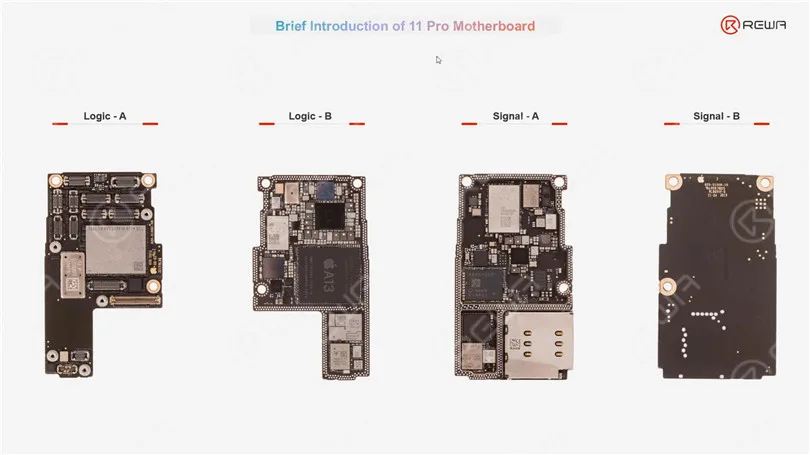
Conoscere la scheda madre è come conoscere un amico. Cerchiamo quindi di fare del nostro meglio per conoscere la scheda madre nel miglior modo possibile. Come possiamo vedere, la scheda madre dell'iPhone 11 pro è più o meno come quella dell'iPhone X. Ha una struttura a due strati. E per quanto riguarda i due strati, lo strato superiore è chiamato scheda logica. Lo strato inferiore è chiamato scheda di segnale.
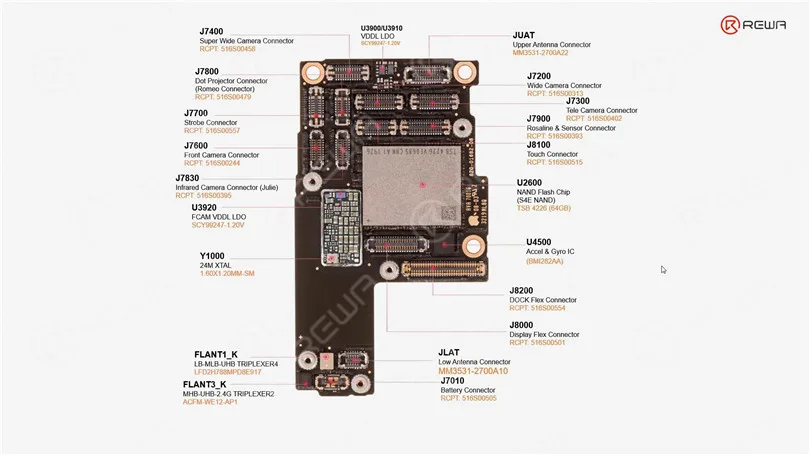
Passiamo al primo strato della scheda logica. Ci sono molti connettori sulla scheda logica. Come sappiamo, l'iPhone 11 Pro è dotato di tre fotocamere posteriori. Questi tre connettori sono quindi collegati alle fotocamere posteriori. Il più lungo è il connettore del cavo flessibile del dock. Perché sul cavo flessibile del dock sono integrate molte funzioni, ad esempio la ricarica, l'USB, il microfono principale e anche alcune antenne, il vibratore e l'altoparlante. Questo connettore è quindi il più lungo.
Il modulo Face ID è collegato principalmente alla fotocamera a infrarossi, al proiettore di punti e all'illuminatore. Rosaline controlla non solo l'illuminatore, ma anche alcuni sensori come il sensore di luce ambientale e il sensore di prossimità. La PMU è il cuore del sistema di alimentazione mobile. Il circuito integrato di alimentazione di Face ID è il principale responsabile dell'alimentazione dei moduli Face ID.
Il piccolo chip è un circuito integrato Boost. È utilizzato per fornire PP_VDD_BOOST, un'alimentazione essenziale per molti componenti. Se questo chip viene danneggiato, il telefono non può avviarsi. UWB è l'abbreviazione di Ultra Wideband power supply. Il circuito integrato audio CODEC è responsabile del controllo dei circuiti audio, come il circuito del microfono, il circuito dell'altoparlante o il circuito della vibrazione. Il circuito integrato USB è molto importante per la trasformazione dei dati di carica o l'identificazione degli accessori, ecc. EEPROM è molto importante per il recupero dei dati.
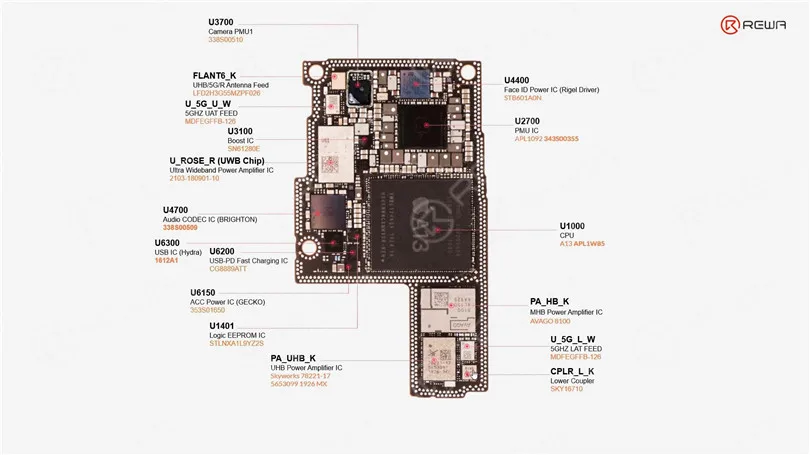
OK, continuiamo. (Sulla scheda di segnale) I chip sono molti e riguardano il Wi-Fi, il circuito RF, la banda base e l'NFC.
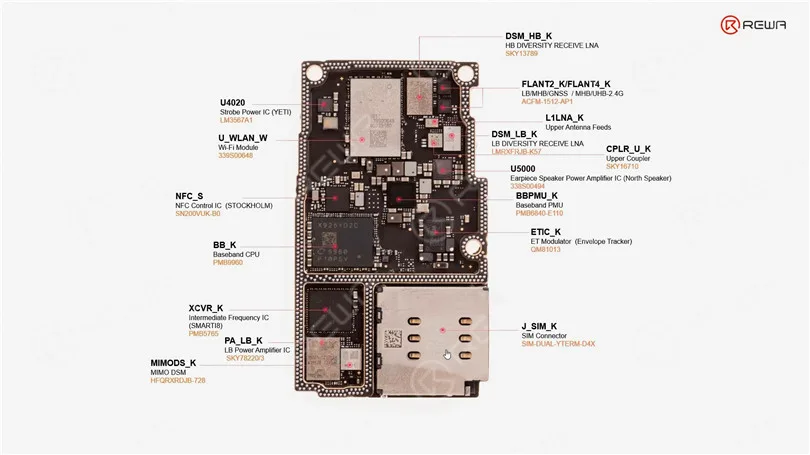
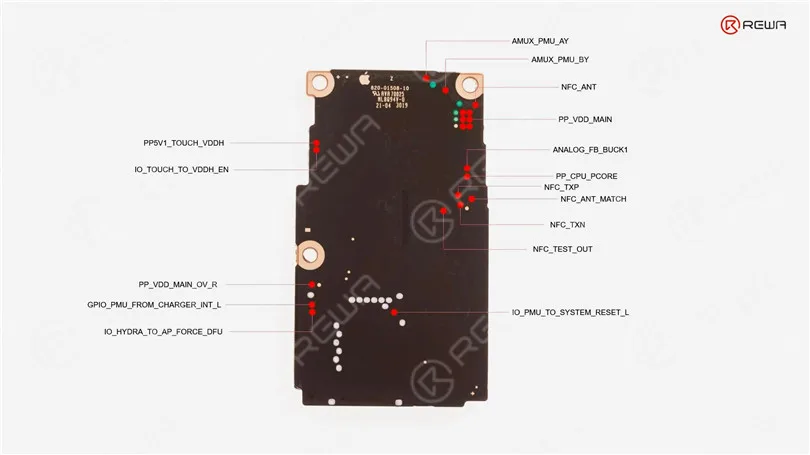
A volte possiamo conoscere la funzione del chip dal nome, giusto? Ad esempio, CPLR significa accoppiatore. Il circuito integrato del flash stroboscopico controlla l'alimentazione dei LED. La PMU a banda base è responsabile dell'alimentazione della CPU a banda base. ET è l'abbreviazione di envelope tracker. È anche un chip importante per il circuito RF che alimenta i circuiti integrati degli amplificatori di potenza, i chip DSM e così via. MIMO significa ingressi multipli e uscite multiple, ed è anche legato al circuito RF. E su un altro lato della scheda di segnale. Ci sono molti punti di test
Guardate il video per vedere in dettaglio la distribuzione dei chip dell'iPhone 11 Pro.
Pre-ordinare il Corso di riparazione della scheda madre dell'iPhone 11Pro ora per ottenere lo sconto 20%. (Offerta limitata: 28 aprile - 13 maggio)
-
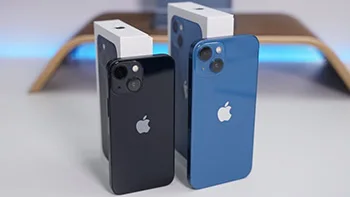
iPhone 13 Mini Capacità della batteria Introduzione
How much is the iPhone 13 mini battery capacity
battery capacity
iPhone13mini: 2406mAh battery + 25W fast charge, 90 minutes longer than iPhone 12mini
Magsafe wireless charging (up to 15 watts), QI wireless charging (up to 7.5 watts)
Configuration parameters
1.Screen
iPhone 13 Mini uses a 5.4-inch 2340 * 1080 goal outline xdr show, the notch is contracting 20%, upholds the true tone repair, DCI-P3, HDR display, AssistiveTouch, and so on, 476ppi, regular pinnacle splendor 800nit, HDR top brilliance 1200nit, no high brush.
2. Fire
Three surroundings 131.5 * width 64.2 * thickness 7.65mm, weight 140g, Ceramic Shield front, Glass back and aluminum design, support IP68 dustproof waterproof.
3. Color
Pink, blue, midnight color, starlight, red total 5 color matching
4. Camera
iPhone 13 MINI has a 12 megapixel TrueDepth Camera in front, the back twofold test 12 megapixel wide-point primary photograph + 12 million pixel very wide-point focal point, utilizing another 1.7μm sensor, the measure of information is 47%, while iPhone 12 Pro Max Sensor uprooting picture against shake work is decentralized, new video encoder, new “Photographic Styles” and new film impact design support portable help center transformation, 1080p30fps shallow profundity of field video shooting, and can shoot up to 4K60FPS Dolby Tuni-Turkey HDR video Wait.
5. Chip
A15 Bionic chip New 6‑core CPU with 2 performance and 4 efficiency cores New 4‑core GPU New 16‑core Neural Engine
The above is about how much the iPhone 13mini battery capacity is introduced.
-
Cosa fare se l'iPhone funziona lentamente o si blocca?
If you find that your iPhone is running slowly or crashing, it may be caused by the following reasons, you can gradually check and try to solve the problem.
iPhone running slowly Check network conditions
Many apps on the iPhone need to connect to a fast network to function properly. If your connection is congested, the app may take some time to open or display the corresponding content. When you sit in a vehicle that is driving, the device will continue to reconnect the new signal tower, so it may look slowly.
This situation is better to determine, such as web refresh, slow or unable to display pictures, at which point you can wait patiently or try to replace a faster network.
If the app is not responding or crashing
If an App stops responding or crashes, you will need to force shutdown this app in the background and open it again.
After re-opening, the application still does not respond or crash. The applications are likely not compatible with the system. You can try to go to the App Store to update application, or consider deleting applications to re-download.
Make sure the iPhone has enough storage space
You can check the storage space of the device in “Settings” – “General” – “[Device] Storage Space”. To achieve optimal performance, try maintaining at least 1GB of available space. If the available storage space is less than 1GB, the speed of the device may slow down because iOS needs to make space to store other content.
If you need to release some space, follow these steps to open iOS built-in storage space Savings Suggestions:
1.Go to “Settings” – “General” – “[Device] Storage Space”, then read the iOS possible suggestions.
2. Tap “Enable” to open the suggestion, or tap the title to view the content you can delete.
If you have not seen any suggestions, or you need to release more space, you can view the app on the device. “[Equipment] Storage Space screen will list these apps directly, and it will also display the size of the space occupied.
Tap an app, you can choose from the following options:
1. Uninstall the app to release the storage space occupied by the app, but retain its documents and data.
2. Delete the APP that is no longer needed to remove the app and its related data.
Please note that if the storage space will be full:
When the iPhone storage space is full and runs very slowly, don’t try to restart your device immediately, it may cause the device to be stuck in Apple logo. Please do not use the device for the time being, waiting for its own available space, then back up your data immediately, and clean up the iPhone storage space to make more space.
Avoid overheating the equipment or too cold:
If the device becomes overheated due to the external conditions (for example, the device is left in a very high temperature, or if it is used for a long time in direct shooting), iOS will adjust the performance of the device. Move the device to a cool place so that it adjusts the temperature.
The very low temperature will also make the running speed of the device slow down. If the device is slow to run in a cold environment, move it to a relatively warm place.
Check battery health:
All rechargeable batteries are consumption components. With the growth of battery-level age, the performance of the battery will decrease. With the increase of the use time, the capacity and peak performance of the rechargeable battery in all iPhone models decline, and eventually needs to be replaced. iOS can display battery health and will prompt to replace the iPhone battery. Please go to “Settings” – “Battery” and tap “Battery Health”.
If “Battery Health” is as low as 80% or less, it is recommended to replace the battery to get a better experience.
Test if the touch screen is normal:
If the touch screen does not respond properly, it may make the device look slow. If you think the touch screen does not respond correctly, try restarting your iPhone. If this doesn’t work, and multiple Apps have this problem in the same area of the screen, then you can visit REWA Academy for help.
-
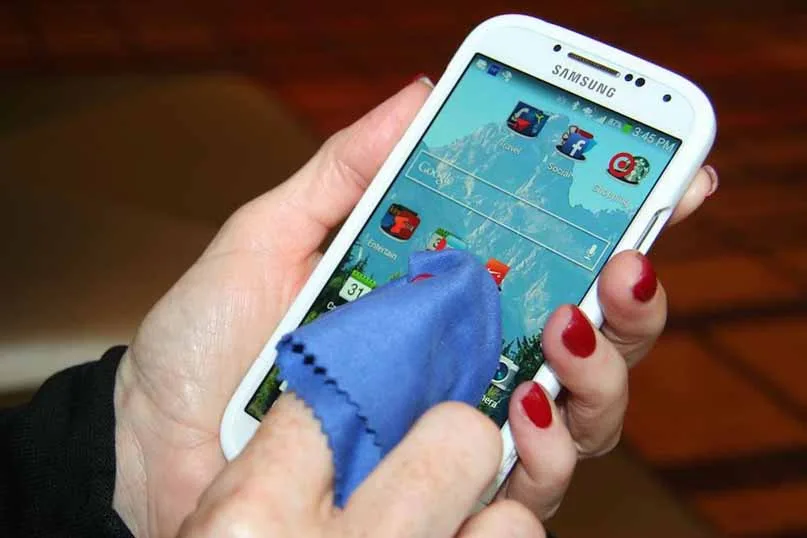
How to Safely Clean Your Smartphone or Tablet Touchscreen?
Cleaning the touchscreen of your smartphone is a simple task that doesn’t require a special cleaning kit or cleaning solution. You can use materials that you probably already have to safely clean your tablet or smartphone’s touchscreen. However, it’s important to know what to avoid as many common types of cloth and cleaning solutions can damage the touchscreen. In this guide, we will provide you with a step-by-step method to safely clean your smartphone touchscreen.
Cautions: What to Avoid
Before we dive into the cleaning process, it’s crucial to understand what you should never do when cleaning your smartphone or tablet touchscreen:
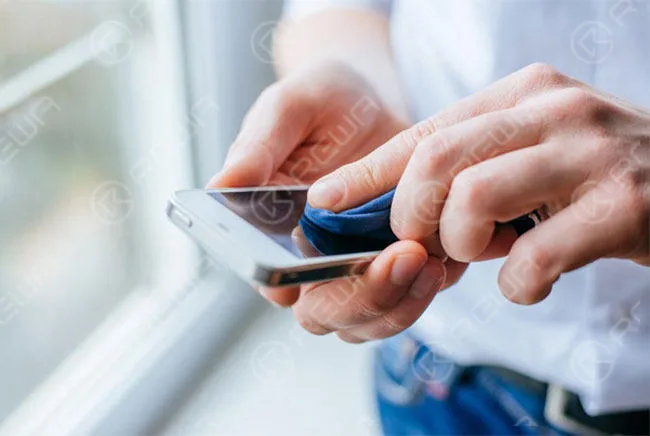
Avoid Harsh Chemicals
It is important to never use harsh chemicals like Windex, ammonia-based cleaners, or alcohol-based solutions when cleaning your screen. These chemicals can cause damage to the screen. If you need to use a liquid, only use a small amount of water on a cloth. You can also purchase special cleaning solutions, such as iKlenz, which is recommended by Apple.
Steer Clear of Abrasive Materials
To avoid scratching the touchscreen, it is important not to use abrasive cloths, paper towels, or tissue paper. Even small scratches can build up over time and ultimately damage and dull the screen. Instead, it is recommended to use microfiber cloths which are specially designed to clean sensitive surfaces.
Limit Water Usage
Avoid using excessive water on your device. If water is necessary, make your microfiber cloth slightly damp, but don’t apply water directly to the screen. It’s a good idea to power off your device before cleaning if water is involved.
Don’t Apply Excessive Pressure
When cleaning your device, remember to be gentle with your touchscreen to avoid damaging it.
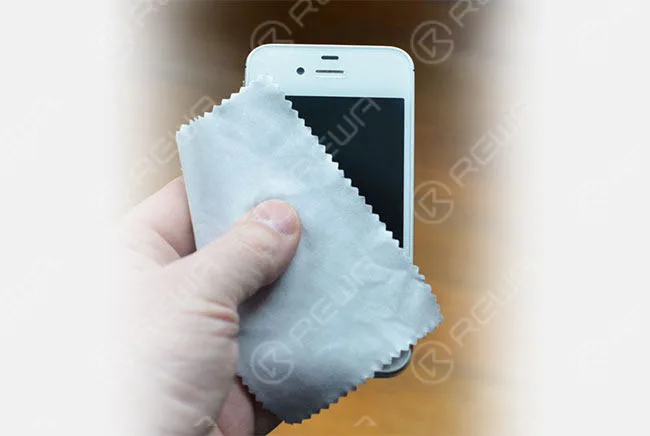
It’s important to note that the cleaning process will differ if you have a screen protector on your device. The method described below is specifically for cleaning glass screens. However, if your device has a plastic screen protector, you have more flexibility and can use different types of cleaning solutions.
Per iniziare
To clean your touchscreen, you’ll need a few simple items:
Microfiber Cloth
One of the best tools to use for cleaning is a microfiber cloth. These cloths are designed to clean sensitive glass surfaces without scratching them. For cleaning a touchscreen, a microfiber cloth is all that is needed. Although the term “microfiber cloth” may sound fancy, they are actually very common and inexpensive. Most people have a pair of eyeglasses that come with a microfiber cloth for cleaning the glasses. This cloth can be used to safely clean sensitive glass surfaces without scratching them, such as those found on a touchscreen device.
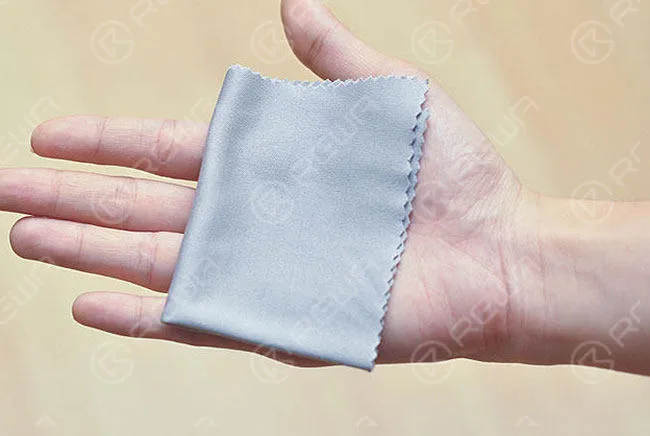
Microfiber cloths are designed with very small fibers that won’t scratch your touchscreen. They also attract dust and oils, pulling them off your device’s screen instead of rubbing them around the screen. You may also have received a microfiber cloth with another device. In case of an emergency, you can use kinds of cotton, such as cotton cloth or the corner of a cotton t-shirt, but this won’t work nearly as well. With just a few quick wipes using a microfiber cloth, your device’s screen will be clean and clear in no time.
Water
For dirty screens, you may need a small amount of plain water. Avoid using soap or other cleaning agents.
The Cleaning Process: Now that you have the right tools, let’s walk through the steps to safely clean your touchscreen:
How To Clean a Touch Screen
Now that you have the appropriate cloth to clean your screen, the process is very simple:
Turn off the device
This step is optional but recommended, especially if you plan to use water. It makes it easier to spot dirt and prevents potential issues.
Wipe Horizontally or Vertically
Using the microfiber cloth, wipe across the touchscreen in one repeating direction. For instance, start from the left side and wipe straight to the right. Then, move the cloth lower and repeat until the entire screen is clean. This motion prevents rubbing dirt onto the screen.
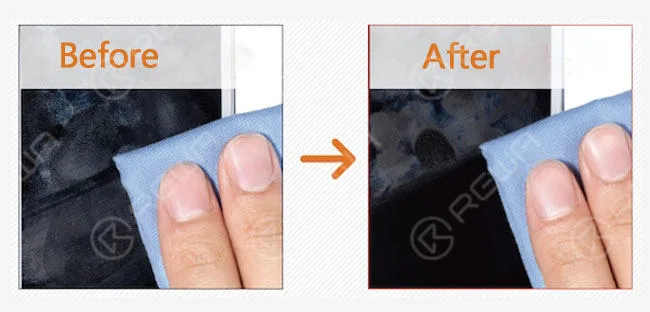
Use a Damp Cloth (if necessary)
If stubborn grime remains, dampen a corner of the cloth with a small amount of water (no soap). Clean the screen in the same way. In some cases, you may need to use a circular motion for challenging spots.
Dry the Screen
After cleaning, use the dry part of a microfiber cloth to dry the screen lightly. Allow the remaining water to air dry, avoiding aggressive drying with the cloth.
Clean the Microfiber Cloth
Periodically clean the microfiber cloth by soaking it in warm, soapy water, rinsing it thoroughly, and letting it air-dry. Avoid using harsh chemicals that can damage the cloth.
Additional Tips:
- While you can purchase specialized cleaning kits, a microfiber cloth and water are often sufficient.
- Regular handwashing can prevent excessive oil and smudges on your touchscreen.
Conclusione:
Cleaning your smartphone or tablet touchscreen is a straightforward process when you know the dos and don’ts. For more tips on maintaining your tech devices, check out our guide to cleaning keyboards, mice, computer fans, and LCD monitors. How do you prefer to clean your touchscreen gadgets? Share your cleaning tips in the comments below!
-
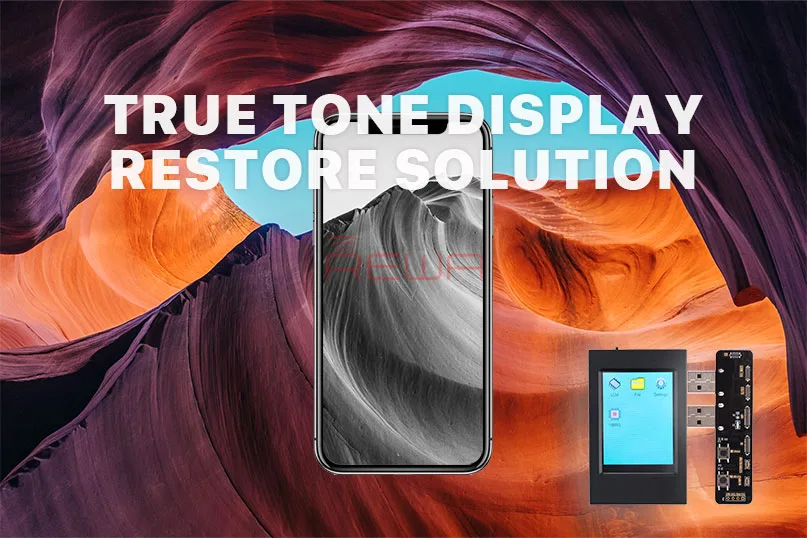
Introduzione del programmatore EEPROM True Tone
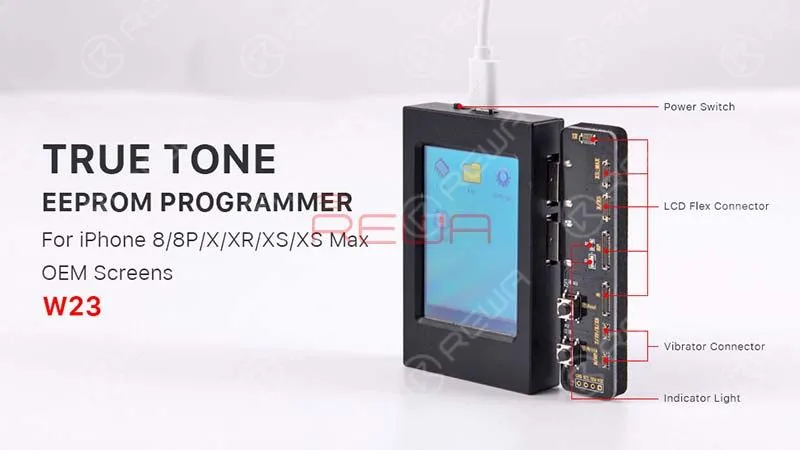
Oggi presentiamo un nuovo strumento di riparazione per tutti i tecnici di riparazione. Programmatore EEPROM a vero tono.
Le richieste del mercato
L'opzione Tono vero viene visualizzata in Impostazioni > Display e luminosità.
Se attivata, regola automaticamente il colore e l'intensità dello schermo per adattarlo alla luce ambientale e ridurre l'affaticamento degli occhi.
L'ultimo aggiornamento di iOS 12 ha fatto un ottimo lavoro per aumentare le prestazioni di iPhone e iPad.
Per i riparatori di telefoni cellulari aftermarket, iOS 12 non è stato così perfetto.
Alcuni utenti lamentano infatti la scomparsa dell'opzione True Tone dopo l'aggiornamento a iOS 12.
I modelli interessati comprendono iPhone 8, 8 Plus, X, XS e XS Max.
Molti utenti suggeriscono che il problema ha a che fare con il fatto che il dispositivo abbia un display OEM, un display aftermarket o il display originale che non è mai stato sostituito.
In base a questa situazione, REWA ha effettuato una serie di test per la certificazione. Ecco perché oggi presentiamo questo programmatore EEPROM True Tone.
Per cominciare, abbiamo sostituito il file Schermo originale di iPhone XS con uno OEM.
E l'opzione True Tone è scomparsa dopo la sostituzione dello schermo, mentre era presente con lo schermo originale installato.
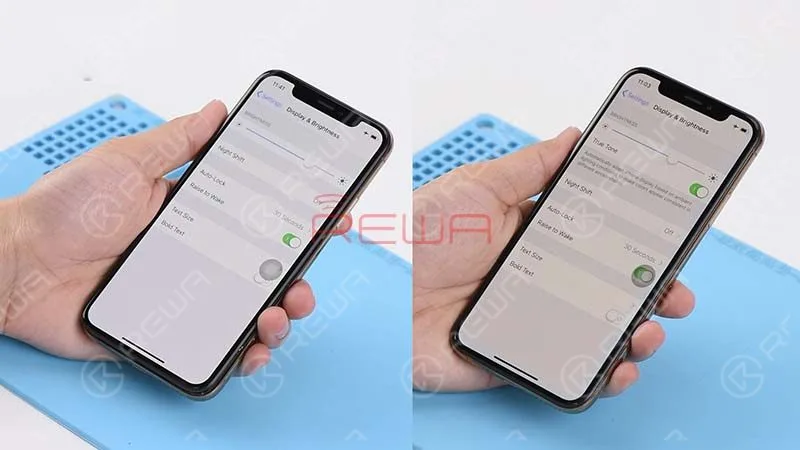
Poi abbiamo programmato lo schermo OEM con questo strumento EEPROM.
E ho installato di nuovo lo schermo per fare una prova. L'opzione true tone è riapparsa sullo schermo.
Questa è davvero una buona notizia per tutti i tecnici riparatori.
Applicazione
Lo scopo pratico di questo programmatore EEPROM comprende il ripristino di true tone, sensore di luce ambientale, touch screen, vibratore e lettura/scrittura dei dati. Inoltre, il programmatore è adatto ai modelli di iPhone dall'iPhone 8 all'iPhone XS MAX.
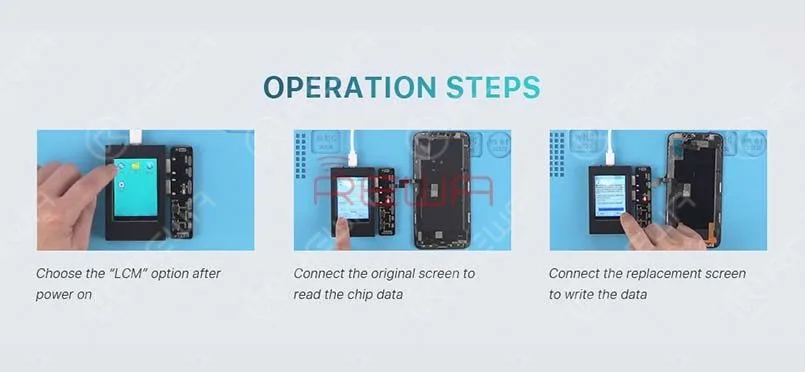
Il funzionamento è molto semplice. Sono necessari solo 3 passaggi.
- 1. Accendere il dispositivo. Scegliere l'opzione “LCM” sullo schermo.
- 2. Collegare lo schermo originale con il connettore corrispondente e fare clic su “read” per leggere i dati dallo schermo originale.
- 3. Collegare lo schermo sostitutivo al connettore corrispondente e fare clic su “write” per scrivere i dati nello schermo sostitutivo.
Ripristinate la funzione di vero tono con questo Programmatore EEPROM. E la guida video è disponibile.REWA nuovo negozio online(shop.rewa.tech) è disponibile ora, è possibile vedere il prezzo e i dettagli di ogni prodotto. Anche le spese di spedizione. Benvenuti a controllare. Qualsiasi suggerimento e domanda non esitate a contattare sales@rewatechnology.com.
-
Macchina erogatrice di colla per iPhone

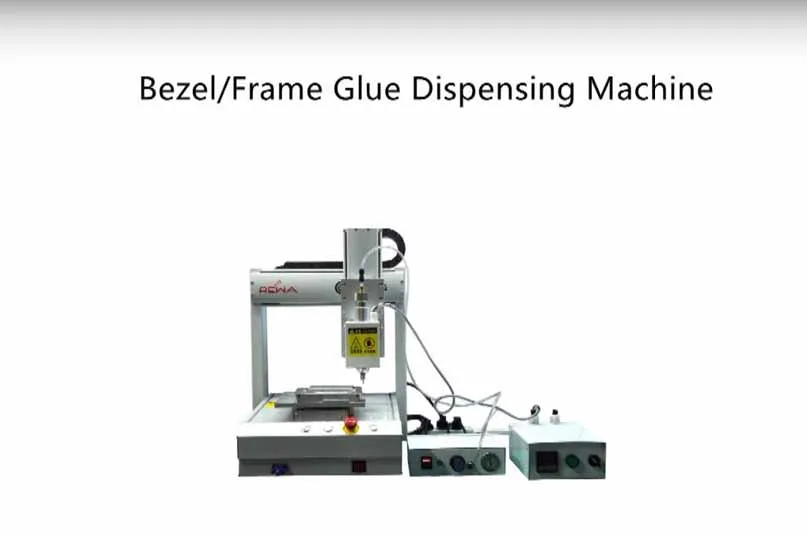
A brand new Macchina distributrice di colla per lunette designed for Professional Solution is available now!
This cell phone broken LCD refurbishing machine is based on Hot Melt Glue and high temperature. The easy operation Intelligent program allows it to achieve volume production. And it comes with iPhone 4, 4s, 5, 5c, 5s, 6, 6 Plus, 6s, 6s Plus Molds.
specification :
- Voltage: 220V
- Power: 800W
- N.W.: 40KG
- G.W.: 63KG
- Dimension: 65x53x71cm
- Ambiente di lavoro: 20-30℃, Camera bianca
operation steps :
- 1. Connect to the air compressor and put bezel glue into the Heating Drum
- 2. Plug in and turn on
- 3. Establish the right program to the right series bezel
- 4. Temperature set 220℃(no higher than 280℃), pressure set 0.5Mpa
- 5. Place the bezel on the mold, then start the machine, it will finish by itself. (Note: Add one pc bezel glue after finish 200 pcs bezel every time; test the machine by checking whether glue dispensing is fluent or not).
Suggerimenti:
- a. Test the machine by checking whether glue dispensing is fluent or not.
- b. Hot Melt Glue should be added the second time after you have done a certain number of bezel frames(100-200pcs), so as to avoid the blockage of the needle.
Potete consultare i nostri altri post:
 English
 Español
 Français
 Deutsch
 Italiano