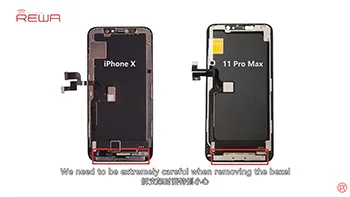
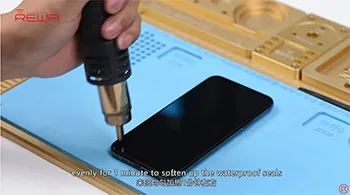
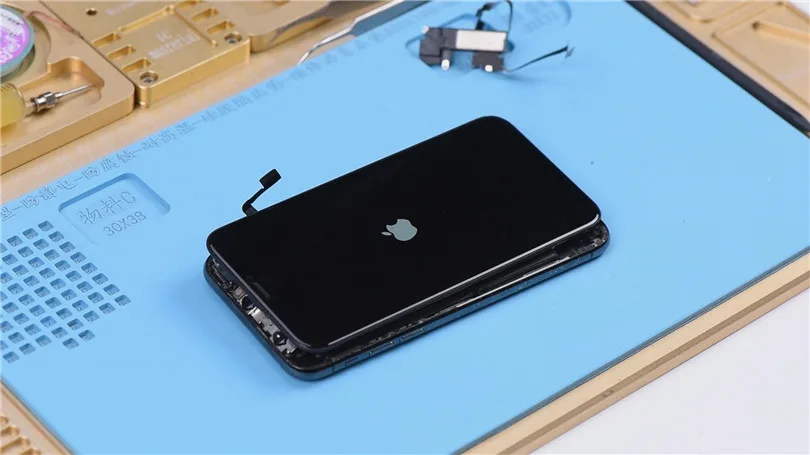
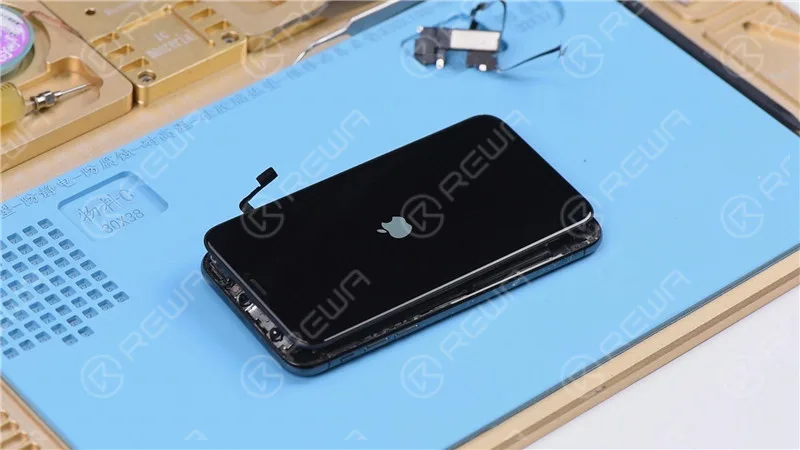
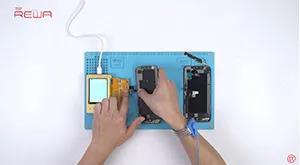
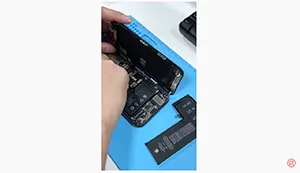
For iPhone X and later iPhone models, the bracket covering the bottom flex cable bonding area is adhered by cold adhesive. The traditional method with heating assistance when removing bezel might damage the screen. After several attempts, REWA LAB found that the new method with cold assistance can improve the success rate and efficiency of screen refurbishing. For details, please check our video today – iPhone 11 Pro Max screen refurbishing.
Tools & Parts used to refurbish iPhone 11 Pro Max
All refurbish machine please visit
Stazione di rilavorazione con pistola ad aria calda
Pinzetta dritta
Cacciavite a croce
Cacciavite Pentalobo
Cacciavite a tre ali
Piattaforma integrata per la riparazione dei telefoni cellulari
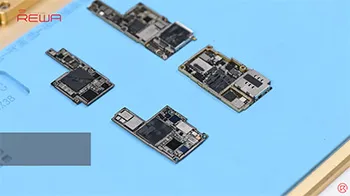
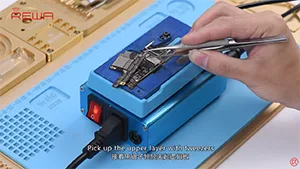
iPhone new series have undergone considerable changes on both inside and outside. Especially on the motherboard. How will these changes affect the repair industry? Will it make third-party repair harder or easier? Follow our iPhone 11 Pro motherboard separation&recombination video today and find the answer by yourself.
Tools & Parts used to separate iPhone 11 Pro
Stazione di rilavorazione con pistola ad aria calda
Pinzetta dritta
Cacciavite a croce
Cacciavite Pentalobo
Cacciavite a tre ali
Piattaforma integrata per la riparazione dei telefoni cellulari
The iPhone 11 series has impressed the repair industry again with its new iPhones. What does the new design mean to our repair work? In our video, we will show you each part inside the iPhone 11 pro and share repair tips from REWA perspective.
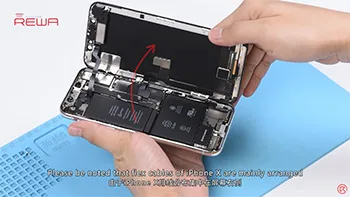
Screen/battery replacement is an essential business for repair shops. Professional replacing techniques can not only reduce the failure rate of screen/battery replacement and save time, but also highlight the professional image of the repair shop and gain favorable feedback from customers. Today we’re taking iPhone X as an example to show you tips and tricks for screen/battery replacement of iPhone X/XS/XS Max. Follow our steps and power your repair shop now.
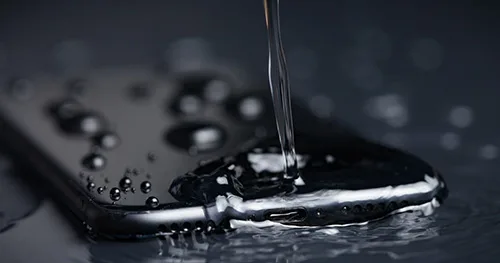
La serie iPhone 12 è composta da quattro modelli e ha un grado di impermeabilità IP68 secondo la norma IEC 60529 (6 metri d'acqua per un massimo di 30 minuti).
Tuttavia, va notato che le prestazioni a prova di spruzzi, acqua, polvere non sono permanenti.
Le prestazioni di protezione possono diminuire a causa della normale usura e i danni causati dall'immersione non rientrano nella garanzia.
Se l'iPhone cade accidentalmente in acqua:
Pulire l'iPhone con un panno morbido. Per asciugare l'iPhone, abbassare la porta di ricarica e tamponare delicatamente l'iPhone con la mano per scaricare il liquido in eccesso.
Oppure collocare l'iPhone in un luogo asciutto e ventilato.
È anche possibile mettere l'iPhone di fronte alla ventola, lasciando che il vento freddo soffi direttamente sulla porta di ricarica, accelerando così il processo di asciugatura.
Fare attenzione a non utilizzare una fonte di calore esterna per asciugare l'iPhone e a non inserire oggetti estranei nella porta di ricarica, come cotton fioc o tessuti.
Attendere che l'iPhone si asciughi completamente dopo aver aperto il vassoio della scheda SIM.
Se è necessario caricare l'iPhone, attendere almeno 5 ore per assicurarsi che l'iPhone sia asciutto, quindi è possibile caricarlo.
Se il suono del diffusore è distorto dopo essere caduto in acqua
Controllare se c'è acqua nel microfono o nell'altoparlante.
Lasciare l'altoparlante a faccia in giù, appoggiare l'iPhone su un panno sollevato e verificare che non vi siano gocce d'acqua. L'acqua nella porta può ridurre le prestazioni dell'altoparlante o del microfono.
Il funzionamento tornerà normale solo quando l'umidità sarà completamente evaporata.
Cosa si deve notare nell'uso quotidiano
Non portate con voi l'iPhone quando fate il bagno o andate a nuotare.
Ad esempio, non utilizzate l'iPhone nella sauna;
Non immergete deliberatamente l'iPhone nell'acqua;
Non posizionare l'iPhone in acqua ad alta pressione o ad alta portata, come ad esempio sotto la doccia, durante lo sci, nel surf, ecc.
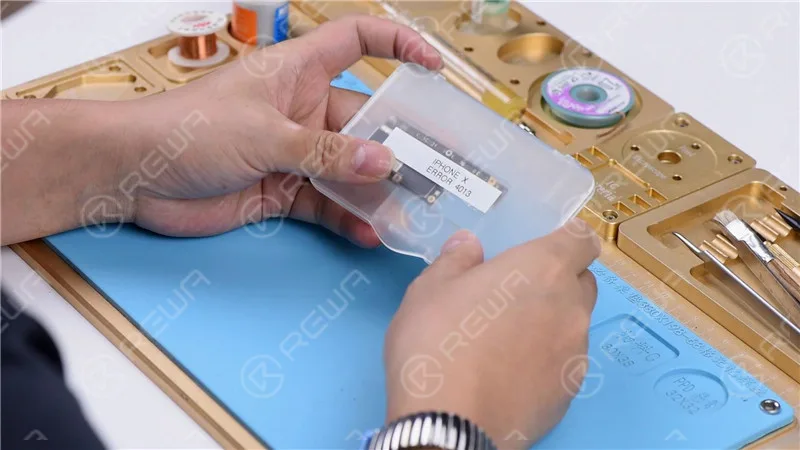
It can be extremely frustrating to find your iPhone stuck on apple logo or iTunes Error 4013. In most cases, this is not a serious issue and a software update can resolve the issue. However, if the software update does not resolve the issue, it may be a hardware issue that requires a more thorough diagnosis and repair.
iPhone Error 4013: Possible Causes
iPhone Error 4013 can occur due to various factors, encompassing both software and hardware components, which contribute to the occurrence of this perplexing error.
Outdated iTunes Version
One of the primary causes of iPhone Error 4013 is an outdated version of iTunes. Since iTunes is crucial for both restoring and updating the device, it is imperative to keep it up to date. A simple and free software update can often resolve this issue, ensuring smooth communication between the iPhone and the computer.
Software Glitches
Random firmware crashes can sometimes lead to iPhone Error 4013. Performing a force restart or hard reset can help overcome these software glitches. By holding down the appropriate buttons, you can initiate a restart that may rectify the error and restore normal functionality.
Hardware Complications
While software issues are common culprits, hardware problems can also trigger iPhone Error 4013. In some cases, sweat or other forms of liquid entering the earpiece can cause a boot loop and lead to this error. Additionally, faulty USB cables, damaged USB ports, or third-party security software can contribute to this frustrating issue.
This blog post will exclusively address hardware problems that can lead to this issue.
Nota: Please note that this tutorial utilizes an iPhone X for demonstration purposes, although the method can be applied to most iPhone models.
Cosmetic Inspection of the Motherboard
Before diving into any troubleshooting, it’s essential to ensure the motherboard is in optimal condition. Check for any deformities or water damage that might hinder the repair process.
Identifying the Problem
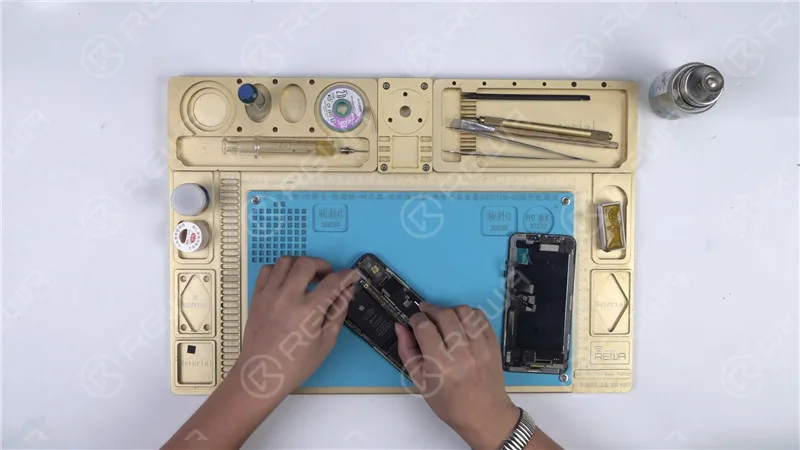
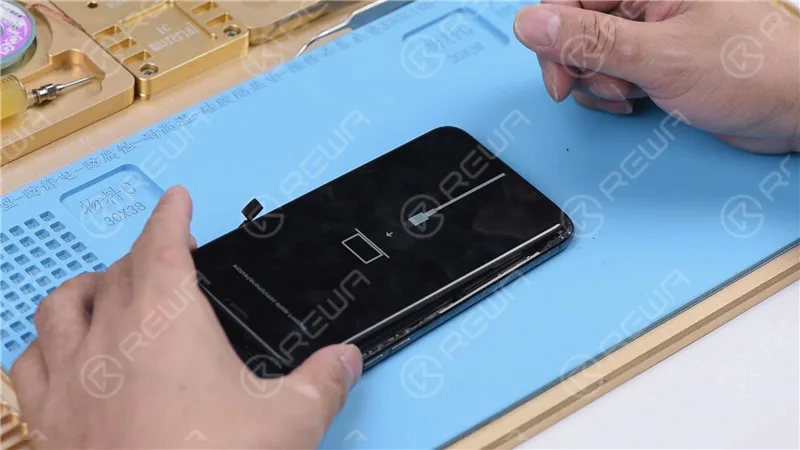
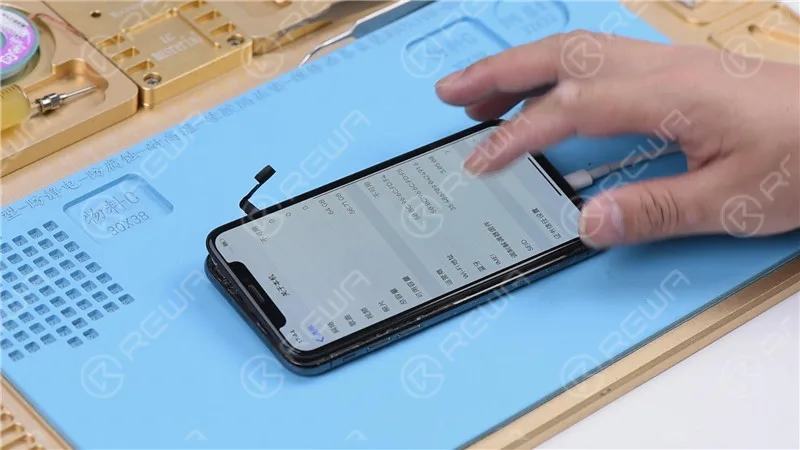
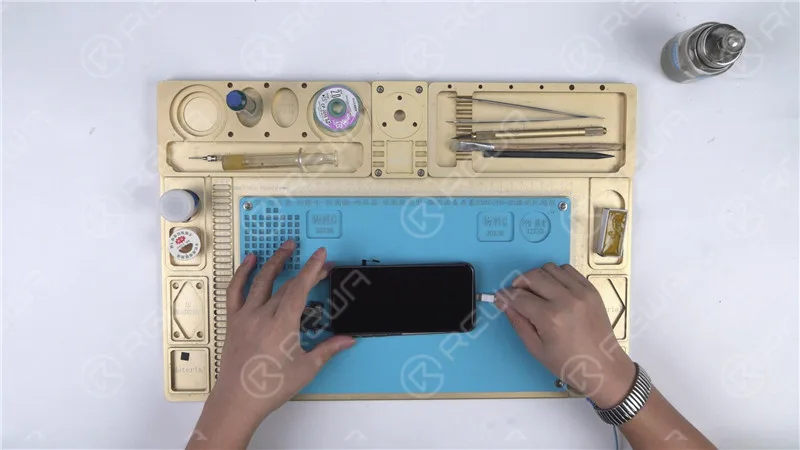
Let’s proceed with the motherboard installation and test it by pressing the power button. However, the phone automatically enters recovery mode, indicating a possible restore failure with the motherboard. As a result, the phone is unable to boot into the system normally.
Restoring the Phone
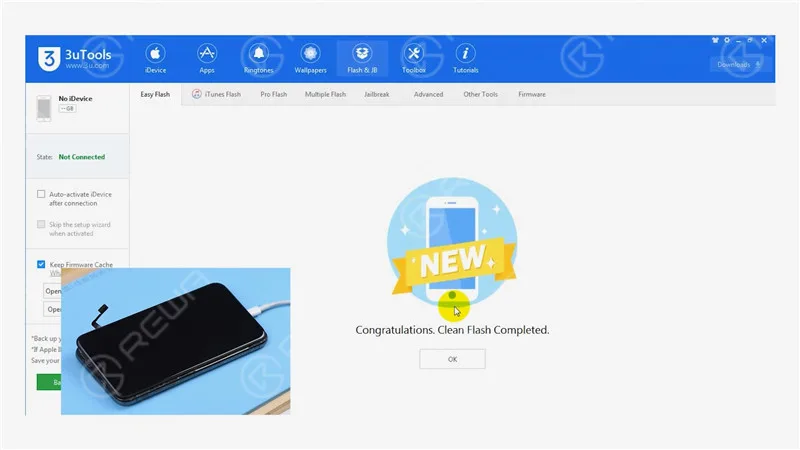
To begin, connect your iPhone X to a computer and initiate the restoration process using 3U Tools. A successful restoration indicates the motherboard is functioning correctly, and your phone can be activated normally.
Diagnosing Further Issues
Successful Restoration
If the phone can be restored successfully and activated, it’s an indication that the motherboard is functioning properly. The issue likely lies elsewhere.
Checking Baseband Info
Navigate to Settings>General>About to verify the baseband information, reinforcing the motherboard’s health.
Pinpointing the Issue
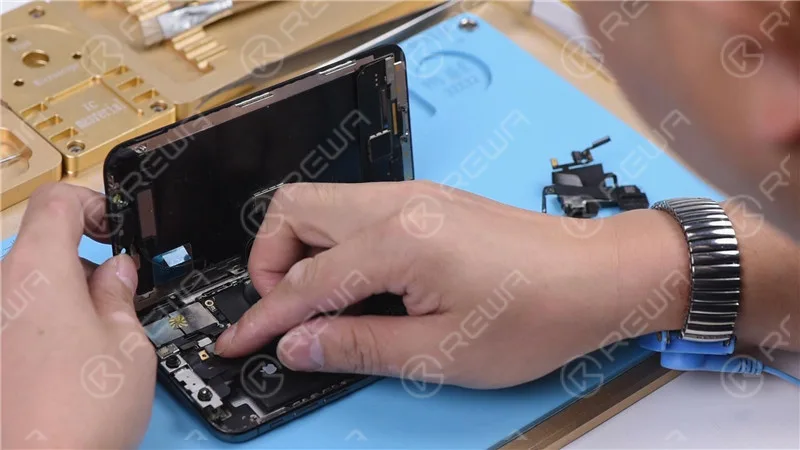
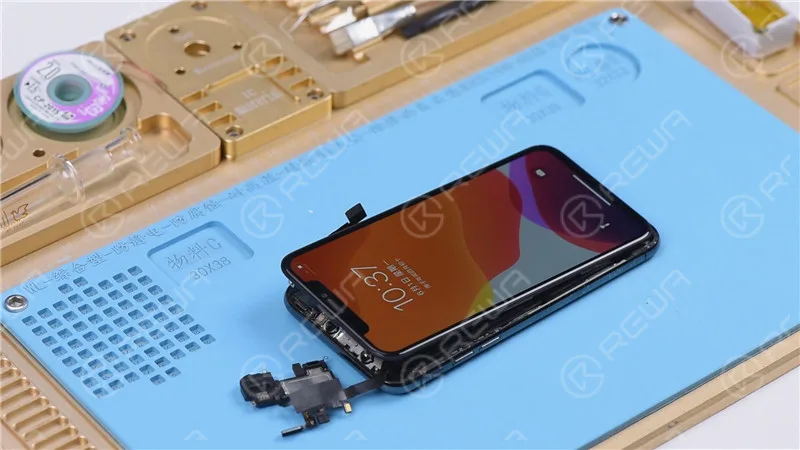
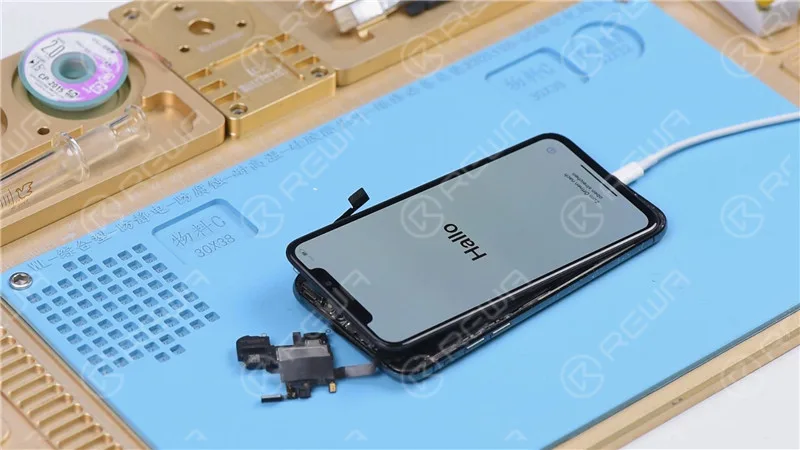
Adding Flex Cables: To narrow down the problem, reattach the earpiece speaker and sensor flex cable along with the front camera flex cable, and attempt to turn on the phone.
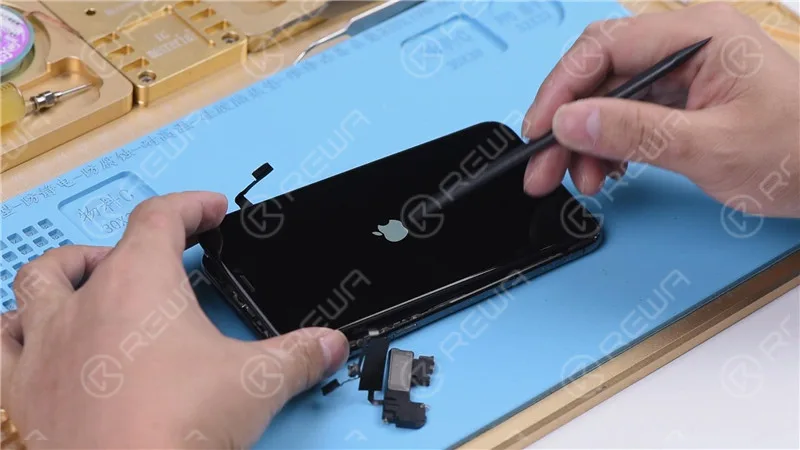
Stuck on Apple Logo: If the phone gets stuck on the Apple logo and restarts, it suggests an issue with the earpiece speaker and sensor flex cable or the front camera flex cable.
Isolating the Problem
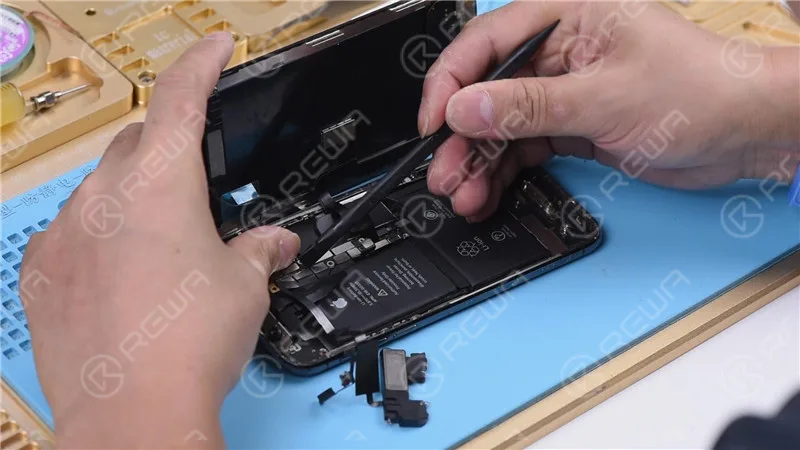
Disconnecting the Earpiece Speaker and Sensor Flex Cable: Remove the earpiece speaker and sensor flex cable, then try to power on the phone. If it turns on normally, the issue is indeed related to these components.
Fixing the Flood Illuminator Module
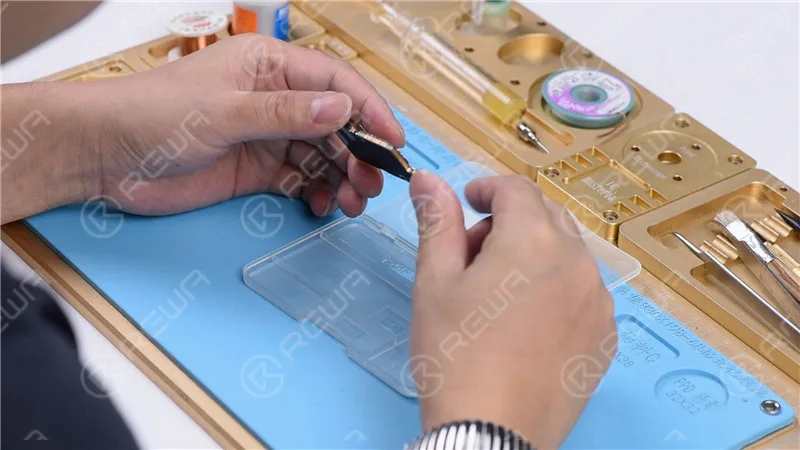
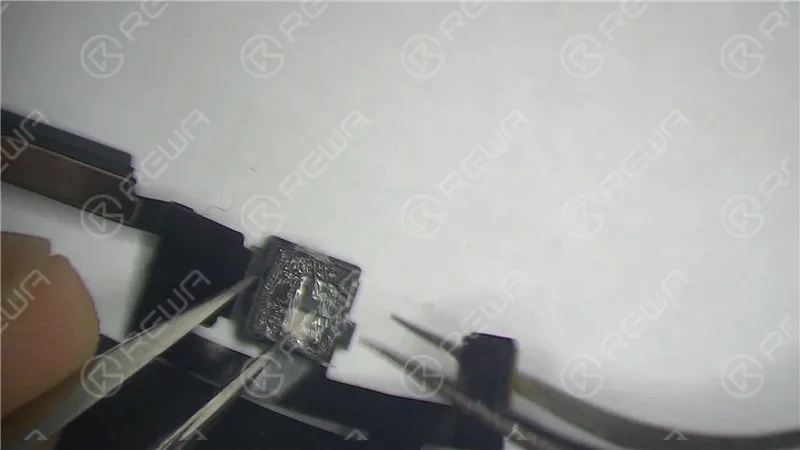
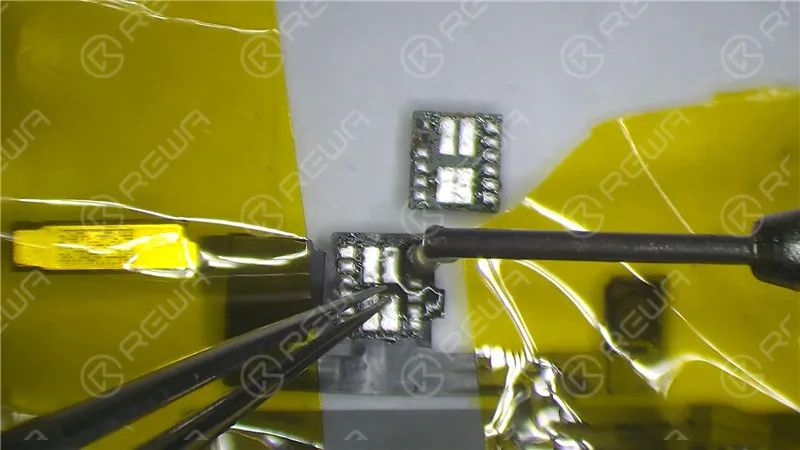
Microscopic Examination: Inspect the Flood illuminator module and identify any mold or corrosion.
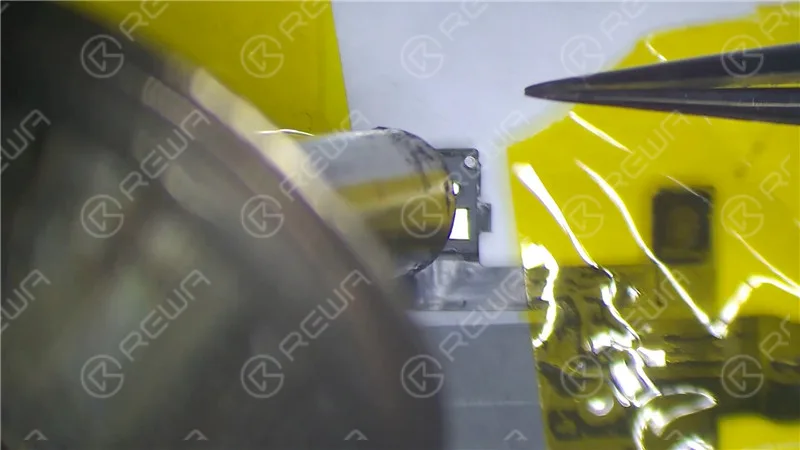
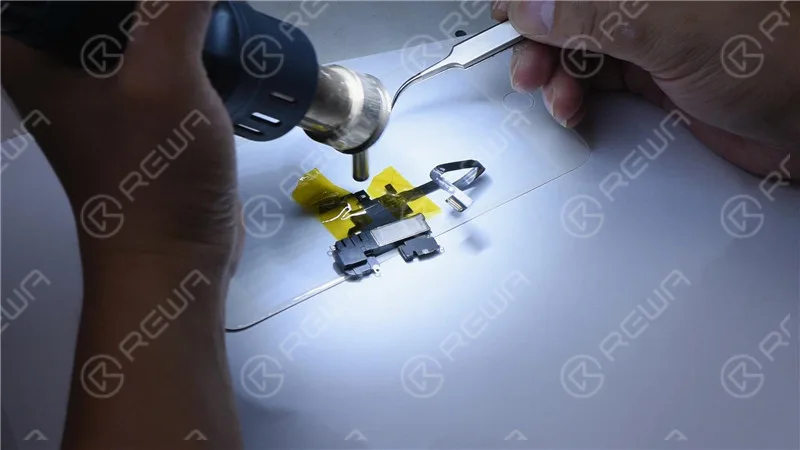
Repairing with High-Temperature Tape: Fix the earpiece speaker and sensor flex cable using high-temperature tape. Heat the affected area with a Hot Air Gun at 320℃ with an air flow of 35. Remove the damaged Flood illuminator module.
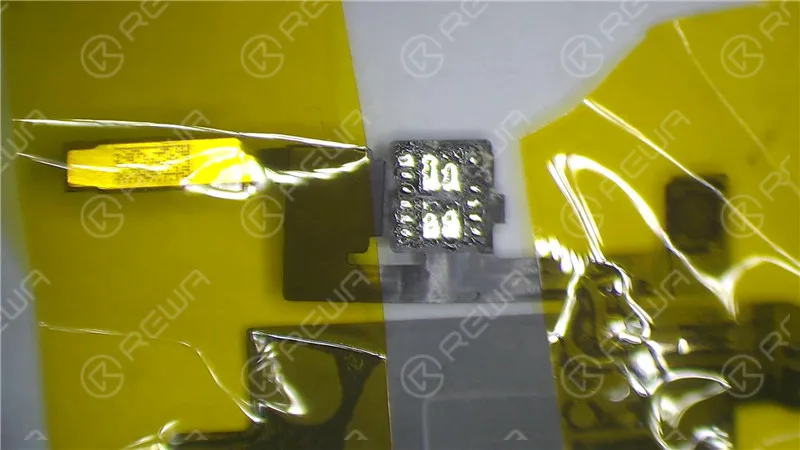
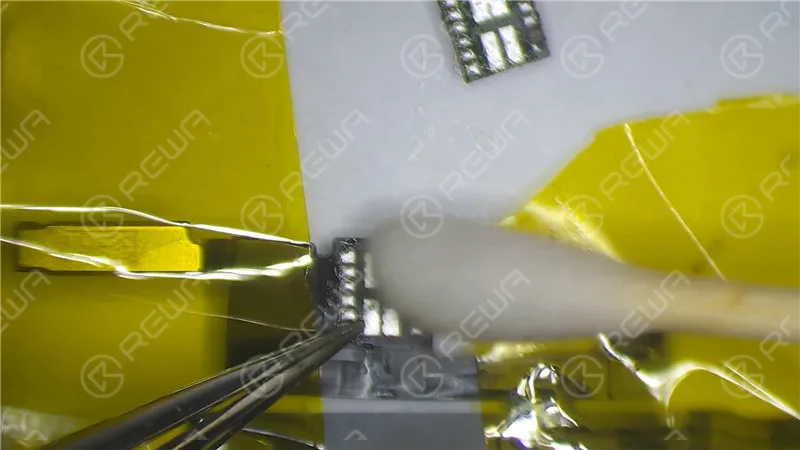
Corroded Bonding Pad: If the bonding pad on the Flood illuminator module is severely corroded, apply paste flux, clean with a soldering iron at 360℃, and reapply medium-temp solder paste. Clean with PCB Cleaner afterward.
Riassemblaggio: Reassemble the Flood illuminator module, applying paste flux and soldering it in place with a Hot Air Gun at 320℃.
Wait for 2 Minutes: Allow the repaired components to settle for two minutes.
Testing and Restoring
Reconnection: Reinstall the earpiece speaker and sensor flex cable, connect the battery, and power on the phone.
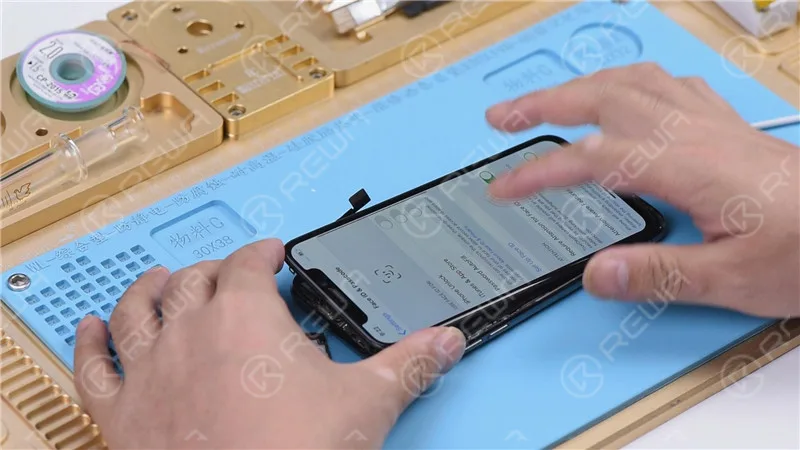
Restoring with Components Connected: Since the flex cables were not connected during the previous restoration, restore the iPhone X with both cables connected to ensure Face ID functionality.
Final Verification
Entering DFU Mode: Place the phone in DFU mode and connect it to the computer.
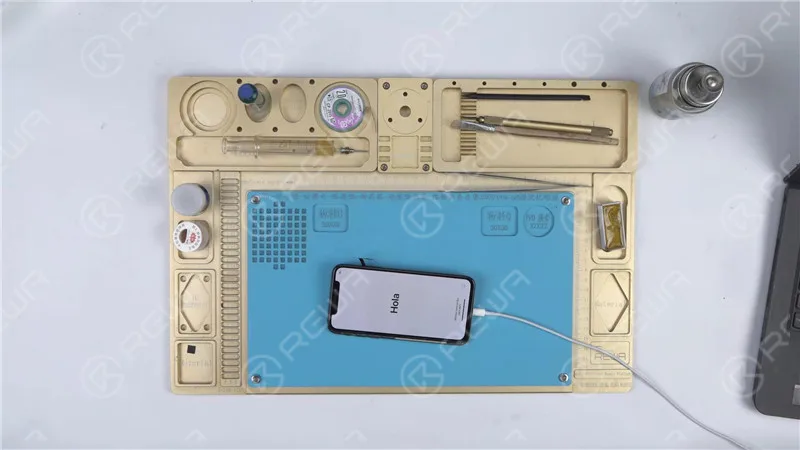
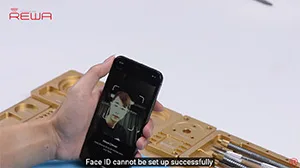
Restoration: Use 3U Tools or similar software to restore the phone. If it completes successfully, and the phone boots into the system and allows for Face ID setup, the issue has been resolved.
Video Guide to Fix iphone stuck on apple logo
Conclusione:
In this comprehensive guide, we have walked through the troubleshooting and repair process for an iPhone X stuck on the Apple logo with iTunes Error 4013. By methodically evaluating each component, from the motherboard to the earpiece speaker and sensor flex cable, we’ve successfully identified and fixed the issue, allowing the phone to function normally once again. For more in-depth repair knowledge, consider visiting Accademia REWA.
What will you do when meeting Face ID issues on iPhone X/XS/XS Max or even on iPhone 11 series? As we know some Face ID issues can be repaired but some cannot. Is there any easier way to find out before we repair? Yes, there is. REWA repair tricks on Face ID troubleshooting-Face ID fault-finding in 3 minutes. Check out our ‘move iPhone a little lower/higher when setting up Face ID’ video and you will learn a lot.
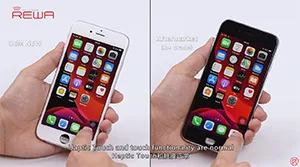
L'aggiornamento a iOS 13 ha nuovamente causato il problema della scomparsa del True Tone per alcuni utenti di iPhone. Ebbene,
REWA LAB ha elaborato una nuova soluzione per risolvere il problema. Prenderemo come esempio l'iPhone XS e vi mostreremo come ripristinare il True Tone degli schermi aftermarket passo dopo passo.
Suggerimento: True Tone supporta i dispositivi iPhone dall'iPhone 8 ai modelli successivi.
We introduced the 3 must-have tool kit for iPhone double-stacked motherboard repair. Also, there is a New Arrival Recommendation – REWA Selected 3 in 1 iPhone X/XS/XS Max Heating Platform instead of the one we used in the video. With the help of these tools, you can not only improve repair efficiency and success rate but also power your repair business.
iOS 13 è stato ufficialmente rilasciato da un mese. Al fine di fornire ai nostri clienti caratteristiche di qualità stabile, REWA LAB ha condotto una serie di test di compatibilità per la serie iPhone da iPhone 6s a iPhone X con schermi OEM NEW, di alta qualità aftermarket e batterie aftermarket rispettivamente. Ora, prendiamo come esempio iPhone 6s, iPhone 8P e iPhone X e vi mostriamo come procede il test.
Suggerimenti: iOS 13 supporta solo l'iPhone 6s e modelli successivi.
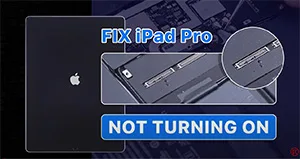
We have received an iPad Pro from our fan. The original fault of the iPad Pro was the top left corner speaker with noise. After speaker replacement, the connectors of the motherboard and display are burnt out while connecting the display. Now the iPad Pro won’t turn on. So the fan mailed the iPad Pro to REWA for repair. Let’s check out how we fix the iPad Pro.
 English
 Español
 Français
 Deutsch
 Italiano