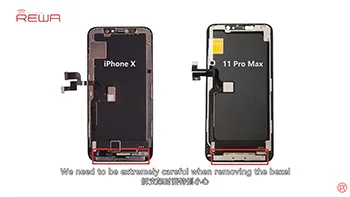
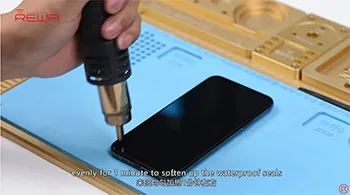
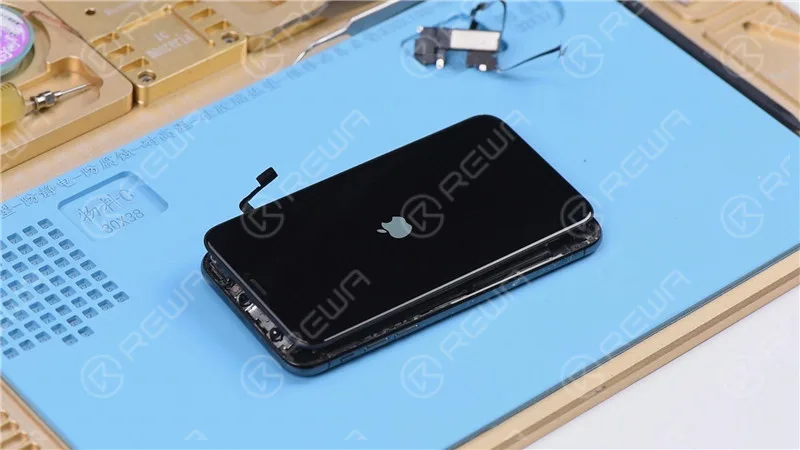
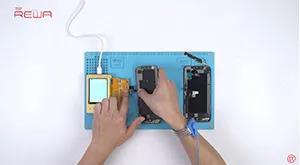
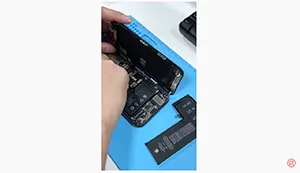
For iPhone X and later iPhone models, the bracket covering the bottom flex cable bonding area is adhered by cold adhesive. The traditional method with heating assistance when removing bezel might damage the screen. After several attempts, REWA LAB found that the new method with cold assistance can improve the success rate and efficiency of screen refurbishing. For details, please check our video today – iPhone 11 Pro Max screen refurbishing.
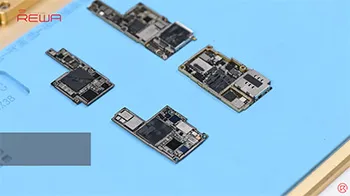
Die neuen iPhone-Serien haben sowohl innen als auch außen beträchtliche Änderungen erfahren. Vor allem beim Motherboard. Wie werden sich diese Änderungen auf die Reparaturbranche auswirken? Wird sie Reparaturen durch Dritte erschweren oder erleichtern? Folgen Sie heute unserem Video zur Trennung und Wiederzusammenfügung des iPhone 11 Pro Motherboards und finden Sie die Antwort selbst.
The iPhone 11 series has impressed the repair industry again with its new iPhones. What does the new design mean to our repair work? In our video, we will show you each part inside the iPhone 11 pro and share repair tips from REWA perspective.
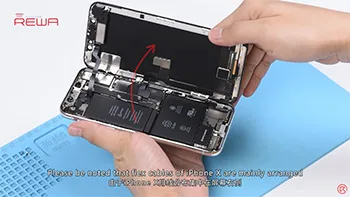
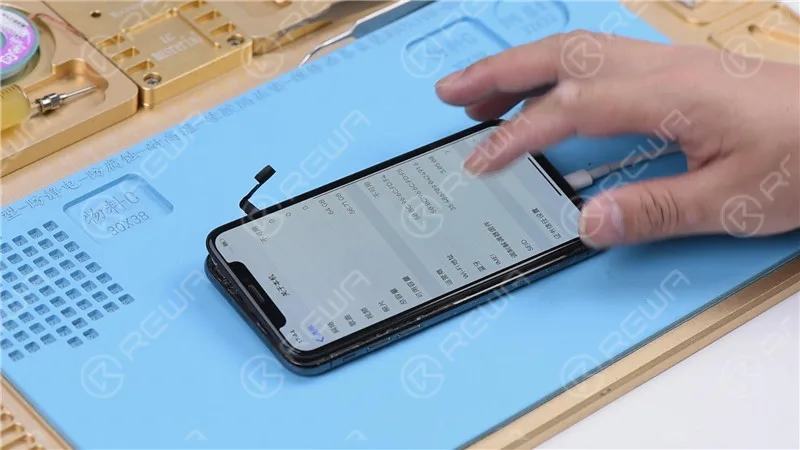
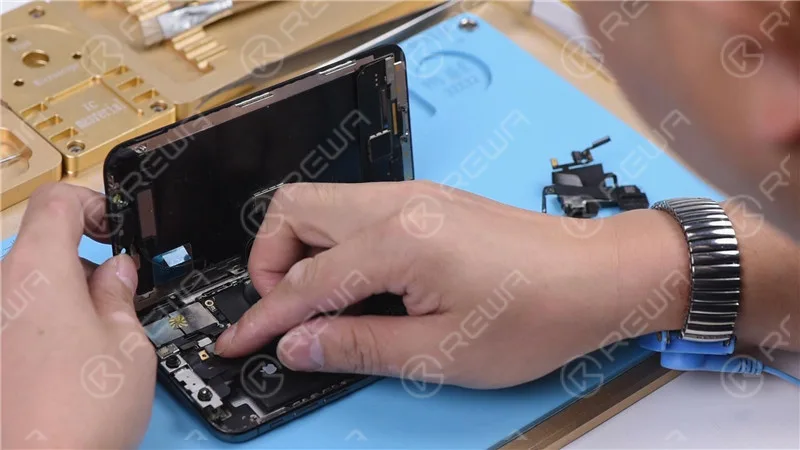
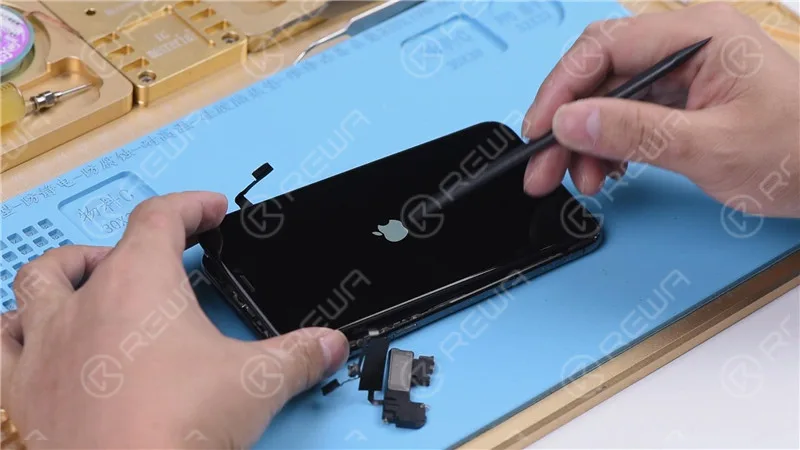
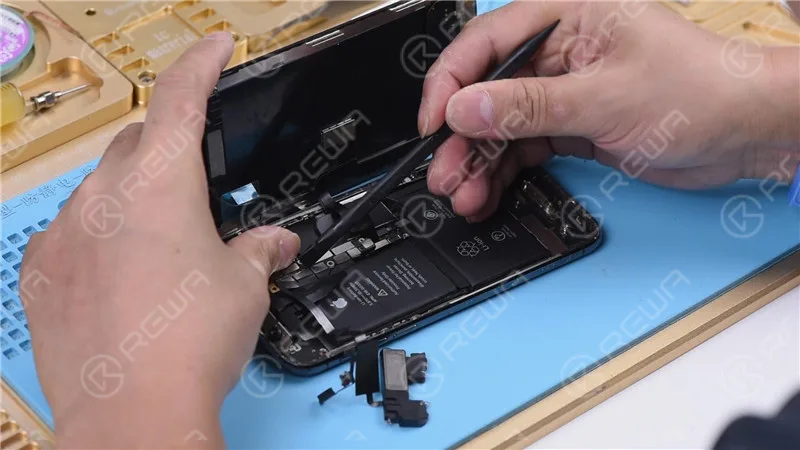
Screen/battery replacement is an essential business for repair shops. Professional replacing techniques can not only reduce the failure rate of screen/battery replacement and save time, but also highlight the professional image of the repair shop and gain favorable feedback from customers. Today we’re taking iPhone X as an example to show you tips and tricks for screen/battery replacement of iPhone X/XS/XS Max. Follow our steps and power your repair shop now.
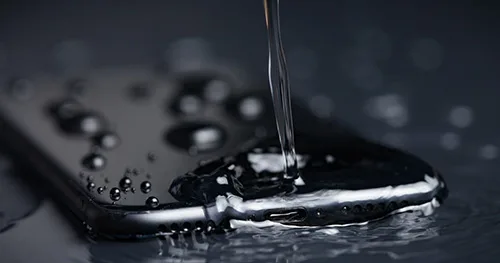
Die iPhone 12-Serie umfasst vier Modelle und verfügt über eine Wasserdichtigkeit gemäß IP68 nach IEC 60529 (6 Meter Wassertiefe für bis zu 30 Minuten).
Es ist jedoch zu beachten, dass die Spritzwasser-, Wasser- und Staubschutzleistung nicht dauerhaft ist.
Die Schutzwirkung kann durch normale Abnutzung nachlassen, und Schäden, die durch das Eintauchen verursacht werden, fallen nicht unter die Garantie.
Wenn das iPhone versehentlich ins Wasser fällt:
Wischen Sie das iPhone mit einem weichen Tuch ab. Um das iPhone zu trocknen, nehmen Sie bitte den Ladeanschluss ab und klopfen Sie mit der Hand sanft auf Ihr iPhone, um überschüssige Flüssigkeit zu entfernen.
Oder legen Sie das iPhone an einen gut belüfteten, trockenen Ort.
Sie können das iPhone auch vor den Ventilator halten, sodass der kalte Luftstrom direkt auf den Ladeanschluss trifft, was den Trocknungsprozess beschleunigen kann.
Achten Sie darauf, das iPhone nicht mit einer externen Wärmequelle zu trocknen und keine Fremdkörper wie Wattestäbchen oder Taschentücher in den Ladeanschluss zu stecken.
Warten, bis das iPhone nach dem Öffnen des SIM-Kartenfachs vollständig getrocknet ist.
Wenn Sie das iPhone aufladen müssen, warten Sie bitte mindestens 5 Stunden, um sicherzustellen, dass das iPhone trocken ist, und laden Sie es dann auf.
Wenn der Ton des Lautsprechers nach dem Sturz ins Wasser verzerrt ist
Überprüfen Sie, ob sich Wasser im Mikrofon oder Lautsprecher befindet.
Legen Sie das iPhone mit dem Lautsprecher nach unten auf ein erhöhtes Tuch und überprüfen Sie, ob sich keine Wassertropfen darauf befinden. Wasser im Anschluss kann die Leistung des Lautsprechers oder Mikrofons beeinträchtigen.
Die Funktion wird erst wieder normal funktionieren, wenn die Feuchtigkeit vollständig verdunstet ist.
Was sollte bei der täglichen Verwendung beachtet werden?
Nehmen Sie das iPhone nicht mit ins Bad oder zum Schwimmen.
Verwenden Sie beispielsweise das iPhone nicht in der Sauna.;
Tauchen Sie Ihr iPhone nicht absichtlich ins Wasser.;
Setzen Sie Ihr iPhone keinem hohen Druck oder einer hohen Durchflussrate aus, wie z. B. beim Duschen, Skifahren, Surfen usw.
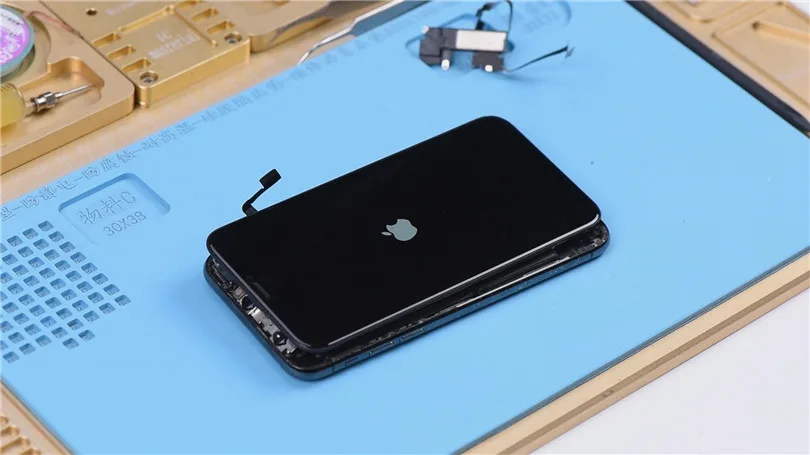
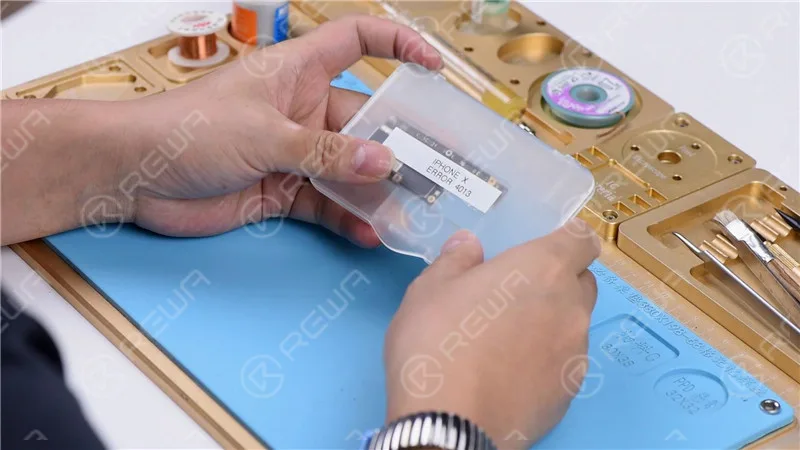
It can be extremely frustrating to find your iPhone stuck on apple logo or iTunes Error 4013. In most cases, this is not a serious issue and a software update can resolve the issue. However, if the software update does not resolve the issue, it may be a hardware issue that requires a more thorough diagnosis and repair.
iPhone Error 4013: Possible Causes
iPhone Error 4013 can occur due to various factors, encompassing both software and hardware components, which contribute to the occurrence of this perplexing error.
Outdated iTunes Version
One of the primary causes of iPhone Error 4013 is an outdated version of iTunes. Since iTunes is crucial for both restoring and updating the device, it is imperative to keep it up to date. A simple and free software update can often resolve this issue, ensuring smooth communication between the iPhone and the computer.
Software Glitches
Random firmware crashes can sometimes lead to iPhone Error 4013. Performing a force restart or hard reset can help overcome these software glitches. By holding down the appropriate buttons, you can initiate a restart that may rectify the error and restore normal functionality.
Hardware Complications
While software issues are common culprits, hardware problems can also trigger iPhone Error 4013. In some cases, sweat or other forms of liquid entering the earpiece can cause a boot loop and lead to this error. Additionally, faulty USB cables, damaged USB ports, or third-party security software can contribute to this frustrating issue.
This blog post will exclusively address hardware problems that can lead to this issue.
Anmerkung: Please note that this tutorial utilizes an iPhone X for demonstration purposes, although the method can be applied to most iPhone models.
Cosmetic Inspection of the Motherboard
Before diving into any troubleshooting, it’s essential to ensure the motherboard is in optimal condition. Check for any deformities or water damage that might hinder the repair process.
Identifying the Problem
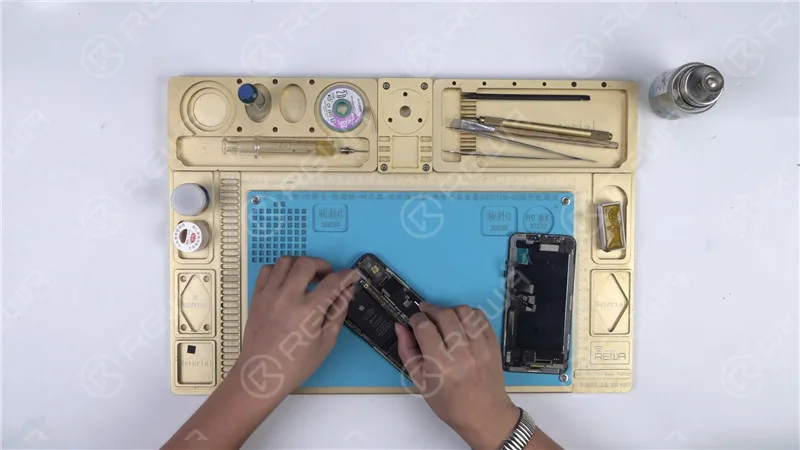
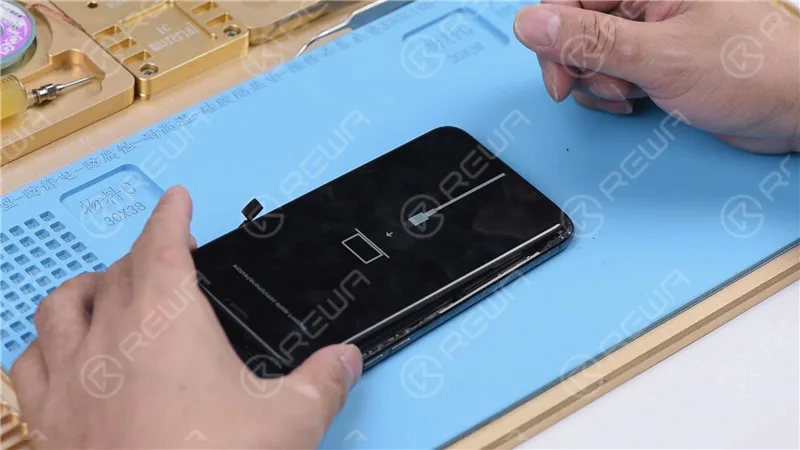
Let’s proceed with the motherboard installation and test it by pressing the power button. However, the phone automatically enters recovery mode, indicating a possible restore failure with the motherboard. As a result, the phone is unable to boot into the system normally.
Restoring the Phone
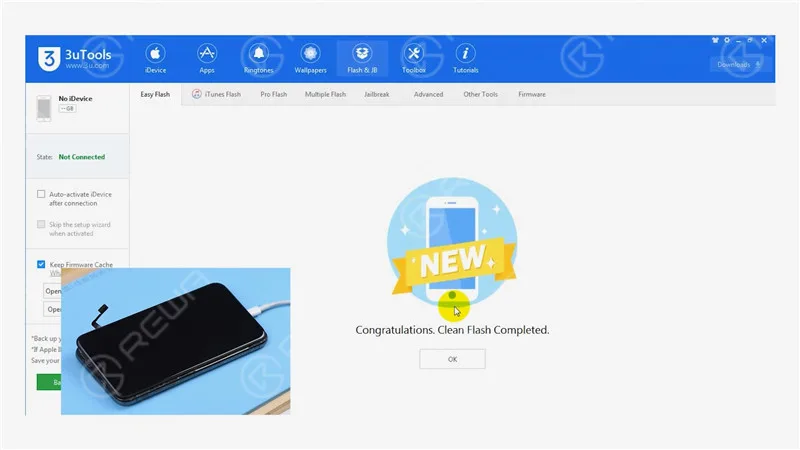
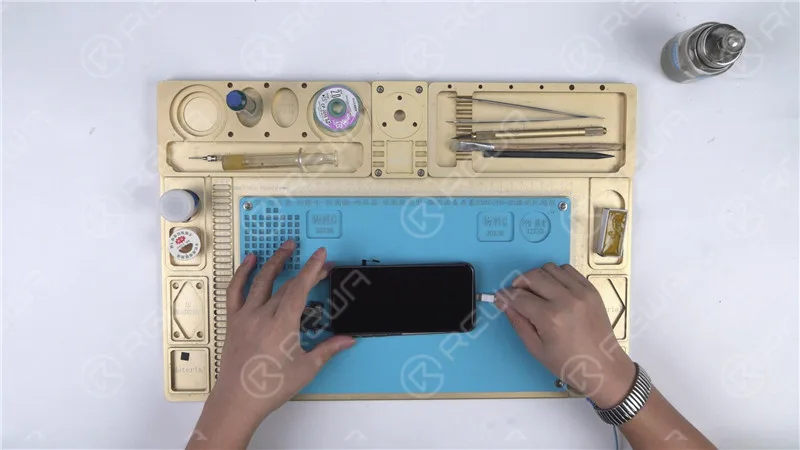
To begin, connect your iPhone X to a computer and initiate the restoration process using 3U Tools. A successful restoration indicates the motherboard is functioning correctly, and your phone can be activated normally.
Diagnosing Further Issues
Successful Restoration
If the phone can be restored successfully and activated, it’s an indication that the motherboard is functioning properly. The issue likely lies elsewhere.
Checking Baseband Info
Navigate to Settings>General>About to verify the baseband information, reinforcing the motherboard’s health.
Pinpointing the Issue
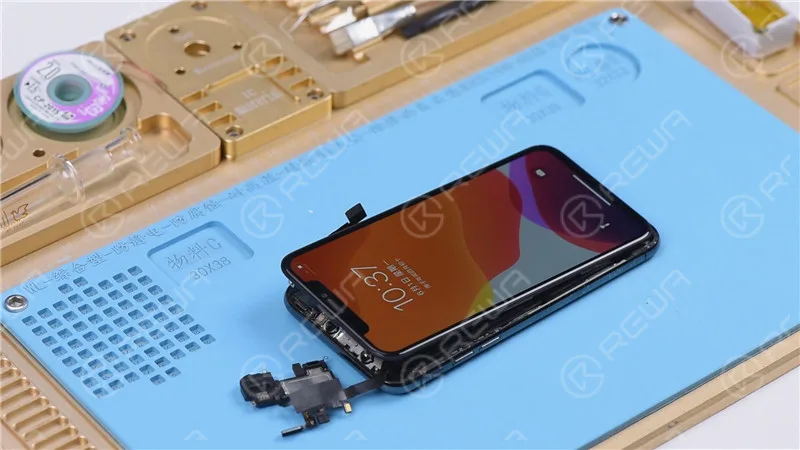
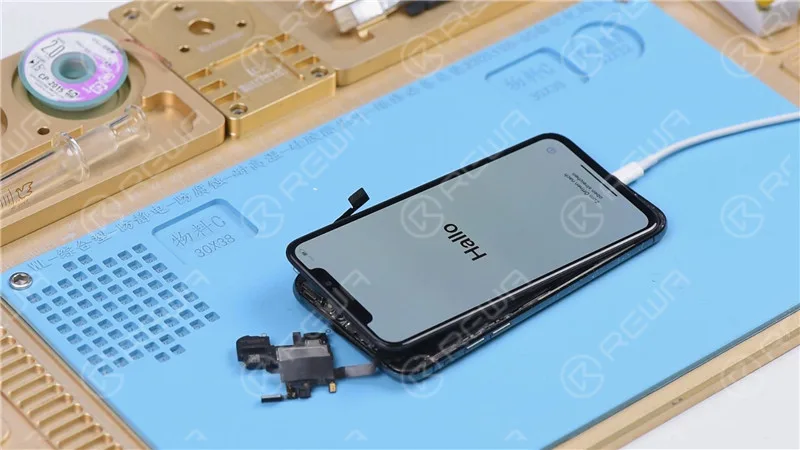
Adding Flex Cables: To narrow down the problem, reattach the earpiece speaker and sensor flex cable along with the front camera flex cable, and attempt to turn on the phone.
Stuck on Apple Logo: If the phone gets stuck on the Apple logo and restarts, it suggests an issue with the earpiece speaker and sensor flex cable or the front camera flex cable.
Isolating the Problem
Disconnecting the Earpiece Speaker and Sensor Flex Cable: Remove the earpiece speaker and sensor flex cable, then try to power on the phone. If it turns on normally, the issue is indeed related to these components.
Fixing the Flood Illuminator Module
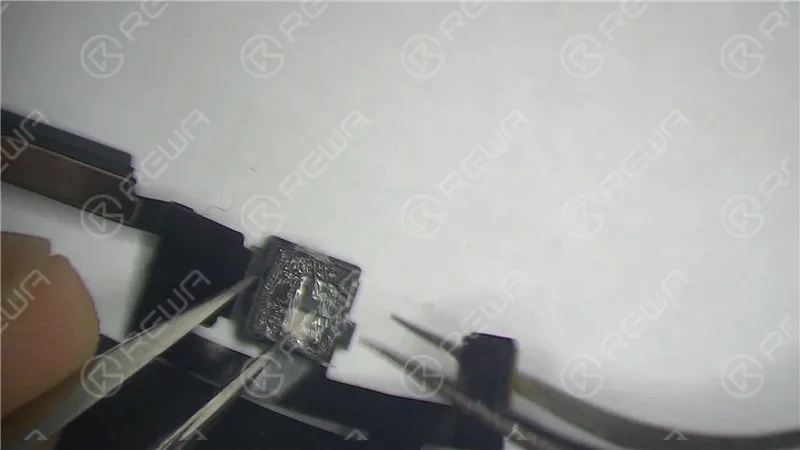
Microscopic Examination: Inspect the Flood illuminator module and identify any mold or corrosion.
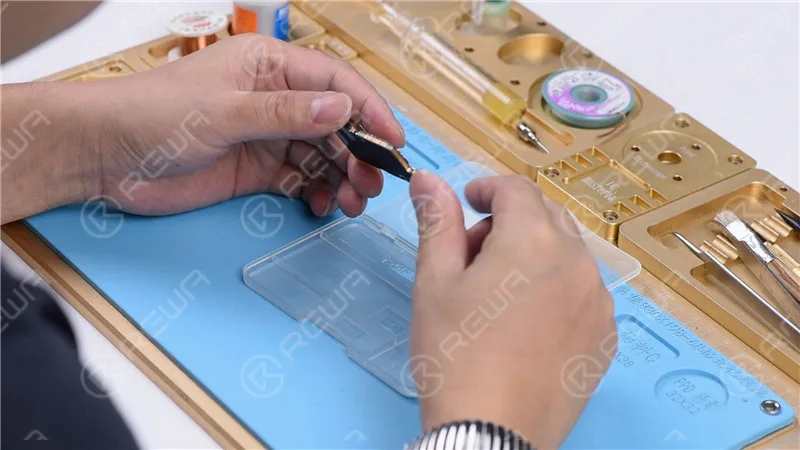
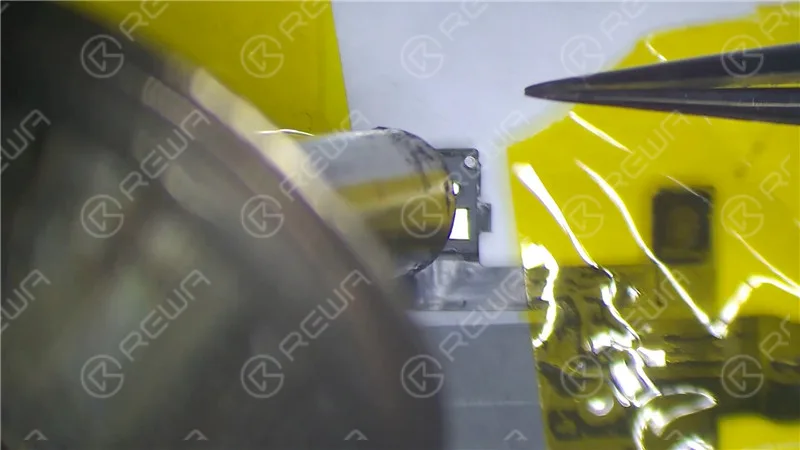
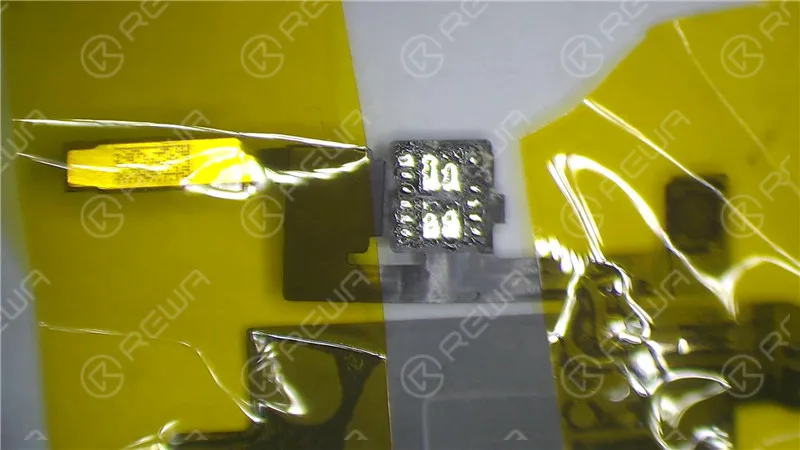
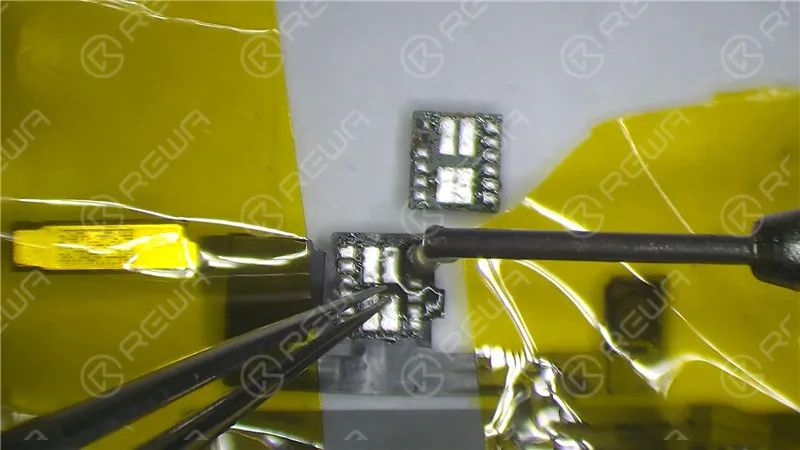
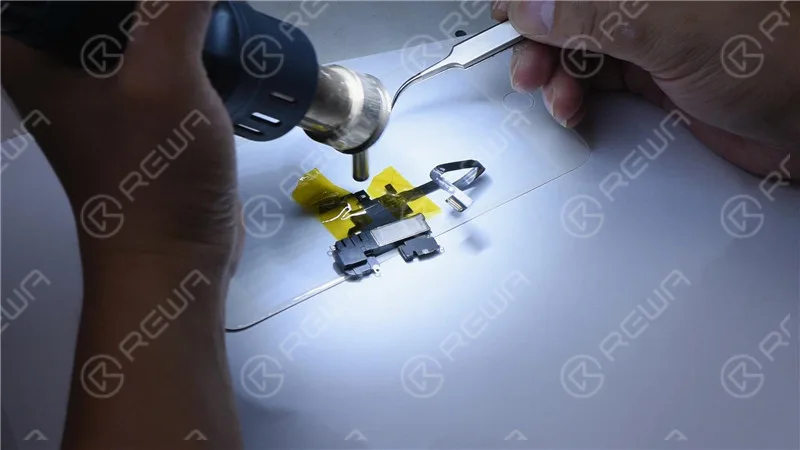
Repairing with High-Temperature Tape: Fix the earpiece speaker and sensor flex cable using high-temperature tape. Heat the affected area with a Hot Air Gun at 320℃ with an air flow of 35. Remove the damaged Flood illuminator module.
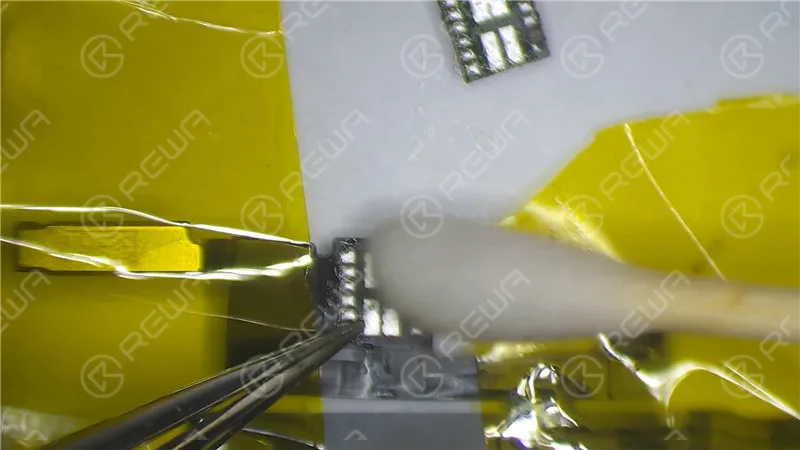
Corroded Bonding Pad: If the bonding pad on the Flood illuminator module is severely corroded, apply paste flux, clean with a soldering iron at 360℃, and reapply medium-temp solder paste. Clean with PCB Cleaner afterward.
Wiederzusammenbau: Reassemble the Flood illuminator module, applying paste flux and soldering it in place with a Hot Air Gun at 320℃.
Wait for 2 Minutes: Allow the repaired components to settle for two minutes.
Testing and Restoring
Reconnection: Reinstall the earpiece speaker and sensor flex cable, connect the battery, and power on the phone.
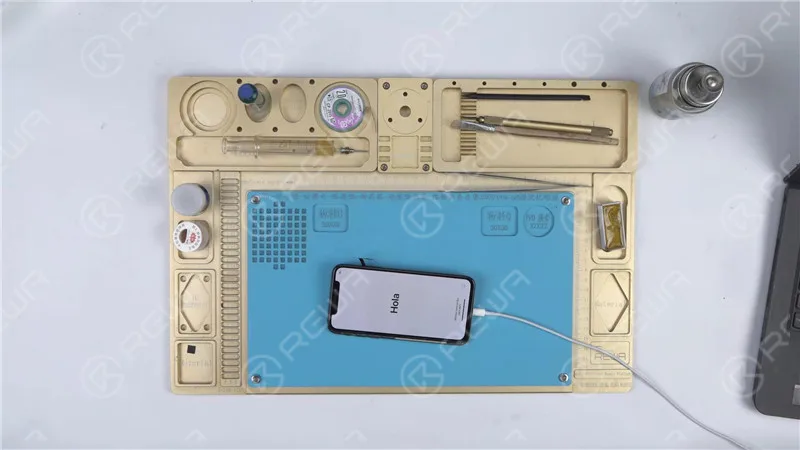
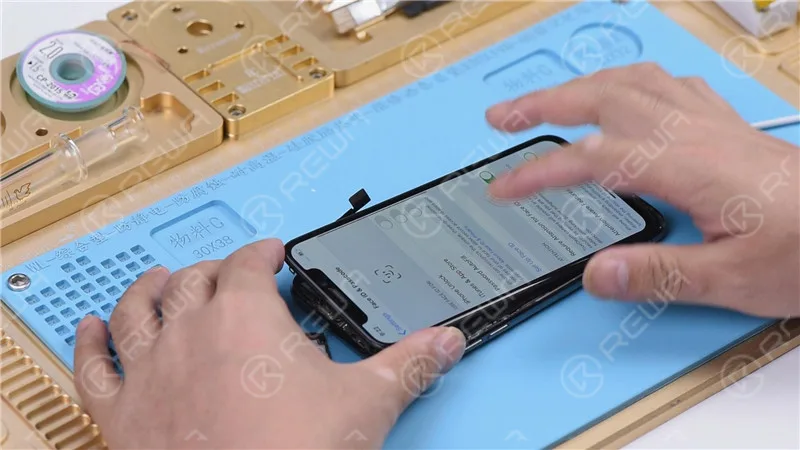
Restoring with Components Connected: Since the flex cables were not connected during the previous restoration, restore the iPhone X with both cables connected to ensure Face ID functionality.
Final Verification
Entering DFU Mode: Place the phone in DFU mode and connect it to the computer.
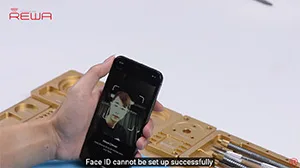
Restoration: Use 3U Tools or similar software to restore the phone. If it completes successfully, and the phone boots into the system and allows for Face ID setup, the issue has been resolved.
Video Guide to Fix iphone stuck on apple logo
Schlussfolgerung:
In this comprehensive guide, we have walked through the troubleshooting and repair process for an iPhone X stuck on the Apple logo with iTunes Error 4013. By methodically evaluating each component, from the motherboard to the earpiece speaker and sensor flex cable, we’ve successfully identified and fixed the issue, allowing the phone to function normally once again. For more in-depth repair knowledge, consider visiting REWA-Akademie.
What will you do when meeting Face ID issues on iPhone X/XS/XS Max or even on iPhone 11 series? As we know some Face ID issues can be repaired but some cannot. Is there any easier way to find out before we repair? Yes, there is. REWA repair tricks on Face ID troubleshooting-Face ID fault-finding in 3 minutes. Check out our ‘move iPhone a little lower/higher when setting up Face ID’ video and you will learn a lot.
iOS 13 update has again brought the True Tone missing problem to some iPhone users. Well,
REWA LAB has worked out a new solution to fix the problem. We will take iPhone XS as an example and show you how to restore True Tone of aftermarket screens step by step.
Tips: True Tone supports iPhone devices from iPhone 8 to later models.
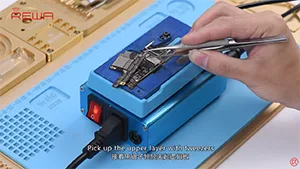
We introduced the 3 must-have tool kit for iPhone double-stacked motherboard repair. Also, there is a New Arrival Recommendation – REWA Selected 3 in 1 iPhone X/XS/XS Max Heating Platform instead of the one we used in the video. With the help of these tools, you can not only improve repair efficiency and success rate but also power your repair business.
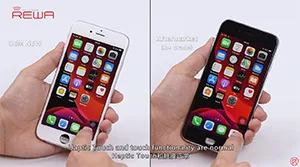
iOS 13 ist seit einem Monat offiziell veröffentlicht. Um unseren Kunden eine stets stabile Qualität zu bieten, hat das REWA LAB eine Reihe von Kompatibilitätstests für die iPhone-Serie vom iPhone 6s bis zum iPhone X mit originalen neuen Bildschirmen (OEM NEW), Aftermarket-Bildschirmen der Güteklasse A+ und Aftermarket-Akkus durchgeführt. Schauen wir uns nun am Beispiel von iPhone 6s, iPhone 8P und iPhone X an, wie der Test abläuft.
Tipps: iOS 13 unterstützt nur das iPhone 6s und neuere Modelle.
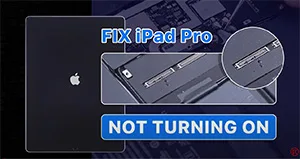
We have received an iPad Pro from our fan. The original fault of the iPad Pro was the top left corner speaker with noise. After speaker replacement, the connectors of the motherboard and display are burnt out while connecting the display. Now the iPad Pro won’t turn on. So the fan mailed the iPad Pro to REWA for repair. Let’s check out how we fix the iPad Pro.
 English
 Español
 Français
 Deutsch
 Italiano