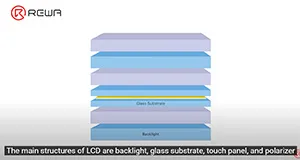
Es gibt verschiedene Arten von Produkten für die Montage von Bildschirmen mit ungleicher Qualität, was viele Kunden bei der Bestellung verwirrt. Daher hat REWA einen strengen Standard für die Auswahl der Produkte festgelegt, um das Einkaufserlebnis der Kunden zu gewährleisten, mit dem Ziel, das beste Qualitätsprodukt für die Montage von Bildschirmen mit der höchsten Kostenleistung auf dem Markt auszuwählen. REWA hofft, dass die Kunden unbesorgt einkaufen und sich darauf verlassen können, dass sie die von REWA ausgewählten Montageprodukte verwenden.
Schlagwort: iphone
-
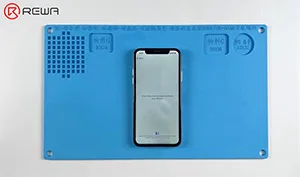
Wie man das iPhone X nicht aktivieren kann, indem man Drähte überbrückt
Das iPhone X ist heruntergefallen und kann nicht mehr normal funktionieren. Nach der Wiederherstellung kann das Telefon nicht mehr aktiviert werden. Die Techniker von REWA Lab vermuten, dass die Hauptplatine nach dem Sturz des Telefons beschädigt wurde. In diesem Video erfahren Sie, wie wir den Fehler lokalisieren und beheben. Schauen wir es uns an!
In diesem Video empfohlene Produkte
-
Fix iPhone X with Distorted Sound
Hello everyone! Today we will share how to fix an iPhone X with distorted sound.
First of all, run a cosmetic inspection of the motherboard. The motherboard is not deformed or water damaged.
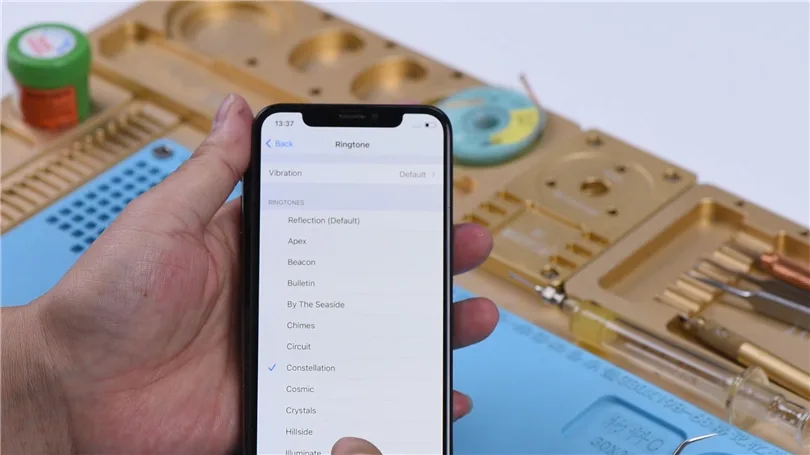
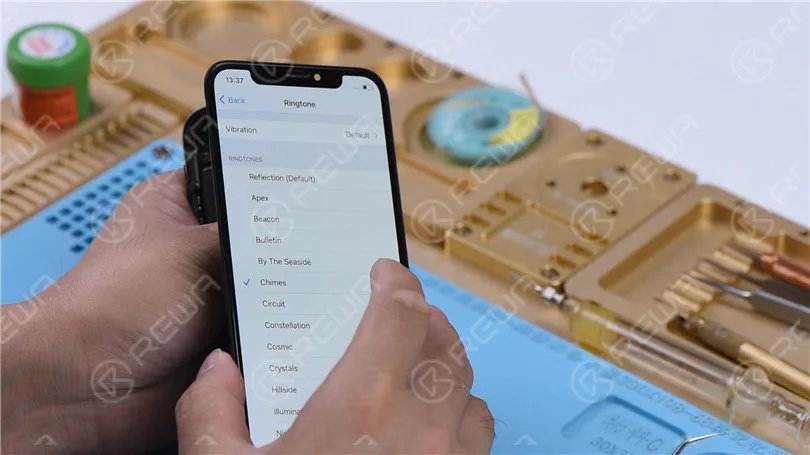
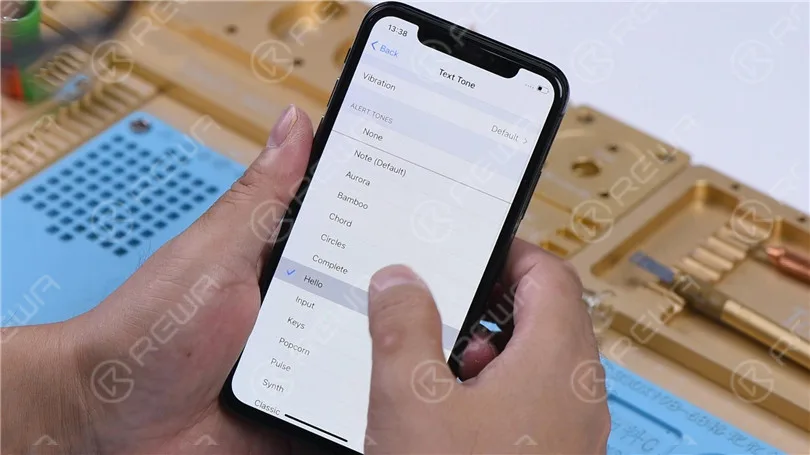
Then we install the motherboard on the phone to test. The phone turns on normally. Go to Settings > Sounds & Haptics. Turn the volume up. Play the ringtones. There is noise in the sound.
Next, measure circuits that are related to the speaker on the charging port connector.
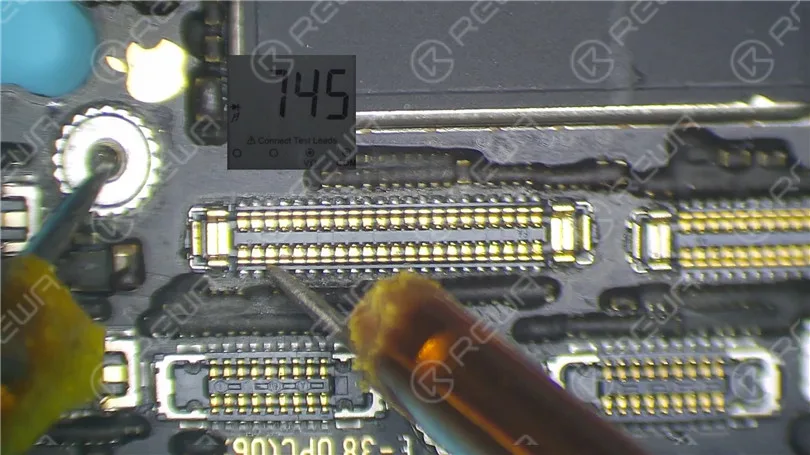
Turn the phone off. Detach the motherboard. Run diode mode measurement of the pin 1, pin 3, pin 5, and pin 45 on the J6400. The diode values are normal.
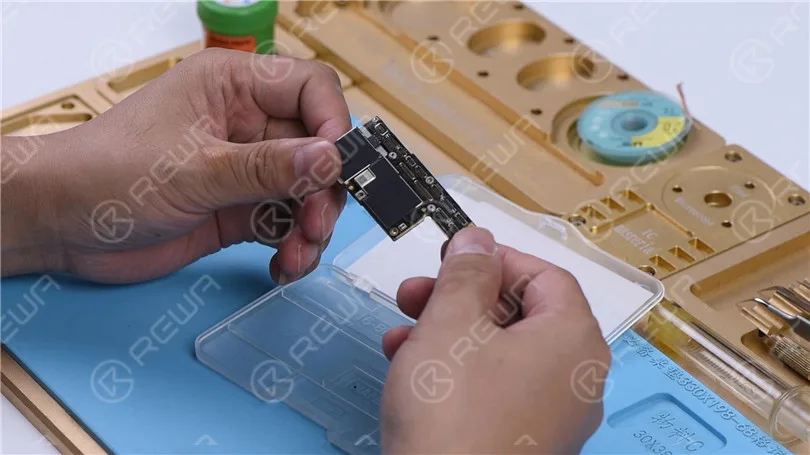
Next, we need to separate the motherboard for further testing.
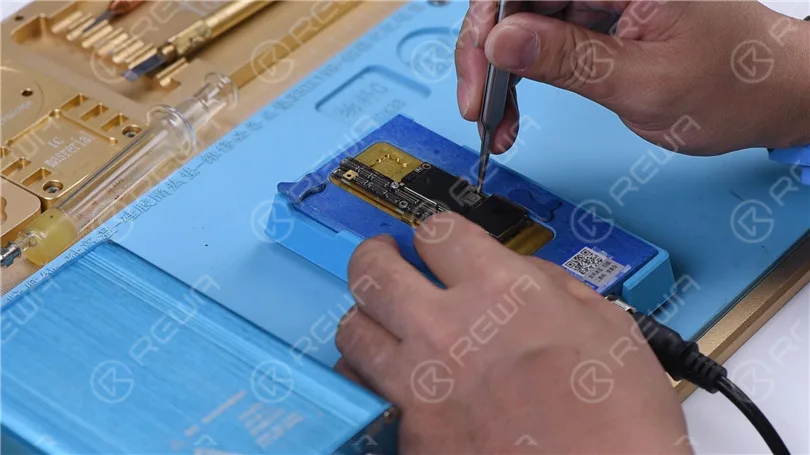
Cut through the shielding paper with a Skulptur-Messer. Heat the motherboard on the Heizungsplattform at 165℃. When the temperature has risen to 165℃, remove the logic board and signal board.
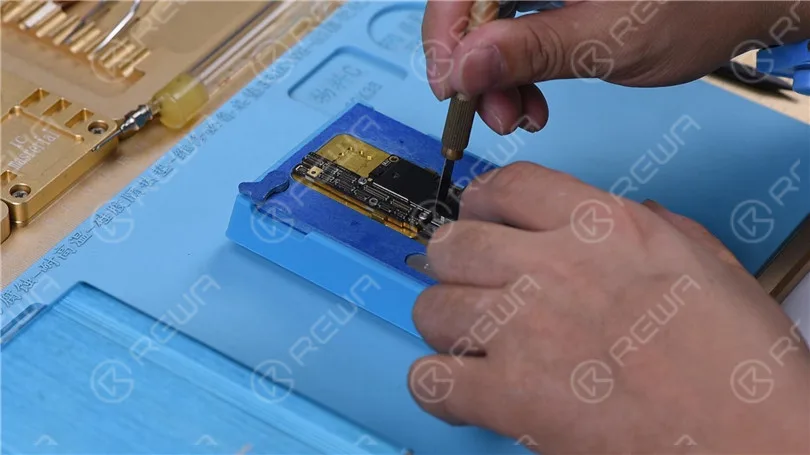
Attach the signal board to the holder. Smear rosin with Lötkolben at 365℃ and solder wick to remove tin on the bonding pad. Remove tin on the bonding pad of the logic board with the same method.
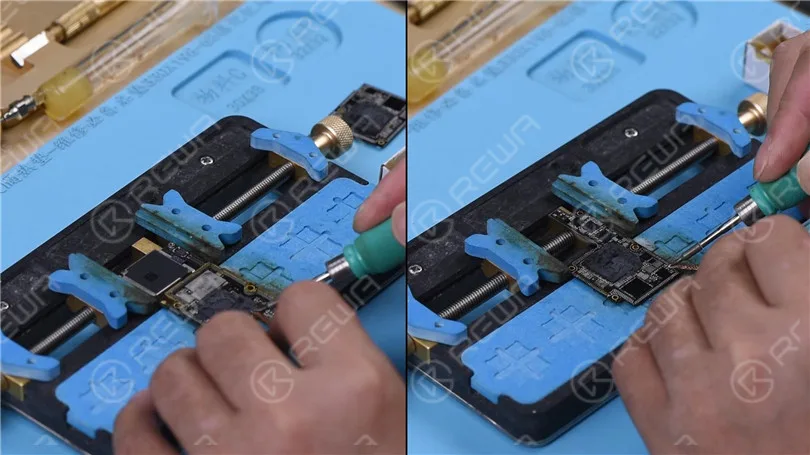
Remove thermal grease with a Sculpture Knife. Clean the motherboard with PCB Cleaner. Attach the signal board and logic board to the Prüfvorrichtung.
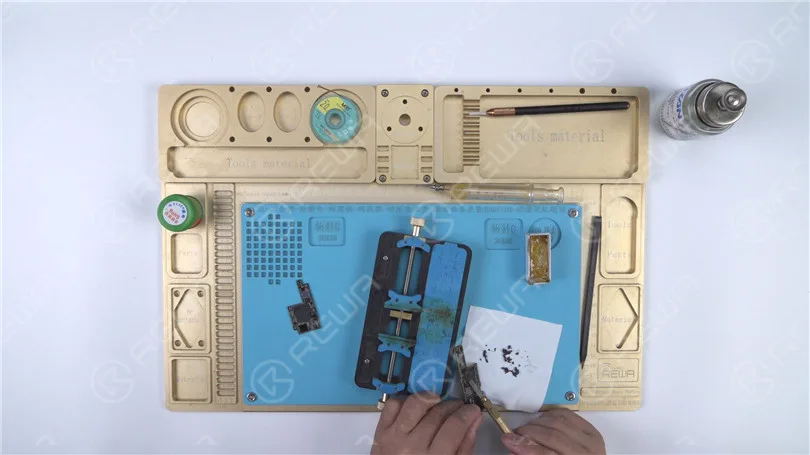
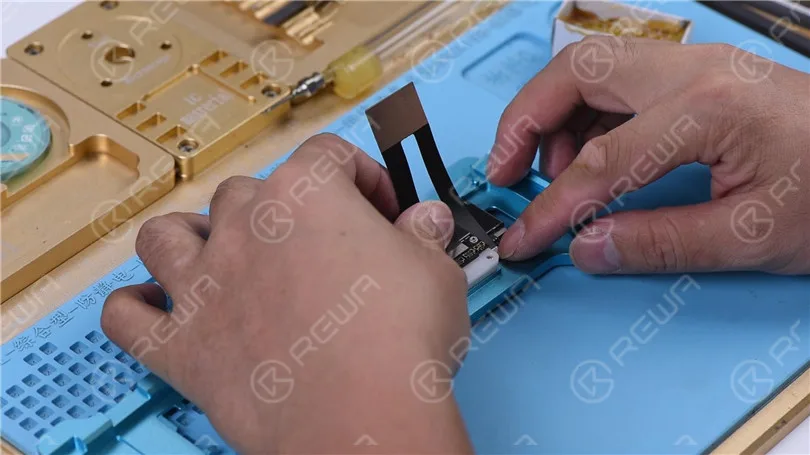
Verbinden Sie das Test Extension Cable. Close the Testing Fixture. Connect the charging port flex cable. Then connect the battery and the display. Short to the ground of the J4300 pin 9 to trigger the boot-up. The phone turns on normally.
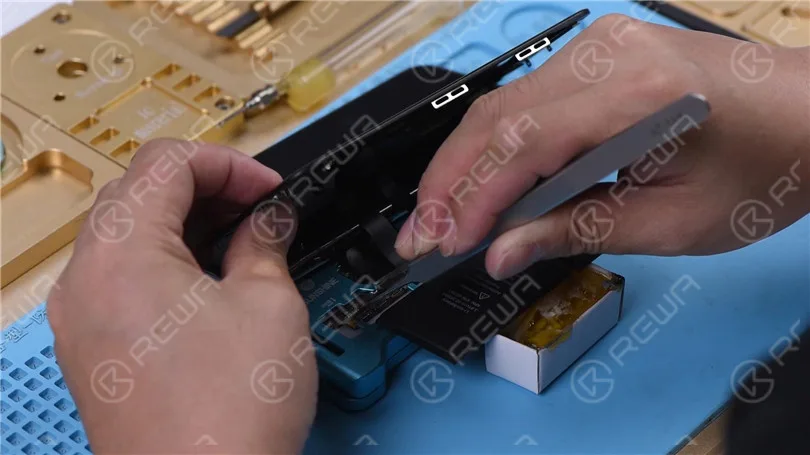
Go to Settings > Sounds & Haptics. The ringtones play normally. It can be judged that the noise is caused by pseudo soldering of the motherboard middle layer. All we need to do next is to recombine the logic board with the signal board. First of all, we need to reball the signal ball. Attach the signal board to the Reballing Platform. Put the Reballing Stencil in position. Apply a layer of low-temperature Solder Paste evenly. Remove the Reballing Stencil.
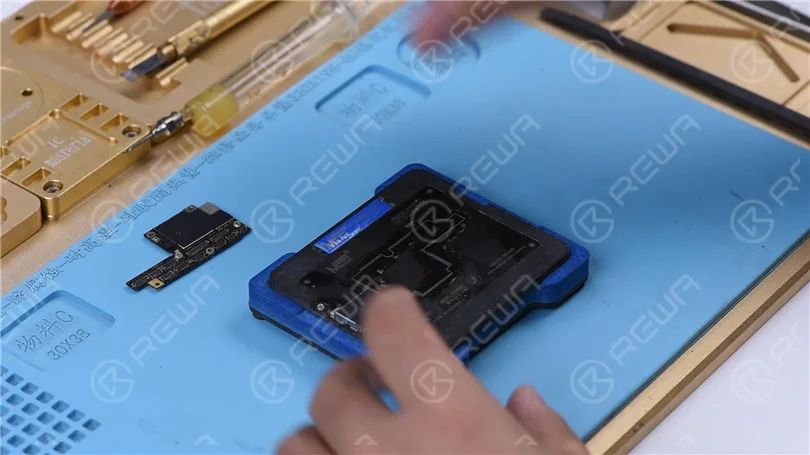
Put the signal board on the Heating Platform. Heat the signal board on the Heating Platform at 165℃. After the solder balls are formed, turn the power off and cool the motherboard for 5 minutes. Apply some Paste Flux. Align the logic board with the signal board. Keep heating the motherboard on the 165℃ Heating Platform. When the temperature reaches 165℃, keep heating for 1 minute. This step is to ensure that the logic board and the signal board fit closely. Turn the power off and cool the motherboard for 5 minutes. Then remove the motherboard.
Put the motherboard on the phone. Connect the display and battery. The phone turns on normally. Test the sound. The sound gets back to normal and has no noise.
Schlussfolgerung:
The sound of the iPhone X was distorted. When measuring circuits that were related to the speaker on the charging port connector by pressing the motherboard with multimeter probes, the diode values were normal and we couldn’t find the fault. But the sound remained normal after we separated the motherboard and tested the motherboard with the holding fixture. Therefore, we could conclude that the noise was caused by pseudo soldering of the motherboard middle layer. The fault was cleared after we recombined the logic board with the signal board.
-
iPhone 12 Pro Max Cache löschen
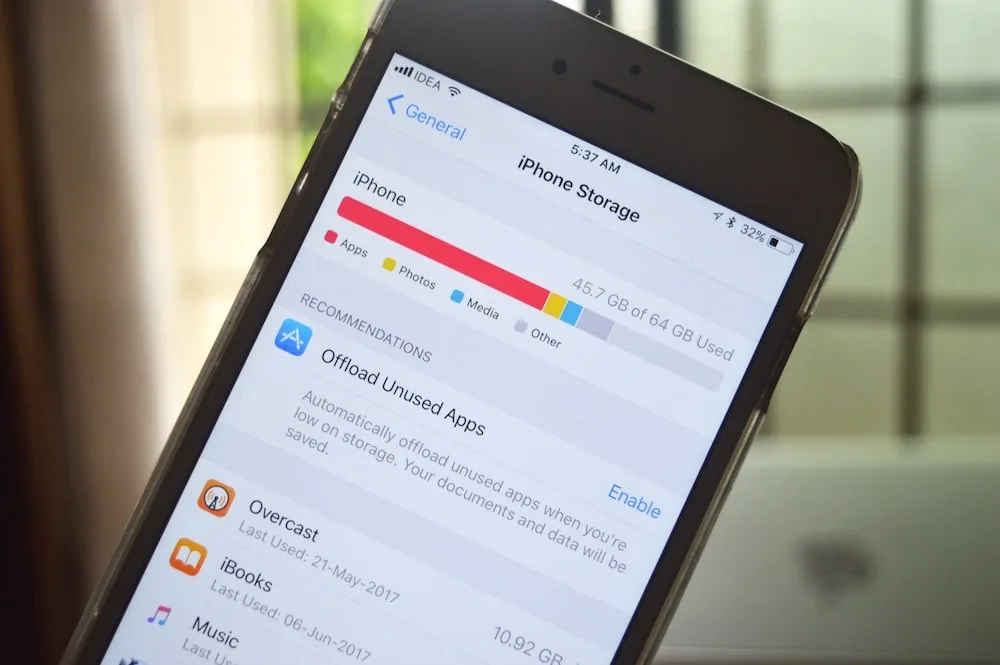
Einige Benutzer finden Speicherplatz mehr und mehr unzureichend während der Verwendung. Wie kann man dann den maximalen Cache des iPhone 12 Pro löschen? Schauen wir es uns an!
1. Kürzlich Gelöschte" löschen
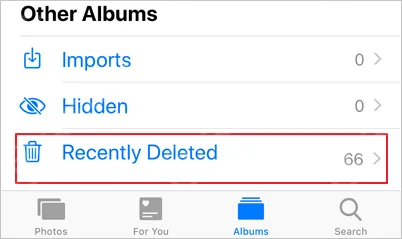
Im Album "Kürzlich gelöscht" werden Fotos gespeichert, die innerhalb der letzten 30 Tage gelöscht wurden. Hobbyfotografen werden diesen Teil mit Fotos oder Videos füllen. Eine regelmäßige Löschung kann je nach Situation durchgeführt werden.
2. Safari-Cache löschen
Gehen Sie zu "Einstellungen" - "Safari" - "Verlauf und Websitedaten löschen", um den Cache im Safari-Browser zu löschen.
3. Löschen Sie Apps, die nicht häufig verwendet werden
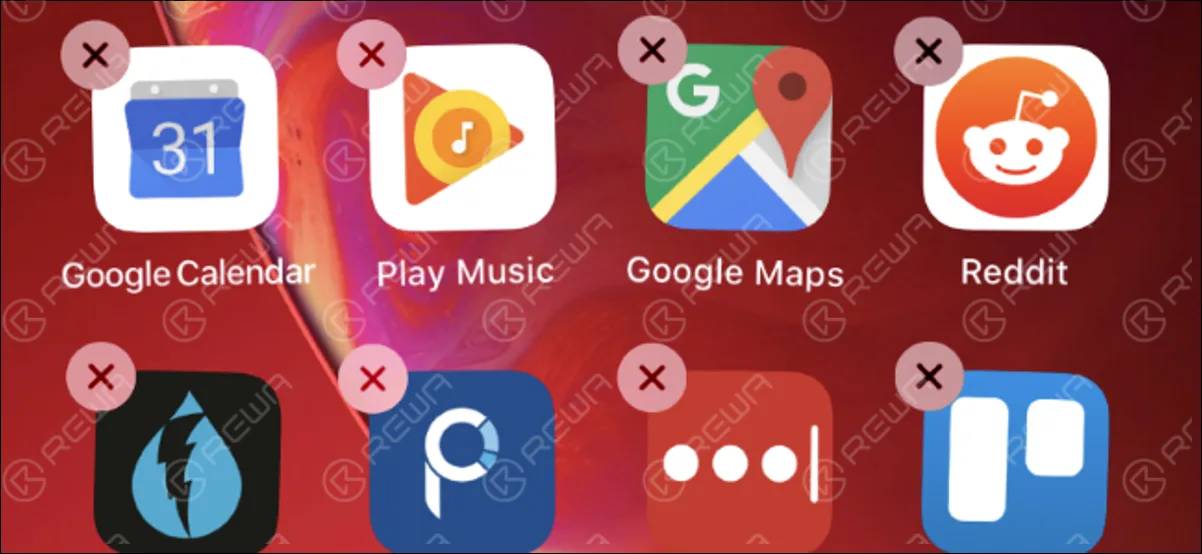
Viele Apps, die Speicherplatz beanspruchen, werden nicht häufig verwendet. Benutzer können Gewohnheiten entwickeln, um diese Art von Apps zu entfernen.
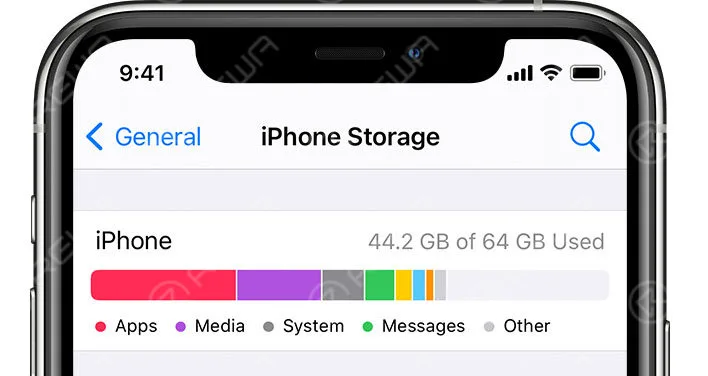
Unter "iPhone-Speicher" können Sie die Speichergröße der einzelnen Apps einsehen. Sie können sie je nach Bedarf löschen.
4. Direktes Zurücksetzen des Telefons
Nachdem das Mobiltelefon vollständig zurückgesetzt wurde, werden die Daten vollständig gelöscht und das Telefon wird auf die Werkseinstellungen zurückgesetzt.
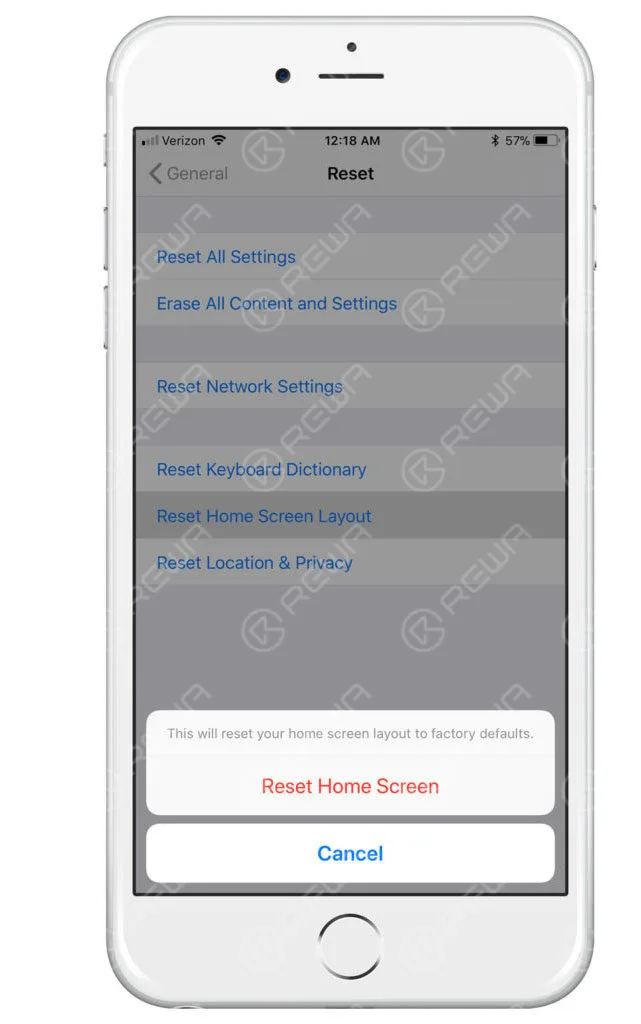
Tipps:
Es wird empfohlen, auf das neueste System zu aktualisieren und dann den Cache zu löschen.
Sie können auch andere Anwendungen für die Datensicherung verwenden, wenn nicht genügend Speicherplatz für Updates vorhanden ist.
-
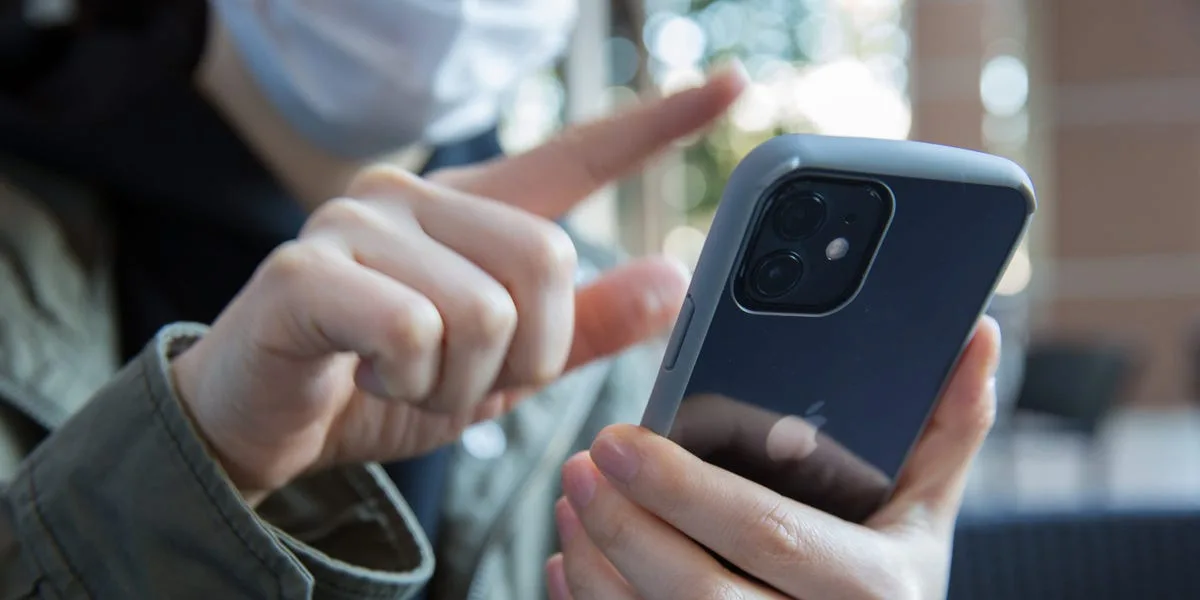
How to unlock iPhone with Apple Watch when wearing a mask
Because of the ongoing pandemic, face masks have created a challenge for iPhone users who rely on Face ID for unlocking their devices. Fortunately, Apple has introduced a convenient solution that allows you to unlock your iPhone using your Apple Watch, even while wearing a mask. In this guide, we will walk you through the steps required to set up this feature on your iPhone running iOS 14.5 and Apple Watch with WatchOS 7.4.
Our lives are now deeply intertwined with smartphones in the digital era. However, the use of face masks during the pandemic has posed a problem for iPhone users who depend on Face ID to unlock their devices. Thankfully, Apple has provided a practical solution that enables iPhone unlocking through an Apple Watch, even when wearing a mask. This guide outlines the necessary steps to configure this functionality on an iPhone running iOS 14.5 and an Apple Watch with WatchOS 7.4.
Describe how to unlock in the configuration app.
Set in “FACE ID and Pass Code” of the setting app
ne and installed WatchOS 7.4 to Apple Watch, if you have installed Apple Watch when wearing a mask, the unlocked function of the iPhone is not enabled.
You need the following settings to use this function.
Enable “Unlock Locking” with Apple Watch
Check the Apple Watch toggle switch to use to unlock the iPhone at “Locking with Apple Watch” in the Configuration App.
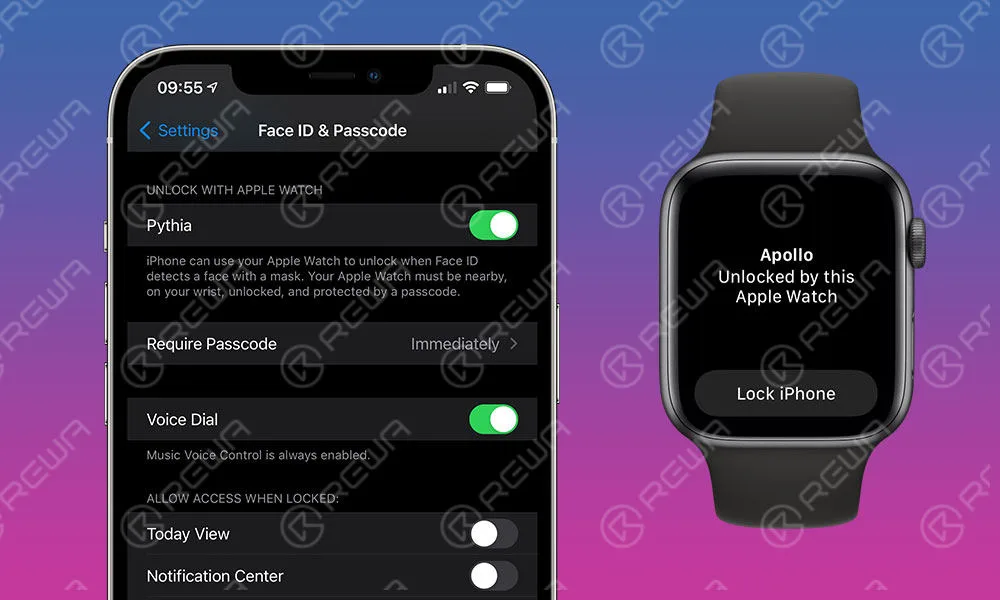
Display message display
You may also enable unlocking at Apple Watch or a confirmation message. If there is no problem, select Turn On.
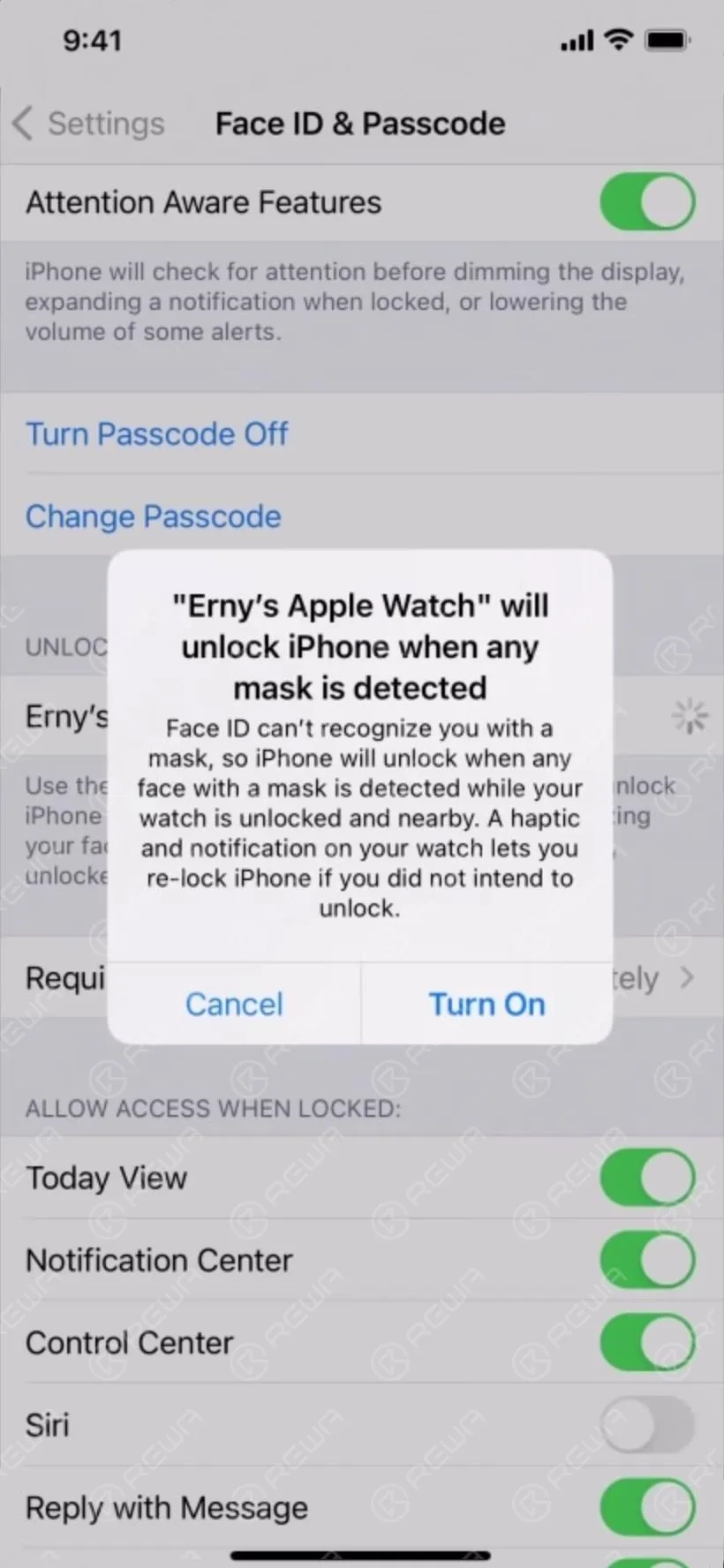
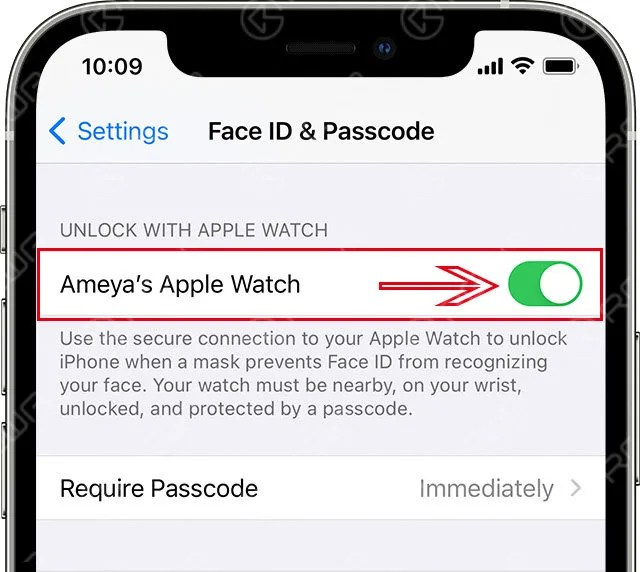
“Unlock unlocked with Apple Watch” is activated
The Apple Watch toggle switch used to unlock the iPhone is turned on.
In the corresponding Apple Watch, if WatchOS is an older version, “Software update is required”,
such as the lower level of Apple Watch below.
Unlock notification in Apple Watch
Wear a mask and wear Apple Watch and gaze the iPhone12 Pro screen.
The iPhone12 Pro has been unlocked with the light vibration of Apple Watch.
Light vibrations when canceled were the same as the vibrations when the MAC lock was unlocked at Apple Watch.
-
Vergleich iPhone 13 vs. iPhone 12 Batterielaufzeit
Apple dispatched four iPhone 13, iPhone 13 MINI, iPhone 13 Pro, and iPhone 13 Pro Max in 2021, notwithstanding battery development.
It has likewise acquired a ton of enhancements alongside battery upgrades with a longer life battery. Let’s check out the difference compared with the iPhone 12.
Apple iPhone 13 model is indistinguishable from iPhone 12 appearance, the thing that matters is that the iPhone 13 has a thickness of 0.25 mm contrasted with iPhone 12, which is basically impacted by a higher capacity battery and another camera module.
iPhone 13 thickness: 7.65 mm
iPhone 12 thickness: 7.4 mm
iPhone 13 battery capacity is raised, 8% increment in iPhone 13, 9% of iPhone 13 and iPhone 13, where iPhone 13 Pro Max battery capacity is most reached by 18%, yet in addition the iPhone has above 4000mAh huge battery capacity for the first time.
iPhone 13 mini battery capacity is 2406mAh
iPhone 13 battery capacity is 3095mAh
iPhone 13 Pro battery capacity is 3095mAh
iPhone 13 Pro Max battery capacity is 4352mAh
iPhone 13 Comparison of Battery life with iPhone 12
As indicated by Apple’s fully-digital “California streaming” event on September 14, the iPhone 13 Series battery life on fortifying 1.5 hours to 2.5 hours expanded than the iPhone 12 Series, the information is as per the following:
iPhone 13 mini battery life increased 1.5 hours than iPhone 12 mini
iPhone 13 battery life is raised by 2.5 hours than iPhone 12
iPhone 13 Pro battery life to boost 1.5 hours than iPhone 12 Pro
iPhone 13 Pro Max battery life is more than 2.5 hours than iPhone 12 Pro Max
The iPhone 13 series fully enhances battery capacity, and is equipped with 5 nano-enhanced version A15 bionic chips to reduce power consumption, which will make iPhone 13 battery life strengthening.
thickness of 0.25 mm contrasted with iPhone 12, which is basically impacted by a higher capacity battery and another camera module.
iPhone 13 thickness: 7.65 mm
iPhone 12 thickness: 7.4 mm
iPhone 13 battery capacity is raised, 8% increment in iPhone 13, 9% of iPhone 13 and iPhone 13, where iPhone 13 Pro Max battery capacity is most altogether reached by 18%, yet in addition the iPhone has above 4000mAh huge battery capacity for the first time.
iPhone 13 mini battery capacity is 2406mAh
iPhone 13 battery capacity is 3095mAh
iPhone 13 pro battery capacity is 3095mAh
iPhone 13 Pro Max battery capacity is 4352mAh
iPhone 13 Comparison of Battery life with iPhone 12
As indicated by Apple’s fully-digital “California streaming” event on September 14, the iPhone 13 Series battery life on fortifying 1.5 hours to 2.5 hours expanded than the iPhone 12 Series, the information is as per the following:
iPhone 13 mini battery life to increase 1.5 hours than iPhone 12 mini
iPhone 13 battery life is raised by 2.5 hours than iPhone 12
iPhone 13 Pro battery life to boost 1.5 hours than iPhone 12 Pro
iPhone 13 Pro Max battery life is more than 2.5 hours than iPhone 12 Pro Max
The iPhone 13 series fully enhances battery capacity, and is equipped with 5 nano-enhanced version A15 bionic chips to reduce power consumption, which will make iPhone 13 battery life strengthening.
-
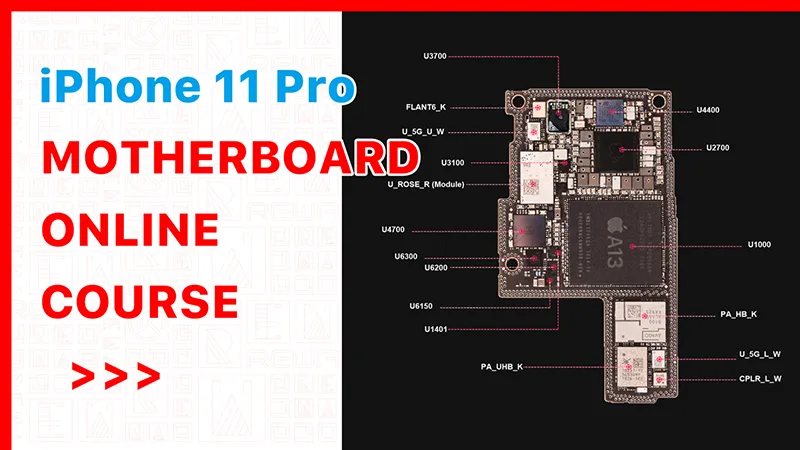
iPhone 11 Pro Motherboard Chips Verteilung
Nach monatelanger Entwicklungsarbeit steht der Online-Reparaturkurs REWA Academy iPhone 11 Pro vor der Tür und wird voraussichtlich am 14. Mai starten.
Vor dem Kurs werden wir Sie durch die iPhone 11 Pro Motherboard-Chipverteilung führen.
Lassen Sie uns zunächst eine kurze Einführung in diesen Kurs geben. In diesem Kurs werden wir die unten aufgeführten Schaltungen eine nach der anderen lernen. Es sind insgesamt etwa 14 Schaltungen, die wir zusammen lernen sollten. Und für jede Schaltung gibt es zwei Teile. Im ersten Teil werden wir die Funktionsweise der Schaltung lernen. Und im zweiten Teil werden wir die Fehlersuche lernen.
Insgesamt sollte dieser Kurs also etwa 30 Lektionen umfassen. Und 30 Lektionen zu lernen, kostet nicht so viel Zeit. Wenn Sie also während des Lernprozesses Fragen haben und es notwendig ist, können Sie das Video einfach anhalten. Sie können sich die Bitmap und die Schaltpläne ansehen oder versuchen, die Blockdiagramme selbst zu zeichnen, damit Sie den Arbeitsprozess und die Fehlersuche besser verstehen können. Und das wäre sehr hilfreich für Ihr zukünftiges Reparaturgeschäft.
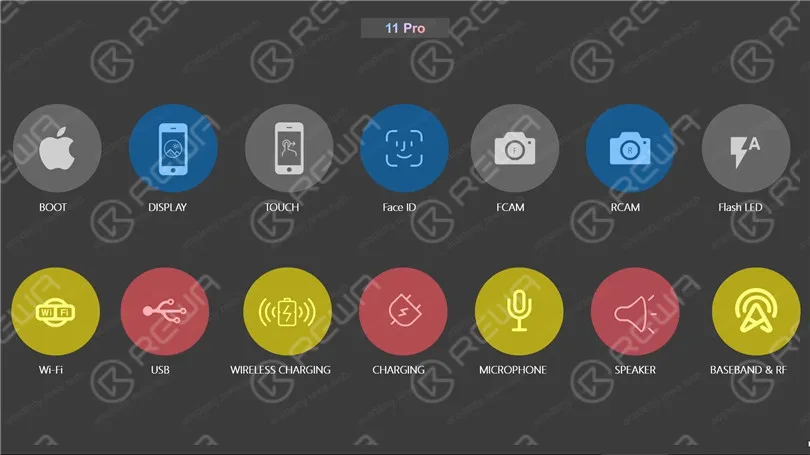
Für den allerersten Kurs werden wir die Details der Schaltung nicht vorstellen. Wir werden zunächst eine Einführung in die Hauptplatine geben.
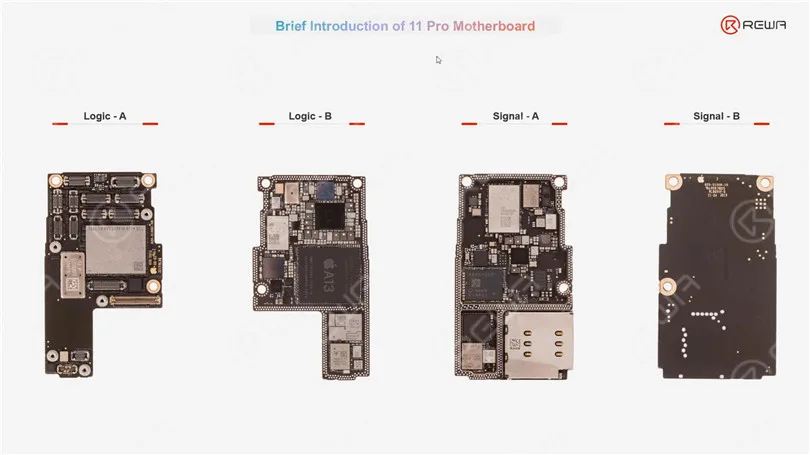
Das Motherboard zu kennen, ist wie einen Freund zu kennen. Lassen Sie uns also versuchen, unser Bestes, um das Motherboard so gut wie möglich kennen. Wie wir sehen können, das iPhone 11 pro Motherboard, es ist nur mehr oder weniger wie das iPhone X. Es ist mit zwei Schichten Struktur. Und für die zwei Schichten, die obere Schicht nennen wir es Logic Board. Die untere Schicht nennen wir das Signalboard.
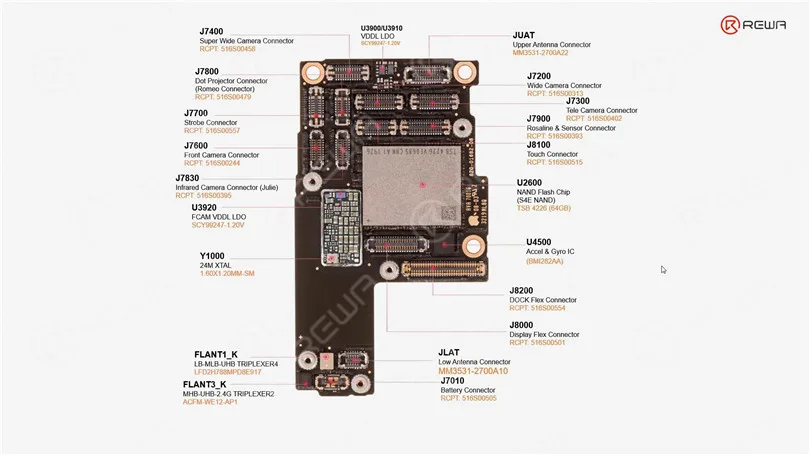
Kommen wir zunächst zur ersten Schicht der Logikkarte. Es gibt so viele Anschlüsse auf der Logikplatine. Wie wir wissen, gibt es drei rückwärtige Kameras für das iPhone 11 Pro. Diese drei Anschlüsse sind also mit den rückwärtigen Kameras verbunden. Der längste ist der Anschluss für das Dock-Flexkabel. Weil auf dem Dock-Flexkabel so viele Funktionen integriert sind, wie zum Beispiel das Aufladen, USB, das Hauptmikrofon, und auch einige Antennen, der Vibrator und der Lautsprecher. Dieser Anschluss ist also der längste.
Das Face ID Modul ist hauptsächlich mit der Infrarotkamera, dem Punktprojektor und dem Flutlicht verbunden. Rosaline steuert nicht nur den Flutlichtstrahler, sondern auch einige Sensoren wie den Umgebungslichtsensor und den Näherungssensor. Die PMU ist so etwas wie das Herzstück des mobilen Stromversorgungssystems. Der Face ID Power IC ist hauptsächlich für die Stromversorgung der Face ID Module verantwortlich.
Der winzige Chip ist ein Boost-IC. Er wird für die Bereitstellung des PP_VDD_BOOST verwendet, der eine wichtige Stromversorgung für viele Komponenten darstellt. Wenn dieser Chip beschädigt wird, kann das Telefon nicht hochfahren. UWB ist die Abkürzung für Ultra Wideband Power Supply. Der Audio-CODEC-IC ist hauptsächlich für die Steuerung der audiobezogenen Schaltungen wie Mikrofonschaltung, Lautsprecherschaltung oder Vibrationsschaltung zuständig. Der USB-IC ist sehr wichtig für die Umwandlung von Ladedaten oder die Identifizierung von Zubehör usw. EEPROMs sind sehr wichtig für die Datenwiederherstellung.
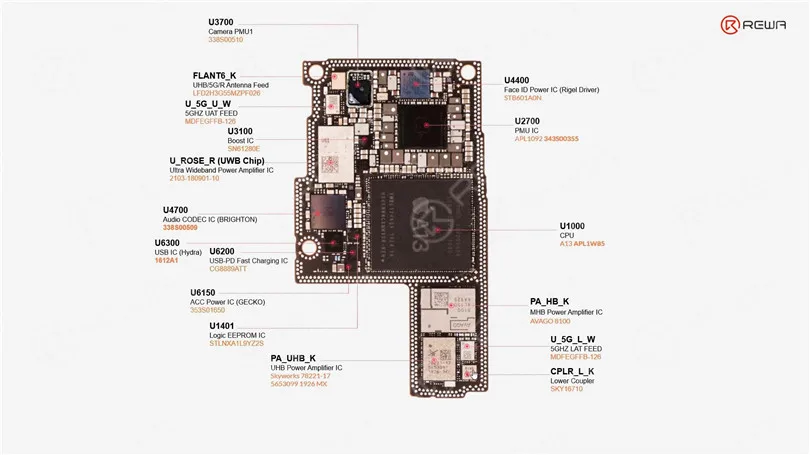
OK, machen wir also weiter. (Auf der Signalplatine) Die Chips sind viele im Zusammenhang mit dem Wi-Fi, dem RF-Schaltkreis, dem Basisband, dem NFC
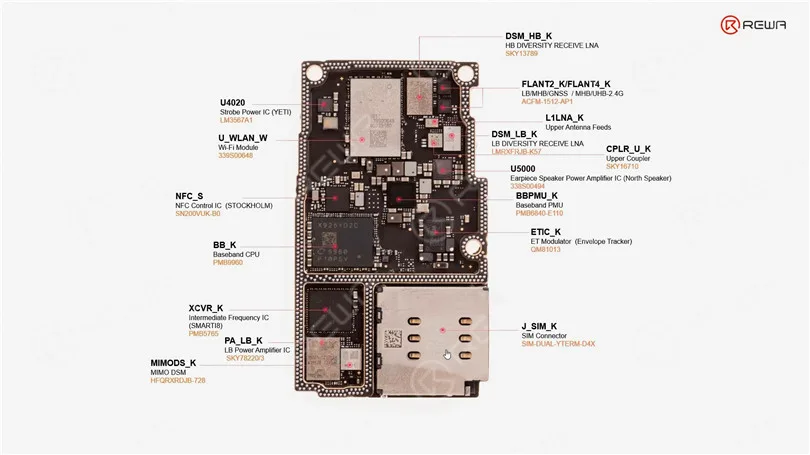
Manchmal können wir die Funktion des Chips aus dem Namen ablesen, oder? CPLR bedeutet zum Beispiel Koppler. Strobe Flash IC steuert die Stromversorgung für die LEDs. Die Basisband-PMU ist für die Stromversorgung der Basisband-CPU zuständig. ET ist hier die Abkürzung für Envelope Tracker. Er ist auch ein wichtiger Chip für den HF-Schaltkreis, der die Leistungsverstärker-ICs, die DSM-Chips usw. mit Strom versorgt. MIMO steht hier für mehrere Eingänge und mehrere Ausgänge und bezieht sich ebenfalls auf den HF-Schaltkreis. Und auf einer anderen Seite des Signalboards. Es gibt viele Testpunkte
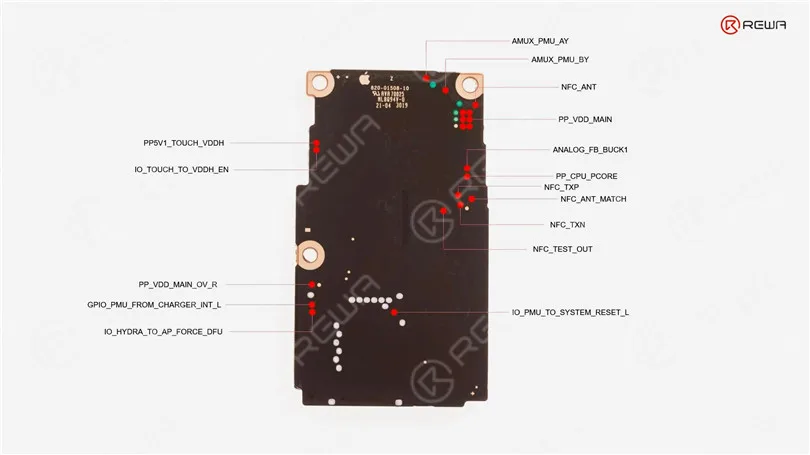
Sehen Sie sich das Video an, um die Verteilung der iPhone 11 Pro Chips im Detail zu sehen.
Vorbestellung der iPhone 11Pro Hauptplatinen-Reparaturkurs jetzt, um einen 20%-Rabatt zu erhalten. (Begrenztes Angebot: 28, Apr - 13, Mai)
-
iPhone 13 Mini Batteriekapazität Einführung
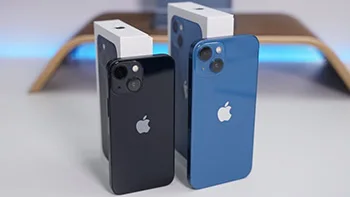
Wie hoch ist die Batteriekapazität des iPhone 13 mini
Batteriekapazität
iPhone13mini: 2406mAh Batterie + 25W Schnellladung, 90 Minuten länger als iPhone 12mini
Kabelloses Laden mit Magsafe (bis zu 15 Watt), kabelloses Laden mit QI (bis zu 7,5 Watt)
Konfigurationsparameter
1.Bildschirm
iPhone 13 Mini verwendet eine 5,4-Zoll 2340 * 1080 Ziel Umriss xdr zeigen, ist die Kerbe Vertrag 20%, hält den wahren Ton Reparatur, DCI-P3, HDR-Display, AssistiveTouch, und so weiter, 476ppi, regelmäßige Spitzenleistung Glanz 800nit, HDR Top-Brillanz 1200nit, keine hohen Pinsel.
2. Feuer
Drei Umgebungen 131,5 * Breite 64,2 * Dicke 7,65mm, Gewicht 140g, Ceramic Shield vorne, Glas zurück und Aluminium-Design, Unterstützung IP68 staubdicht wasserdicht.
3. Farbe
Rosa, blau, Mitternachtsfarbe, Sternenlicht, rot insgesamt 5 Farben passend
4. Kamera
iPhone 13 MINI hat eine 12-Megapixel-TrueDepth-Kamera auf der Vorderseite, die Rückseite zweifachen Test 12 Megapixel Wide-Point-Primär-Foto + 12 Millionen Pixel sehr Wide-Point-Brennpunkt, mit einem anderen 1.7μm Sensor, die Maßnahme der Informationen ist 47%, während iPhone 12 Pro Max Sensor entwurzeln Bild gegen Shake Arbeit dezentralisiert ist, neue Video-Encoder, neue "Photographic Styles" und neue Film Auswirkungen Design Unterstützung tragbare Hilfe Zentrum Transformation, 1080p30fps flachen Tiefe des Feldes Videoaufnahmen und kann bis zu 4K60FPS Dolby Tuni-Turkey HDR Video Wait schießen.
5. Chip
A15 Bionic Chip Neue 6-Kern-CPU mit 2 Leistungs- und 4 Effizienzkernen Neue 4-Kern-GPU Neue 16-Kern-Neural-Engine
Die oben ist über, wie viel das iPhone 13mini Batteriekapazität eingeführt wird.
-
What Should I do if iPhone is Running Slowly or Crashing?
If you find that your iPhone is running slowly or crashing, it may be caused by the following reasons, you can gradually check and try to solve the problem.
iPhone running slowly Check network conditions
Many apps on the iPhone need to connect to a fast network to function properly. If your connection is congested, the app may take some time to open or display the corresponding content. When you sit in a vehicle that is driving, the device will continue to reconnect the new signal tower, so it may look slowly.
This situation is better to determine, such as web refresh, slow or unable to display pictures, at which point you can wait patiently or try to replace a faster network.
If the app is not responding or crashing
If an App stops responding or crashes, you will need to force shutdown this app in the background and open it again.
After re-opening, the application still does not respond or crash. The applications are likely not compatible with the system. You can try to go to the App Store to update application, or consider deleting applications to re-download.
Make sure the iPhone has enough storage space
You can check the storage space of the device in “Settings” – “General” – “[Device] Storage Space”. To achieve optimal performance, try maintaining at least 1GB of available space. If the available storage space is less than 1GB, the speed of the device may slow down because iOS needs to make space to store other content.
If you need to release some space, follow these steps to open iOS built-in storage space Savings Suggestions:
1.Go to “Settings” – “General” – “[Device] Storage Space”, then read the iOS possible suggestions.
2. Tap “Enable” to open the suggestion, or tap the title to view the content you can delete.
If you have not seen any suggestions, or you need to release more space, you can view the app on the device. “[Equipment] Storage Space screen will list these apps directly, and it will also display the size of the space occupied.
Tap an app, you can choose from the following options:
1. Uninstall the app to release the storage space occupied by the app, but retain its documents and data.
2. Delete the APP that is no longer needed to remove the app and its related data.
Please note that if the storage space will be full:
When the iPhone storage space is full and runs very slowly, don’t try to restart your device immediately, it may cause the device to be stuck in Apple logo. Please do not use the device for the time being, waiting for its own available space, then back up your data immediately, and clean up the iPhone storage space to make more space.
Avoid overheating the equipment or too cold:
If the device becomes overheated due to the external conditions (for example, the device is left in a very high temperature, or if it is used for a long time in direct shooting), iOS will adjust the performance of the device. Move the device to a cool place so that it adjusts the temperature.
The very low temperature will also make the running speed of the device slow down. If the device is slow to run in a cold environment, move it to a relatively warm place.
Check battery health:
All rechargeable batteries are consumption components. With the growth of battery-level age, the performance of the battery will decrease. With the increase of the use time, the capacity and peak performance of the rechargeable battery in all iPhone models decline, and eventually needs to be replaced. iOS can display battery health and will prompt to replace the iPhone battery. Please go to “Settings” – “Battery” and tap “Battery Health”.
If “Battery Health” is as low as 80% or less, it is recommended to replace the battery to get a better experience.
Test if the touch screen is normal:
If the touch screen does not respond properly, it may make the device look slow. If you think the touch screen does not respond correctly, try restarting your iPhone. If this doesn’t work, and multiple Apps have this problem in the same area of the screen, then you can visit REWA Academy for help.
-
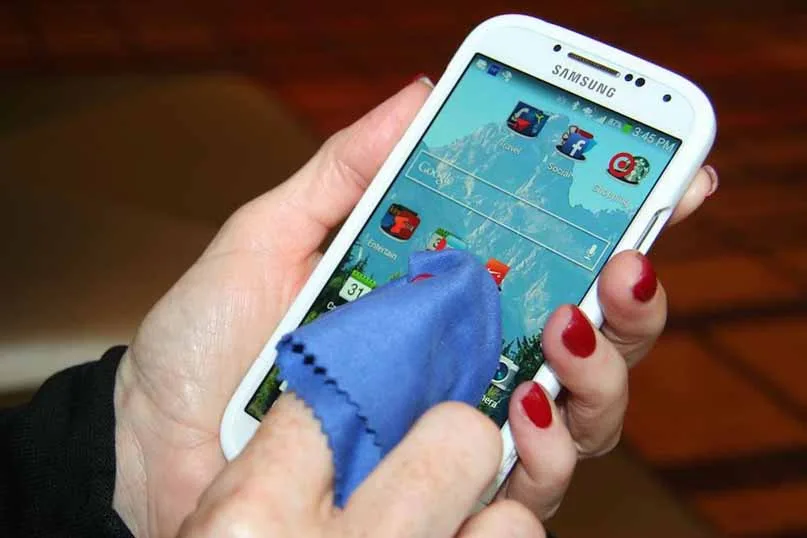
How to Safely Clean Your Smartphone or Tablet Touchscreen?
Cleaning the touchscreen of your smartphone is a simple task that doesn’t require a special cleaning kit or cleaning solution. You can use materials that you probably already have to safely clean your tablet or smartphone’s touchscreen. However, it’s important to know what to avoid as many common types of cloth and cleaning solutions can damage the touchscreen. In this guide, we will provide you with a step-by-step method to safely clean your smartphone touchscreen.
Cautions: What to Avoid
Before we dive into the cleaning process, it’s crucial to understand what you should never do when cleaning your smartphone or tablet touchscreen:
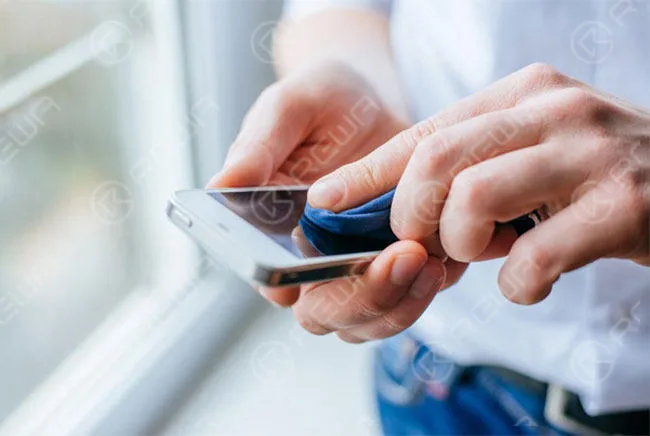
Avoid Harsh Chemicals
It is important to never use harsh chemicals like Windex, ammonia-based cleaners, or alcohol-based solutions when cleaning your screen. These chemicals can cause damage to the screen. If you need to use a liquid, only use a small amount of water on a cloth. You can also purchase special cleaning solutions, such as iKlenz, which is recommended by Apple.
Steer Clear of Abrasive Materials
To avoid scratching the touchscreen, it is important not to use abrasive cloths, paper towels, or tissue paper. Even small scratches can build up over time and ultimately damage and dull the screen. Instead, it is recommended to use microfiber cloths which are specially designed to clean sensitive surfaces.
Limit Water Usage
Avoid using excessive water on your device. If water is necessary, make your microfiber cloth slightly damp, but don’t apply water directly to the screen. It’s a good idea to power off your device before cleaning if water is involved.
Don’t Apply Excessive Pressure
When cleaning your device, remember to be gentle with your touchscreen to avoid damaging it.
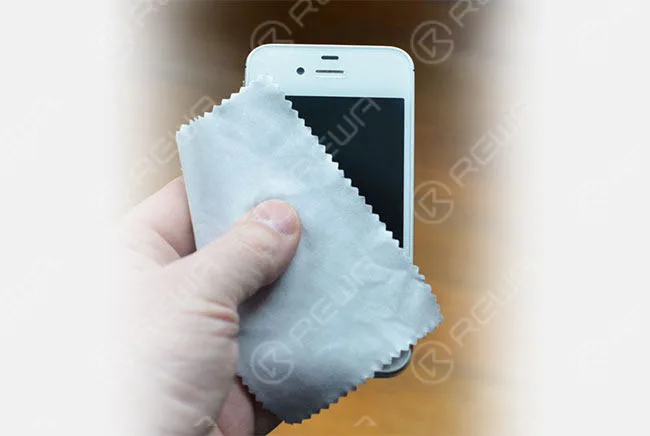
It’s important to note that the cleaning process will differ if you have a screen protector on your device. The method described below is specifically for cleaning glass screens. However, if your device has a plastic screen protector, you have more flexibility and can use different types of cleaning solutions.
Erste Schritte
To clean your touchscreen, you’ll need a few simple items:
Microfiber Cloth
One of the best tools to use for cleaning is a microfiber cloth. These cloths are designed to clean sensitive glass surfaces without scratching them. For cleaning a touchscreen, a microfiber cloth is all that is needed. Although the term “microfiber cloth” may sound fancy, they are actually very common and inexpensive. Most people have a pair of eyeglasses that come with a microfiber cloth for cleaning the glasses. This cloth can be used to safely clean sensitive glass surfaces without scratching them, such as those found on a touchscreen device.
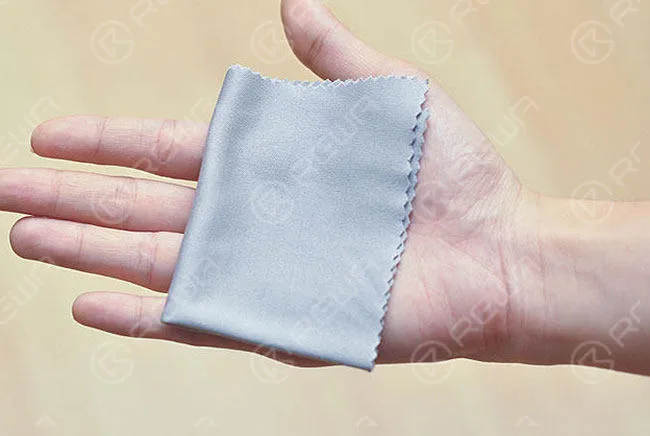
Microfiber cloths are designed with very small fibers that won’t scratch your touchscreen. They also attract dust and oils, pulling them off your device’s screen instead of rubbing them around the screen. You may also have received a microfiber cloth with another device. In case of an emergency, you can use kinds of cotton, such as cotton cloth or the corner of a cotton t-shirt, but this won’t work nearly as well. With just a few quick wipes using a microfiber cloth, your device’s screen will be clean and clear in no time.
Water
For dirty screens, you may need a small amount of plain water. Avoid using soap or other cleaning agents.
The Cleaning Process: Now that you have the right tools, let’s walk through the steps to safely clean your touchscreen:
How To Clean a Touch Screen
Now that you have the appropriate cloth to clean your screen, the process is very simple:
Turn off the device
This step is optional but recommended, especially if you plan to use water. It makes it easier to spot dirt and prevents potential issues.
Wipe Horizontally or Vertically
Using the microfiber cloth, wipe across the touchscreen in one repeating direction. For instance, start from the left side and wipe straight to the right. Then, move the cloth lower and repeat until the entire screen is clean. This motion prevents rubbing dirt onto the screen.
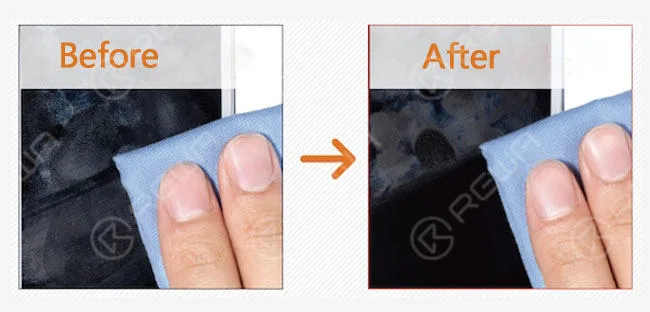
Use a Damp Cloth (if necessary)
If stubborn grime remains, dampen a corner of the cloth with a small amount of water (no soap). Clean the screen in the same way. In some cases, you may need to use a circular motion for challenging spots.
Dry the Screen
After cleaning, use the dry part of a microfiber cloth to dry the screen lightly. Allow the remaining water to air dry, avoiding aggressive drying with the cloth.
Clean the Microfiber Cloth
Periodically clean the microfiber cloth by soaking it in warm, soapy water, rinsing it thoroughly, and letting it air-dry. Avoid using harsh chemicals that can damage the cloth.
Additional Tips:
- While you can purchase specialized cleaning kits, a microfiber cloth and water are often sufficient.
- Regular handwashing can prevent excessive oil and smudges on your touchscreen.
Schlussfolgerung:
Cleaning your smartphone or tablet touchscreen is a straightforward process when you know the dos and don’ts. For more tips on maintaining your tech devices, check out our guide to cleaning keyboards, mice, computer fans, and LCD monitors. How do you prefer to clean your touchscreen gadgets? Share your cleaning tips in the comments below!
-
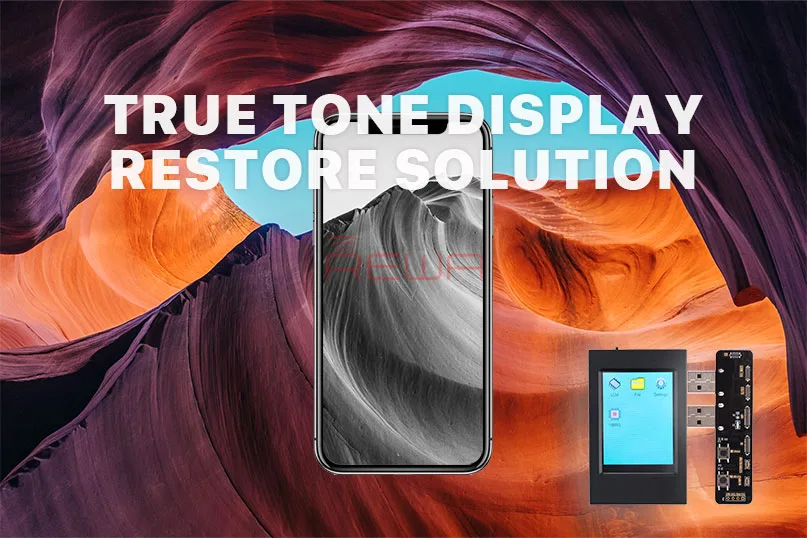
Einführung von True Tone EEPROM Programmer
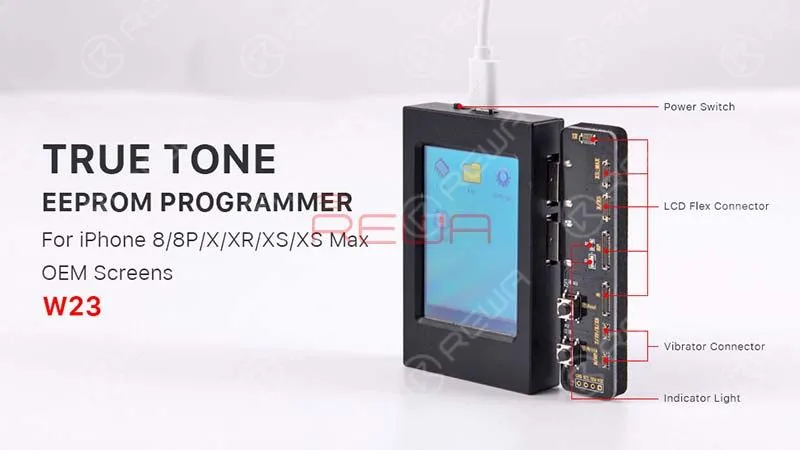
Heute stellen wir ein neues Reparaturwerkzeug für alle Reparaturtechniker vor - Echte Töne EEPROM-Programmierer.
Marktnachfrage
Die Option True Tone wird unter Einstellungen > Anzeige und Helligkeit angezeigt.
Wenn diese Funktion aktiviert ist, werden Farbe und Intensität des Bildschirms automatisch an das Umgebungslicht angepasst, um die Belastung für die Augen zu verringern.
Das letzte iOS 12-Update hat die Leistung von iPhones und iPads deutlich gesteigert.
Für die Handy-Reparaturwerkstatt war das iOS 12 nicht so perfekt.
Denn einige Nutzer beschweren sich, dass die True Tone-Option nach dem Upgrade auf iOS 12 verschwunden ist.
Zu den betroffenen Modellen gehören das iPhone 8, 8 Plus, X, XS und XS Max.
Viele Benutzer vermuten, dass das Problem damit zusammenhängt, ob das Gerät ein OEM-Display, ein Aftermarket-Display oder das Originaldisplay hat, das nie ersetzt wurde.
In Anbetracht dieser Situation hat REWA eine Reihe von Tests zur Zertifizierung durchgeführt. Und das ist der Grund, warum wir heute diesen True Tone EEPROM Programmer vorstellen werden.
Zunächst haben wir die iPhone XS Original-Bildschirm mit einem OEM-Gerät.
Und die Option "True Tone" ist nach dem Austausch des Bildschirms verschwunden, während sie bei der Installation des Originalbildschirms wieder vorhanden war.
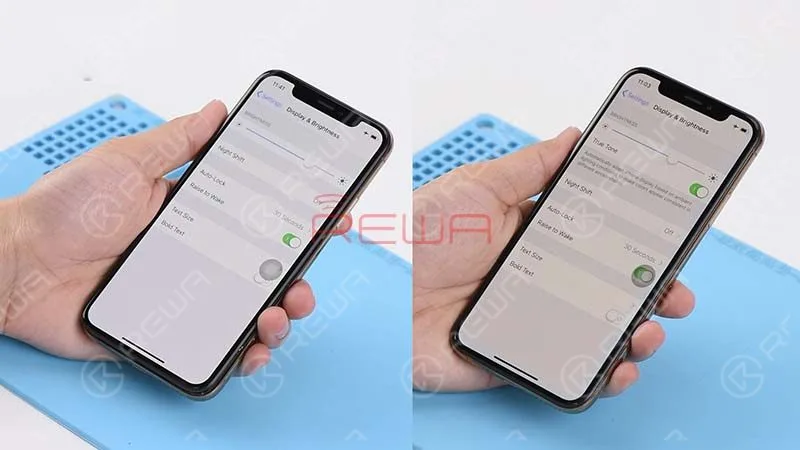
Dann haben wir den OEM-Bildschirm mit diesem EEPROM-Tool programmiert.
Und installierte den Bildschirm erneut zum Testen. Die Echttonoption erschien wieder auf dem Bildschirm.
Dies ist eine wirklich gute Nachricht für alle Reparaturtechniker.
Anmeldung
Der praktische Zweck dieses EEPROM-Programmierers umfasst die Wiederherstellung von True Tone, Umgebungslichtsensor, Touchscreen, Vibrator und Lesen/Schreiben der Daten. Was mehr ist, ist das Programmiergerät geeignet für iPhone-Modelle von iPhone 8 bis iPhone XS MAX.
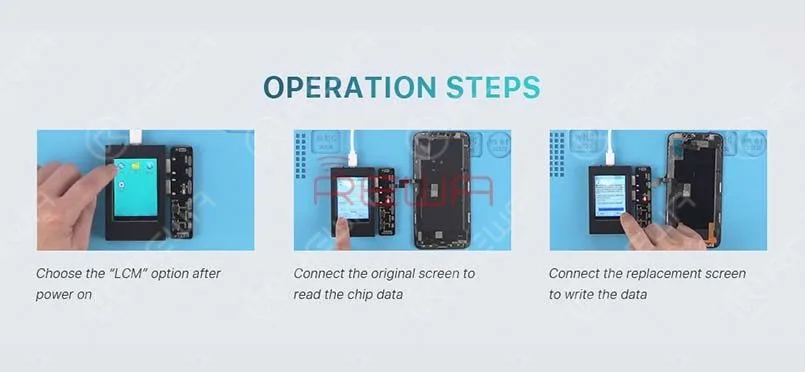
Die Bedienung ist sehr einfach. Nur 3 Schritte zu gehen.
- 1. Schalten Sie das Gerät ein. Wählen Sie die Option "LCM" auf dem Bildschirm.
- 2. Verbinden Sie den Originalbildschirm mit dem entsprechenden Anschluss und klicken Sie auf "Lesen", um Daten vom Originalbildschirm zu lesen.
- 3. Schließen Sie den Ersatzbildschirm an den entsprechenden Anschluss an und klicken Sie auf "Schreiben", um die Daten auf den Ersatzbildschirm zu schreiben.
So erhalten Sie die Echttonfunktion zurück EEPROM-Programmiergerät. Und Video-Tutorial-Anleitung ist verfügbar.REWA neuen Online-Shop(shop.rewa.tech) ist jetzt verfügbar, Sie können den Preis und die Details der einzelnen Produkte sehen. Auch die Versandgebühren. Willkommen zu überprüfen. Alle Anregungen und Fragen wenden Sie sich bitte an sales@rewatechnology.com.
-
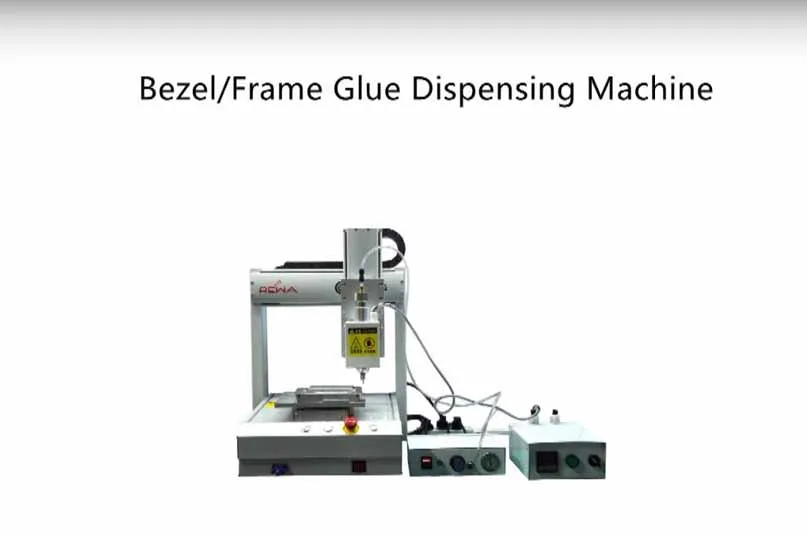
iPhone Lünette Kleber Spender Maschine

A brand new Lünetten-Leimauftragsmaschine designed for Professional Solution is available now!
This cell phone broken LCD refurbishing machine is based on Hot Melt Glue and high temperature. The easy operation Intelligent program allows it to achieve volume production. And it comes with iPhone 4, 4s, 5, 5c, 5s, 6, 6 Plus, 6s, 6s Plus Molds.
specification :
- Voltage: 220V
- Power: 800W
- N.W.: 40KG
- G.W.: 63KG
- Dimension: 65x53x71cm
- Working Environment: 20-30℃, Dust-free Room
operation steps :
- 1. Connect to the air compressor and put bezel glue into the Heating Drum
- 2. Plug in and turn on
- 3. Establish the right program to the right series bezel
- 4. Temperature set 220℃(no higher than 280℃), pressure set 0.5Mpa
- 5. Place the bezel on the mold, then start the machine, it will finish by itself. (Note: Add one pc bezel glue after finish 200 pcs bezel every time; test the machine by checking whether glue dispensing is fluent or not).
Tipps:
- a. Test the machine by checking whether glue dispensing is fluent or not.
- b. Hot Melt Glue should be added the second time after you have done a certain number of bezel frames(100-200pcs), so as to avoid the blockage of the needle.
You can check our other posts:
 English
 Español
 Français
 Deutsch
 Italiano