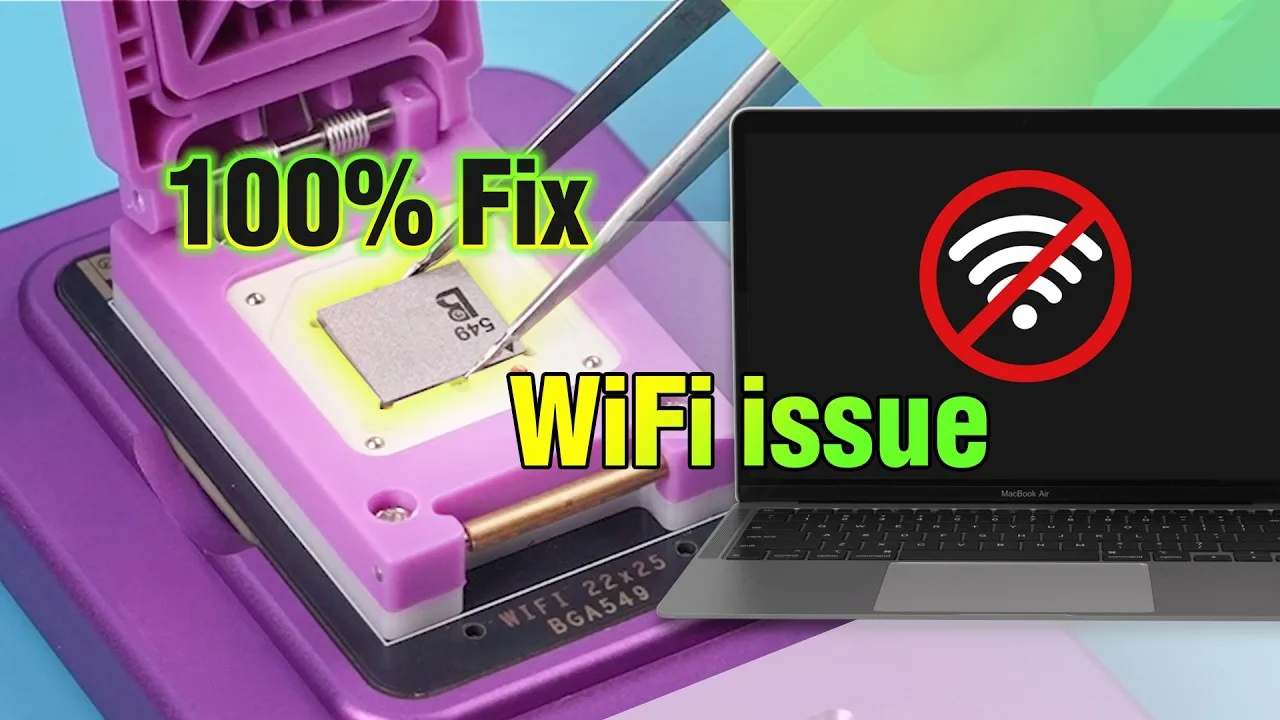
Apple introduced MacBooks with M-series chips (such as the M1 and M2), which feature a more compact and integrated internal architecture. A key change is the combination of Wi-Fi and Bluetooth functions into a single chip. While this integration enhances performance and efficiency, it presents a significant challenge for repair technicians: when the Wi-Fi chip fails or WiFi won’t turn on, the traditional Apple-authorized solution is to replace the entire motherboard (logic board).
Fortunately, REWA Tech has developed a new Wi-Fi chip replacement method for MacBooks, enabling repair professionals and advanced DIYers to resolve the issue without replacing the entire board. This guide provides a step-by-step process for diagnosing and replacing a failed Wi-Fi chip on a MacBook Air with an M-series chip, restoring full wireless functionality.
Why Your MacBook Wi-Fi Won’t Turn On
When Wi-Fi on a MacBook refuses to enable, possible causes include:
- Wi-Fi chip failure due to overheating, physical impact, or manufacturing defects.
- Corruption of Wi-Fi chip firmware.
- Liquid damage affecting the chip’s surrounding circuits.
- ECID mismatch when replacing components without proper reprogramming.
On M-series MacBooks, Wi-Fi and Bluetooth are combined into one chip, meaning if one function fails, both can stop working. This guide focuses on hardware-level Wi-Fi chip replacement.
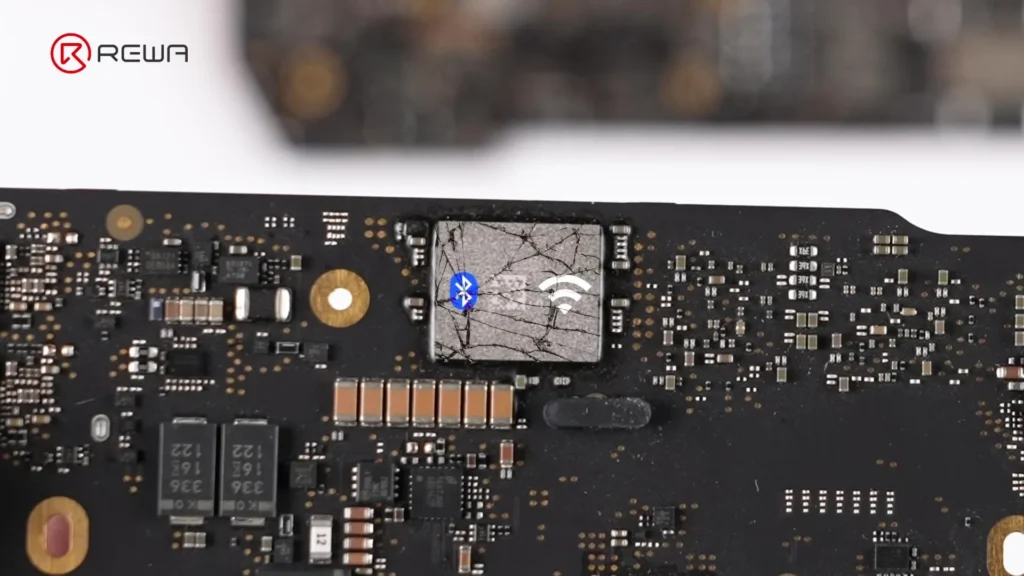
Step-by-Step Guide: Fixing “MacBook Wi-Fi Won’t Turn On” by Replacing the Wi-Fi Chip
Step 1: Initial Diagnosis
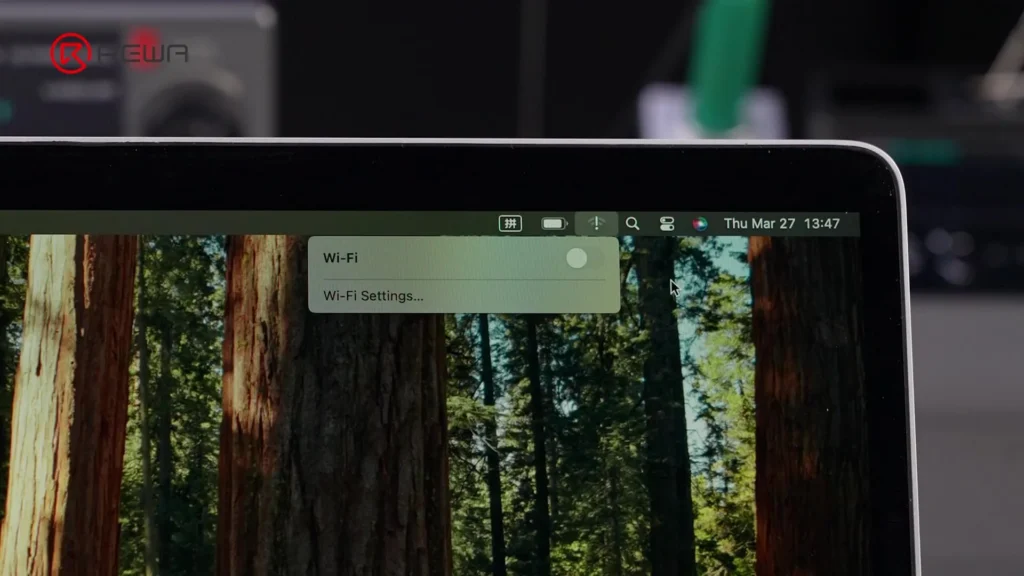
- Confirm that the Wi-Fi option is greyed out or cannot be toggled on in macOS Settings.
- Rule out software issues by:
- Restarting the MacBook.
- Resetting NVRAM/PRAM (for Intel models; not applicable for M-series).
- Updating macOS to the latest version.
- If Wi-Fi still does not enable, diagnose with repair software or known-good replacement parts to confirm Wi-Fi chip failure.
Step 2: Read the MacBook’s ECID and Unbind the Wi-Fi Chip
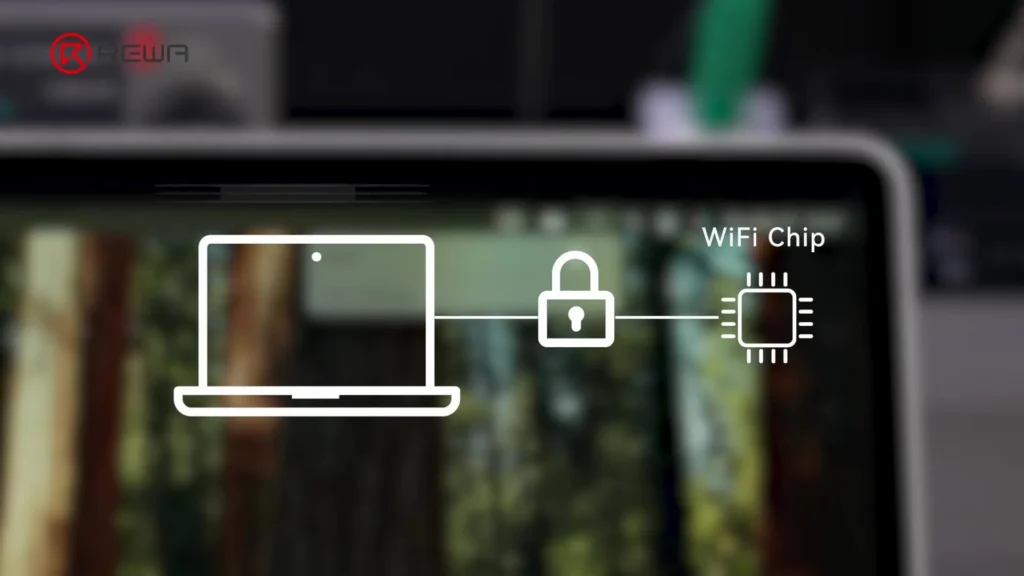
ECID (Exclusive Chip ID) is a unique serial number tied to the MacBook’s components, including the Wi-Fi chip. To install a replacement chip, you must unbind the old chip from the motherboard.
- Install LuBan software from a flash drive.
- Launch LuBan — it requires internet access.
- Connect the MacBook to the internet:
- Use a phone hotspot via USB cable (trust the MacBook on the phone when prompted),
or - Use an Ethernet adapter.
- Use a phone hotspot via USB cable (trust the MacBook on the phone when prompted),
- Once connected, LuBan automatically unbinds the existing Wi-Fi chip and reads the ECID.
- Verify the ECID in macOS Settings to ensure it matches.
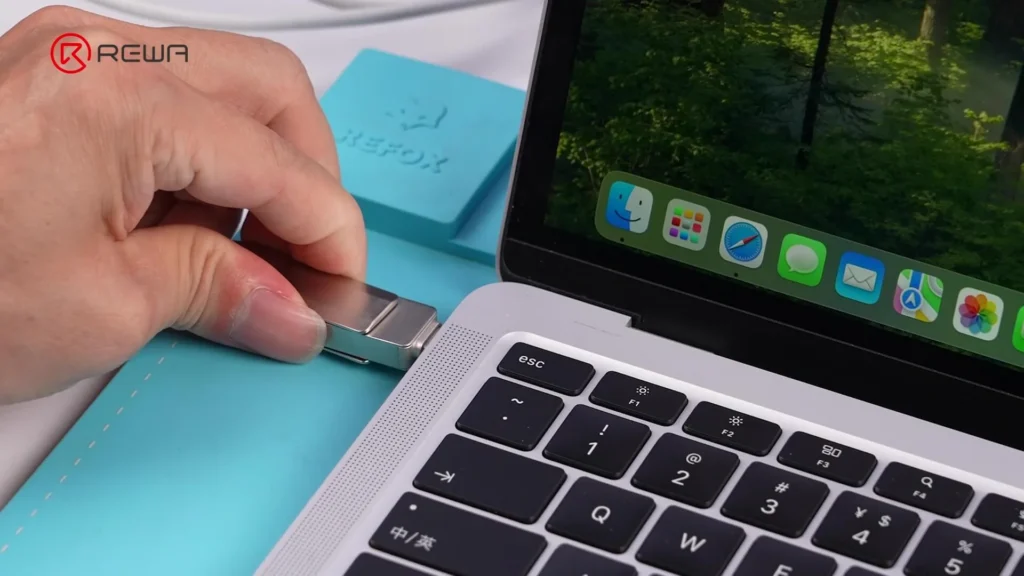
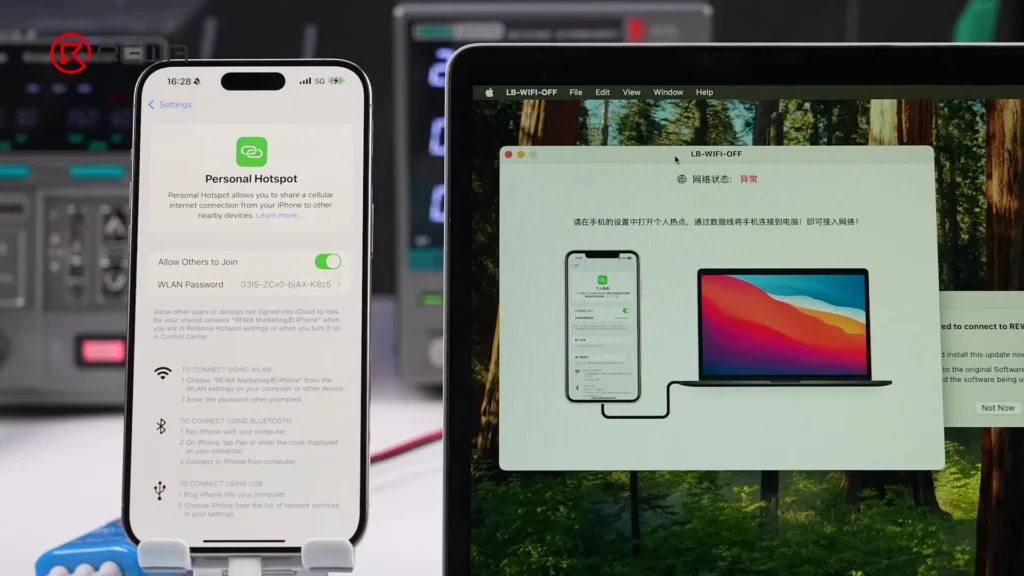
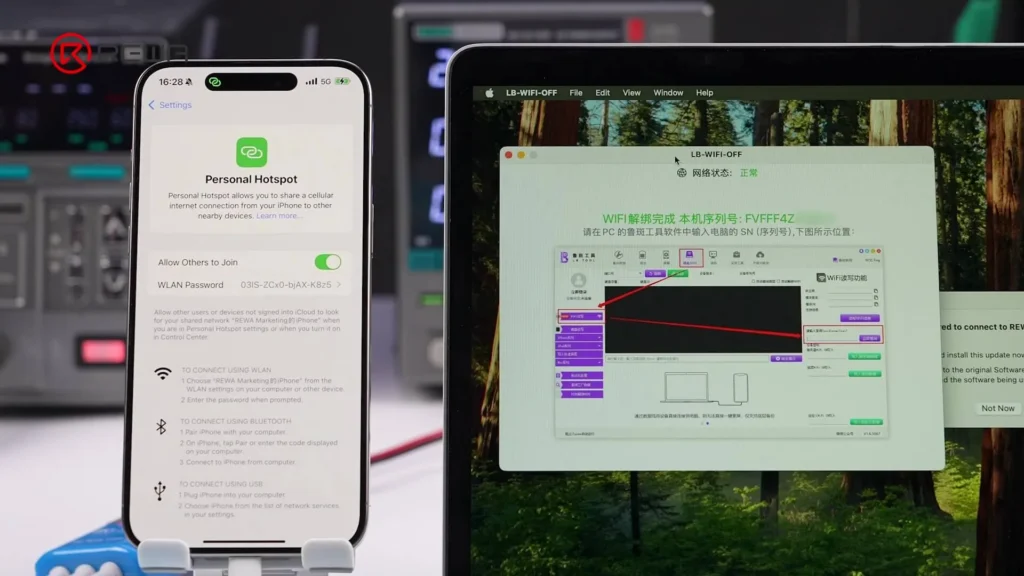
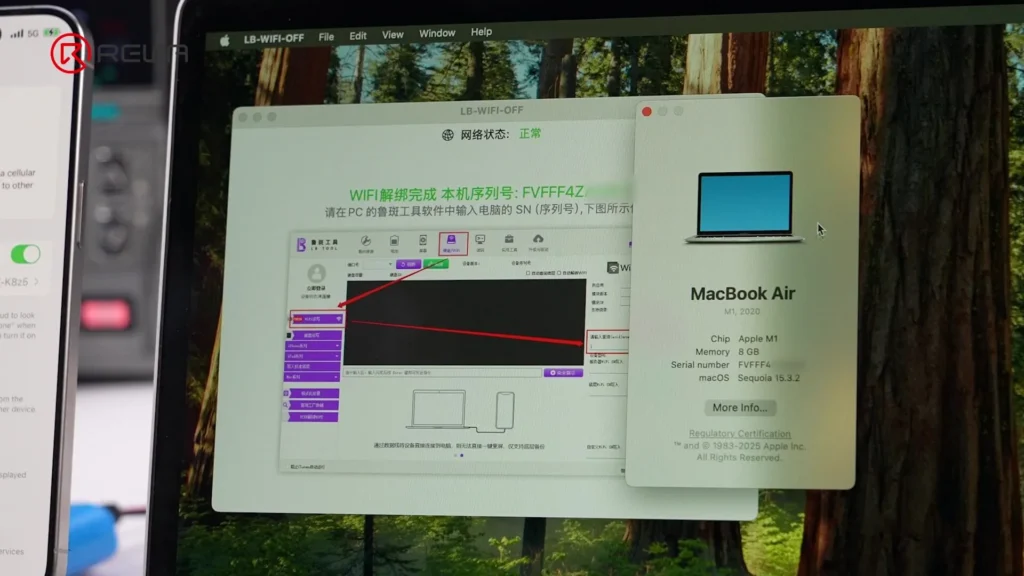
Step 3: Disassemble the MacBook
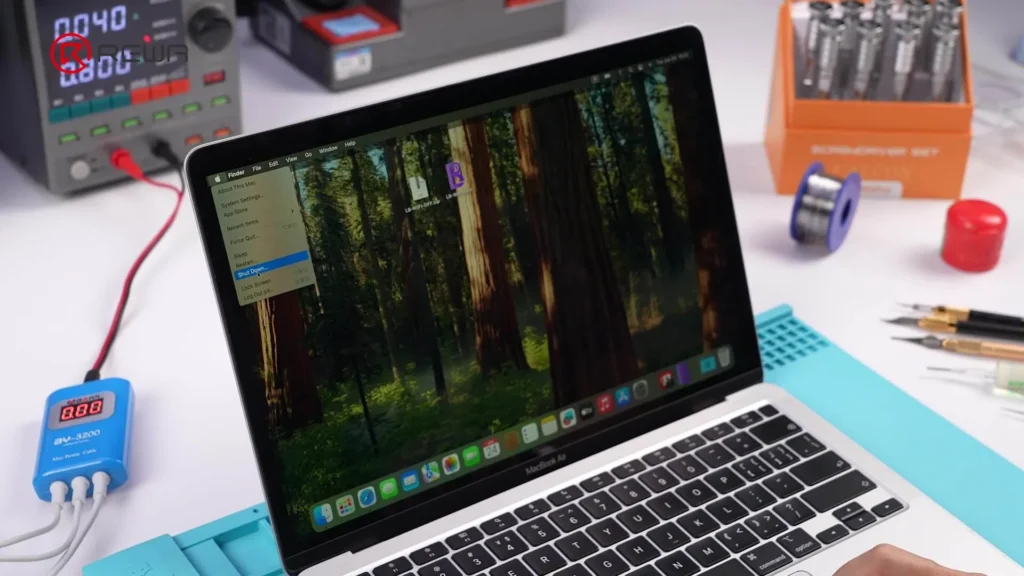
- Power off the MacBook.
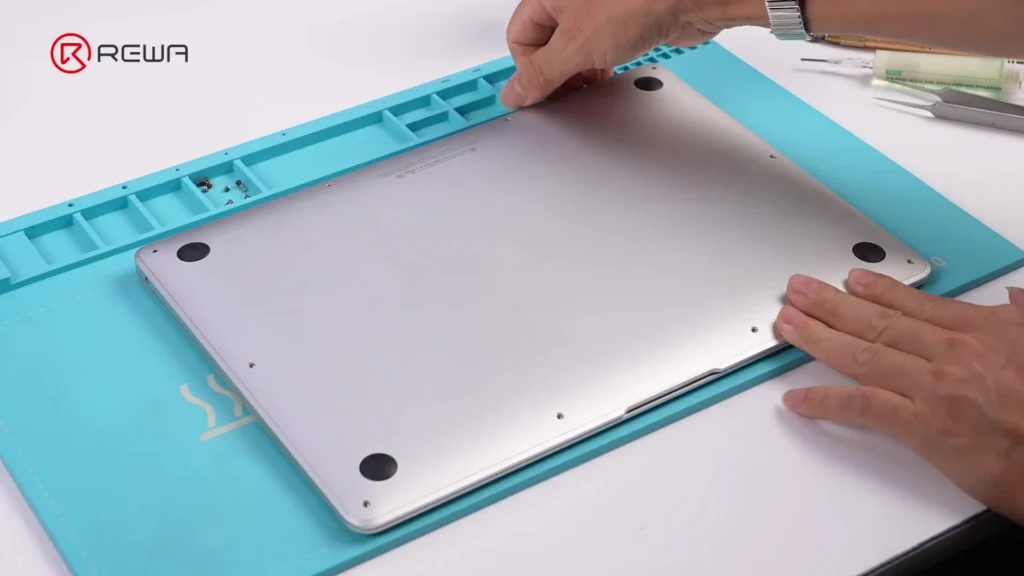
- Remove the lower case screws and casing.
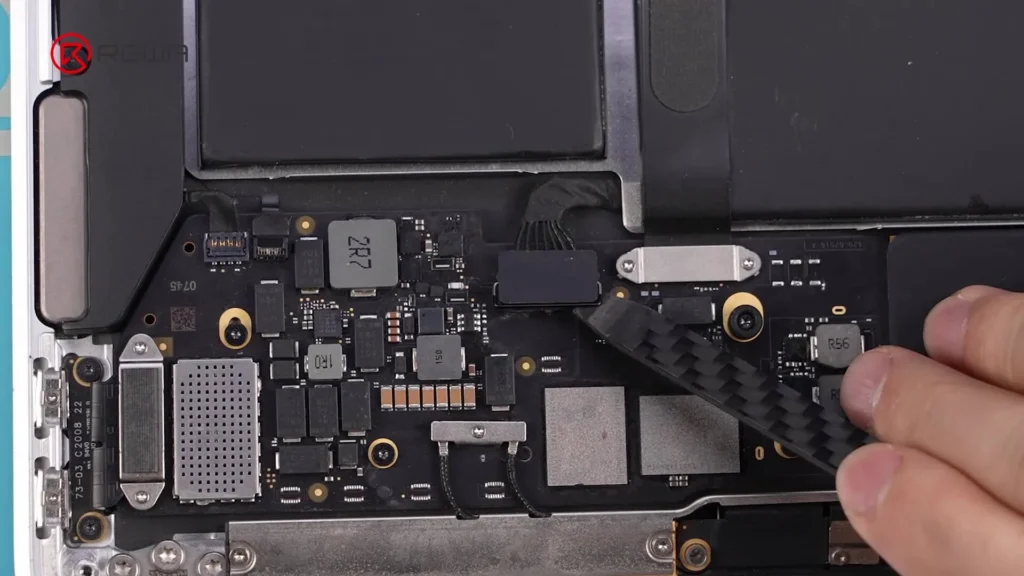
- Disconnect the battery cable.
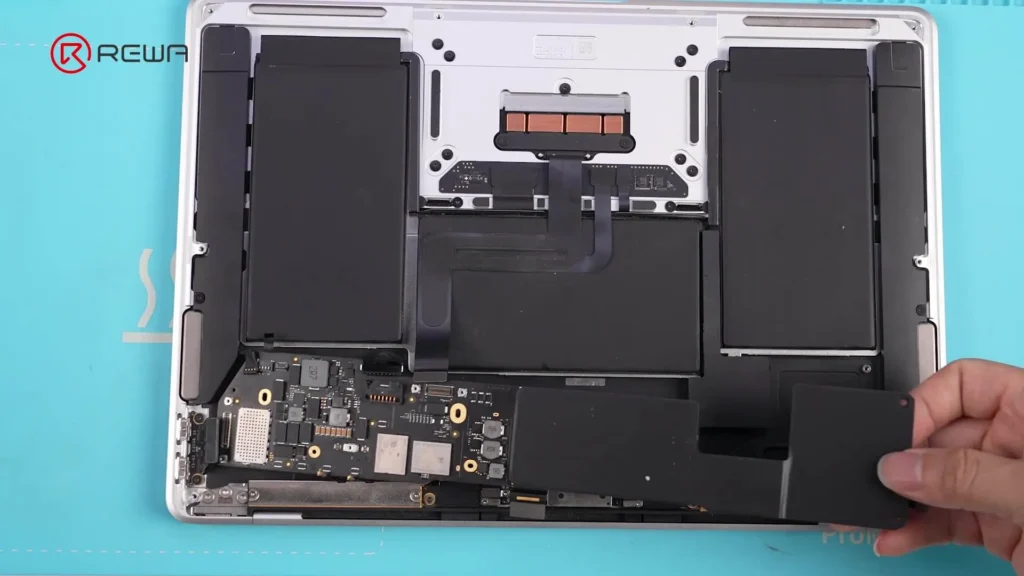
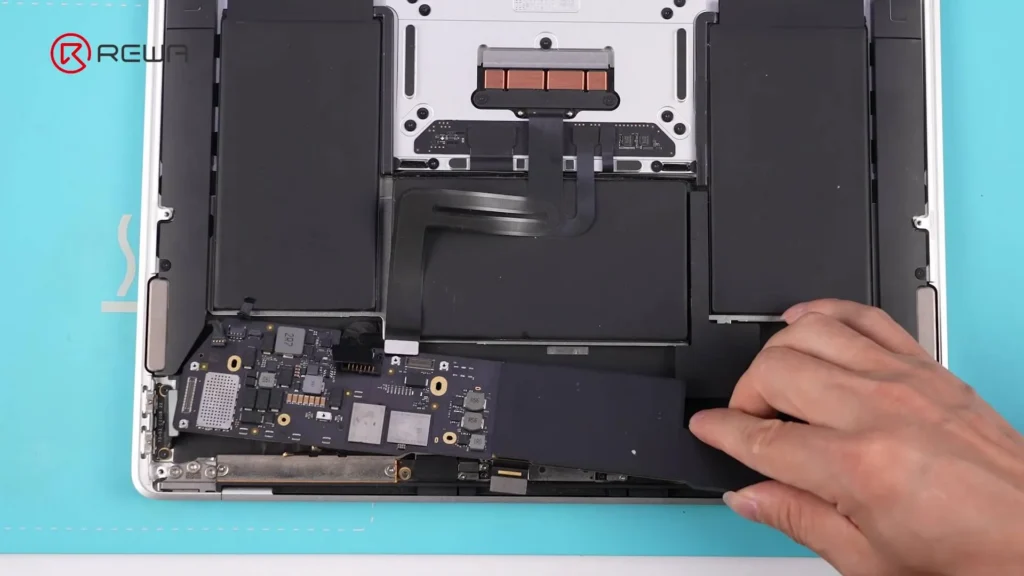
- Remove the motherboard:
- Unscrew all mounting screws.
- Remove the heat sink.
Step 4: Remove the Faulty Wi-Fi Chip
- Secure the motherboard using a PCB fixture.
- Use a hot air gun to soften the adhesive around the chip.
- Gently remove the adhesive with tweezers — do not directly heat the chip yet.
- Apply heat evenly by moving the hot air gun in a clockwise motion over the chip.
- Insert a pry tool under the chip and lift it gently.
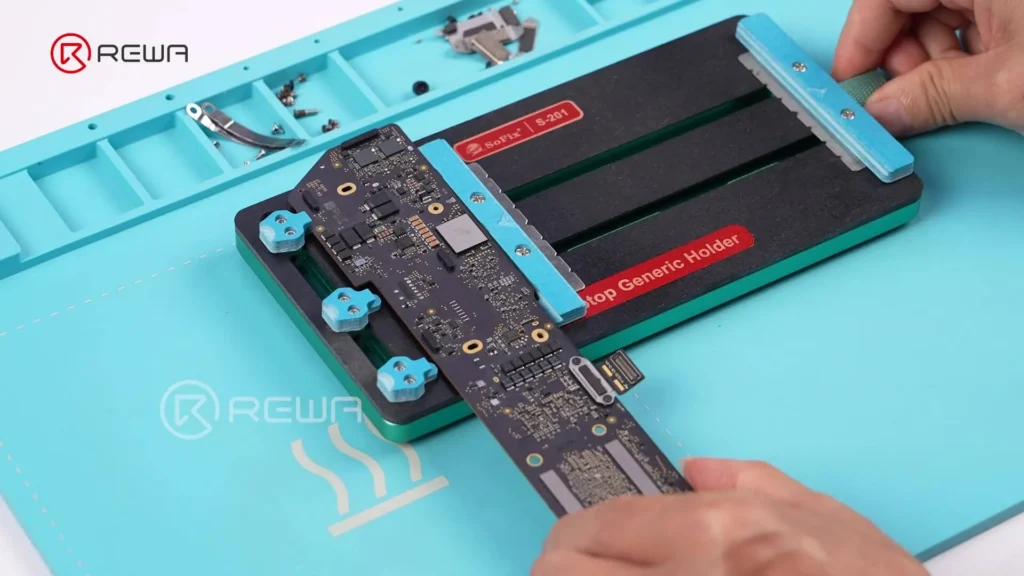
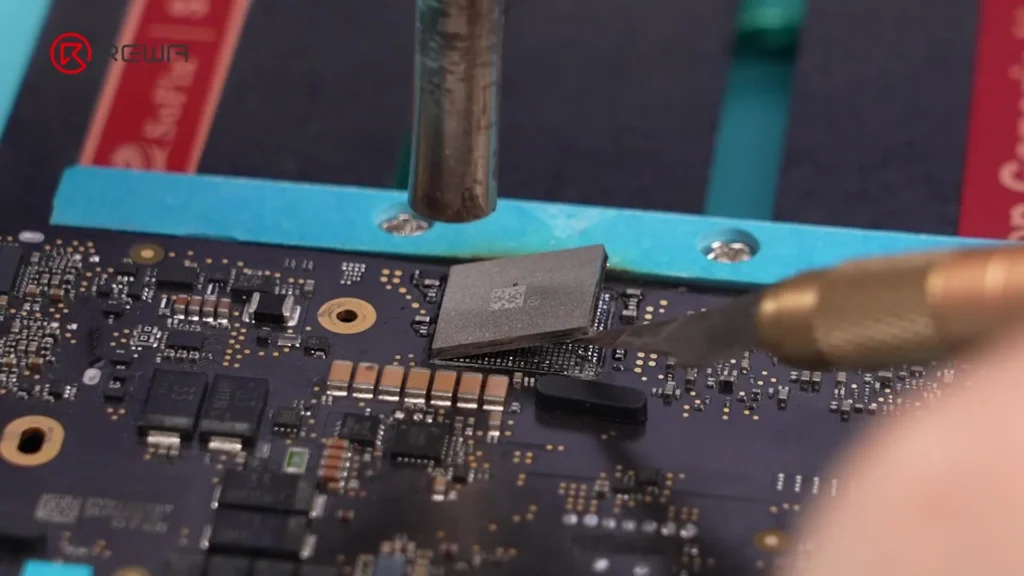
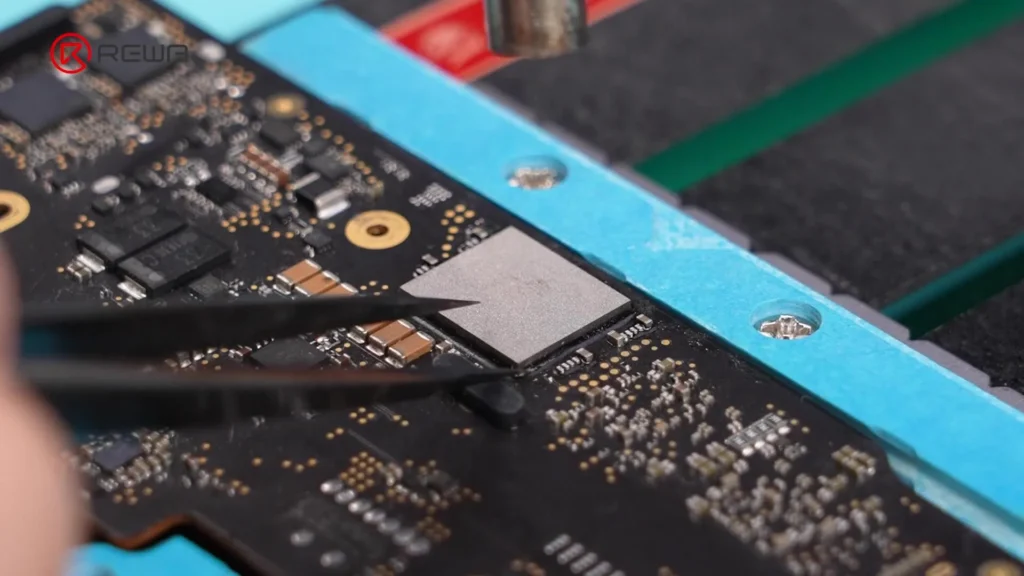
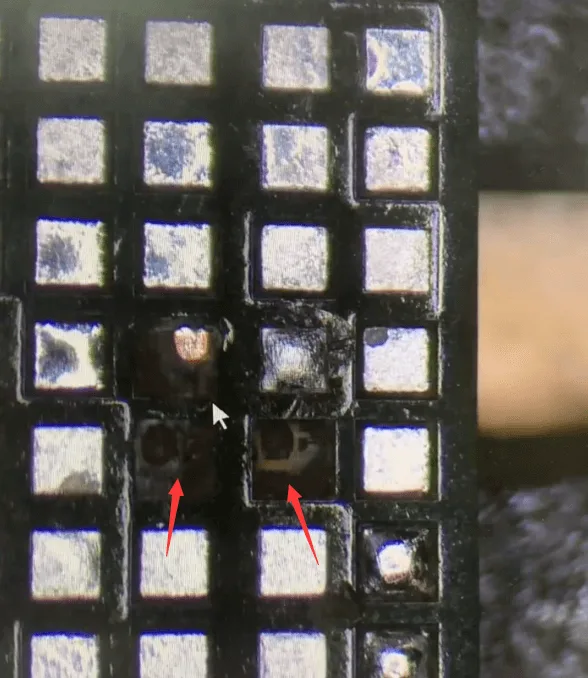
Important: The Wi-Fi chip is delicate; excessive heat or improper handling can damage surrounding components.
Step 5: Prepare the Solder Pads
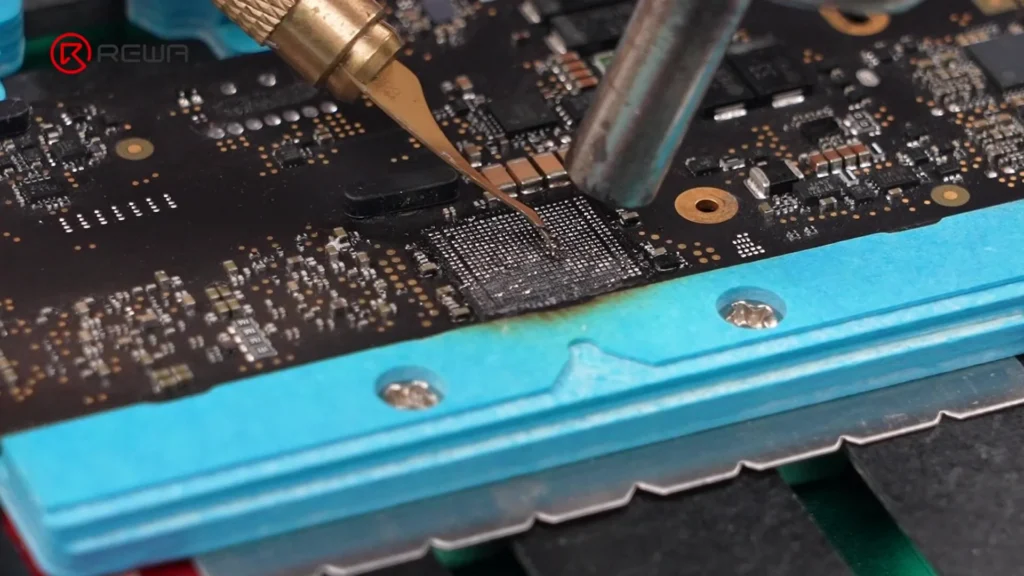
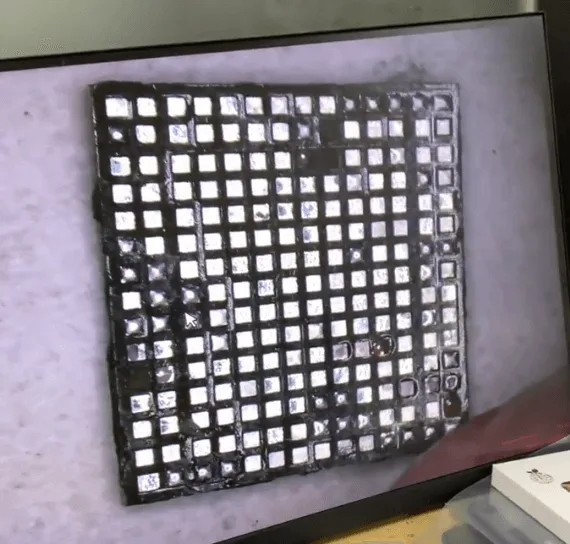
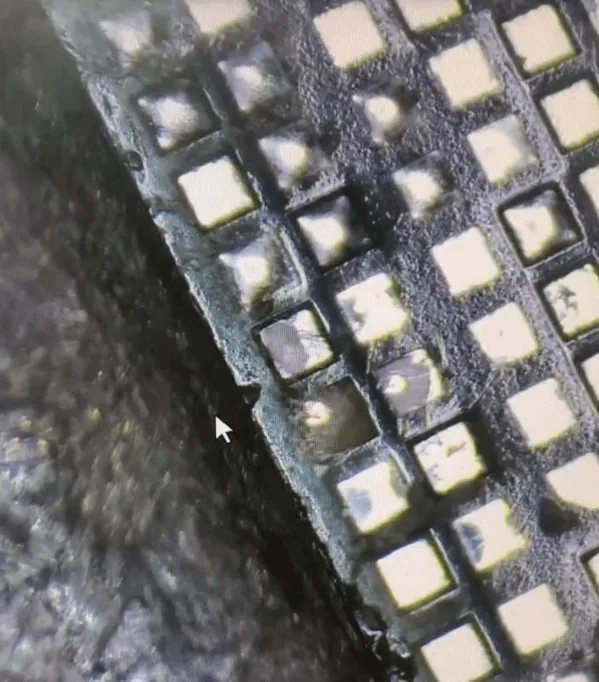
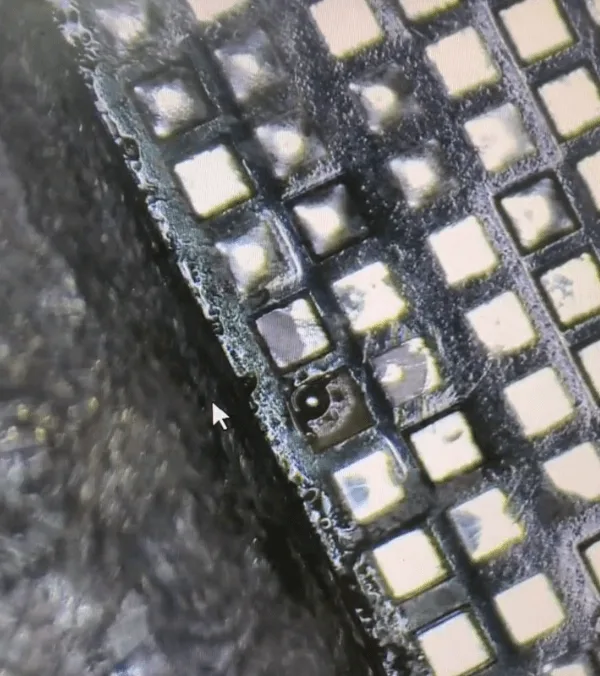
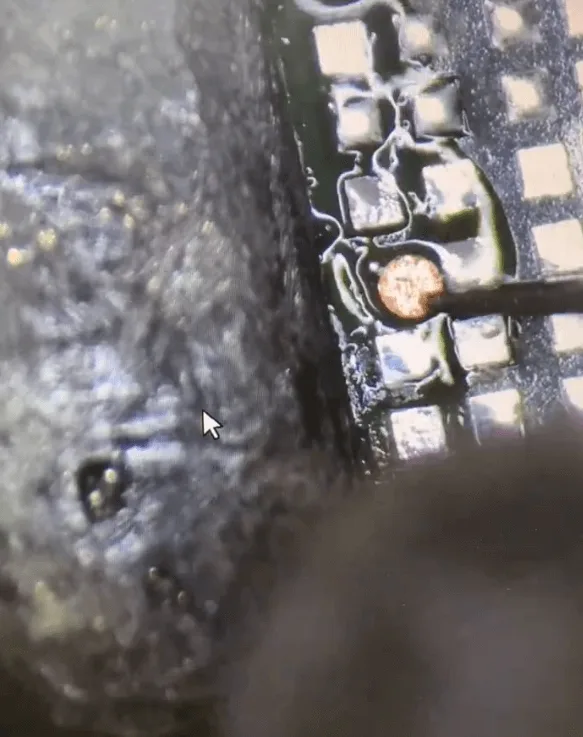
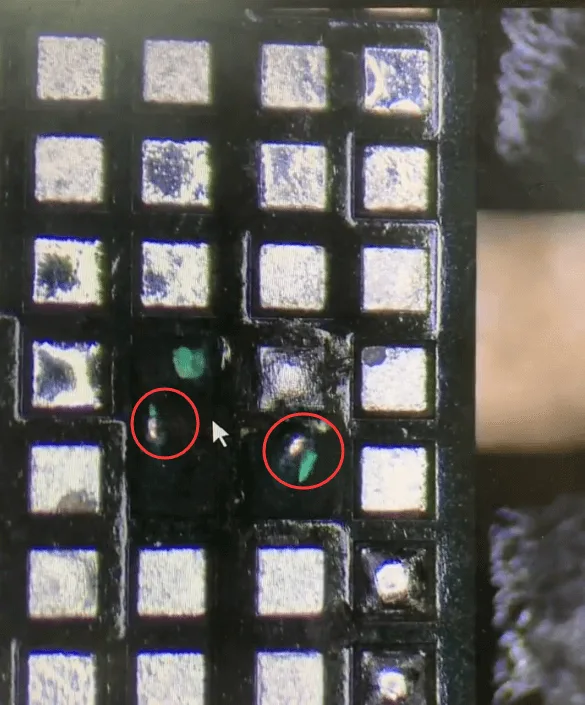
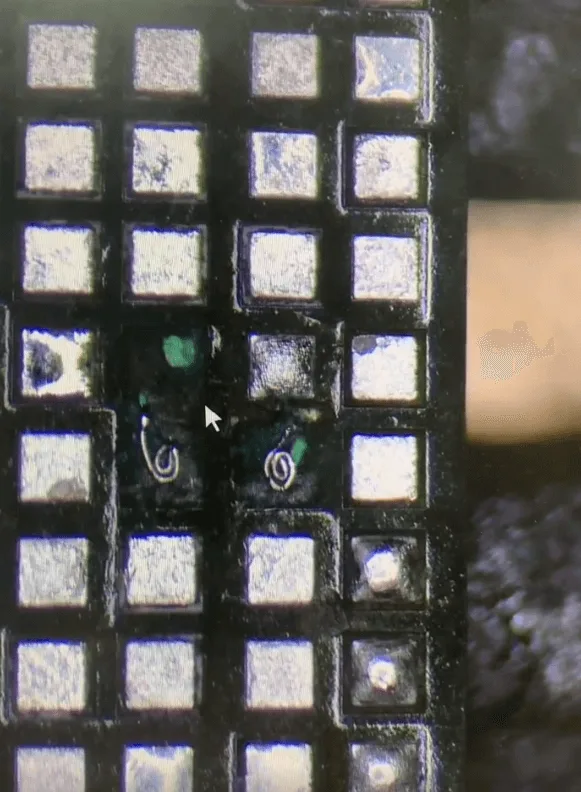
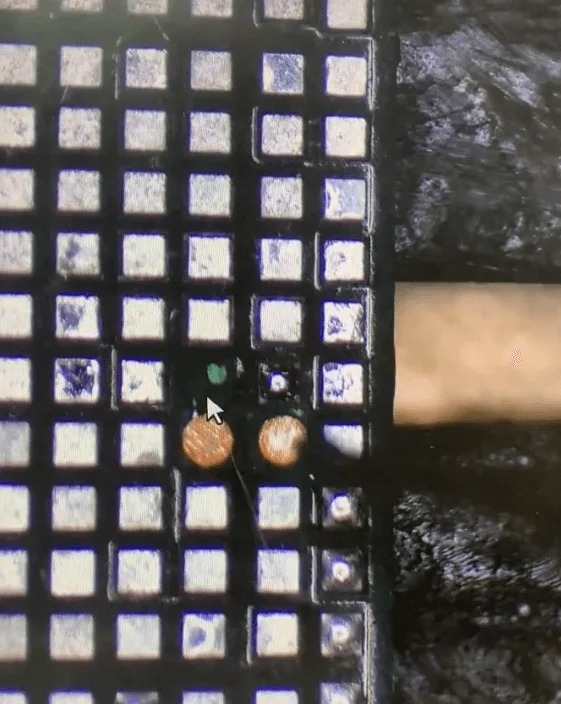
- Apply flux and medium-temperature solder to neutralize the high-temperature solder on the pads — this lowers reinstallation risk.
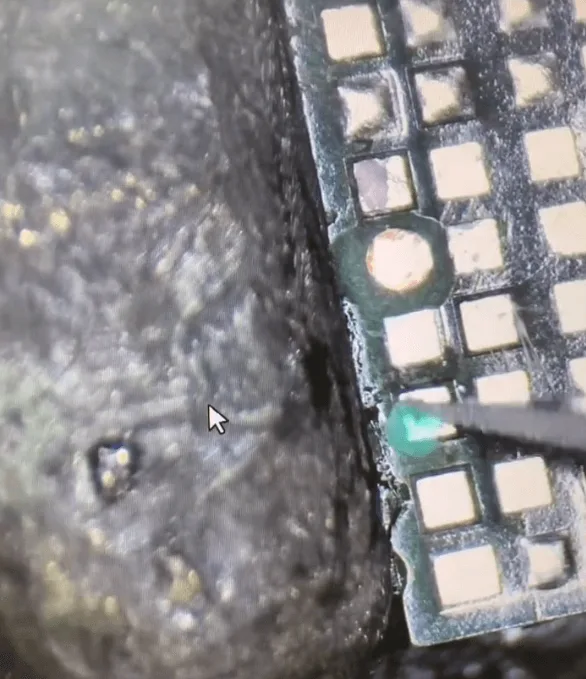
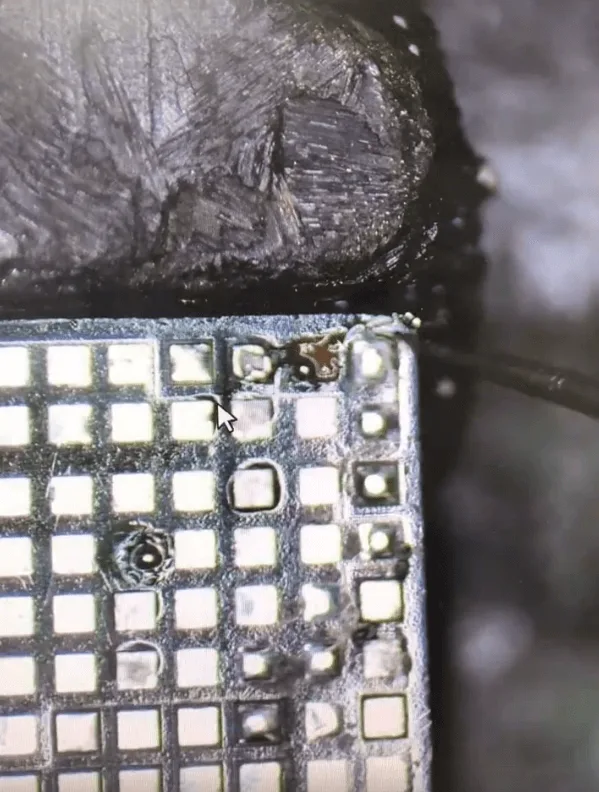
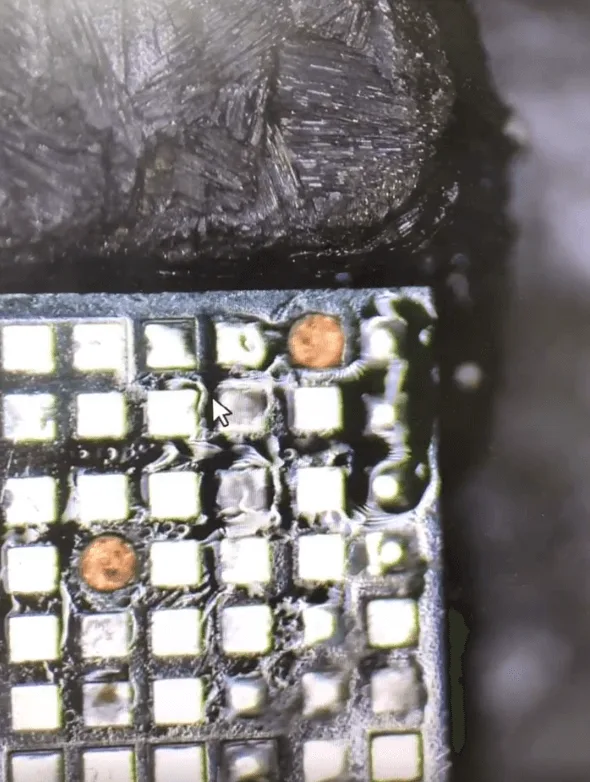
- Heat around the pads and remove black adhesive with a scraper.
- Clean pads with PCB cleaner.
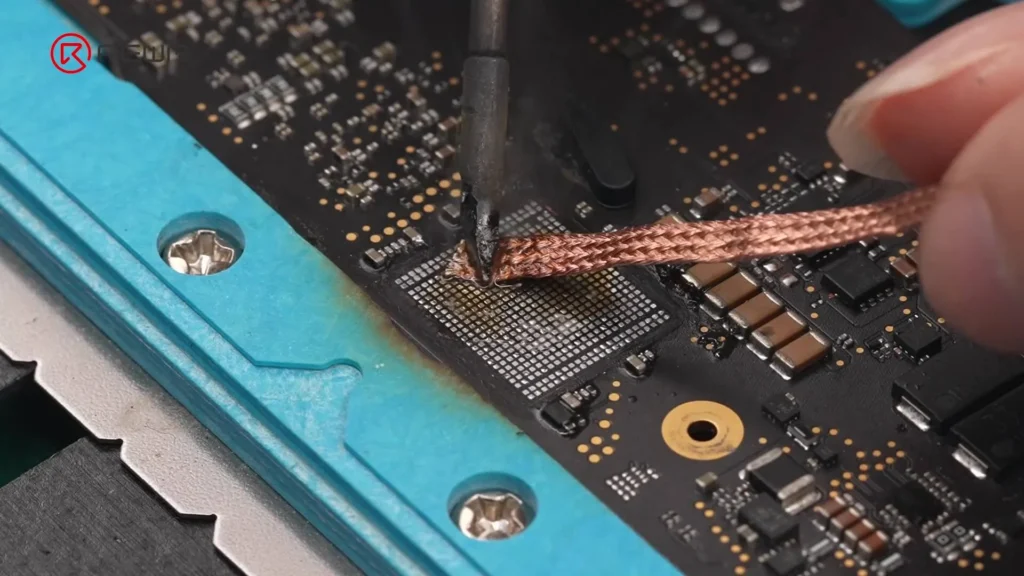
- Apply flux again and use solder wick to remove all remaining solder.
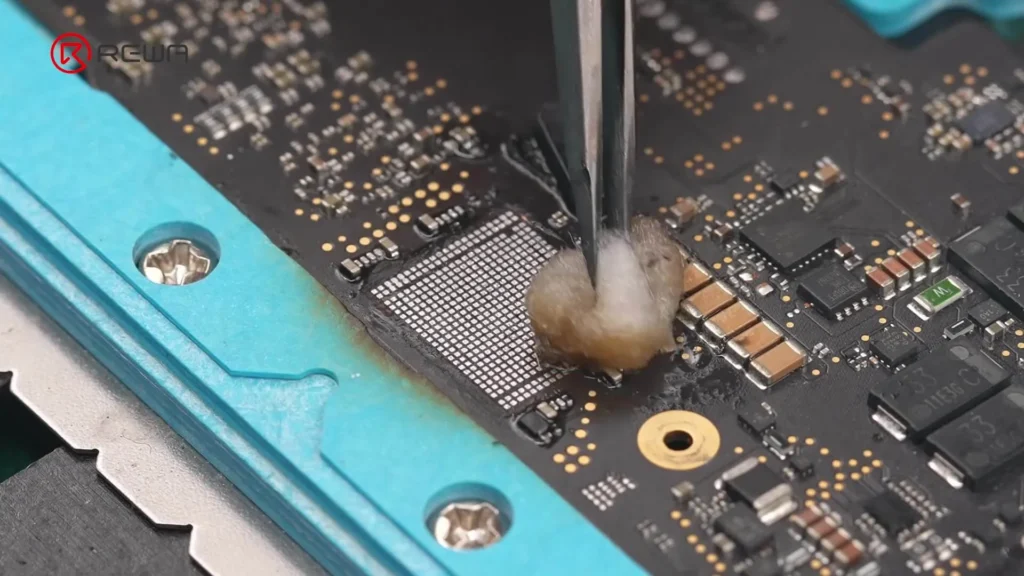
- Wipe pads clean with PCB cleaner-dampened cotton.
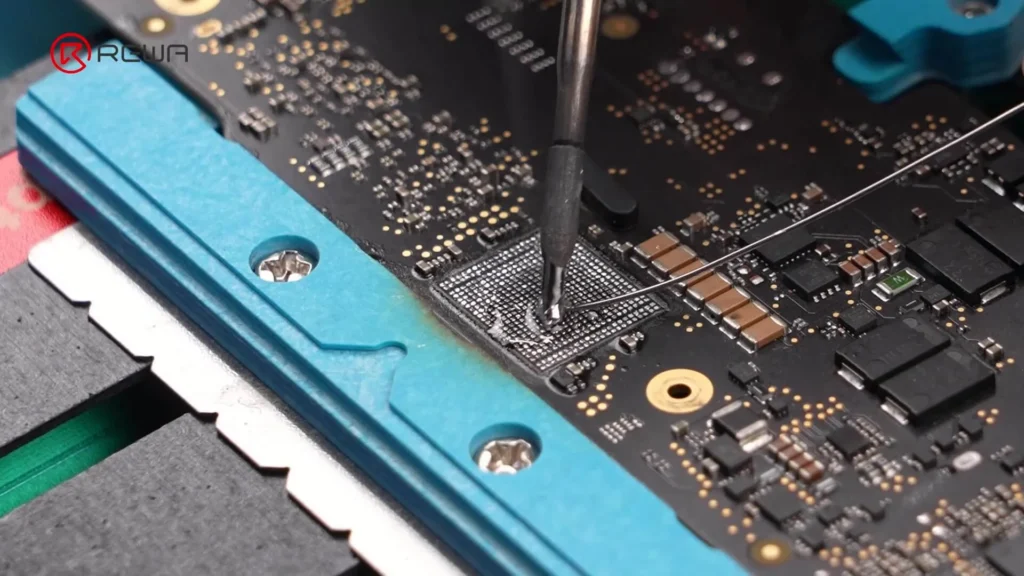
Step 6: Program the New Wi-Fi Chip
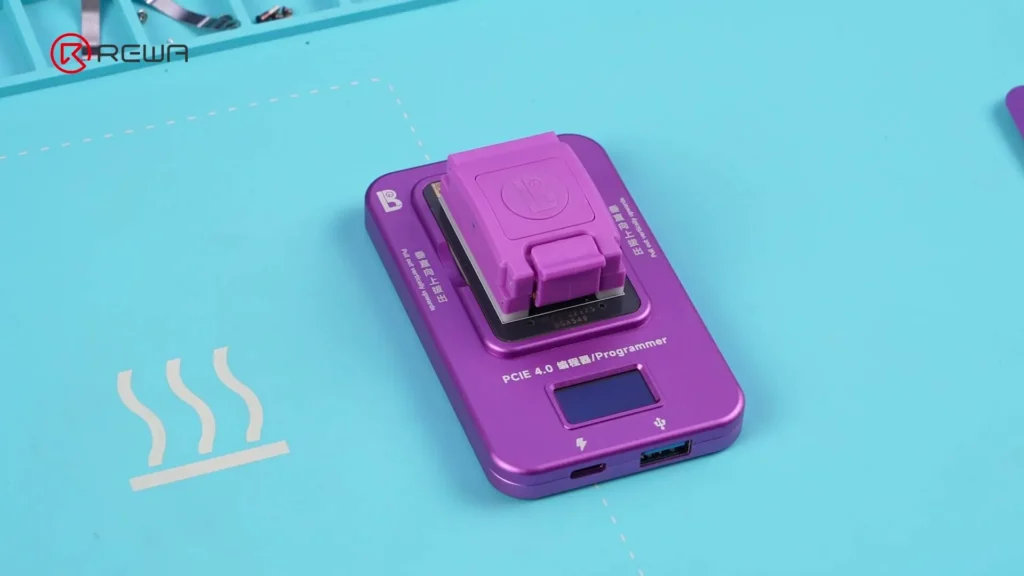
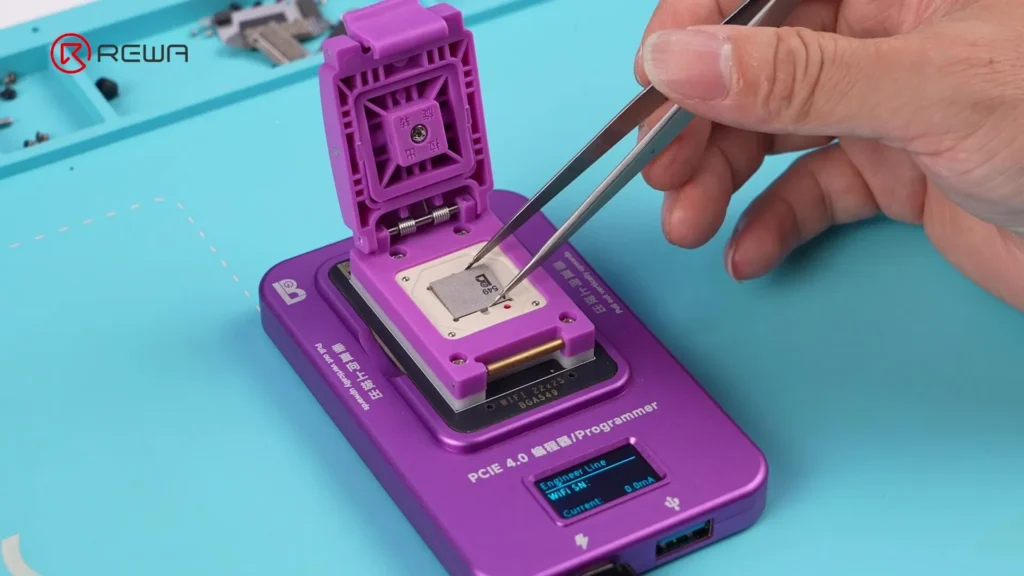
- Install the MacBook Wi-Fi repair module into a programmer.
- Insert the new Wi-Fi chip into the module.
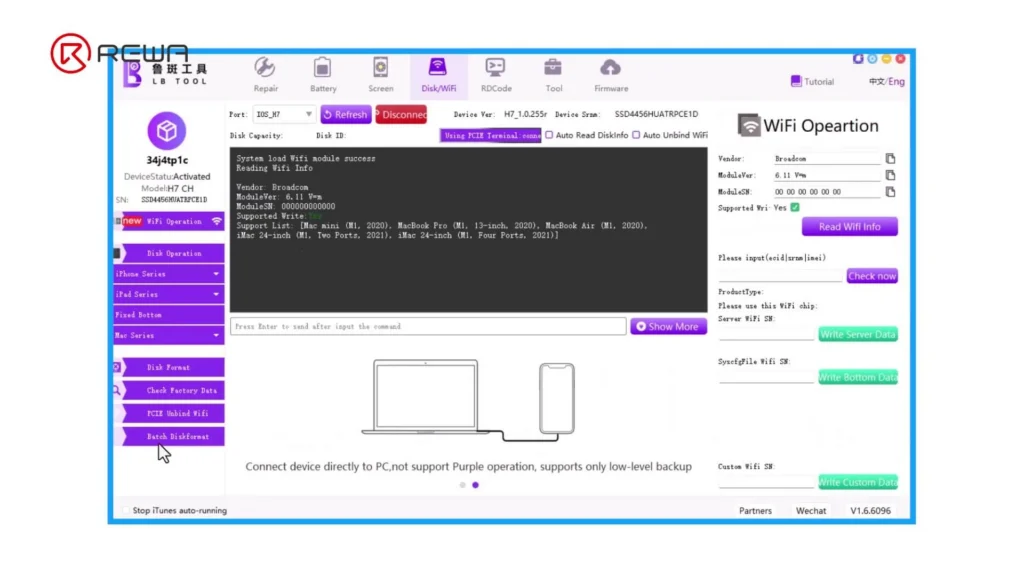
- Connect the programmer to a computer running LB Tool software.
- Wait for the software to read the new chip.
- Enter the ECID recorded earlier.
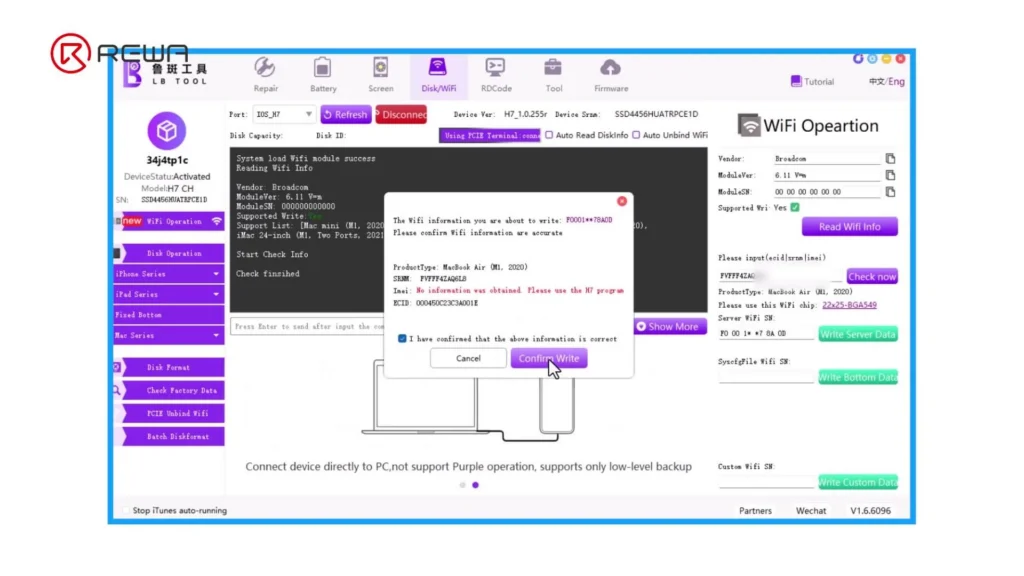
- Click Check Now — the required data fields will auto-populate.
- Click Write Server Data → confirm → Confirm Write.
- Wait for the write to complete — success is shown when “PASS” appears.
Step 7: Reball and Install the New Chip
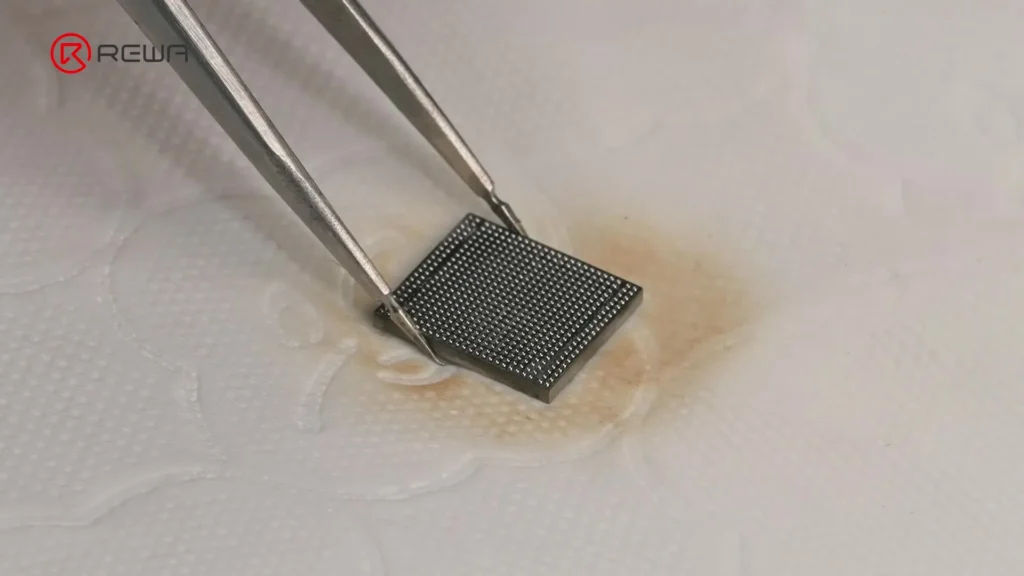
Reballing ensures the chip has fresh, evenly-spaced solder balls for a secure connection.
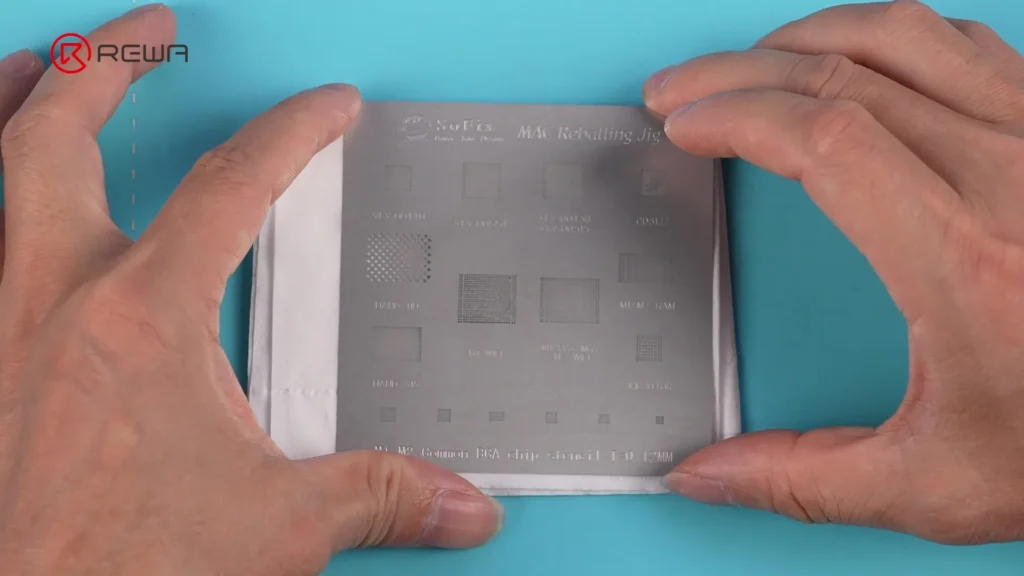
- Align a solder stencil with the chip pads.
- Spread medium-temp solder paste over the stencil.
- Heat with a hot air gun until solder forms balls.
- Apply flux to the chip pads.
- Heat the pads briefly to smooth solder balls.
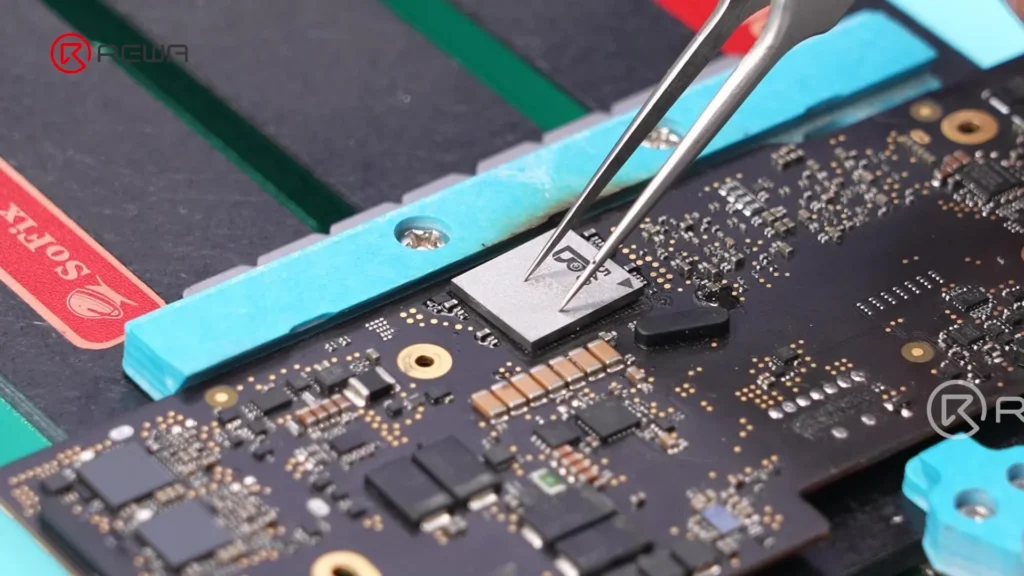
- Apply flux to the motherboard pads.
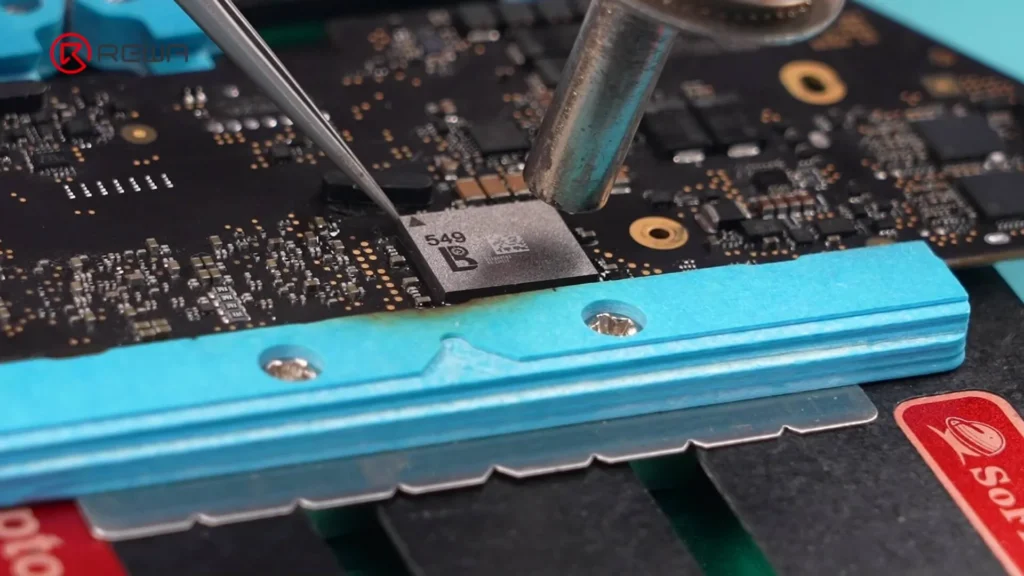
- Position the chip precisely using tweezers.
- Heat in a clockwise motion to secure solder joints.
- Tap gently with tweezers to confirm stability.
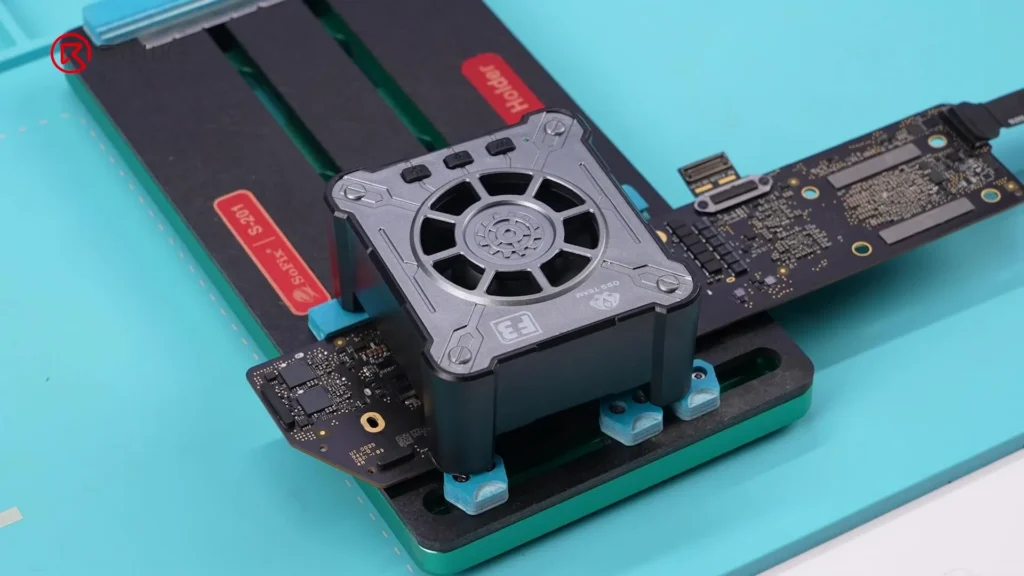
- Cool quickly using a fan.
Step 8: Test and Reassemble
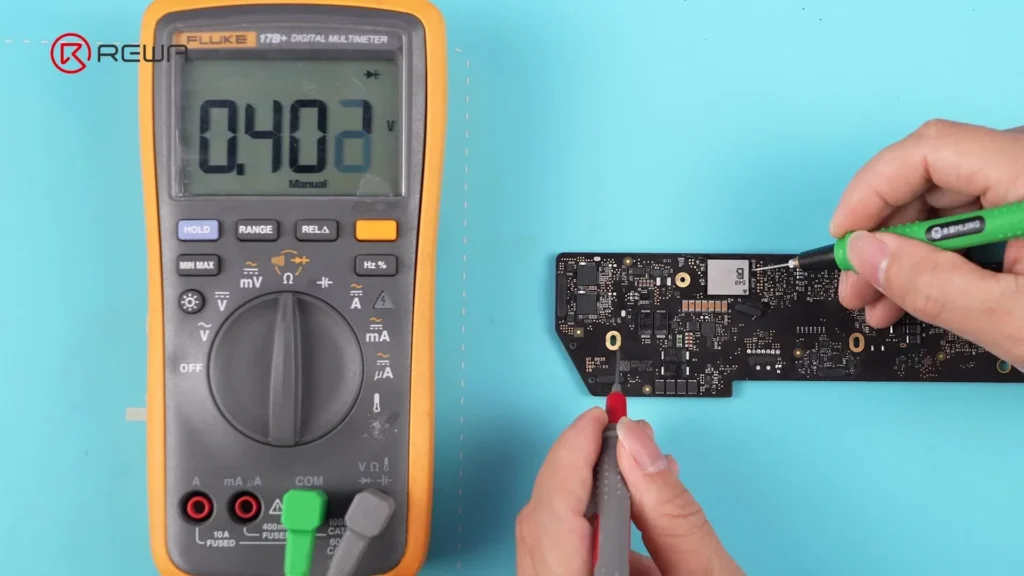
- Use a multimeter to test capacitors around the chip — readings should be normal.
- Reinstall the heat sink.
- Reinstall the motherboard.
- Reconnect the battery cable.
- Reattach the lower case.
- Connect a charger to re-activate the battery.
- Boot the MacBook and check Wi-Fi — it should now work.
- Verify ECID remains unchanged.
Tools & Parts List
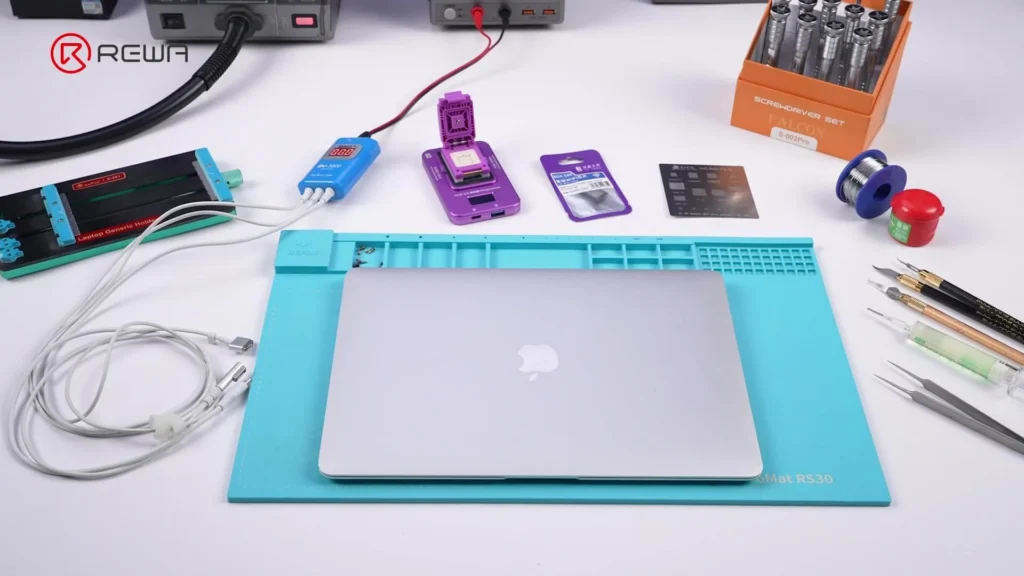
Tools:
- Flash drive (for LuBan software installation)
- PCB fixture
- Hot air gun
- Tweezers
- Pry tool
- Scraper
- Multimeter
- Fan
- Solder stencil
- Solder wick
- Screwdrivers (MacBook-compatible)
Materials:
- Flux
- Medium-temp solder
- Solder paste
- PCB cleaner
- Cotton swabs
Parts:
- New Wi-Fi chip (compatible with MacBook model)
- MacBook Wi-Fi repair module
- Programmer device (LB Tool compatible)
Software:
- LuBan Software
FAQs
What is ECID and why is it important?
Can I perform this repair without professional tools?
Is replacing the Wi-Fi chip cheaper than replacing the motherboard?
Will this fix also restore Bluetooth?
How long does the repair take?
Conclusion
For years, MacBook Wi-Fi chip failure meant replacing the entire logic board — a costly and wasteful approach. Thanks to REWA Tech’s breakthrough method, it is now possible to replace the integrated Wi-Fi/Bluetooth chip on M-series MacBooks, preserving the original board and saving significant repair costs.
With the correct tools, software, and skill, professional technicians and advanced DIYers can successfully restore full wireless functionality. Always take ESD precautions, use quality flux and solder, and ensure accurate ECID programming for a lasting repair.
 English
 Español
 Français
 Deutsch
 Italiano