Tag: iphone XS

  • Fix iPhone XS Won’t Turn On with P12 (NAND Programmer for iPhone 6 – iPhone 11 Pro Max)

    Fix iPhone XS Won’t Turn On with P12 (NAND Programmer for iPhone 6 – iPhone 11 Pro Max)

    NAND replacement is a common repair procedure in iPhone repair, whether for storage upgrade or fixing issues like not turning on caused by a damaged NAND. For NAND replacement, a NAND programmer is needed to read and write the NAND data.
    Fix iPhone XS Won't Turn On with P12 (NAND Programmer for iPhone 6 - iPhone 11 Pro Max)

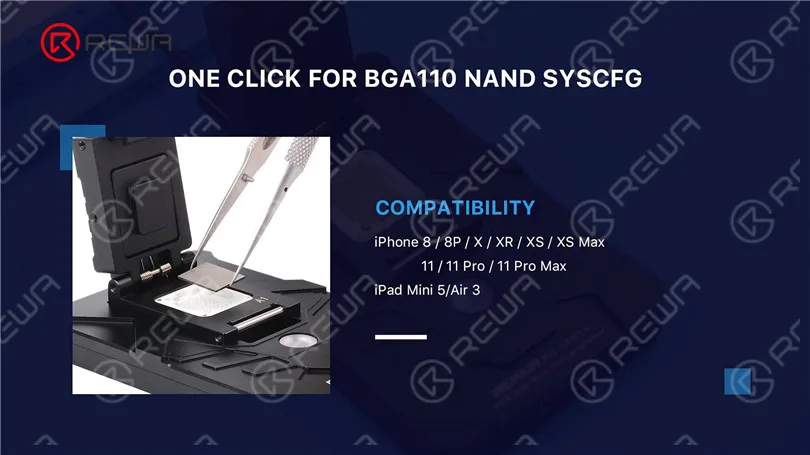
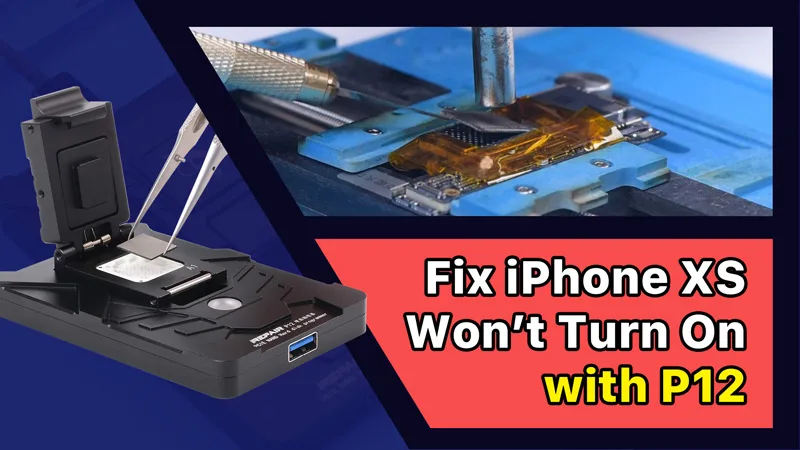
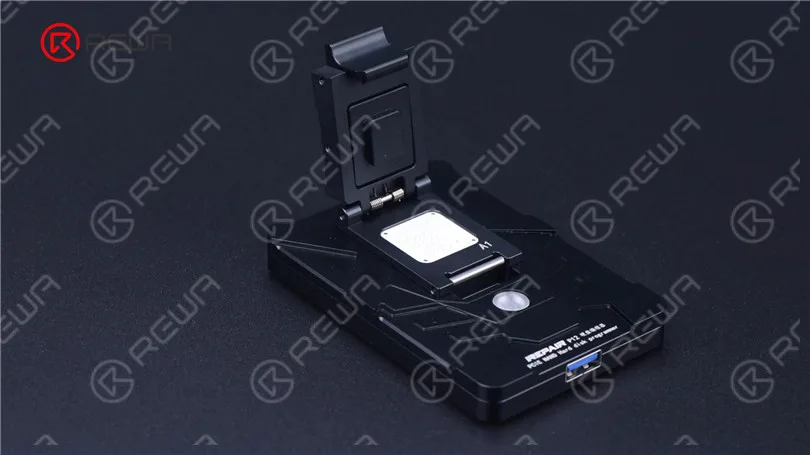
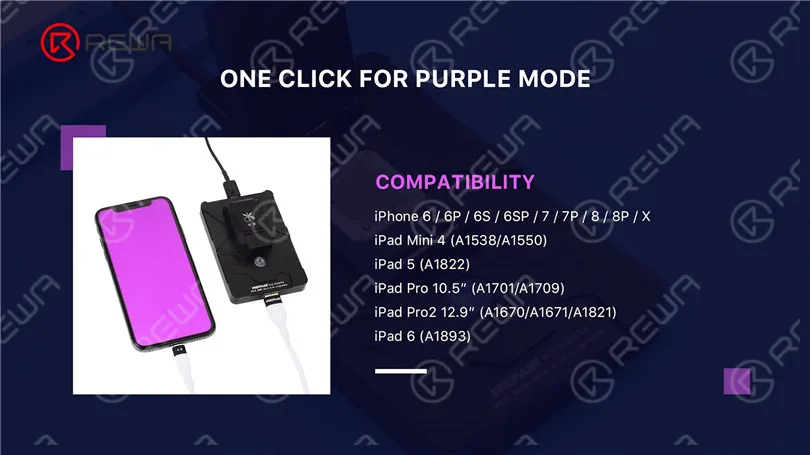
    Today we will repair an iPhone with the latest NAND programmer P12, Compared to other NAND programmers on the market, P12 supports a wide array of models, which includes NAND read & write and WiFi unbinding for iPhone 6-iPhone 11 Pro Max and some iPad models. What’s more, P12 can work without an internet connection and is free for use permanently.
    Fix iPhone XS Won't Turn On with P12 (NAND Programmer for iPhone 6 - iPhone 11 Pro Max)
    Fix iPhone XS Won't Turn On with P12 (NAND Programmer for iPhone 6 - iPhone 11 Pro Max)
    Fix iPhone XS Won't Turn On with P12 (NAND Programmer for iPhone 6 - iPhone 11 Pro Max)

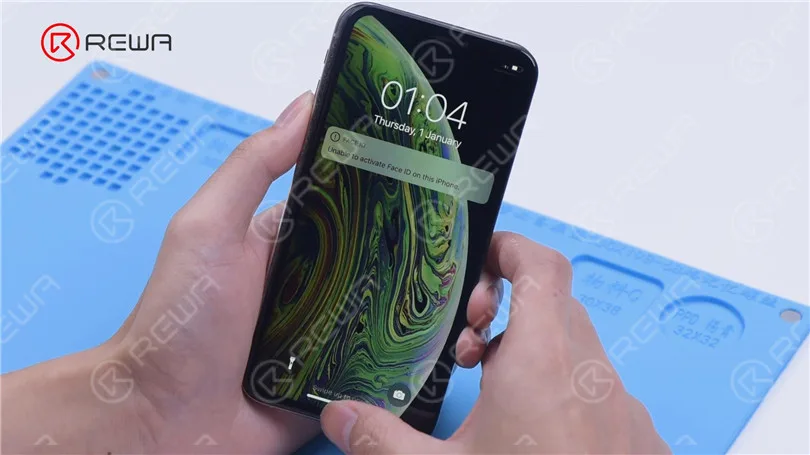
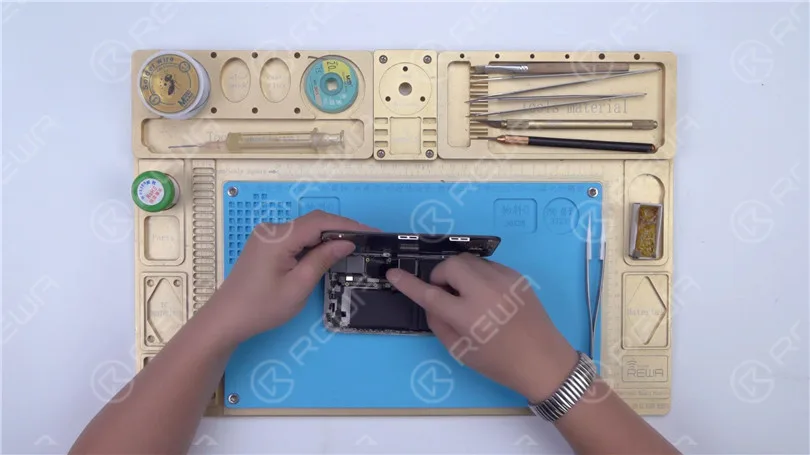
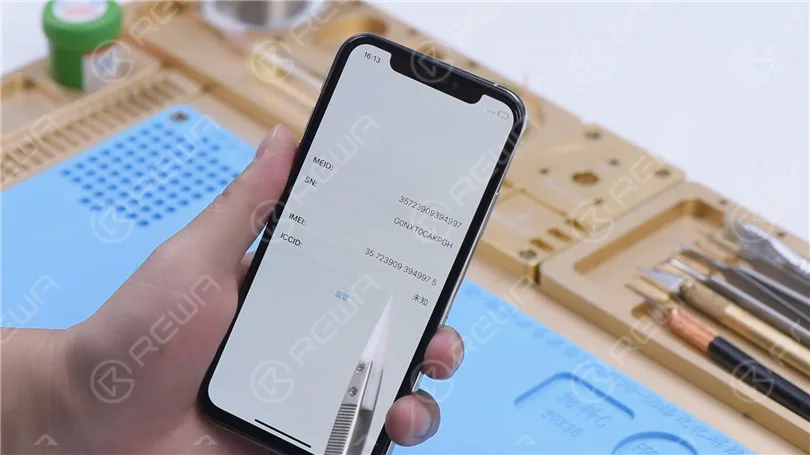
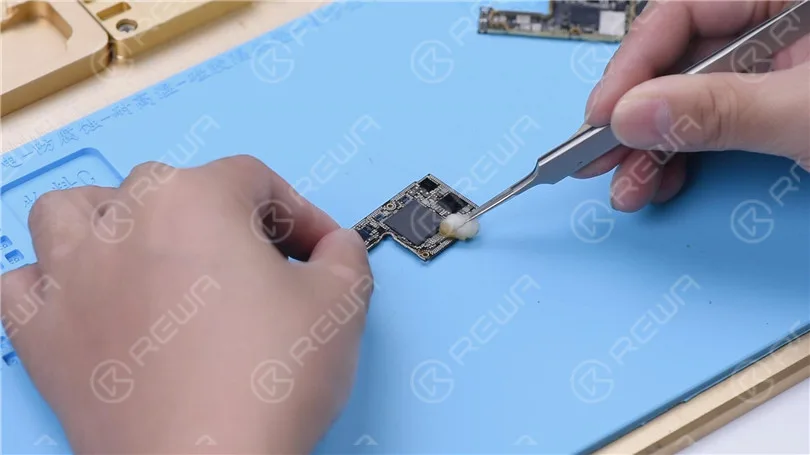
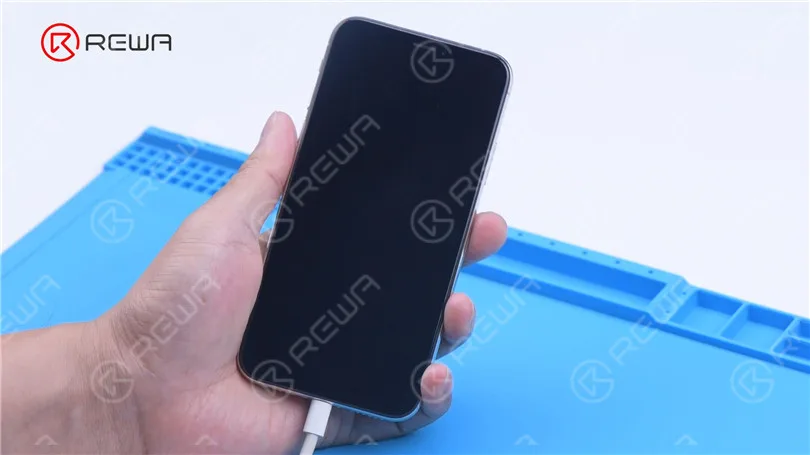
    Then we use P12 to fix an iPhone XS that won’t turn on. The iPhone XS is unable to boot up.
    Fix iPhone XS Won't Turn On with P12 (NAND Programmer for iPhone 6 - iPhone 11 Pro Max)

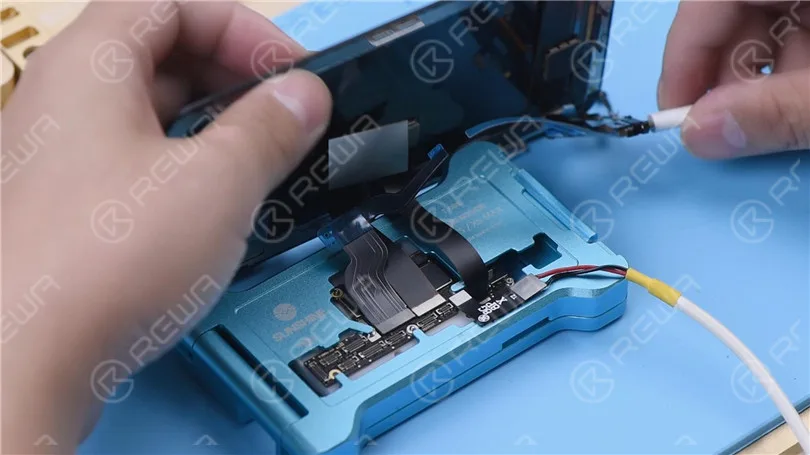
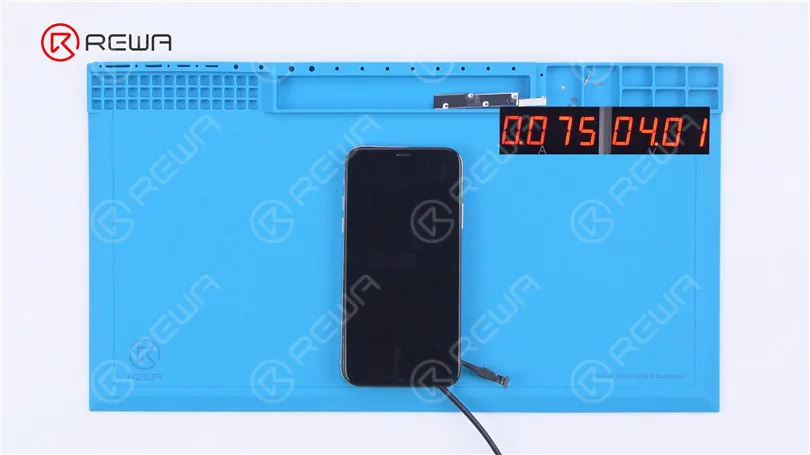
    Then we disassemble the phone for further testing. Connect the motherboard with Power Cable. The boot current only has 75 mA. It can be preliminarily judged that the system is faulty.
    Fix iPhone XS Won't Turn On with P12 (NAND Programmer for iPhone 6 - iPhone 11 Pro Max)

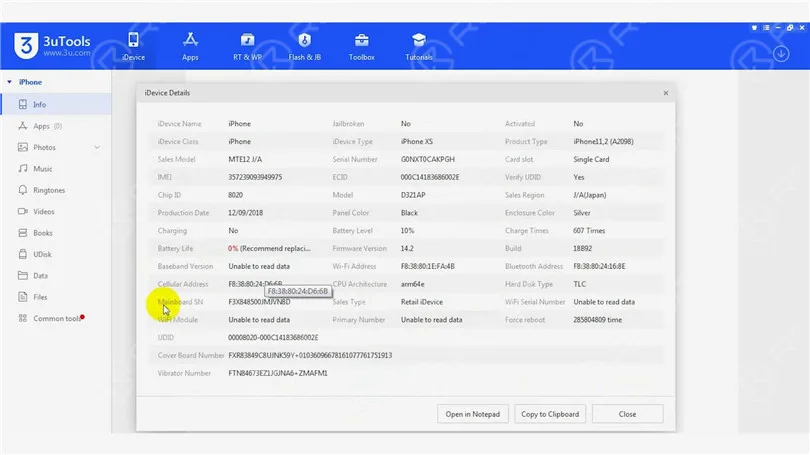
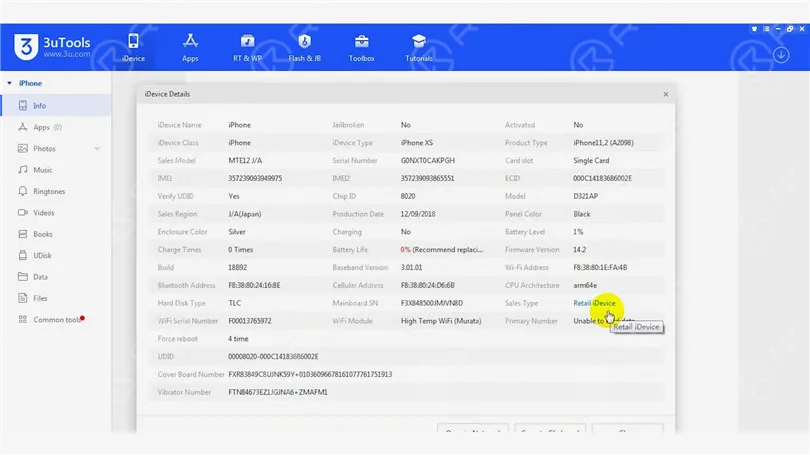
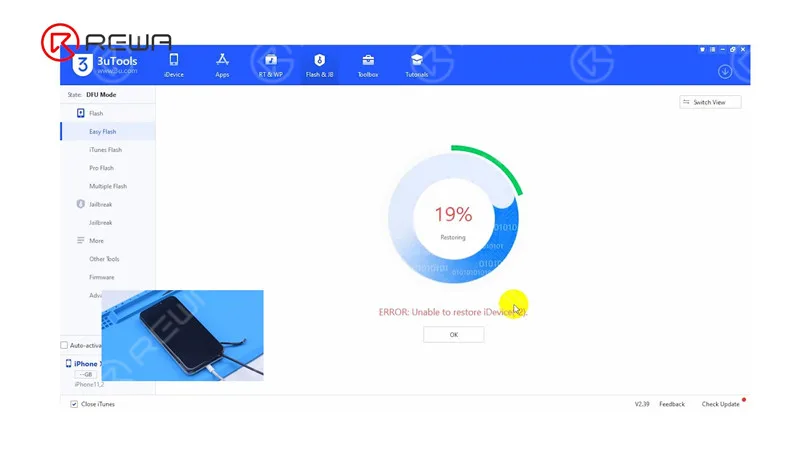
    Next, connect the phone with the computer. The phone is in DFU mode automatically. The flashing gets stuck at 19%. We can confirm now that the not turning issue is induced by faulty circuits related to the NAND.
    Fix iPhone XS Won't Turn On with P12 (NAND Programmer for iPhone 6 - iPhone 11 Pro Max)

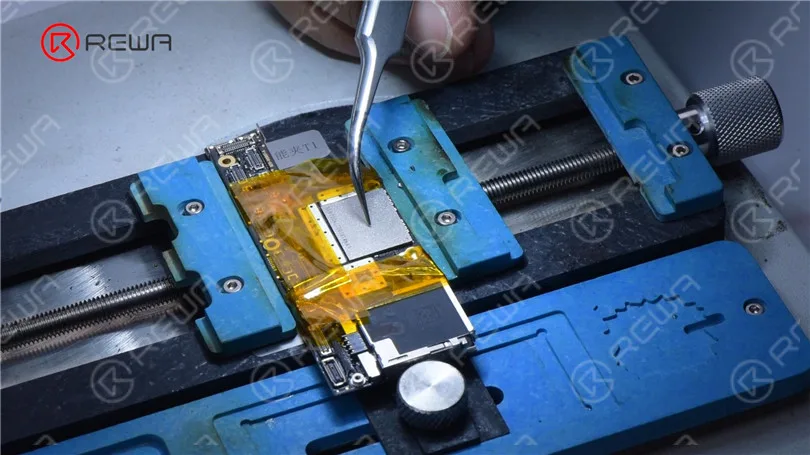
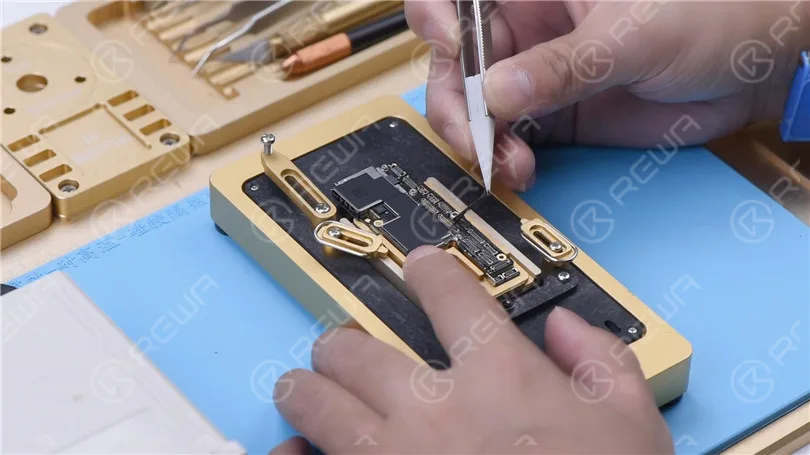
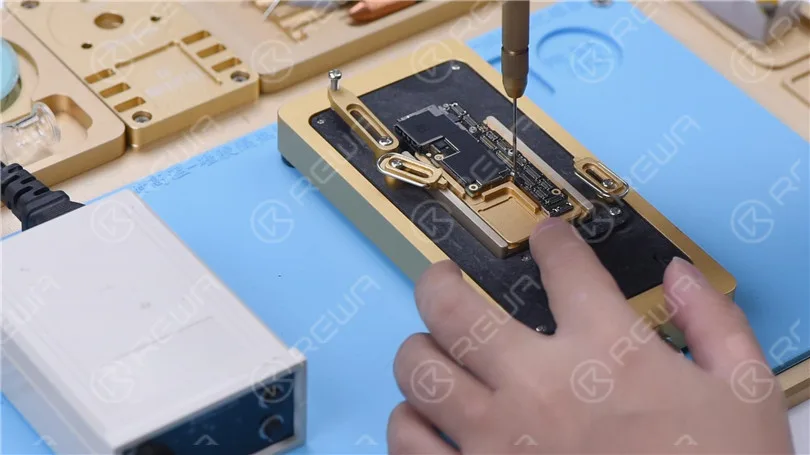
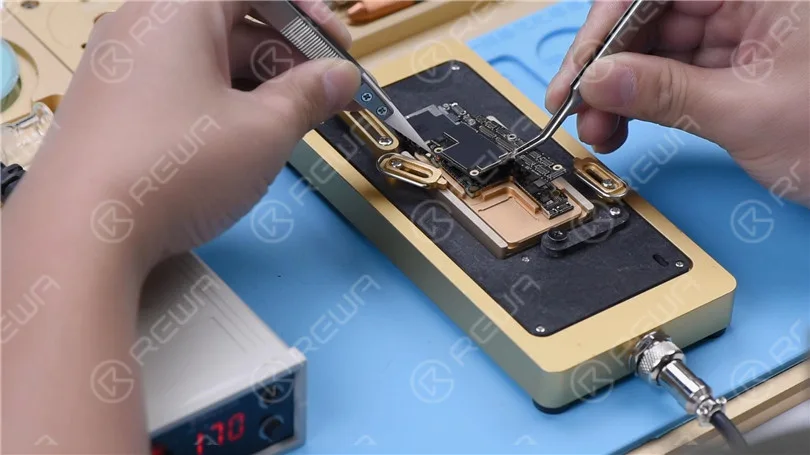
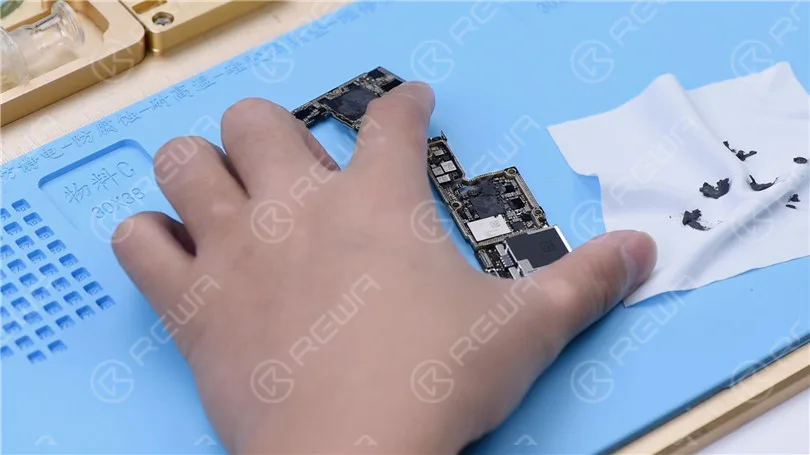
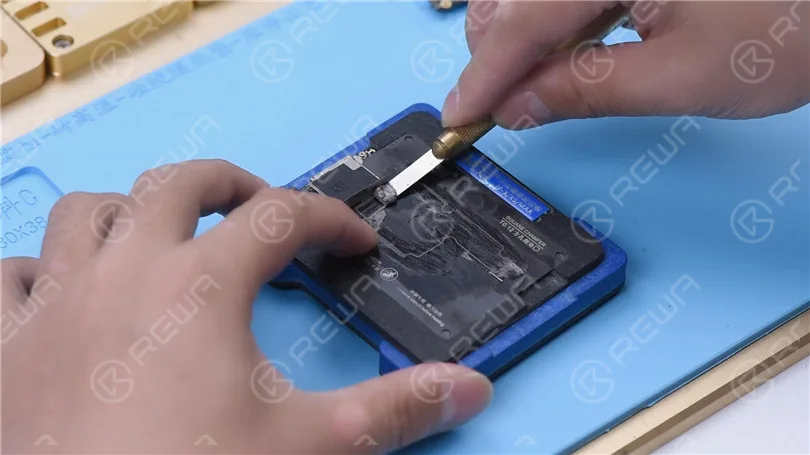
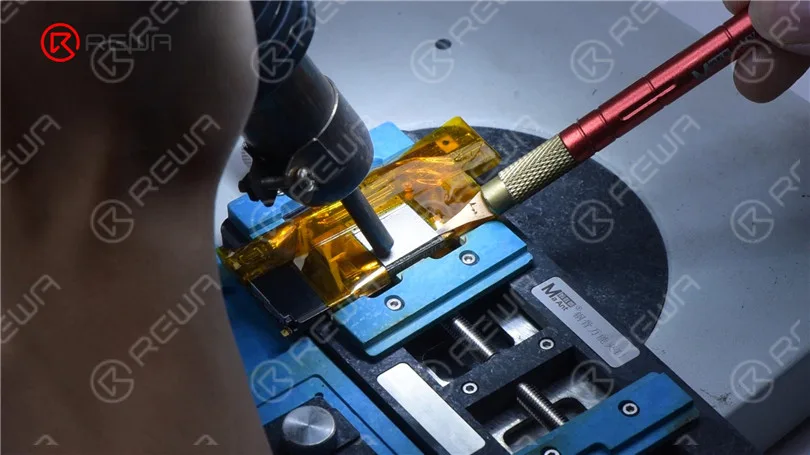
    The next step is to replace the NAND with a new one. Remove the display and detach the motherboard. Apply high-temperature tape around the motherboard. First of all, remove black adhesive around the NAND with Hot Air Gun at 280 °C.
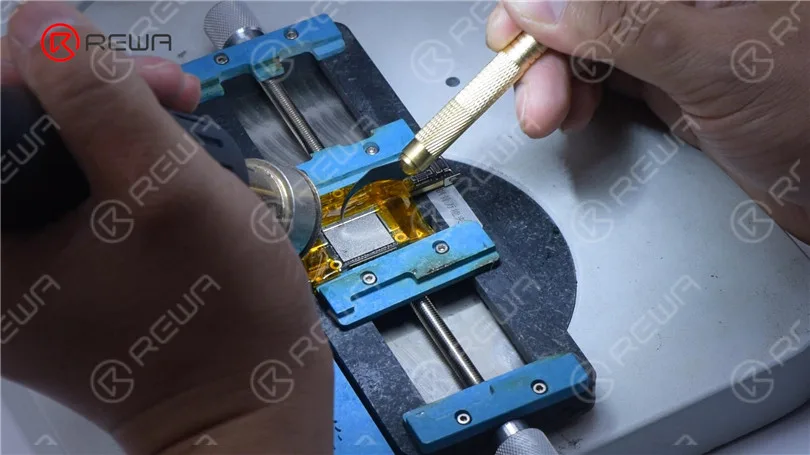
    Fix iPhone XS Won't Turn On with P12 (NAND Programmer for iPhone 6 - iPhone 11 Pro Max)

    Pry up the NAND with Hot Air Gun at 400 °C.
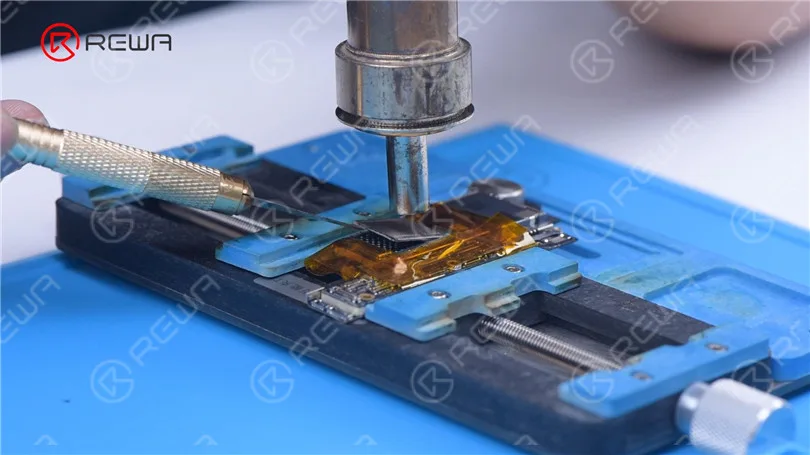
    Fix iPhone XS Won't Turn On with P12 (NAND Programmer for iPhone 6 - iPhone 11 Pro Max)

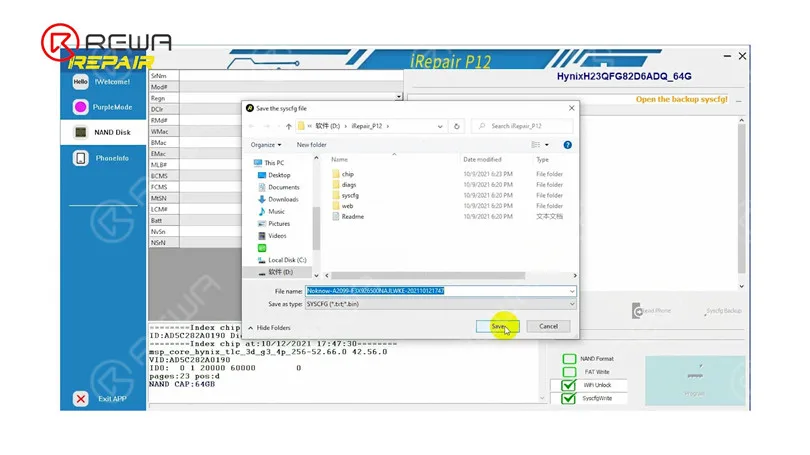
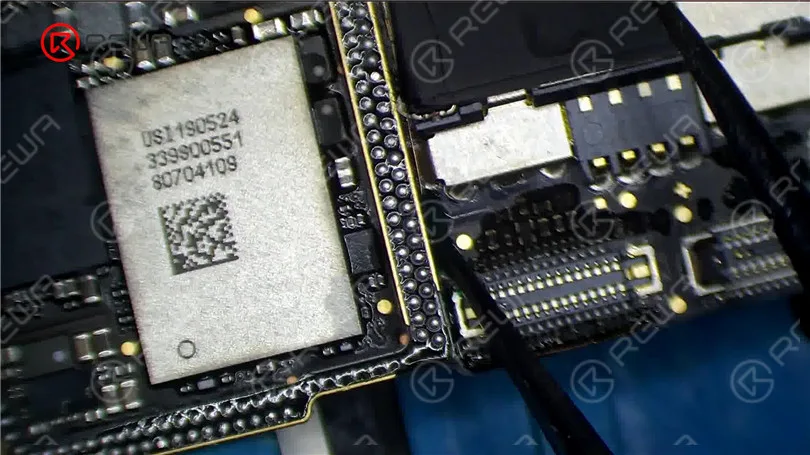
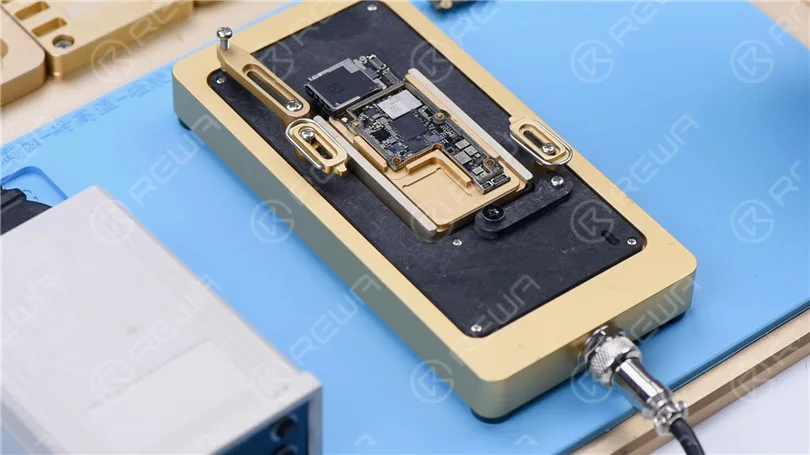
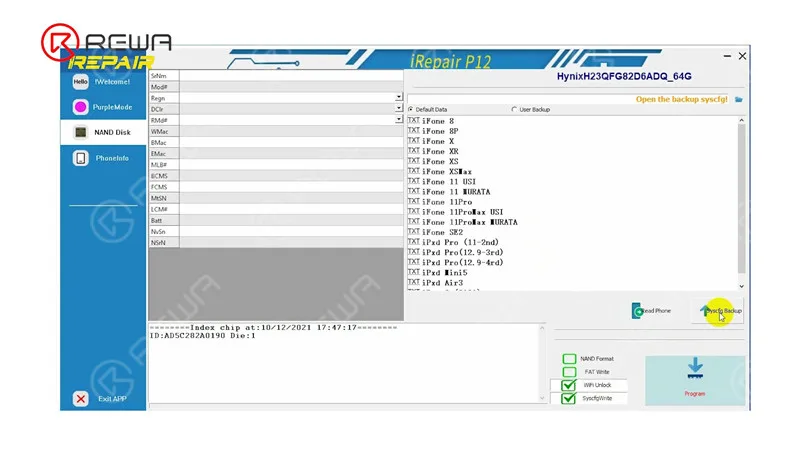
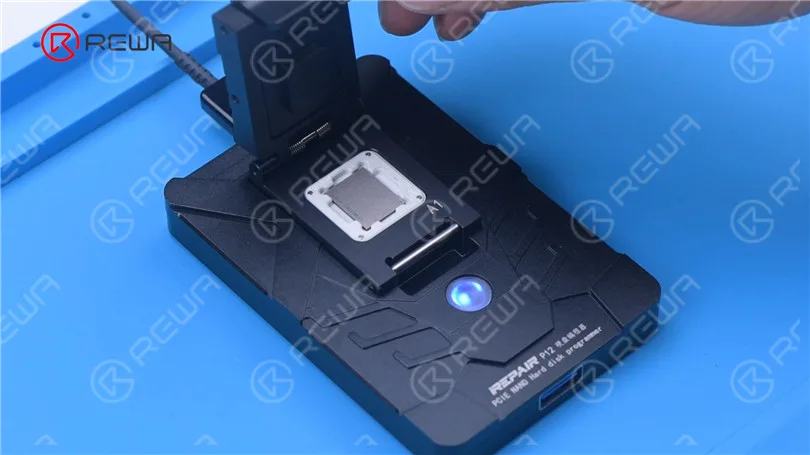
    Attach the NAND to P12. Please pay attention to aligning the NAND with the A1 pin. Click “Syscfg Backup”. Then save the data.
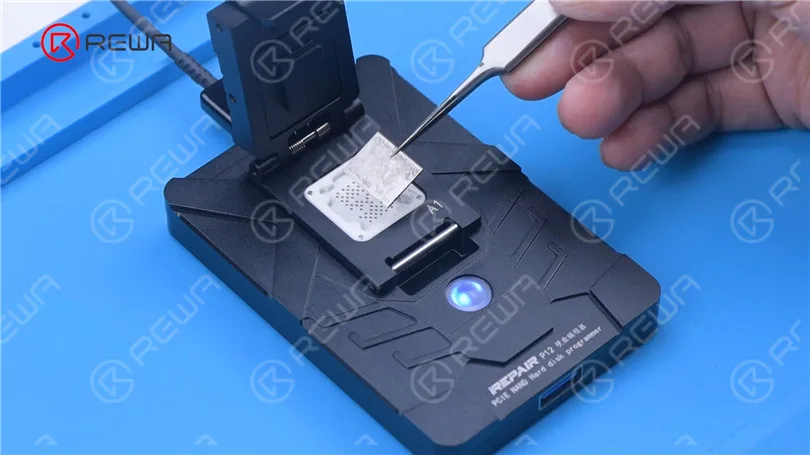
    Fix iPhone XS Won't Turn On with P12 (NAND Programmer for iPhone 6 - iPhone 11 Pro Max)
    Fix iPhone XS Won't Turn On with P12 (NAND Programmer for iPhone 6 - iPhone 11 Pro Max)
    Fix iPhone XS Won't Turn On with P12 (NAND Programmer for iPhone 6 - iPhone 11 Pro Max)

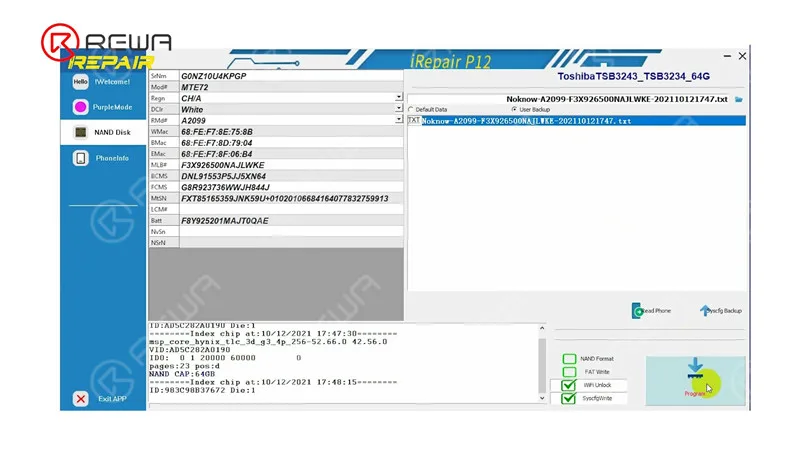
    Remove the NAND. Attach the new NAND to P12. Select “User Backup”. Tap “Program”.
    Fix iPhone XS Won't Turn On with P12 (NAND Programmer for iPhone 6 - iPhone 11 Pro Max)
    Fix iPhone XS Won't Turn On with P12 (NAND Programmer for iPhone 6 - iPhone 11 Pro Max)

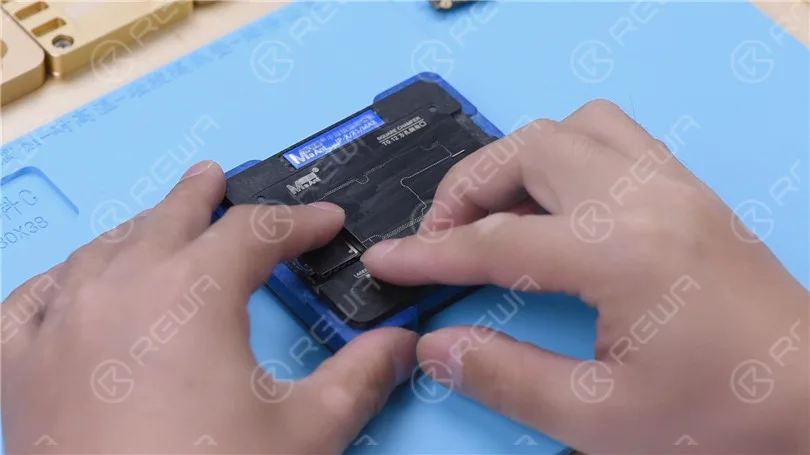
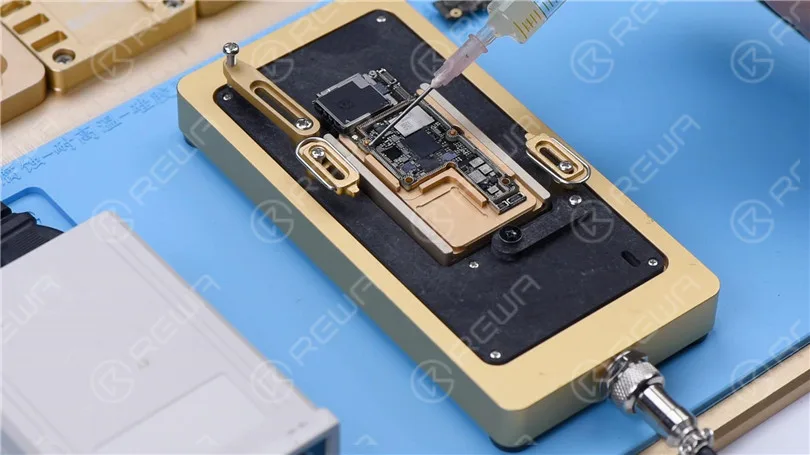
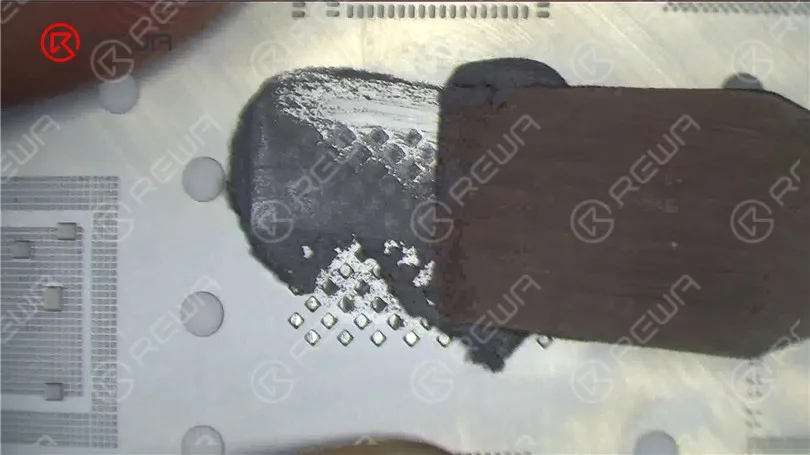
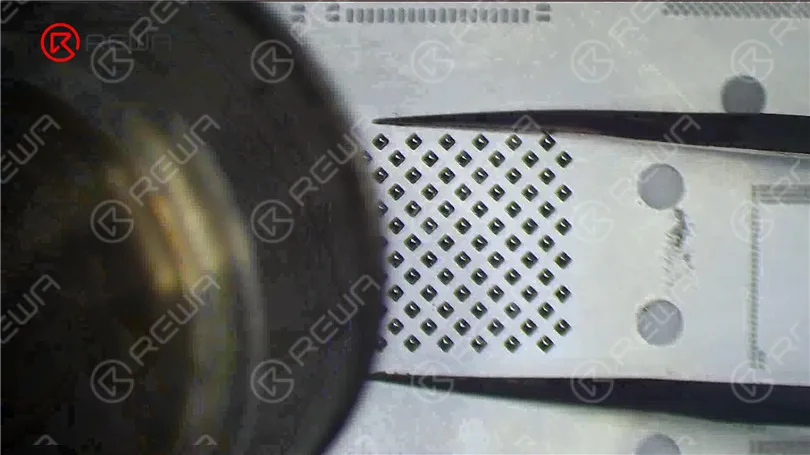
    Next, we reball the NAND with the written data. Place the reballing stencil in position. Apply a layer of middle-temperature Solder Paste evenly. Heat with Hot Air Gun at 340 °C.
    Fix iPhone XS Won't Turn On with P12 (NAND Programmer for iPhone 6 - iPhone 11 Pro Max)
    Fix iPhone XS Won't Turn On with P12 (NAND Programmer for iPhone 6 - iPhone 11 Pro Max)

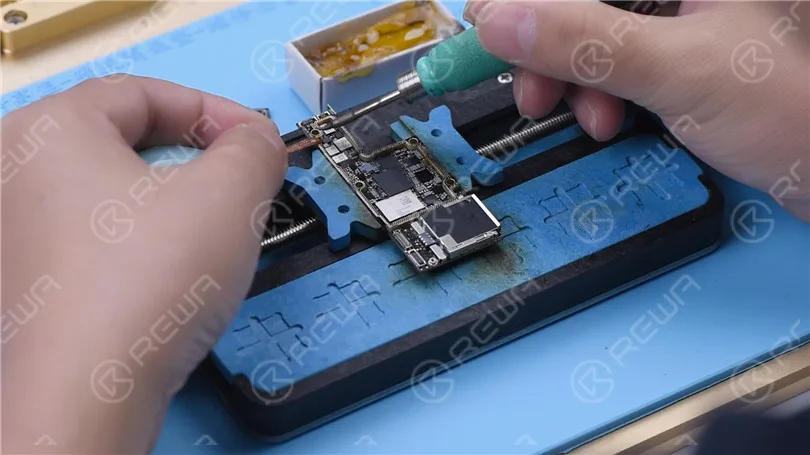
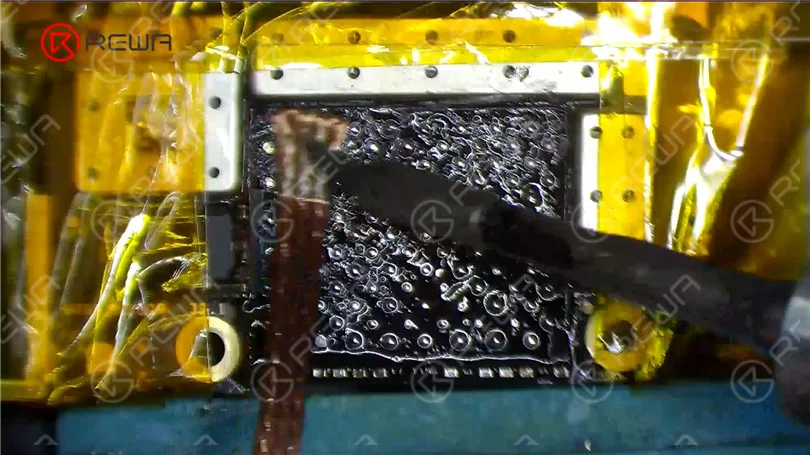
    Before NAND soldering, we need to remove tin on the bonding pads. Apply some middle-temperature Solder Paste with Soldering Iron. Clean the bonding pads with Soldering Iron and Solder Wick.
    Fix iPhone XS Won't Turn On with P12 (NAND Programmer for iPhone 6 - iPhone 11 Pro Max)

    Remove black adhesive on the bonding pads with Sculpture Knife. Then clean the bonding pads with PCB Cleaner. After cleaning, apply some Paste Flux

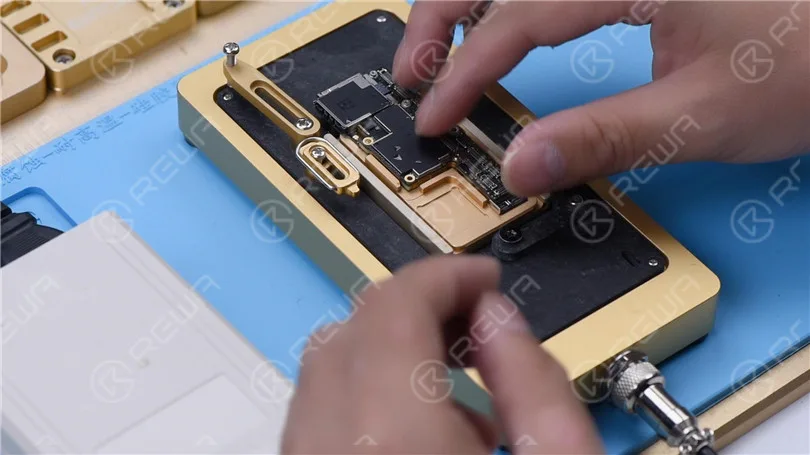
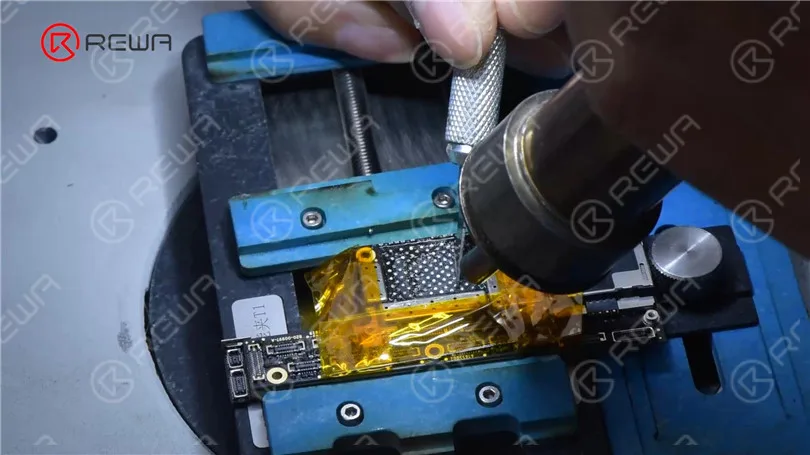
    Align the new NAND. Heat with Hot Air Gun at 380 °C to solder.
    Fix iPhone XS Won't Turn On with P12 (NAND Programmer for iPhone 6 - iPhone 11 Pro Max)
    Fix iPhone XS Won't Turn On with P12 (NAND Programmer for iPhone 6 - iPhone 11 Pro Max)

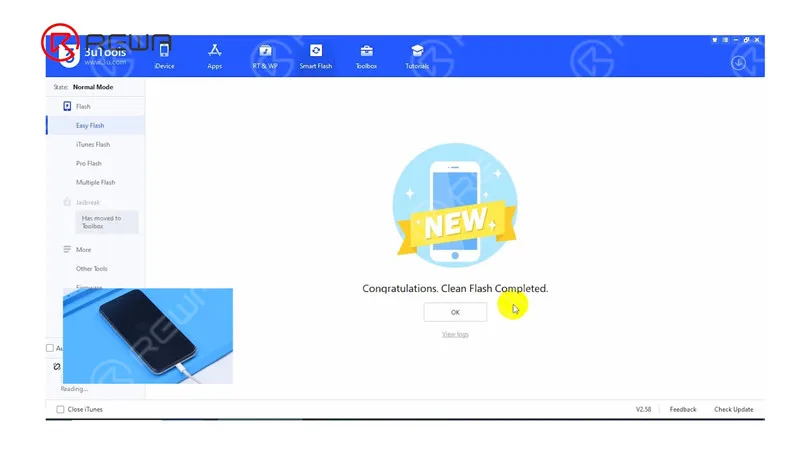
    Then we install the motherboard. Connect the phone with the computer to flash. The flashing has been successful.
    Fix iPhone XS Won't Turn On with P12 (NAND Programmer for iPhone 6 - iPhone 11 Pro Max)

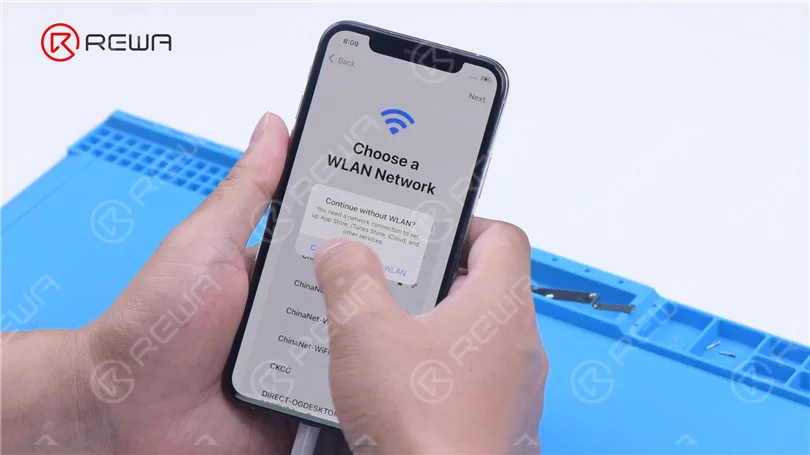
    The phone turns on normally. After activation, the phone also functions well.
    Fix iPhone XS Won't Turn On with P12 (NAND Programmer for iPhone 6 - iPhone 11 Pro Max)
  • Comprehensive iPhone XS China Aftermarket Screens Comparison Test

    Comprehensive iPhone XS China Aftermarket Screens Comparison Test

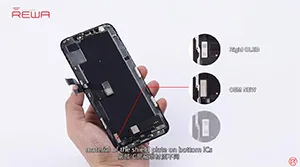
    iPhone XS China Aftermarket OLED Screens have emerged in the market, which falls into two types, the flexible one and the rigid one. As usual, REWA LAB has got samples right the first time and conducted strict comparison tests. We are happy to share with you the test result about the iPhone XS Aftermarket Screen in our video today.

  • How to Fix iPhone XS Unresponsive Touch Screen

    How to Fix iPhone XS Unresponsive Touch Screen

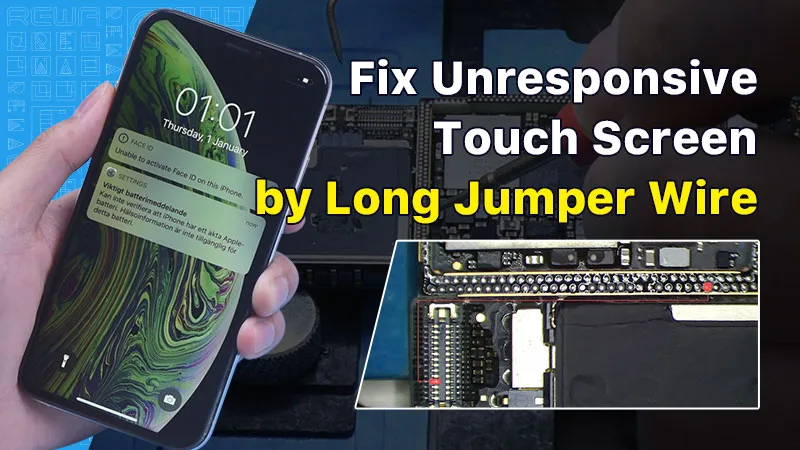
    In this guide, we will explore how to diagnose and repair an iPhone XS with an unresponsive touch screen. An unresponsive touch screen can be a frustrating issue, but by following the steps below, you can potentially resolve the problem.

    Initial Inspection

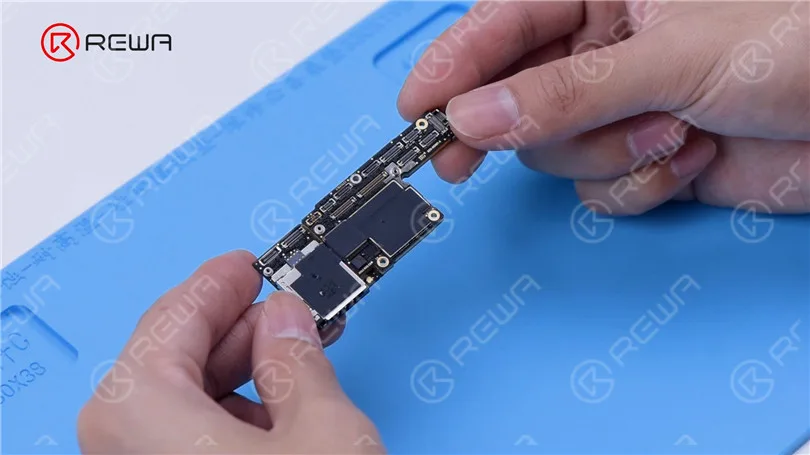
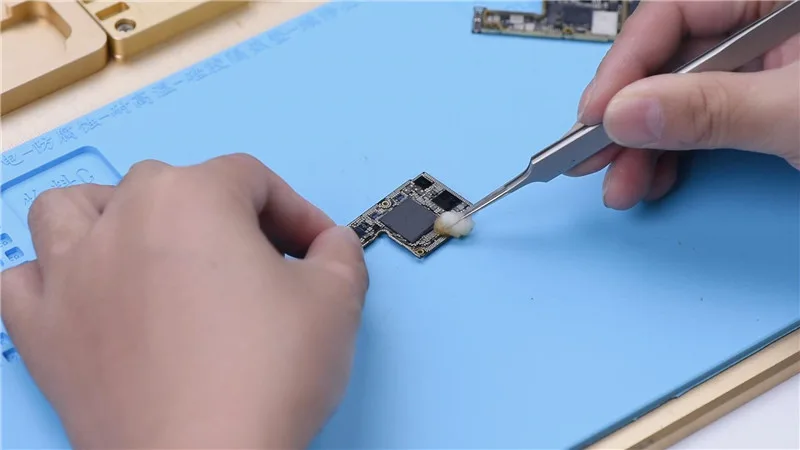
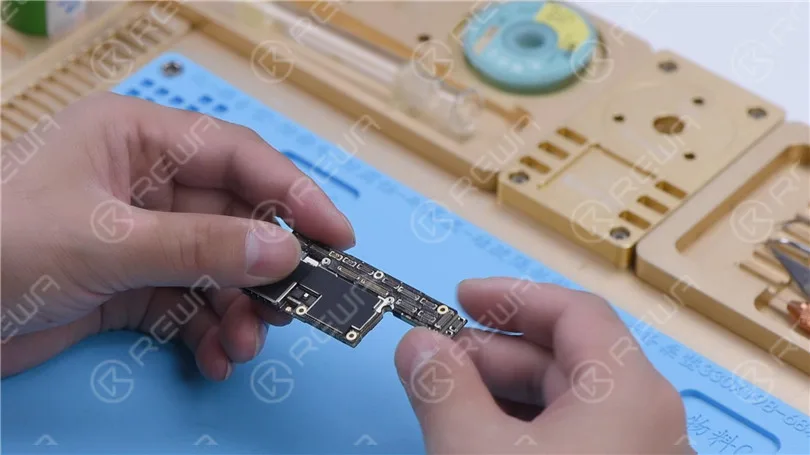
    The first step in diagnosing touch screen issues is to examine the iPhone’s motherboard. Check for any deformities or signs of water damage, as these can often be the root cause of touchscreen problems.

    How to Fix iPhone XS Unresponsive Touch Screen

    Initial Testing

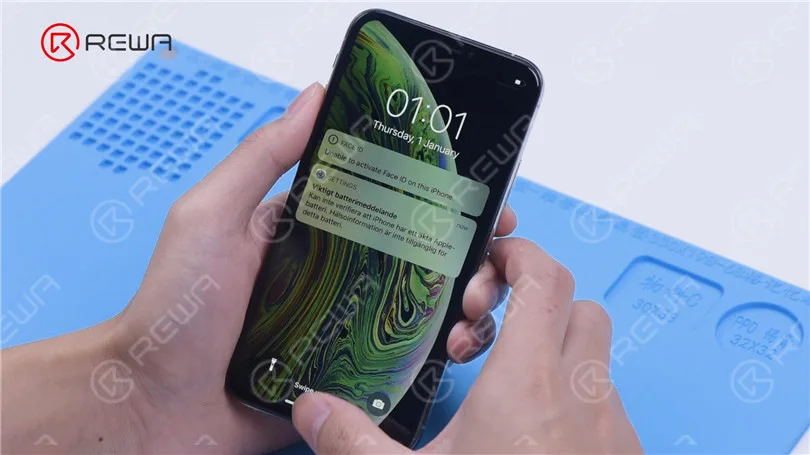
    After ensuring the motherboard is in good condition, install it and connect the display and battery. Power on the phone and check if the touch screen is still unresponsive.

    How to Fix iPhone XS Unresponsive Touch Screen

    Pinpointing the Problem

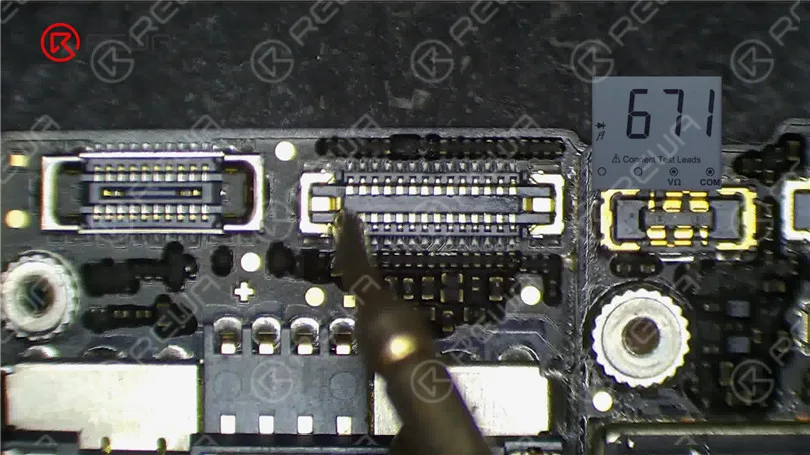
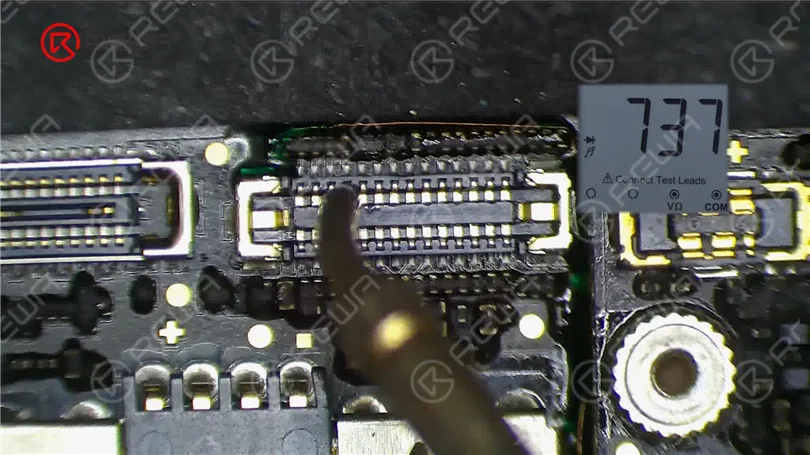
    If the touch screen is still not working, proceed to measure the touch connector. Pin 21 of the connector might be open-circuited, indicating a potential issue in the circuit connected to this pin.

    How to Fix iPhone XS Unresponsive Touch Screen

    Resistor Examination

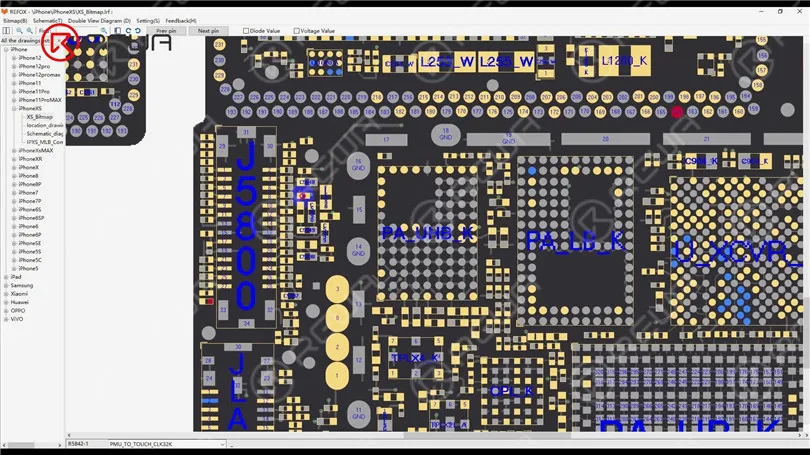
    Pin 21 connects to resistor R5842, which is a safety resistor. Test the resistor’s integrity using a multimeter. If the resistor is intact, the fault likely lies within the middle layer circuit.

    How to Fix iPhone XS Unresponsive Touch Screen

    Separating the Motherboard

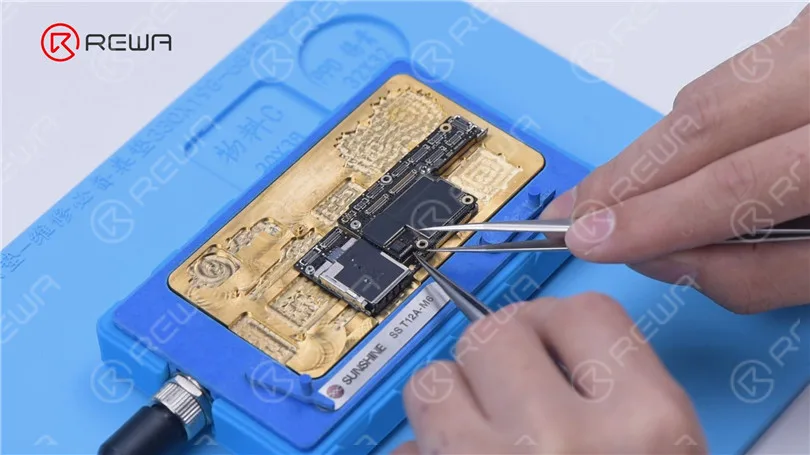
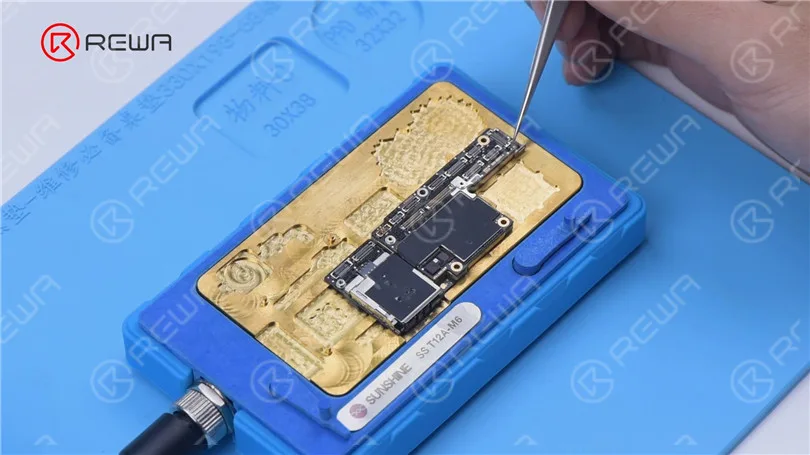
    To access the middle layer circuit, carefully separate the motherboard. Use a heating platform at 160°C, and once the adhesive softens, remove the logic board and signal board with tweezers.

    How to Fix iPhone XS Unresponsive Touch Screen

    Circuit Assessment

    Since the other end of the resistor connects to the power IC through the middle layer, start by checking the circuit on the logic board. Ensure that the resistance value is within the normal range.

    How to Fix iPhone XS Unresponsive Touch Screen

    Then we separate the motherboard. Put the motherboard on the 160 °C Heating Platform to heat. After about one minute, remove the logic board and signal board with tweezers. It can be seen that the motherboard has been separated before.

    How to Fix iPhone XS Unresponsive Touch Screen

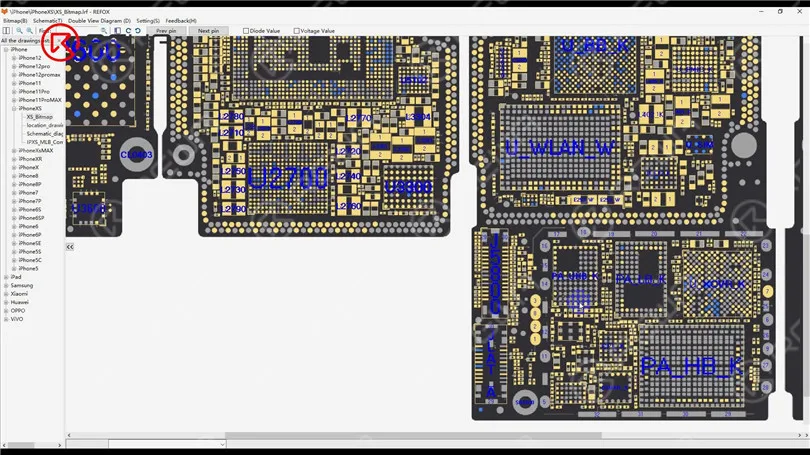
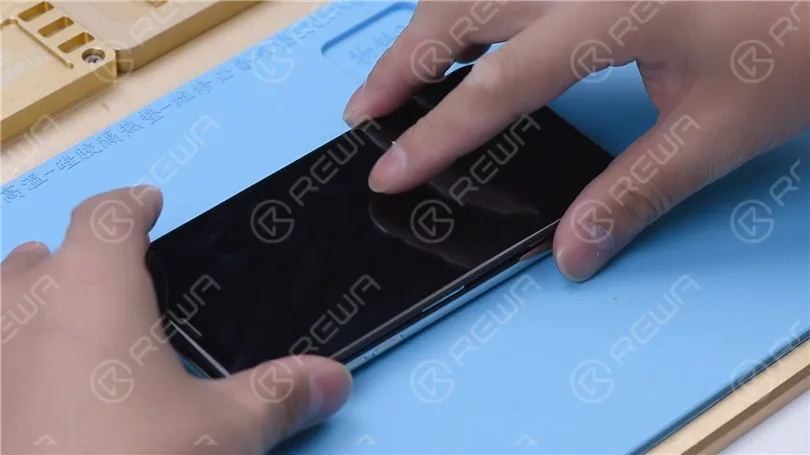
    Open the bitmap. The other end of the resistor is connected to the power IC through the middle layer. Therefore we need to measure the circuit on the logic board firstly. The value of resistance is normal.
    How to Fix iPhone XS Unresponsive Touch Screen

    Identifying the Fault

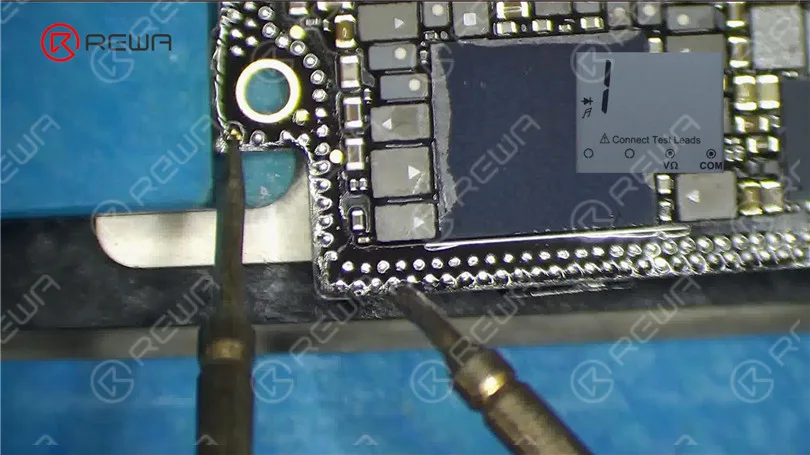
    Measure the circuit between the signal board and the touch connector. An open-circuit condition indicates a problem. To resolve this, you’ll need to perform a jump wire repair.
    How to Fix iPhone XS Unresponsive Touch Screen

    Jump Wire Repair

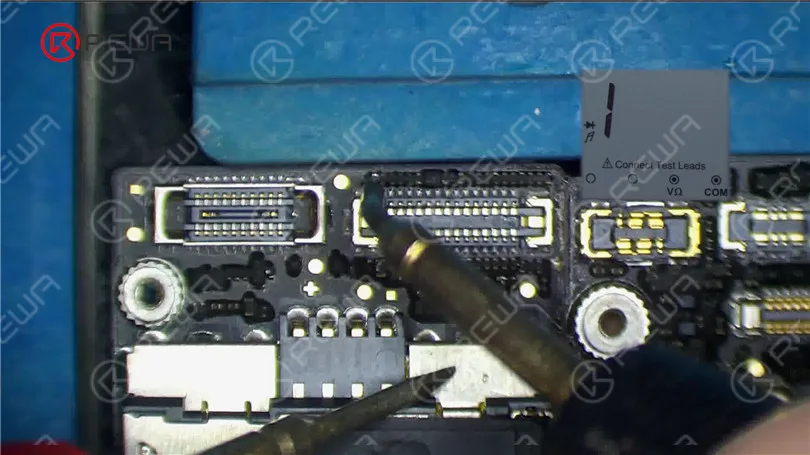
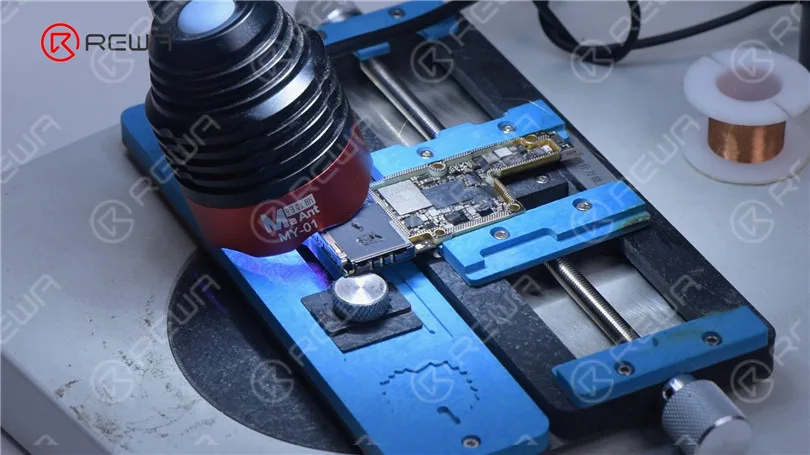
    Apply Paste Flux to the resistor and solder a copper wire to it using a soldering iron at 360°C. If the two ends are too far apart, secure the copper wire in place with Solder Mask. Use a UV Lamp to solidify the solder mask and then check for its stability.

    How to Fix iPhone XS Unresponsive Touch Screen

    Because the two ends are too far apart, we need to fix the copper wire in the first place. Apply some Solder Mask. Solidify with UV Lamp. Check if the solder mask is solidified with tweezers. Next, fix the remaining copper wire with Solder Mask.

    How to Fix iPhone XS Unresponsive Touch Screen

    Cut the copper wire. Solder one end of the copper wire to the signal board. Measure with the multimeter. The value of resistance is 0, which indicates that the circuit between the touch connector and signal board is connected. Solidify pads on the signal board with Solder Mask. Scrape to show the pads. Clean the bonding pads with PCB Cleaner.

    How to Fix iPhone XS Unresponsive Touch Screen

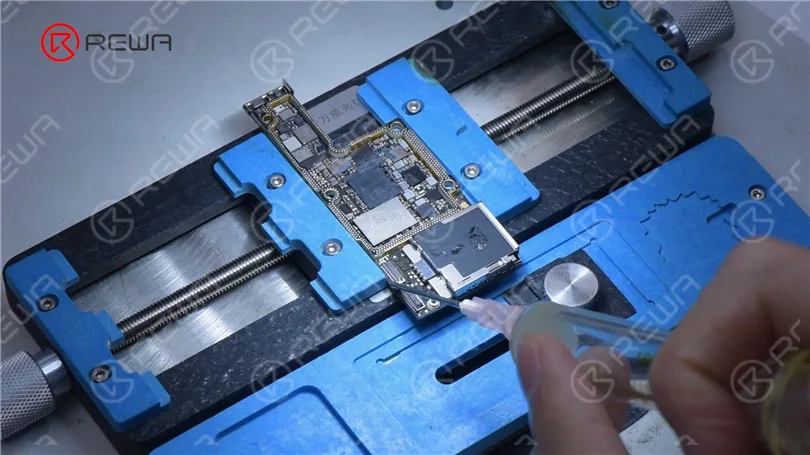
    Then we recombine the signal board with the logic board in a direct way. Put the signal board on the 160 °C Heating Platform to heat. Apply some Paste Flux to the bonding pad. Put the logic board in position. Press gently with tweezers during heating. After about a minute, remove the motherboard.

    How to Fix iPhone XS Unresponsive Touch Screen

    Reassembly and Testing

    Carefully recombine the signal board with the logic board using a heating platform at 160°C. Once the motherboard has cooled, measure pin 21 of the connector. If the resistance value is back to normal, you can install the motherboard for a final test. If all went well, the touch screen should now be fully functional.

    How to Fix iPhone XS Unresponsive Touch Screen
    How to Fix iPhone XS Unresponsive Touch Screen

    Conclusion

    Repairing an iPhone XS with an unresponsive touch screen can be a complex process, but with the right tools and techniques, it’s possible to identify and fix the issue. If you’re interested in learning more about motherboard repair troubleshooting, you can check out REWA Academy’s comprehensive course package. Additionally, they offer live online repair courses for those seeking face-to-face interaction with experienced technicians. Feel free to explore a variety of repair topics and leave comments on subjects that interest you.

    For more repair techniques, visit REWA Academy. It offers a comprehensive motherboard repair troubleshooting course package to enhance your repair skills.

  • How to Optimize iPhone XS Battery Life

    How to Optimize iPhone XS Battery Life

    Tips 1: Disable Background App Refresh

    You can start with disabling Background App Refresh. Go to Settings > General > Usage, recording the remaining standby and use time.

    Then turn off Background App Refresh and lock the phone to wait 10 minutes. Then return to Settings > General > Usage.

    You will see that the battery life will increase by at least 10 minutes. If there is no change, you also need to turn off all current background running applications one by one.

    Go to Settings > General > Close the Background Application to see the APP list. Turn them all off.

    Tips 2: Disable Email Notification

    Spam is like virus nowadays, and many users can’t tolerate them every day. You can try to disable email notifications. Go to Settings > Mail, Contacts, Calendar > Get New Data.

    You can turn off these features. Or set every 15 minutes, 30 minutes or an hour to let iPhone XS check a new email. You will not miss important emails. The longer the interval, the more battery life you will save.

    Tips 3: Disable application notification

    Some apps will send you notifications. You can go to Settings > Notifications to check in detail. Click any of the applications in the list to turn it off so that the notifications will not be received.

    Tips 4: Disable automatic download

    If you set the music, applications, and system of iPhone XS to automatic update, you will also consume a lot of battery life.

    Therefore, a part of the battery life can be saved in this feature. Go to Settings > iTunes Store and App Store to disable the Cellular Data option. Then the iPhone XS will be updated with Wi-Fi.

    Tips 5: Shorten automatic lock screen time

    When you are not using it, your iPhone XS screen takes a while to go dark. And you can go to Settings > General > Auto-Lock.

    Set it to the minimum values that you can accept, which can also help you save a lot of battery life under the premise of using it.

    Tips 6: Turn off AirDrop-save the iphone xs battery life

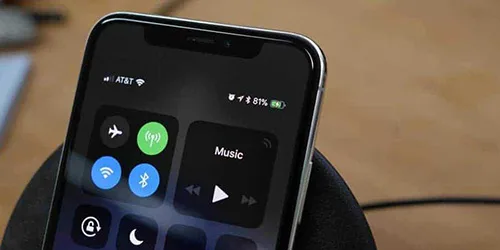
    No one needs the AirDrop to be on all the time. So when you need it, you can slide up from the bottom of the screen and open it in the control center.

    Tips 7: Use black static wallpapers and themes

    You can disable Auto-Brightness in the wallpaper and brightness, so that the screen is always in a darker state, saving a lot of battery life.

    After all, we need more brightness in the case of direct sunlight. And this situation will not always appear.

    Tips 8: Disable animation effect

    If you don’t like dynamic background, visual difference, and 3D effect, then you can also turn it off.

    A still picture can be set as wallpapers in the Wallpaper and Brightness, and the animation effect can be turned off in General > Auxiliary.

    Tips 9: Disable GPS

    Unless the map must be used, the GPS is not helpful at all, which is also very power-consuming.

    You can go to Settings > Privacy to disable the GPS, or keep the applications that must be positioned, and turn off the others.

    Tips 10: Turn off Siri

    If you don’t use Siri, you can turn it off directly.

    Tips 11: Turn off the vibration

    In Settings > Sound, you can choose to turn off vibration, and disable the vibration of the new email notification in the Mail, which will save you much battery life.

     Tips 12: Disable iCloud

    Go to iCloud, you will see cloud synchronization will consume a lot of data and power.

    Of course, you can re-open iCloud synchronous backup with the phone connected to power, so that you can save important data.

    If you have followed the above suggestions, the iphone xs battery life is still draining fast.

    It is possible that the battery may be a problem. You can test the battery life in the nearest repair store.

  • How to Fix iPhone XS No Service

    How to Fix iPhone XS No Service

    Today we will share a case about repairing an iPhone XS that has no service. The phone had no service after being dropped and couldn’t be activated after a system upgrade.

    Firstly, inspect the appearance of the motherboard. The motherboard is not deformed or water damaged.

    Fix iPhone XS No Service

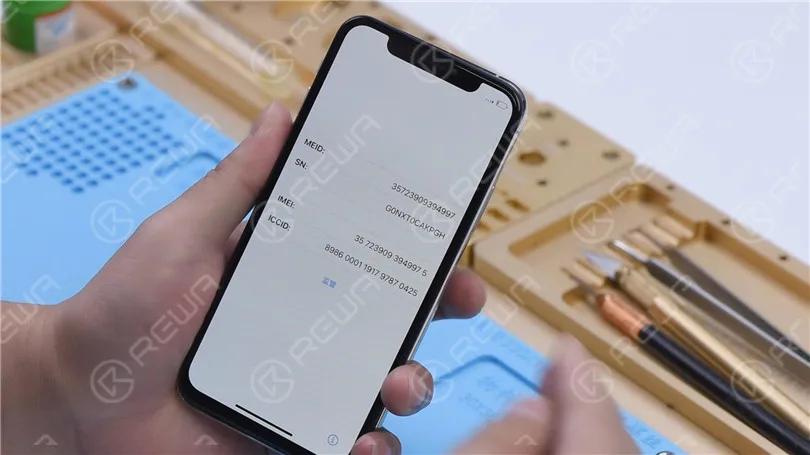
    Then we install the motherboard on the phone to test. Connect the display and battery. Insert the SIM card. The phone can be turned on. However, the ICCID is not showing, which indicates that the SIM card is not read.

    Fix iPhone XS No Service
    Fix iPhone XS No Service

    Connect the phone to the computer. Open 3uTools and view device details. 3uTools is unable to read data of the baseband version and Wi-Fi module.

    Fix iPhone XS No Service

    Because the phone had no service after being dropped. It can be preliminarily judged that the pseudo-soldering of the middle layer may cause the trouble. Next, we need to separate the motherboard. Put the motherboard on the Heating Platform and peel off the foam.

    Fix iPhone XS No Service

    To make it easier to remove the logic board after separation, drive a screw on the logic board. Cut through the tape with a sculpture knife.

    Fix iPhone XS No Service

    Set the temperature of the Heating Platform to 180℃ to heat the motherboard. When the temperature reaches 180℃, press the signal board with a pair of tweezers. Clamp the screw to remove the logic board with another pair of tweezers. Then turn off the power and take down the signal board.

    Fix iPhone XS No Service

    Remove thermal grease on the logic board and signal board. Attach the signal board to the holder. Dip rosin with Soldering Iron at 365℃ and solder wick to remove tin on the bonding pad. Remove tin on the logic board with the same method.

    Fix iPhone XS No Service
    Fix iPhone XS No Service

    Clean the logic board with PCB Cleaner and remove the screw. Clean the signal board with PCB Cleaner.

    Fix iPhone XS No Service

    Attach the signal board and logic board to the Testing Fixture. Connect the screen to the motherboard with a Test Extension Cable. Connect the charging port flex cable and power cable. Then turn the phone on by connecting it with the computer.

    Fix iPhone XS No Service

    Open 3uTools and view device details. The baseband version and Wi-Fi module can be read. It can be confirmed that the pseudo soldering causes the absence of the baseband version.

    Fix iPhone XS No Service

    The next thing we need to do is to recombine the logic board and signal board. Put the signal board on the Reballing Platform. Put the Reballing Stencil in position. To prevent the solder paste from flowing into the motherboard crevices, insert a metal plate.

    Fix iPhone XS No Service

    Apply a layer of low-temperature Solder Paste. Wipe off excess solder paste with an anti-static wipe. Remove the Reballing Stencil and signal board.

    Fix iPhone XS No Service

    Put the signal board on the Heating Platform. Set the temperature to 180℃ to heat. After the solder balls are formed, turn off the power and cool the signal board. Apply some Paste Flux. Align the logic board with the signal board. Keep heating the motherboard at 180 ℃. When the temperature has risen to 180℃, keep heating for one minute. Turn off the power and cool the motherboard for five minutes.

    Fix iPhone XS No Service
    Fix iPhone XS No Service
    Fix iPhone XS No Service

    After recombination, install the motherboard on the phone. The phone can be turned on. Insert the SIM card. ICCID is showing. Because the phone has a network lock and we don’t have a SIM card of the carrier. No further tests can be conducted.

    Fix iPhone XS No Service
    Fix iPhone XS No Service

    Conslusion

    The iPhone XS had no service after being dropped. 3uTools couldn’t read the baseband version when we connected the phone to the computer. Through motherboard separation and testing the phone on the testing fixture, we confirmed that the no service trouble was caused by the pseudo soldering of the motherboard middle layer. ICCID came back to normal and the fault was cleared after we recombined the logic board and signal board.

    Please visit our academy to learn more about phone repair knowledge.

  • The Best Features in iPhone XS

    The Best Features in iPhone XS

    The dominance of Apple over other tech brands is due to the fact that it stays at least a couple of years ahead of its competitors, specifically if you spend a moment just talking about iPhone. There are a bunch of reasons behind the success of iPhone. But the newly-launched iPhone XS is exceptional good. Absolutely sensational.

    Is it over-garnishing? Maybe. But let me support my statement, and we’ll appreciate your opposition then.

    Apple Inc. has launched the iPhone XS, XS Max and XR on 12 Sep. Though, XS is an enhanced version of the iPhone X beginning at $999. And if you want to send iPhone from UK to India, go for a well-reputed iPhone shipping company.

    Unequivocally, choosing between these two is not as easy as falling off a log because there is not much difference. But depending upon the understanding of which elements you like and features, you can opt for XS or XS Max or the less costly XR.

    Here, we are going to take a closer look at the just-released iPhone XS. Let’s get into this –

    Unique Features in the latest iPhone XR. 

    Some of the unique features of iPhone XS are as under:

    12-megapixel Dual camera

    An enthusiastic 12-megapixel dual camera system gets more details to iPhone photos as claimed by the Apple. Users will be able to click more sophisticated portraits. If you spend a moment just talking about the video quality, it’s terrific as compared to the output given by any other smartphone out there in the market, Apple says. An add-on Face ID recognition system is something users might lay their eyes on. With faster and super secure Face ID recognition system, the new XS is equipped with the true depth camera. Face ID recognition system will help to unlock the device and accessing Apple Pay. That’s amazing. Isn’t it?

    The A12 ‘Bionic’ chip

    The advantage of this unique A12 Bionic processor is it will enable XS to run nine times faster than the older versions. According to a statement by Apple, the A12 Bionic chip will be able to handle 5 trillion operations per second. Truly amazing. No Ifs Ands or Buts about this. If compared to the previous A11, this new chip will consume 40 percent reduced power. The GPU inside the A12 Bionic chip is 50 percent quicker than the last year’s chip. Overall, this new chip’s addition will bring a bunch of improvements that the older processing systems were lacking. The saying goes, this A12 Bionic chip with first ever 7-nanometer mobile processor is the star performer, iPhone claims. Still less? No way.

    Screen size

    Another unique feature of the latest iPhone XS is the larger screen size it has. Apple offers the largest display (5.8 inches) ever offered in Apple smartphones in the latest iPhone XS. For the case of XS Max, add-on “cinematic” display for an ameliorated view of movies, video and games. Both the XS and XS Max got “Super Retina” display with the improved pixel density of iOS devices. Apple has left no stone unturned in the durability of this new boy XS. According to the company, the front and back glass layout now offered is sturdier than any other smartphone and is much more immune to scratches. Whoa. The brand knows that diversity is the spice of life. On that account, you can go for 6.1-inch iPhone XR or even 6.5-inch iPhone XS Max if you are after the large screen size.

    Battery life

    Battery life is a very important factor while shopping around for a smart phone. If a smartphone runs out of power in a very short time period then it is futile to give it a try. Every smartphone manufacturing brand is just focussing on the longer battery time and life. And Apple once again won the show here. Keeping a close eye on this, the new XS will have 30 minutes of extra battery life as compared to the ongoing iPhone X. And you know the amazing chapter of the story? It’s about the battery life the XS Max will offer, well-nigh 1.5 hours more. Can you believe that? If you talk about the iPhone X’s average battery time, it’s unbeatable 10 hours, 49 minutes on the battery test. If my memory serves me well, this time is nearly 1 hour greater than any typical smartphone. Still and all, the new iPhone XS is a perfect smartphone to buy if you want a phone that gets you through the day on a single charge. That’s tremendous.

    Waterproof tech

    One of the much-needed features in any smartphone is waterproof technology. Keeping a close watch on this factor, both the XS and XS Max are made waterproof. Both the smartphones are tested by the company in beer, wine, tea and other liquids. Apple declares that the aforementioned smartphones are much more repellent to water and dust damage as compared to the iPhone X. Both the iPhone XS and XS Max are offered with a bunch of fruitful additions but IP68 rated water, splash, and dust resistance is the best feature these smartphones are presented with. You can check out by throwing your phone in a swimming pool. I kid you not.

    More colorful OLED screens

    The OLED panel in this new iPhone is identical to the last iPhone X, with much the same 2,436 x 1,125 resolution as before but that’s not the case with iPhone XS Max. There is a sharper resolution in XS Max due to its larger OLED screen. Be that as it may, the new iPhone screens are much more colorful with 60 percent more dynamic range as stated by Apple.

    Faster Face ID

    The Face ID capability was introduced in last year’s iPhone for the first time due to which users are able to unlock the phone using a facial scan. Same is the case with the latest iPhone. Identical to the button free design of iPhone X’s home screen, the XS uses Face ID but at a very faster rate. According to Apple, new algorithms are applied in order to speed up the facial recognition process. Absolutely stunning. What are you waiting for?