Tag: iphone xs max

  • Troubleshooting iPhone XS Max Face ID Not Working – Dot Projector Repair

    Troubleshooting iPhone XS Max Face ID Not Working – Dot Projector Repair

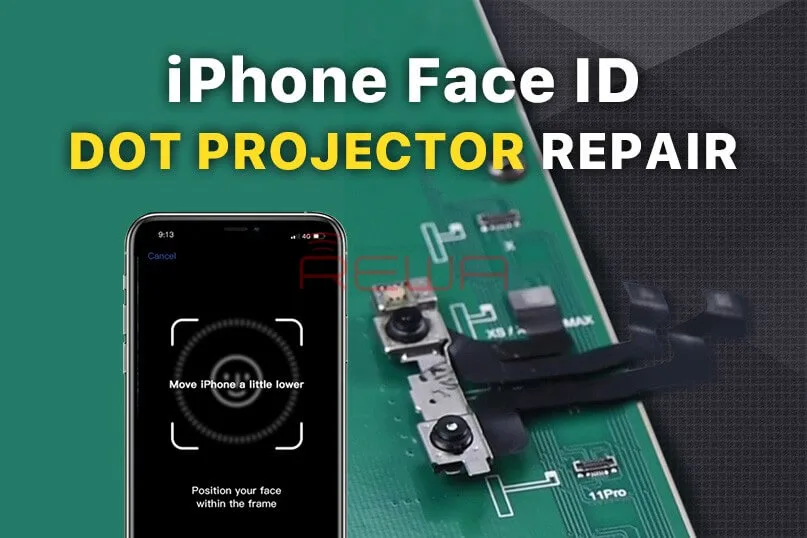
    Face ID Not Working ‘Move iPhone a Little Lower/Higher‘ is usually caused by damage to the dot projector and the problem is confirmed to be almost unrepairable. However, there is finally a solution to fix the problem. Today REWA LAB will show you the latest dot projector repair technique!
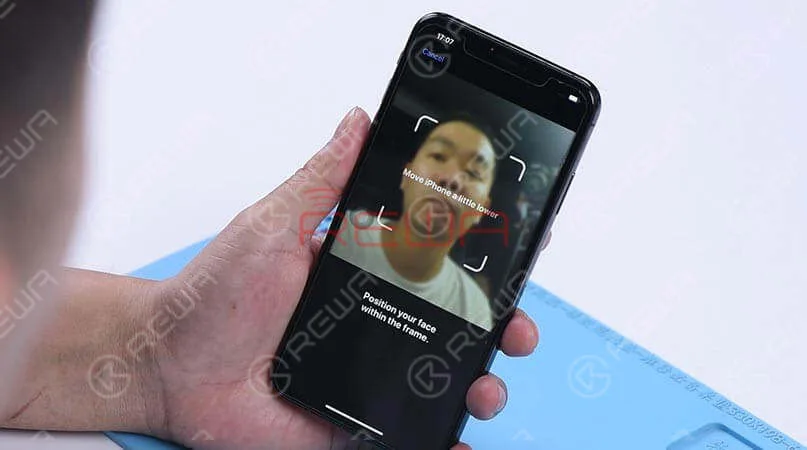
    Face ID Not Working 'Move iPhone a Little Lower/Higher' is usually caused by damage to the dot projector and the problem is confirmed to be almost unrepairable. However, there is finally a solution to fix the problem. Today REWA LAB will show you the latest dot projector repair technique!

    Problem

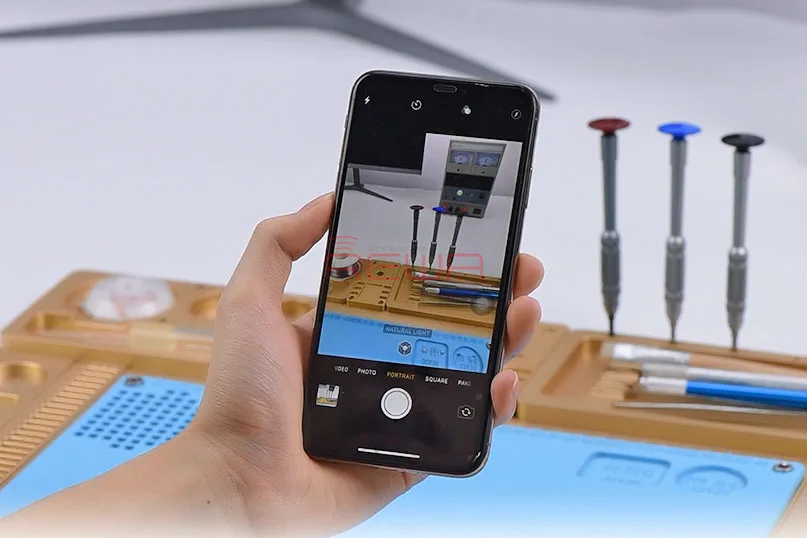
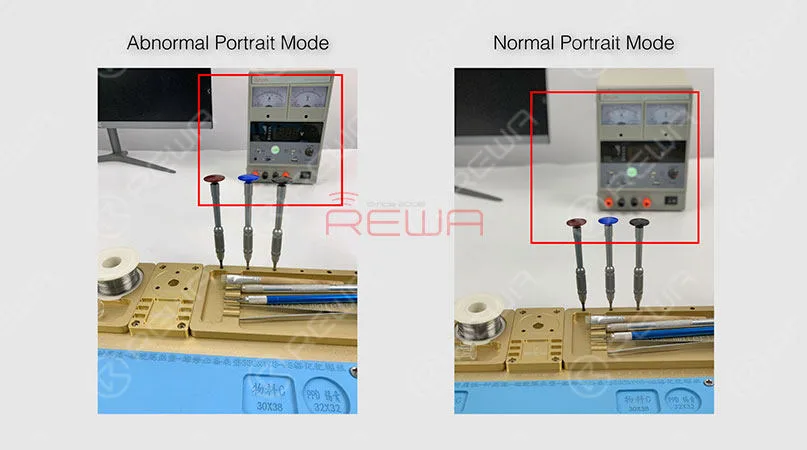
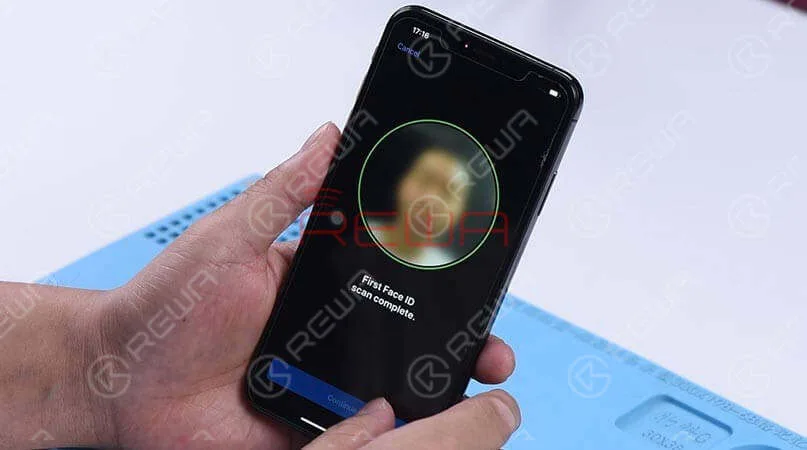
    When trying to set up Face ID on the iPhone, we get the message ‘move iPhone a little lower/higher’. Next, switch to the front camera, we found that the name of the lighting effect ‘Natural Light’ stays the same when the camera detects a person’s face. What’s more, the pop-up notification keeps saying ‘Move farther away’. Normally, when Portrait mode is ready, the name of the lighting effect ‘Natural Light’ should turn yellow. Judging by this, the dot projector or relevant circuits of the dot projector might have malfunctioned.

    When trying to set up Face ID on the iPhone, we get the message 'move iPhone a little lower/higher'. Next, switch to the front camera, we found that the name of the lighting effect ‘Natural Light’ stays the same when the camera detects a person's face. What's more, the pop-up notification keeps saying ‘Move farther away’. Normally, when Portrait mode is ready, the name of the lighting effect ‘Natural Light’ should turn yellow. Judging by this, the dot projector or relevant circuits of the dot projector might have malfunctioned.
    Diagnosis 

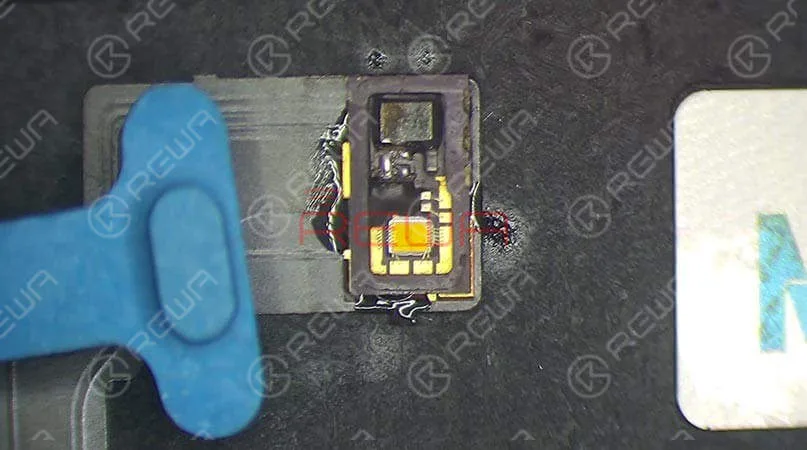
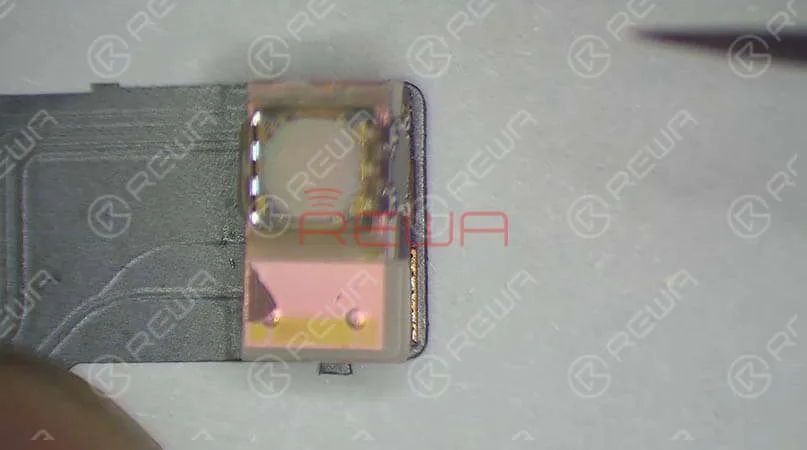
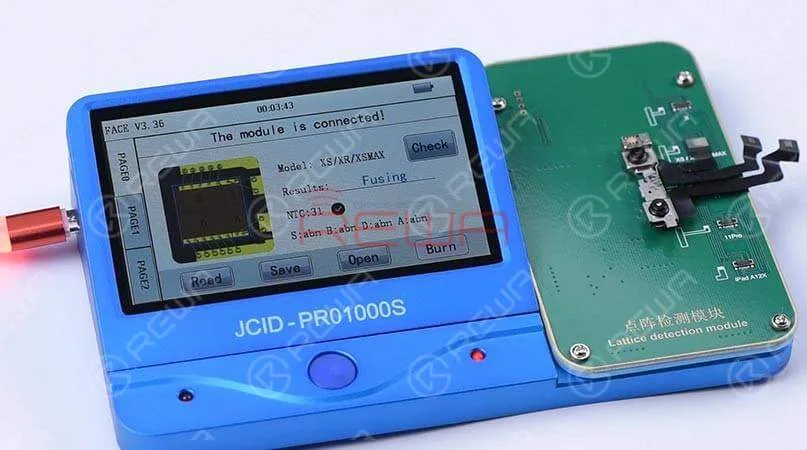
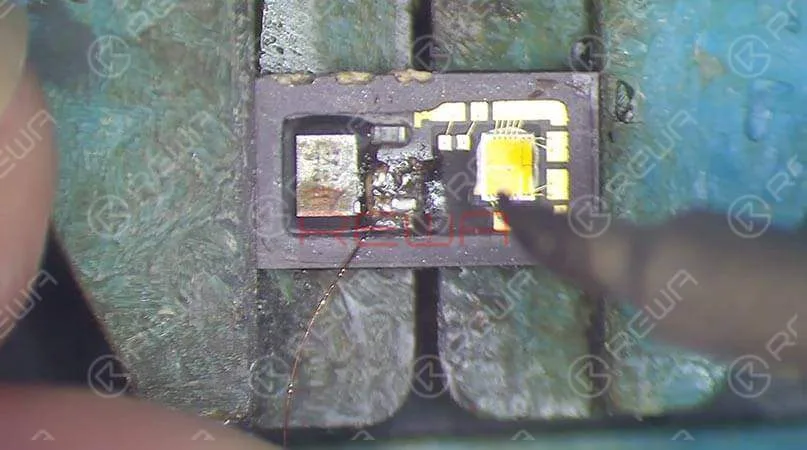
    Take apart the phone and remove the display assembly first. We can see that the dot projector has been water damaged and the crystal on the dot projector is broken. Take out the front camera assembly carefully. Here we recommend using a repair programmer to check the dot projector flex cable. Connecting the dot projector flex cable with the programmer, the results show ‘Fusing’ which means the dot projector flex cable has been damaged. We need to burn data of the original dot projector flex cable onto a new one and then replace the broken crystal.

    Connecting the dot projector flex cable with the programmer, the results show ‘Fusing’ which means the dot projector flex cable has been damaged. We need to burn data of the original dot projector flex cable onto a new one and then replace the broken crystal.
    Connecting the dot projector flex cable with the programmer, the results show ‘Fusing’ which means the dot projector flex cable has been damaged. We need to burn data of the original dot projector flex cable onto a new one and then replace the broken crystal.
    Connecting the dot projector flex cable with the programmer, the results show ‘Fusing’ which means the dot projector flex cable has been damaged. We need to burn data of the original dot projector flex cable onto a new one and then replace the broken crystal.
    Connecting the dot projector flex cable with the programmer, the results show ‘Fusing’ which means the dot projector flex cable has been damaged. We need to burn data of the original dot projector flex cable onto a new one and then replace the broken crystal.

    Troubleshooting   

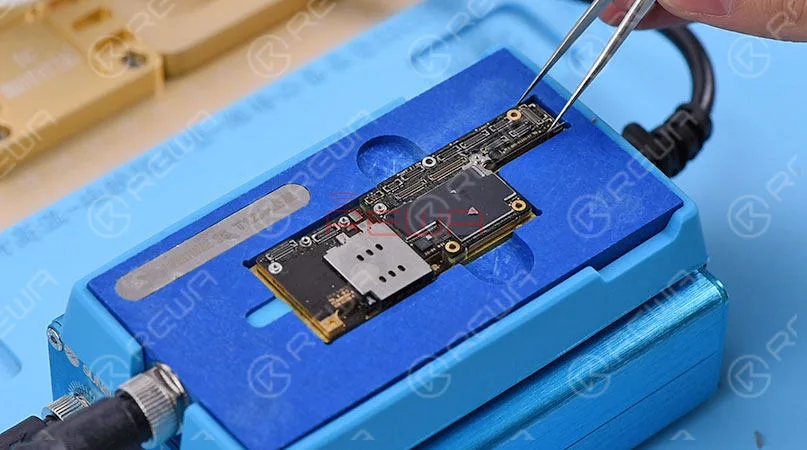
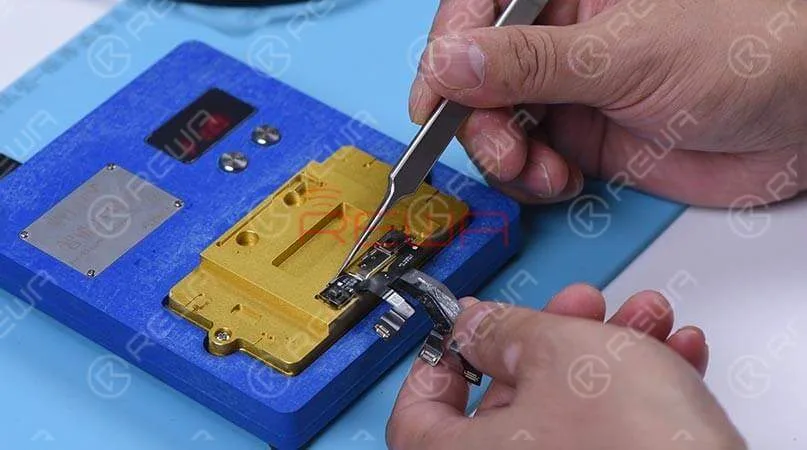
    In the first step, we should separate the crystal from the cable. Compared to traditional operations with a hot air gun, we prefer to use an intelligent preheating platform. Put the dot projector into the matching rubber mold and separate the crystal from the flex cable carefully with the blade.  Next, we use the repair programmer again to burn the origin data onto the new dot projector flex cable. After completing these two steps, we need to solder the dot projector module and glue a known-good crystal. For detailed instructions, click on the video at the bottom of the article
    troubleshooting iphone xs max face id not working dot projector repair 8

    Reassemble and Test 

    Apply double-sided adhesive tape on the backside of the front camera, and adhere the dot projector flex cable to the right position. Get the front camera assembly installed and get the logic board assembled and buckle the display assembly. Face ID can be set up successfully, and the phone can be unlocked with Face ID this time.  Tips: The double-sided adhesive tape used here is for the test. We need to glue the dot projector module onto the flex cable after fault clearance.

    Tools Used

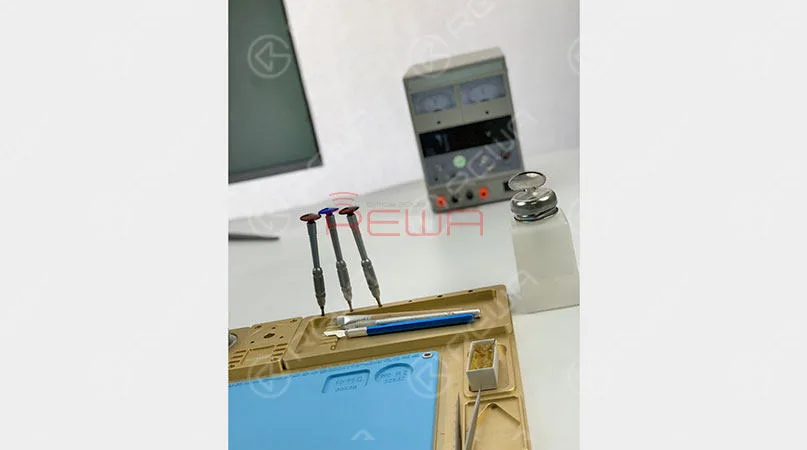
    Visit our online shop for more parts and tools.You can also visit REWA YouTube Channel to check our video.
  • Clean the Bonding Pads of iPhone XS Max

    Clean the Bonding Pads of iPhone XS Max

    Clean the bonding pads of the iPhone XS Max with soldering iron and solder wick

  • iPhone Xs Max Flickering Screen Caused By Mistake | iPhone Repair Tips

    iPhone Xs Max Flickering Screen Caused By Mistake | iPhone Repair Tips

    Develop a good habit and keep a well-organized workspace in daily repair work will help a lot for repair technicians. Today we share a special repair case – iPhone Xs Max flickering screen which caused by the technician’s mistake.

  • Troubleshooting iPhone XS Max Portrait Mode Not Working

    Troubleshooting iPhone XS Max Portrait Mode Not Working

    Many iPhone XS Max users have the complaint that the Portrait Mode on their phones is not working. And it’s not a strange thing to see that questions like ‘Why does my iPhone XS Max Portrait Mode not working’ and ‘How to fix my iPhone XS Max Portrait Mode not working’ have been so frequently searched on Google. If you are one of them, this article will help you to solve this issue. Here REWA is going to tell you how to fix Portrait Mode not working on iPhone XS Max.

    Usually, there are two different causes for Portrait Mode not working on iPhone XS Max. Software problems or hardware problems. Here we have some solutions for software problems.

    Note: Don’t use portrait mode in dark places or low light. Because portrait mode will not work in low light. And make sure that the distance between the phone and the subject is proper(neither too far nor too close). Keep at least 19 inches distance between the phone and the subject.

    1. Restart your iPhone XS Max or camera app. 2. Upgrading iOS: Go to Set->General->Software Update. 3. Reset all settings: Go to Set->General->Reset-> Reset All Settings. 4. Restore your iPhone XS Max to Factory Settings(Factory Reset): Go to Settings->General->Reset-> Erase All Contents and Settings. Take a backup before resetting your iPhone to Factory Settings, since this action will erase all data from your device.

    So, these are some methods to resolve the iPhone XS Max portrait mode not working issue. You can try them out. However, if nothing works, the possible situation is that the motherboard or the camera has been damaged. In this case, you need to have the damaged one replaced. Well, you can also follow our solution below.

    The first thing we do is to check if the Portrait Mode is in a normal status. Open the camera app and swipe to portrait mode. We can see clearly that the background is not blurred. Which indicates that the wide-angle lens is working normally, while the telephoto lens is not working at all.

    iPhone XS Max Portrait Mode Not Working Troubleshooting

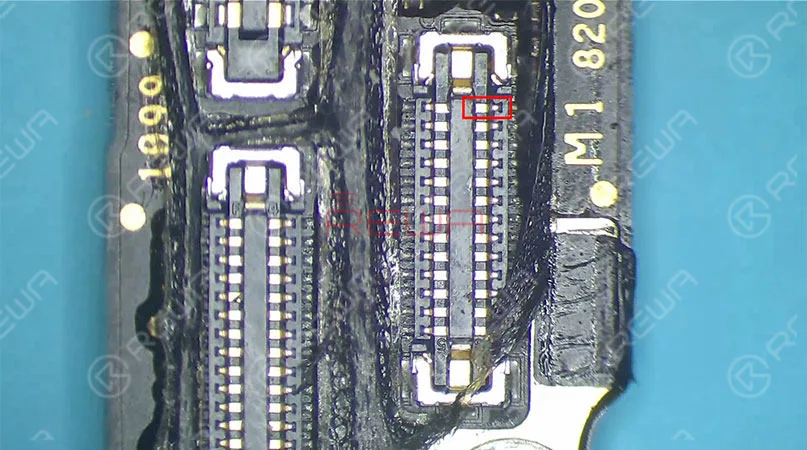
    Take apart the phone and take out the motherboard. Run diode mode measurement of the Tele camera connector J4000. The measured value of Pin 25 is OL, which is abnormal. Which also indicates that Pin 25 relevant circuit has open-circuited(The circuit is formed by a zero-ohm resistor R4006, several capacitors and the camera power supply IC U3700). Since capacitors have nothing to do with the open-circuited condition. So the first thing we do is to check the zero-ohm resistor R4006. Run diode mode measurement of R4006. Judging by the measured value, R4006 has not open-circuited. We can confirm that the fault is probably related to U3700.

    iPhone XS Max Portrait Mode Not Working Troubleshooting

    Try to replace with a new camera power supply IC. You need to separate the upper and the lower layer first. And then detach U3700. Continue to clean the bonding pad and solder a new camera power supply IC. Solder the two layers together later. Detailed steps go as follows:

    iPhone XS Max Portrait Mode Not Working Troubleshooting

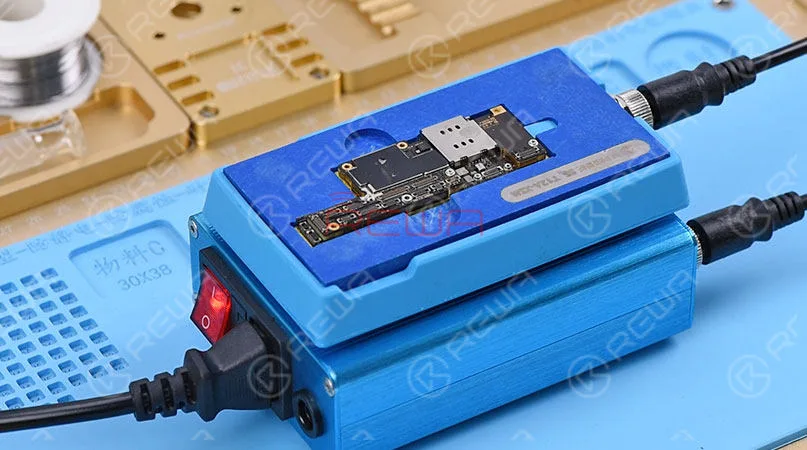
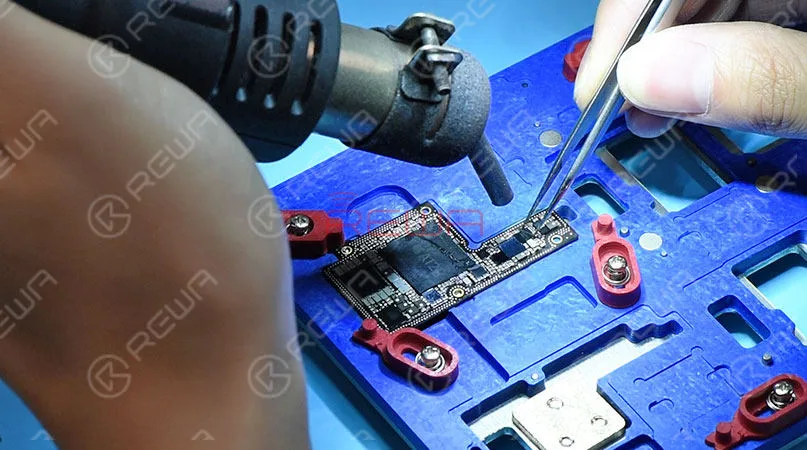
    Place the motherboard on the Heating Platform. This machine can quickly desolder & resolder iPhone XS Max double-layer motherboard. It offers heat evenly that can protect the motherboard from damage. With accurate temperature control and temperature adjustment, it is highly recommended for motherboard repair. Pick up the upper layer with tweezers once solder on the third space PCB has melted, and detach U3700 from the board with Hot Air Gun.

    iPhone XS Max Portrait Mode Not Working Troubleshooting

    Apply solder to clean the bonding pad first. Then clean thoroughly with rosin soaked Solder Wick. Clean with PCB Cleaner afterwards. Get a new camera power supply IC in position and solder with Hot Air Gun. Next thing we need to do is to solder the two layers together. Clean the third space PCB with rosin soaked solder wick first, then reball the lower layer. Solidify the third space PCB with Paste Flux afterwards. Once done, apply some BGA Paste Flux to the third space PCB. Get the upper layer and the lower layer in position. Use the iPhone XS Max Motherboard Soldering/Desoldering Rework Station to solder the double-layer motherboard.

    iPhone XS Max Portrait Mode Not Working Troubleshooting

    Once we have confirmed that the motherboard has been soldered successfully, we can assemble the phone and test. Warm tips: get the phone full assembled after confirmation of fault clearance. Get the motherboard and display assembly installed. Connect the battery and press the power button. The iPhone XS Max turns on normally. Open the camera app and swipe to Portrait Mode. We can see that the subject is being focused and the background is blurred. The Portrait mode not working on iPhone XS Max issue has been solved successfully.

    iPhone XS Max Portrait Mode Not Working Troubleshooting

    PLUS:  with our unique teaching system, REWA offline training course can help technicians improve their repair skills by mastering repair thoughts and repair techniques.

    Tools used:

    iPhone XS Max Motherboard Soldering/Desoldering Rework Station

    Explosion-Proof PCB holder for iPhone XS/XS Max

    Hot Air Gun Rework Station – 990AD

    Soldering Iron Rework Station – 969A

    Electron Microscope – Type 1

    Digital Multimeter

    LCD Opening Pliers

    Solder Wick

    Rosin Soldering Flux

    Straight Tweezer

    Curved Hook Tweezer

    Screwdriver

    Soft Brush

    Anti-static Plastic Pry Bar

    Stainless Steel BGA Scraper

  • Troubleshooting Guide: iPhone XS Max Issues & Fixes

    Troubleshooting Guide: iPhone XS Max Issues & Fixes

    For each generation of iPhone, they updated great features to its new devices. However, each new handset is encountered with specific problems from its release day.

    Since the launching of iPhone XS/iPhone XS Max, users have experienced several problems and faults. Let’s see what are the problems are and how to fix them.

    Annoying green line on the display

    Apple shifted to OLED display since iPhone X in 2018.

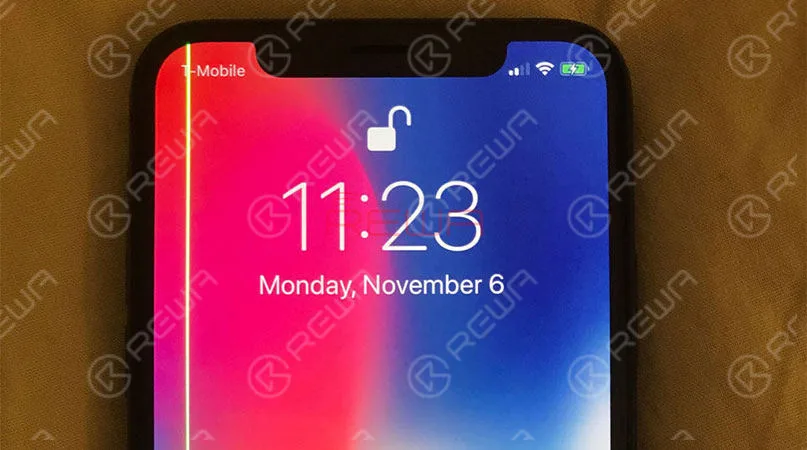
    However, a user in Australia reported that a bright green line running vertically across the screen of his iPhone XS Max after a period of use.

    A number of customers encounter this issue after this.

    Solution

    For this problem, Apple will replace the device in warranty.

    If you are experiencing this vertical green line of pixels on the side of your iPhone, it’s time to make an appointment with the Apple Store.

    troubleshooting guide iphone xs max issues fixes the newest common and

    Poor Cellular Connection and slow WIFI speed

    According to users of iPhone XS/iPhone XS Max, their devices featured fewer bars and poorer signal compared to its last generations.

    Sometimes even shows “no service”, especially in the area of the weak signals. While these claims are rapidly growing in number, In addition to LTE problem, other users claimed that their devices appear to be slower WIFI speed.

    The majority of people experiencing slower speeds found that their iPhone XS models were connected to the 2.4GHz network rather than the 5GHz network.

    Solution

    Some speculated that Apple switch from Qualcomm to Intel for the iPhone’s modem may be to blame.

    Others pointed out that this is unlikely to be the root of the problem. Anyway, Apple has pushed out IOS 12.0.1, which fixes the LTE and WIFI issues.

    6 Common Issues & Fixes of iPhone XS/iPhone XS Max

    Charging gate

    Some users have trouble charging the devices over a wired connection.

    They find their iPhone XS can’t charge with their charging ports plugged in.

    Unless unplug the charger, wake up the screen, and then plug it in all over again, it begins to charge. But not all iPhone XS models are experiencing the problem.

    What’s more, some people with older handsets are reporting with similar behavior. That suggests the issue might actually be with the latest software update iOS 12.

    Solution

    That means it could be fixed with a software update.

    6 Common Issues & Fixes of iPhone XS/iPhone XS Max

    Beauty gate

    Users taking to the forums are saying Apple’s new iPhone selfie camera automatically smoothens the skin in photos shooting from the front camera, which makes them look too good. And there is no way to disable it. This is the most unacceptable

    Solution

    According to Apple, the selfie camera system on the iPhone X uses faster sensor improved chips, and “advanced algorithms” to make your photos look better with a feature called “Smart HDR.” users can go Setting > camera > Smart HDR to disable the beauty mode.

    6 Common Issues & Fixes of iPhone XS/iPhone XS Max

    Audio connectivity issue caused by Bluetooth

    A small number of iPhone XS and iPhone XS Max owners are enduring Bluetooth connectivity issues where their iPhones fail to communicate with their car’s entertainment system properly.

    Solution

    This problem does not yet have an Apple-supplied solution.

    6 Common Issues & Fixes of iPhone XS/iPhone XS Max

    Dust inside the camera lens

    This is a minor issue actually. Some users claimed that dust getting inside the camera lens continuously. Which make the camera not perform well.

    Actually, just because they’re sealed up tight doesn’t make the iPhone immune to dust and dirt. The environment gets involved too.

    Solution

    To get rid of this problem, take it to the Apple Store to get it cleaned out.

    6 Common Issues & Fixes of iPhone XS/iPhone XS Max

    If you have an iPhone XS and XS Max that are facing any of the above issues, do let us know in the comments section.