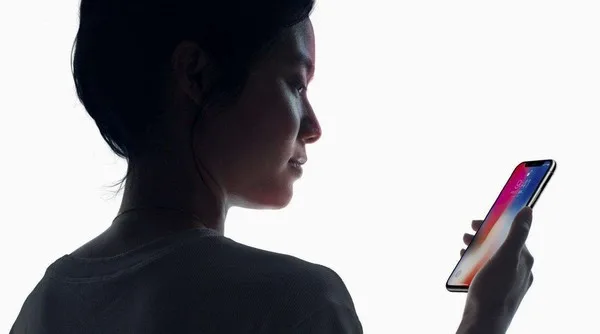
Face ID is a facial recognition system that replaces Apple’s Touch ID fingerprint scanner on certain devices. It uses sensors located near the iPhone’s front-facing camera to scan your face and, if the scan matches the stored data, perform actions such as unlocking the phone or authorizing an Apple Pay transaction.
How Does Face ID Work?
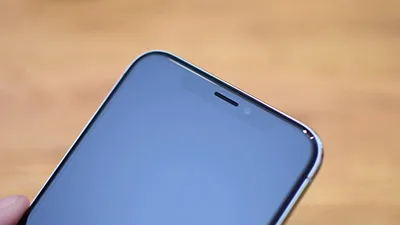
Face ID relies on sensors located in the notch at the top of compatible iPhone screens. These sensors include:
- Dot Projector: This projects over 30,000 invisible dots onto your face, creating a 3D facial map.
- Infrared Camera: It reads the dots from the Dot Projector and captures an image.
- Flood Illuminator: This additional infrared light ensures that Face ID works even in low-light conditions.
The facial map created by the infrared camera is then compared to the data stored on your iPhone to unlock the device or authorize an Apple Pay transaction. It’s also used for features like creating animated emojis based on your facial expressions.
Apple claims that Face ID is intelligent and sensitive enough to recognize you even if you change your hairstyle, wear glasses, grow or shave facial hair, or age. However, there have been some instances where Face ID has misidentified individuals, including twins and children who closely resemble their parents.
What Is Face ID Used for on an iPhone?
Face ID is used for various purposes, similar to Touch ID, including:
- Authorizing Apple Pay transactions.
- Unlocking the iPhone without using a passcode.
- Providing access to your Apple ID and passwords
What Devices Support Face ID?
Face ID is supported on the iPhone X and newer models. It’s possible that, like Touch ID, Face ID may eventually be added to other Apple devices like the iPad.
Is My Face Scan Stored in the Cloud?
No, Face ID data is not stored in the cloud. All face scans are kept directly on your iPhone, specifically in the “Secure Enclave,” a chip dedicated to securing sensitive data. This is also where fingerprint data from Touch ID is stored.
How Secure Is My Face Scan?
Face ID is highly secure due to the way the Secure Enclave functions. Your actual facial scan isn’t stored on your iPhone. Instead, it’s transformed into a numerical representation that is stored on your device. Even if someone were to somehow access the Secure Enclave data (which is extremely unlikely), they would only find a numerical code, not an actual scan of your face. This makes it nearly impossible to misuse the data in other facial recognition systems.
How to Set up and Use Face ID
Setting up Face ID is straightforward, and you likely did it during the initial iPhone setup. You position your face within the onscreen frame and rotate your head until the circle is filled in. Repeat this process as instructed by the phone. If you skipped this step during setup, you can later add Face ID by going to Settings > Face ID and Passcode and following the onscreen instructions. You can also add alternative appearances to Face ID, such as someone you trust or different photos of yourself with varying facial features.
How to Disable Face ID
To quickly disable Face ID, press the side button and volume down buttons simultaneously. To re-enable Face ID, you’ll need to enter your passcode.
How Does Face ID Compare to Other Smartphone Facial Recognition Systems?
Face ID has been widely praised for its accuracy, speed, and ease of use. The transition from Touch ID to Face ID was smoother than anticipated. In contrast, some other facial recognition systems, such as those used by Samsung, have been shown to be less secure and easier to trick, even with a simple photo. Samsung does not allow its facial scans to authorize financial transactions, as Touch ID can on an iPhone.
Using Face ID When Wearing a Face Mask
With the iOS 14.5 update, users can unlock their iPhone X and later use Face ID while wearing a face mask. This feature requires an unlocked Apple Watch Series 3 or later to be nearby. Simply glance at your iPhone, and your Apple Watch will provide haptic feedback to confirm that the iPhone is unlocked.
Frequently Asked Questions
How does Apple Face ID work with a scarf?
Face ID is designed to work with head coverings like scarves and eyewear. It should be able to recognize your face even if you are wearing a hat, scarf, glasses, contact lenses, or many types of sunglasses.
Does Apple Face ID work when eyes are closed?
No, it doesn’t. Face ID is attention-aware and can detect if your eyes are open and your attention is directed toward the device. This feature helps prevent someone from unlocking your device without your knowledge.
 English
 Español
 Français
 Deutsch
 Italiano