Tag: iphone crashing issue

  • Is It Time to Update Your iPhone 7 to iOS 15? Fixing the Crashing Issue

    Is It Time to Update Your iPhone 7 to iOS 15? Fixing the Crashing Issue

    In the world of smartphones, Apple has always been at the forefront of innovation, consistently releasing new iOS updates to improve the user experience. With the recent release of iOS 15, iPhone 7 users are now contemplating whether this update is worth the install. In this article, we’ll delve into the details to help you decide whether it’s time to update your trusty iPhone 7 to the latest iOS 15 or stick with your current system.

    A Noteworthy Continuation

    When we compare iOS 14 to iOS 15, it’s true that the changes might not seem revolutionary. The transition from iOS 14 to iOS 15 appears more as an evolutionary step, building upon the foundation of the previous version. However, don’t let this similarity deter you from considering the update.

    Device Compatibility

    iOS 15 continues to support the same range of devices as iOS 14, including the iPhone 6S, a testament to Apple’s commitment to long-term support. The iPhone 6S, with its 2GB of RAM, has seen a remarkable seven major updates, making it one of the most updated smartphones globally. If you’re still using an iPhone 6S, you can opt for the iOS 15 update without hesitation.

    The iPhone 7 Conundrum

    Despite the impressive track record of updates, some iPhone 7 users have been facing persistent crashing issues. The big question on their minds is whether iOS 15 can help alleviate these problems.

    Updating for Stability

    If your iPhone 7 is currently running an older iOS version, you may want to hold off on the update. Newer iOS versions like iOS 14 and iOS 15 introduce more features and designs, which can strain older hardware. This may result in a less than optimal user experience due to higher resource consumption. If your device is already experiencing performance issues, an update may exacerbate the problem.

    Resolving Crashes

    On the other hand, if your iPhone 7 is crashing frequently with iOS 14, you may want to consider updating to iOS 15. While the differences between the two versions are not groundbreaking, iOS 15 includes several optimizations and bug fixes aimed at resolving issues from previous versions. However, it’s worth noting that as of the time of writing, iOS 15 is still in beta, so some instability may persist. It’s essential to keep an eye on updates and bug fixes as they roll out to address these issues.

    Conclusion

    In conclusion, the decision to update your iPhone 7 to iOS 15 depends on your current circumstances. If your device is running smoothly with an older iOS version, you might want to stick with it, as updating could lead to performance issues. On the other hand, if you’re experiencing crashes with iOS 14, consider the update to iOS 15, with the hope that it brings stability improvements. Keep in mind that iOS 15 is still in the beta phase, so some instability is expected.

    By assessing your device’s current state and needs, you can make an informed decision about whether or not to update to iOS 15. The key is to prioritize a seamless and enjoyable user experience while keeping up with the latest enhancements Apple has to offer.


  • What Should I do if iPhone is Running Slowly or Crashing?

    What Should I do if iPhone is Running Slowly or Crashing?

    If you find that your iPhone is running slowly or crashing, it may be caused by the following reasons, you can gradually check and try to solve the problem.

    iPhone running slowly Check network conditions

    Many apps on the iPhone need to connect to a fast network to function properly. If your connection is congested, the app may take some time to open or display the corresponding content. When you sit in a vehicle that is driving, the device will continue to reconnect the new signal tower, so it may look slowly.

    This situation is better to determine, such as web refresh, slow or unable to display pictures, at which point you can wait patiently or try to replace a faster network.

    If the app is not responding or crashing

    If an App stops responding or crashes, you will need to force shutdown this app in the background and open it again.

    After re-opening, the application still does not respond or crash. The applications are likely not compatible with the system. You can try to go to the App Store to update application, or consider deleting applications to re-download.

    Make sure the iPhone has enough storage space

    You can check the storage space of the device in “Settings” – “General” – “[Device] Storage Space”. To achieve optimal performance, try maintaining at least 1GB of available space. If the available storage space is less than 1GB, the speed of the device may slow down because iOS needs to make space to store other content.

    If you need to release some space, follow these steps to open iOS built-in storage space Savings Suggestions: 

    1.Go to “Settings” – “General” – “[Device] Storage Space”, then read the iOS possible suggestions.

    2. Tap “Enable” to open the suggestion, or tap the title to view the content you can delete.

    If you have not seen any suggestions, or you need to release more space, you can view the app on the device. “[Equipment] Storage Space screen will list these apps directly, and it will also display the size of the space occupied.

    Tap an app, you can choose from the following options: 

    1. Uninstall the app to release the storage space occupied by the app, but retain its documents and data.

    2. Delete the APP that is no longer needed to remove the app and its related data.

    Please note that if the storage space will be full: 

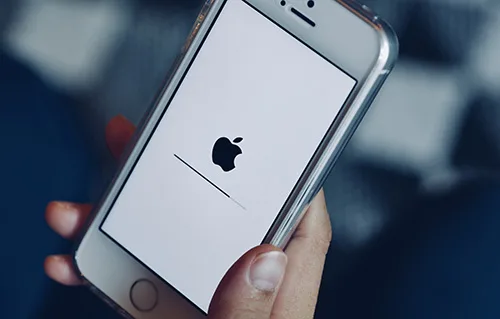
    When the iPhone storage space is full and runs very slowly, don’t try to restart your device immediately, it may cause the device to be stuck in Apple logo. Please do not use the device for the time being, waiting for its own available space, then back up your data immediately, and clean up the iPhone storage space to make more space.

    Avoid overheating the equipment or too cold: 

    If the device becomes overheated due to the external conditions (for example, the device is left in a very high temperature, or if it is used for a long time in direct shooting), iOS will adjust the performance of the device. Move the device to a cool place so that it adjusts the temperature.

    The very low temperature will also make the running speed of the device slow down. If the device is slow to run in a cold environment, move it to a relatively warm place.

    Check battery health: 

    All rechargeable batteries are consumption components. With the growth of battery-level age, the performance of the battery will decrease. With the increase of the use time, the capacity and peak performance of the rechargeable battery in all iPhone models decline, and eventually needs to be replaced. iOS can display battery health and will prompt to replace the iPhone battery. Please go to “Settings” – “Battery” and tap “Battery Health”.

    If “Battery Health” is as low as 80% or less, it is recommended to replace the battery to get a better experience.

    Test if the touch screen is normal: 

    If the touch screen does not respond properly, it may make the device look slow. If you think the touch screen does not respond correctly, try restarting your iPhone. If this doesn’t work, and multiple Apps have this problem in the same area of the screen, then you can visit REWA Academy for help.



