Tag: iphone black screen

  • iOS 18 Update Causing Black Screen Problems? Here’s What You Need to Know

    iOS 18 Update Causing Black Screen Problems? Here’s What You Need to Know

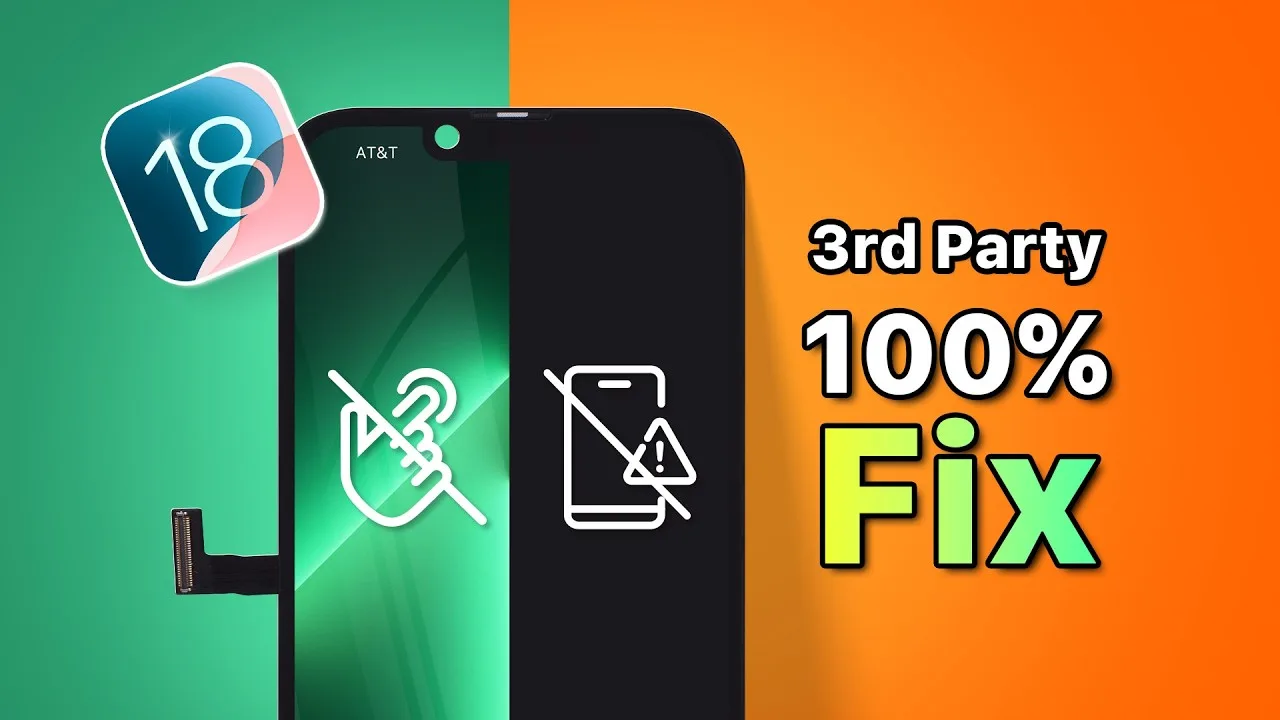
    Are you facing issues with your aftermarket iPhone screen after updating to iOS 18? You’re not alone if you’ve noticed problems like iphone black screens, unresponsive touch, or glitches. This blog post will walk you through the reasons behind these compatibility issues and provide a step-by-step guide on resolving them, ensuring your 3rd-party screen works seamlessly with your device again.

    Understanding the Compatibility Issues

    The recent release of iOS 18 has introduced changes that can lead to compatibility issues with certain aftermarket screens. These issues primarily arise from the IC (integrated circuit) data on these screens becoming incompatible with the new protocols implemented in iOS 18.

    Some common symptoms include:

    • Black screens
    • No touch response
    • Glitching or flickering display

    These problems have only been observed on specific models, particularly the iPhone 13 Pro. If you are experiencing any of these issues, don’t worry. There is a solution!

    Essential Tools You’ll Need 🛠️

    To fix your 3rd-party screen, you’ll need a few specific tools:

    • A programming tool
    • Adapter board/clamp probe (specific to your model)

    This guide will demonstrate the programming process using the iPhone 13 Pro. If you need a detailed operation guide, feel free to contact our sales representatives.

    Step-by-Step Programming Process

    Follow these steps to update the IC data and restore compatibility:

    1. Prepare Your Programming Tool

    Start by extracting the zip file or inserting the USB drive that contains the necessary files.

    2. Connect the Programming Tool to Your Computer

    Connect the programming tool to your computer. Then:

    • Right-click on “This PC” and select “Manage.”
    • Go to “System Tools” > “Device Manager.”
    • Locate “Other devices” > “Unknown device” and select “Update driver.”
    • Choose “Browse my computer for drivers.”
    • Locate the driver file directory and wait for the installation to complete.

    3. Connect the Clamp Probe

    Next, connect the clamp probe to the programming tool and clamp it onto the screen to establish a secure connection.

    4. Deactivate Any Antivirus Software

    Before proceeding, deactivate any antivirus software that may interfere with the programming process.

    5. Run the Programming File

    Locate the decompressed folder and run the “programmer.bat” file. Follow these steps:

    • Select “Open an existing programmer project” and click “Browse.”
    • Choose the correct folder for the iPhone 13 Pro.
    • Select the appropriate version of the file.
    • Choose the “.xcf” file and click “OK.”
    • Click the “Start” button to begin programming.

    6. Complete the Programming Process ✅

    Wait for the programming to complete. Once done, carefully remove the screen and test it on your phone.

    If the issue persists, consider trying other file versions to see if they resolve the problem.

    Conclusion 🎉

    Updating the IC data using the programming tool can effectively restore compatibility for your 3rd-party screen with iOS 18. If you encounter any issues during the process or need further assistance, don’t hesitate to contact our sales team for support.

    For more electronic solutions and to join our REWA Wholesale Program, reach out to us for special discounts and free quotes. We are here to help you with all your electronic repair needs!

    Don’t forget to check out our online store for high-quality parts at REWA Shop and learn more about mobile repair training courses.
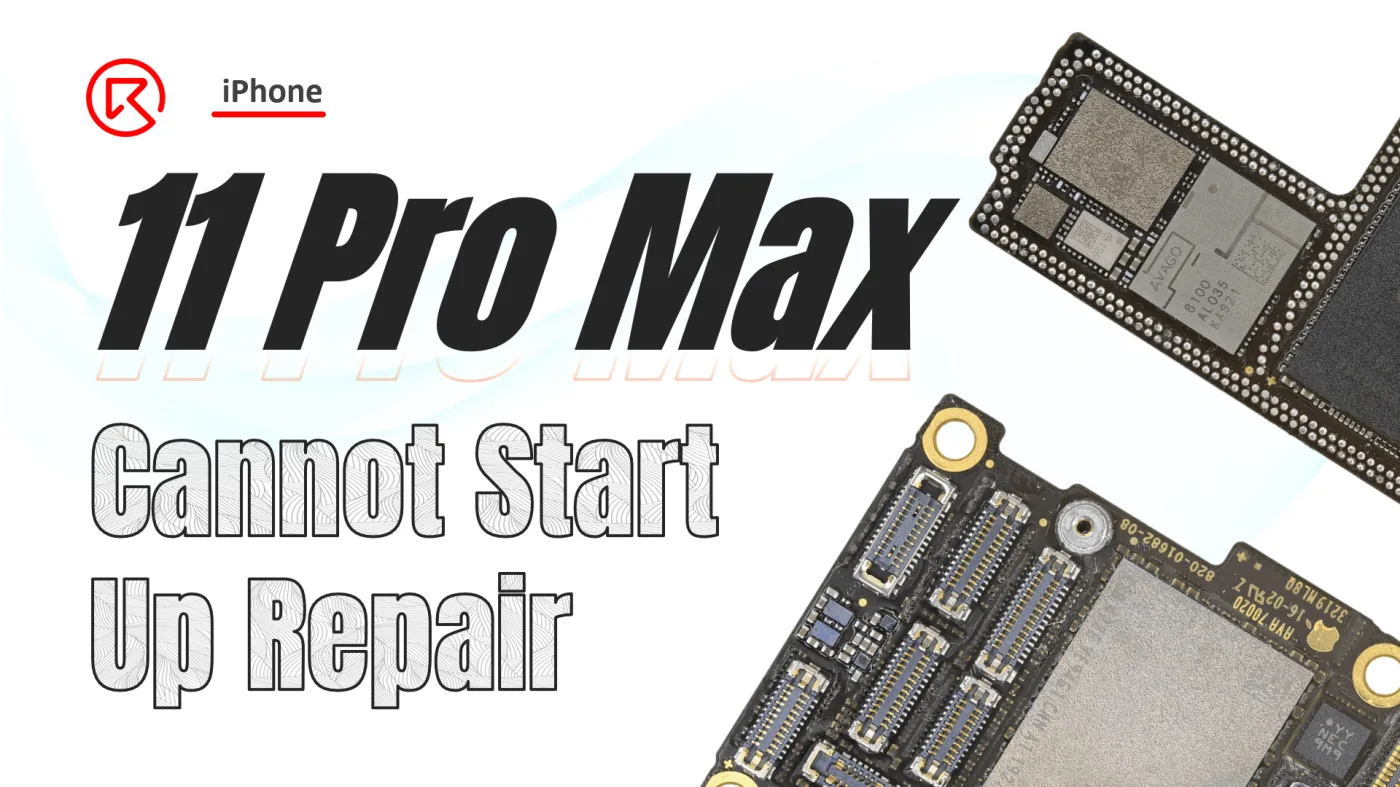
  • iPhone 11 Pro Max Black Screen and No Boot Issue Repair

    iPhone 11 Pro Max Black Screen and No Boot Issue Repair

    The iPhone 11 Pro Max is a powerful device, but even the best smartphones can run into issues. One common problem is when the screen suddenly turns black, and the phone refuses to boot. In this guide, we’ll take you through the step-by-step process of diagnosing and repairing this issue. Whether you’re a professional technician or a DIY repair enthusiast, this article will help you troubleshoot and resolve the no-boot problem on your iPhone 11 Pro Max.

    iphone 11 pro max

    Phone Details

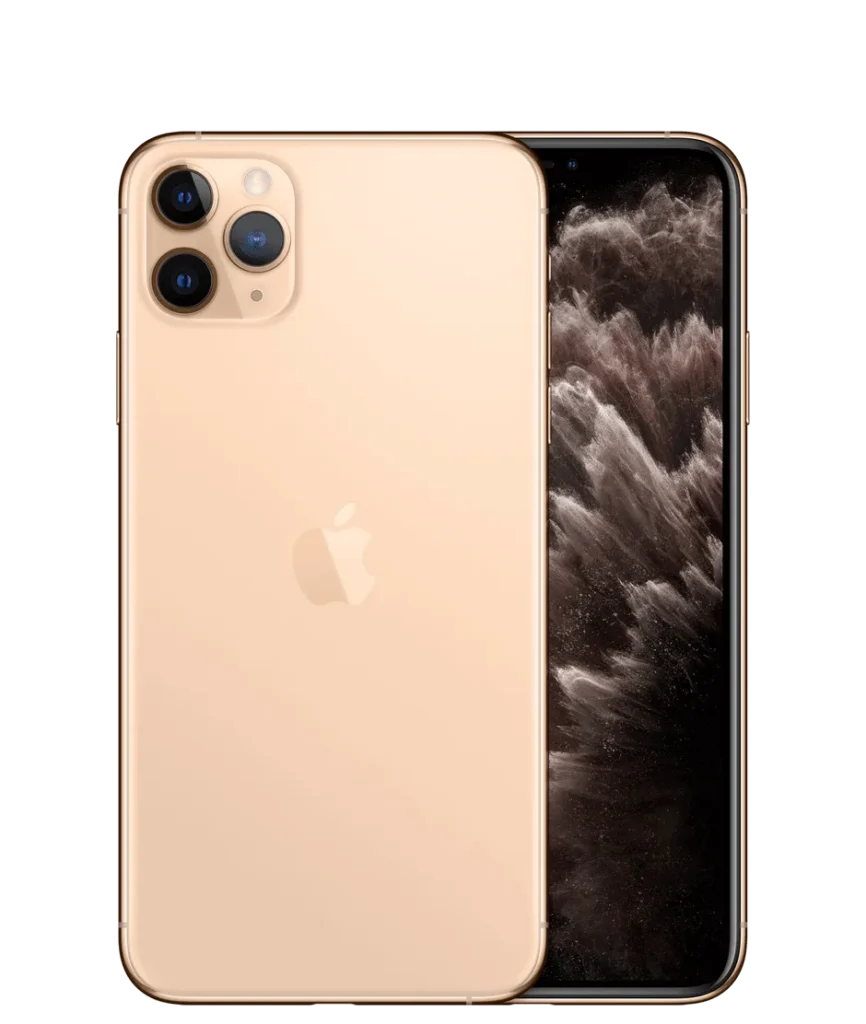
    Model: iPhone 11 Pro Max

    Announced: 2019, September 10

    Defect Phenomenon

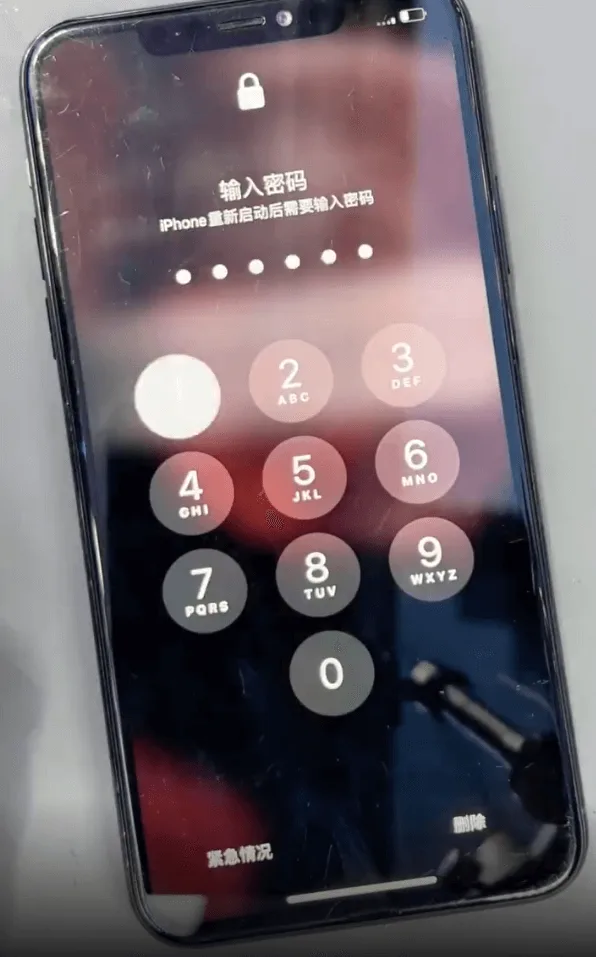
    The iPhone 11 Pro Max suddenly experienced a black screen and could not boot during regular use.

    Troubleshooting

    1: Initial Assessment

    iphone 11 pro max black screen no boot issue repair cannot start up
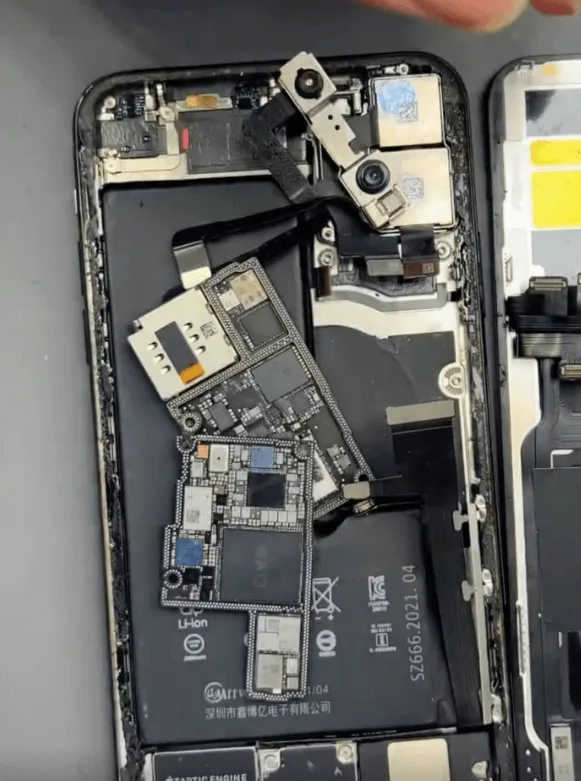
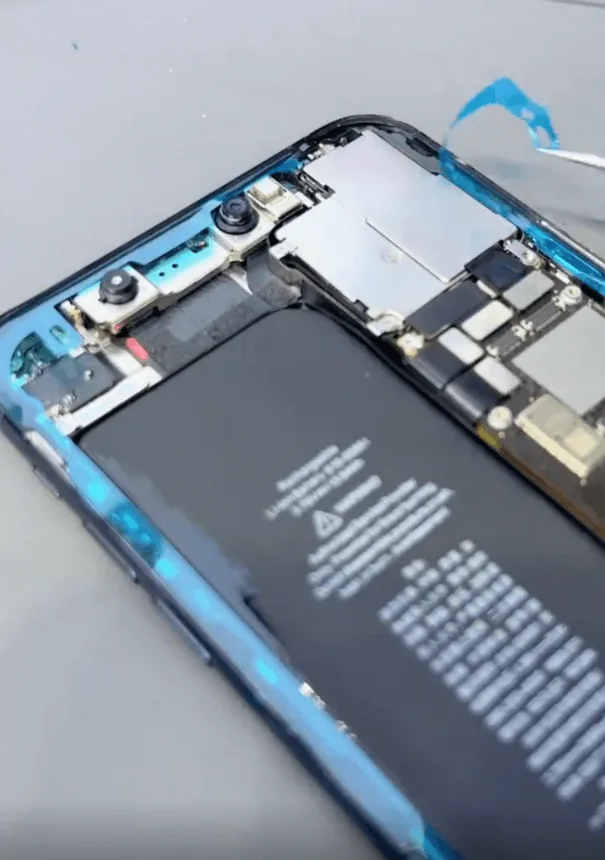
    • The phone was previously repaired by another technician. Upon receiving it, the motherboard was already separated. A visual inspection revealed no signs of physical damage or water exposure.

    2: Testing the Motherboard

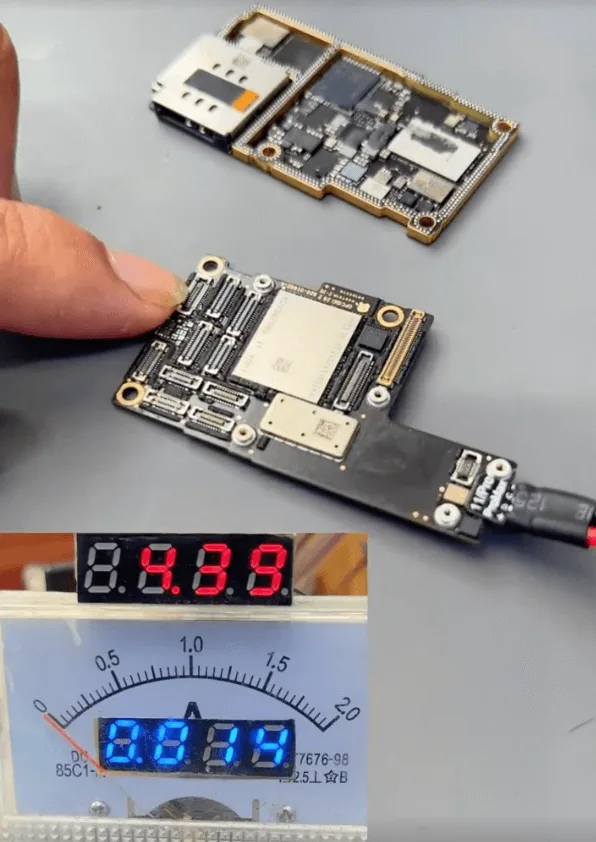
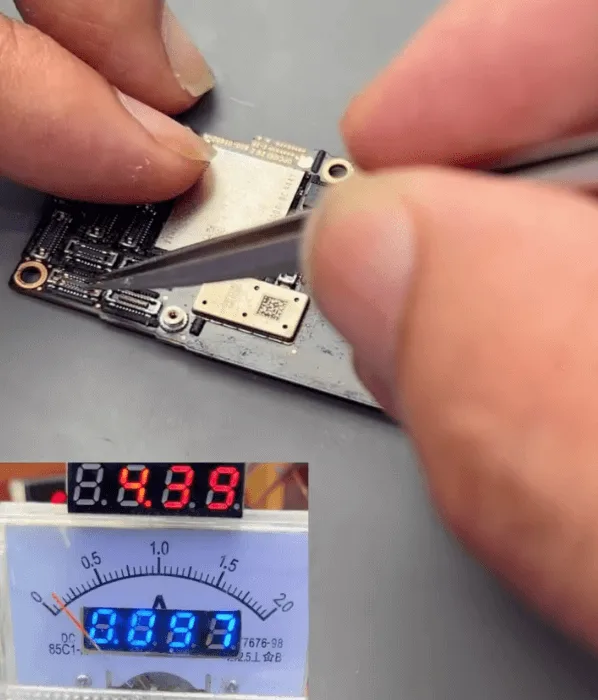
    • Connect the upper layer of the motherboard to a DC power supply and attempt to trigger the boot process using tweezers.
    • The boot current is fixed at 14mA, which suggests a problem with the NAND chip or CPU, particularly with the power supply rails.

    3: Diagnosing the Power Supply Issue

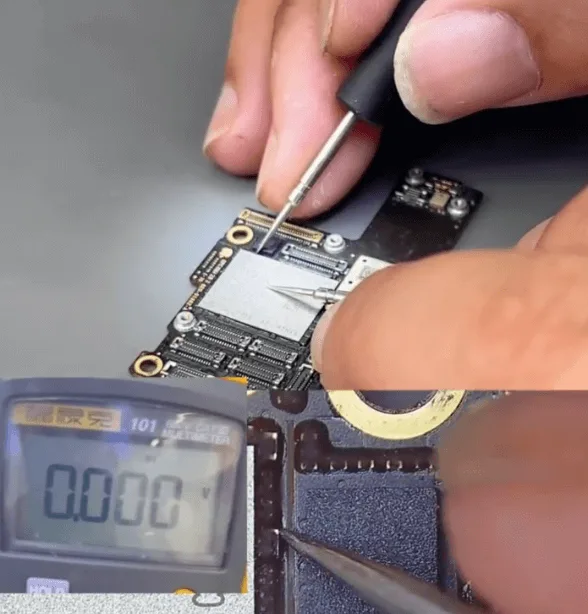
    • Use a multimeter to check the power supply rails associated with the NAND chip and CPU.
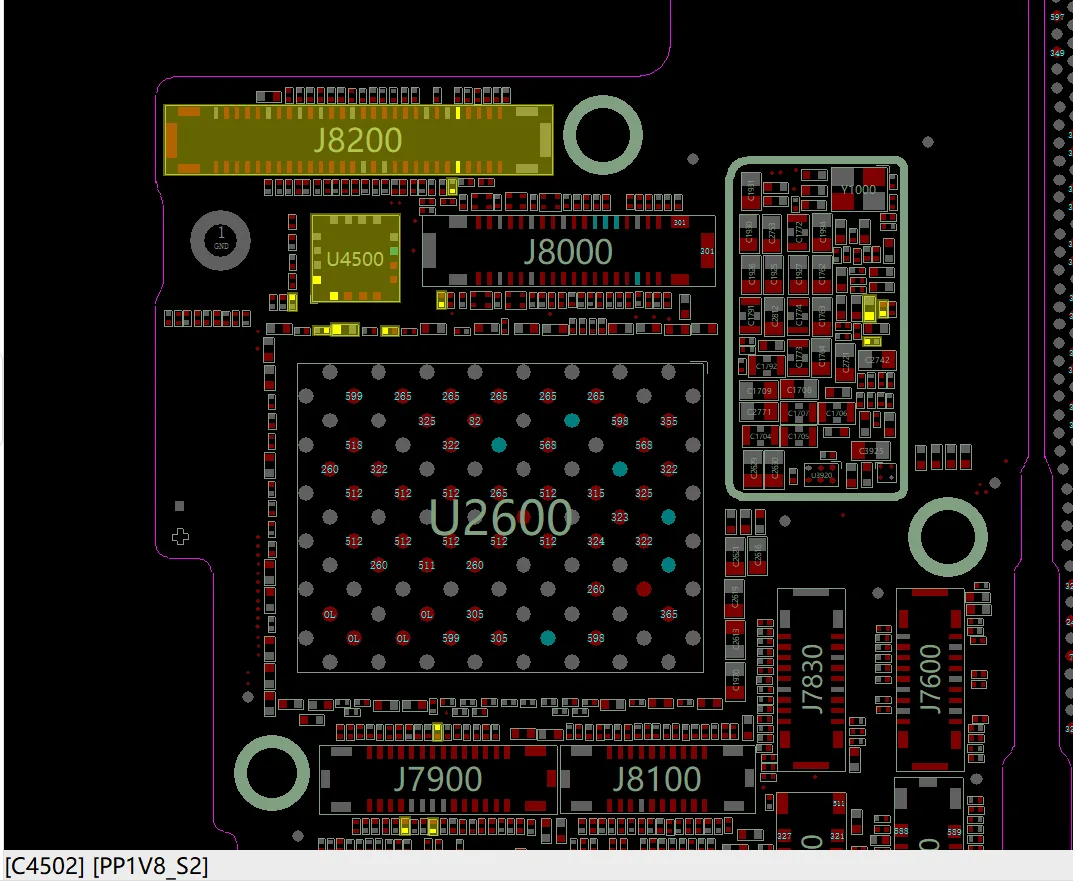
    • After carefully checking the small capacitors around the NAND chip, one rail shows a short circuit. The affected rail is the 1.8V power supply rail (PP1V8_S2) for the NAND.

    Repair Process

    1: Removing the Shorted Capacitor

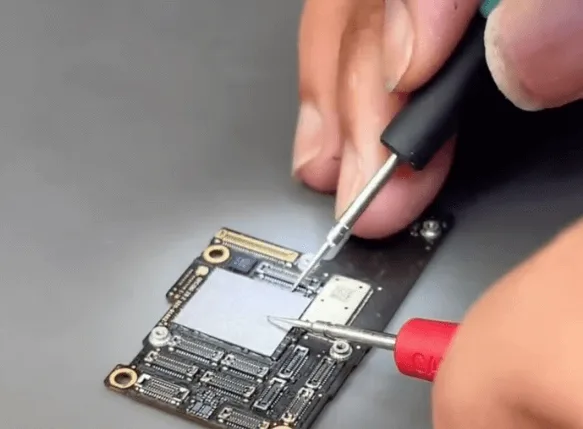
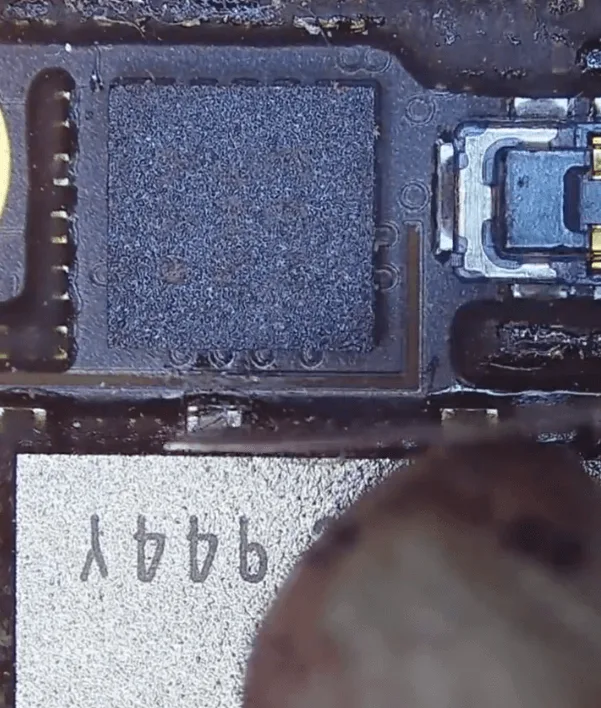
    • Carefully remove the black glue covering the NAND chip using a hot air gun and a blade knife.
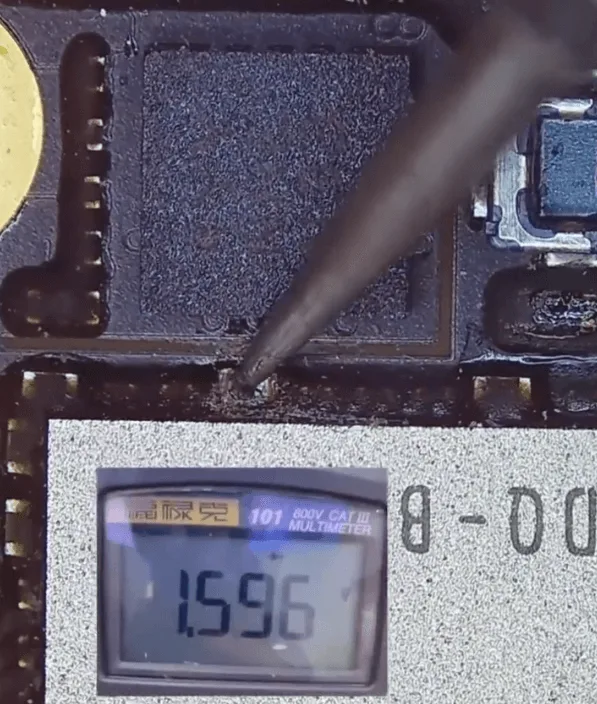
    • Identify and remove the shorted capacitor, which is a filter-type capacitor. Since it’s a filter capacitor, it can be safely removed without replacement.

    Recheck the diode value on the rail after removing the capacitor, and confirm that it has returned to normal.

    2: Reassembling the Motherboard

    • Connect the motherboard to the DC power supply and trigger the boot process again. This time, the boot current returns to normal.
    • Recombine the two layers of the motherboard using a hot air gun, ensuring a proper fit.

    3: Final Assembly and Testing

    iphone 11 pro max black screen no boot issue repair phone can be booted
    • Reassemble the motherboard with the housing and other parts, taking care to install the waterproof seal sticker.
    • Assemble the screen and press the power button to conduct a final test.
    • After testing, all functions of the phone are working correctly. The no-boot issue has been successfully resolved by removing the shorted filter-type capacitor.

    Conclusion

    Repairing an iPhone 11 Pro Max that won’t boot due to a black screen can be a challenging task, but by following a systematic approach, the issue can be identified and resolved. In this case, removing a shorted capacitor from the NAND power supply rail restored the device to full functionality. For those facing similar issues, this guide provides a clear path to bring your device back to life. Stay tuned for more detailed repair guides to help you tackle even the most complex smartphone issues.