Tag: iphone battery health

  • Aftermarket Solutions to Calibrate iPhone Battery Health on iOS 17.4

    Aftermarket Solutions to Calibrate iPhone Battery Health on iOS 17.4

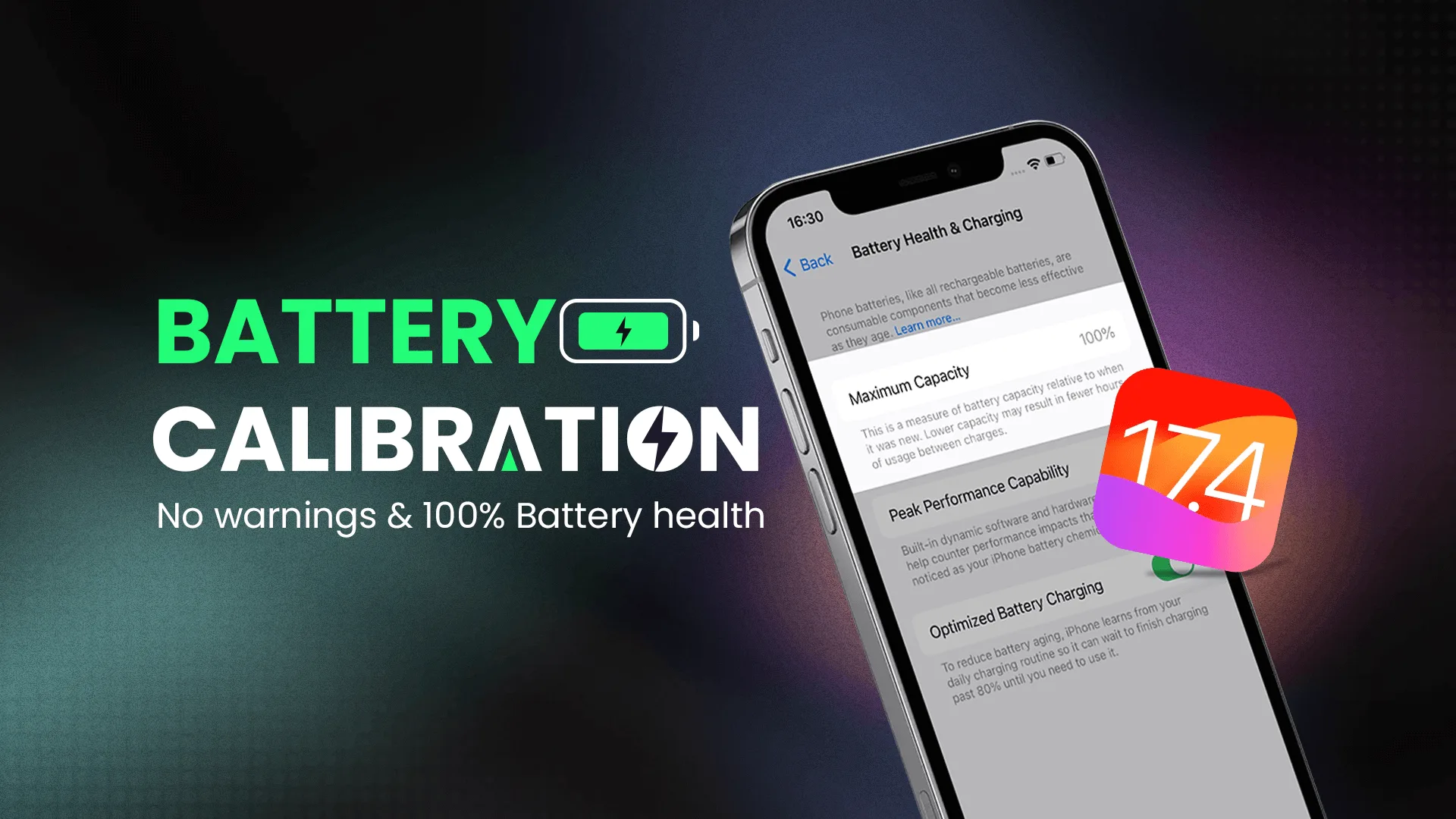
    iOS 17.4 has introduced numerous new features, primarily focusing on iPhone battery health and aftermarket repair. An in-depth video analysis conducted by REWA Tech reveals the changes to the battery health display on iPhones, introducing a new level of transparency to the iPhone 15 series, including detailed battery health percentages, cycle counts, and dates corresponding to the manufacture and initial use of the device. However, the video also discusses the challenges faced by third parties due to the newly imposed restrictions, despite these advancements.

    Learn how earlier iPhone models are affected by iOS 17.4 and what to expect if you completed a battery health repair before updating. The video assures viewers that battery health repair for these models is not affected by the update. It exposes the challenges faced by independent repair shops when faced with Apple’s stringent policies, while emphasizing the importance of the right to repair, which ensures that users are in control of how they maintain their devices.
  • No Programming, 100% Health – Revealing the new method of iPhone Battery Repair

    No Programming, 100% Health – Revealing the new method of iPhone Battery Repair

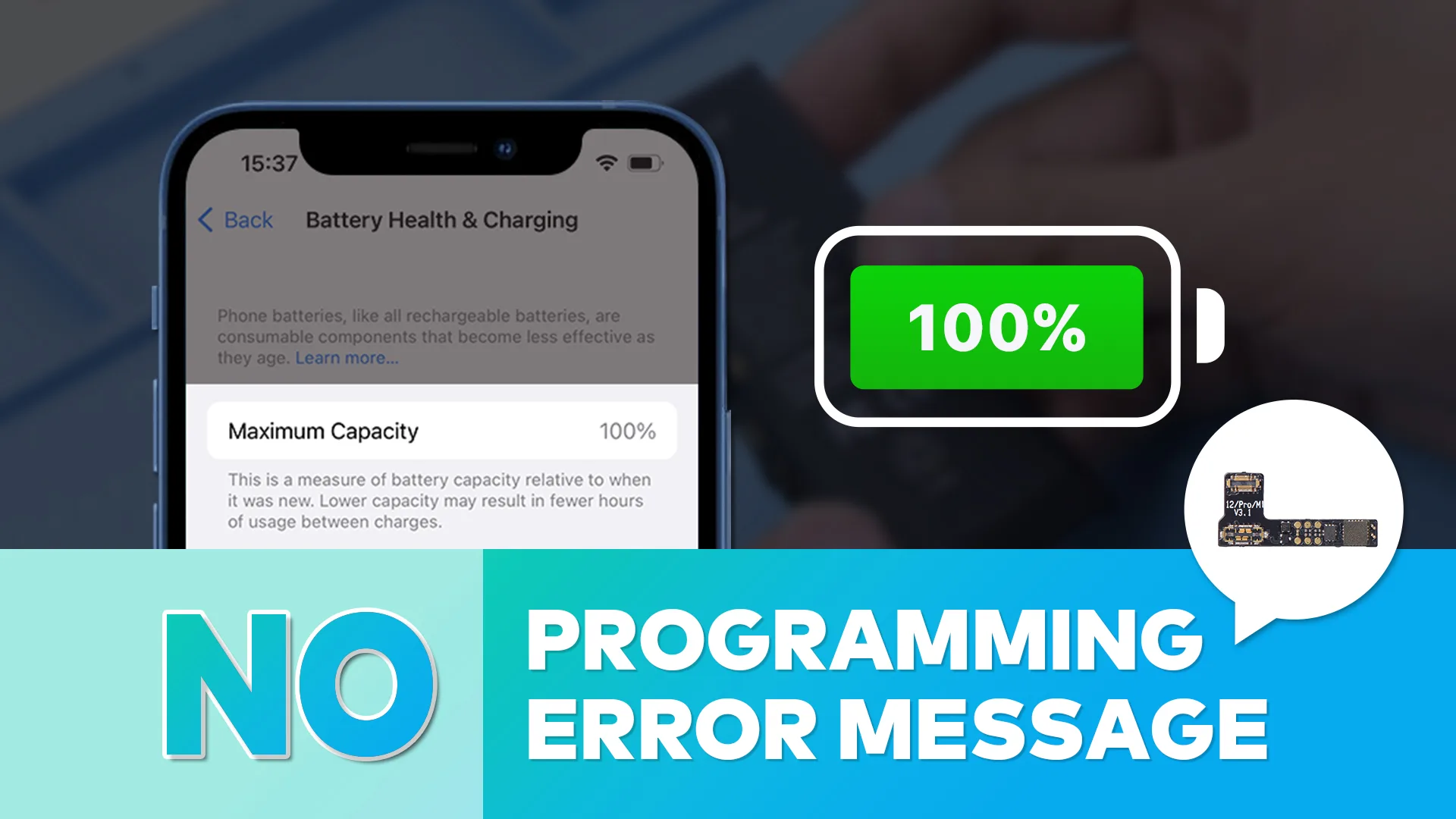
    Are you tired of complicated battery repair methods that require extensive programming knowledge? REWA Technology has the solution for you! In this video, we’ll showcase the latest battery repairing method that requires no programming at all. Gone are the days of connecting a repair programmer and an extension board to modify the data. All you need now is a REFOX tag-on flex that comes pre-set with the value of 100% battery health and 0 cycles. Once installed, restart your device, and the battery health will be 100%.

    This revolutionary method is a game-changer in the world of iPhone battery repair. Not only is it faster and easier, but it’s also more reliable. Plus, the no-programming approach means that anyone can perform the repairs, even without programming experience. If you’re looking for a more efficient and effective way to repair your iPhone’s battery, this video is a must-watch. Join us as we reveal the latest method for achieving 100% battery health without any programming.

  • How to improve iPhone battery life!

    How to improve iPhone battery life!

    Watching videos on YouTube, reading news, playing games and replying email will all consume the battery life greatly.

    There are many ways that can be used to save power. Some are not very convenient or not effective, while some are useless on the latest operating system, but below are proven ways to extend battery life.

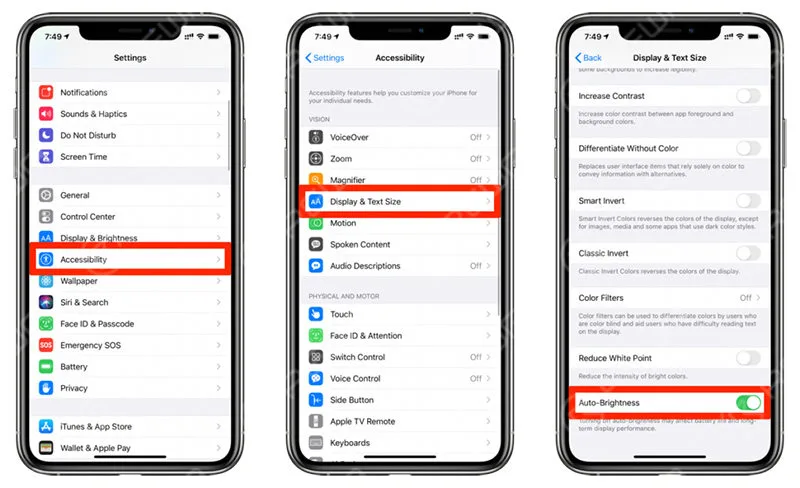
    Turn off auto- brightness

    The brighter the screen, the faster the power consumed by the iPhone battery.

    Turn off auto- brightness

    Go to Settings > Accessibility > Display & Text Size > Auto-Brightness.

    The brightness of the screen depends on the surrounding environment. Turning off this feature can avoid unnecessary power consumption. In the future, if you want to change the brightness, open the control center and use the slider to control the screen brightness.

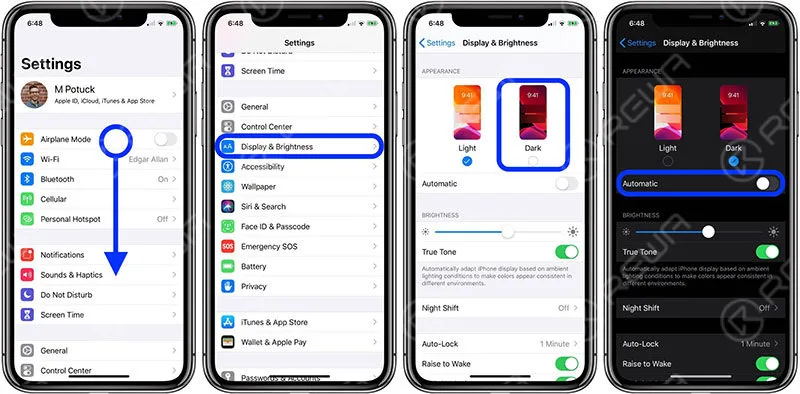
    Switch to dark mode

    Dark mode is a feature starting from iOS 13. It browses the part that is displayed in the white so far and switches to color matching in black.OLED’s iPhone will help increase the battery. OLED does not use the power to display in black, so dark mode is used to increase the battery time.

    The corresponding model is as follows

    iPhone X

    iPhone XS / XS Max

    iPhone 11 Pro / Pro Max

    iPhone 12/12 Mini / 12 Pro / 12 Pro Max

    Setting – display and brightness, light and dark, switch here

    Switch to dark mode

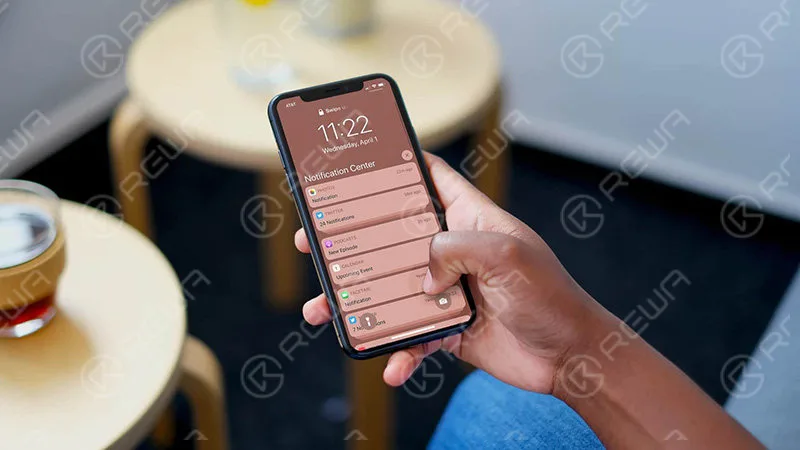
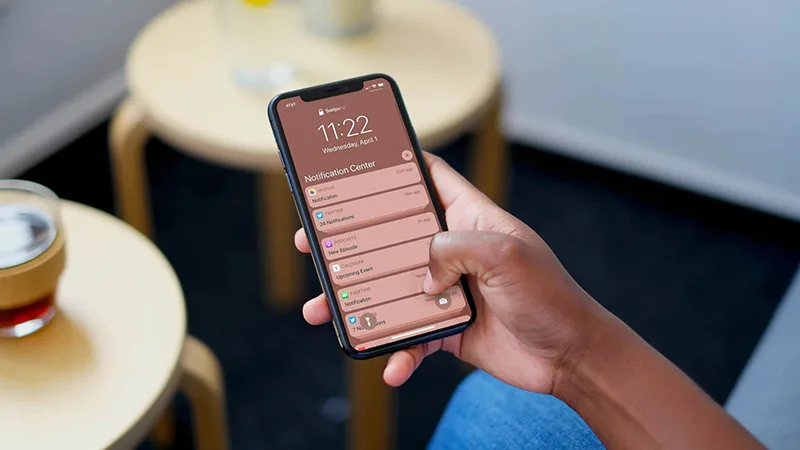
    Reduce unnecessary notifications

    When the iPhone receives the notification, the battery is powered by the battery, so you can manage the battery consumption by managing the required and unnecessary notifications.

    Which application notification is not important, turn off the notice.

    Reduce unnecessary notifications

    Open the “Settings” app and proceed to “Notification”. Then select the app from the list and switch off “Allow notification” and disable it.

    Conclusion

    This time, we introduced settings to suppress the battery consumption of the iPhone.

    By customizing the 3 choices introduced above, the battery consumption of the day is considerably reduced.