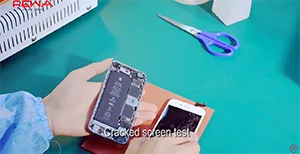
This video shows you how to refurbish & repair the broken iPhone 6S Screen. Including glass, front bezel, POL film, backlight unit and 3D touch replacing.
Tag: iphone 6s
-
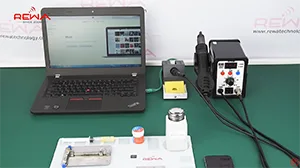
Upgrade iPhone 6S 16GB Storage to 128GB
Where there is a demand, there is an opportunity. As more and more iPhone 16G users are not satisfied with its storage, a new iPhone memory upgrade technique arose. REWA tell you how to upgrade your iPhone 6s 16GB memory storage to 128GB.
Attention:
- Apple official after-sale support does not accept the phone repaired by third-party.
- There is a possible risk for upgrading iPhone. If this technology was widely applied, Apple official may take some measures to stop this.
- Skilled repair techs are required for the operation.
-
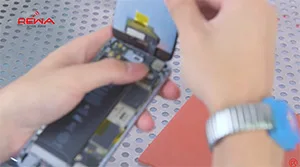
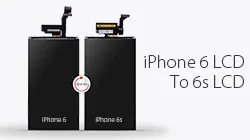
A Cheaper Solution To Fix iPhone 6s 3D Touch Backlight
There is now a way to transfer iPhone 6 backlight to iPhone 6S backlight, which can save you a considerable amount on each piece. Check it out today if you are looking for more information about repair and refurbishing.
-
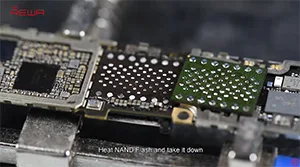
iPhone 6s Hardware Unlock / Bypass iCloud
How to Bypass iPhone 6s Activation Lock in Hardware?
Process:
1. Take down the chips on the motherboard without iCloud
2. Take off chips on the motherboard with iCloud
3. Bond the chips onto the iCloud motherboard
-
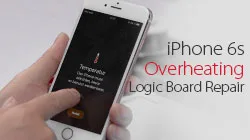
iPhone 6s Overheating Fix – Exclusive Logic Board Repair
iPhone 6s overheating and getting hot? Usually the problem is caused by excessive running apps, but in this tutorial video, we demonstrated a logic board repair method. After current detecting and rosin detecting, we can confirm that the problem was caused by damaged capacitors inside the WiFi module. With our repairing experience, we adopt a exclusive repair solution to fix the iPhone 6s high temperature warning screen issue.
Tools Used:
- Integrated Mobile Phone Repair Platform
- Digital Hot Air Rework Station – 861DW
- Digital Soldering Iron Rework Station – 203H
- Straight Tweezer – Type 3
- PCB Cleaner
- Heat-resisting Adhesive
- Soft Brush – Type 1
- Sculpture Knife
- PCB Holder – Type 1
- Communication Maintenance Power Supply
- High Purity Rosin Soldering Flux
-
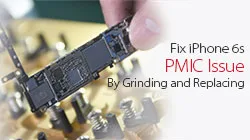
Fix iPhone 6s Won’t Turn On – PMIC Grinding and Replacing
If your iPhone has a black screen and won’t turn on, what should you do? Go to the Apple store and repair it or fix it by yourself? But for whatever choice, you’d better read this article first, we’ll help you determine the reason why your iPhone won’t turn on and show you how to fix your iPhone won’t turn on.
REWA is a world-leading electronics(especially for iPhone) repair business solutions provider, we have the most professional and experienced technical engineers, and we provide the most sophisticated mobile cellphone repair tutorial and cell phone repair parts.
Why does my iPhone 6s won’t turn on?
There are two reasons cause your iPhone 6S won’t turn on, one is software, the other is hardware, so you should determine whether your iPhone won’t turn on due to a hardware or software problem?
So when your iPhone 6 won’t turn, you can do these five things first:
1. Recharge your iPhone
Most iPhone 6 won’t turn on because its battery is totally drained, so you can recharge your iPhone and then try to turn on your iPhone.
2. Restart your iPhone
To restart your iPhone press and keep holding down the Sleep/Wake button on the top of the handset until the red slider appears onscreen. Slide it across to turn it off then repeat to turn the phone back on. If the iPhone is frozen and can’t be restarted in the normal way do the following: Press and hold the Sleep/Wake button and the Home button simultaneously for at least 10 seconds. If the red slider appears or the screen dims, keep pressing the two buttons until the Apple logo appears.
3. Reset your iPhone
Click on Settings then General then Reset All Settings. This will perform a reset of all the settings to the factory defaults. The data or content on the iPhone is unaffected.
4. Restore
If all else fails, you will need to perform a full back up and Restore your iPhone. Click on the Summary tab and then click Restore. Click on Restore. Wait until your iPhone completes the restore process and resets to the Home screen.
5. Force devise into recovery mode
- Turn off your IOS device.
- Plug the USB cable into your computer – but not into the device
- Hold down the Home button then plug the USB cable into the device
- When you see the Connect to iTunes screen (below), release the Home button. If you don’t see this screen, repeat steps 1 to 3.
If all the steps fail, we can determine it is your iPhone 6s hardware problem, our video mainly solves this iPhone 6s won’t turn on – PMIC Grinding and Replacing.
Recently, some clients complained about the iPhone cannot turn on issue after holding the power key – no Apple logo, just black screen. Causes can be different and solutions flexible. Here in this video, REWA offers a logic board repair solution regarding this iPhone 6s won’t turn on the issue.With PMIC Grinded and replaced, you can fix your iPhone 6s won’t turn on problem easily by following our operations.
The iPhone won’t turn on normally after holding the power key. Run detection process and we find that the logic board comes with leak current as 900mA and the PMIC is over-heated. Whereas capacitance around the PMIC shows no short-circuit. Therefore we can draw the conclusion that the PMIC is damaged and need to be replaced with a new one.
-
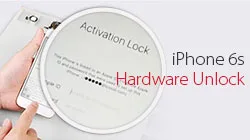
How To Bypass iPhone 6s Activation Lock In Hardware
Do you have your iPhone iCloud locked? When you forgot your iPhone iCloud account and passwords you will not be able to use your mobile phone, or if you paid for your second-hand phone, the previous owner can still block you from using it. They can do this by keeping the device locked to their iCloud account and not allowing you to log into the phone.
For the first question, you can ask Apple’s official service for help, but if you paid for your second-hand phone, it will be a little trouble, there are two solutions, one contacts the owner of the iPhone, and the other one is to bypass your iPhone activation lock in hardware.
REWA provides video steps to teach you how to bypass iPhone 6S activation lock-in hardware.
REWA Warning
The video is made for technical sharing, if you have a locked iCloud, please contact Apple’s official service
REWA provides a video step to teach you how to bypass iPhone 6S activation lock-in hardware.
Process:
1. Take down the chips on the motherboard without iCloud
2. Take off chips on the motherboard with iCloud
3. Bond the chips onto the iCloud motherboard
iCloud unlock tools:
We also provide some other different safe iCloud removal methods by which to unlock iCloud-locked iPhones. So read on if you have an iCloud-locked iPhone with you!
Solution 1: Bypass iCloud activation on iPhone through DNS method.
In the activation window, press the home button and then select Wi-Fi settings and then tap on the ‘I’ bonded by a circle. Now it’s time to remove the existing DNS server and put a custom one in motion. Now, let’s follow the steps below to bypass iCloud activation on iPhone.
How to bypass iCloud activation lock steps:
Step 1: Enter the new DNS server as 78.109.17.60.
- USA/North America: 104.154.51.7
- Europe: 104.155.28.90
- Asia: 104.155.220.58
- Other areas: 78.109.17.60
Step 2: Tap on “Back” > “Done” > “Activation help.”
Step 3: You will see a message that would appear saying you have successfully connected to my server after the previous step. And then you need to tap on the “Menu” on the top right.
Step 4: Scroll through a number of applications available for use such as YouTube and select the appropriate application which you think can provide the information you require for the owner of the phone.
Solution 2: Bypass iCloud activation online
You can check this website Official iPhone unlock to bypass iCloud activation online, Official iPhone unlock is a professional iPhone unlock website, which can provide online service to easily unlock your iCloud activation lock, but you need to pay some money for their service. And I think it is a nice choice if you encounter iCloud activation lock problems, it is very easy. After you paid then you will get your iCloud account unlocked in 1-3 days.
Solution 3: Bypass iCloud activation on iPhone with a suitable tool
You can use some functional tools available that can come in handy in bypassing the iCloud activation for your iPhone or iPad. And we recommend the ‘iCloud activation bypass tool version 1.4’. The tool’s name abides by what it says and is a really easy tool to use. You can down and try.
-
iPhone 6s WiFi Module Repair Tutorial
Many people have experience of an unstable Wi-Fi connection or not able to connect to WiFi network at all, iPhone 6S WiFi failed to be turned on, the reboot did not work either. Don’t worry. Here we have the solutions for the WIFI module repair which can repair WIFI connection failure problem in 8 minutes by replacing the WIFI module.
To fix the iPhone 6S WiFi failure, we need to bond a new WiFi module and refresh the flash drive data. Here are all the detail steps of how to repair iPhone 6S WiFi Module.
The Tools and materials we need to use:
- PCI-E Hard Disk Repair Tool
- Hot Air Gun with Electric Soldering Station
- PCB Holder – Type 2100g Solder Wire – Type 1
- Insulation mat for the Maintenance Platform
- Soldering Paste 50g – Type 1
- Apple iPhone 6s IC Solder Repair Plate BGA Tencil
- 1.5*25mm Philips Screwdriver
The detailed steps:
1. Open iPhone 6S screen and detach the flex cables and take out the logic board
2. Fix logic board with PCB holder, Stick heat resistant tape on 2 sides of WiFi module to prevent damage; and adjust the hot gun at 240℃ and scrape off the black adhesive
3. (Set hot air gun to 320℃ ), blow WiFi module for 1 minute for 1 minute and pry it with sculpture knife, apply some Paste Flux, remove tin with Soldering Iron, apply some rosin on solder wick, slick the Bonding Pad
4. Clean the Bonding Pad with PCB cleaner, stick heat resistant tape on 2 sides of the flash drive, blow flash drive for 1 minute and pry it, clean the Bonding Pad
5. Connect System Repair Tool to the computer with data cable and Press the power on-off button, open the software and refresh port, install the flash drive in the right direction, press the reset button
6. Access to the highest authority of flash drive and wait for all data query, you will see the WiFi and Bluetooth address(About the detail of this step, you can watch the tutorial video )
7. Take out the flash drive, apply some Paste Flux, align new WiFi module with Bonding Pad and blow the flash drive for 1 minute at 280℃, add a fresh coat of solder paste on the flash drive with BGA Stencil, heat the paste at 280℃ until soldering ball forming
8. Align flash drive in right direction and heat for 1 minute at 280℃, after cool down, remove the residue from WiFi module and flash drive
9. The last, install the logic board, LCD screen, and then you can test your WiFi.
 English
 Español
 Français
 Deutsch
 Italiano