Tag: iphone 13 face id

  • No-Solder Fix for Face ID Not Working on iPhone 13–15 Series (New Repair Method)

    No-Solder Fix for Face ID Not Working on iPhone 13–15 Series (New Repair Method)

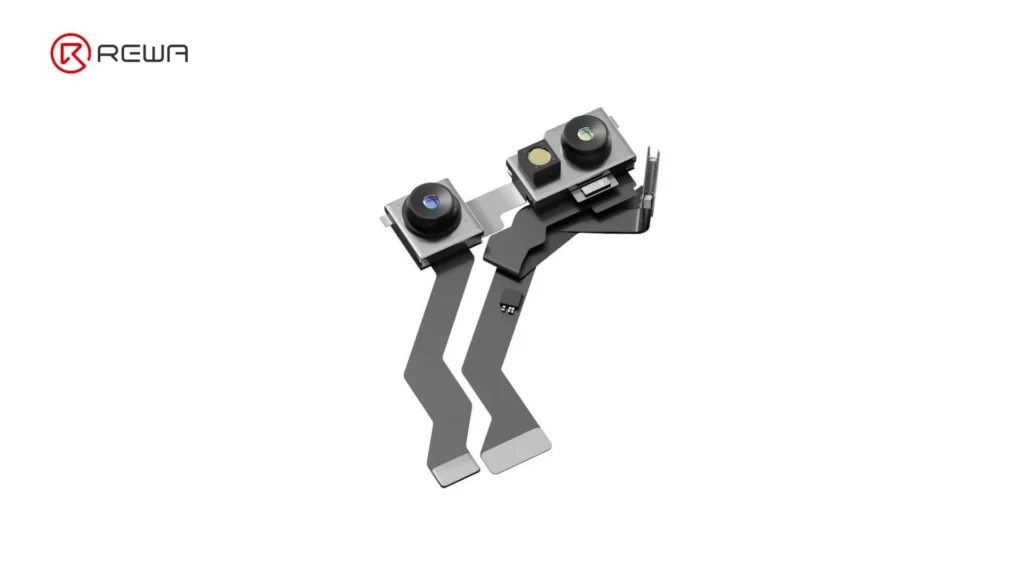
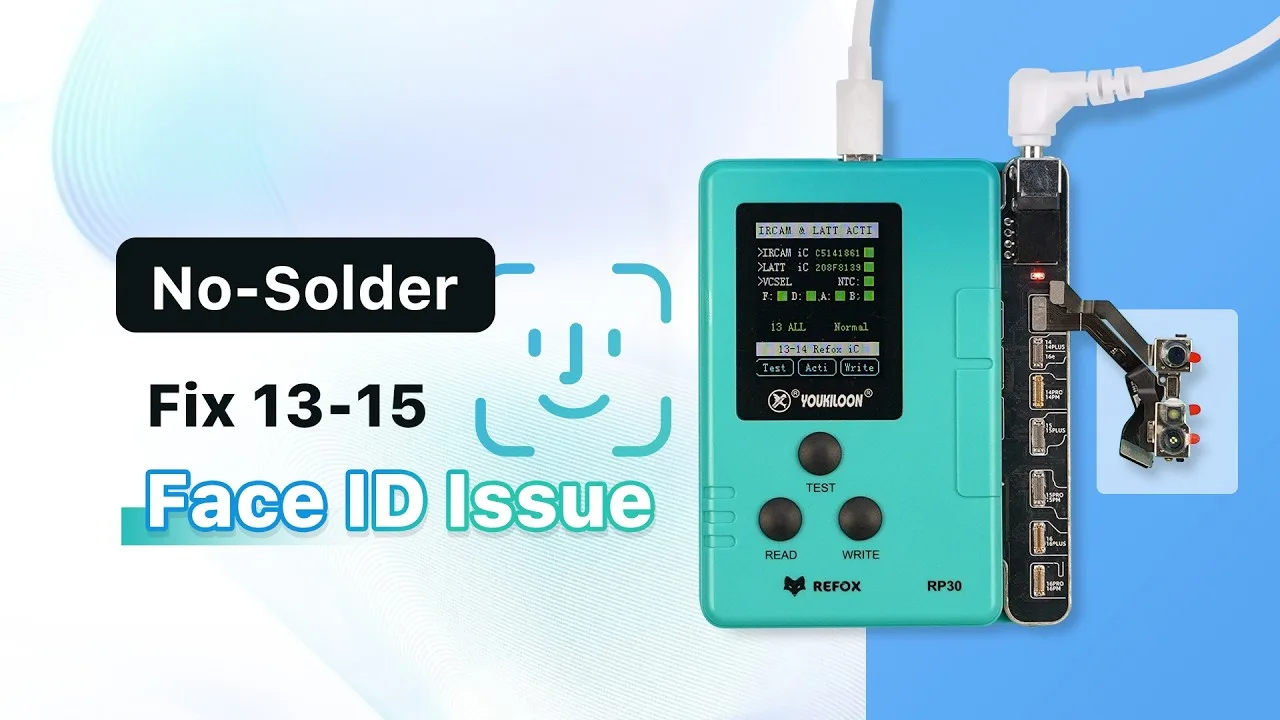
    When Face ID malfunctions on iPhones with a Dot Projector IC issue, traditional repairs typically require risky soldering or board-level replacements. However, a new no-solder solution now out for fixing Face ID on iPhone 13 through iPhone 15 series devices. By using the REFOX Face ID programmer, you can restore full Face ID functionality safely, reliably, and without disassembling the module. In this repair case, we demonstrate how we successfully repaired a Face ID not working on an iPhone 13 Pro Max using this innovative method.

    Step-by-Step: Fixing Face ID Not Working on iPhone 13-15

    Step 1: Confirm the Issue

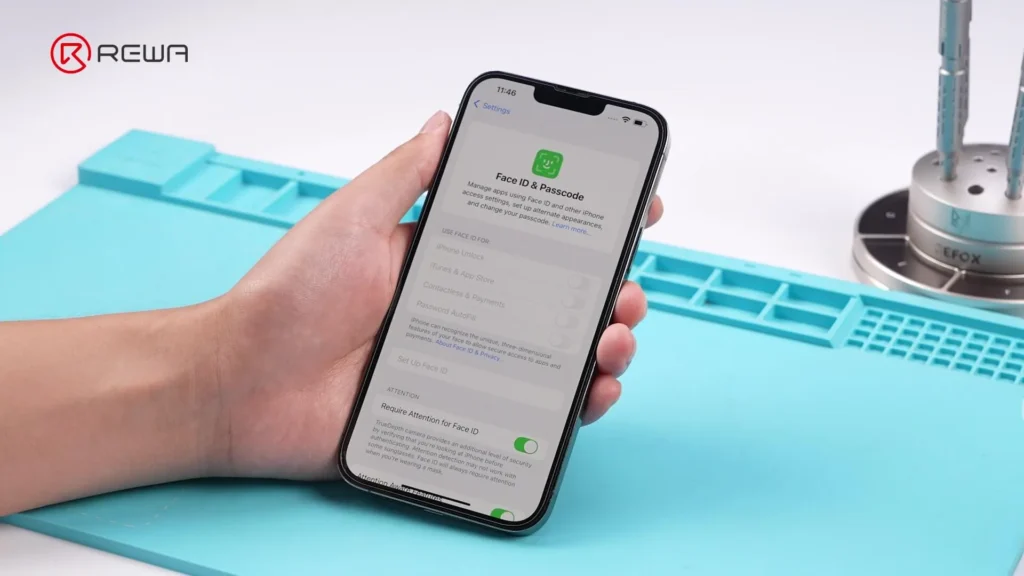
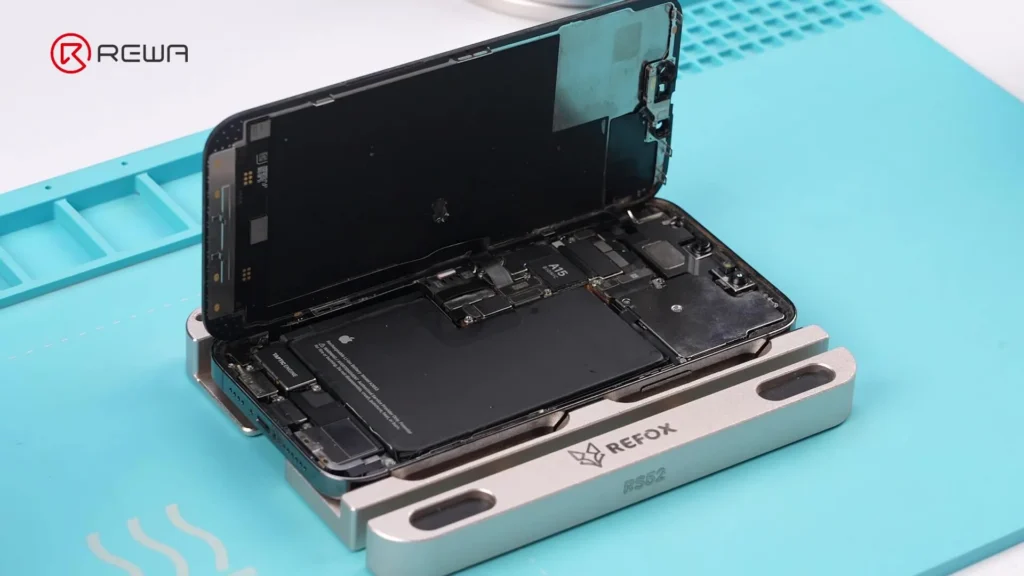
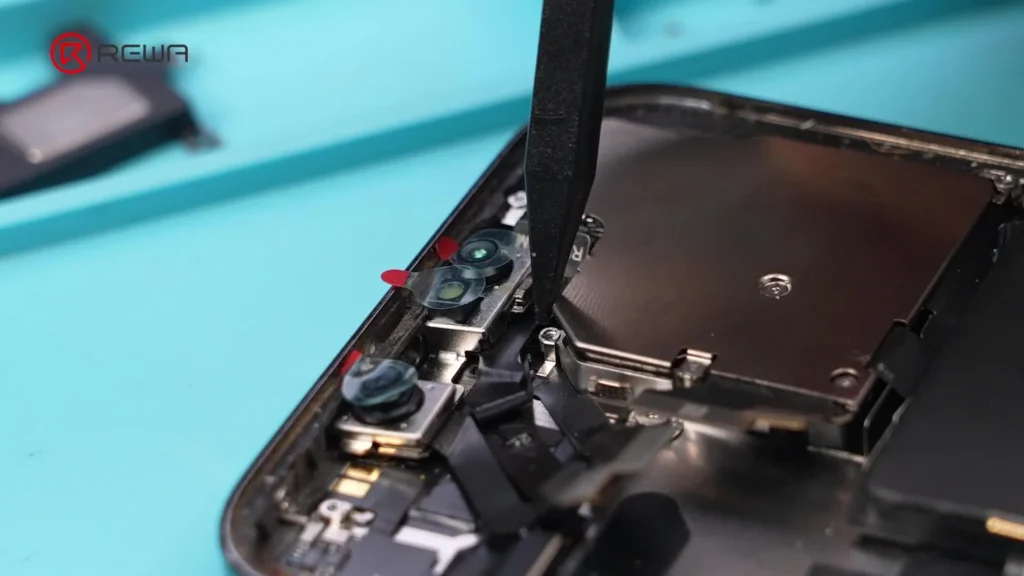
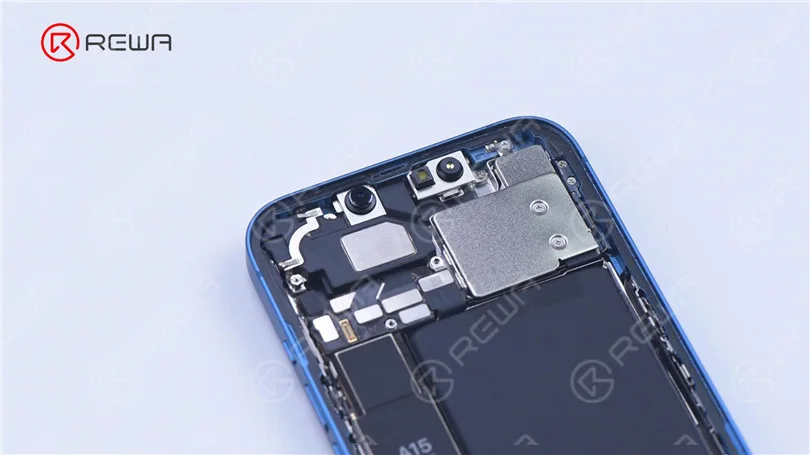
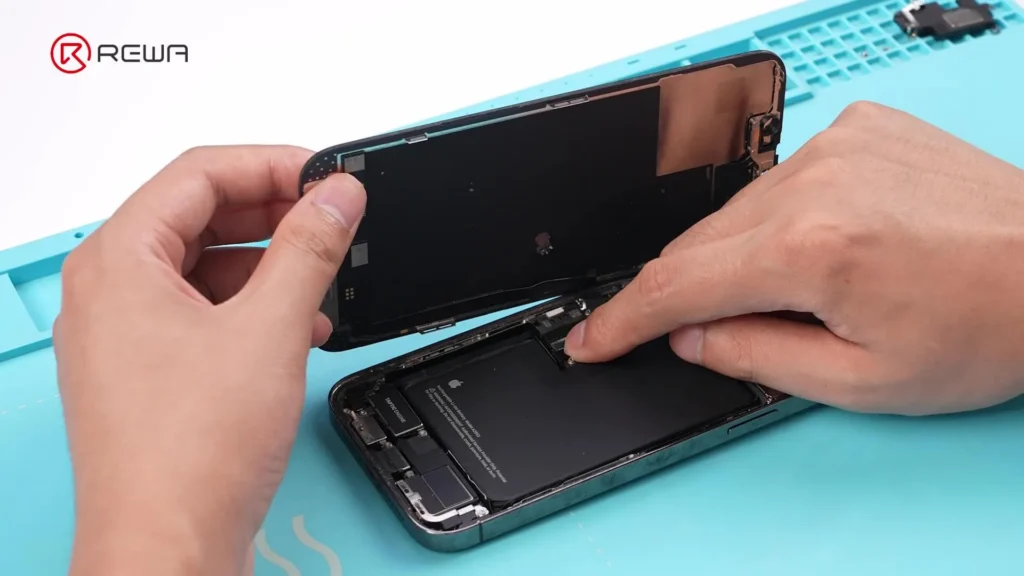
    The iPhone 13 Pro Max displays the message: “Face ID is not available.” Power off the device and disassemble it. Remove the front camera module, then reinstall the motherboard, as this repair requires the phone to remain powered on.
    Step 2: Prepare the Tools

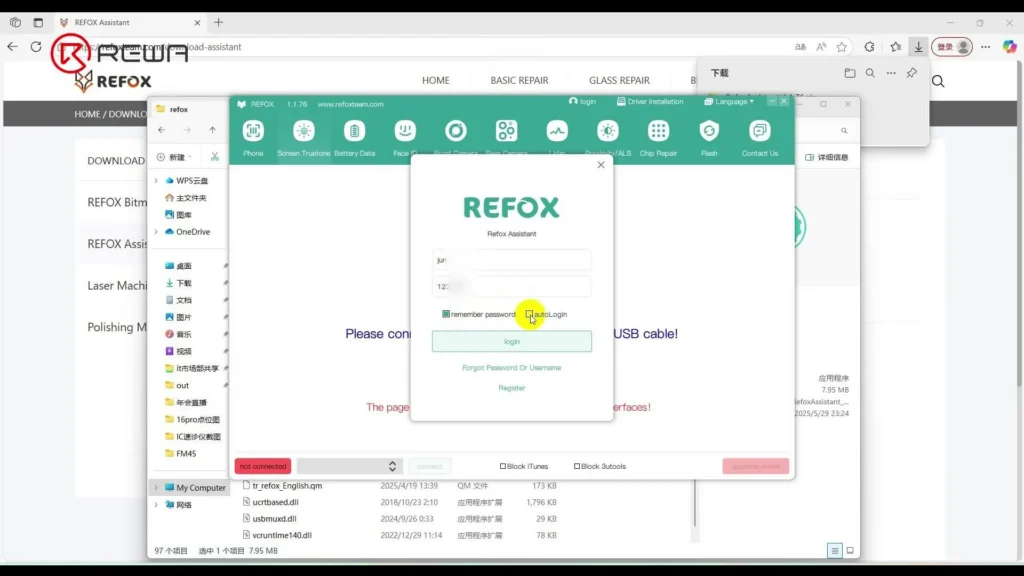
    Make sure your REFOX software is updated, as this is essential for accessing the latest features.

    You will need:

    • REFOX Assistant (latest version)
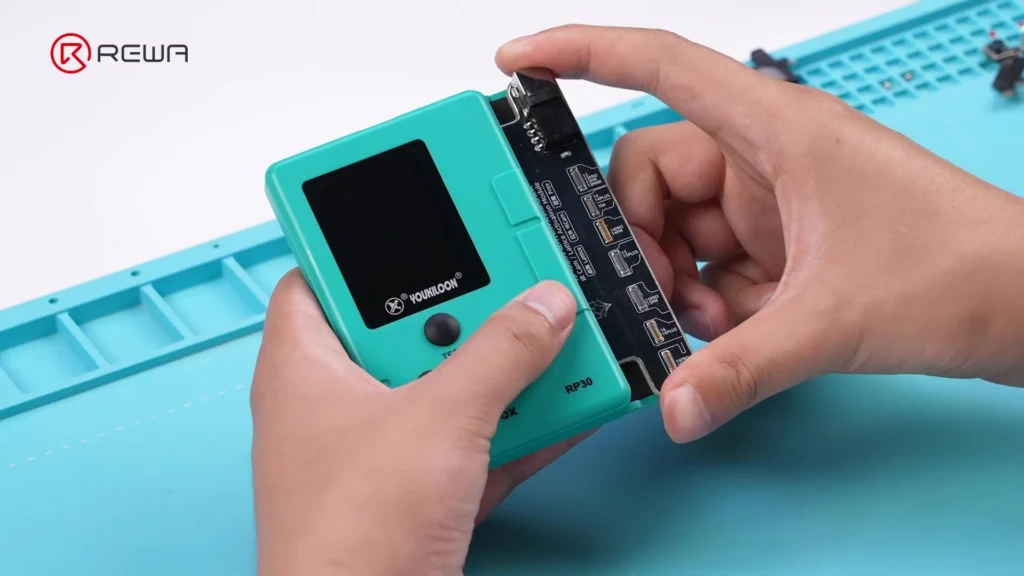
    • Dot Projector Repair Module
    • REFOX Programmer
    • Type-C Cable
    • DC Adapter
    • Tag-on Flex for iPhone 13 Pro Max

    Step 3: Begin Face ID Diagnosis

    1. Log in to REFOX Assistant on your PC.
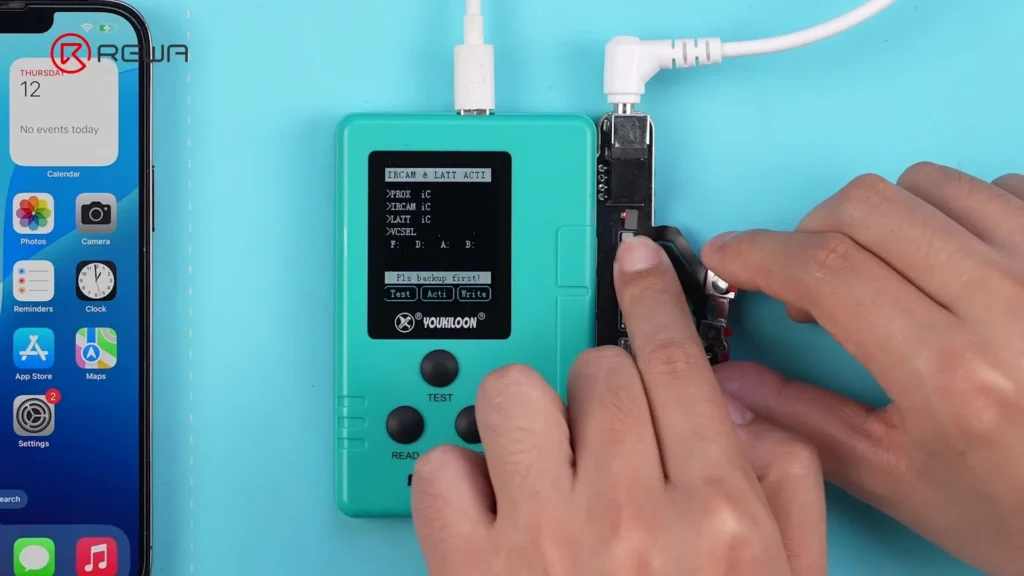
    2. Connect the Dot Projector repair module to the programmer.
    3. Use a Type-C cable to connect the programmer to the PC.
    4. Plug in the correct DC adapter — make sure the light is on.
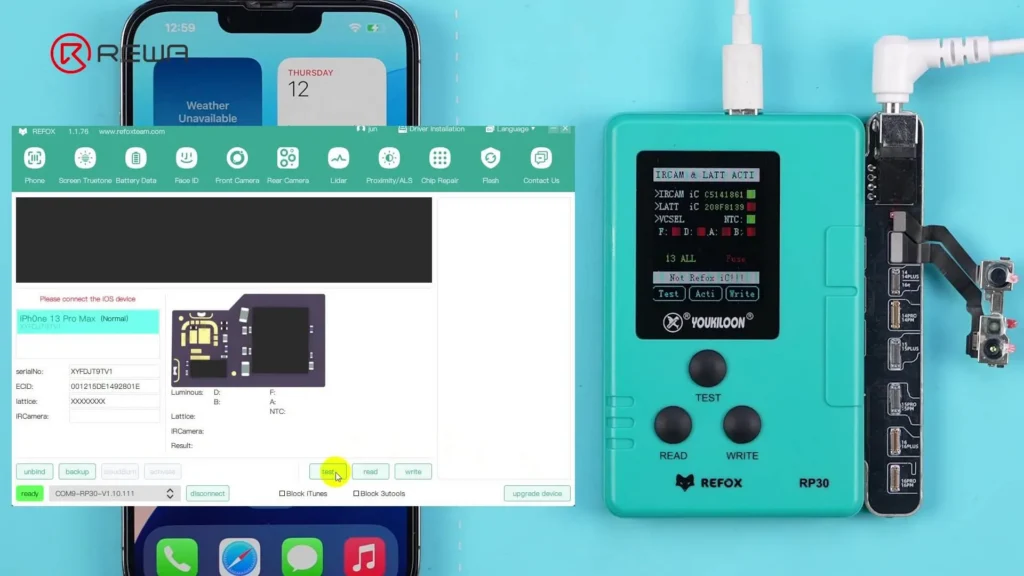
    5. Connect the iPhone to the PC.
    6. Connect the Dot Projector to the Face ID repair module.
    7. Click “Test” in the software.

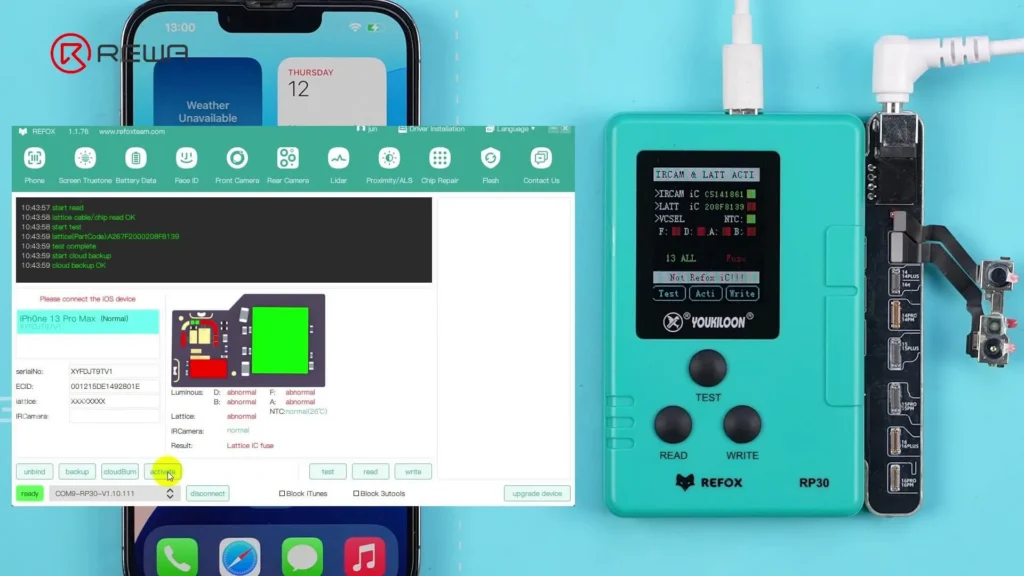
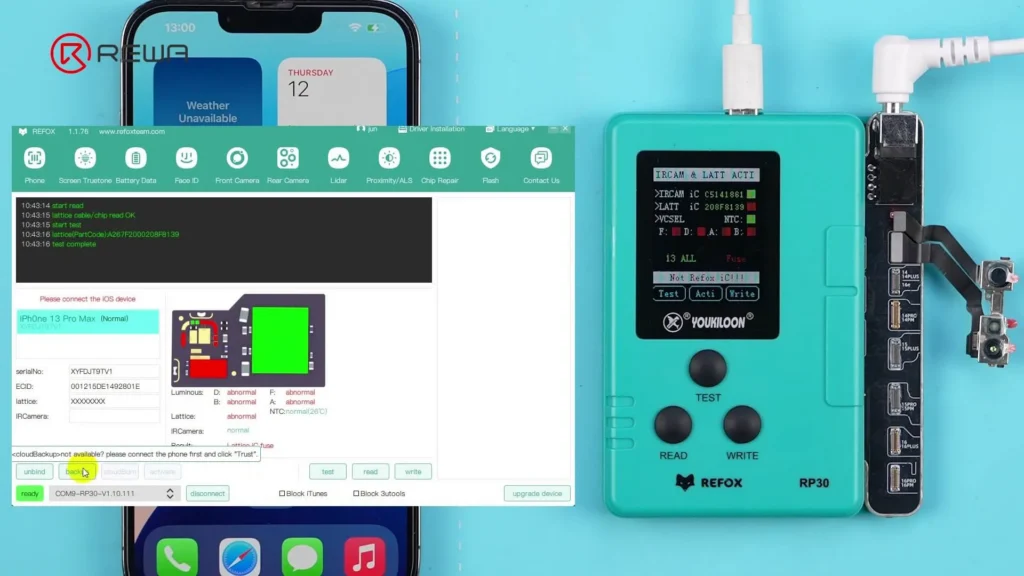
    Diagnosis Result: The diagnosis reveals a lattice IC fuse failure, which is a common issue with the Dot Projector.

    Step 4: Cloud Backup and Activation

    1. Click “Backup” to upload the Dot Projector data to the cloud.
    2. Click on “Activate” — Note: each Dot Projector can only be activated once.
    3. Remove the Dot Projector from the programmer.
    Step 5: Program the Tag-On Flex

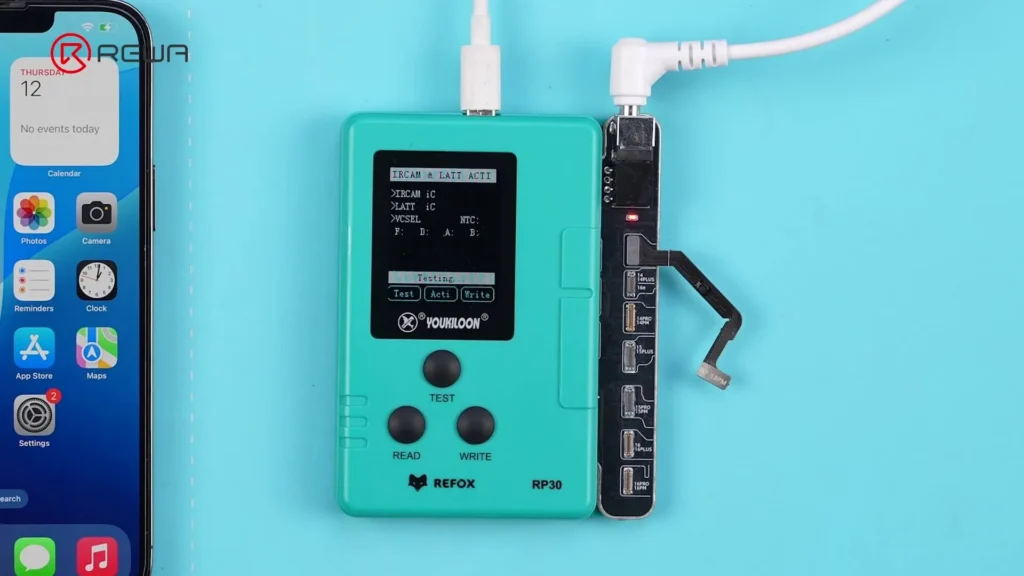
    1. Insert the tag-on flex for iPhone 13 Pro Max into the programmer.
    2. Click “CloudBurn”, select the backed-up data, and then click OK.
    3. Remove the tag-on flex after a successful burn.
    4. Follow the on-screen animation to install and fold the tag-on flex correctly.
    Step 6: Final Assembly and Verification

    1. Connect the Dot Projector to the programmer via the tag-on flex.
    2. The software verifies the status as “Normal”.
    3. Alternatively, click “Test” to verify manually.
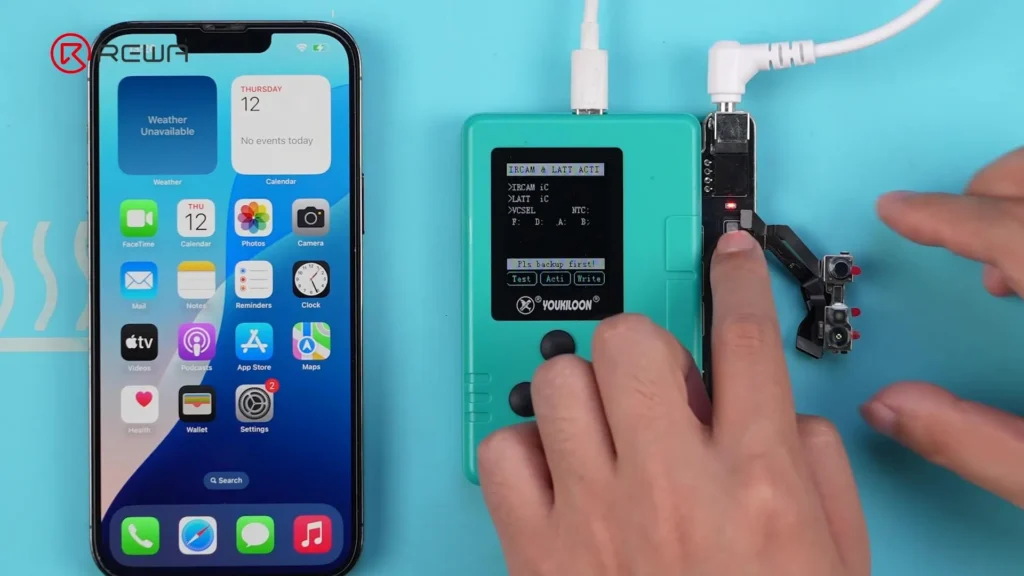
    fix face id using refox programmer

    Step 7: Reassemble the Front Camera Module

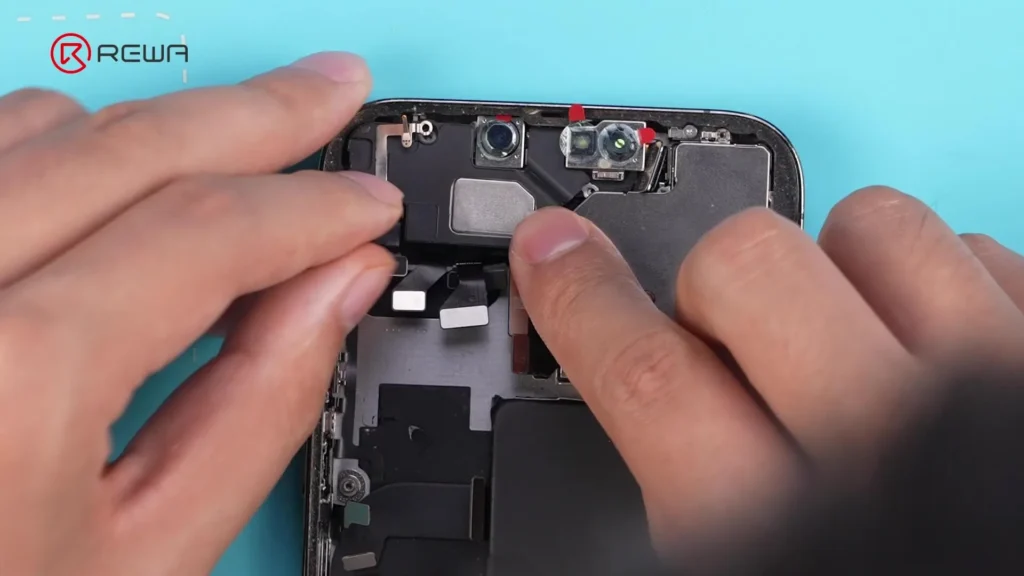
    1. Carefully position the front camera module back into the phone.
    2. Ensure the tag-on flex doesn’t block the earpiece screw hole to avoid damage.
    3. Install the earpiece and adjust the front camera with a tweezer as needed.
    4. Tighten all the screws.
    5. Reconnect the screen and battery cables, then power on the iPhone.
    Step 8: Test Face ID

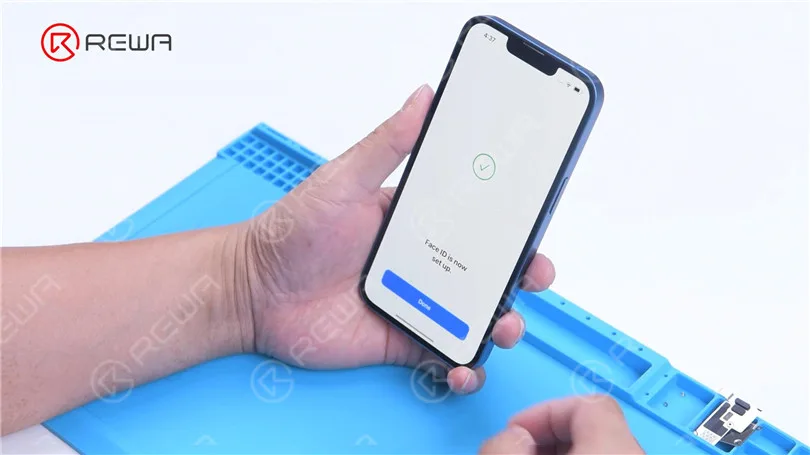
    ✅ Face ID enrollment is successful
    ✅ Unlocking with Face ID works perfectly
    ✅ Even after upgrading to iOS 26 Beta, Face ID remains fully functional.

    Key Points:

    • It is important to use the right power adapter to activate the Dot Projector, or it will fail to activate.
    • Fold the tag-on-flex properly, or the front camera module will not fit.
    • Ensure the front camera module is aligned properly – misalignment can prevent Face ID from working.

    Tools & Materials Used

    • REFOX Face ID Repair Programmer
    • REFOX Dot Projector Repair Module
    • REFOX Assistant (v1.1.76 or newer)
    • Type C cable
    • DC power adapter
    • Tag-on flex for iPhone 13 Pro Max
    • Tweezers, screwdriver set
    • iPhone 13–15 series device with Face ID failure

    Conclusion

    This no-solder Face ID repair method for iPhone 13 to 15 series devices is fast, safe, and future-proof, even after iOS upgrades. Using the REFOX system, technicians can restore Face ID functionality without risking damage to internal components. If you’ve encountered similar Face ID issues, consider this method for a secure, professional-level repair.

    Got Questions?

    Have you tried this method or encountered other Face ID repair challenges? Share your thoughts in the comments below.
  • iPhone 13 Face ID Not Working After Screen Replacement

    iPhone 13 Face ID Not Working After Screen Replacement

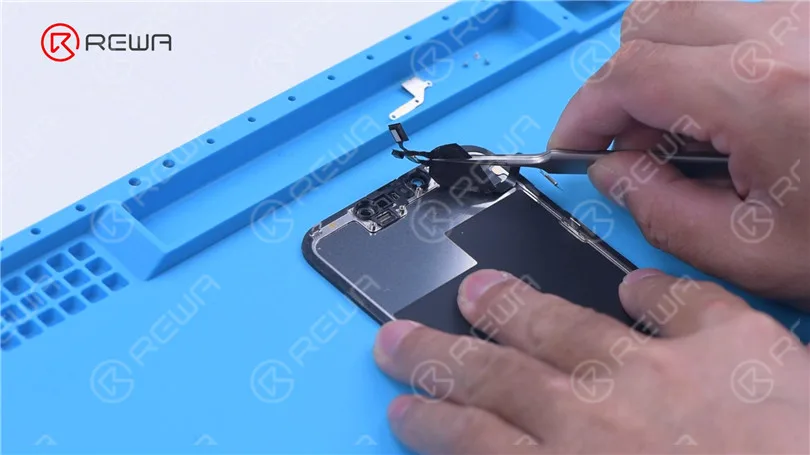
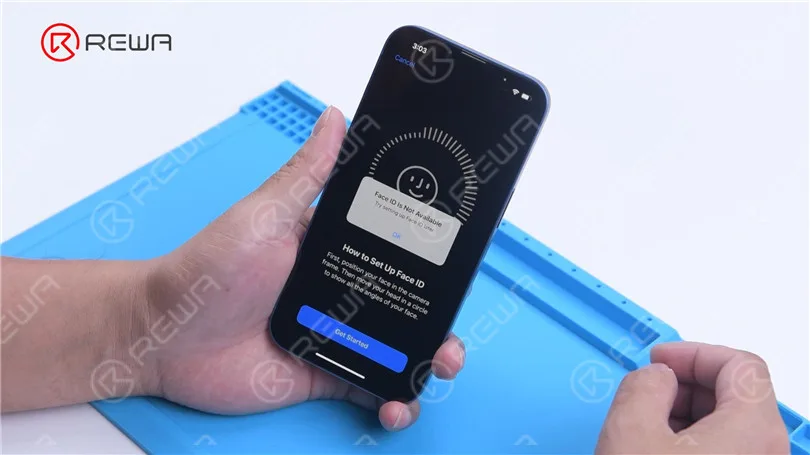
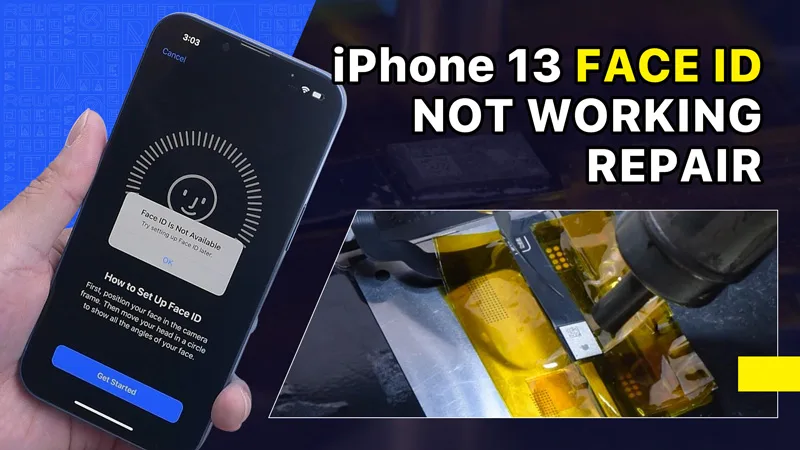
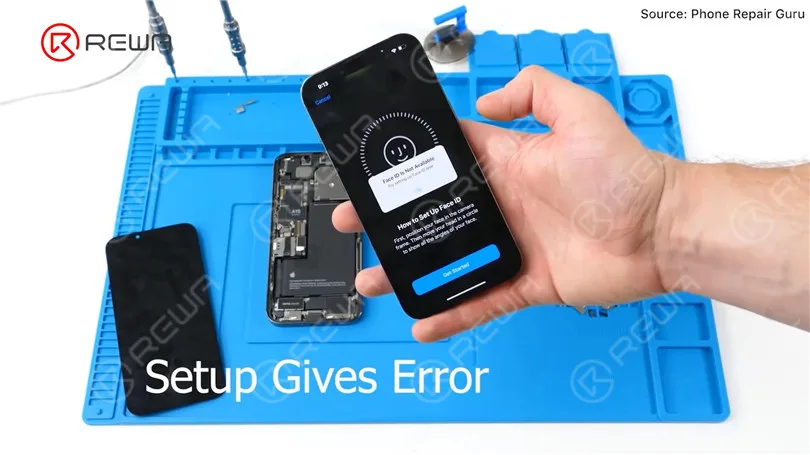
    Phone Repair Guru recently uploaded a video demonstrating the replacement of an iPhone 13 screen. A message appears after replacement stating that Face ID is not available. This is referred to as an Important Display Message. In this blog article, we will demonstrate how to troubleshoot this problem.

    Fix iPhone 13 Face ID Not Working & Important Display Message after Screen Replacement

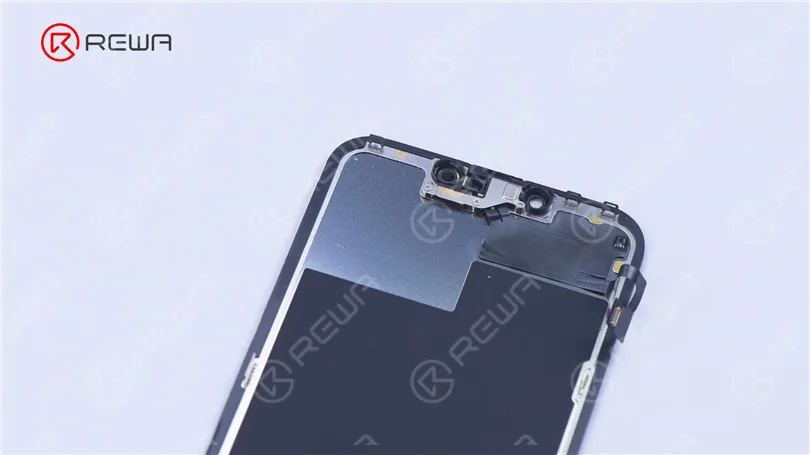
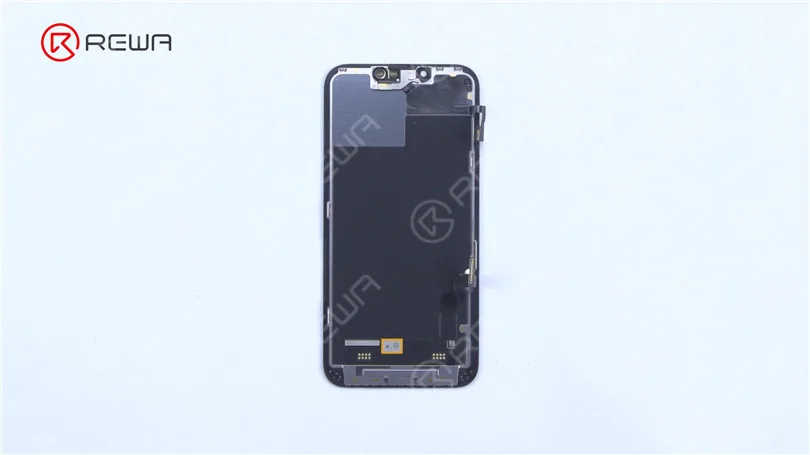
    The iPhone 13 screen lacks a flood illuminator module, as all the components for the TrueDepth system are contained within the iPhone itself.

    Fix iPhone 13 Face ID Not Working & Important Display Message after Screen Replacement
    Fix iPhone 13 Face ID Not Working & Important Display Message after Screen Replacement

    REWA LAB speculates that the chip on the original screen has saved Face ID data. Transferring the chip to the new screen might solve the problem. Today, let’s verify this speculation.

    Fix iPhone 13 Face ID Not Working & Important Display Message after Screen Replacement

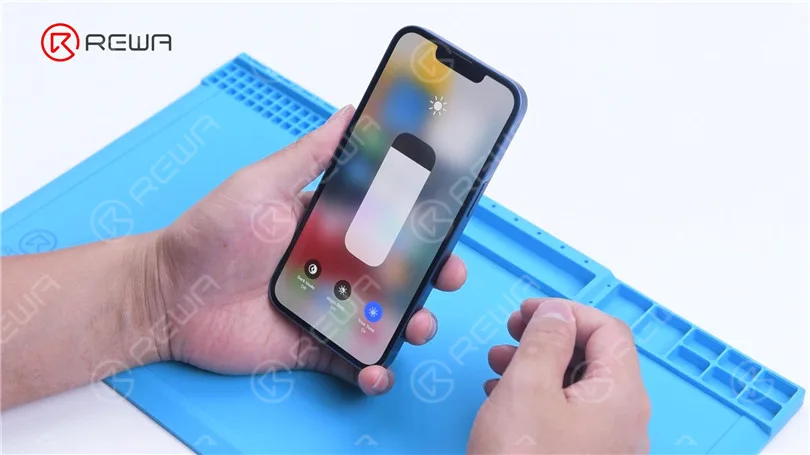
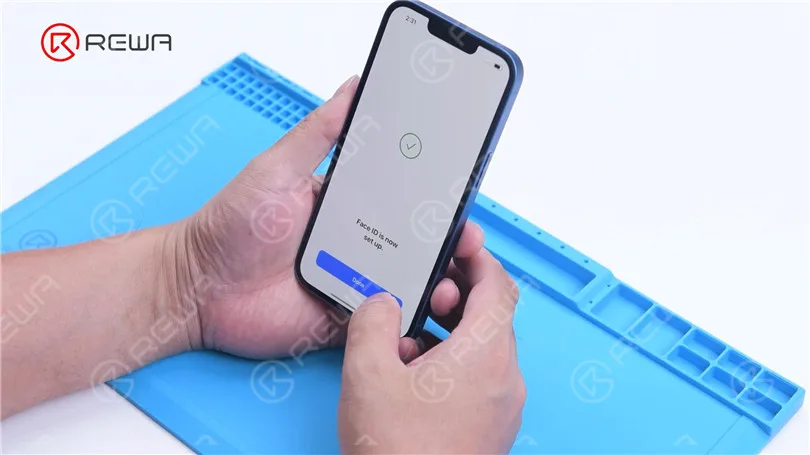
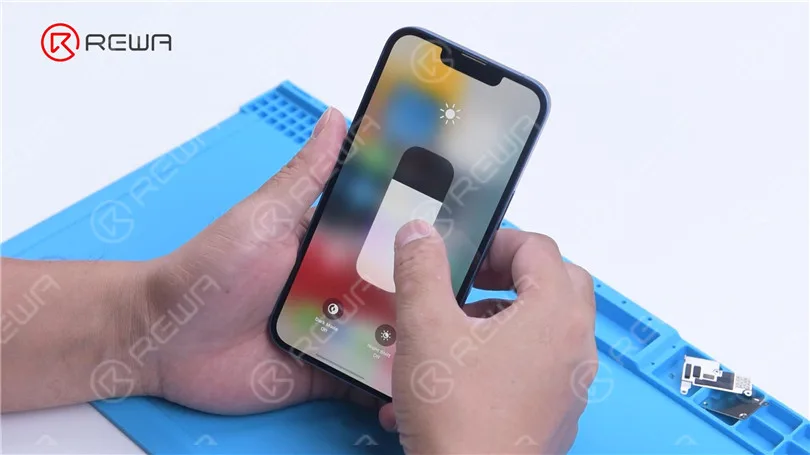
    In the first place, we tested the Face ID function on the iPhone 13 and found that the True Tone function is working normally. Additionally, we were able to successfully set up Face ID and it is working properly.

    Fix iPhone 13 Face ID Not Working & Important Display Message after Screen Replacement
    Fix iPhone 13 Face ID Not Working & Important Display Message after Screen Replacement

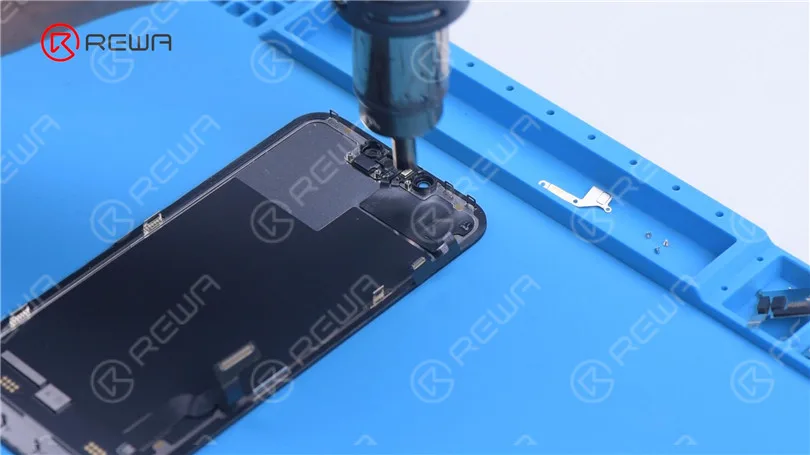
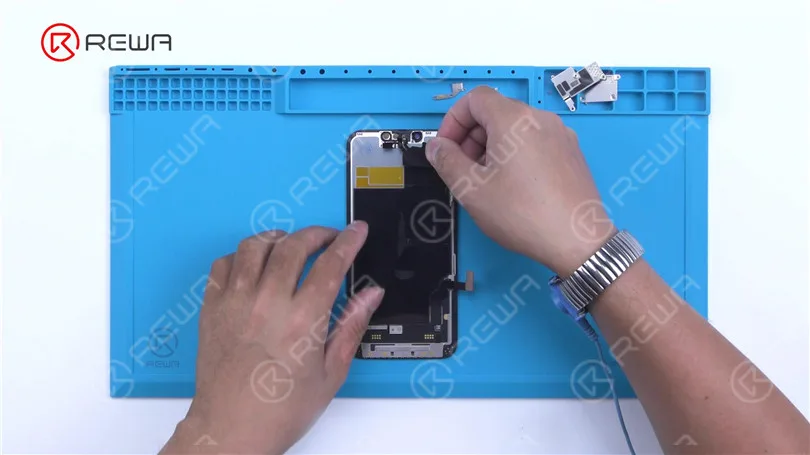
    Then we disassemble the phone and try to replace the screen with an original and genuine one. Remove the original screen. Detach the sensor flex cable with Hot Air Gun at 100 °C. Please be careful not to damage the flex cable when you remove it. 

    Fix iPhone 13 Face ID Not Working & Important Display Message after Screen Replacement
    Fix iPhone 13 Face ID Not Working & Important Display Message after Screen Replacement

    Attach the removed sensor flex cable to the new screen. Install the screws. Connect the new screen. Turn on the phone.“Important Display Message”  appears. Face ID can’t be set up. True Tone disappears.

    Fix iPhone 13 Face ID Not Working & Important Display Message after Screen Replacement
    Fix iPhone 13 Face ID Not Working & Important Display Message after Screen Replacement
    Fix iPhone 13 Face ID Not Working & Important Display Message after Screen Replacement

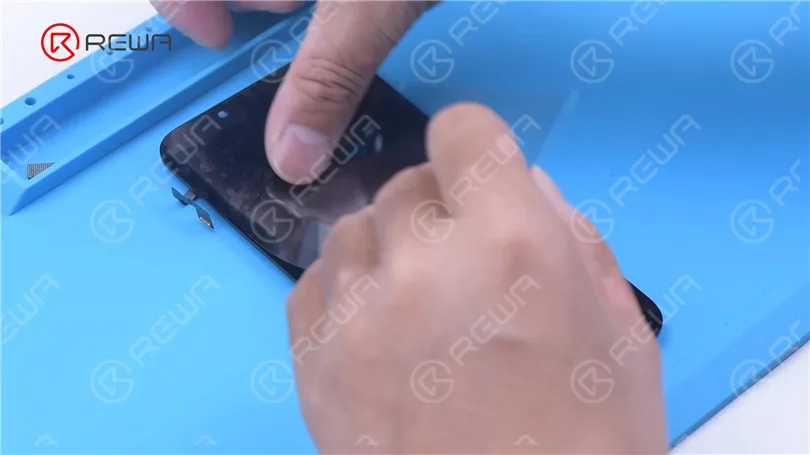
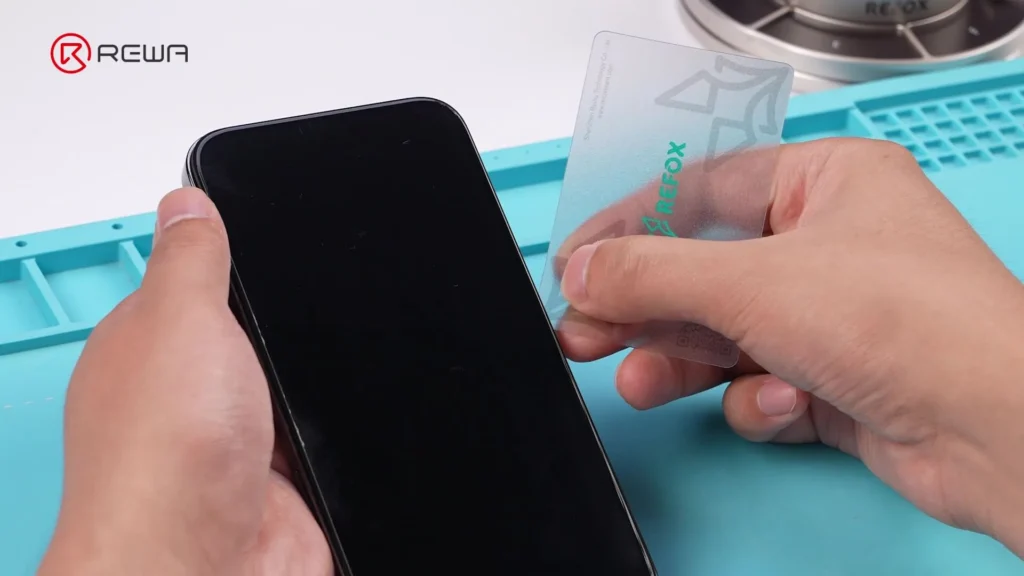
    Next, we try to transfer the IC on the original screen to the new screen. Remove the new screen. To prevent scratches on the screen during operations, apply a protective film to the screen. 

    Fix iPhone 13 Face ID Not Working & Important Display Message after Screen Replacement

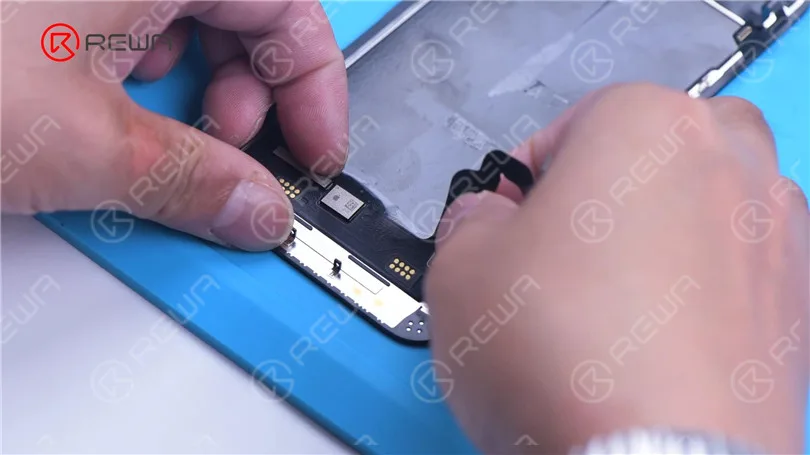
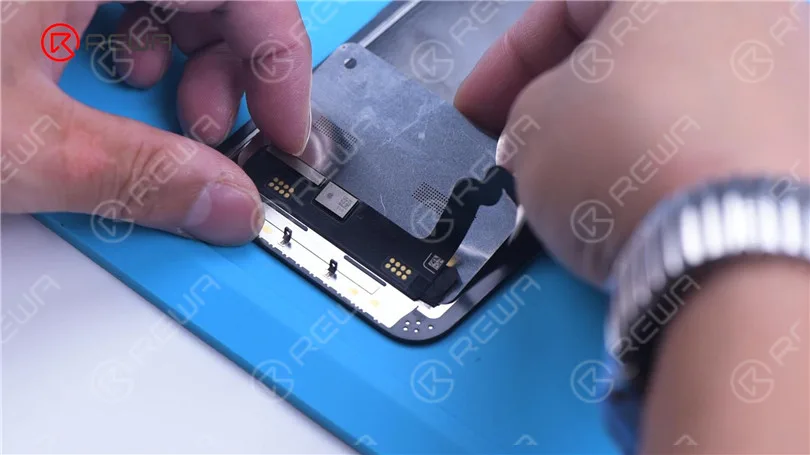
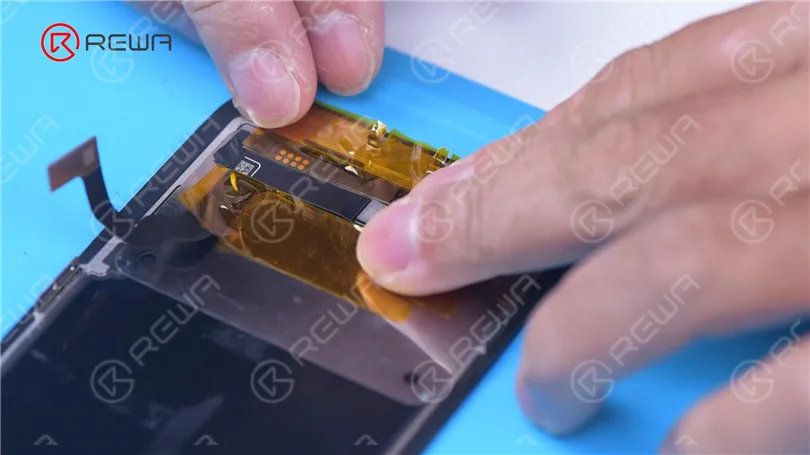
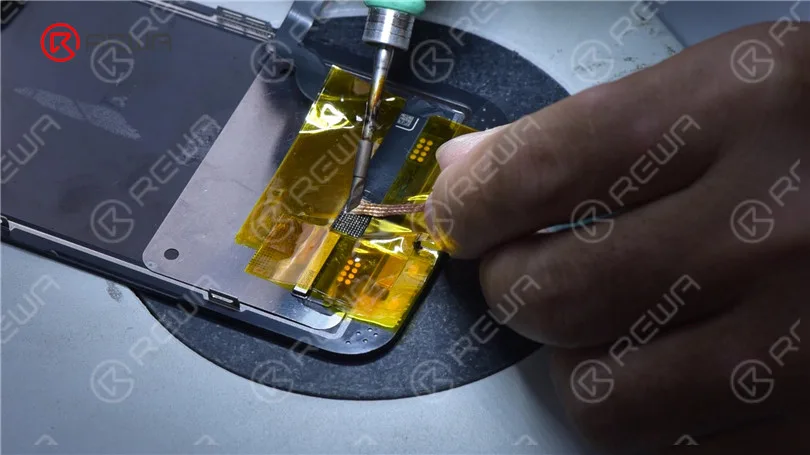
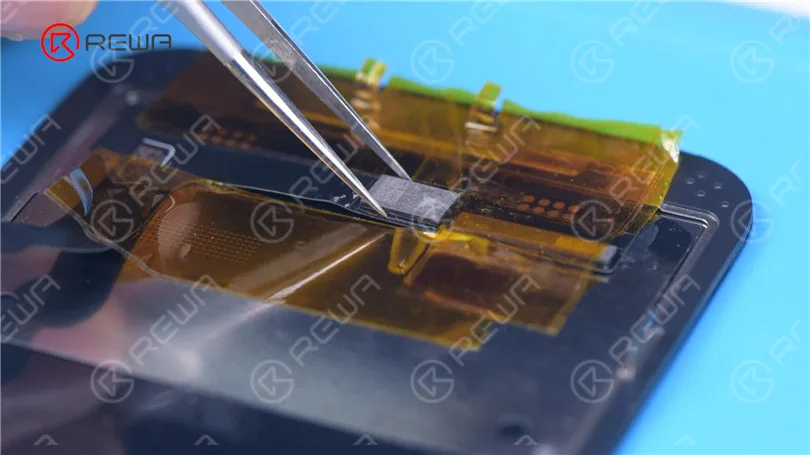
    Heat the screen flex cable with Hot Air Gun at 100 °C. Gently pull up the flex cable. To protect the screen, insert the reballing stencil under the flex cable for insulation. Apply high-temperature tape.

    Fix iPhone 13 Face ID Not Working & Important Display Message after Screen Replacement
    Fix iPhone 13 Face ID Not Working & Important Display Message after Screen Replacement
    Fix iPhone 13 Face ID Not Working & Important Display Message after Screen Replacement

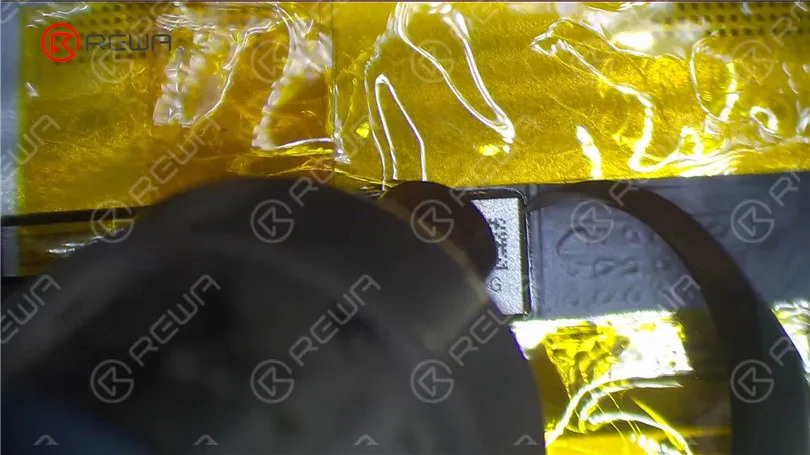
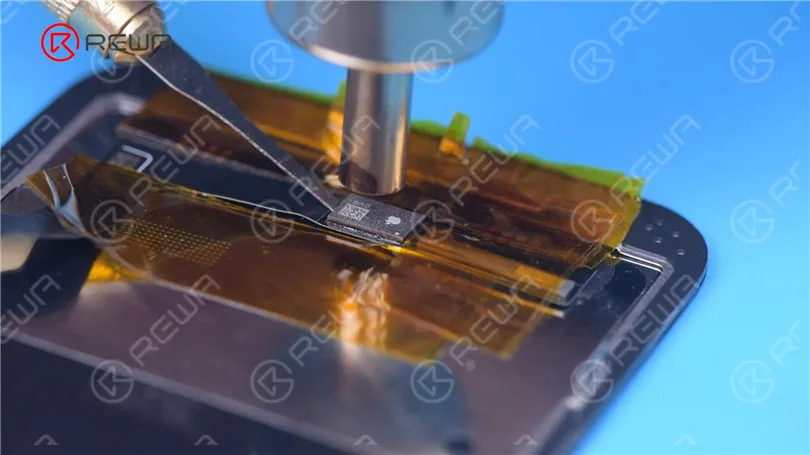
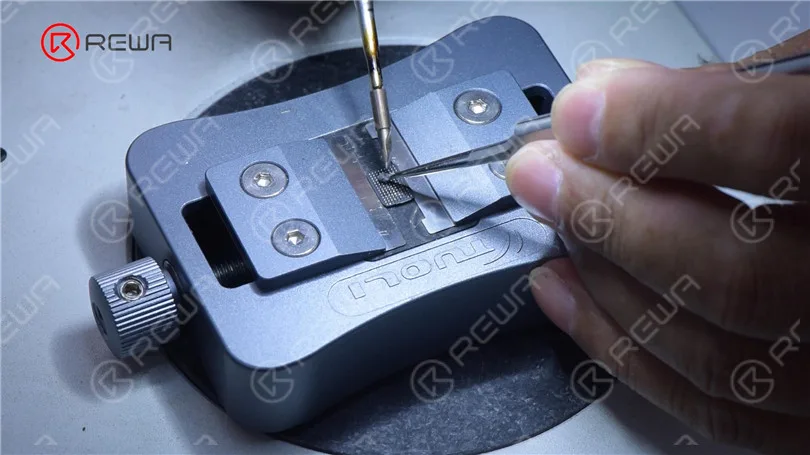
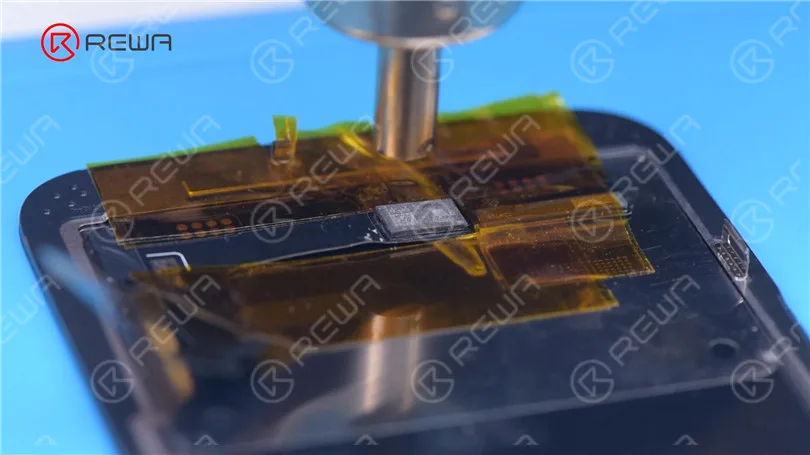
    Remove black adhesive around the chip with Hot Air Gun at 240 °C. To remove the chip, set the temperature to 300 °C and airflow to 6.

    Fix iPhone 13 Face ID Not Working & Important Display Message after Screen Replacement
    Fix iPhone 13 Face ID Not Working & Important Display Message after Screen Replacement

    Apply some middle-temperature Solder Paste. Clean the bonding pads with Soldering Iron at 360 °C and solder wick. Keep cleaning the bonding pads with PCB Cleaner.

    Fix iPhone 13 Face ID Not Working & Important Display Message after Screen Replacement
    Fix iPhone 13 Face ID Not Working & Important Display Message after Screen Replacement

    Next, remove the chip on the original screen with the same method.

    Clean tin on the chip of the original screen. Apply some middle-temperature Solder Paste to the bonding pads. Clean tin and black adhesive on the bonding pads of the chip with Solder Wick. Keep cleaning the bonding pads with PCB Cleaner.

    Fix iPhone 13 Face ID Not Working & Important Display Message after Screen Replacement

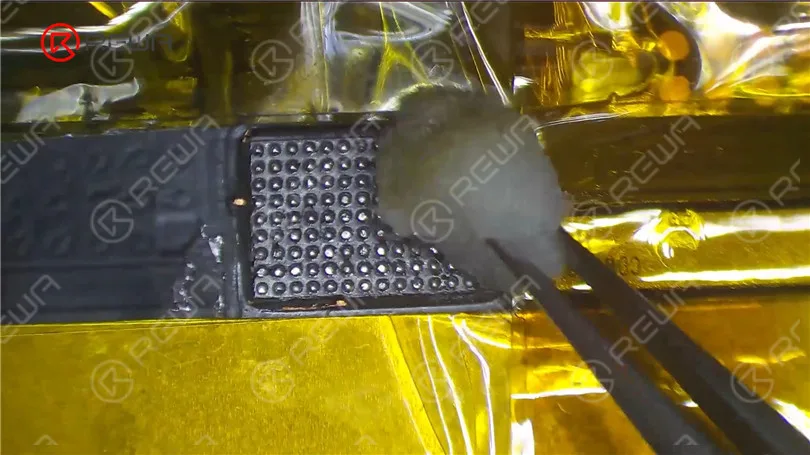
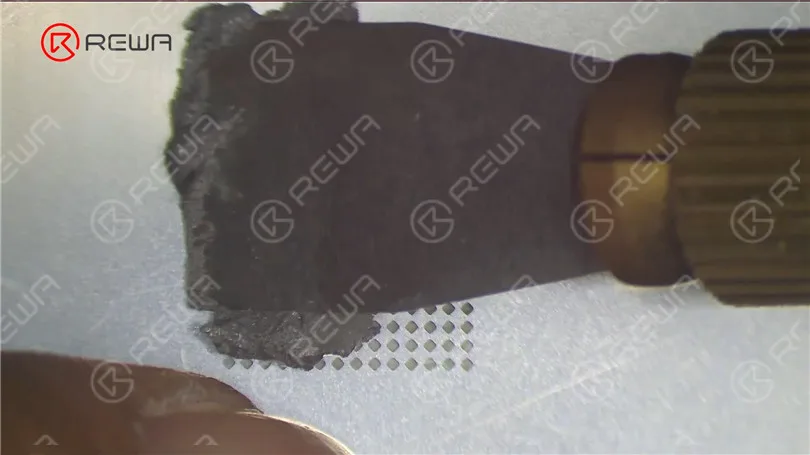
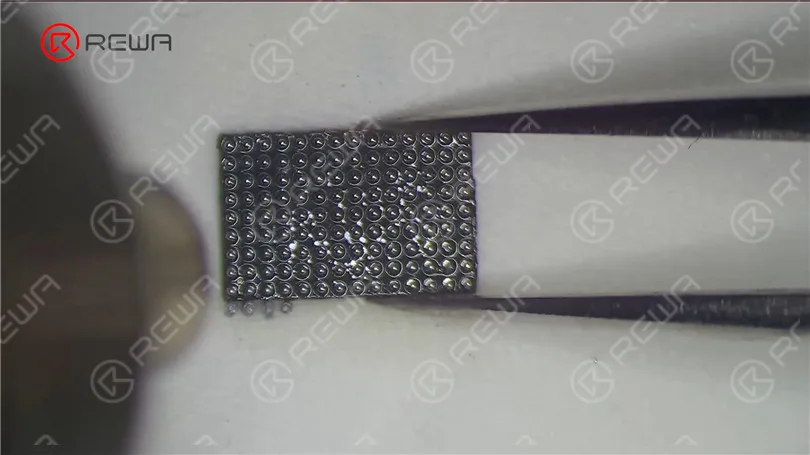
    Next, reball the chip. Put the reballing stencil in position. Apply a layer of middle-temperature Solder Paste evenly. Heat with Hot Air Gun at 300 °C to form the solder balls. After the solder balls are formed, clean with PCB cleaner.

    Fix iPhone 13 Face ID Not Working & Important Display Message after Screen Replacement
    Fix iPhone 13 Face ID Not Working & Important Display Message after Screen Replacement

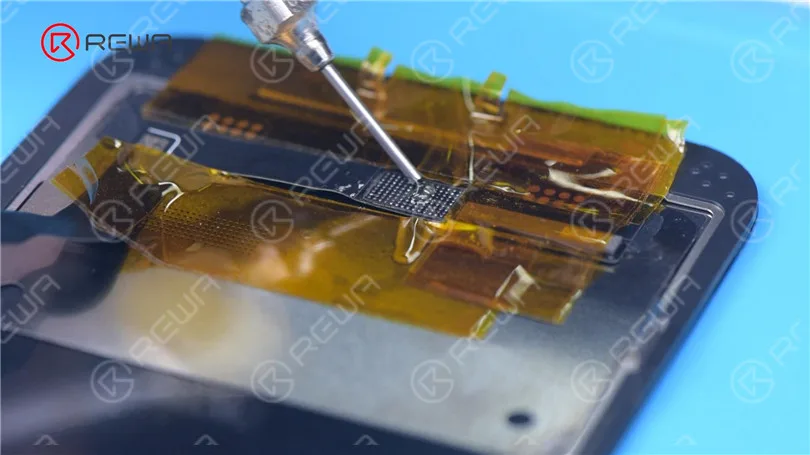
    Apply Paste Flux to the bonding pads of the new screen. Align the chip of the original screen. Solder the chip with Hot Air Gun at 300 °C.

    Fix iPhone 13 Face ID Not Working & Important Display Message after Screen Replacement
    Fix iPhone 13 Face ID Not Working & Important Display Message after Screen Replacement
    Fix iPhone 13 Face ID Not Working & Important Display Message after Screen Replacement

    Remove high-temperature tape after the flex cable has cooled. Connect the screen. Turn on the phone. There is no “Important Display Message”. Face ID can be set up and is working fine. But True Tone hasn’t been restored.

    Fix iPhone 13 Face ID Not Working & Important Display Message after Screen Replacement

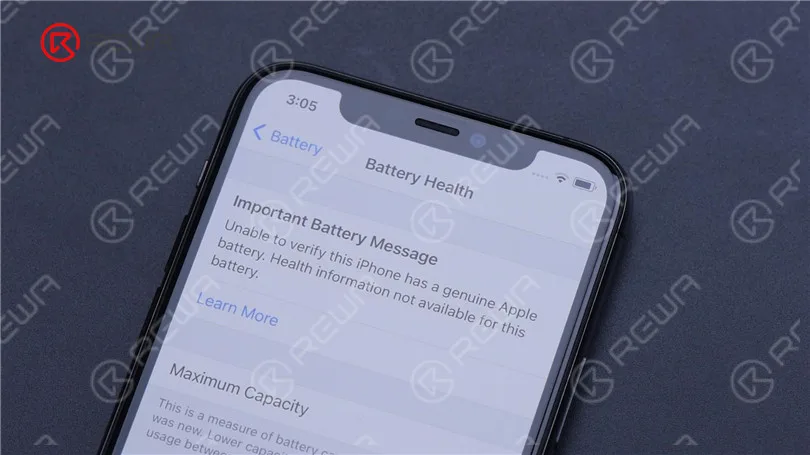
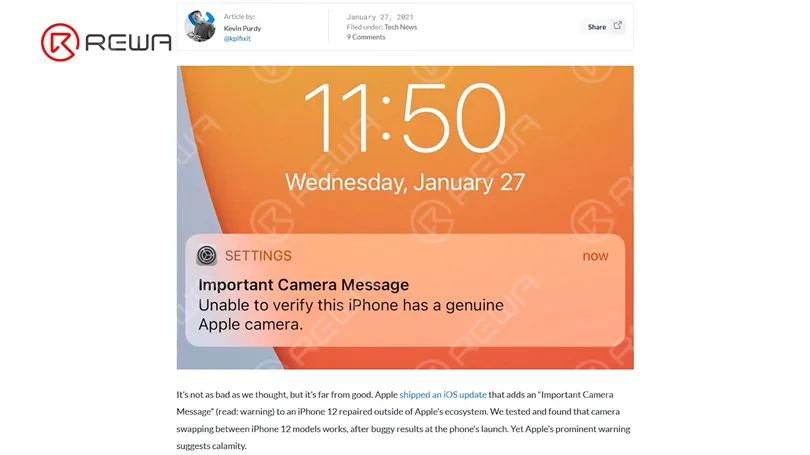
    Third-party repair stores find it challenging to fix Apple products due to the presence of prompts such as “Important Battery Message” and “Important Camera Message,” resulting in ongoing criticism for Apple.

    Fix iPhone 13 Face ID Not Working & Important Display Message after Screen Replacement
    Fix iPhone 13 Face ID Not Working & Important Display Message after Screen Replacement

    Apple has made it even harder for customers to seek repairs from third-party stores with the release of the ‌iPhone 13‌. Attempting to address the Face ID issue after replacing the iPhone 13 screen by replacing the chip is risky and not advisable for non-professionals, according to REWA LAB. It is possible that Apple will address this problem through an iOS update in the future. We will have to wait and see. Please feel free to share your thoughts on this matter.

  • iPhone 13 Face ID Not Working After Screen Replacement

    iPhone 13 Face ID Not Working After Screen Replacement

    After a screen replacement, iPhone 13 Face ID is not available. It can be confirmed that changing the screen on iPhone 13 through third-party repair will result in the loss of Face ID.