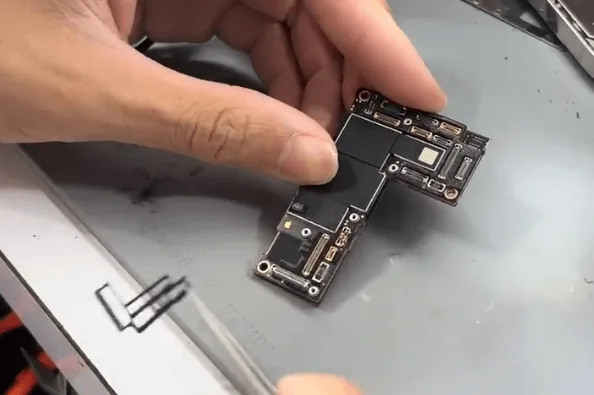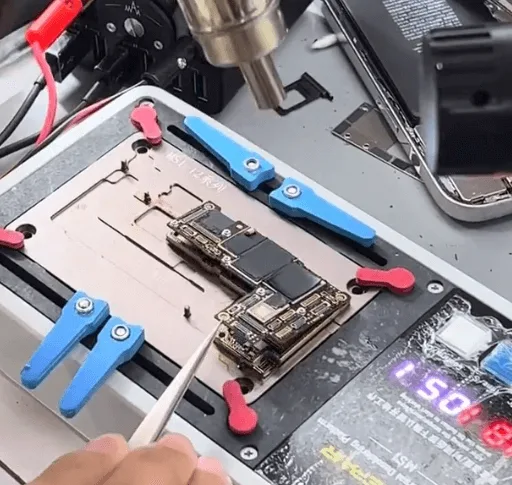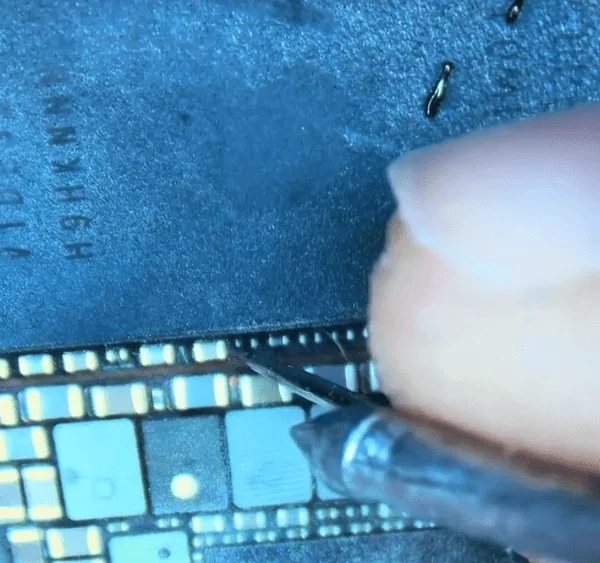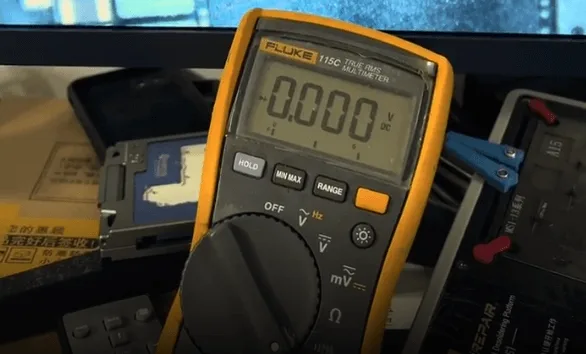
Tag: iphone 12 pro max

  • How to Fix the iPhone 12 Pro Max Touch Not Working

    How to Fix the iPhone 12 Pro Max Touch Not Working

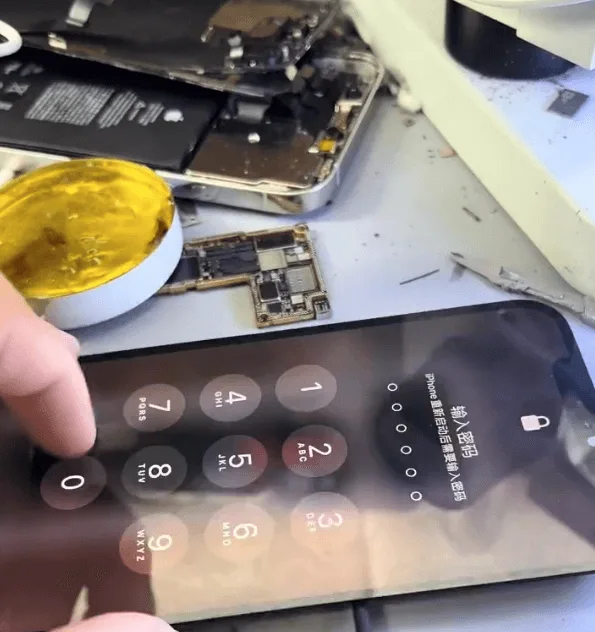
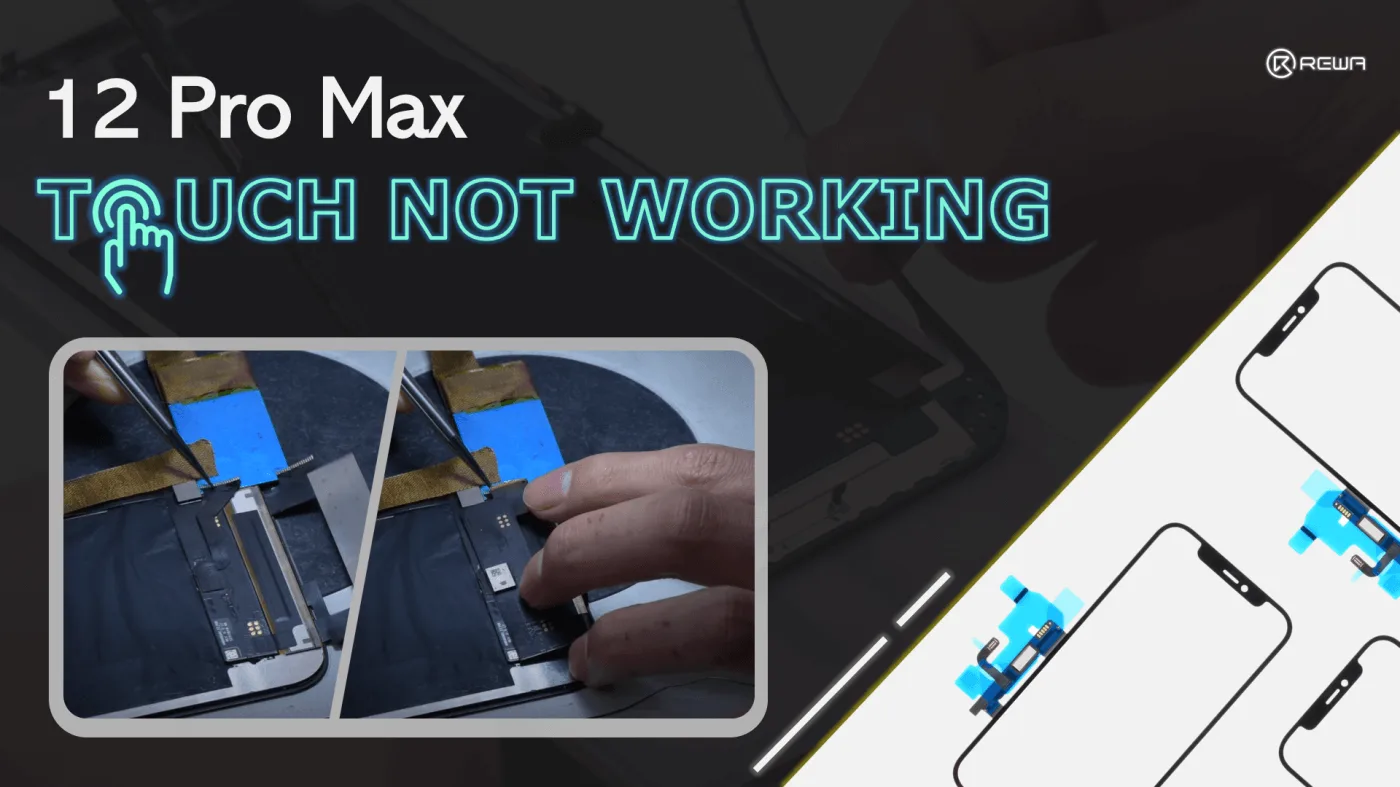
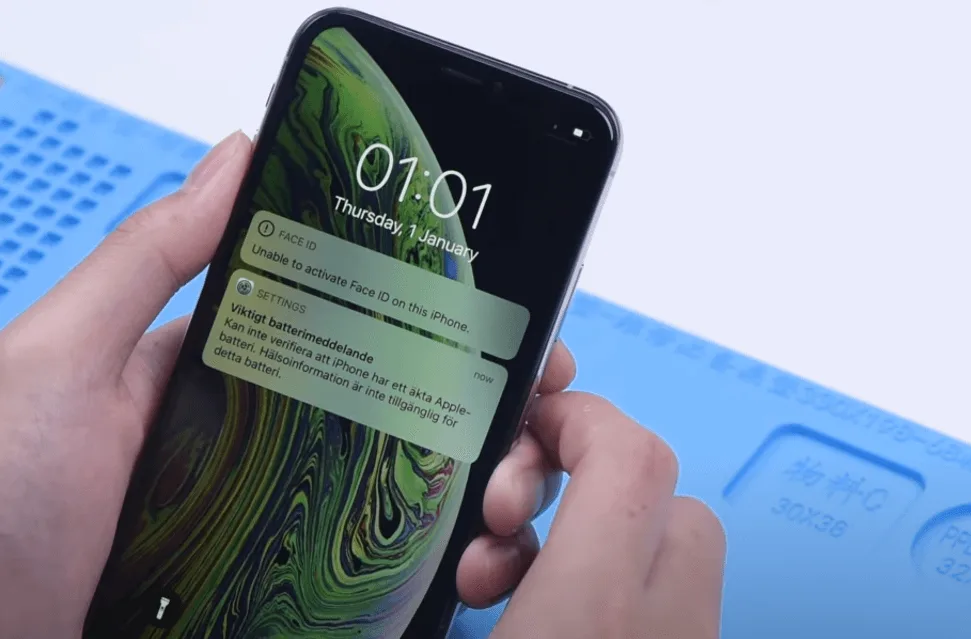
    When your phone’s screen becomes unresponsive, the usual solution is to replace it. However, screens are quite expensive these days. In this article, we will introduce an alternative method of fixing the problem without having to replace the entire screen assembly. Specifically, we will focus on fixing the touch-related issues of an iPhone 12 Pro Max. Before attempting any repairs, we have already ruled out other potential causes of the problem and confirmed that the touch-related components and lines are in good working condition.
    how fix iphone 12 pro max touch not working the screen of touching

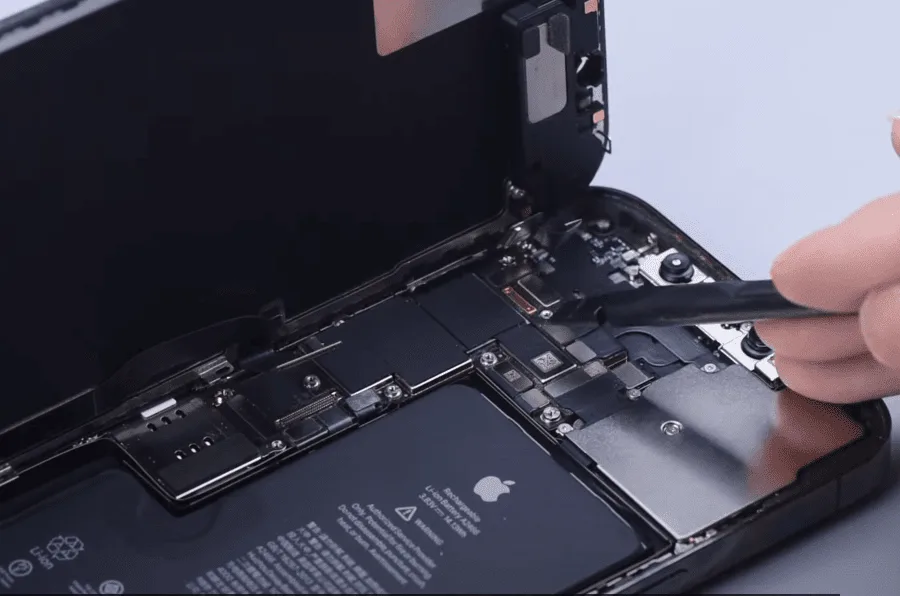
    Disconnect the flex cable and remove the screen

    To prevent ESD damage, remove the flex cable with a plastic spudger.
    how fix iphone 12 pro max touch not working disconnect the flex cables

    Sepatate the glass

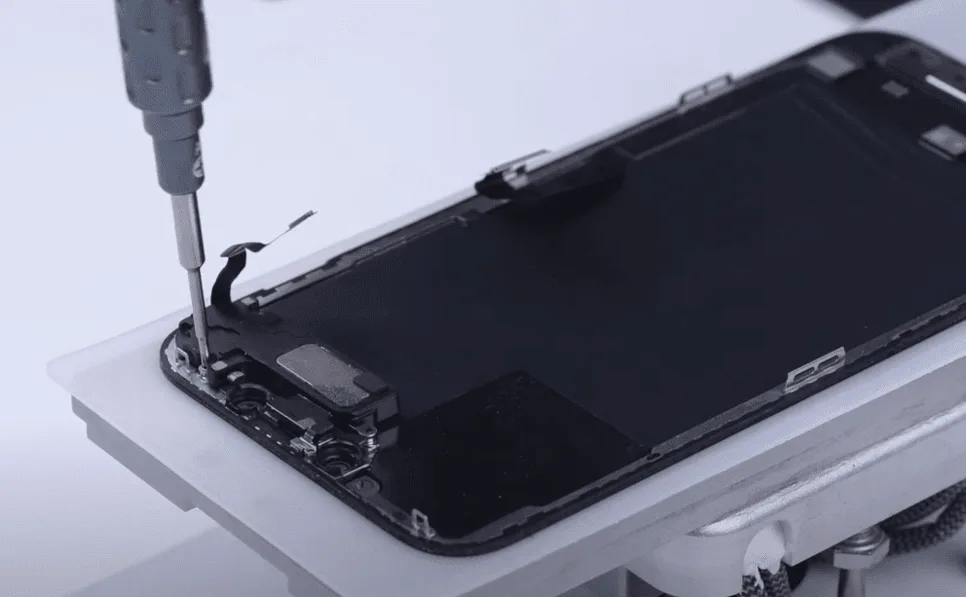
    For starters, set the temperature of the separator to 100℃. As the temperature reaches 100℃, place the screen on the separator and detach the earpiece speaker module.
    how fix iphone 12 pro max touch not working detach the earpiece module

    Before separating the glass, we need to remove the bezel frame. Apply some alcohol along the edge of the bezel, slice through adhesive sealing the top edge of the bezel, then cut the top bezel open with the cutting nipper.
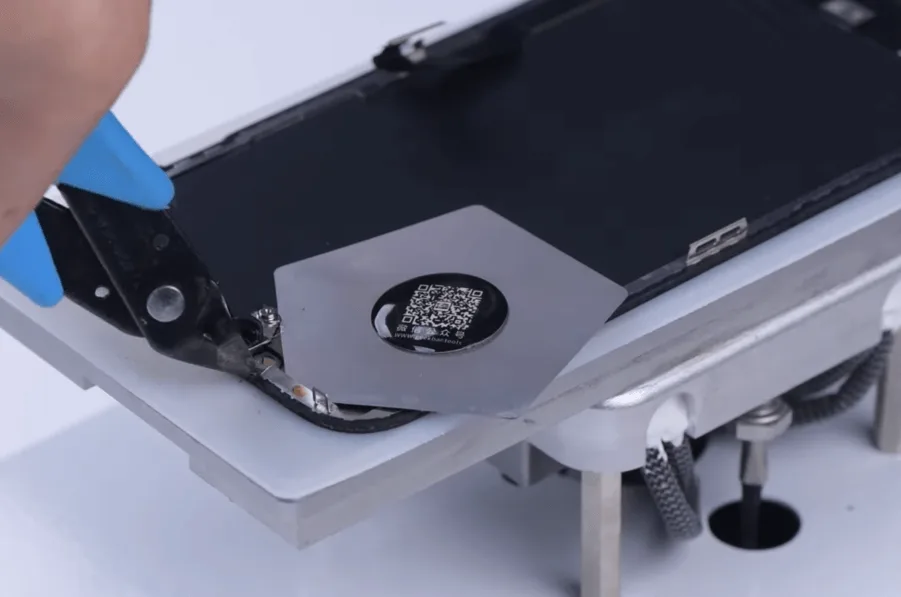
    how fix iphone 12 pro max touch not working cut the top bezel open with

    Slowly separate the bezel frame. As the bezel is removed, keep heating the screen at 100℃.
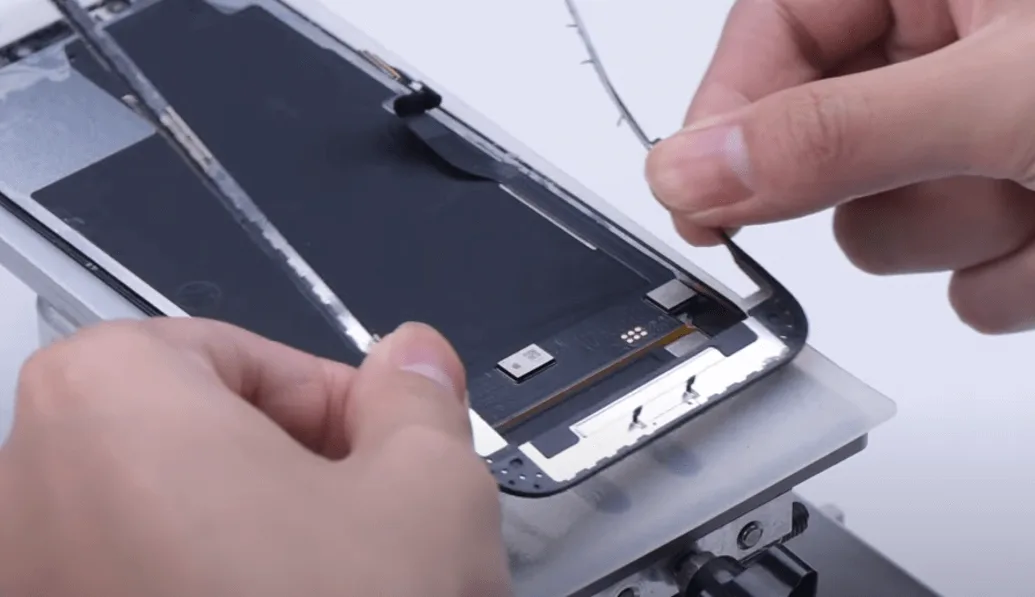
    how fix iphone 12 pro max touch not working slowly separate the bezel

    Get an entry point from the bottom corner of the screen. Start separating the OLED along the bottom layer of the glass with cutting wire.
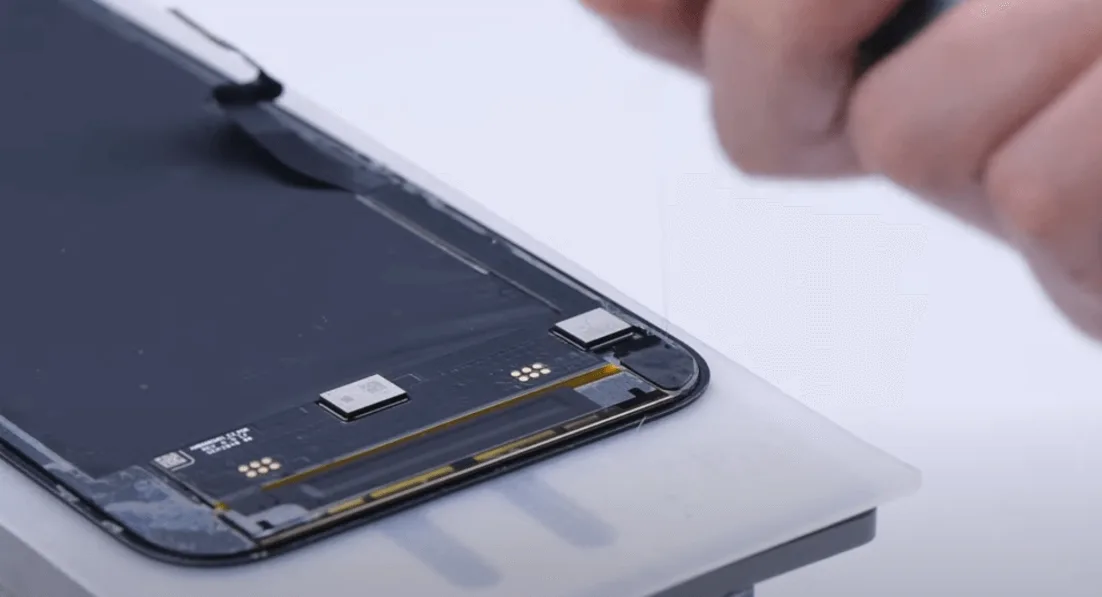
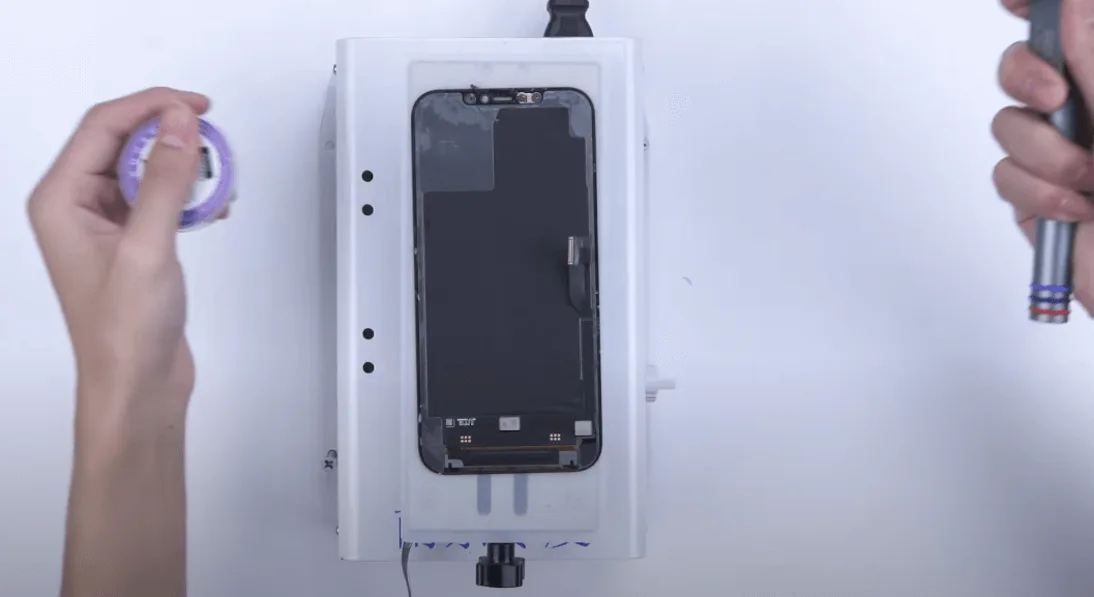
    how fix iphone 12 pro max touch not working get an entry point from the

    how fix iphone 12 pro max touch not working remove the glass cover with

    Clean the OCA adhesive

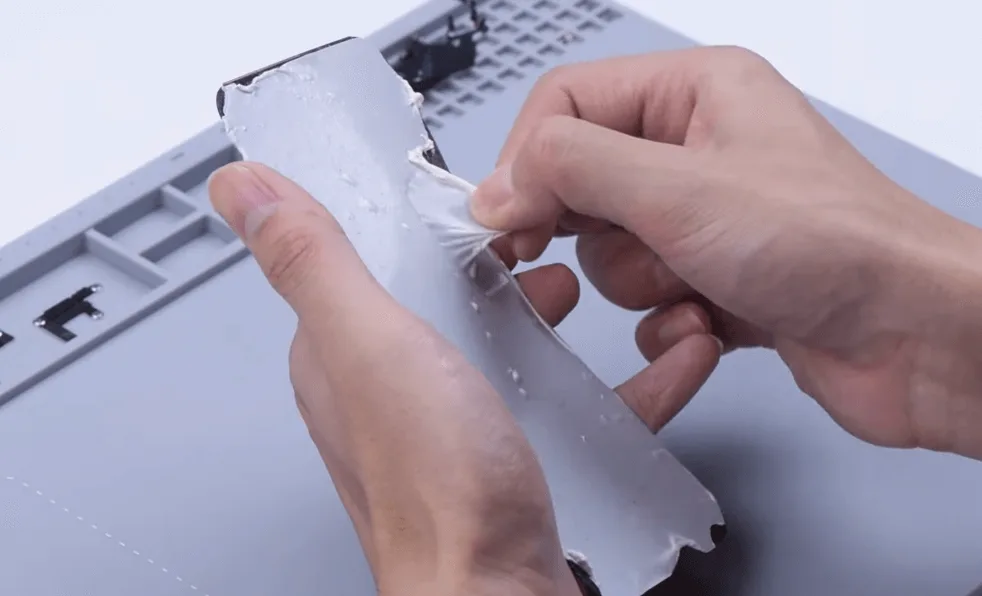
    Apply specilized OCA removing tape to the OLED, then apply some heat to make the tape bind tightly to the OCA and peel off the tape. 
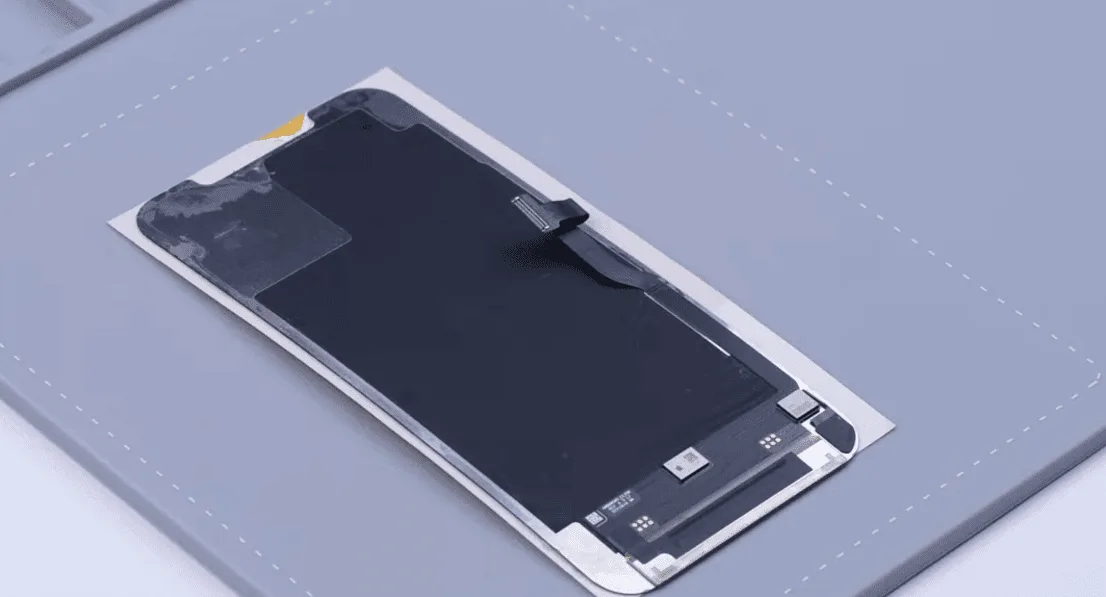
    how fix iphone 12 pro max touch not working apply specilized oca
    how fix iphone 12 pro max touch not working apply some heat to make the

    For residue OCA adhesive, clear it away with electric glue removing tool and N-hexane. 
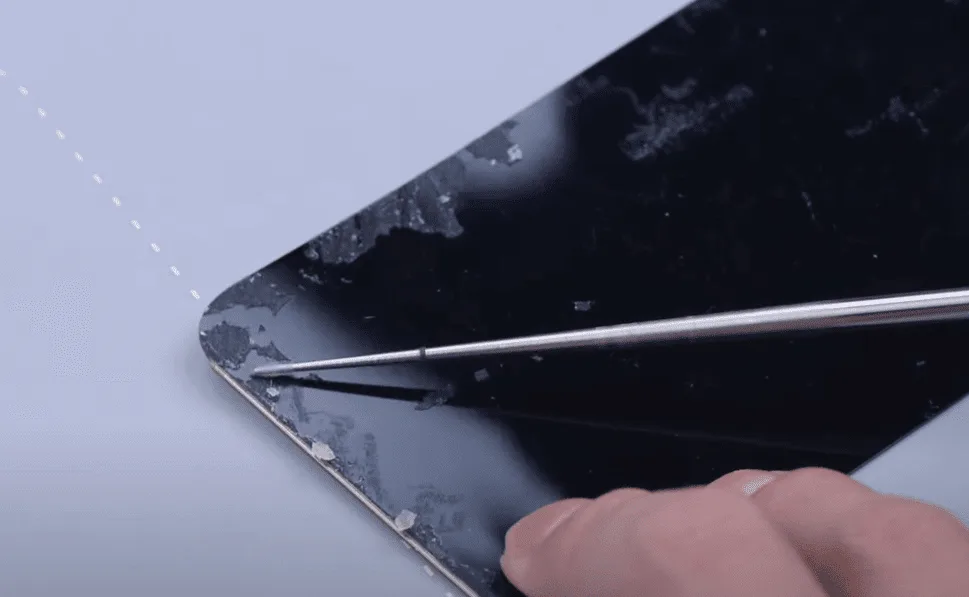
    how fix iphone 12 pro max touch not working for residue oca adhesive

    As the screen of iPhone 12 Pro Max is oncell with the touch and OLED integrated, the touch screen digitizer can’t be replaced separately. We need to install a tag-on touch screen digitizer.
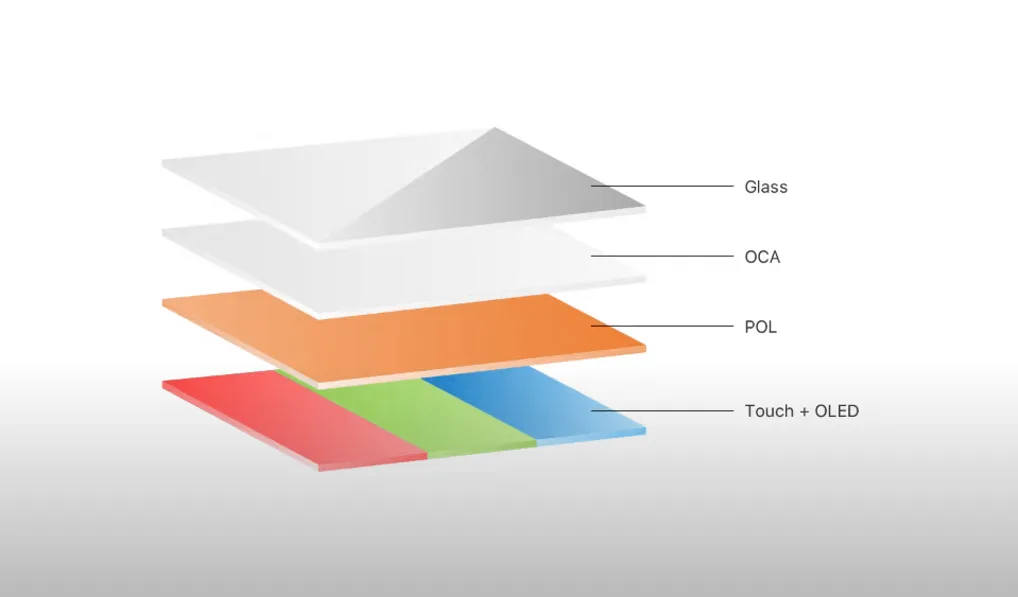
    how fix iphone 12 pro max touch not working the screen of is oncell with

    Apply OCA on the touch screen digitizer

    Get an iPhone 12 Pro Max touch screen digitizer, attach the OCA to the back of the touch screen digitizer, then put the touch screen digitizer into the bubble removing machine.
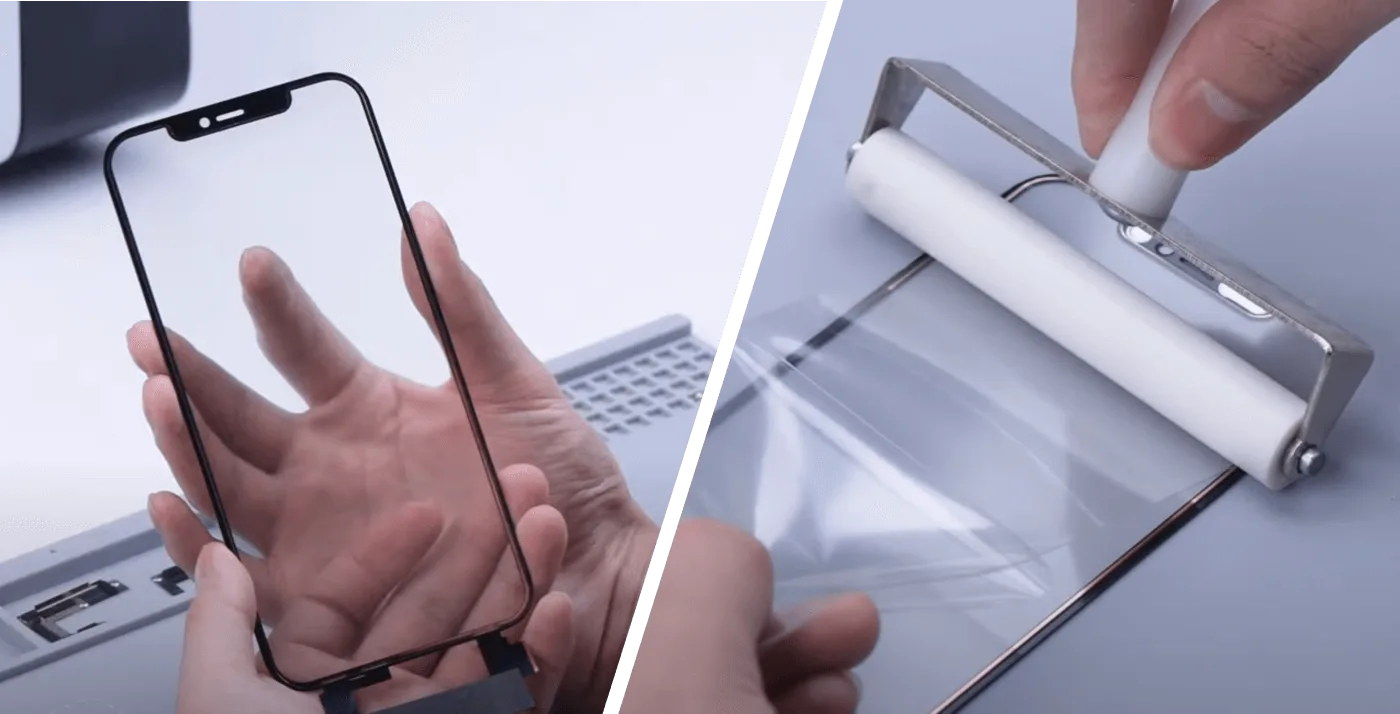
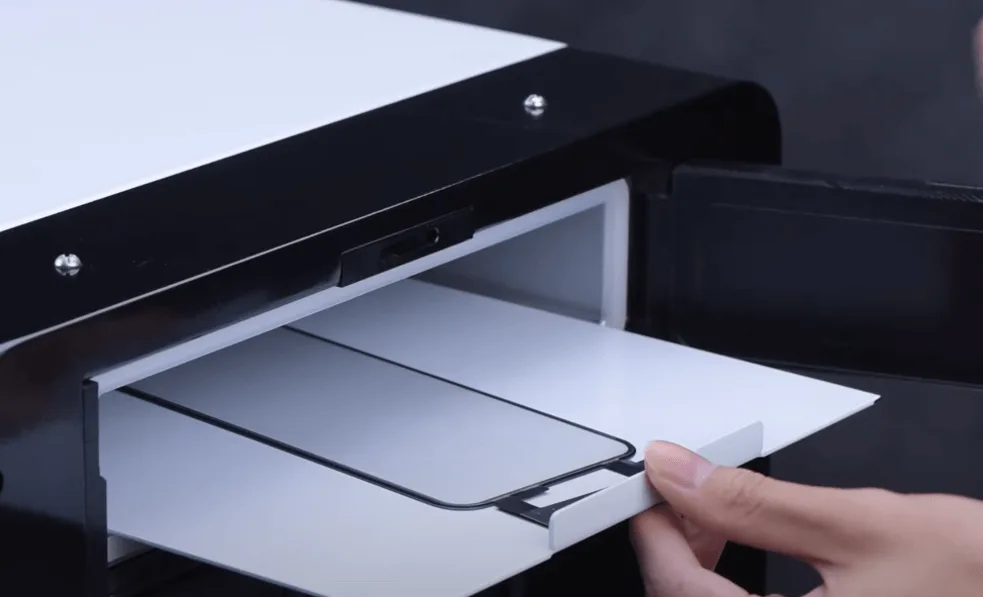
    how fix iphone 12 pro max touch not working get an screen digitizer
    how fix iphone 12 pro max touch not working put the screen digitizer

    Touch Screen Lamination

    Before screen laminating, we need to clean the OLED again. Align the glass with the OLED by the aligning mold.
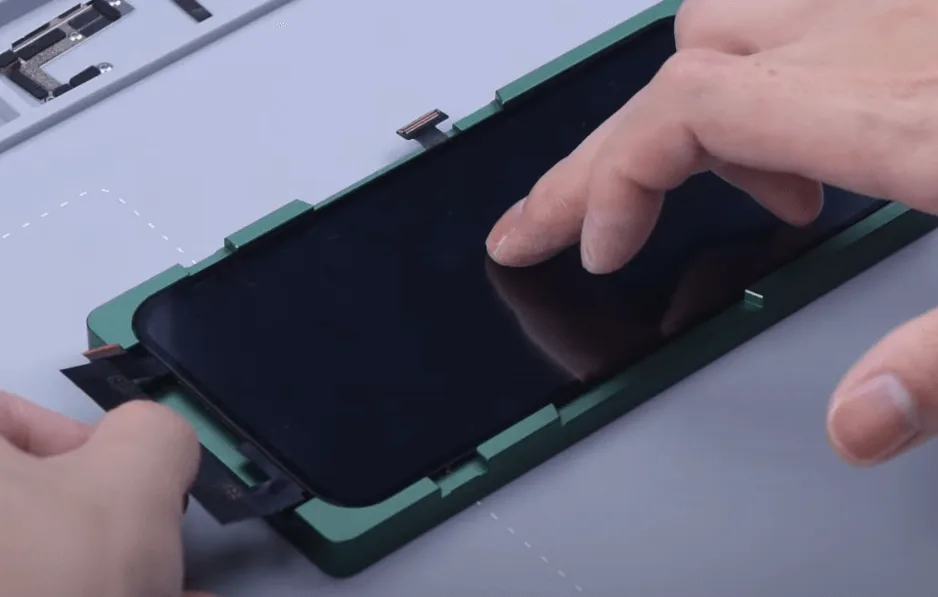
    how fix iphone 12 pro max touch not working align the glass with oled by

    Then stick the screen to the Refox FM-50 laminator, as the lamination is finished, the screen needs to be debubbled. Take the screen out after about 15 minutes. It can be seen that the laminating and debubbling process are done perfectly.
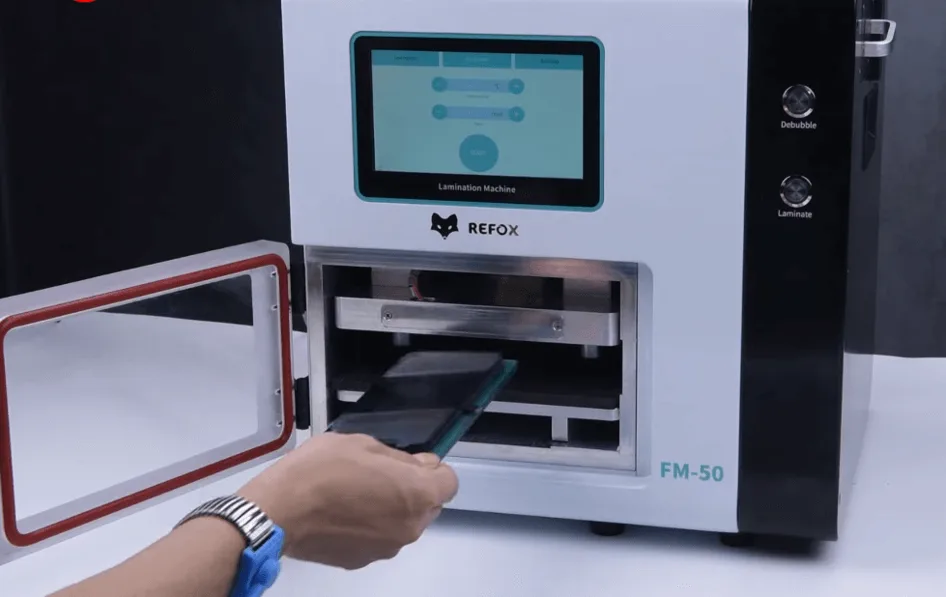
    how fix iphone 12 pro max touch not working the screen needs to be

    Transplant the IC on the original touch flex cable to the tag-on touch flex cable

    To protect the screen from damage, apply high-temperature tape around the IC before operation. Then desolder the IC with vertical hot air gun at 320℃ and airflow 2. 
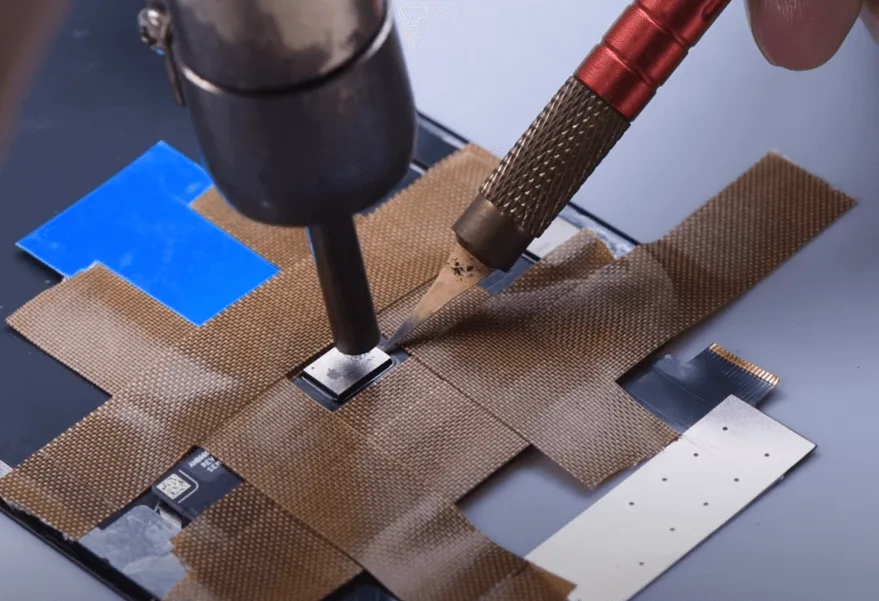
    how fix iphone 12 pro max touch not working desolder the ic with

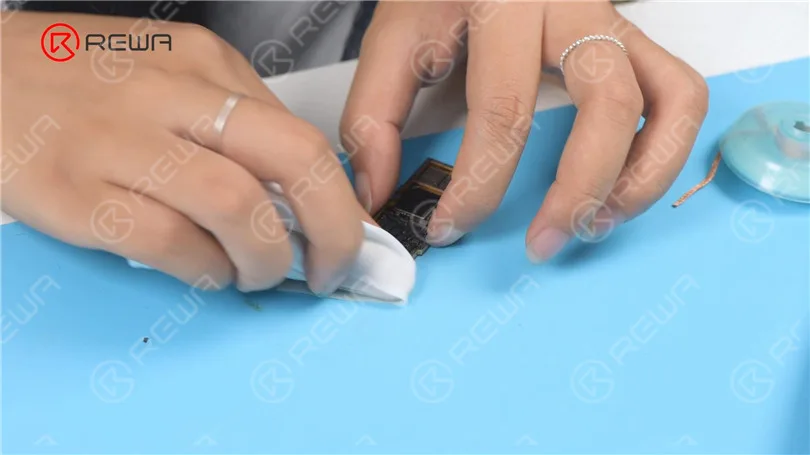
    Apply some solder paste flux and low-temperature solder paste to the bonding pads. Remove the tin with soldering iron at 380℃,then clean with the PCB cleaner.
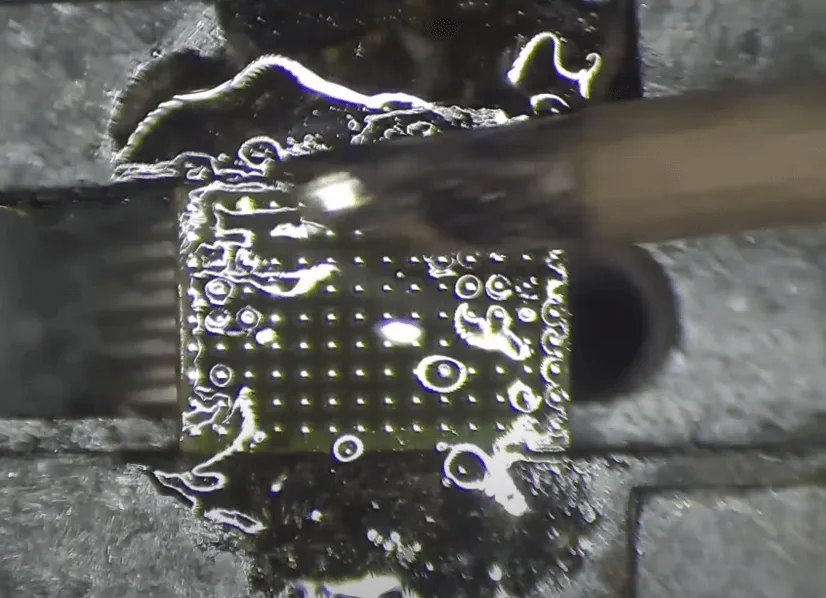
    how fix iphone 12 pro max touch not working remove the tin with

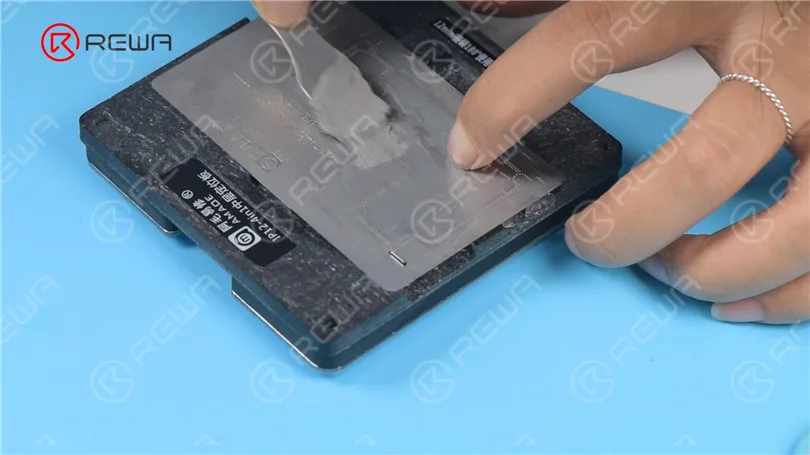
    As the bonding pads are clean, apply a layer of the solder paste evenly to the bonding pads, form the solder balls with hot air gun at 260℃.
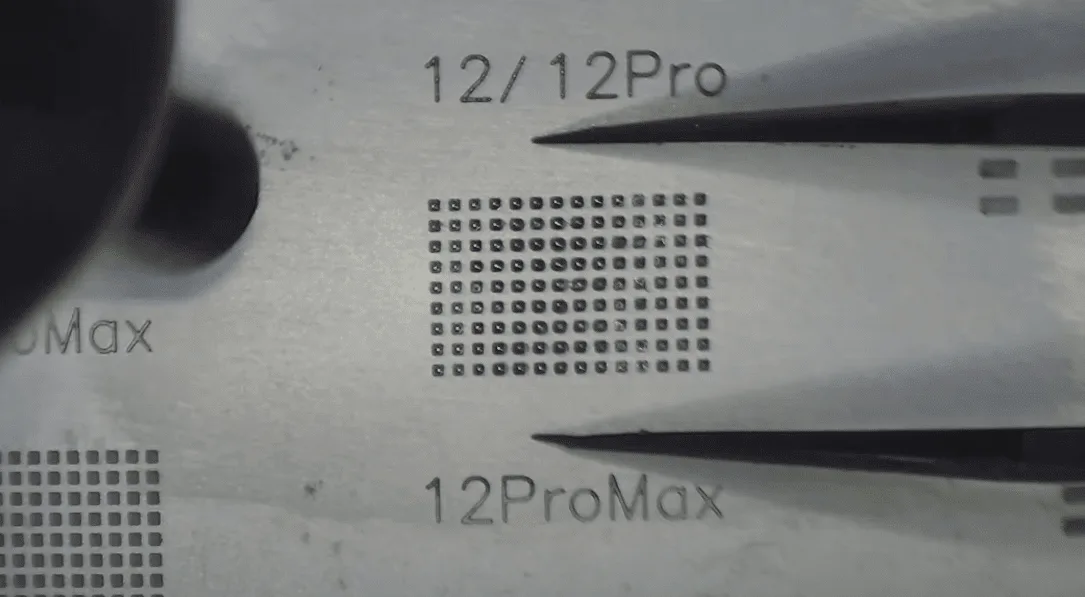
    how fix iphone 12 pro max touch not working orm the solder balls with

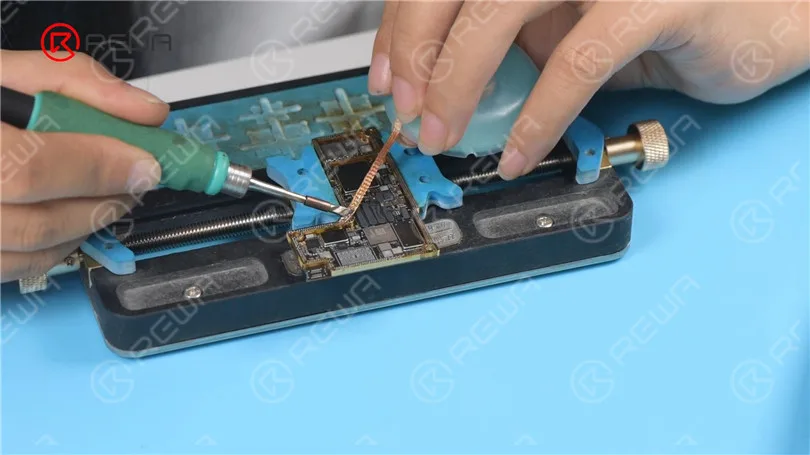
    Then we clean the bonding pads on the flex cable. Use soldering iron at 380℃ and desoldering braid to remove tin, solder the IC with hot air gun at 280℃ and airflow 2. 
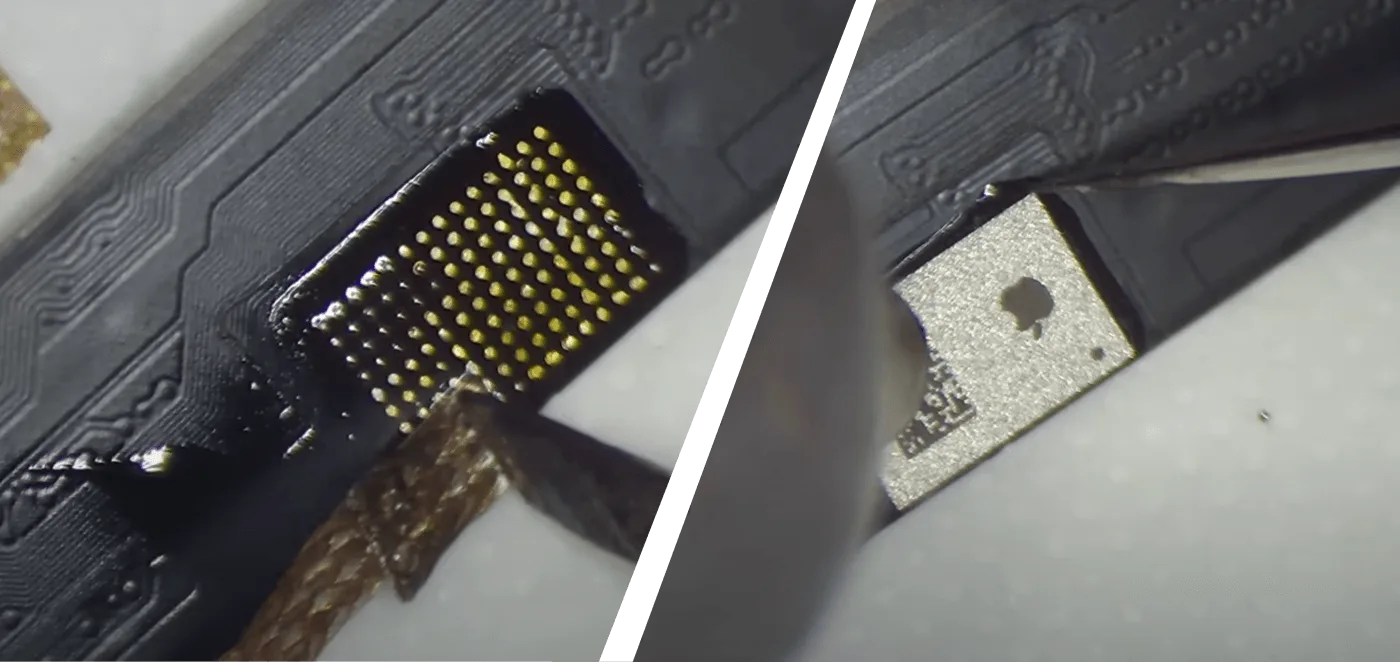
    how fix iphone 12 pro max touch not working desoldering braid to remove

    Install the screen tag-on flex Cable

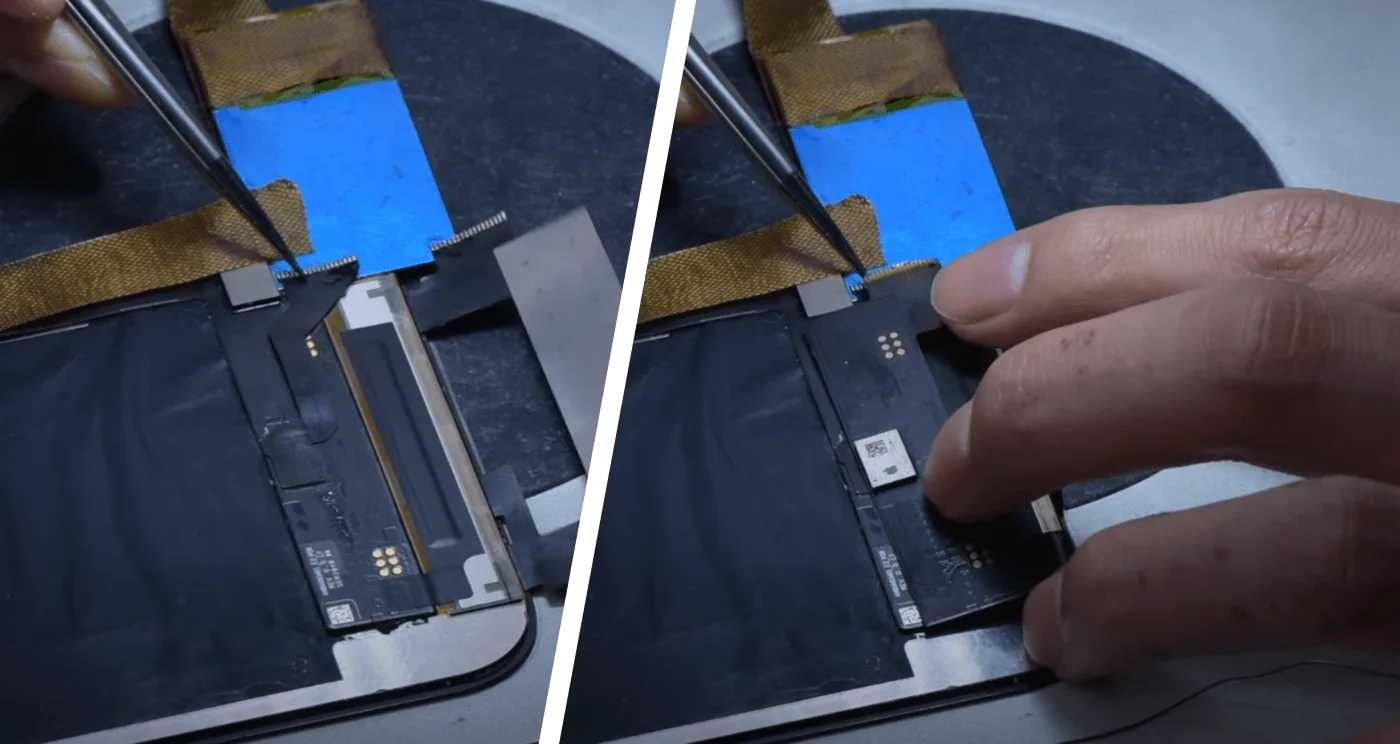
    Remove the underfill adhesive on the bonding pads, please align the three pins before soldering, then solder with hot air gun at 320℃.
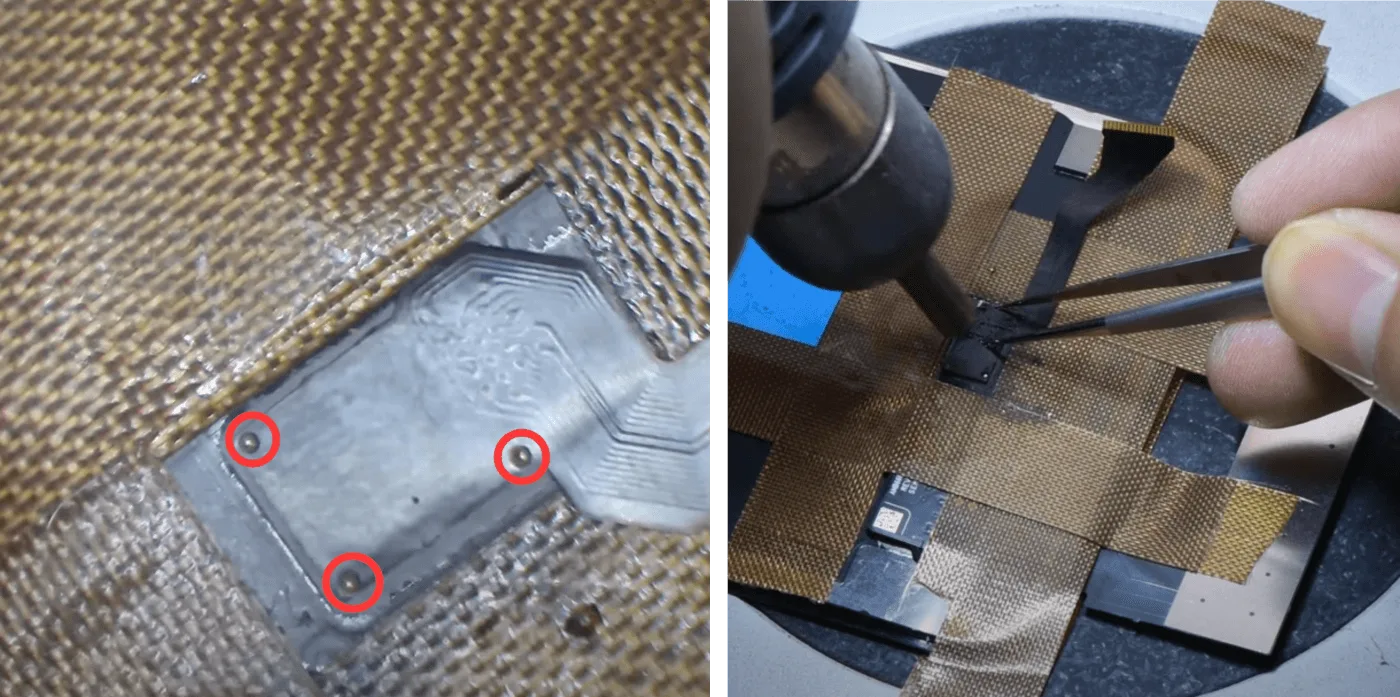
    how fix iphone 12 pro max touch not working please align the three pins

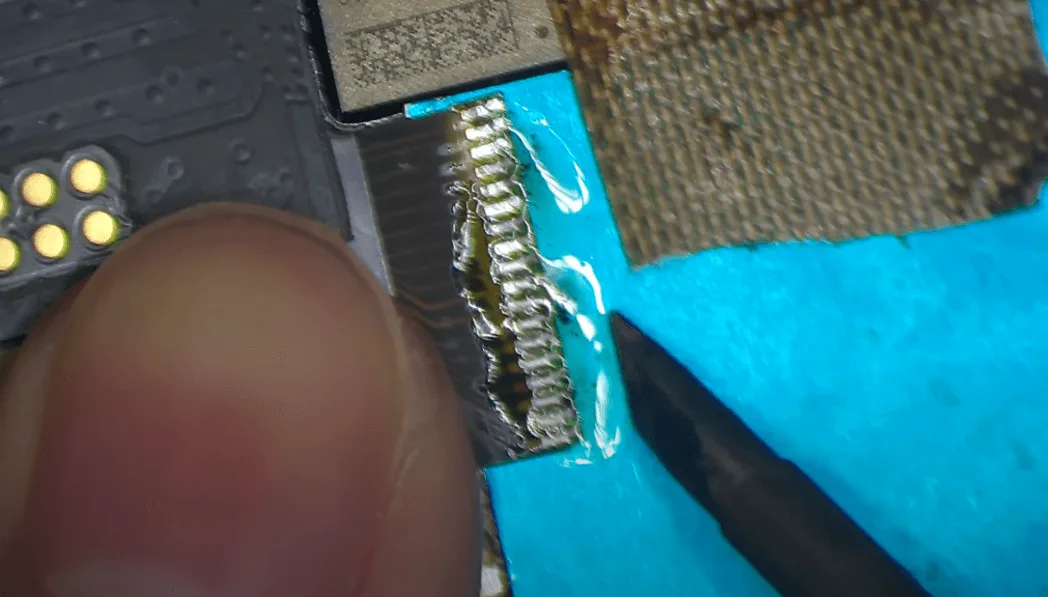
    Solder the other end of the flex with soldering iron at 380℃. As the most difficulty step in the whole procedure, the soldering is the key to whether the touch will function well or not. Clean residue flux with PCB cleaner.
    how fix iphone 12 pro max touch not working solder the other end of

    iPhone 12 Pro Max Touch Not Working

    Install bezel frame

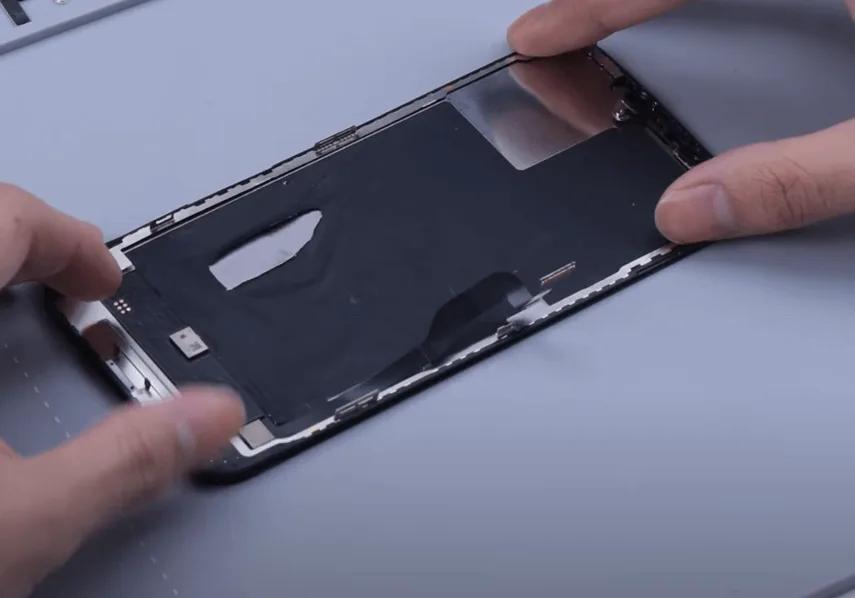
    Apply the bezel adhesive, align the bezel with the display.
    how fix iphone 12 pro max touch not working apply the bezel and align

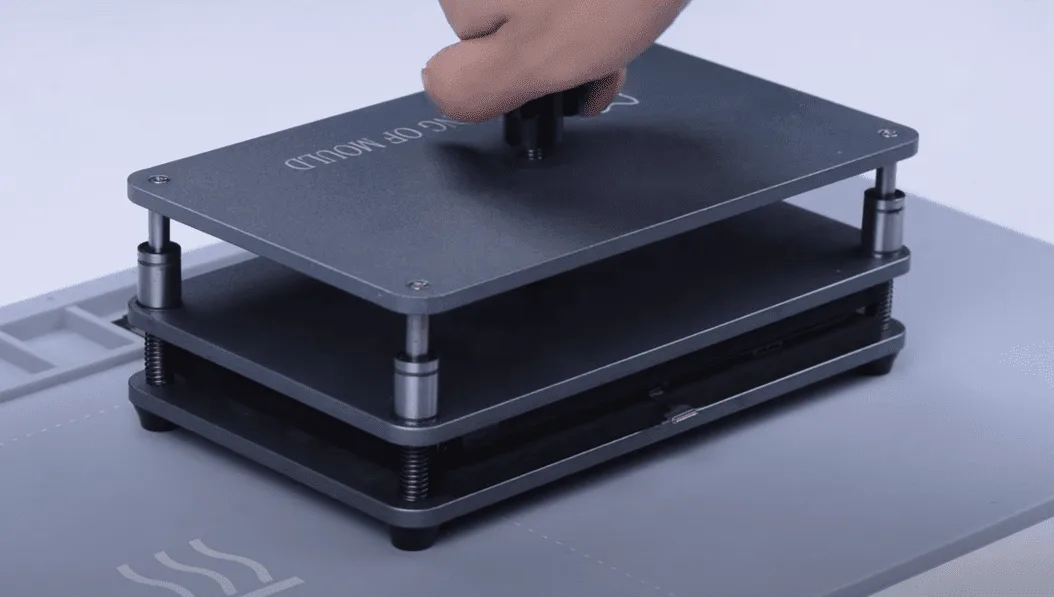
    Put the screen assembly into the press clamp and press the bezel, then we install the display.
    how fix iphone 12 pro max touch not working put the screen assembly into

    Test the functions, the touch is fully working, True Tone is available.
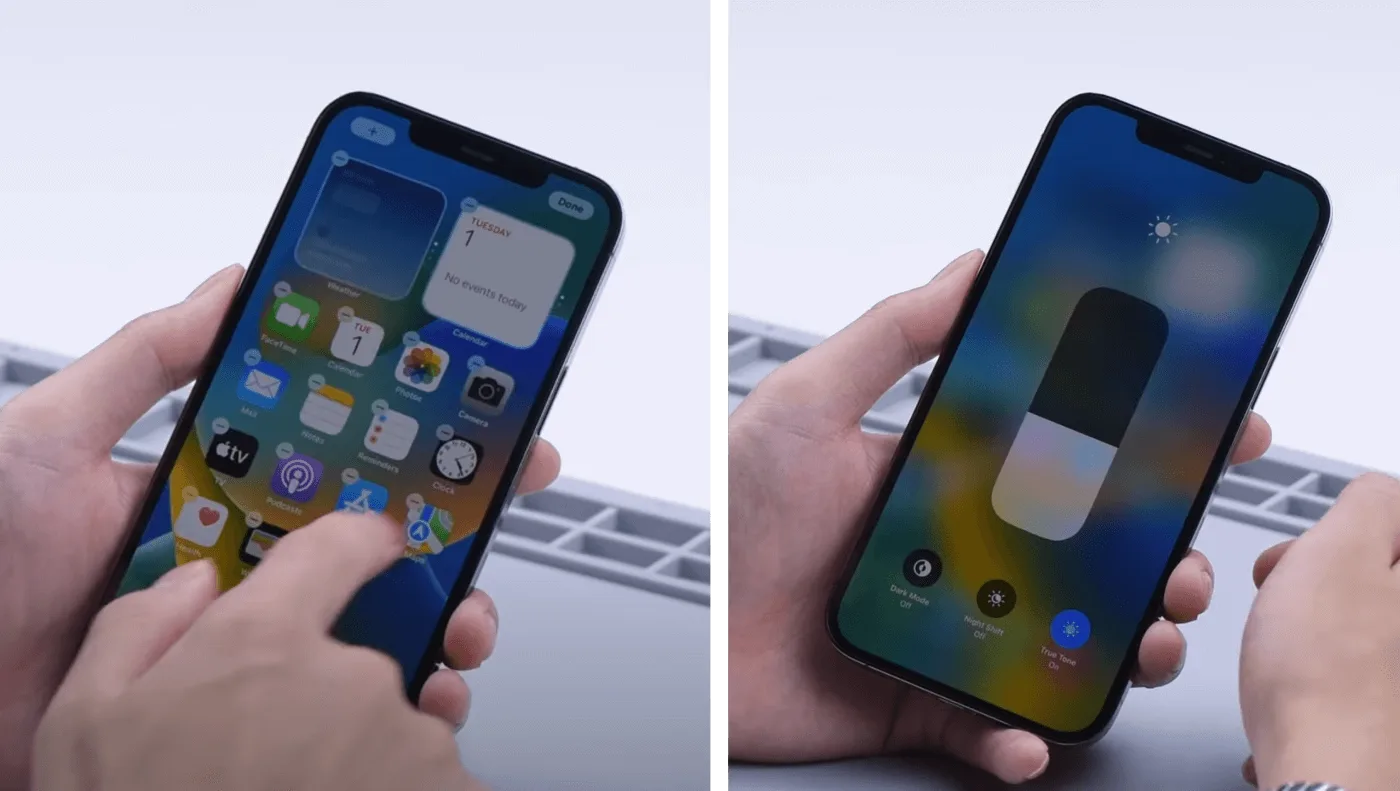
    how fix iphone 12 pro max touch not working the true tone and functions

    Check the detailed operation process on Youtube

    FAQ | iPhone 12 Pro Max Touch

    Q: How to fix iPhone 12 Pro Max Touch issue?

    A: Touch issues are typically caused by either screen damage or motherboard problems. In the first case, we can replace the screen directly or use the method mentioned above. It is advised to consult a qualified motherboard repair technician if the touch issue was caused by the motherboard.

    Q: How to Remove the iPhone 11-12 series Non-genuine Screen Warning by Aftermarket Screens?

    A: Till this moment, we can restore True Tone easily by reading data from original screen then writing the data into the new screen by the repair programmer. However, only swapping the chip from the old screen to the new screen will remove the non-genuine screen warning message. 

    Q: What is the best place to learn how to fix my iPhone?

    A: Whether you are interested in starting a phone repair business or fixing your own damaged phone, REWA academy is the best place to go, systematized courses from shallow to deep, allowing you to quickly master the cell phone repair theory and handwork skills.

    Summary

    There is no genuine display warning message, because the iPhone 12 Pro Max screen uses the oncell structure and the touch can’t be replaced separately, it’s more difficult to repair the touch.

    The current solution is to install a tag-on touch screen digitizer, which is technically chanllenging, we advise non-professionals do not try this. For a screen with the outcell structure, it’s easier to repair the touch as the touch can be replaced separately. 
  • iPhone 12 Pro Max Won’t Turn On Issue Repair Guide

    iPhone 12 Pro Max Won’t Turn On Issue Repair Guide

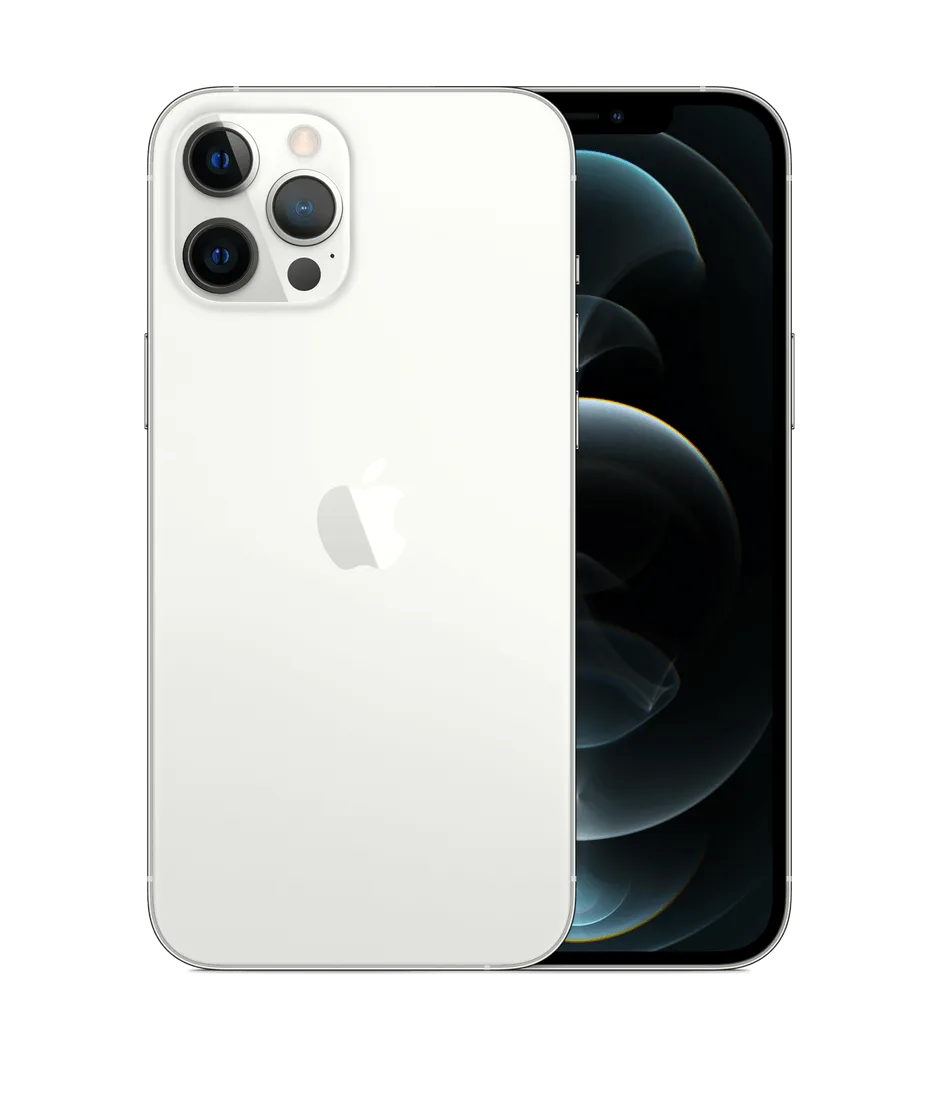
    The iPhone 12 Pro Max, announced on October 13, 2020, is a high-end smartphone known for its advanced features. However, a serious drop can cause it to fail to turn on. This guide details the steps to troubleshoot and repair this issue.

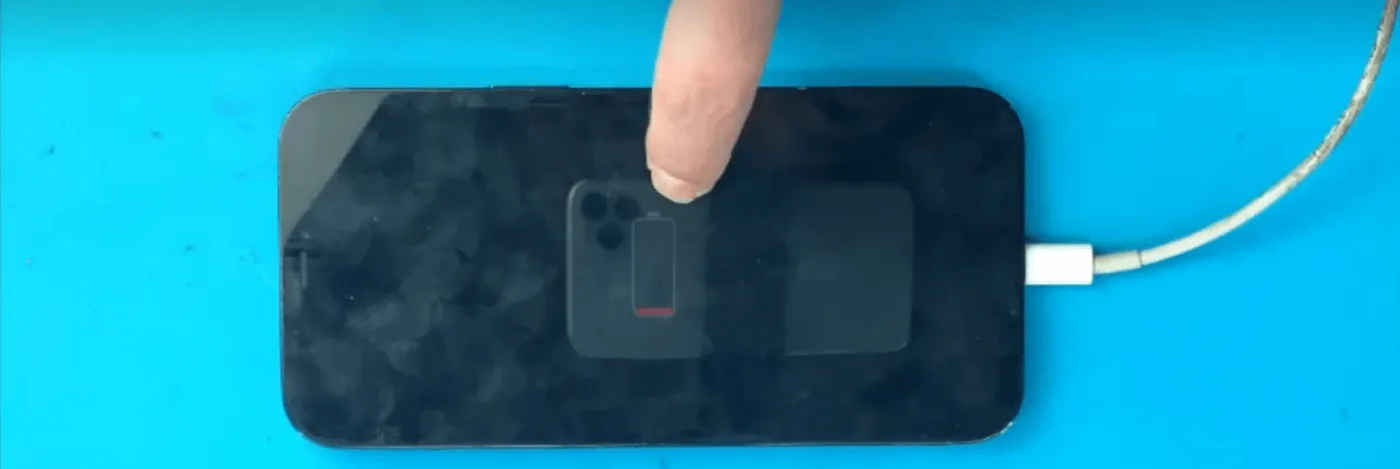
    iphone 12 pro max cannot charge stuck apple logo

    Phone Details

    Model: iPhone 12 Pro Max

    Announced: 2020, October 13

    Defect Phenomenon

    An iPhone 12 Pro Max that has been seriously damaged by a drop may not turn on. In such cases, the following troubleshooting and repair process can be helpful.

    Troubleshooting Process

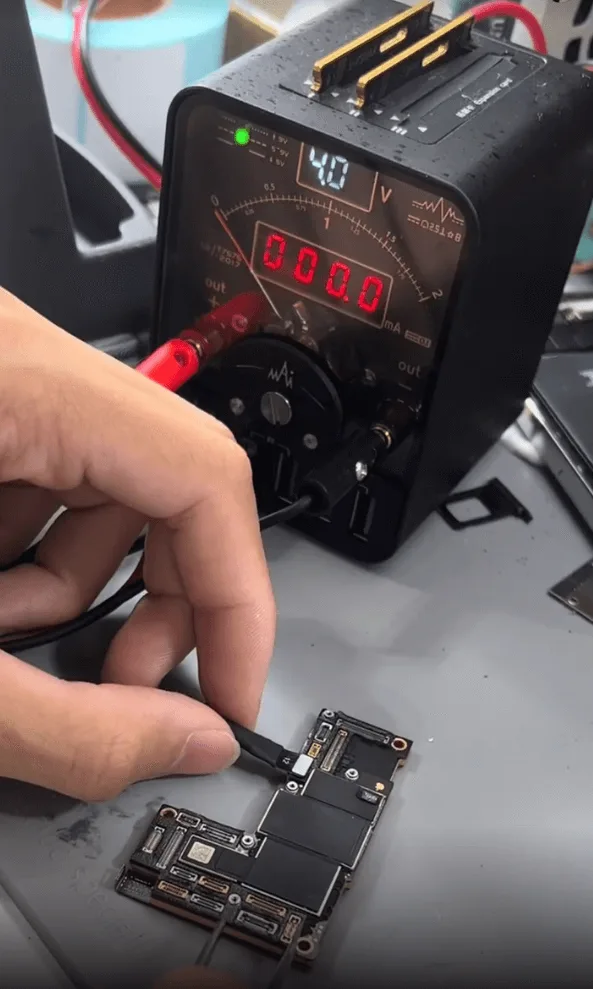
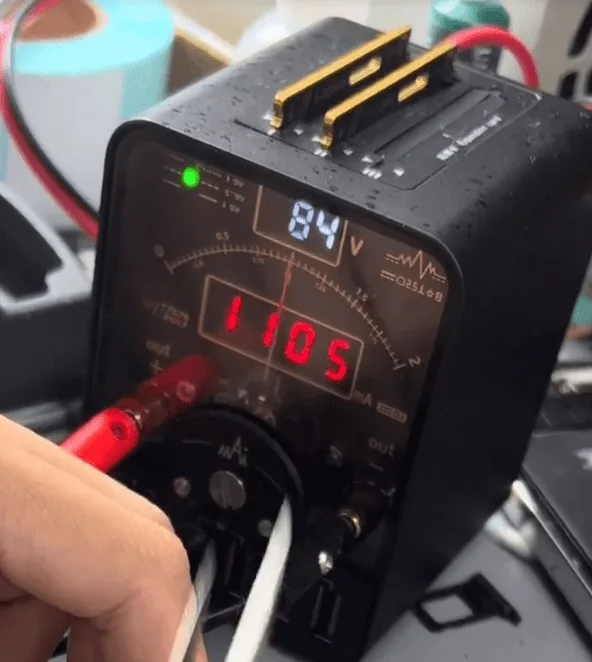
    First, let’s connect the motherboard with the DC power supply machine, there’s no current leakage. But when triggering the boot process by tweezer, the current jump to 1100mA directly.

    iphone 12 pro max won turn issue repair guide trigger to boot
    iphone 12 pro max won turn issue repair guide 1100ma directly

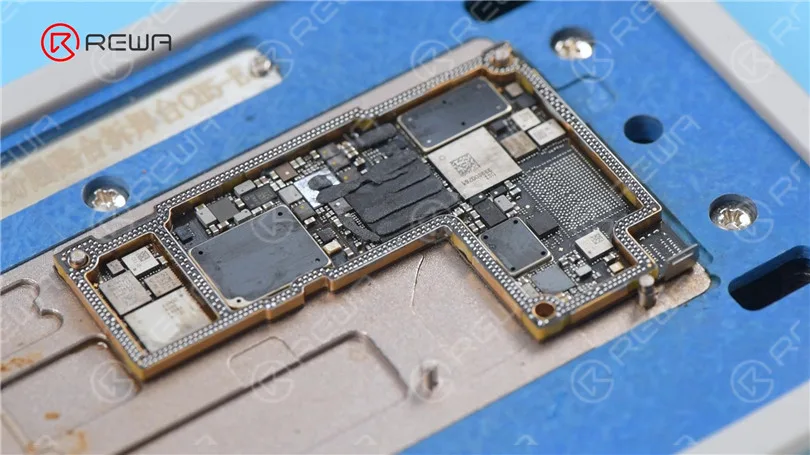
    Next, let’s remove the foams around the connectors, and then hold the motherboard on the heating platform to separate the two layers of the motherboard.

    iphone 12 pro max won turn issue repair guide remove the foams around
    iphone 12 pro max won turn issue repair guide separate with the heating

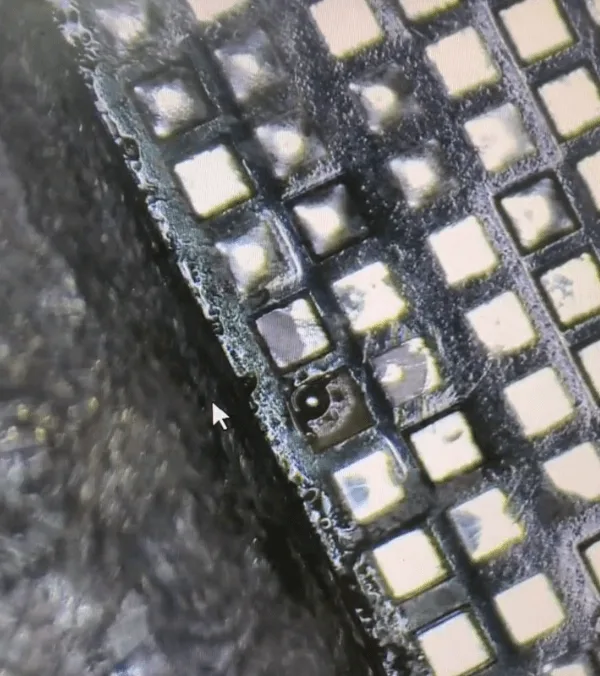
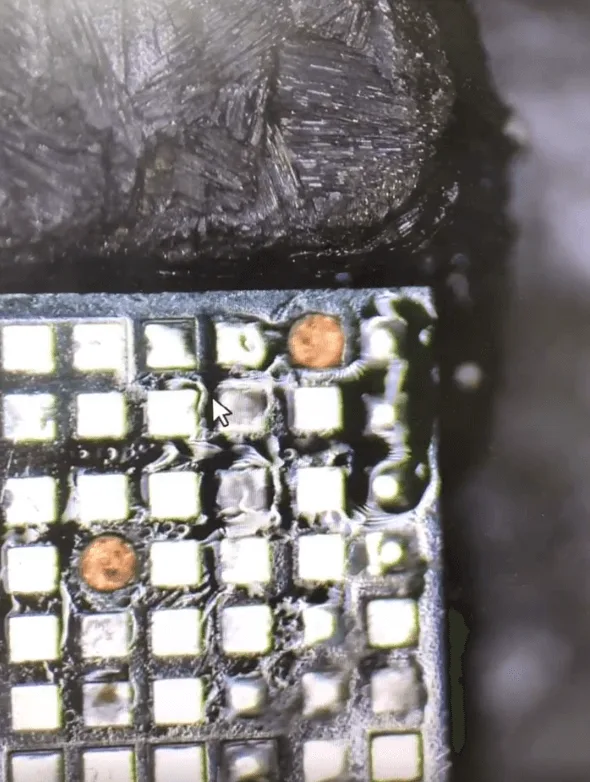
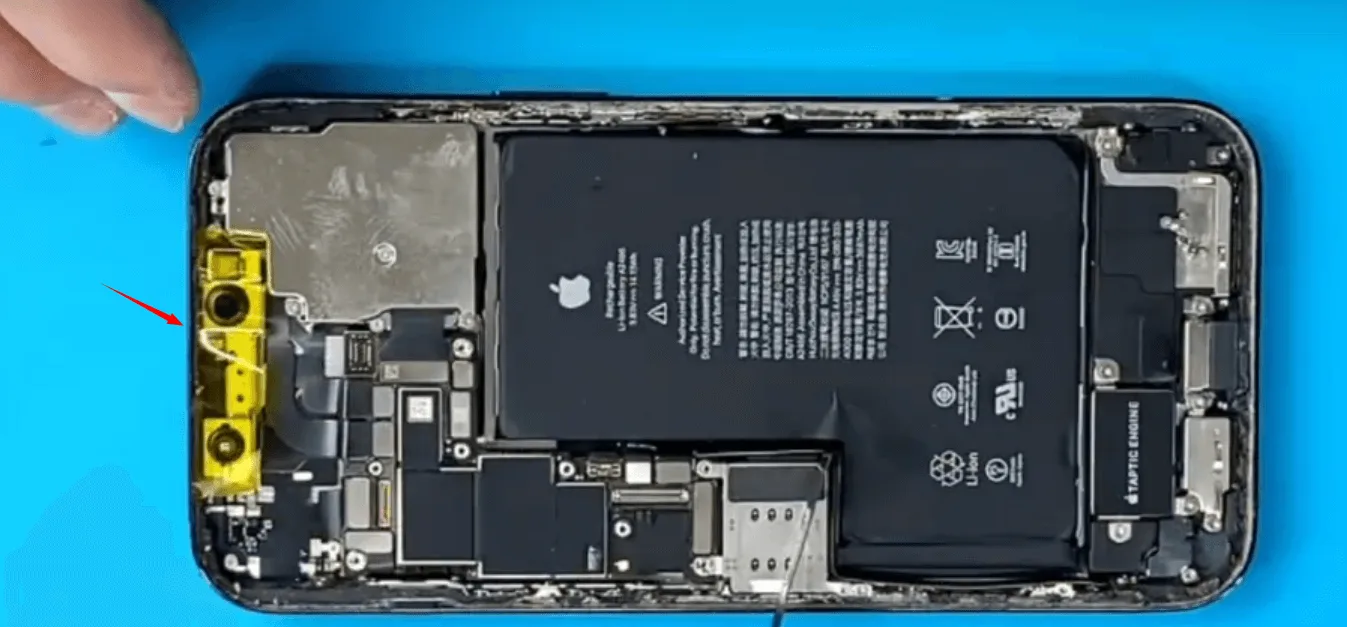
    After separation, not surprisingly, a lot of pads have fallen off, later we need to take a lot of time to fix the missing pads. But anyway, let’s fix the boot issue first.

    When measuring the diode values on the power rails which are outputted from PMU to CPU, find one capacitor around the CPU is shorted to the ground.

    iphone 12 pro max won turn issue repair guide when measuring with
    iphone 12 pro max won turn issue repair guide find one rail is shorted

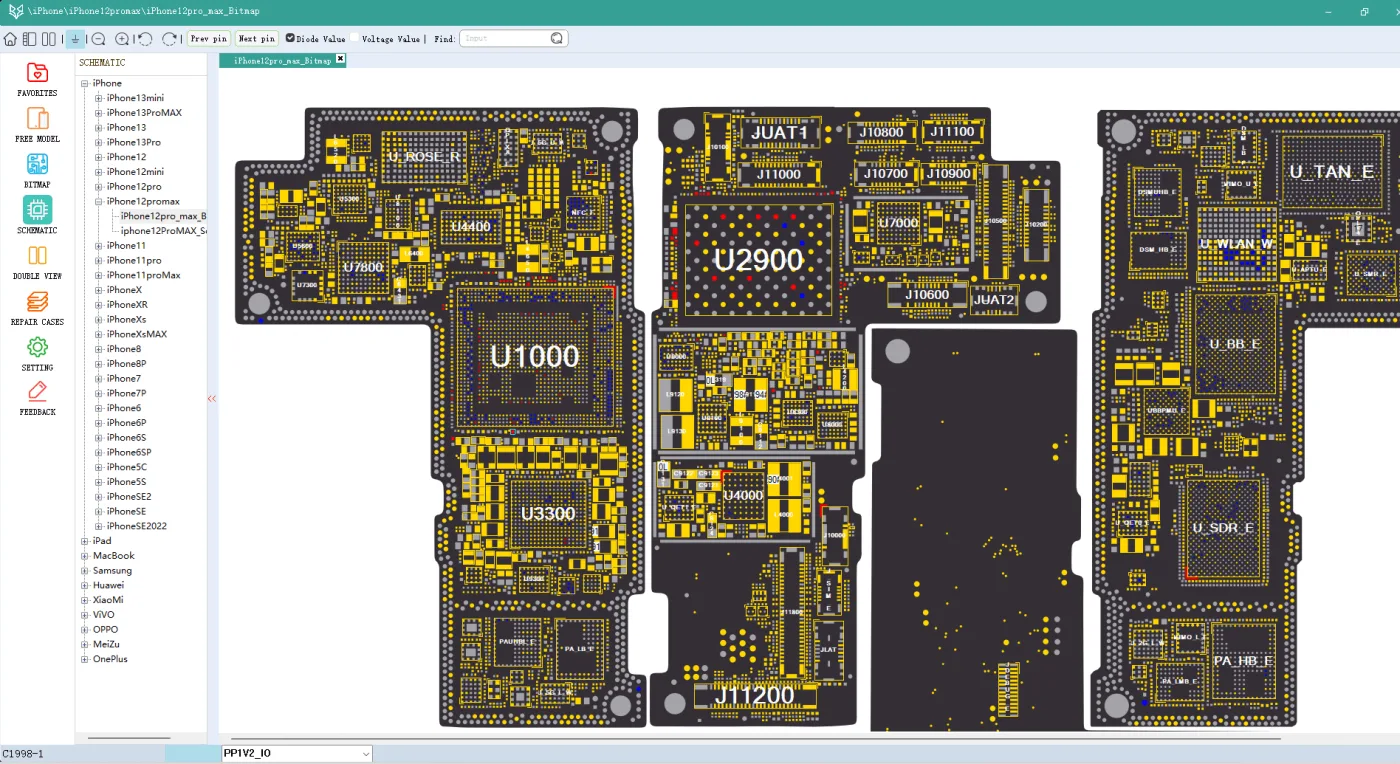
    Refer to the Refox bitmap, it’s PP1V2_IO.

    As we can see, there are many components related to the PP1V2_IO.

    iphone 12 pro max won turn issue repair guide refox bitmap

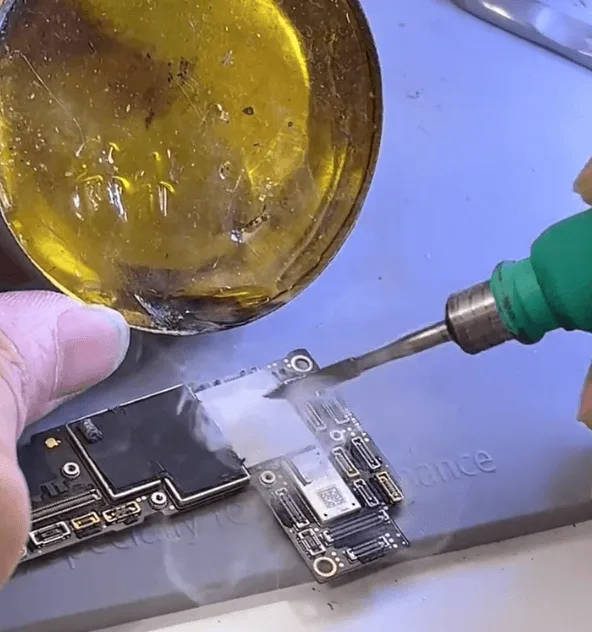
    To find out the exact shorted component, we need to use the rosin inspection method.

    Apply rosin smoke on the surface of the relative areas on the motherboard

    iphone 12 pro max won turn issue repair guide apply rosin smoke on the

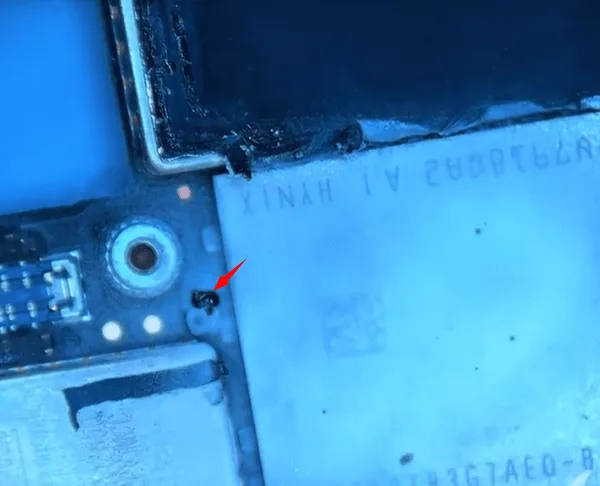
    Then connect the motherboard with the DC power supply machine and check under the microscope, we can find the shorted component easily.

    iphone 12 pro max won turn issue repair guide the shorted capacitor

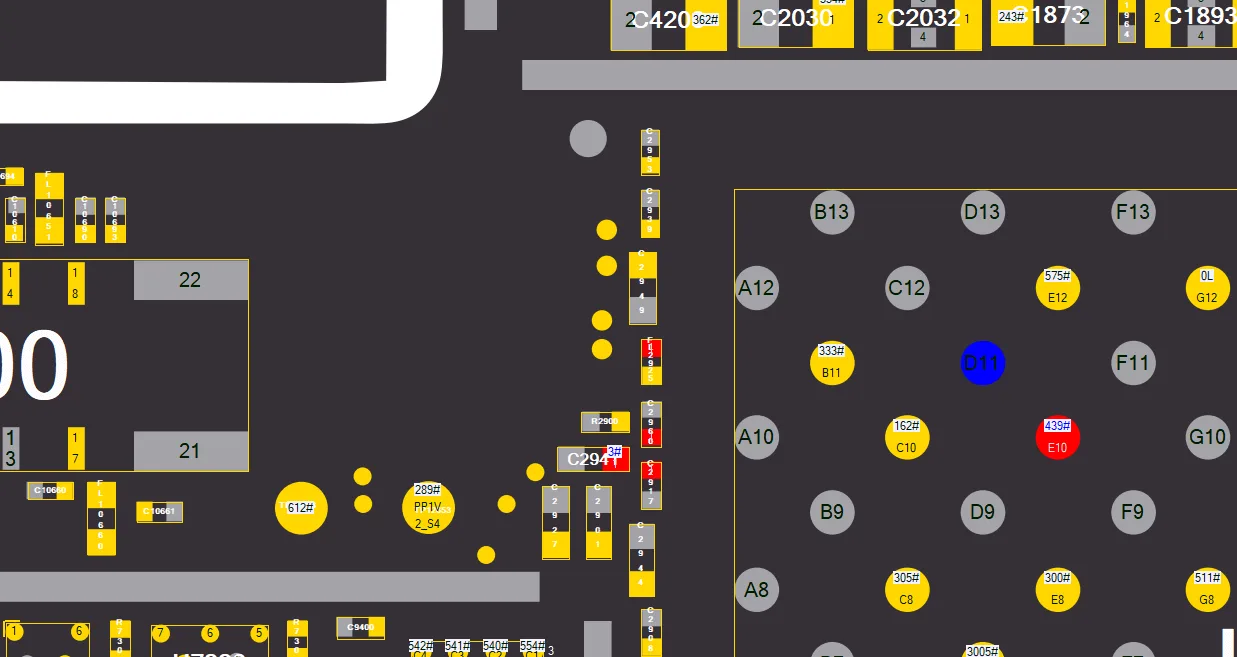
    Refer to the bitmap, it’s the capacitor C2941

    iphone 12 pro max won turn issue repair guide c2941

    Since it’s a filter-type capacitor, to avoid the potential heat damage to the NAND and connectors around it. We can just pick it off with tweezers directly.

    After that, connect the logic board with the screen and boot with the DC power supply machine again, the phone can be booted.

    iphone 12 pro max won turn issue repair guide phone can be booted

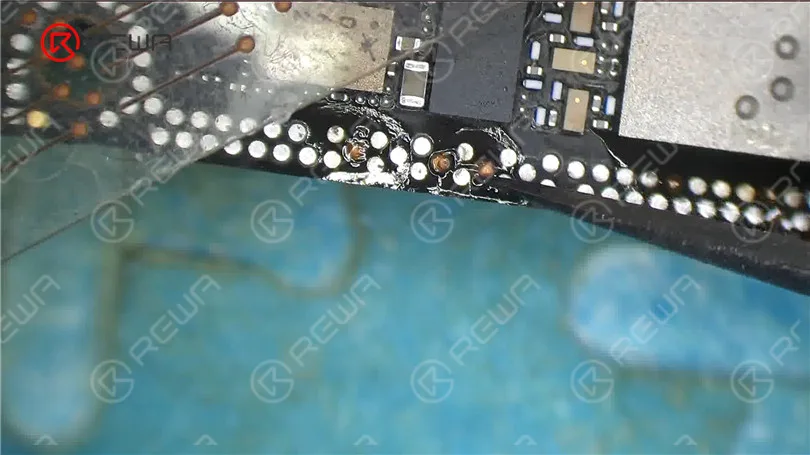
    Then, let’s fix the missing pads on the middle layer.

    iphone 12 pro max won turn issue repair guide the missing pads on middle

    Fixing the missing pads is not very difficult but requires a lot of patience.

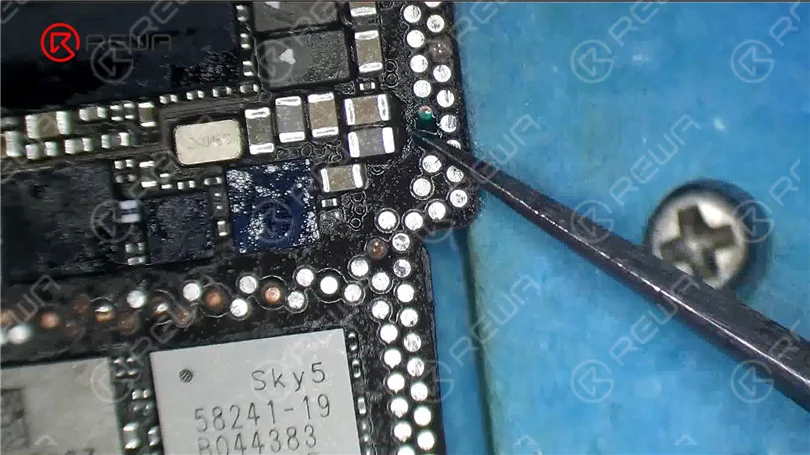
    For the pad that has no connection point

    iphone 12 pro max won turn issue repair guide for the pad that has no

    We need to scratch out the root of the pad with a sculpture knife slightly first

    iphone 12 pro max won turn issue repair guide scratch out the pads

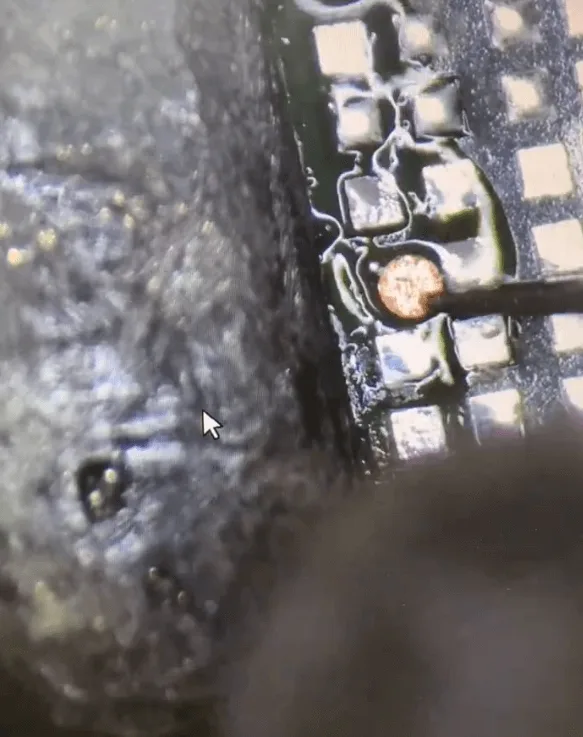
    After that, based on the “root” to jump wire and make a circle

    iphone 12 pro max won turn issue repair guide make circle

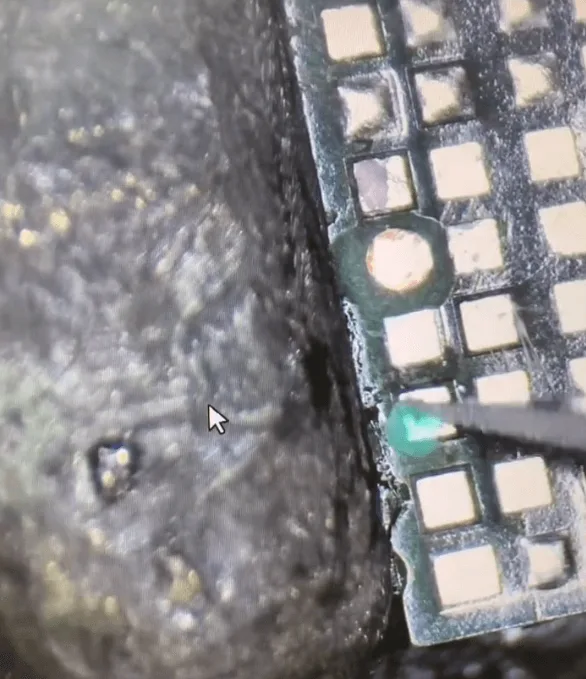
    Then solder a copper lug on the surface

    iphone 12 pro max won turn issue repair guide solder copper lug on the

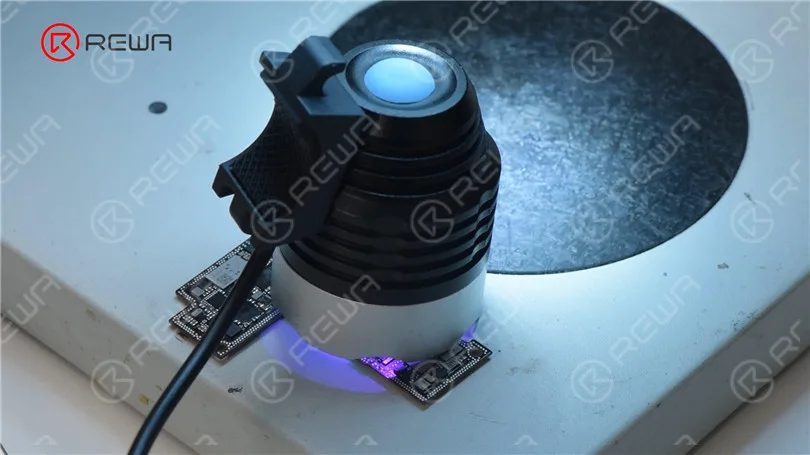
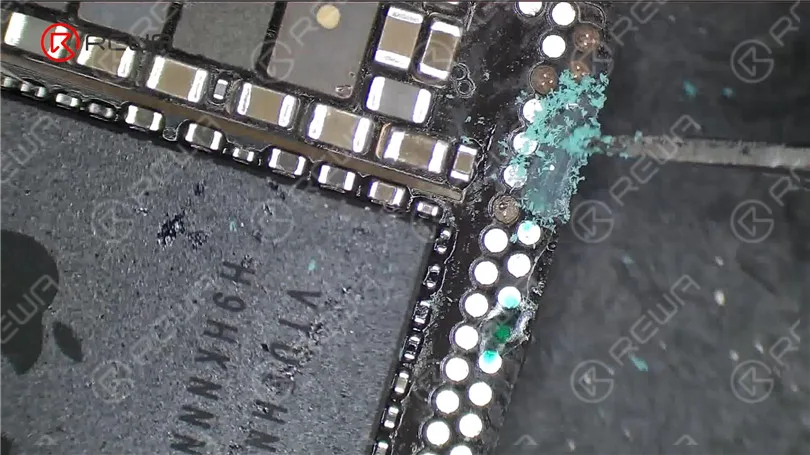
    Then cure and reinforce it with the UV mask and UV lamp.

    iphone 12 pro max won turn issue repair guide cure with the uv lamp

    Assemble and Test

    Then assemble the two layers of the motherboard first with the heating platform

    iphone 12 pro max won turn issue repair guide heating platform

    When the motherboard cooling down, assemble the phone to test and all the functions are OK.

    The issue gets resolved by removing the damaged capacitor and recombining the two layers of the motherboard.

    iPhone 12 Pro Max Won't Turn On

    Summary

    The iPhone 12 Pro Max issue of not turning on due to serious drop damage was resolved by:

    • Removing the damaged capacitor (C2941).
    • Recombining the two layers of the motherboard.
    • Fixing the missing pads.

    This repair requires careful inspection and precise work to ensure the phone is restored to full functionality without causing additional damage.

  • How to Fix iPhone 12 Pro Max Wi-Fi Issues After Drop Damage: Step-by-Step Guide

    How to Fix iPhone 12 Pro Max Wi-Fi Issues After Drop Damage: Step-by-Step Guide

    The iPhone 12 Pro Max can experience Wi-Fi issues after a drop, especially if the damage impacts internal components like the PCB layers. This article walks you through diagnosing and repairing iPhone 12 Pro Max Wi-Fi issues caused by drop damage, including transferring encrypted chips and addressing missing connection pads on the Wi-Fi chip itself. Follow these detailed steps to restore Wi-Fi functionality effectively.
    Defect Phenomenon

    This iPhone 12 Pro Max arrived with Wi-Fi issues after drop damage. Upon inspection, the internal PCB layers showed cracks, prompting a swap of the encrypted chips to a new board. However, the Wi-Fi still didn’t function.

    Troubleshooting

    The iPhone 12 series uses an encrypted Wi-Fi chip bonded with the CPU, making straightforward replacement impossible. Common causes for Wi-Fi issues include:

    • Poor connection in the Wi-Fi chip
    • Damage to the Wi-Fi chip itself
    • Inadequate working conditions for the Wi-Fi component

    Since the chips were swapped onto a new board, the issue likely lies with the Wi-Fi chip itself.

    Repair Process

    Examine the Wi-Fi Chip Under a Microscope

    iphone 12 pro max wi-fi issue

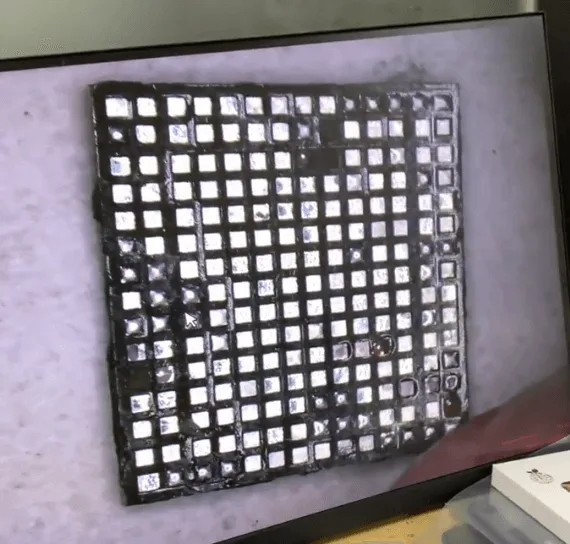
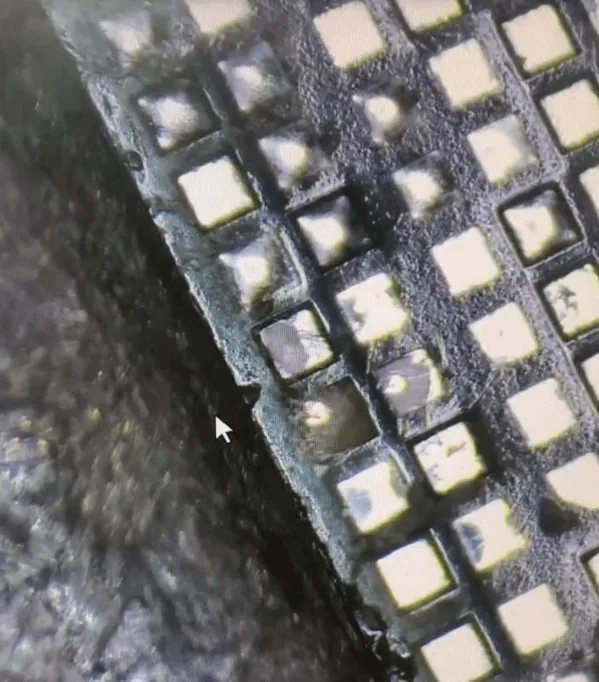
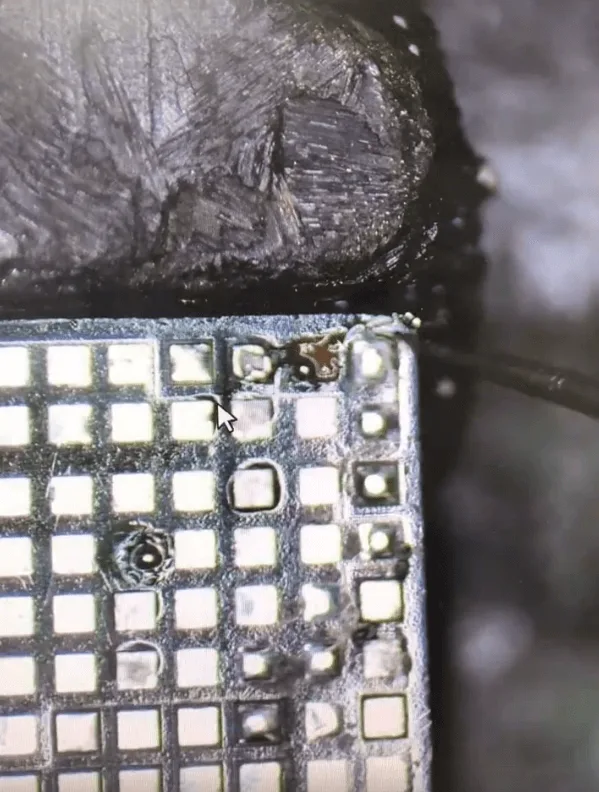
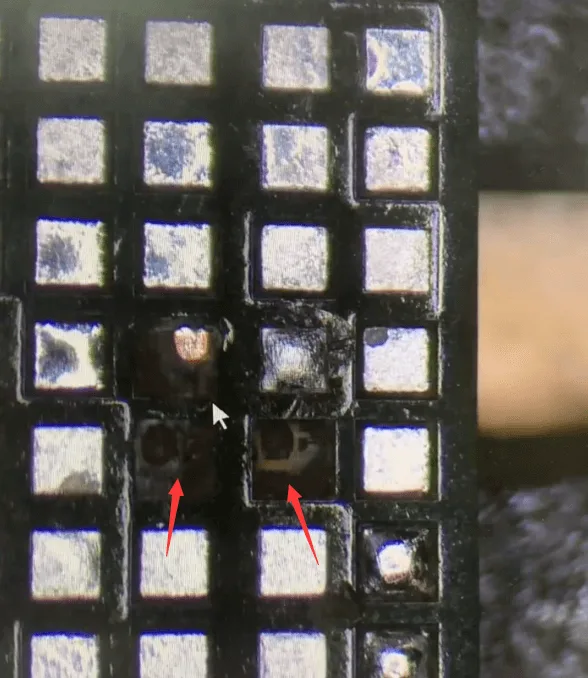
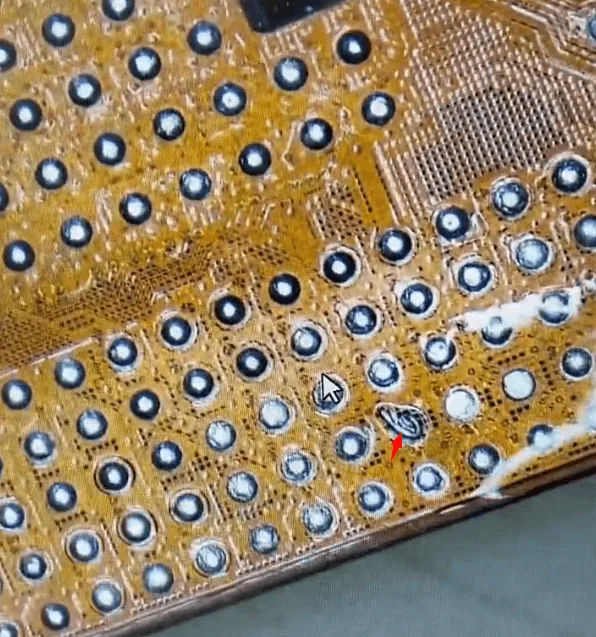
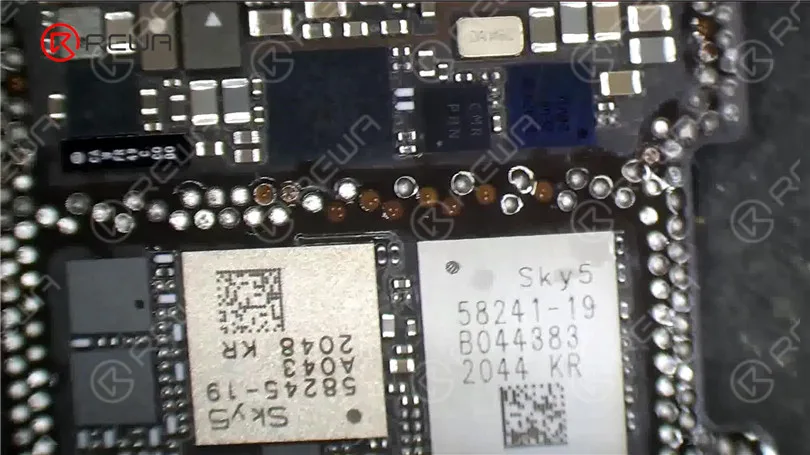
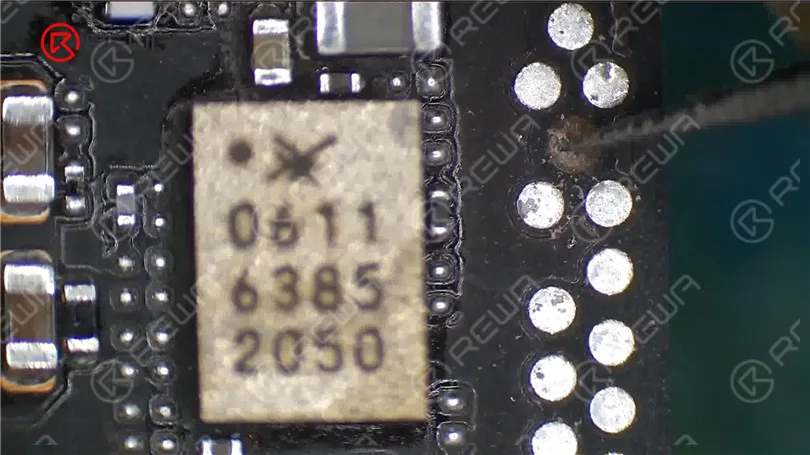
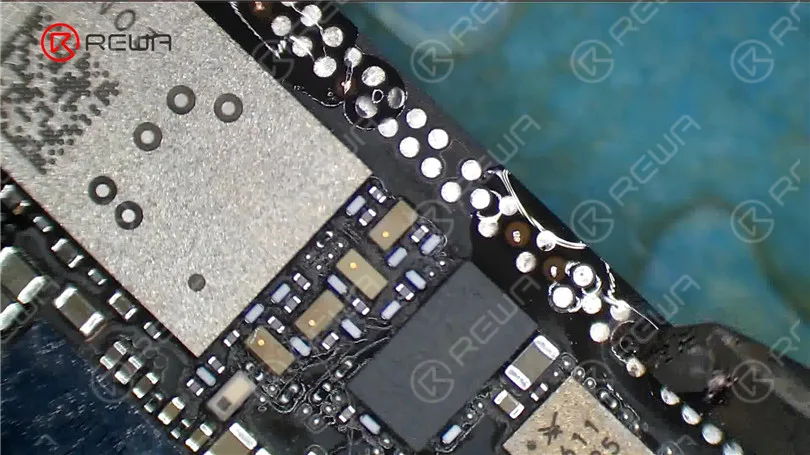
    The inspection showed several missing pads on the Wi-Fi chip, meaning a new replacement wouldn’t resolve the problem. Instead, repair focuses on reconnecting missing pads.

    Prepare the Chip for Jump Wiring

    • Scratch away the surface to reveal the conductive root pads.
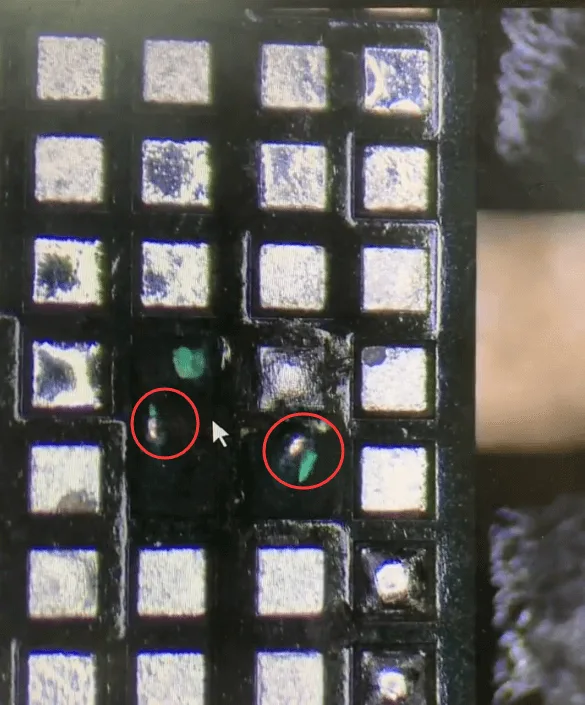
    • Apply a thin layer of tin paste and secure it with a soldering iron.
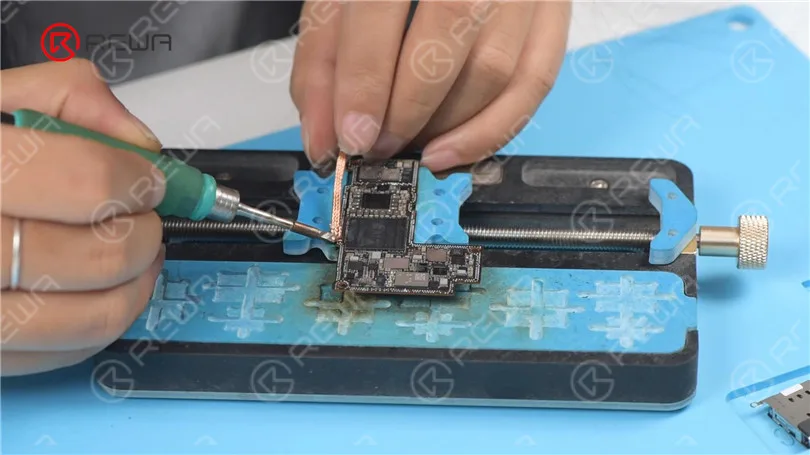
    • Carefully attach a soldering lug to re-establish a connection.
    • Cure with UV mask and UV lamp, then remove any excess UV glue.

    Repair Serious Pad Damage

    • For pads with deeper damage, scrape out the conductive root using a fine sculpture knife.
    • Apply UV mask to solidify the pad area.
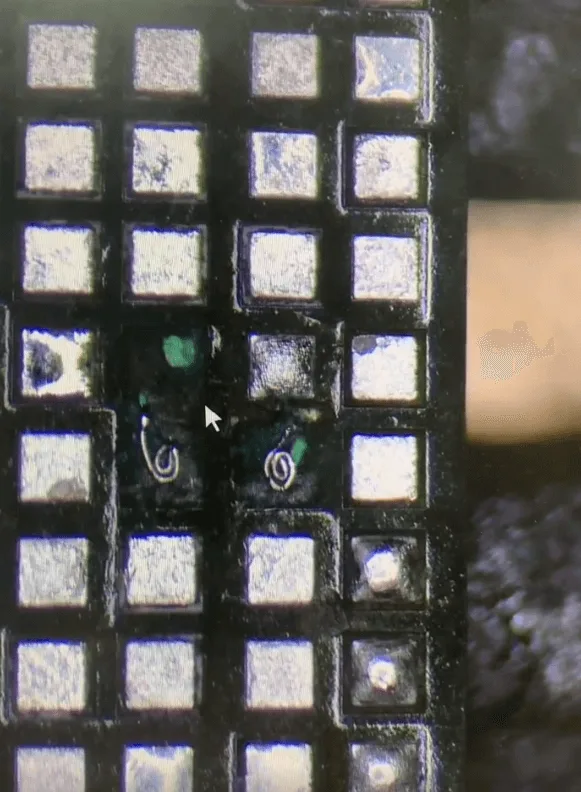
    • Attach a conductive wire, forming small loops around the pad manually

    Tips

    • Remove extra UV glue before applying tin paste to the jump wire loop.
    • Secure the loop with soldered lugs to complete the connection.

    Reassemble the Wi-Fi Module

    iphone 12 missing pads repair
    • Reball the Wi-Fi module and solder it back onto the motherboard.
    • Use a heating platform to recombine the motherboard layers.
    • Reassemble the phone and test functionality.

    After reassembly, the Wi-Fi function was fully restored, and all other functions worked normally.
    Summary

    Through careful inspection and jump wiring, we restored the Wi-Fi functionality on this iPhone 12 Pro Max. This method effectively addressed pad damage on the Wi-Fi module, making it possible to recover from otherwise challenging drop damage.

    Tools & Parts List

  • iPhone 12 Pro Max Cannot Charge and Stuck at Apple Logo

    iPhone 12 Pro Max Cannot Charge and Stuck at Apple Logo

    An iPhone 12 Pro Max that won’t charge and remains stuck at the Apple logo is a repair technician’s challenge. This issue arose after a screen replacement, leading to motherboard problems. This detailed guide explores the troubleshooting process, identifies the root cause, and outlines the steps to replace the defective USB chip.

    iPhone 12 pro max

    Device Details

    Model: iPhone 12 Pro Max

    Announced: 2020, October 13

    Defect Phenomenon

    • The original screen was damaged and has been replaced with a new one.
    • After a few days of use, the phone stopped working and could not be booted. 
    • Connected it to the charging cable, but there was no response.

    Troubleshooting

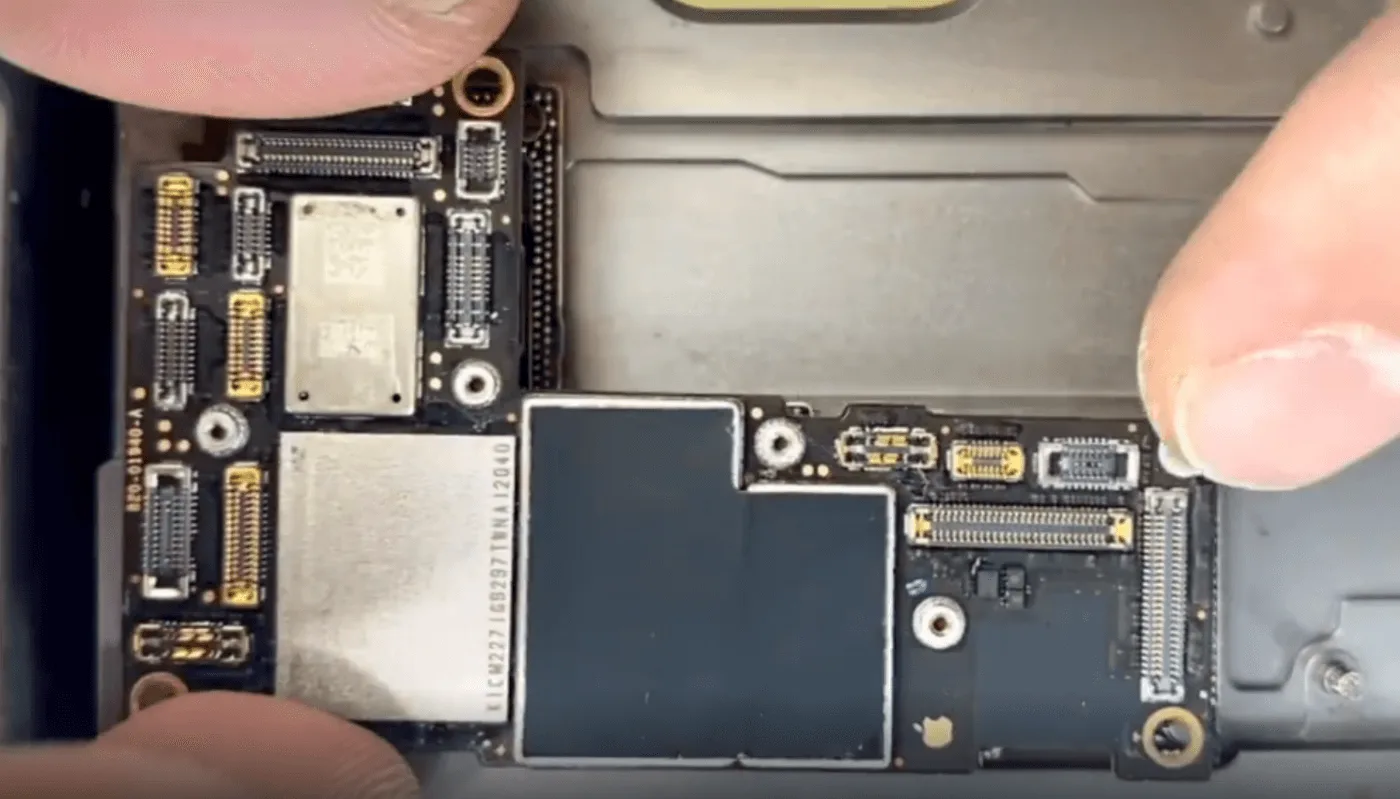
    Disassemble the phone and apply a sticker to the Face ID module.

    iphone 12 pro max cannot charge stuck apple logo protect the face id

    Initial Inspection

    Face ID Module: Protected with a sticker before disassembly.
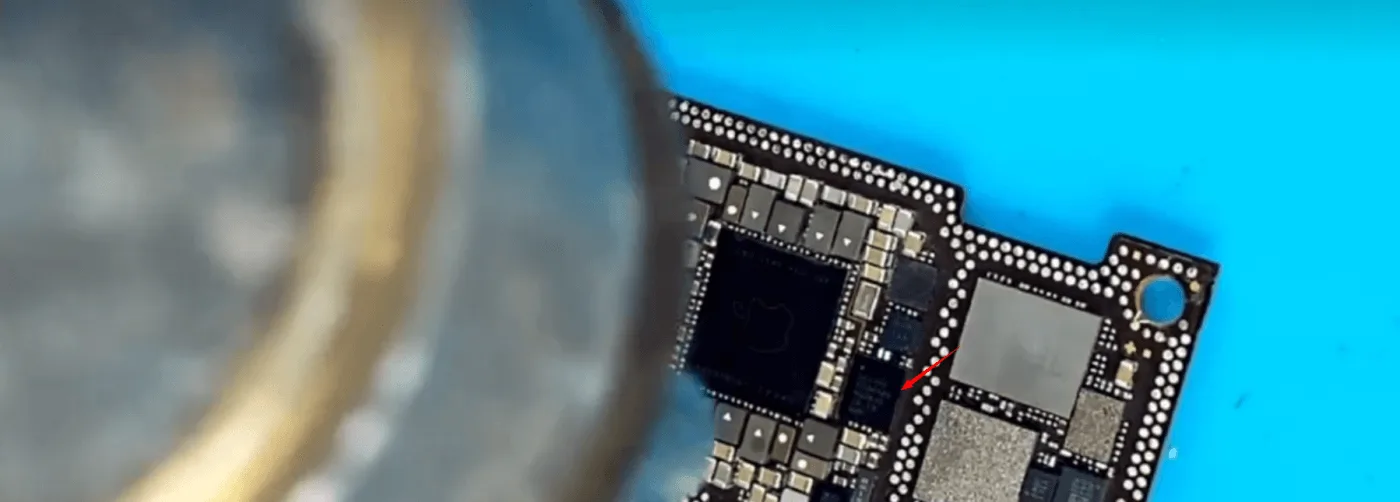
    Motherboard:

    • No signs of previous repairs or water damage.
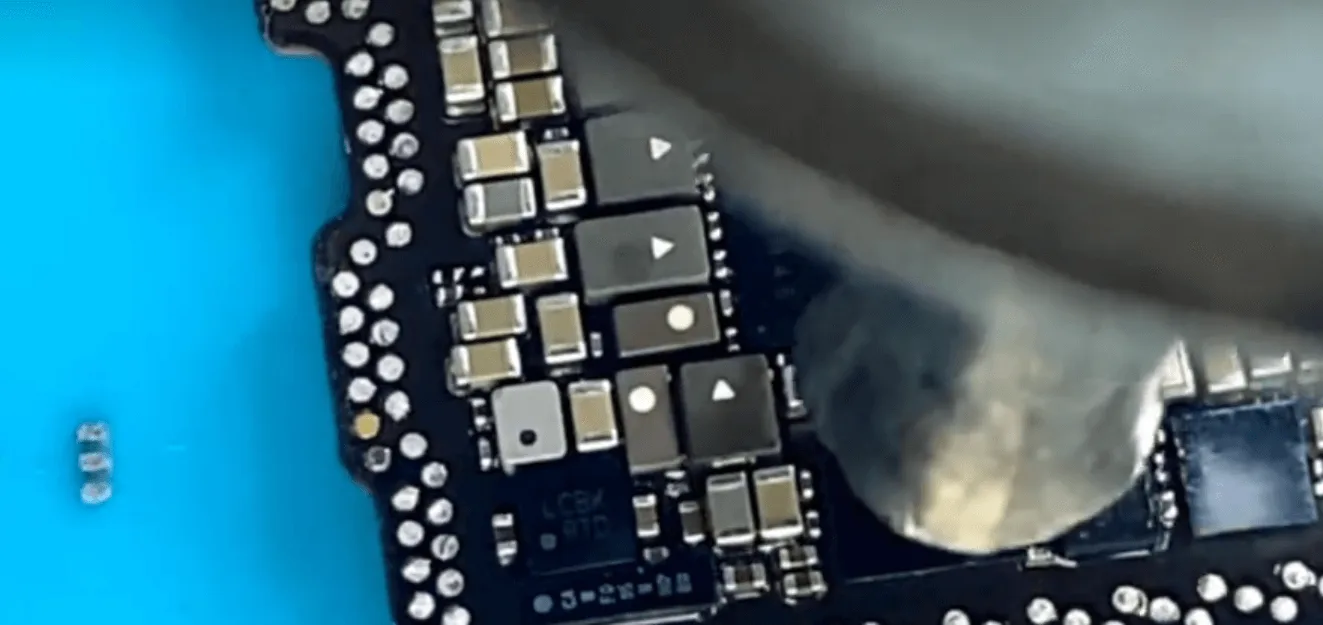
    • No physical deformation.

    Everything looks fine.

    Boot Current Check

    • Connected the motherboard to a DC power supply and observed the current curve.
    • The boot current remained fixed at 400mA, suggesting chip damage.

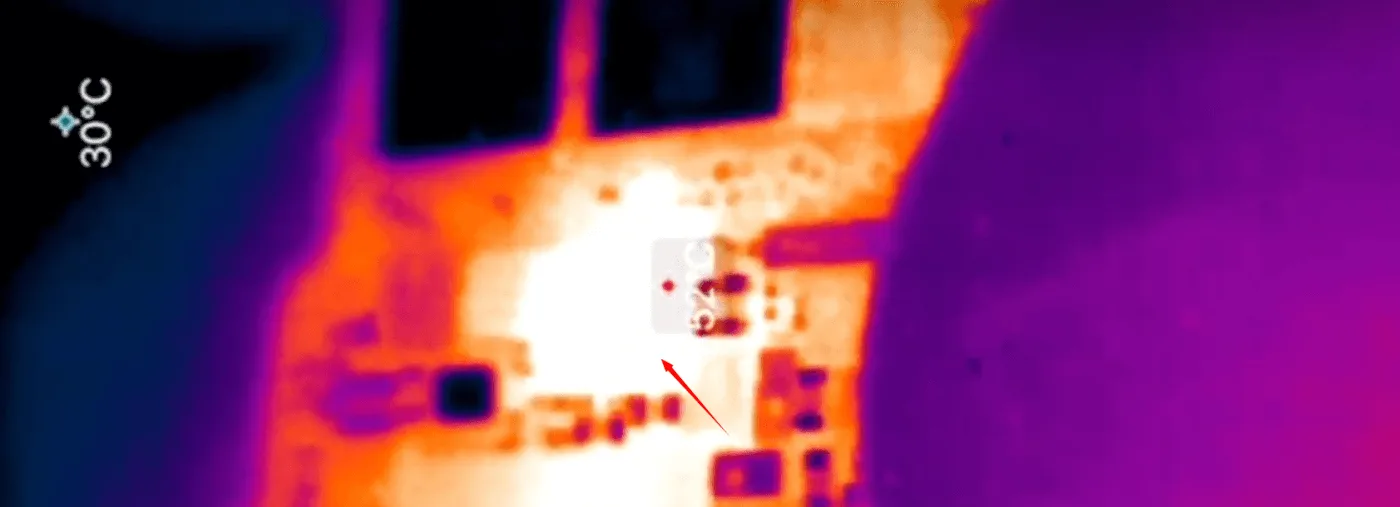
    Thermal Imaging Analysis

    • Separated the motherboard layers using a heating platform.
    • Supplied power and used thermal imaging to locate overheating.
    • Identified the USB chip as the source of excessive heat.
    iphone 12 pro max cannot charge stuck apple logo the usb chip get hot

    Repair Process

    USB Chip Removal

    • Removed the defective USB chip using a hot air gun and tweezers.
    • Worked quickly to avoid impacting the nearby Power Management Unit (PMU).
    iphone 12 pro max cannot charge stuck apple logo then remove the chip

    Pad Preparation

    • Cleaned the pads with solder flux and solder wick.
    • Ensured the pads were smooth for optimal chip connection.
    iphone 12 pro max cannot charge stuck apple logo solder it back to the

    Chip Replacement

    • Re-balled the new USB chip to ensure all solder joints were intact.
    • Soldered the chip onto the motherboard with precision.

    Recombine Motherboard Layers

    • Reassembled the motherboard layers using a heating platform.
    iphone 12 pro max cannot charge stuck apple logo then we can recombine

    Testing

    Boot Current Check

    Verified that the boot current returned to normal after USB chip replacement.

    iPhone 12 Pro Max Cannot Charge

    Functional Testing

    • Assembled the phone and tested charging functionality.
    • Conducted additional tests to ensure all functions were working correctly.

    Final Outcome

    The iPhone 12 Pro Max was successfully repaired. The phone now charges normally, boots without issues, and retains full functionality.

    Key Takeaways

    1. Precision Tools: Use thermal imaging to pinpoint overheating components.
    2. Quick Repairs: Minimize heat exposure to sensitive components during desoldering.
    3. Preventative Care: Protect nearby components like the PMU during chip replacement.

    For more professional repair tips and advanced techniques, visit REWA Academy.

    Let me know if you’d like any adjustments, additional sections, or graphics to accompany this guide!

  • iPhone 12 Pro Max Not Booting? How to Fix with CPU Pad Repair

    iPhone 12 Pro Max Not Booting? How to Fix with CPU Pad Repair

    A no-boot issue in an iPhone 12 Pro Max is a challenge for repair technicians, especially when caused by missing CPU pads. This guide explains how to diagnose, repair, and restore functionality to the device by skillfully repairing the CPU pads through wire jumping and other intricate methods.

    iphone 12 pro max

    Device Details

    Model: iPhone 12 Pro Max

    Announced: 2020, October 13

    Defect Phenomenon

    Device: iPhone 12 Pro Max

    Symptoms:

    1. The device was unable to boot.
    2. Previous repair attempts failed.
    3. Customer feedback identified missing CPU pads.

    Repair Process

    Initial Inspection

    • Disassembled the phone and found the motherboard already separated.
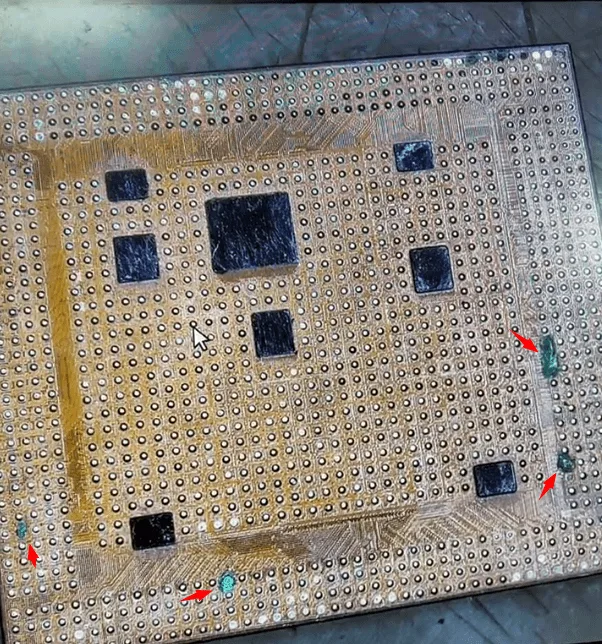
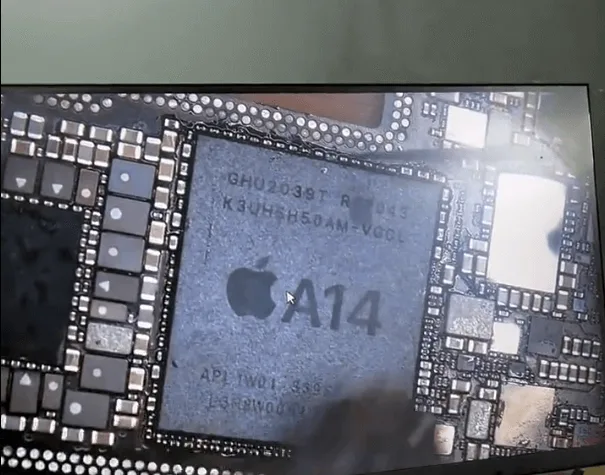
    • Inspected the CPU under a microscope and confirmed repair traces on the pads.
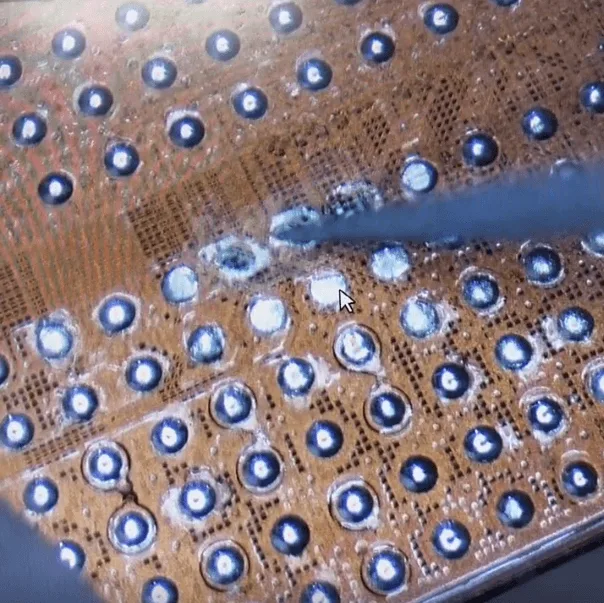
    iphone 12 pro max not booting how fix cpu pad repair received the phone

    Root Cause

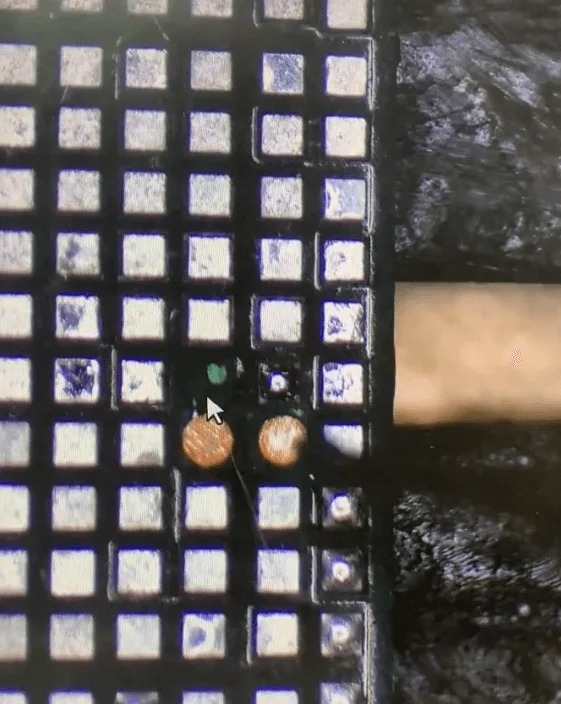
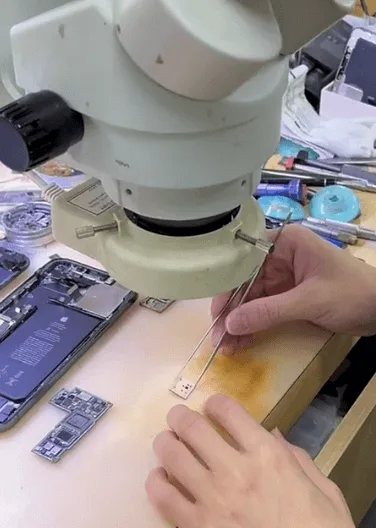
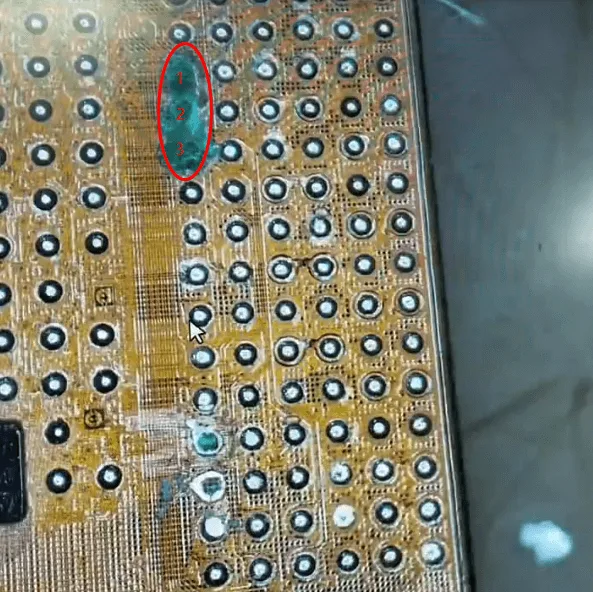
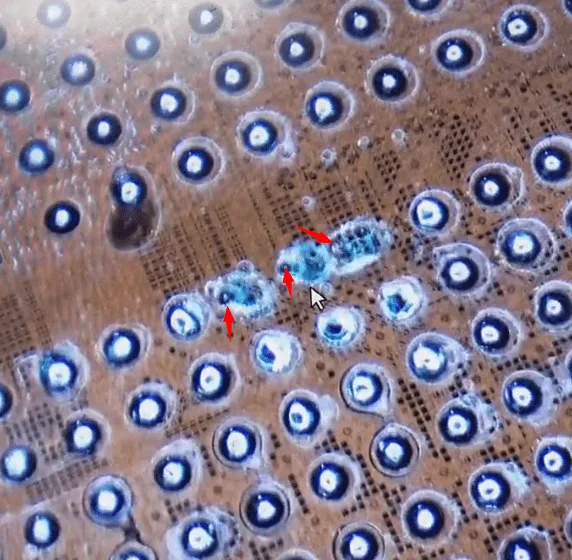
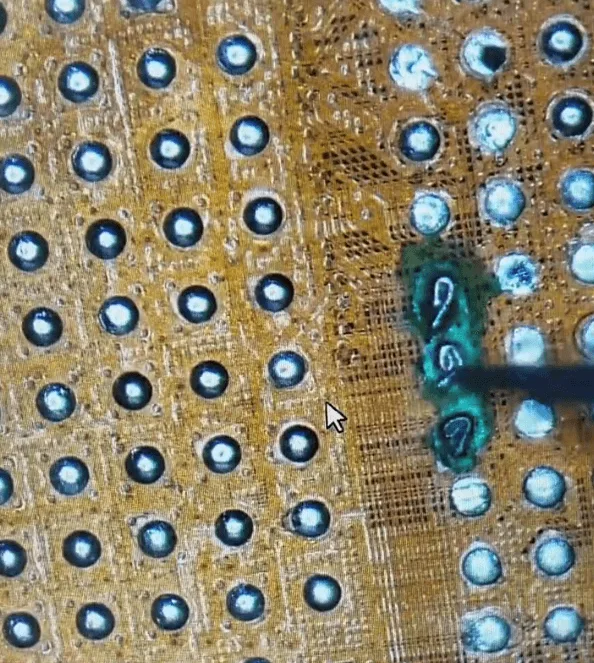
    • Missing pads on the CPU were preventing proper connections, including three critical and challenging pads located close to one another.

    Repair Process

    Step 1: Remove the CPU

    • Carefully remove the CPU from the motherboard.
    iphone 12 pro max not booting how fix cpu pad repair remove the and

    Step 2: Locate the Missing Pads

    • Inspected under a microscope to identify missing or damaged pads.
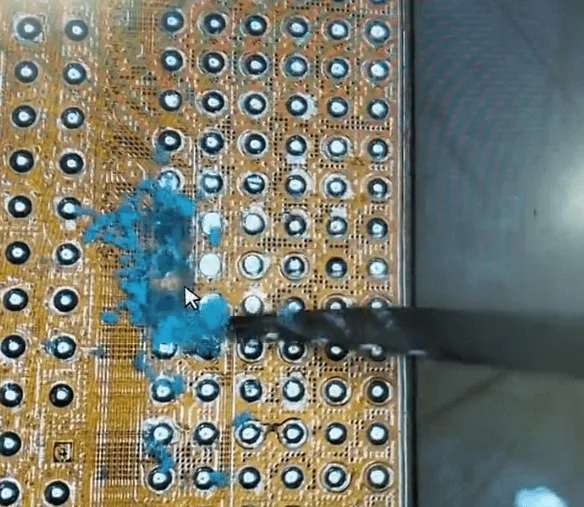
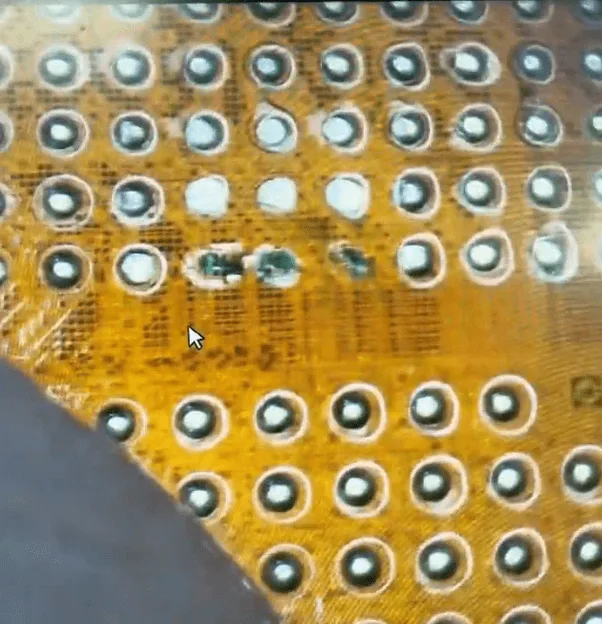
    • Removed the solidified UV mask covering the pads.
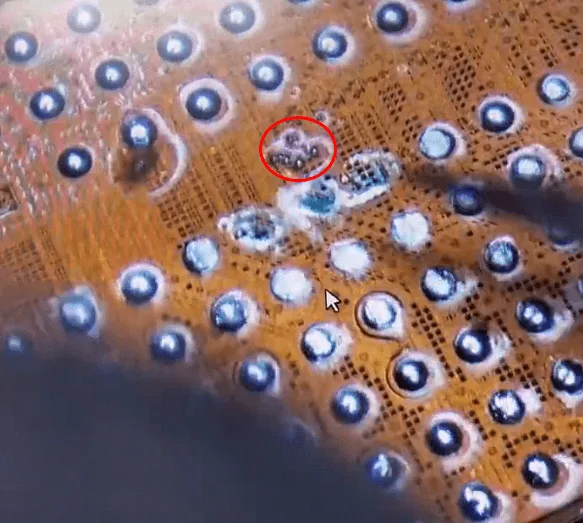
    iphone 12 pro max not booting how fix cpu pad repair some pads on the

    Step 3: Root Identification

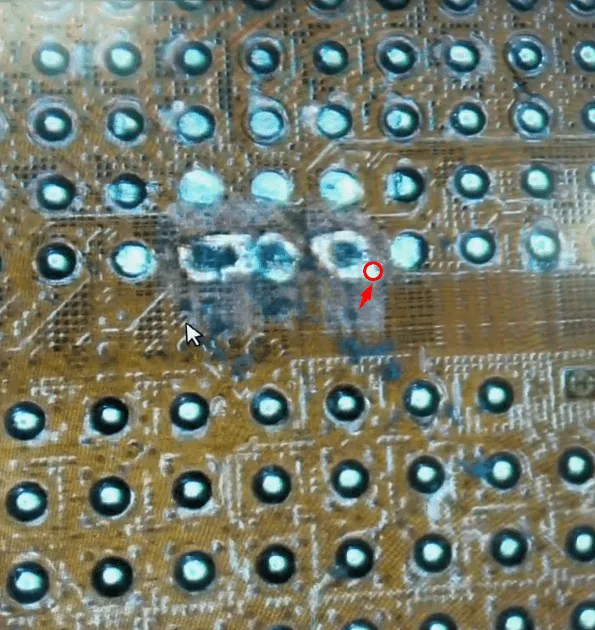
    • Patiently scratched the pad areas with a sculpture knife to locate the roots.
    • Strengthened the roots by applying solder flux and curing with a UV lamp.

    Step 4: Prepare for Wire Jumping

    • Cleaned the roots and applied a minimal amount of tin paste to each.

    Step 5: Wire Jumping for Missing Pads

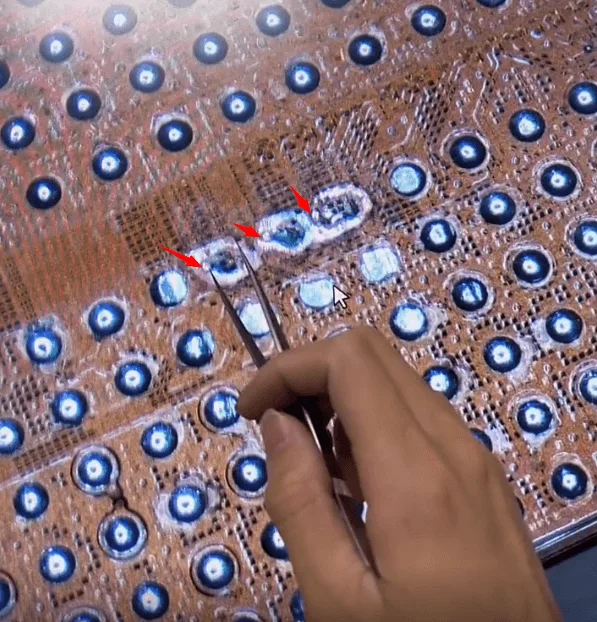
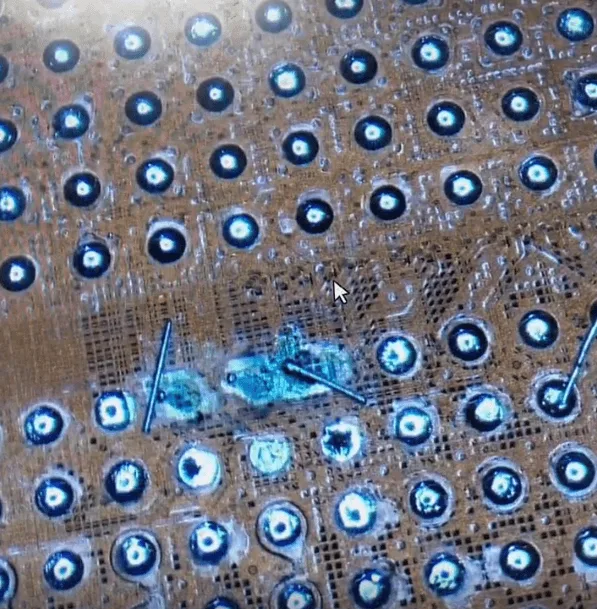
    • Soldered one side of the wire to the roots.
    • Created a loop on the other side for a secure connection.
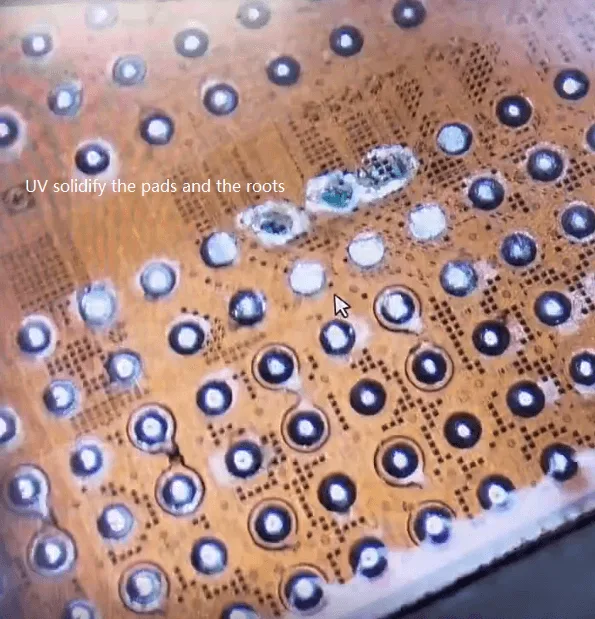
    • Applied a UV mask to stabilize the wires and cured them with a UV lamp.

    Step 6: Reball the CPU

    • Re-balled the CPU with solder balls to ensure proper connection with the motherboard.
    iphone 12 pro max not booting how fix cpu pad repair solder back the

    Step 7: Reassemble the Motherboard

    • Soldered the CPU back to the motherboard and recombined the two motherboard layers using a heating platform.

    Summary

    The issue finally gets fixed by CPU pads jump wire repair. As mentioned, CPU chip missing pad repair requires rich experience, excellent stable handwork, and great patience.

    Do more practice and then you can repair similar issues like this with confidence.

  • How to Fix iPhone 12 Pro Max Overheating Issue with Soldering Lugs

    How to Fix iPhone 12 Pro Max Overheating Issue with Soldering Lugs

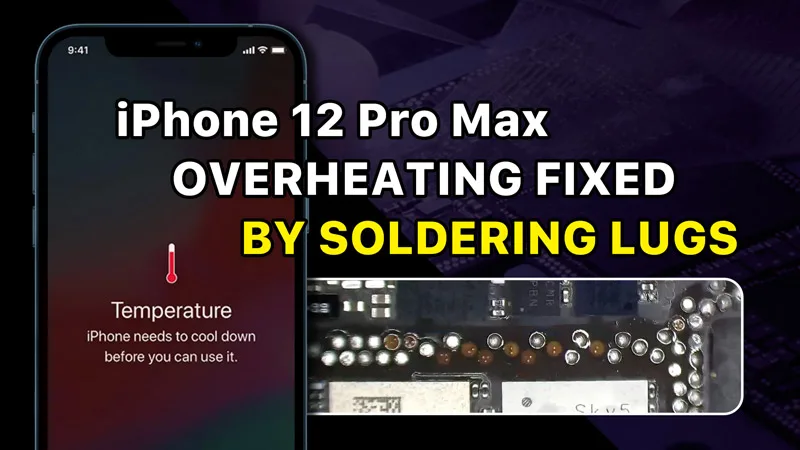
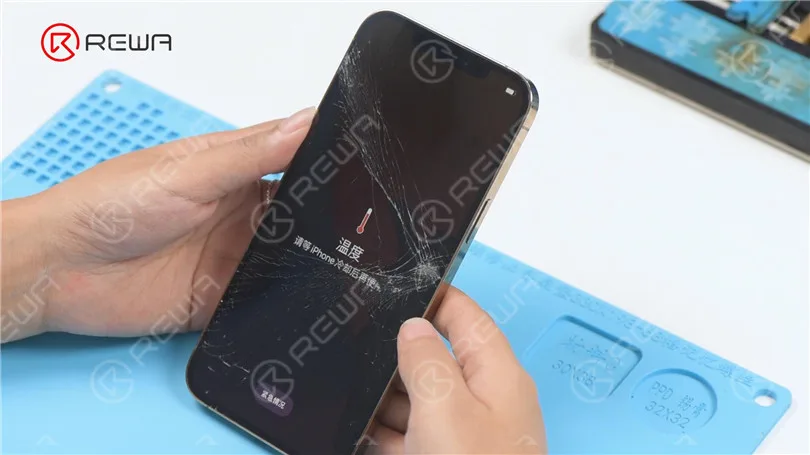
    Today we will share how to fix iPhone 12 Pro Max overheating or temperature warning issue. The phone has been dropped before and the screen is cracked. After boot-up, the phone shows a temperature warning.

    how fix iphone 12 pro max overheating issue soldering lugs ov

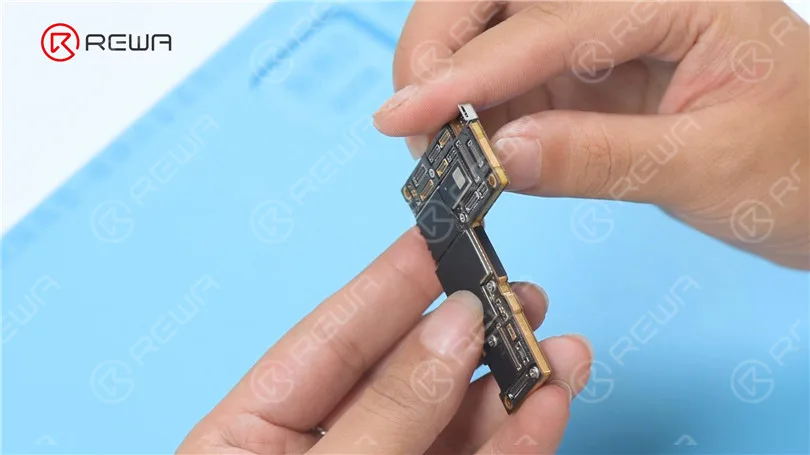
    Next, we take apart the phone for testing. Disconnect the flex cables. Remove the motherboard. In the first place, we check if the motherboard is deformed. The motherboard is not deformed.

    how fix iphone 12 pro max overheating issue soldering lugs ov 2

    It can be seen under the microscope that the motherboard has pseudo-soldering. Then we need to separate the motherboard.

    how fix iphone 12 pro max overheating issue soldering lugs ov 3

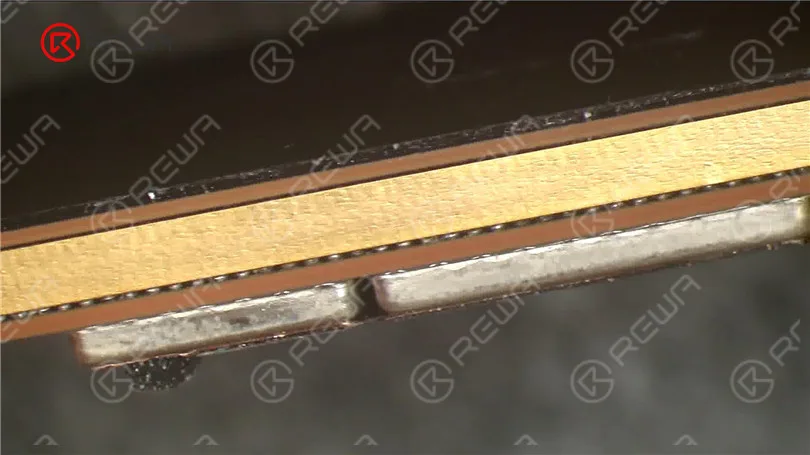
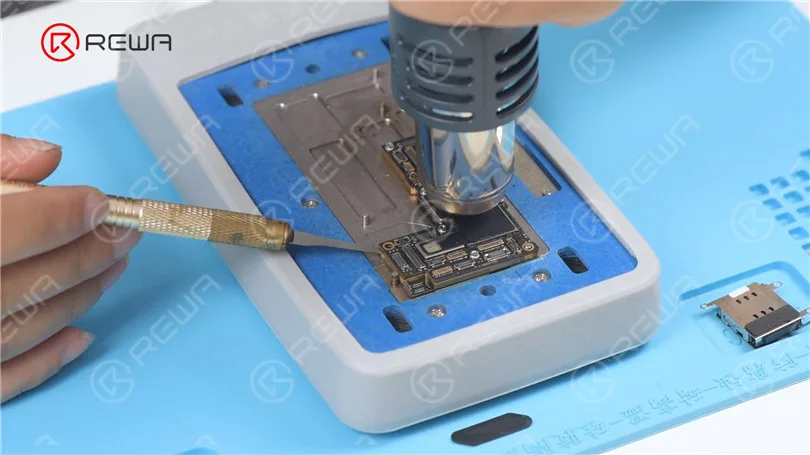
    Detach the foam and plastic part. Put the motherboard on the 165 °C Heating Platform to heat. Since the middle layer of iPhone 12 lineup adopts middle-temperature solder paste for soldering, we need to assist the heating with a Hot Air Gun at 330 °C. Try to pry up the logic board with a Pry Blade while heating. If the logic board becomes loose, remove it. Then remove the signal board.

    Fix iPhone 12 Pro Max Overheating Issue by Soldering Lugs - Over a Dozen Missing Pads

    It can be seen under the microscope that pads on the logic board are missing. Then we need to repair the bonding pads. Clean the bonding pads with Soldering Iron at 380 °C and Solder Wick. Next, clean the bonding pads with PCB Cleaner.

    how fix iphone 12 pro max overheating issue soldering lugs ov 5
    how fix iphone 12 pro max overheating issue soldering lugs ov 6

    Then scrape the missing pads to show the circuits with a Sculpture Knife. Please pay attention not to damage the GND while scraping.

    how fix iphone 12 pro max overheating issue soldering lugs ov 7

    Clean the bonding pads with PCB Cleaner. Apply tin to the bonding pads with a Soldering Iron.

    how fix iphone 12 pro max overheating issue soldering lugs ov 8

    Then we put the Soldering Lugs in position. Apply some Paste Flux. Heat with a Soldering Iron to solder. Clean the bonding pads with PCB Cleaner.

    how fix iphone 12 pro max overheating issue soldering lugs ov 9

    Apply some Solder Mask to the bonding pads. Then solidify with a UV Lamp. After solidifying, remove excess solder mask with a Sculpture Knife to show the pads.

    how fix iphone 12 pro max overheating issue soldering lugs ov 10
    how fix iphone 12 pro max overheating issue soldering lugs ov 11
    how fix iphone 12 pro max overheating issue soldering lugs ov 12

    Clean the bonding pads with PCB Cleaner. Then clean the bonding pads with Soldering Iron and Solder Wick. Keep cleaning the bonding pads with a Dust-free Wipe.

    how fix iphone 12 pro max overheating issue soldering lugs ov 13
    how fix iphone 12 pro max overheating issue soldering lugs ov 14

    Next, we reball the signal board. Attach the signal board to the holder. Put the reballing stencil in position. Apply some low-temperature Solder Paste evenly. Remove excess solder paste.

    how fix iphone 12 pro max overheating issue soldering lugs ov 15

    Detach the reballing stencil. Put the motherboard on the 165 °C Heating Platform to heat for recombination. Remove the motherboard after it has cooled for 5 minutes.

    how fix iphone 12 pro max overheating issue soldering lugs ov 16

    Install the motherboard for testing. Connect the screen. The phone turns on normally. The temperature warning has disappeared.

    how fix iphone 12 pro max overheating issue soldering lugs ov 17
  • How to clear iPhone 12 Pro Max cache

    How to clear iPhone 12 Pro Max cache

    Some users find storage space more and more insufficient while using. Then how to clear iPhone 12 Pro max cache? Let’s check it out!

    1. Clear “Recently Deleted”

    Recently Deleted

    In the “Recently Deleted” album, photos that are deleted within recent 30 days will be stored. Photography hobbyists will stack this part with photos or videos. Regular clearance can be performed according to the actual situation.

    2. Clear Safari cache

    Go to “Settings” – “Safari” – “Clear History and Website Data” to clear the cache in the Safari browser.

    3. Delete Apps that Are Not Used Frequently

    Delete Apps

    A lot of apps that take up storage space are not used frequently. Users can develop habits to remove this kind of App.

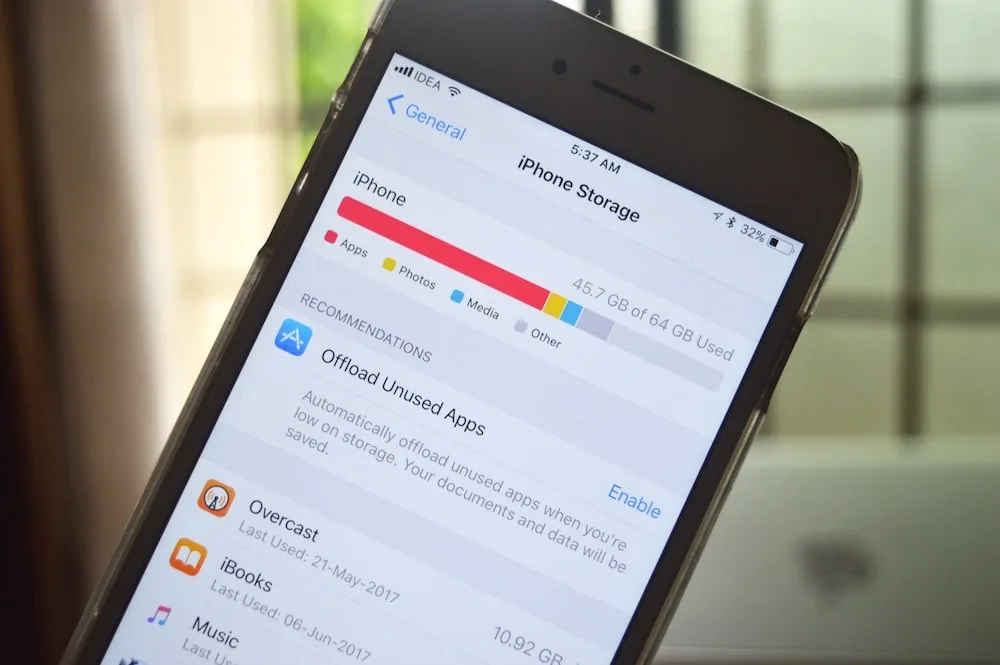
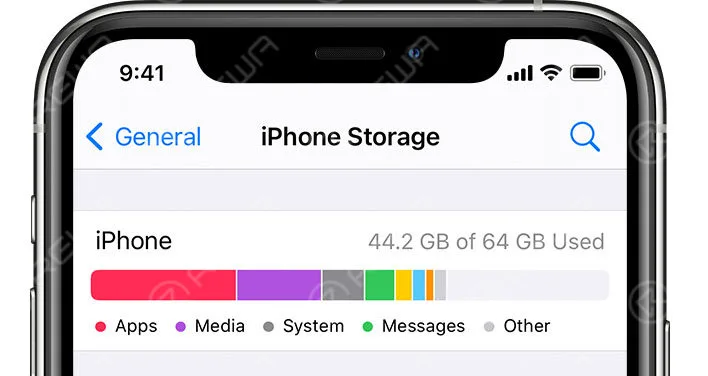
    Go to “iPhone Storage”, you can view the storage size of each app. You can choose to delete according to your needs.

    4. Reset the Phone Directly

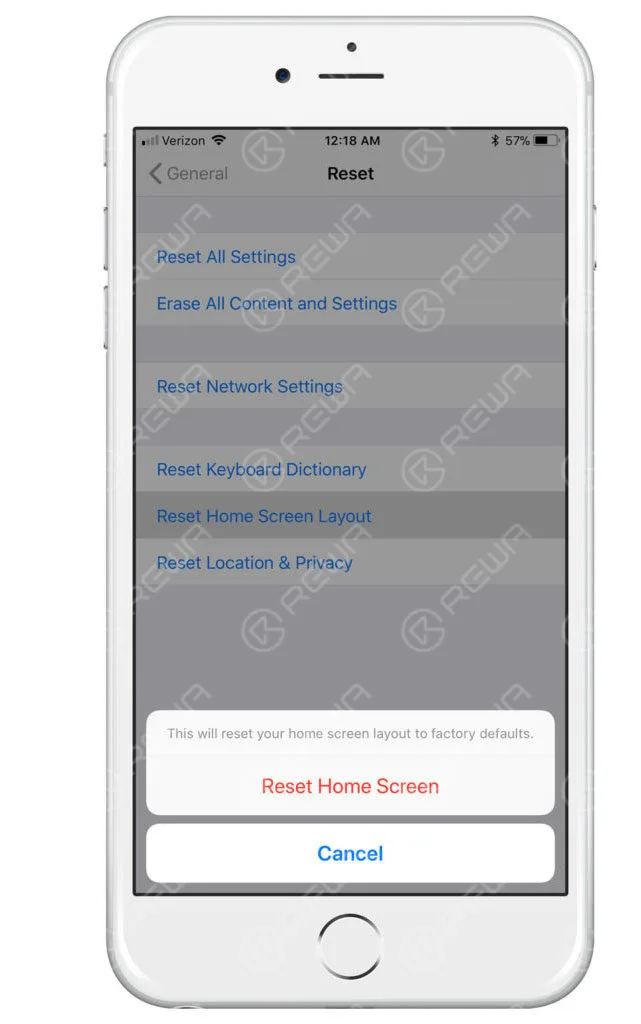
    After the mobile phone is completely reset, the data will be completely removed and the phone will be restored to factory settings.

    Reset the Phone Directly

    Tips:

    iphone settings

    It is recommended to upgrade to the latest system and then clear the cache.

    You can also use other applications for backup if there is no sufficient storage space for updates.