Tag: ipad pro

  • How to Repair iPad Pro 2020 Not Turning On Problem

    How to Repair iPad Pro 2020 Not Turning On Problem

    If you’re an owner of the iPad Pro 11 (2020), you may find yourself facing an unexpected dilemma: your device won’t turn on despite its pristine condition. Announced on March 18, 2020, the iPad Pro has been praised for its exceptional performance and sleek design, but some users have reported sudden failures to boot, leaving them frustrated and searching for solutions. Whether you’ve tried the classic hard reboot by holding down the volume and power buttons without success, or you’re just beginning to investigate this issue, this post will guide you through the troubleshooting steps and potential repair options to get your iPad back up and running.

    how repair ipad pro 2020 not turning problem select geo ca fmt whh

    Phone Details

    Model: Apple iPad Pro 11 (2020)

    Announced: 2020, March 18

    Defect Phenomenon

    The iPad was functioning normally but suddenly failed to boot the next day. The user attempted to reboot by pressing the volume button and power button simultaneously for one minute, but the device still did not turn on.

    Troubleshooting

    1: Initial Inspection
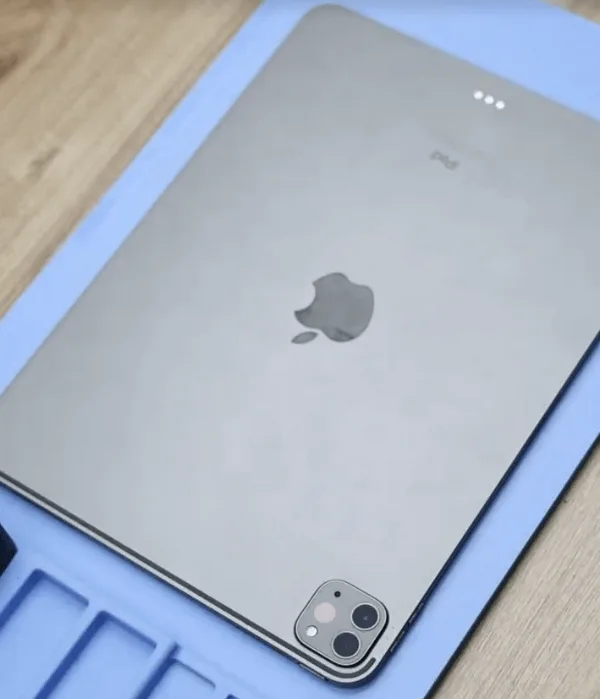
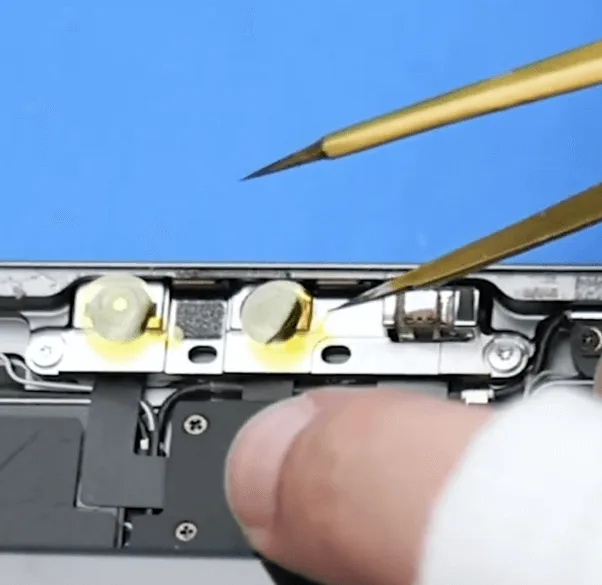
    • Place the iPad on a heating pad to soften the adhesive inside.
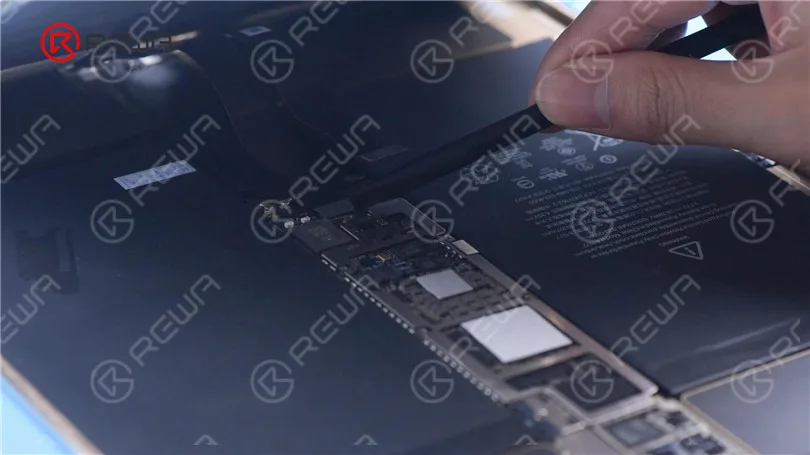
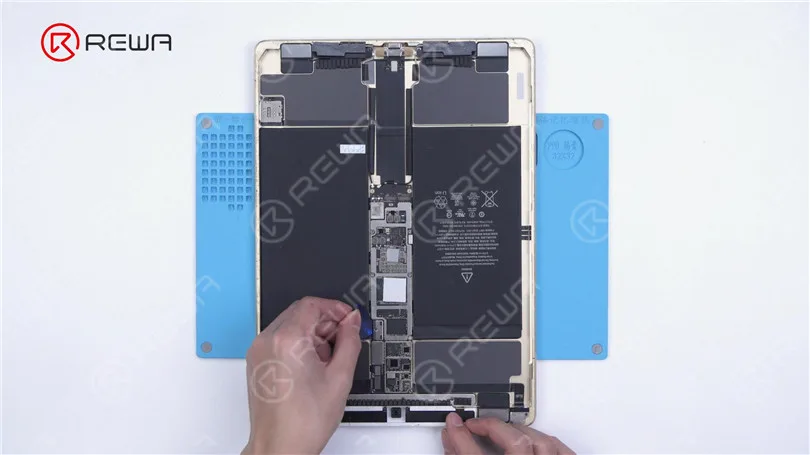
    • After sufficient heating, use a pry piece to carefully separate the screen from the body.
    • Protect the cameras with stickers to prevent damage during the repair process.
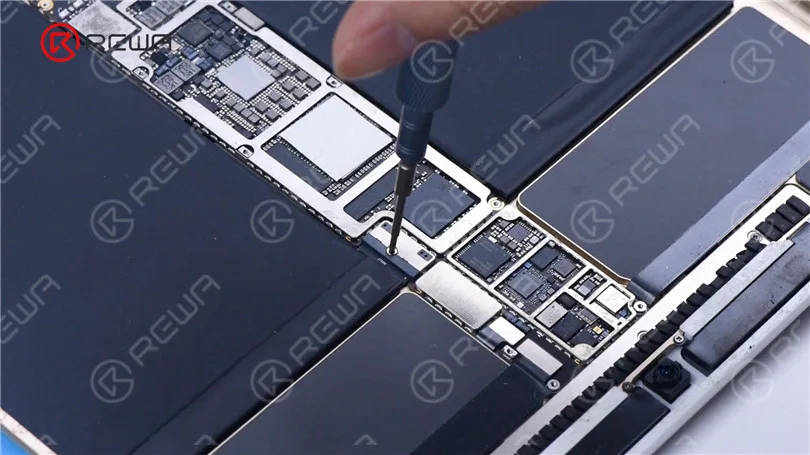
    • Remove the screws holding the motherboard in place.

    Visually inspect the motherboard, noting that it appears clean with no signs of water damage or previous repairs.

    2: Power Supply Testing
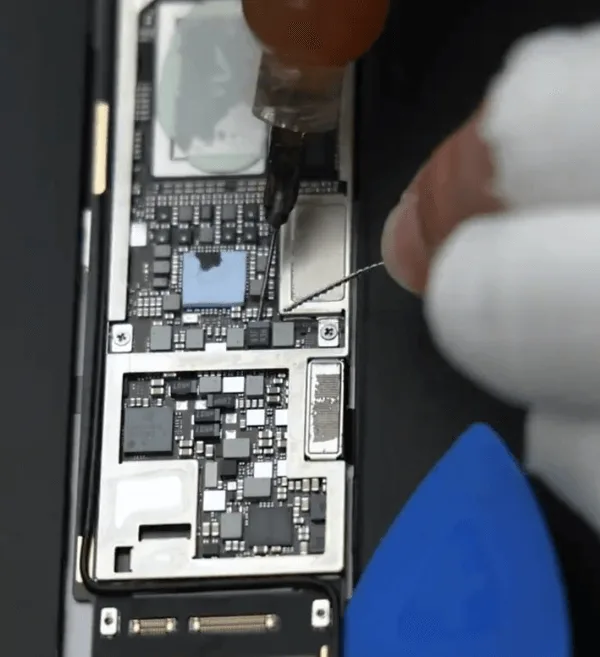
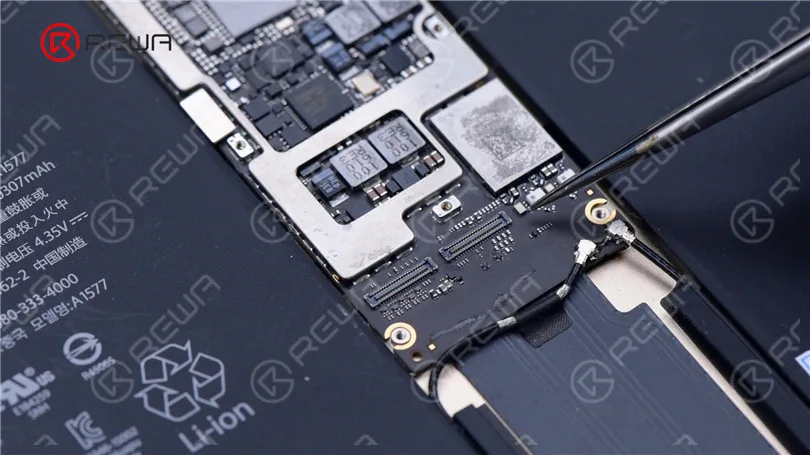
    • Remove the shielding cover on the motherboard.
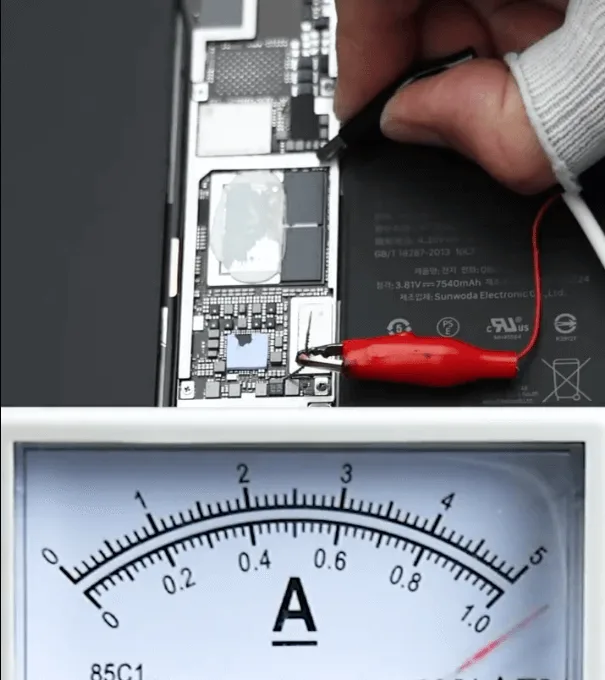
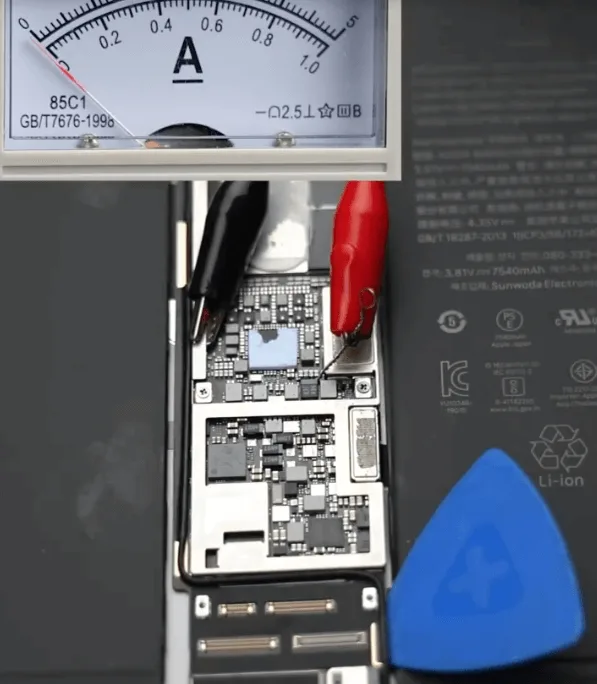
    • Jump a wire on the VDD_MAIN rail and connect the motherboard to a DC power supply for testing.

    Observe that a large current flows immediately upon connection, indicating a short circuit in the 4V DC power supply rails on the motherboard.

    Repair Process

    1: Identify the Shorted Component:
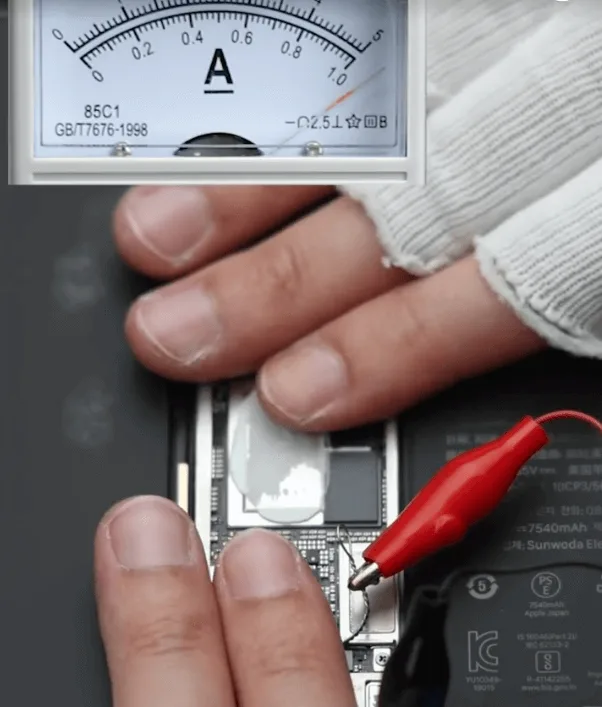
    • Set the DC power supply voltage to 1.8V.
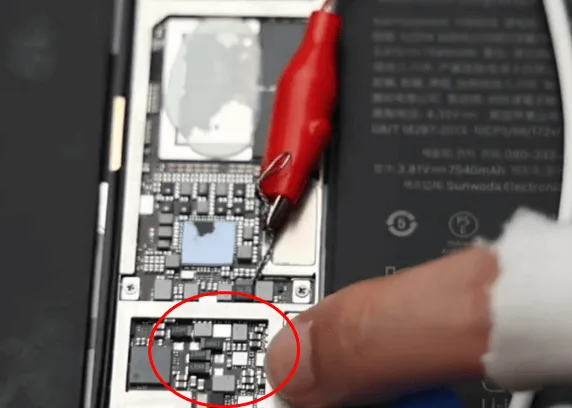
    • Touch the motherboard to feel for any heated areas, or use a thermal imager to locate the hot component.
    • Focus on the charging-related components, where heat is detected.
    (you can also observe the hot component by thermal imager )

    2: Locate the Faulty Component
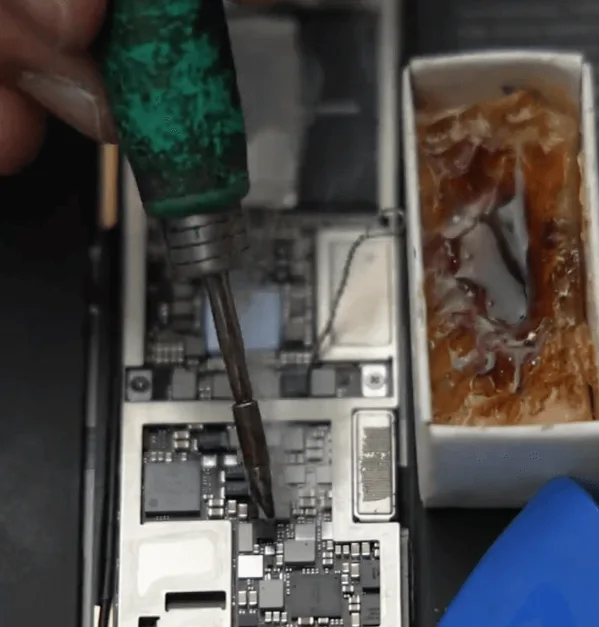
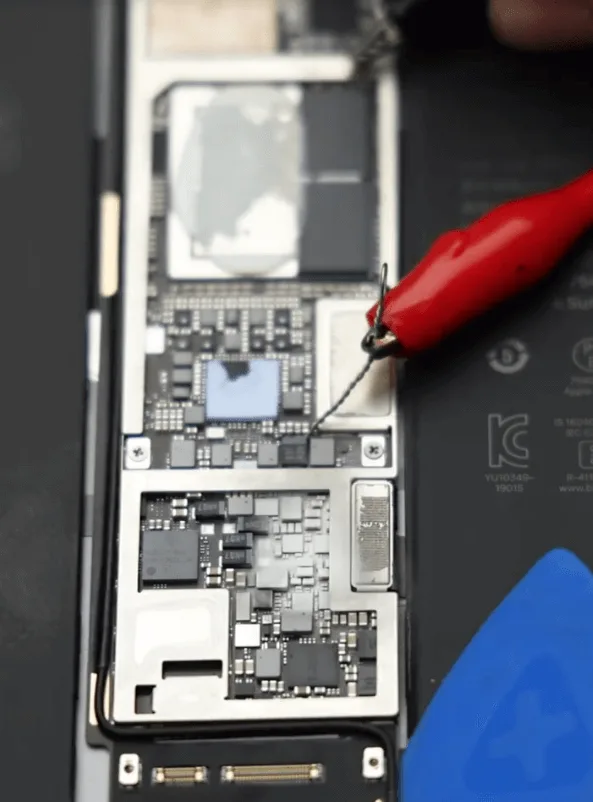
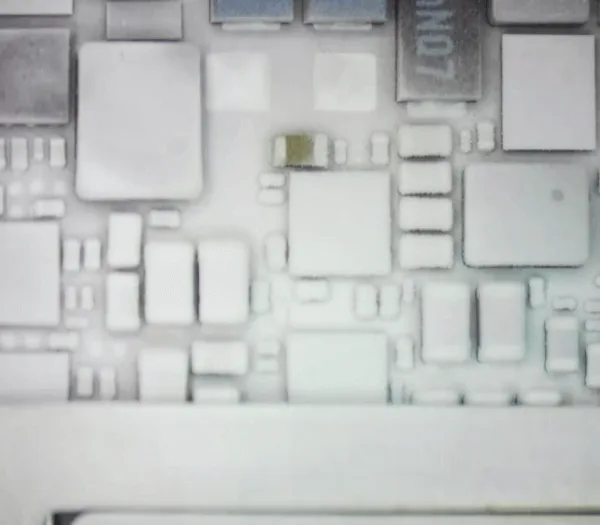
    • Apply rosin to the suspect components on the motherboard.
    • Apply voltage again and observe the rosin to identify which component is shorted.
    • A small filter-type capacitor is identified when the rosin on it melts.

    3: Remove and Replace the Faulty Capacitor
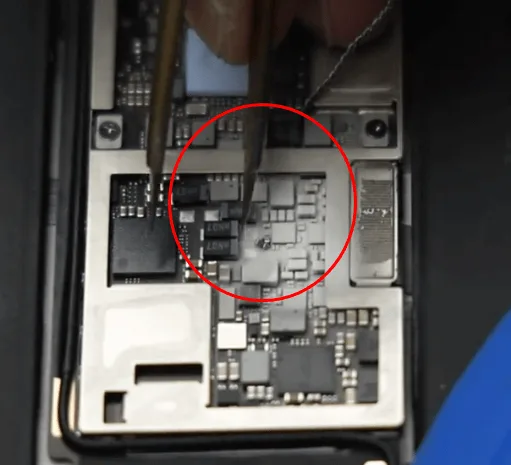
    • Carefully remove the defective capacitor using tweezers.
    • Clean the area of any remaining rosin.

    Test the motherboard again by booting with the DC power supply. This time, there is no current leakage, and the iPad boots normally when the power button is pressed.

    4: Reassemble the iPad
    iPad Pro 2020 Cannot Turn On
    • Reapply the sticker on the motherboard and reassemble the iPad.
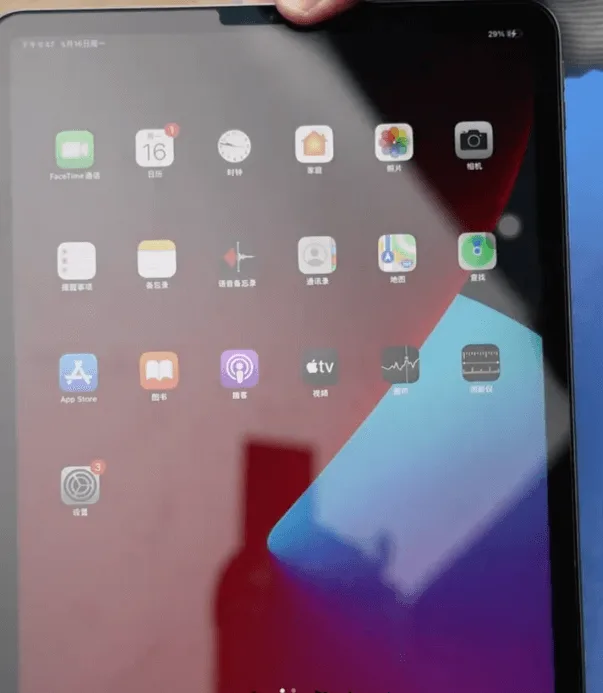
    • Test the iPad once more to ensure it powers on and functions correctly. The issue is resolved by replacing the defective filter-type capacitor.

    Tips:

    To avoid such issues, always use a qualified charger and cable, avoid using the device while charging, and keep the device in a cool environment during charging.

    Sudden boot failures in iPads and iPhones are often caused by damage to filter-type capacitors, which can result from improper charging practices or using poor-quality chargers and cables.


  • How to Fix an iPad Pro that Won’t Turn On – Short Circuit Detected by Rosin Dispenser

    How to Fix an iPad Pro that Won’t Turn On – Short Circuit Detected by Rosin Dispenser

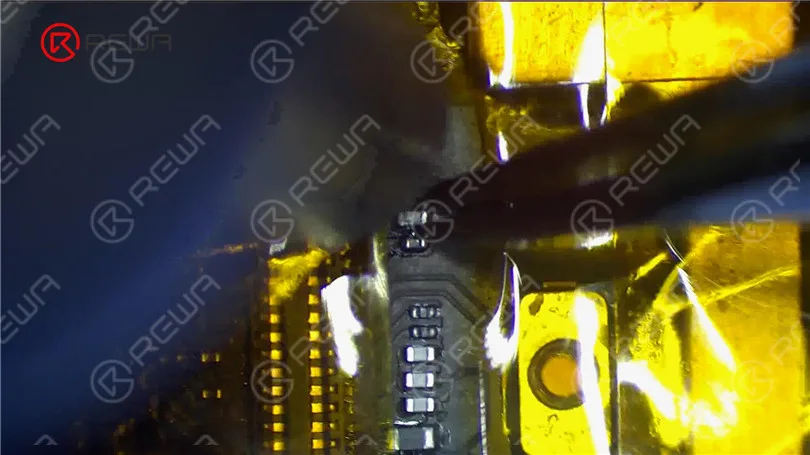
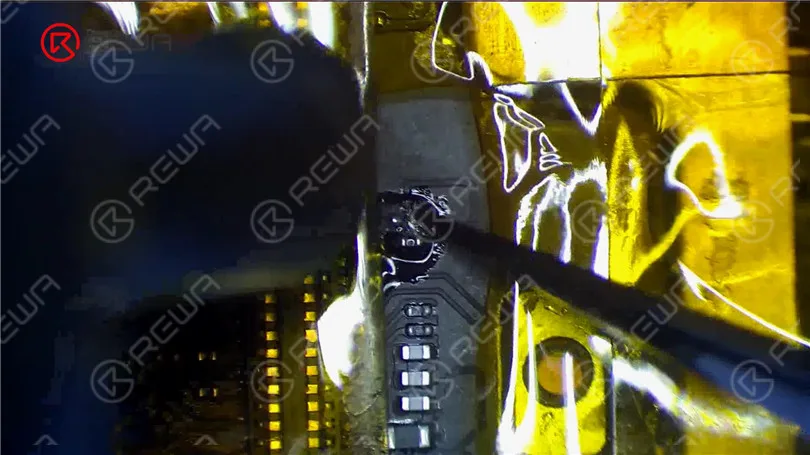
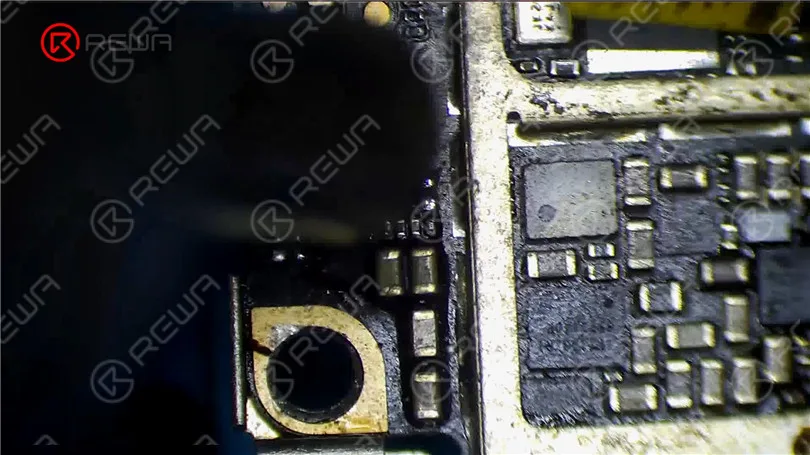
    The iPad Pro was water-damaged and then won’t turn on. With the help of the rosin dispenser, we found the short-circuited component. After removing the damaged capacitor, the fault was cleared.

  • iPad Pro Touch Screen Not Working /Unresponsive Screen Problem Repair

    iPad Pro Touch Screen Not Working /Unresponsive Screen Problem Repair

    The screen of the iPad Pro 1st Gen won’t respond to touch.We tried to replace the screen in the first place but the screen was still unresponsive. The touch connectors were good. So we judge that the motherboard fault has caused the problem. Next, let’s check out how we fix the problem.

  • iPad Pro Touch Screen Not Working? Learn How to Fix Unresponsive Screen

    iPad Pro Touch Screen Not Working? Learn How to Fix Unresponsive Screen

    In this guide, we’ll explore a detailed step-by-step process for fixing an unresponsive touch screen issue on a 1st Gen iPad Pro. If you’ve encountered this problem, don’t worry; we have a solution that involves diagnosing the issue and making the necessary repairs. Let’s dive into the troubleshooting and repair process.

    Power On the iPad Pro

    iPad Pro Touch Screen Not Working /Unresponsive Screen Problem Repair

    The first thing to try when your iPad’s screen isn’t responding is a simple restart. Hold down the power button until the “Slide to power off” slider appears. Slide it to turn off the device and then turn it back on. If the screen doesn’t response and can’t turn off then follow the next step.

    Disconnect the Display

    ipad pro touch screen not working learn how fix unresponsive scree 3

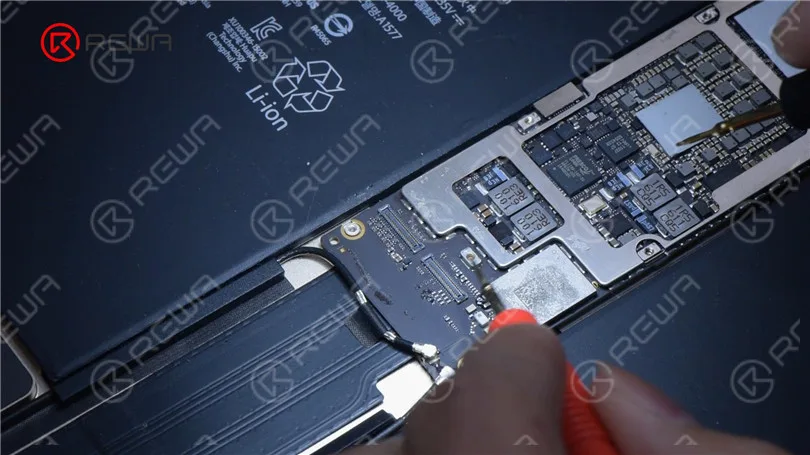
    In some cases, a disconnected or damaged display could be the culprit. To check this, you may need to open up your iPad. If you’re not comfortable with this, it’s best to seek professional help. Remove the battery screw on the motherboard and insert a pry piece to isolate the battery from the motherboard to prevent any circuit damage.

    Install a Known-Good Display

    iPad Pro Touch Screen Not Working /Unresponsive Screen Problem Repair

    If after disconnecting and reconnecting the display, the touchscreen is still unresponsive, it’s safe to say that the issue is not with the display. Instead, it could be a motherboard fault.

    Inspect Touch Connectors

    iPad Pro Touch Screen Not Working /Unresponsive Screen Problem Repair

    Check the touch connectors to ensure they are not deformed or damaged. If they appear to be in good condition, proceed to the next step.

    Measure Resistance Values

    iPad Pro Touch Screen Not Working /Unresponsive Screen Problem Repair

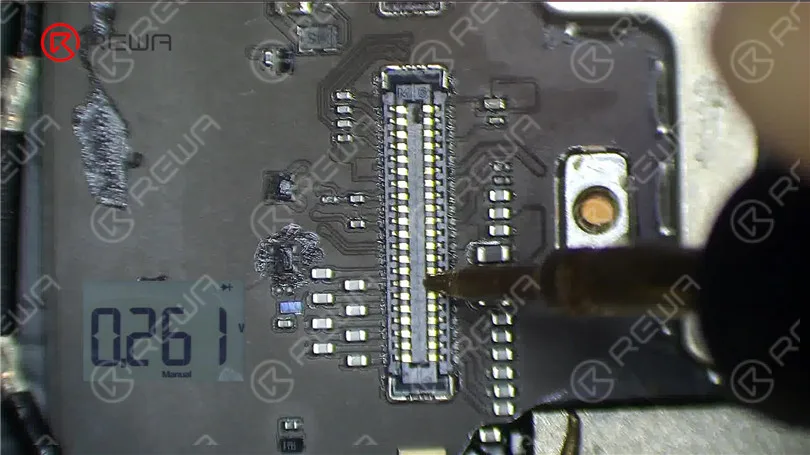
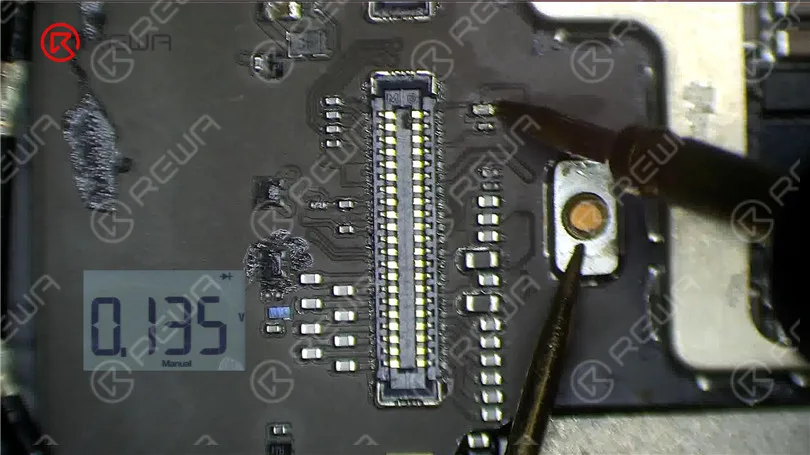
    Using a multimeter, measure the resistance values of pin 2, pin 4, and pin 6. The normal value should be around 144 ohms. If these values are significantly different, you might have identified the issue.

    Examine the Inductor

    ipad pro touch screen not working learn how fix unresponsive scree 7
    ipad pro touch screen not working learn how fix unresponsive scree 8

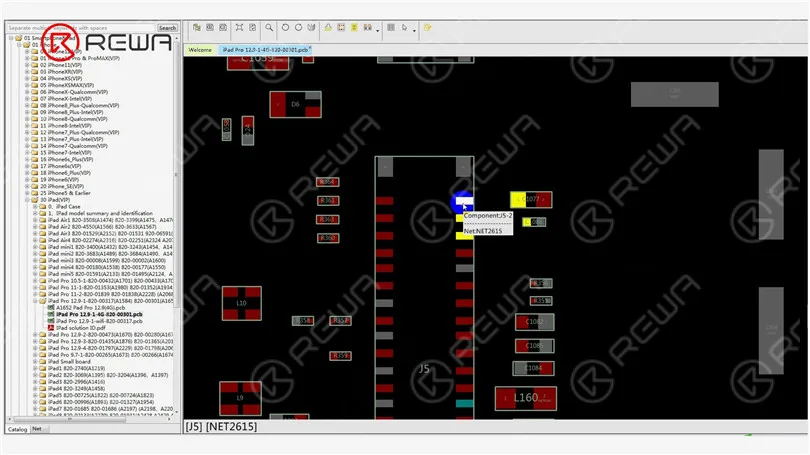
    Inspect the inductor that connects these pins to the chip. Measure the resistance value of this inductor. If it’s abnormal, the inductor might be damaged, which can happen due to improper operation, such as installing the display with the battery still connected.

    iPad Pro Touch Screen Not Working /Unresponsive Screen Problem Repair

    Replace the Damaged Inductor

    To fix the issue, you’ll need to replace the damaged inductor. Follow these steps carefully.

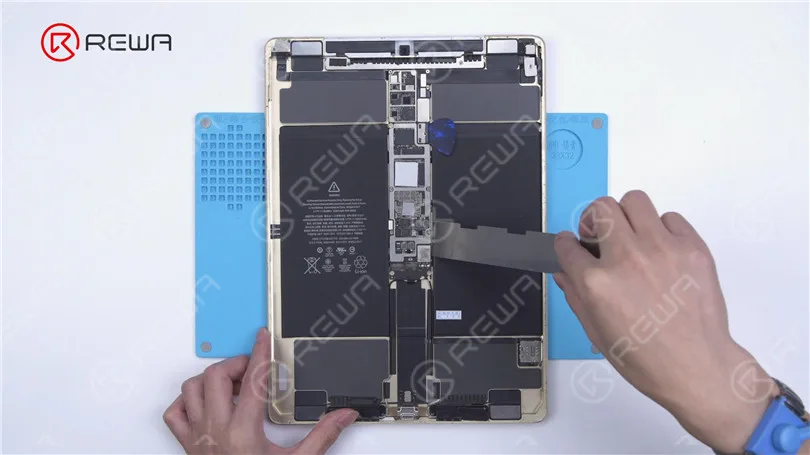
    Pry the motherboard slightly to prevent rapid heat dissipation.

    ipad pro touch screen not working learn how fix unresponsive scree 10

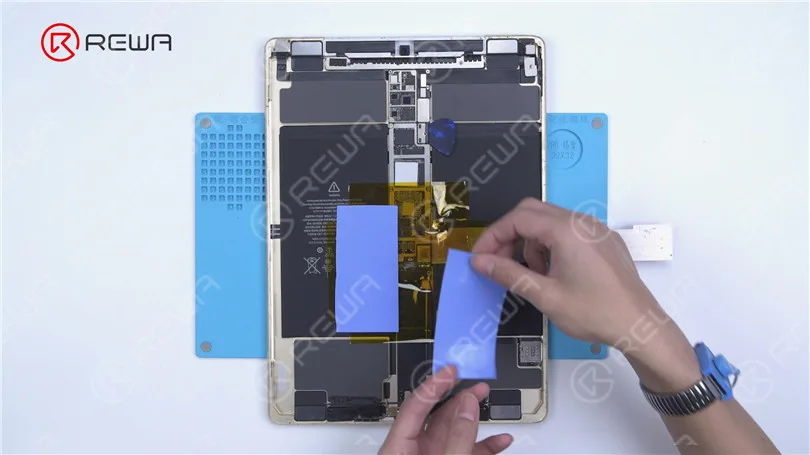
    Apply high-temperature tape and an insulation mat.

    ipad pro touch screen not working learn how fix unresponsive scree 11

    Use paste flux and heat with a Hot Air Gun at 360°C and airflow 2 to remove the damaged inductor.

    ipad pro touch screen not working learn how fix unresponsive scree 12

    Apply a middle-temperature solder paste and continue heating with the Hot Air Gun to lower the melting point of the bonding pad.

    ipad pro touch screen not working learn how fix unresponsive scree 13
    • Remove any remaining solder with a solder wick.
    • Source a replacement inductor from an abandoned board and solder it with the Hot Air Gun at 330°C and airflow 2.
    • Clean the area with a PCB cleaner.
    • Measure the resistance values again to ensure they are normal.
    ipad pro touch screen not working learn how fix unresponsive scree 14

    Test the Screen

    Reassemble your iPad and test the touchscreen. If both the touch and 3D Touch functions work properly, congratulations, you’ve successfully fixed the unresponsive touchscreen issue on your iPad Pro.

    iPad Pro Touch Screen Not Working /Unresponsive Screen Problem Repair

    Video Guide to Fix ipad pro touch screen not working

    Conclusion

    Troubleshooting and repairing an unresponsive iPad Pro touchscreen can be a daunting task, but with the right steps and precautions, it’s possible to diagnose and fix the issue. Remember to disconnect the battery when working on your device to avoid any further damage. If you’re unsure about any step, it’s always best to seek the help of a professional technician.

    Please feel free to leave a comment if you have any questions or if there are other repair topics you’d like to learn about. If you’re interested in mastering iPhone motherboard repair, consider enrolling in the REWA Academy live online course, designed for beginners. Hurry, as only 20 spots are available for each training session. And for iPad replacement parts, visit the REWA Shop.