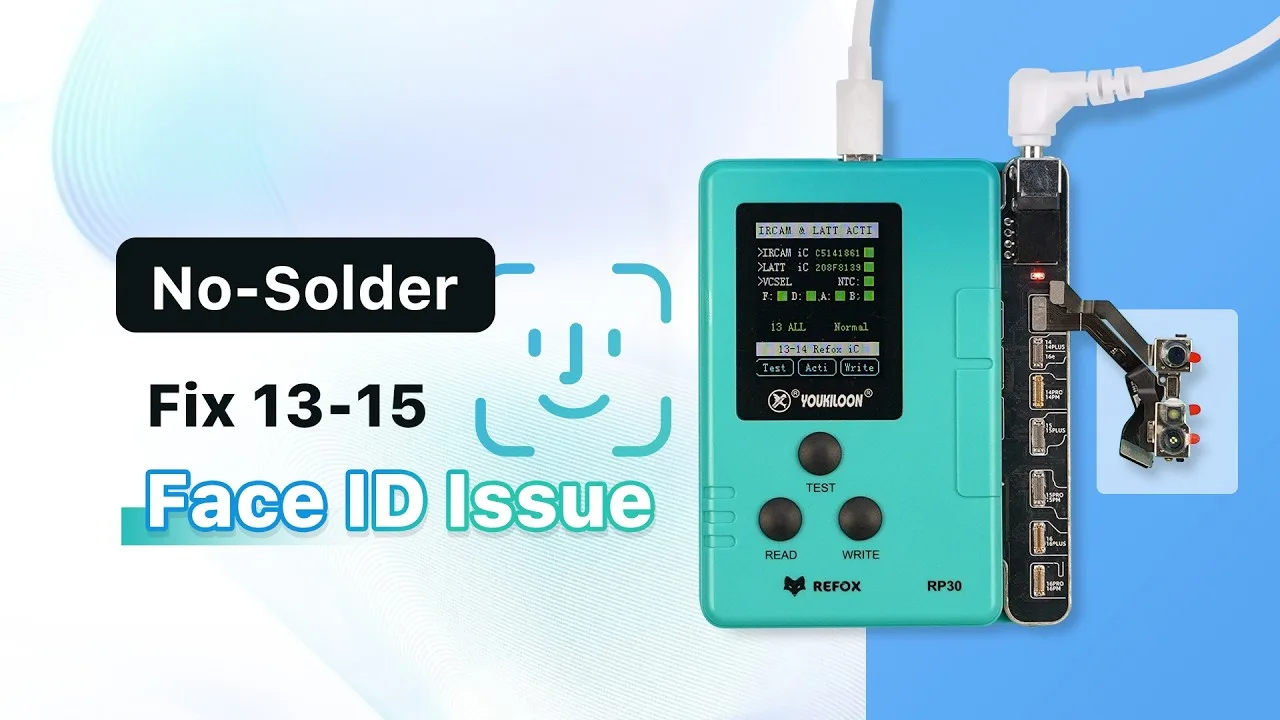
When Face ID malfunctions on iPhones with a Dot Projector IC issue, traditional repairs typically require risky soldering or board-level replacements. However, a new no-solder solution now out for fixing Face ID on iPhone 13 through iPhone 15 series devices. By using the REFOX Face ID programmer, you can restore full Face ID functionality safely, reliably, and without disassembling the module. In this repair case, we demonstrate how we successfully repaired a Face ID not working on an iPhone 13 Pro Max using this innovative method.
Attention: This method is not available to unlock an iPhone that has been stolen or has an activation lock.
Step-by-Step: Fixing Face ID Not Working on iPhone 13-15
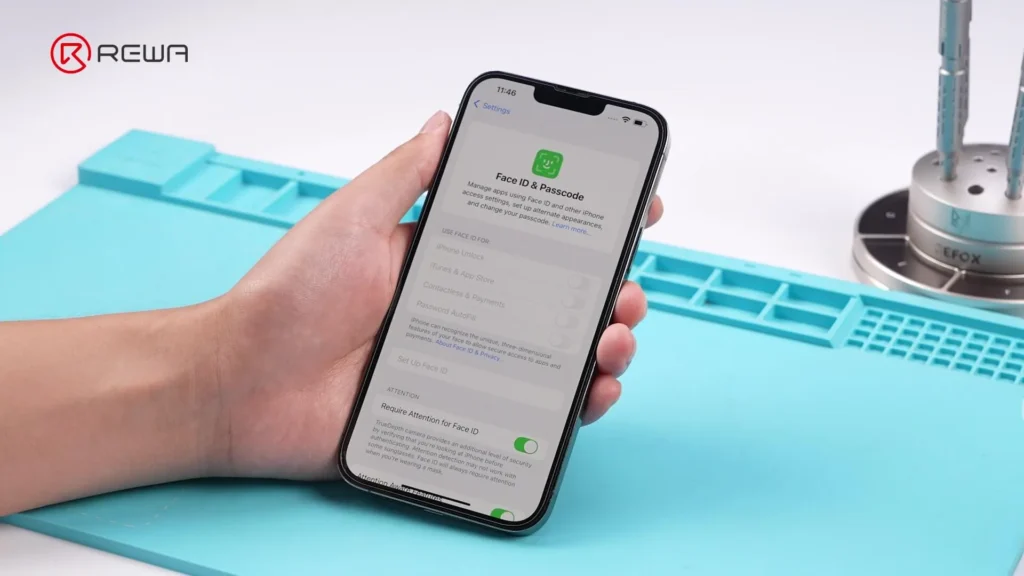
Step 1: Confirm the Issue
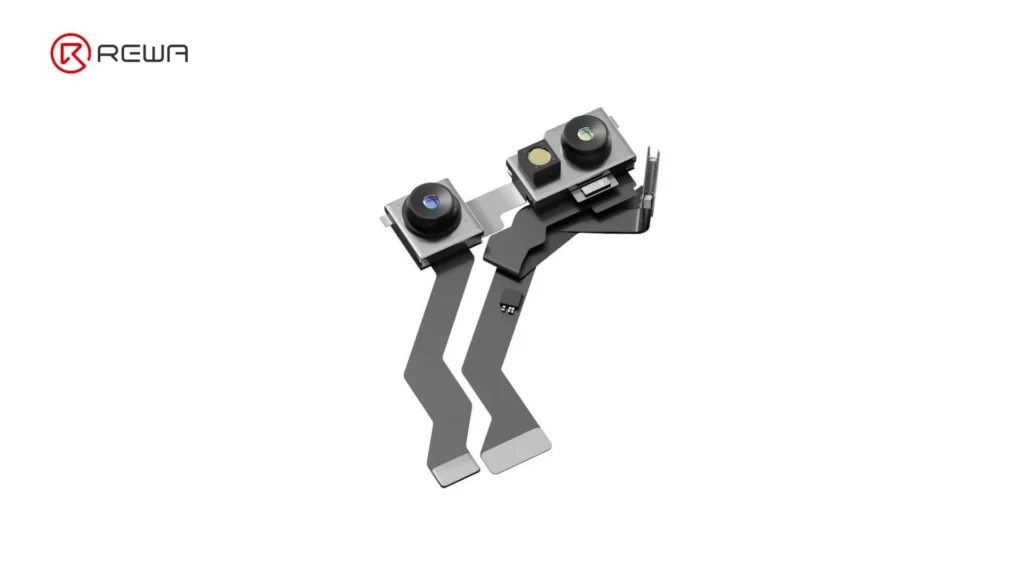
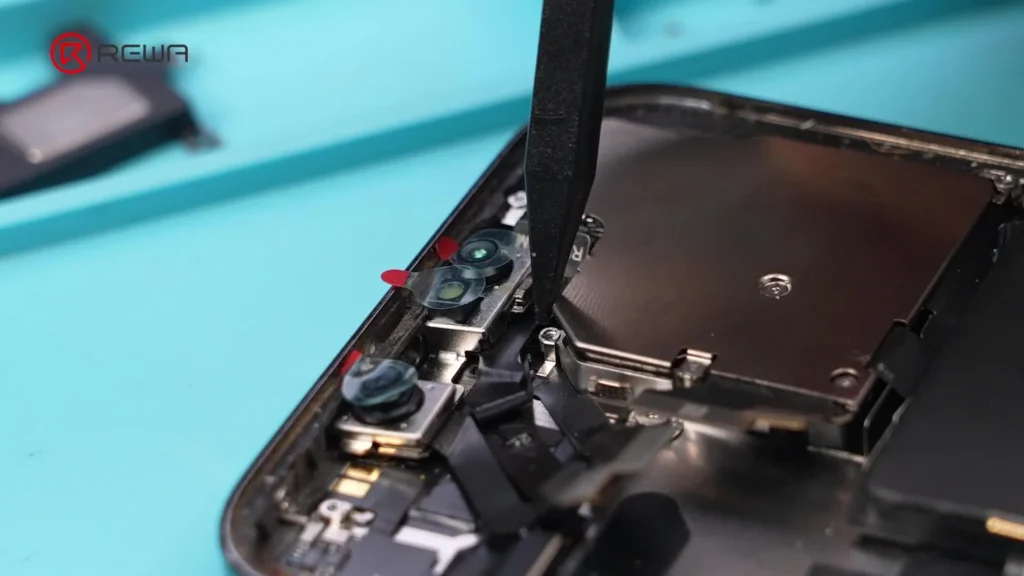
The iPhone 13 Pro Max displays the message: “Face ID is not available.” Power off the device and disassemble it. Remove the front camera module, then reinstall the motherboard, as this repair requires the phone to remain powered on.
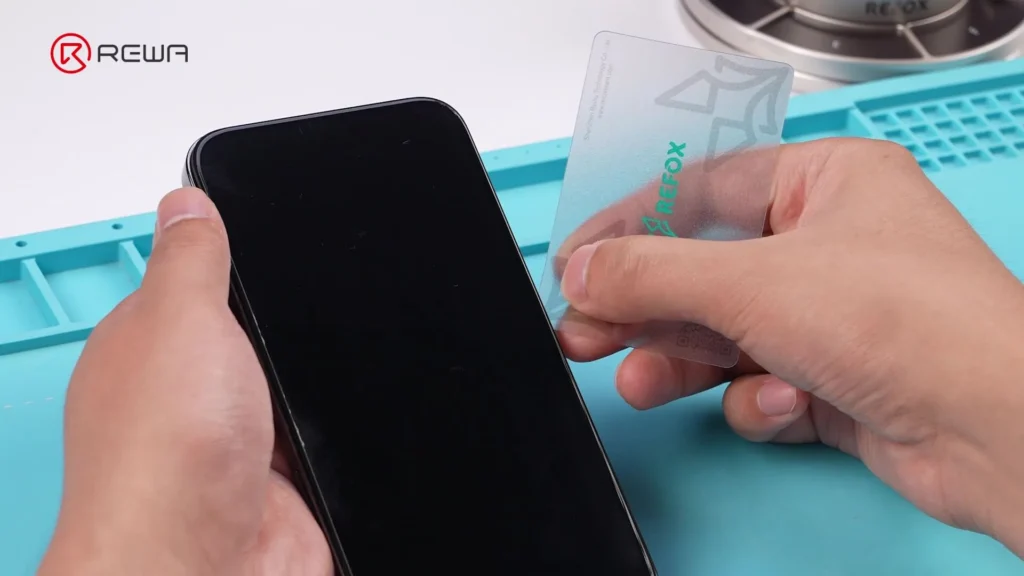
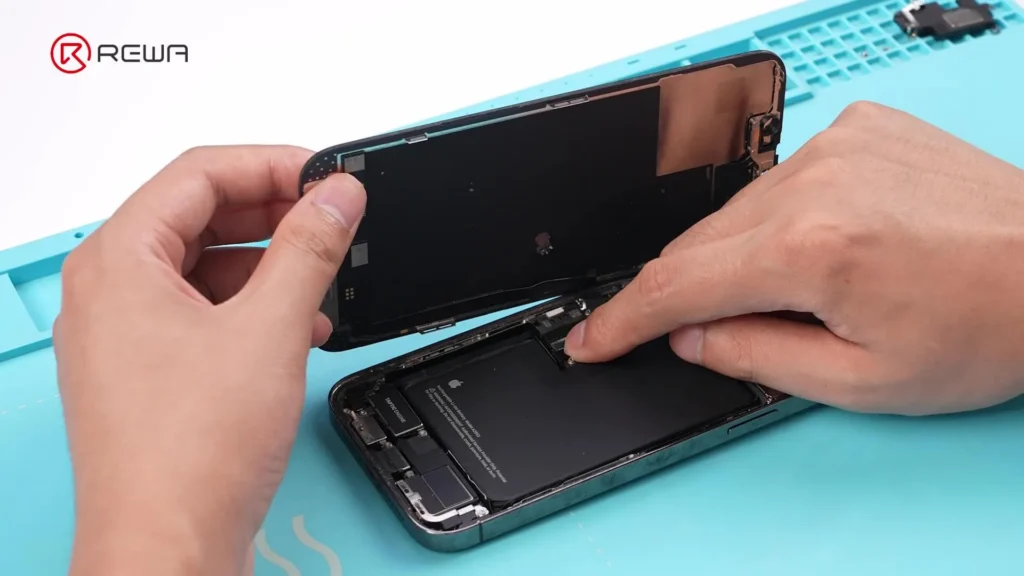
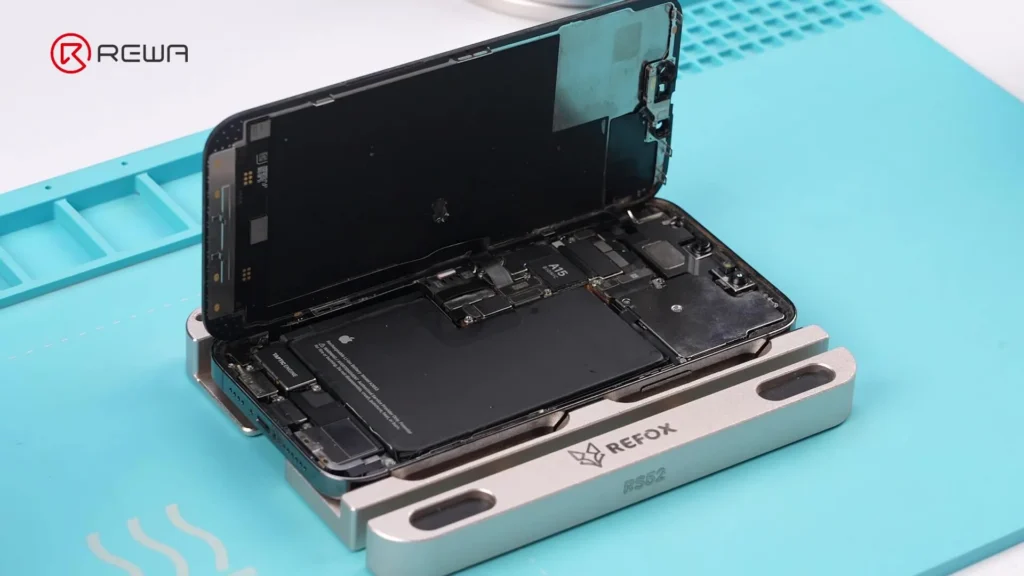
Step 2: Prepare the Tools
Make sure your REFOX software is updated, as this is essential for accessing the latest features.
You will need:
- REFOX Assistant (latest version)
- Dot Projector Repair Module
- REFOX Programmer
- Type-C Cable
- DC Adapter
- Tag-on Flex for iPhone 13 Pro Max
Step 3: Begin Face ID Diagnosis
- Log in to REFOX Assistant on your PC.
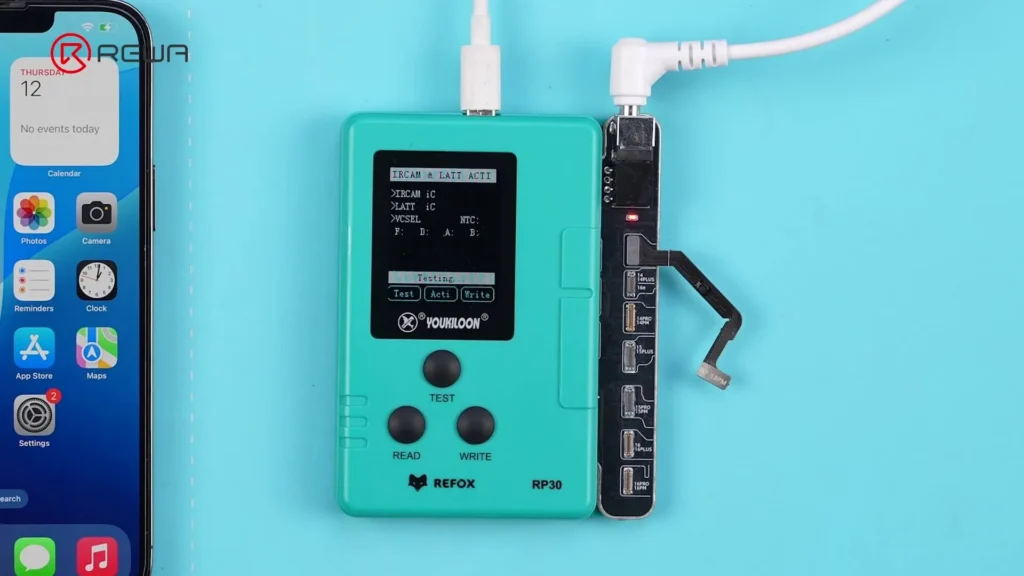
- Connect the Dot Projector repair module to the programmer.
- Use a Type-C cable to connect the programmer to the PC.
- Plug in the correct DC adapter — make sure the light is on.
- Connect the iPhone to the PC.
- Connect the Dot Projector to the Face ID repair module.
- Click “Test” in the software.
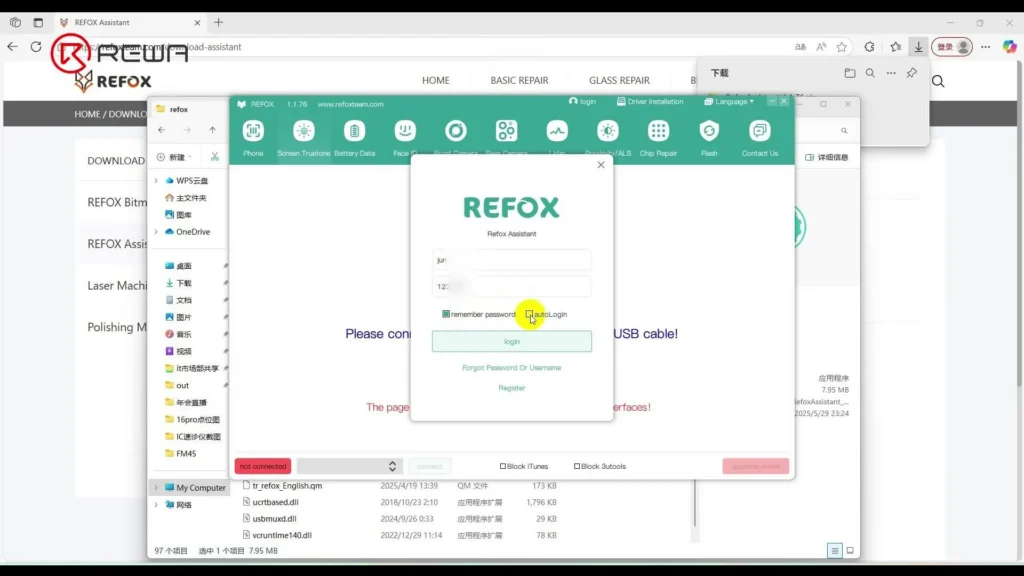
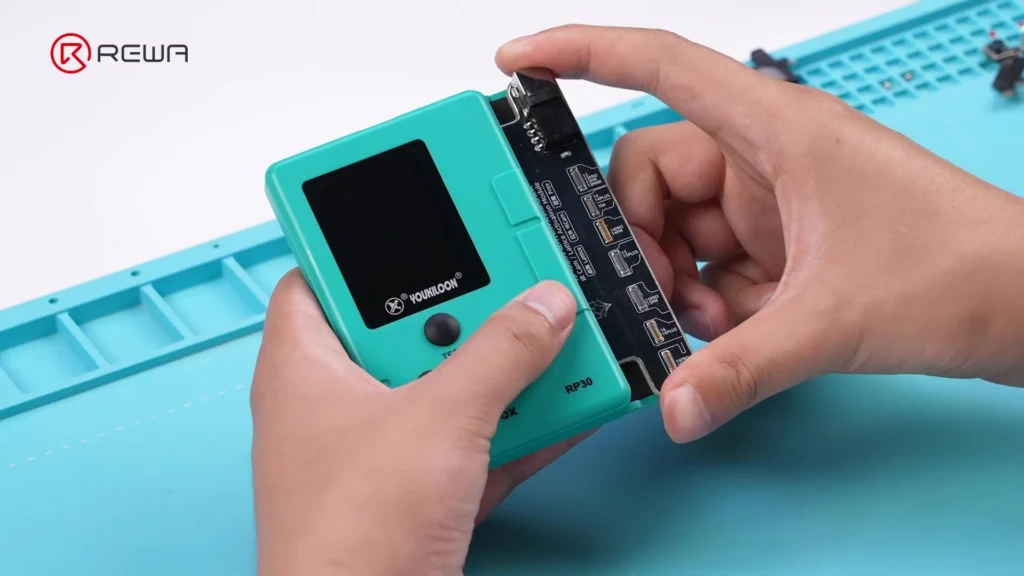
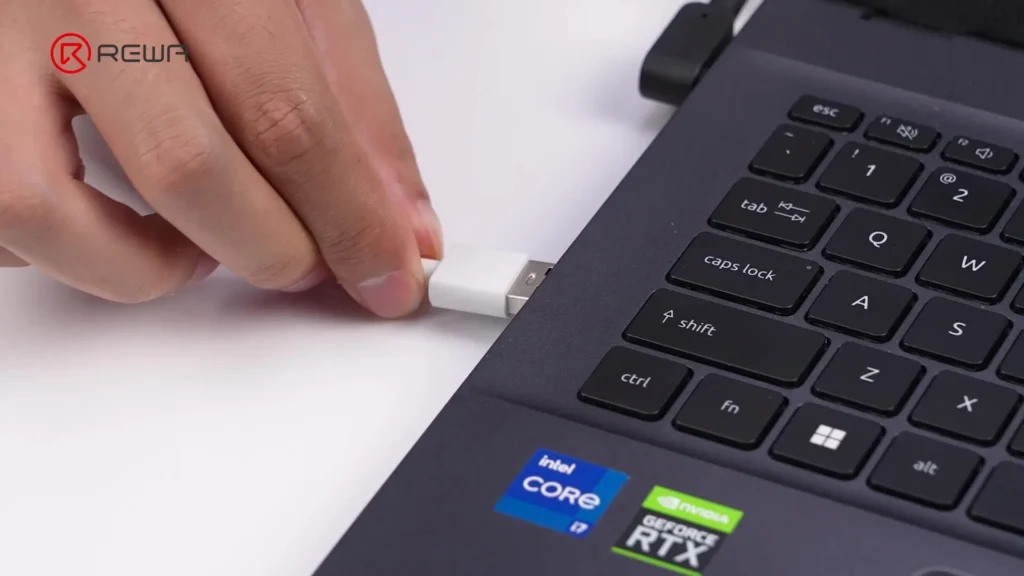
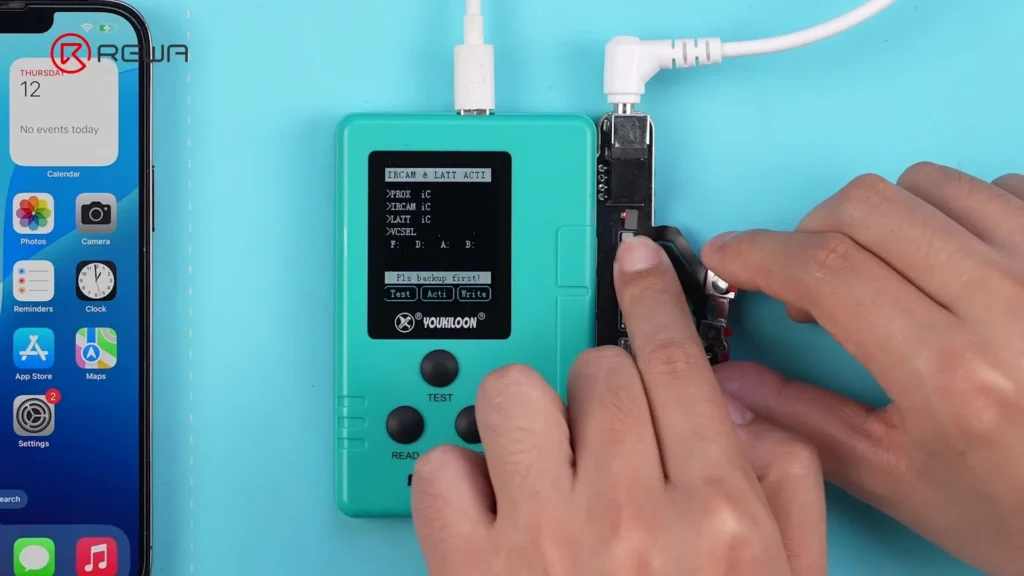
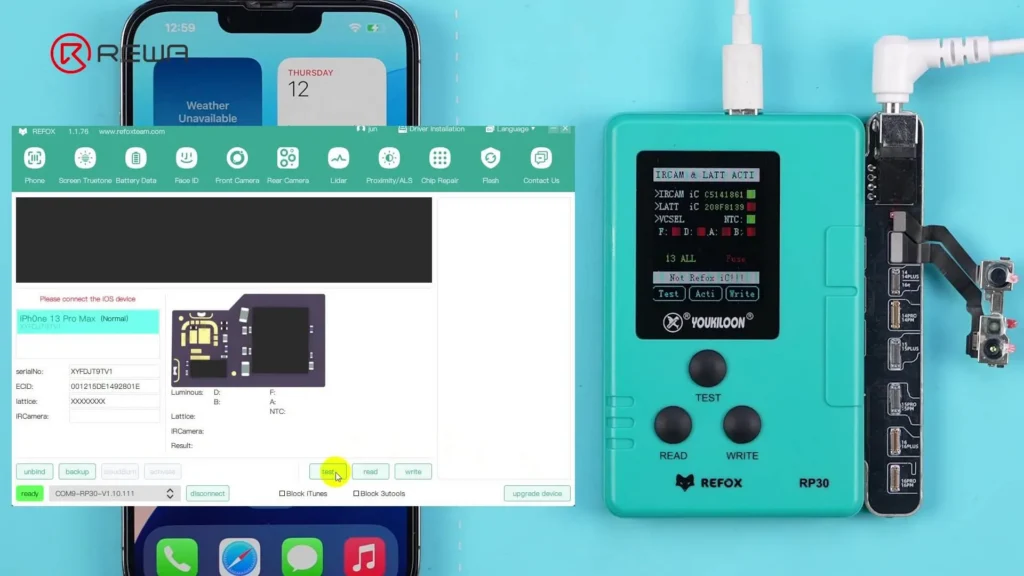
Diagnosis Result: The diagnosis reveals a lattice IC fuse failure, which is a common issue with the Dot Projector.
Step 4: Cloud Backup and Activation
- Click “Backup” to upload the Dot Projector data to the cloud.
- Click on “Activate” — Note: each Dot Projector can only be activated once.
- Remove the Dot Projector from the programmer.
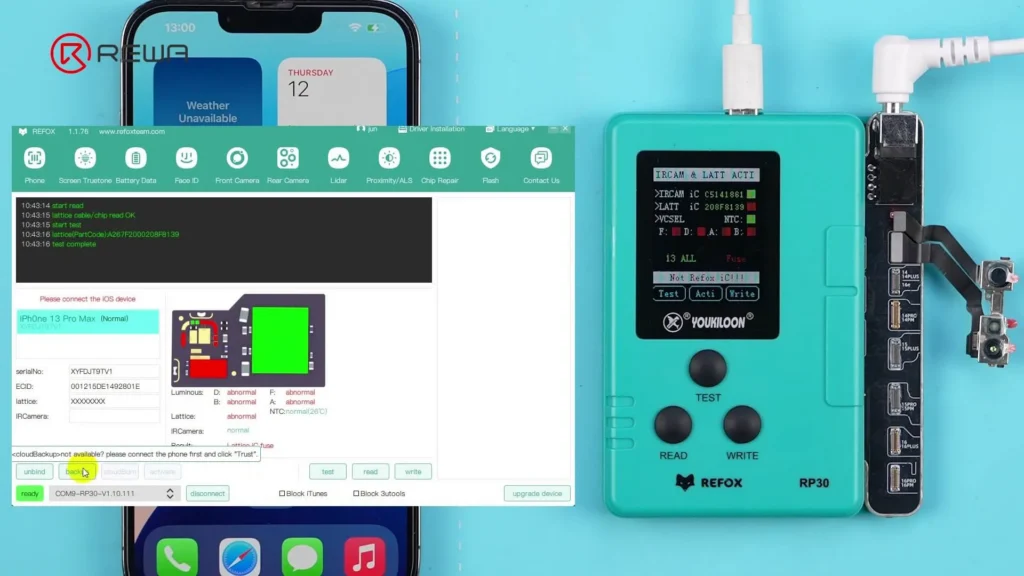
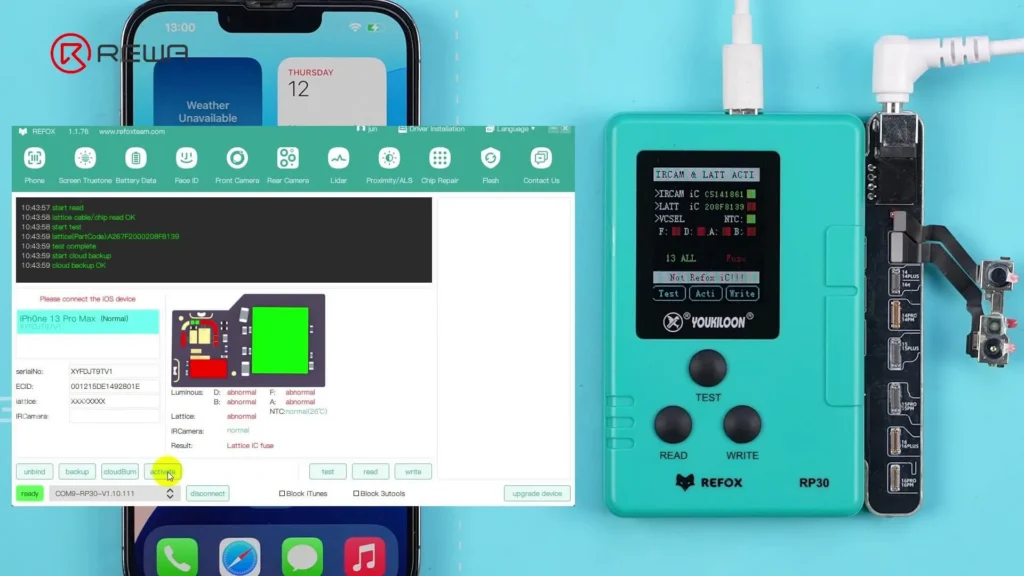
Step 5: Program the Tag-On Flex
- Insert the tag-on flex for iPhone 13 Pro Max into the programmer.
- Click “CloudBurn”, select the backed-up data, and then click OK.
- Remove the tag-on flex after a successful burn.
- Follow the on-screen animation to install and fold the tag-on flex correctly.
Step 6: Final Assembly and Verification
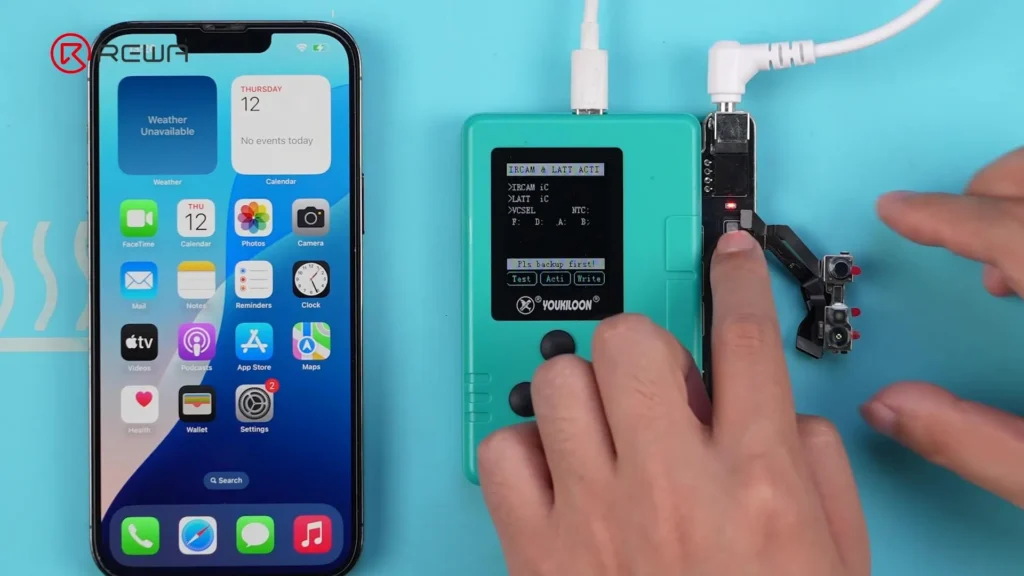
- Connect the Dot Projector to the programmer via the tag-on flex.
- The software verifies the status as “Normal”.
- Alternatively, click “Test” to verify manually.
Step 7: Reassemble the Front Camera Module
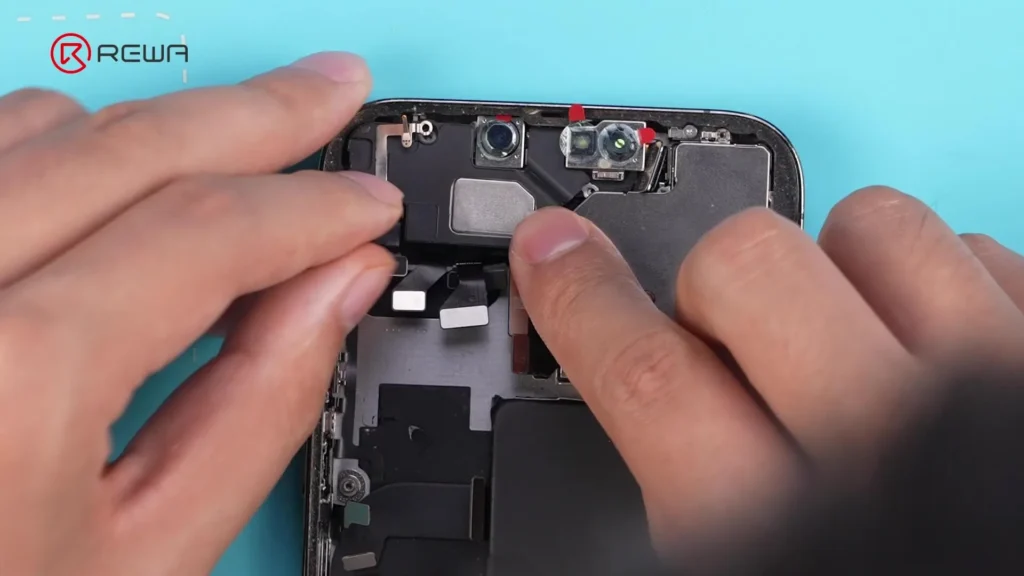
- Carefully position the front camera module back into the phone.
- Ensure the tag-on flex doesn’t block the earpiece screw hole to avoid damage.
- Install the earpiece and adjust the front camera with a tweezer as needed.
- Tighten all the screws.
- Reconnect the screen and battery cables, then power on the iPhone.
Step 8: Test Face ID
✅ Face ID enrollment is successful
✅ Unlocking with Face ID works perfectly
✅ Even after upgrading to iOS 26 Beta, Face ID remains fully functional.
Key Points:
- It is important to use the right power adapter to activate the Dot Projector, or it will fail to activate.
- Fold the tag-on-flex properly, or the front camera module will not fit.
- Ensure the front camera module is aligned properly – misalignment can prevent Face ID from working.
Tools & Materials Used
- REFOX Face ID Repair Programmer
- REFOX Dot Projector Repair Module
- REFOX Assistant (v1.1.76 or newer)
- Type C cable
- DC power adapter
- Tag-on flex for iPhone 13 Pro Max
- Tweezers, screwdriver set
- iPhone 13–15 series device with Face ID failure
Conclusion
This no-solder Face ID repair method for iPhone 13 to 15 series devices is fast, safe, and future-proof, even after iOS upgrades. Using the REFOX system, technicians can restore Face ID functionality without risking damage to internal components. If you’ve encountered similar Face ID issues, consider this method for a secure, professional-level repair.
Got Questions?
Have you tried this method or encountered other Face ID repair challenges? Share your thoughts in the comments below.
 English
 Español
 Français
 Deutsch
 Italiano