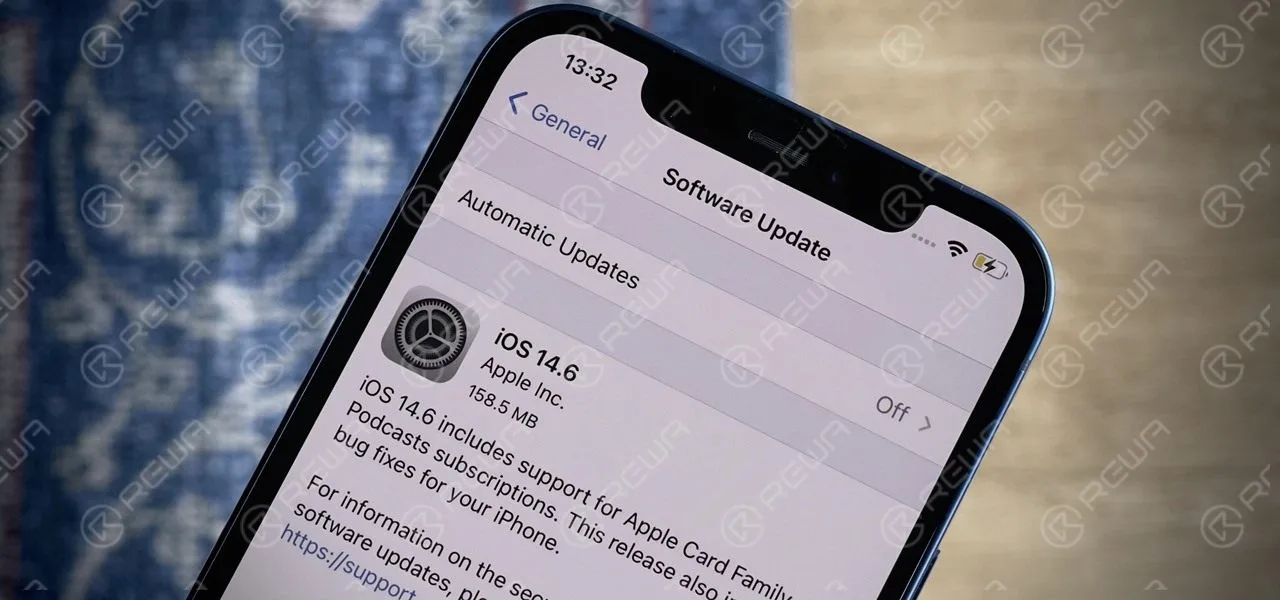
Apple has released a new version of iOS12 and the iOS12.1.1 update brings new features, bug fixes, and patches to the iPhone, iPad, and iPod touch.
iOS12.1.1 is available right now for all iPhone, iPad, and iPod touch models capable of running iOS12.
The iOS12.1.1 update isn’t as big as iOS12.1, but it still delivers useful performance improvements and important bug fixes for iOS12 problems.
Who Is iOS12.1.1 For?
12.1.1 update is 300 to 500MB, mainly updated for the new iPhone XR, XS, XS Max. In fact, iOS 12.1.1 is compatible with all iOS11 compatible devices.
This means it is also available on models after iPhone 5s, iPad mini 2, and 6th generation iPod touch(iPhone 5s, iPad mini 2, and 6th generation iPod touch included).
What Do You Get?
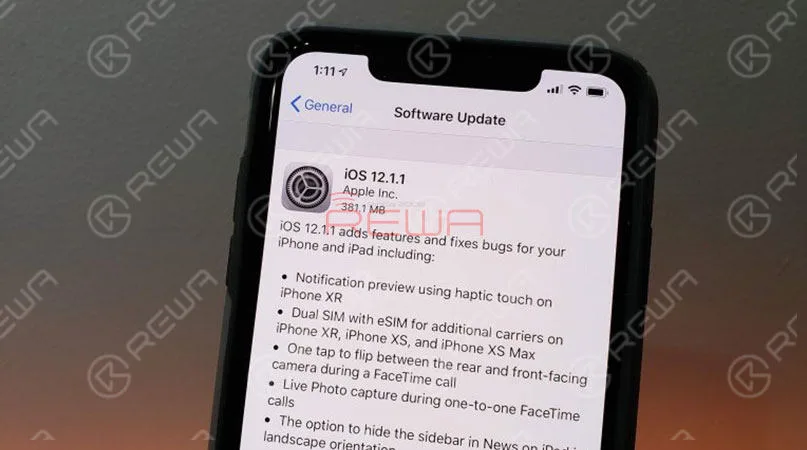
Apple’s official release notes describe iOS12.1.1 as follows:
- Notification preview using haptic touch on iPhone XR
- Dual SIM with eSIM for additional carriers on iPhone XR, iPhone XS, and iPhone XS Max
- One tap to flip between the rear and front-facing camera during a FaceTime call
- Live Photo capture during one-to-one FaceTime calls
- The option to hide the sidebar in News on iPad in landscape orientation
iOS12.1.1 Problems / How to Fix the Problems
Although iOS12.1.1 update brings new features and bug fixes.
However, it also brings some problems.
We’re already seeing complaints about the iOS12.1.1 download and installation, abnormal battery drain, slow Wi-Fi, problems with Touch ID and Cellular network connectivity issues.
Check the following to see what are the problems of iOS12.1.1 and how to fix them.
Problem 1:Displays 4G network can not access the Internet
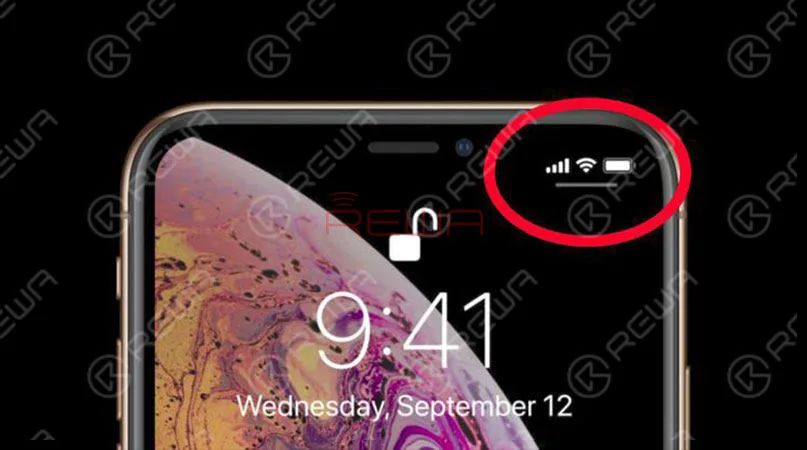
There is plenty of feedback from iPhone XS and iPhone XS Max owners and the upgrade of iOS12.1.1 has caused the problem that the 4G network cannot be connected.
The specific problem is that although the iPhone displays 4G LTE network, but can not open the webpage with Safari, some social network APP cannot send messages.
Solution: How to fix iPhone can’t access the Internet
At present, Apple has not given a solution for this issue.
Some users tried to restart or reset the network but that did not solve the problem.
In the previous guide, we have already talked about iPhone no services and iPhone WiFi connection failure problem.
If you have an iPhone X or later iPhone devices, and unfortunately, encountered a similar situation after upgrading ios12.1.1, it is recommended to restore your iPhone and downgrade to iOS12.1.
How to downgrade iOS
- Download the appropriate IPSW file for your iPhone or iPad.
- Make sure iTunes on your computer is the latest version. If not, download and install it.
- Connect your iPhone or iPad to your computer and then click on your device when it appears.
- Under the Summary section, click the Check for Updates button while holding Shift (Windows) or Option (Mac).
- Now navigate to and choose the IPSW file you downloaded.
Your device will be ‘updated’ to iOS 12.1.
Problem 2: iOS12.1.1 touch screen issue on iPhone
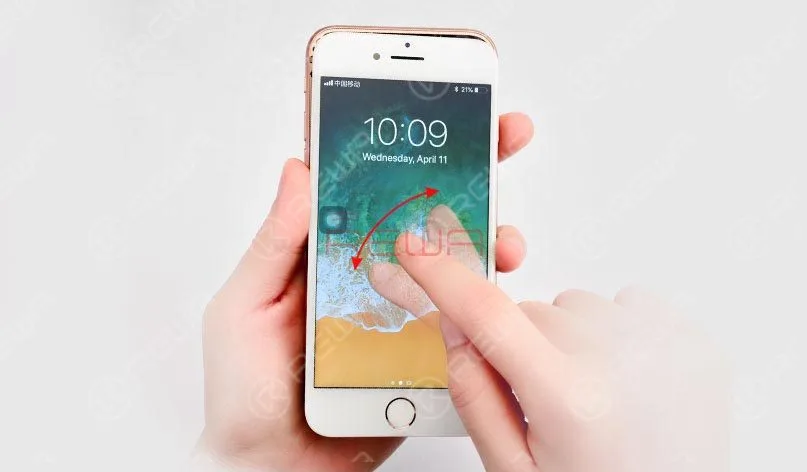
Many users complained that their iPhone, iPad or iPod touch’s screen not working as normal after iOS12.1.1 updates, like touchscreen unresponsive when calls come in, touch screen stops responding, and etc.
Solution: How to fix iOS12.1.1 touch screen not working
In previous repair guides, we have shown iPhone touch screen not working with hardware, iPad touch screen unresponsive, iPad ghost touch issue and etc..
REWA offers iPhone screen repair services for repair shops, you may get a quick response and fix from us. Here are the methods to fix iOS 12 touch screen not working problem.
Restart Your iPhone:
Press and hold down the wake/sleep button and drag slide to power off, and then turn on your iPhone touch after a few seconds.
Reset Your iPhone:
If you cannot restart your device, then you can try this method. Hold down the on/off button and the Home button until the screen turns off, then keeping holding them until the Apple logo appears.
Clean Your Screen:
Check your screen to see if there are some oily or liquid splits and clean the screen with soft cloth. If you have a screen protector, you can remove it to have a try.
Restore Your iPhone:
If the screen still not responding, then you can restore your devices as new to have a try.
Problem 3: iOS12.1.1 battery issues on iPhone
According to the battery issues happened after updating to iOS12.1.1, and the latest issues reported by iOS users, here we list the most common battery issues you may meet after updating to iOS12.1.1.
- iPhone battery draining fast
- Abnormal bad battery life issues
- The iPhone heats up randomly and battery goes down fast
Solution: How to fix iOS12.1.1 battery issues on iPhone
1. Reset the setting: Go to Settings > General > Reset > Reset All Settings to factory default.
2. Enable Low Power Mode: Go to Settings > Battery > Turn on Low Power Mode.
3. Make display & brightness adjustments: Go to Settings > General > Accessibility > Display Accommodations > Auto Brightness.
4. Disable iCloud Keychain: Go to Settings > Apple ID > iCloud > Keychain then toggle it off and on.
5. Turn off Location Services: Open Settings APP > Privacy > Location Services > Turn it off. Or you can also set it to enable the services while using the app.
6. Restore the device. It can erase all the settings and content on your device, so this is the last option. You can first restore from one backup to have a try, if it does not work then you have no choice but to restore your device as new.
 English
 Español
 Français
 Deutsch
 Italiano