Lo schermo dell'iPad Pro di prima generazione non risponde al tocco. Prima di tutto abbiamo provato a sostituire lo schermo, ma continuava a non rispondere. I connettori del touch erano a posto. Quindi abbiamo stabilito che il problema è causato da un guasto alla scheda madre. Ora vediamo come risolvere il problema.
Tag: schermo non rispondente
-
iPad Pro Touch Screen Not Working? Learn How to Fix Unresponsive Screen
In this guide, we’ll explore a detailed step-by-step process for fixing an unresponsive touch screen issue on a 1st Gen iPad Pro. If you’ve encountered this problem, don’t worry; we have a solution that involves diagnosing the issue and making the necessary repairs. Let’s dive into the troubleshooting and repair process.
Power On the iPad Pro
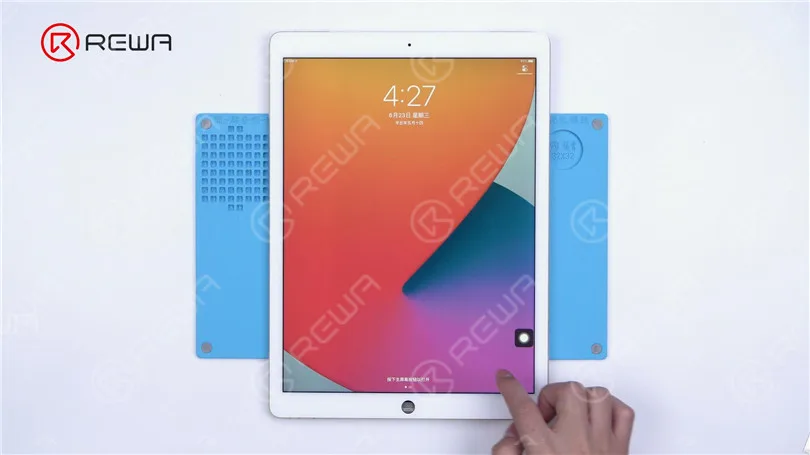
The first thing to try when your iPad’s screen isn’t responding is a simple restart. Hold down the power button until the “Slide to power off” slider appears. Slide it to turn off the device and then turn it back on. If the screen doesn’t response and can’t turn off then follow the next step.
Disconnect the Display
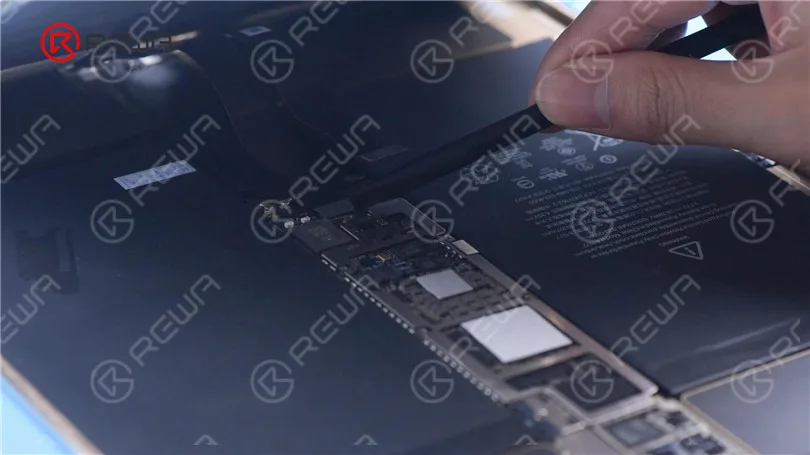
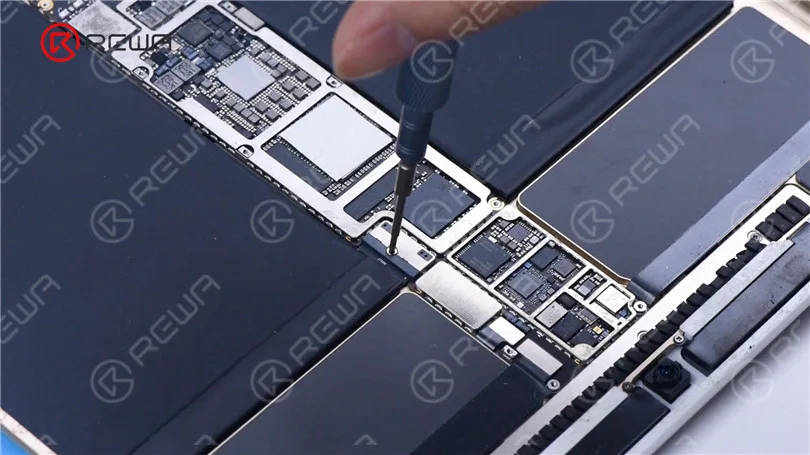
In some cases, a disconnected or damaged display could be the culprit. To check this, you may need to open up your iPad. If you’re not comfortable with this, it’s best to seek professional help. Remove the battery screw on the motherboard and insert a pry piece to isolate the battery from the motherboard to prevent any circuit damage.
Install a Known-Good Display
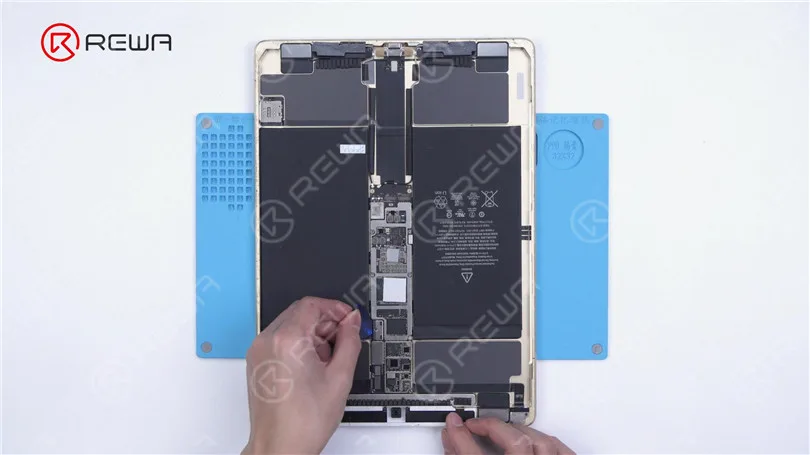
If after disconnecting and reconnecting the display, the touchscreen is still unresponsive, it’s safe to say that the issue is not with the display. Instead, it could be a motherboard fault.
Inspect Touch Connectors
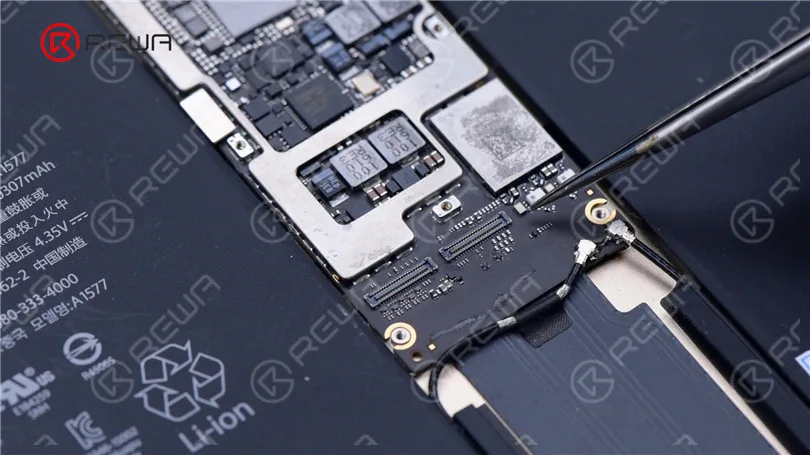
Check the touch connectors to ensure they are not deformed or damaged. If they appear to be in good condition, proceed to the next step.
Measure Resistance Values
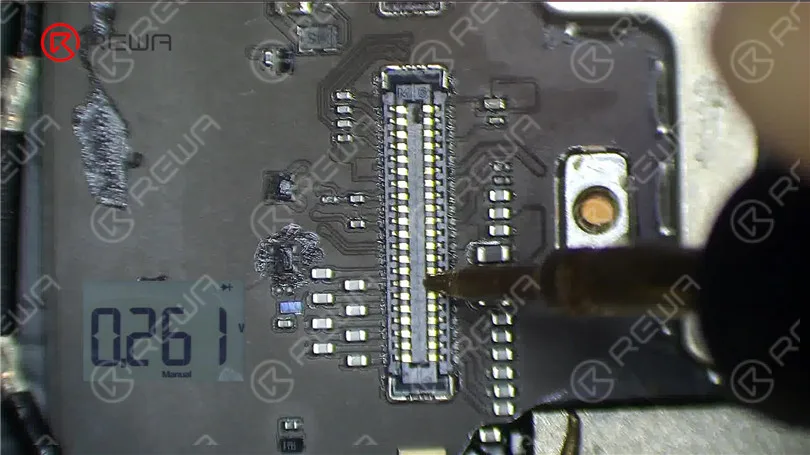
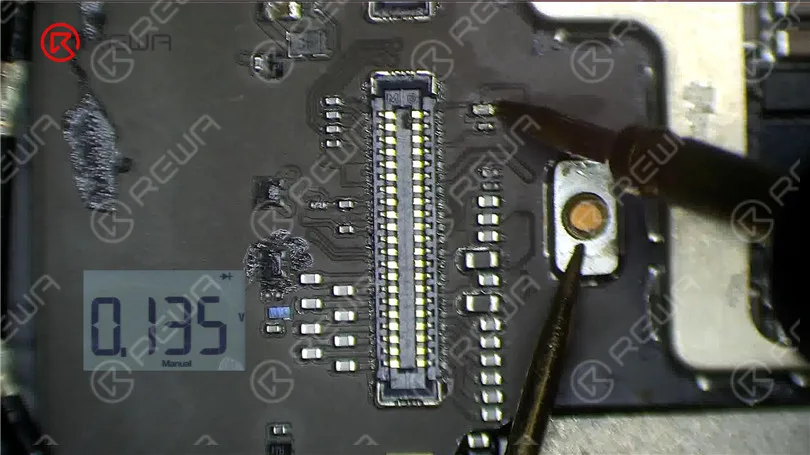
Using a multimeter, measure the resistance values of pin 2, pin 4, and pin 6. The normal value should be around 144 ohms. If these values are significantly different, you might have identified the issue.
Examine the Inductor
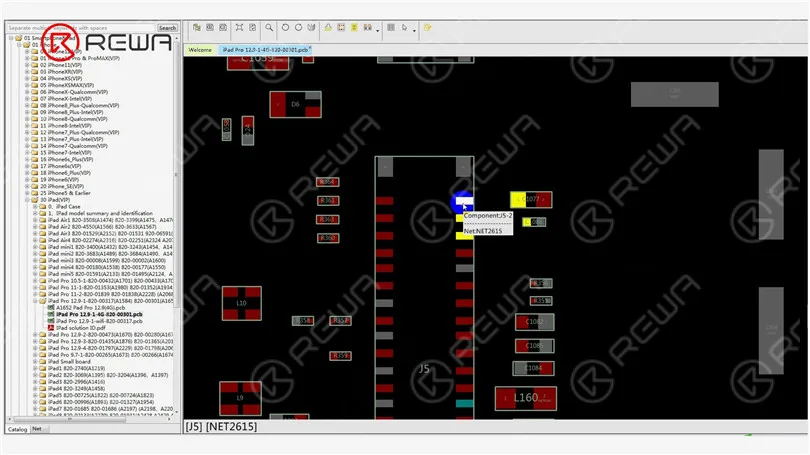
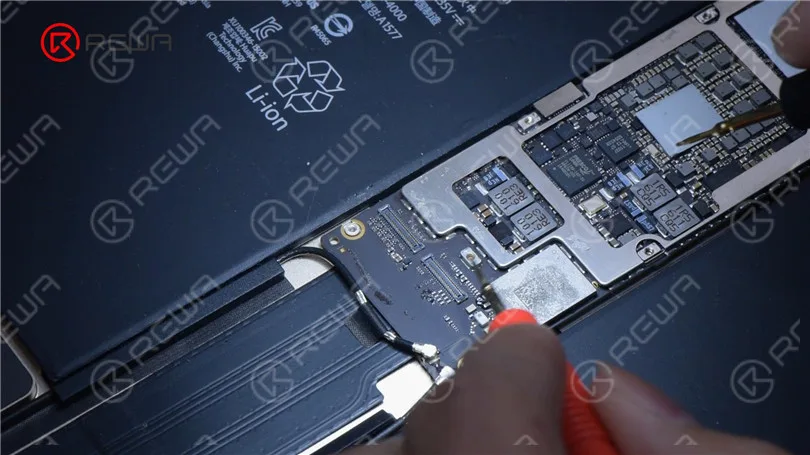
Inspect the inductor that connects these pins to the chip. Measure the resistance value of this inductor. If it’s abnormal, the inductor might be damaged, which can happen due to improper operation, such as installing the display with the battery still connected.
Replace the Damaged Inductor
To fix the issue, you’ll need to replace the damaged inductor. Follow these steps carefully.
Pry the motherboard slightly to prevent rapid heat dissipation.
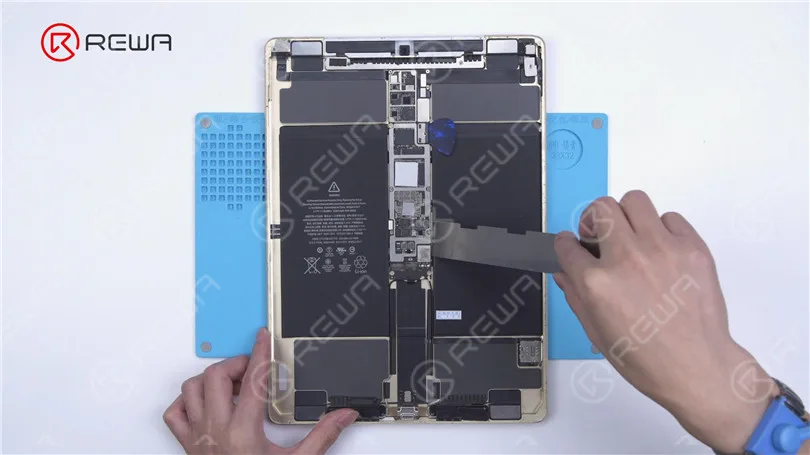
Apply high-temperature tape and an insulation mat.
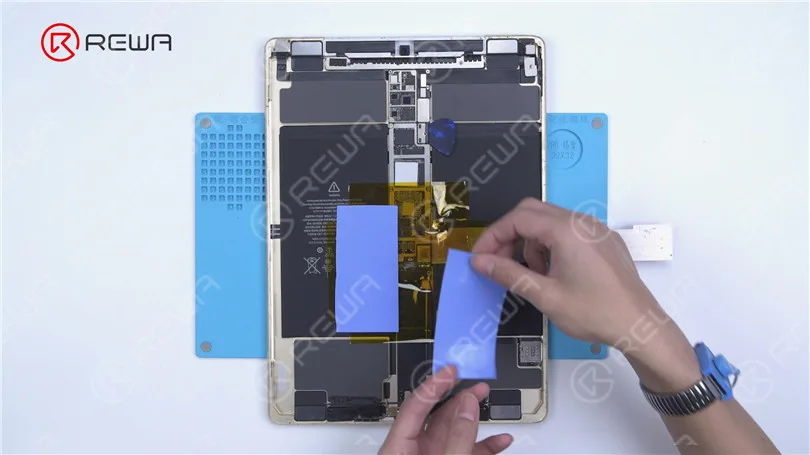
Use paste flux and heat with a Hot Air Gun at 360°C and airflow 2 to remove the damaged inductor.
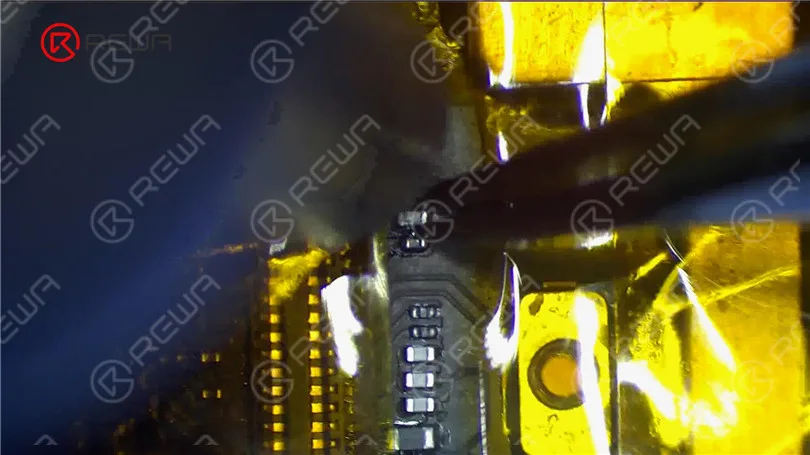
Apply a middle-temperature solder paste and continue heating with the Hot Air Gun to lower the melting point of the bonding pad.
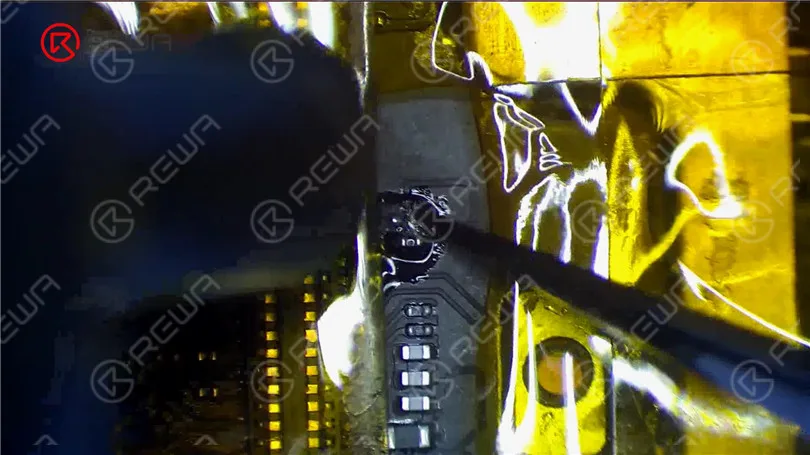
- Remove any remaining solder with a solder wick.
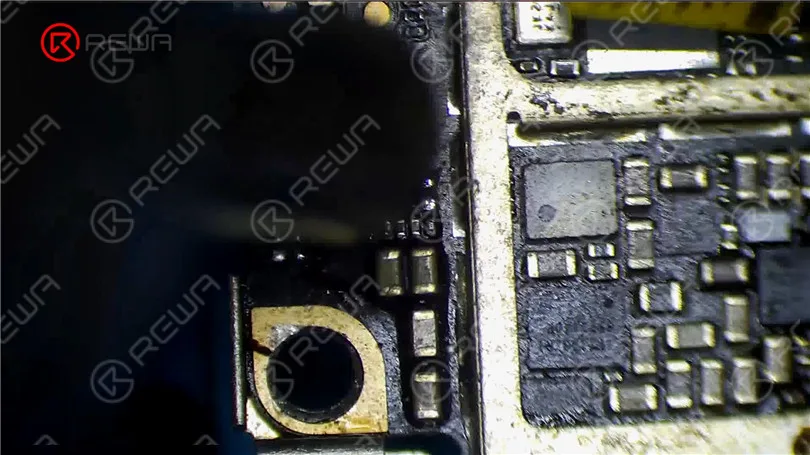
- Source a replacement inductor from an abandoned board and solder it with the Hot Air Gun at 330°C and airflow 2.
- Clean the area with a PCB cleaner.
- Measure the resistance values again to ensure they are normal.
Test the Screen
Reassemble your iPad and test the touchscreen. If both the touch and 3D Touch functions work properly, congratulations, you’ve successfully fixed the unresponsive touchscreen issue on your iPad Pro.
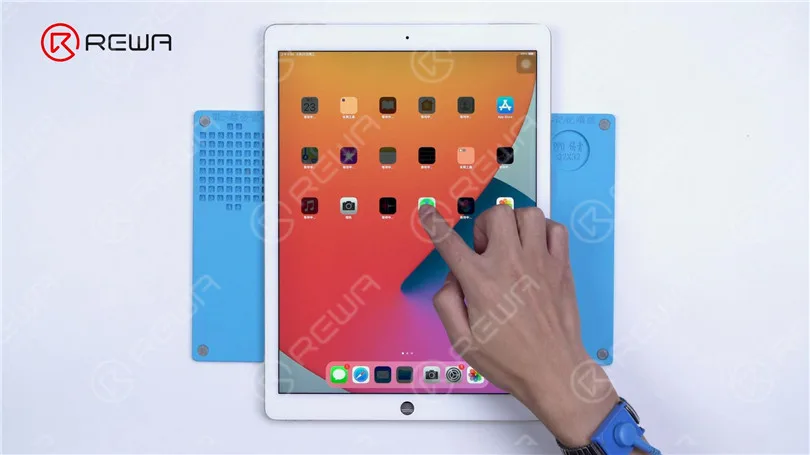
Video Guide to Fix ipad pro touch screen not working
Conclusione:
Troubleshooting and repairing an unresponsive iPad Pro touchscreen can be a daunting task, but with the right steps and precautions, it’s possible to diagnose and fix the issue. Remember to disconnect the battery when working on your device to avoid any further damage. If you’re unsure about any step, it’s always best to seek the help of a professional technician.
Please feel free to leave a comment if you have any questions or if there are other repair topics you’d like to learn about. If you’re interested in mastering iPhone motherboard repair, consider enrolling in the Accademia REWA live online course, designed for beginners. Hurry, as only 20 spots are available for each training session. And for iPad replacement parts, visit the REWA Shop.
-
Troubleshooting on iPhone 8 Unresponsive Touch Screen: A Comprehensive Guide
In this article, we will explore the reasons behind an iPhone 8 unresponsive touch screen and provide step-by-step solutions to address the issue. Whether it is a system problem, a crash, or compatibility issues, we’ve got you covered. Follow these tried and tested methods to regain control of your iPhone 8’s touch screen functionality.
Understanding the Reasons
iPhone System Problem Fault
An unresponsive touch screen can be attributed to underlying system glitches or software-related issues. These may occur due to various reasons, such as improper app installations, conflicting system updates, or corrupted files.
iPhone Crash
In some cases, an iPhone crash may cause the touch screen to become unresponsive. This can happen if the device is exposed to excessive stress or if certain apps or processes overload the system.
Troubleshooting Methods
Force Restart
Performing a force restart is often the simplest and most effective solution for resolving touch screen issues. To force restart your iPhone 8, follow these steps:
- Press and quickly release the volume up button.
- Press and quickly release the volume down button.
- Lastly, press and hold the power button until the Apple logo appears. Allow the device to restart fully.
Reset to Factory Settings
If the touch screen problem persists and seems to be software-related, resetting your iPhone 8 to factory settings might be necessary. However, remember to back up your important data before proceeding. To reset your device, go to:
Settings > General > Reset > Erase All Content and Settings. Follow the on-screen prompts to complete the reset process.
Update the System
Updating your iPhone’s system software can address compatibility issues that might be causing touch screen problems. Additionally, removing any incompatible or problematic apps can help restore normal touch screen functionality. To update your iPhone 8’s software, follow these steps:
- Connect your device to a stable Wi-Fi network.
- Go to Settings > General > Software Update.
- If an update is available, follow the instructions on-screen to download and install it.
Conclusione:
By utilizing these troubleshooting methods, you can resolve touch screen responsiveness issues on your iPhone 8. Remember to start with a force restart, proceed to a factory reset if necessary, and ensure your device is running on the latest software version. Following these steps will help restore your touch screen’s functionality, ensuring a seamless user experience on your iPhone 8.
 English
 Español
 Français
 Deutsch
 Italiano