Tag: iphone xs max

  • Risoluzione dei problemi del Face ID di iPhone XS Max che non funziona - Riparazione del proiettore Dot

    Risoluzione dei problemi del Face ID di iPhone XS Max che non funziona - Riparazione del proiettore Dot

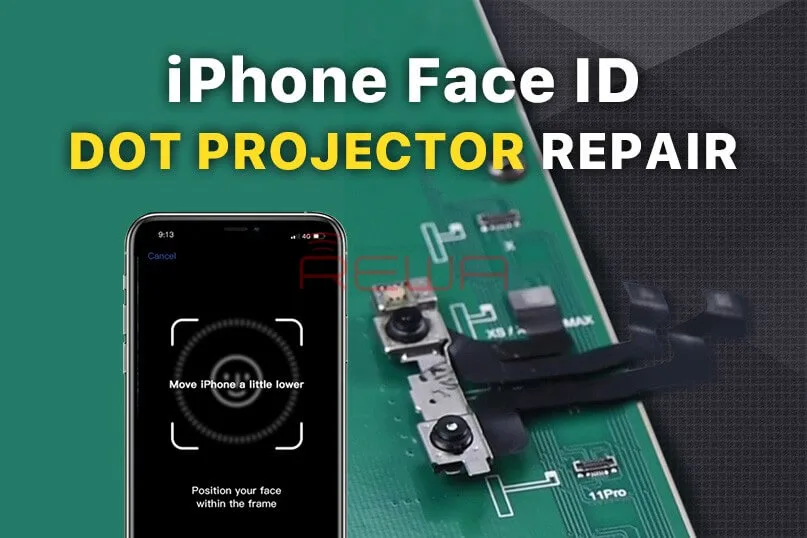
    Face ID Not Working ‘Move iPhone a Little Lower/Higher‘ is usually caused by damage to the dot projector and the problem is confirmed to be almost unrepairable. However, there is finally a solution to fix the problem. Today REWA LAB will show you the latest dot projector repair technique!
    Face ID Not Working 'Move iPhone a Little Lower/Higher' is usually caused by damage to the dot projector and the problem is confirmed to be almost unrepairable. However, there is finally a solution to fix the problem. Today REWA LAB will show you the latest dot projector repair technique!

    Problema

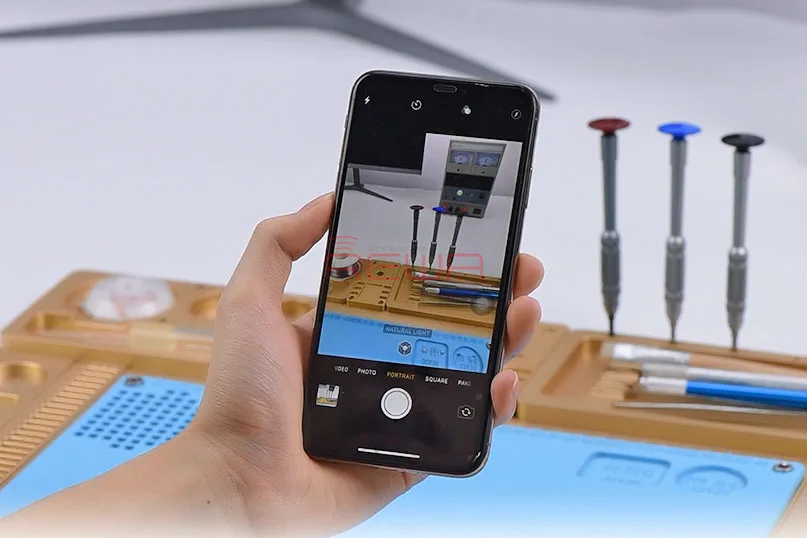
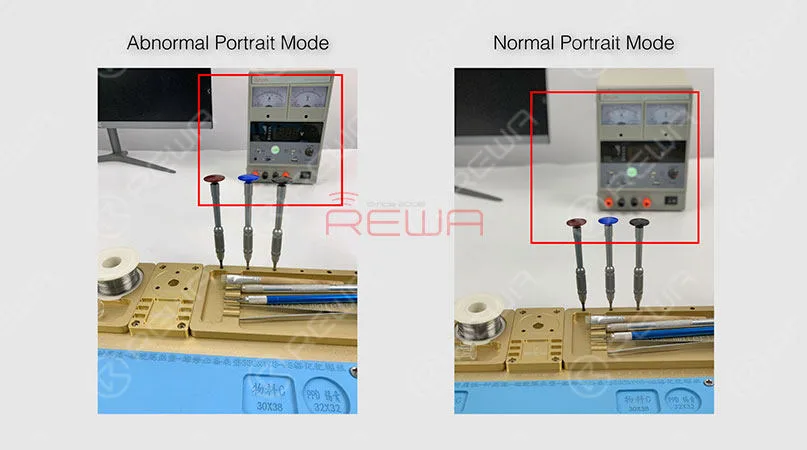
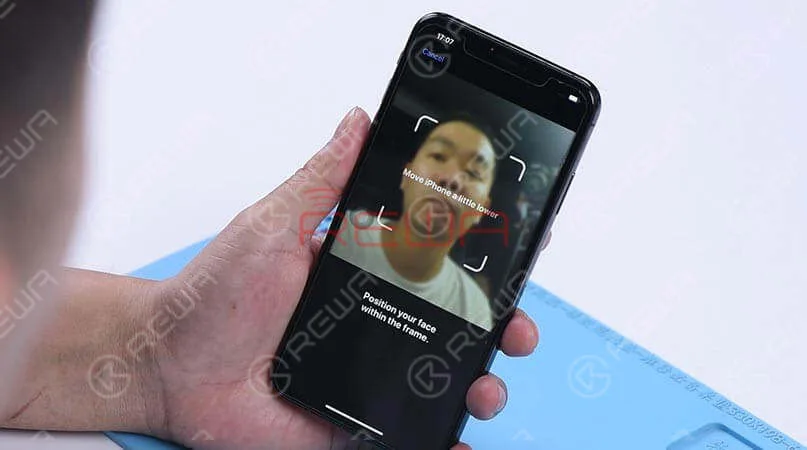
    When trying to set up Face ID on the iPhone, we get the message ‘move iPhone a little lower/higher’. Next, switch to the front camera, we found that the name of the lighting effect ‘Natural Light’ stays the same when the camera detects a person’s face. What’s more, the pop-up notification keeps saying ‘Move farther away’. Normally, when Portrait mode is ready, the name of the lighting effect ‘Natural Light’ should turn yellow. Judging by this, the dot projector or relevant circuits of the dot projector might have malfunctioned.

    When trying to set up Face ID on the iPhone, we get the message 'move iPhone a little lower/higher'. Next, switch to the front camera, we found that the name of the lighting effect ‘Natural Light’ stays the same when the camera detects a person's face. What's more, the pop-up notification keeps saying ‘Move farther away’. Normally, when Portrait mode is ready, the name of the lighting effect ‘Natural Light’ should turn yellow. Judging by this, the dot projector or relevant circuits of the dot projector might have malfunctioned.
    Diagnosi 

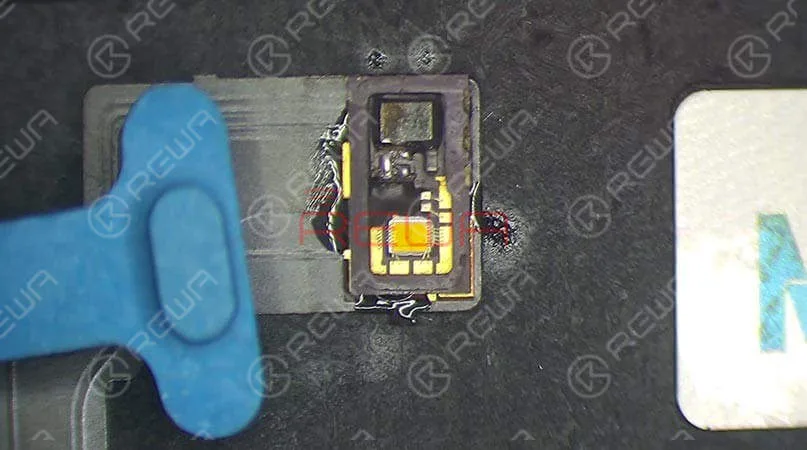
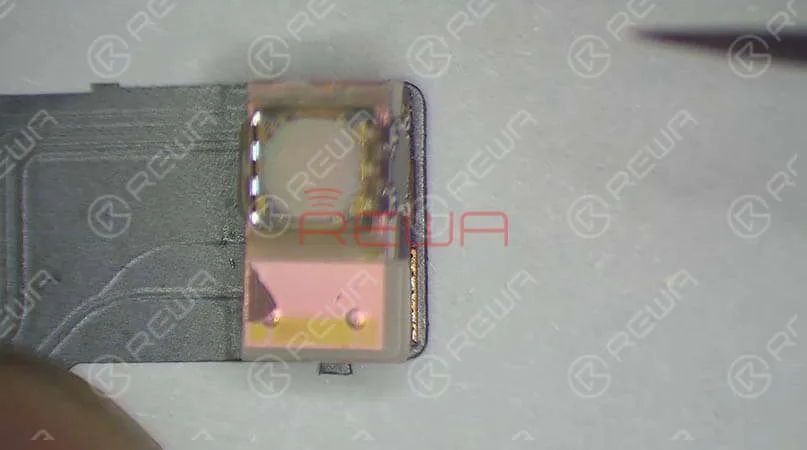
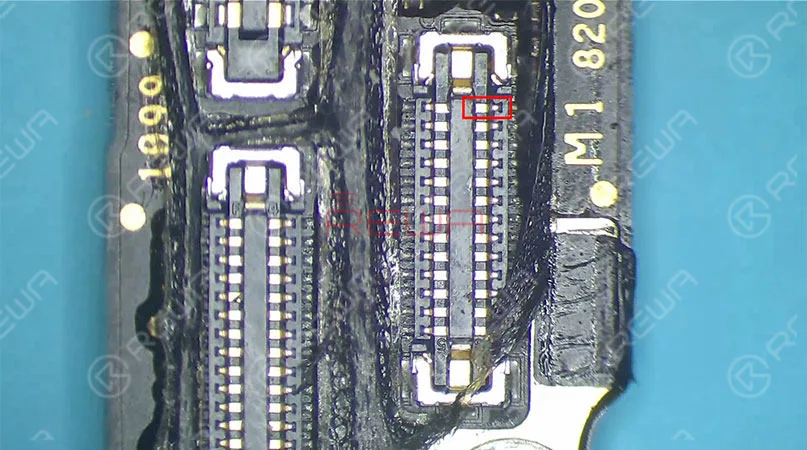
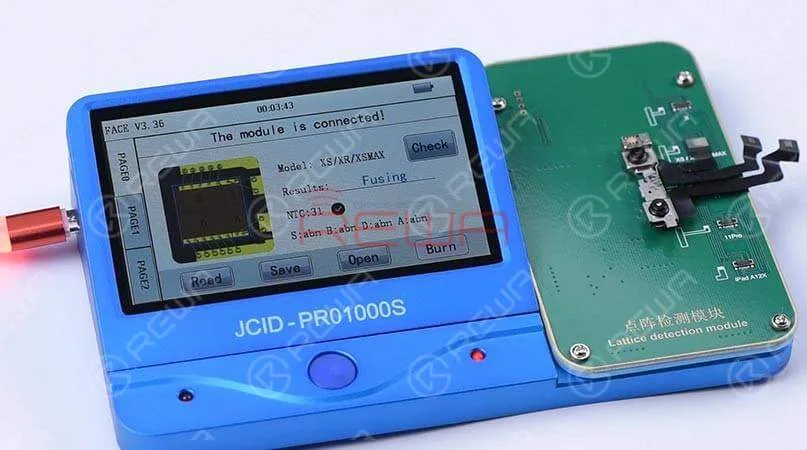
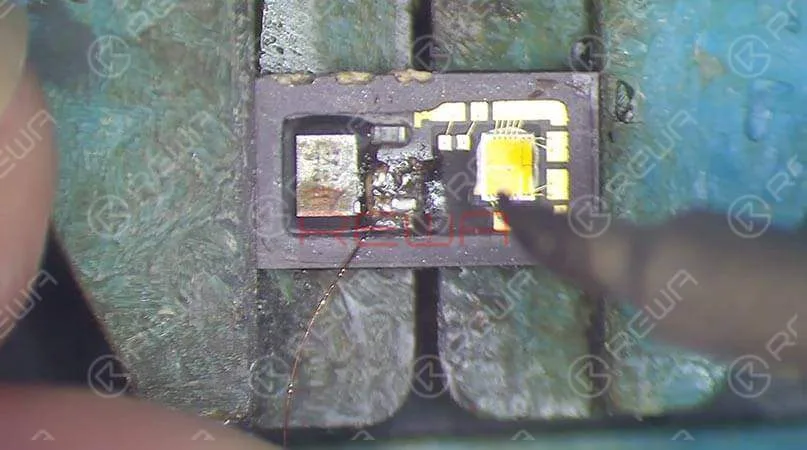
    Take apart the phone and remove the display assembly first. We can see that the dot projector has been water damaged and the crystal on the dot projector is broken. Take out the front camera assembly carefully. Here we recommend using a repair programmer to check the dot projector flex cable. Connecting the dot projector flex cable with the programmer, the results show ‘Fusing’ which means the dot projector flex cable has been damaged. We need to burn data of the original dot projector flex cable onto a new one and then replace the broken crystal.

    Connecting the dot projector flex cable with the programmer, the results show ‘Fusing’ which means the dot projector flex cable has been damaged. We need to burn data of the original dot projector flex cable onto a new one and then replace the broken crystal.
    Connecting the dot projector flex cable with the programmer, the results show ‘Fusing’ which means the dot projector flex cable has been damaged. We need to burn data of the original dot projector flex cable onto a new one and then replace the broken crystal.
    Connecting the dot projector flex cable with the programmer, the results show ‘Fusing’ which means the dot projector flex cable has been damaged. We need to burn data of the original dot projector flex cable onto a new one and then replace the broken crystal.
    Connecting the dot projector flex cable with the programmer, the results show ‘Fusing’ which means the dot projector flex cable has been damaged. We need to burn data of the original dot projector flex cable onto a new one and then replace the broken crystal.

    Risoluzione dei problemi   

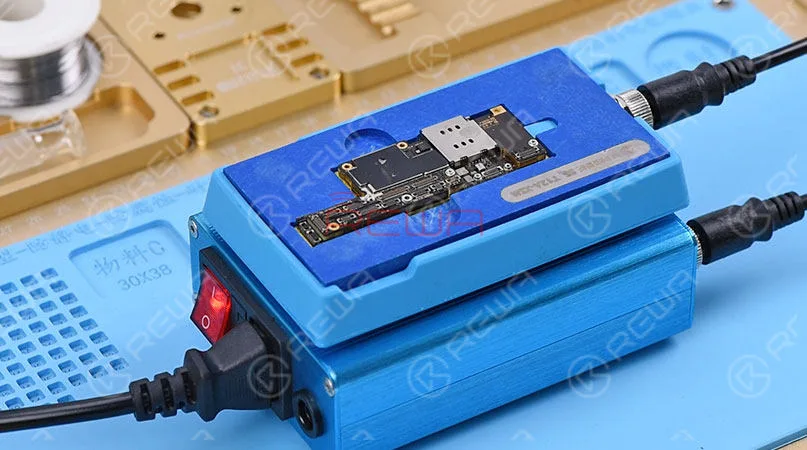
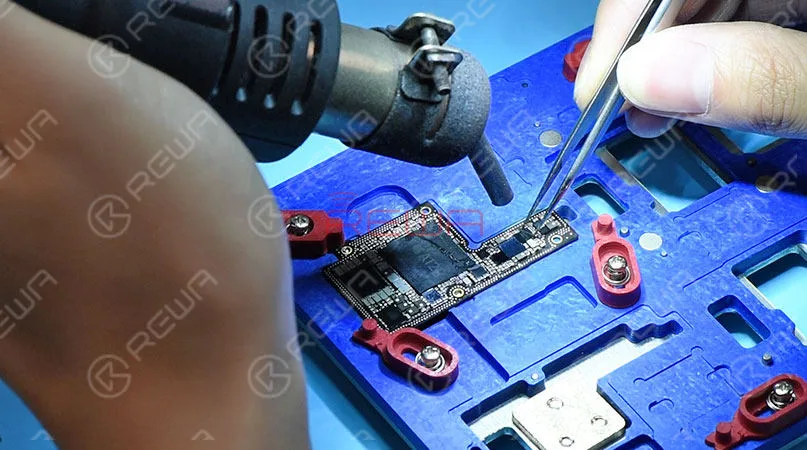
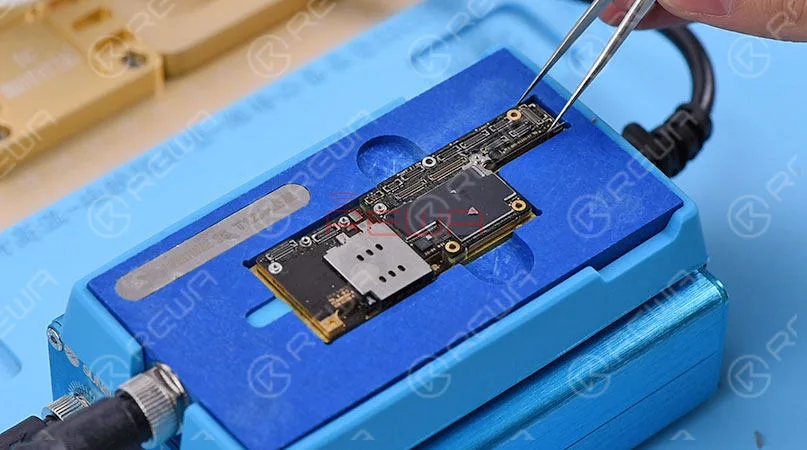
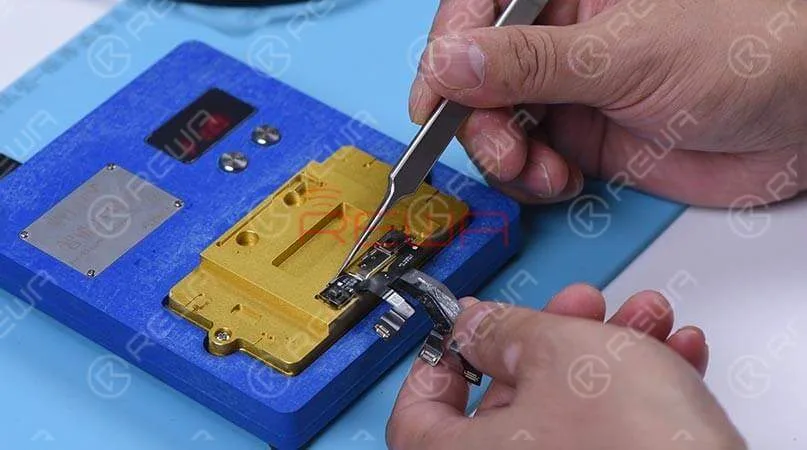
    In the first step, we should separate the crystal from the cable. Compared to traditional operations with a hot air gun, we prefer to use an intelligent preheating platform. Put the dot projector into the matching rubber mold and separate the crystal from the flex cable carefully with the blade.  Next, we use the repair programmer again to burn the origin data onto the new dot projector flex cable. After completing these two steps, we need to solder the dot projector module and glue a known-good crystal. For detailed instructions, click on the video at the bottom of the article
    troubleshooting iphone xs max face id not working dot projector repair 8

    Riassemblaggio e test 

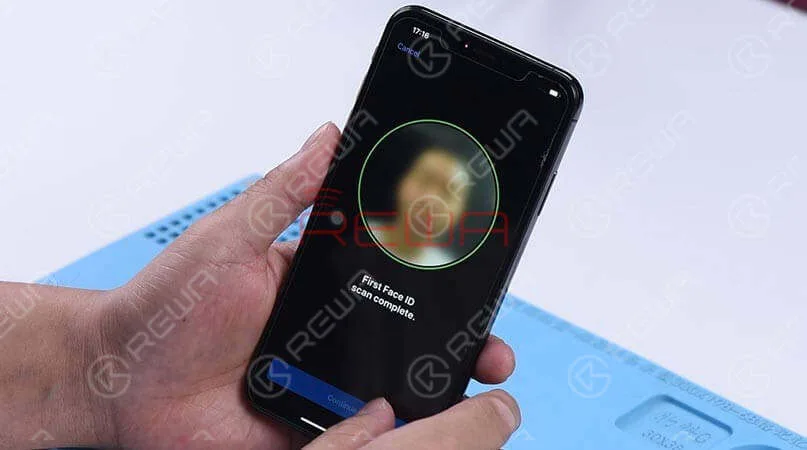
    Apply double-sided adhesive tape on the backside of the front camera, and adhere the dot projector flex cable to the right position. Get the front camera assembly installed and get the logic board assembled and buckle the display assembly. Face ID can be set up successfully, and the phone can be unlocked with Face ID this time.  Tips: The double-sided adhesive tape used here is for the test. We need to glue the dot projector module onto the flex cable after fault clearance.

    Strumenti utilizzati

    Visitate il nostro negozio online Per ulteriori parti e strumenti, è possibile visitare anche il sito REWA YouTube Channel to check our video.
  • Pulire i cuscinetti di incollaggio dell'iPhone XS Max

    Pulire i cuscinetti di incollaggio dell'iPhone XS Max

    Pulire le piazzole di incollaggio dell'iPhone XS Max con il saldatore e lo stoppino per saldare.

  • iPhone Xs Max Flickering Screen Caused By Mistake | iPhone Repair Tips

    iPhone Xs Max Flickering Screen Caused By Mistake | iPhone Repair Tips

    Develop a good habit and keep a well-organized workspace in daily repair work will help a lot for repair technicians. Today we share a special repair case – iPhone Xs Max flickering screen which caused by the technician’s mistake.

  • Troubleshooting iPhone XS Max Portrait Mode Not Working

    Troubleshooting iPhone XS Max Portrait Mode Not Working

    Many iPhone XS Max users have the complaint that the Portrait Mode on their phones is not working. And it’s not a strange thing to see that questions like ‘Why does my iPhone XS Max Portrait Mode not working’ and ‘How to fix my iPhone XS Max Portrait Mode not working’ have been so frequently searched on Google. If you are one of them, this article will help you to solve this issue. Here REWA is going to tell you how to fix Portrait Mode not working on iPhone XS Max.

    Usually, there are two different causes for Portrait Mode not working on iPhone XS Max. Software problems or hardware problems. Here we have some solutions for software problems.

    Nota: Don’t use portrait mode in dark places or low light. Because portrait mode will not work in low light. And make sure that the distance between the phone and the subject is proper(neither too far nor too close). Keep at least 19 inches distance between the phone and the subject.

    1. Restart your iPhone XS Max or camera app. 2. Upgrading iOS: Go to Set->General->Software Update. 3. Reset all settings: Go to Set->General->Reset-> Reset All Settings. 4. Restore your iPhone XS Max to Factory Settings(Factory Reset): Go to Settings->General->Reset-> Erase All Contents and Settings. Take a backup before resetting your iPhone to Factory Settings, since this action will erase all data from your device.

    So, these are some methods to resolve the iPhone XS Max portrait mode not working issue. You can try them out. However, if nothing works, the possible situation is that the motherboard or the camera has been damaged. In this case, you need to have the damaged one replaced. Well, you can also follow our solution below.

    The first thing we do is to check if the Portrait Mode is in a normal status. Open the camera app and swipe to portrait mode. We can see clearly that the background is not blurred. Which indicates that the wide-angle lens is working normally, while the telephoto lens is not working at all.

    iPhone XS Max Portrait Mode Not Working Troubleshooting

    Take apart the phone and take out the motherboard. Run diode mode measurement of the Tele camera connector J4000. The measured value of Pin 25 is OL, which is abnormal. Which also indicates that Pin 25 relevant circuit has open-circuited(The circuit is formed by a zero-ohm resistor R4006, several capacitors and the camera power supply IC U3700). Since capacitors have nothing to do with the open-circuited condition. So the first thing we do is to check the zero-ohm resistor R4006. Run diode mode measurement of R4006. Judging by the measured value, R4006 has not open-circuited. We can confirm that the fault is probably related to U3700.

    iPhone XS Max Portrait Mode Not Working Troubleshooting

    Try to replace with a new camera power supply IC. You need to separate the upper and the lower layer first. And then detach U3700. Continue to clean the bonding pad and solder a new camera power supply IC. Solder the two layers together later. Detailed steps go as follows:

    iPhone XS Max Portrait Mode Not Working Troubleshooting

    Place the motherboard on the Heating Platform. This machine can quickly desolder & resolder iPhone XS Max double-layer motherboard. It offers heat evenly that can protect the motherboard from damage. With accurate temperature control and temperature adjustment, it is highly recommended for motherboard repair. Pick up the upper layer with tweezers once solder on the third space PCB has melted, and detach U3700 from the board with Pistola ad aria calda.

    iPhone XS Max Portrait Mode Not Working Troubleshooting

    Apply solder to clean the bonding pad first. Then clean thoroughly with rosin soaked Solder Wick. Clean with PCB Cleaner afterwards. Get a new camera power supply IC in position and solder with Hot Air Gun. Next thing we need to do is to solder the two layers together. Clean the third space PCB with rosin soaked solder wick first, then reball the lower layer. Solidify the third space PCB with Paste Flux afterwards. Once done, apply some BGA Paste Flux to the third space PCB. Get the upper layer and the lower layer in position. Use the iPhone XS Max Motherboard Soldering/Desoldering Rework Station to solder the double-layer motherboard.

    iPhone XS Max Portrait Mode Not Working Troubleshooting

    Once we have confirmed that the motherboard has been soldered successfully, we can assemble the phone and test. Warm tips: get the phone full assembled after confirmation of fault clearance. Get the motherboard and display assembly installed. Connect the battery and press the power button. The iPhone XS Max turns on normally. Open the camera app and swipe to Portrait Mode. We can see that the subject is being focused and the background is blurred. The Portrait mode not working on iPhone XS Max issue has been solved successfully.

    iPhone XS Max Portrait Mode Not Working Troubleshooting

    PLUS:  with our unique teaching system, REWA offline training course can help technicians improve their repair skills by mastering repair thoughts and repair techniques.

    Tools used:

    iPhone XS Max Motherboard Soldering/Desoldering Rework Station

    Explosion-Proof PCB holder for iPhone XS/XS Max

    Stazione di rilavorazione con pistola ad aria calda - 990AD

    Stazione di rilavorazione con saldatore - 969A

    Microscopio elettronico - Tipo 1

    Multimetro digitale

    Pinze per apertura LCD

    Stoppino per saldatura

    Flusso di saldatura alla colofonia

    Pinzetta dritta

    Pinzetta a gancio curvo

    Cacciavite

    Spazzola morbida

    Barra di plastica antistatica

    Raschietto BGA in acciaio inox

  • Guida alla risoluzione dei problemi: problemi e soluzioni di iPhone XS Max

    Guida alla risoluzione dei problemi: problemi e soluzioni di iPhone XS Max

    Per ogni generazione di iPhone sono state aggiornate le caratteristiche dei nuovi dispositivi. Tuttavia, ogni nuovo dispositivo si scontra con problemi specifici fin dal giorno del suo rilascio.

    Dal lancio dell'iPhone XS/iPhone XS Max, gli utenti hanno riscontrato diversi problemi e difetti. Vediamo quali sono i problemi e come risolverli.

    Fastidiosa linea verde sul display

    Apple è passata a Display OLED dall'iPhone X del 2018.

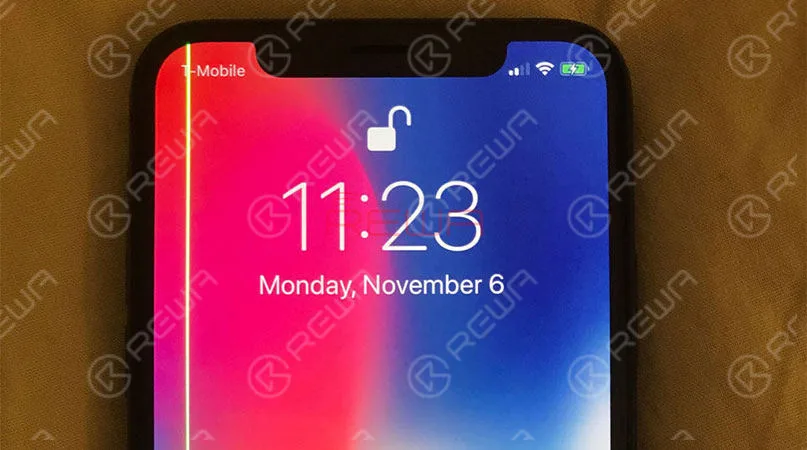
    Tuttavia, un utente australiano ha segnalato la presenza di una linea verde brillante che attraversa verticalmente lo schermo del suo iPhone XS Max dopo un periodo di utilizzo.

    Alcuni clienti hanno riscontrato questo problema.

    Soluzione

    Per questo problema, Apple sostituirà il dispositivo in garanzia.

    Se si verifica questa linea verde verticale di pixel sul lato dell'iPhone, è il momento di fissare un appuntamento con l'Apple Store.

    troubleshooting guide iphone xs max issues fixes the newest common and

    Connessione cellulare scadente e velocità WIFI lenta

    Secondo gli utenti di iPhone XS/iPhone XS Max, i loro dispositivi presentano meno barre e un segnale più scarso rispetto alle ultime generazioni.

    A volte viene addirittura visualizzato il messaggio "nessun servizio", soprattutto nella zona in cui il segnale è debole. Mentre questi reclami stanno rapidamente crescendo di numero, oltre al problema LTE, altri utenti hanno affermato che i loro dispositivi sembrano avere una velocità WIFI più bassa.

    La maggior parte delle persone che hanno riscontrato una velocità inferiore hanno riscontrato che i loro modelli iPhone XS erano connessi alla rete a 2,4GHz piuttosto che alla rete a 5GHz.

    Soluzione

    Alcuni hanno ipotizzato che la colpa sia del passaggio di Apple da Qualcomm a Intel per il modem dell'iPhone.

    Altri hanno fatto notare che è improbabile che sia questa la causa del problema. In ogni caso, Apple ha rilasciato IOS 12.0.1, che risolve i problemi LTE e WIFI.

    6 problemi comuni e correzioni di iPhone XS/iPhone XS Max

    Cancello di ricarica

    Alcuni utenti hanno problemi a caricare i dispositivi tramite una connessione via cavo.

    Si accorgono che il loro iPhone XS non può essere caricato con la porta di ricarica inserita.

    A meno che non si scolleghi il caricabatterie, non si risvegli lo schermo e non lo si ricolleghi di nuovo, il dispositivo inizia a caricarsi. Ma non tutti i modelli di iPhone XS presentano il problema.

    Inoltre, alcune persone con telefoni più vecchi hanno segnalato un comportamento simile. Ciò suggerisce che il problema potrebbe essere dovuto all'ultimo aggiornamento del software iOS 12.

    Soluzione

    Ciò significa che il problema potrebbe essere risolto con un aggiornamento del software.

    6 problemi comuni e correzioni di iPhone XS/iPhone XS Max

    Cancello di bellezza

    Gli utenti dei forum sostengono che la nuova fotocamera per selfie dell'iPhone di Apple attenua automaticamente la pelle nelle foto scattate dalla fotocamera anteriore, rendendole troppo belle. E non c'è modo di disabilitarlo. Questa è la cosa più inaccettabile

    Soluzione

    Secondo Apple, il sistema di fotocamere per selfie dell'iPhone X utilizza un sensore più veloce, chip migliorati e "algoritmi avanzati" per migliorare l'aspetto delle foto con una funzione chiamata "Smart HDR".

    6 problemi comuni e correzioni di iPhone XS/iPhone XS Max

    Problema di connettività audio causato dal Bluetooth

    Un piccolo numero di possessori di iPhone XS e iPhone XS Max sta riscontrando problemi di connettività Bluetooth, per cui i loro iPhone non riescono a comunicare correttamente con il sistema di intrattenimento dell'auto.

    Soluzione

    Questo problema non ha ancora una soluzione fornita da Apple.

    6 problemi comuni e correzioni di iPhone XS/iPhone XS Max

    Polvere all'interno dell'obiettivo della fotocamera

    Si tratta di un problema minore. Alcuni utenti hanno dichiarato che la polvere entra continuamente nell'obiettivo della fotocamera. Il che fa sì che la fotocamera non funzioni bene.

    In realtà, il fatto che siano sigillati ermeticamente non rende l'iPhone immune da polvere e sporcizia. Anche l'ambiente è coinvolto.

    Soluzione

    Per eliminare questo problema, portatelo all'Apple Store per farlo pulire.

    6 problemi comuni e correzioni di iPhone XS/iPhone XS Max

    Se avete un iPhone XS e XS Max e state affrontando uno dei problemi di cui sopra, fatecelo sapere nella sezione commenti.