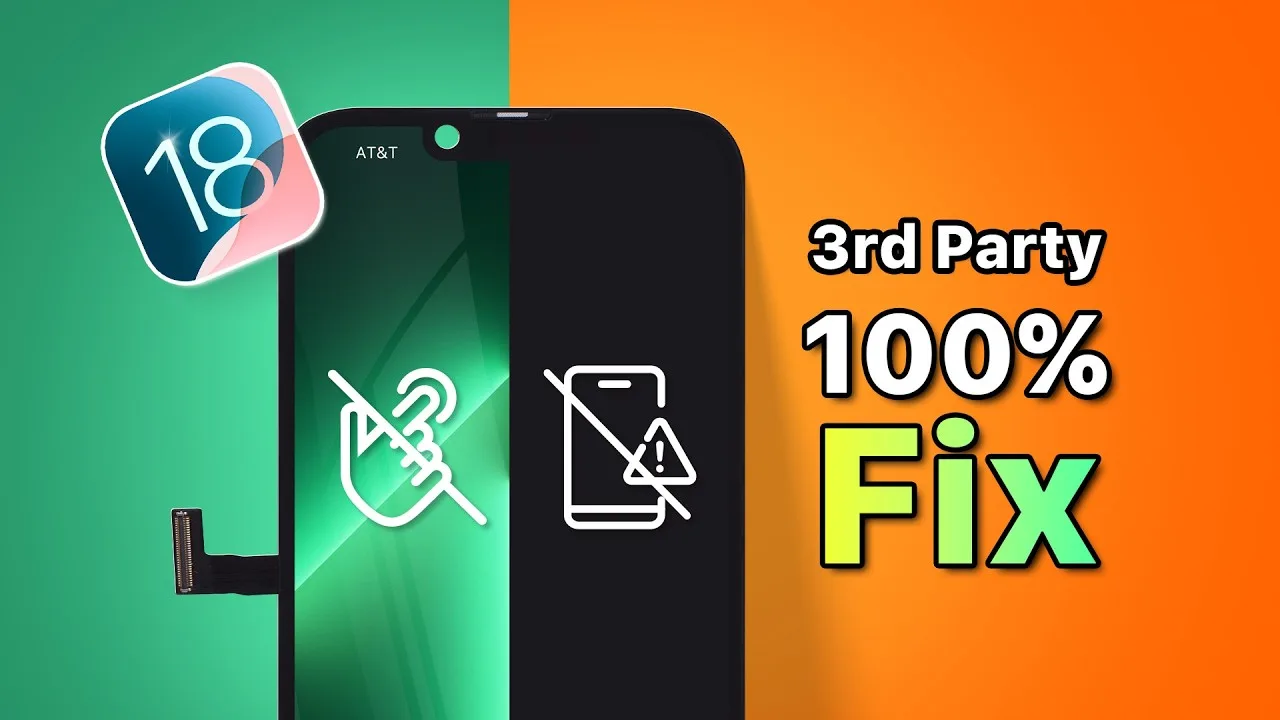
Avete problemi con lo schermo del vostro iPhone aftermarket dopo l'aggiornamento a iOS 18? Non siete i soli ad aver riscontrato problemi come schermate nere dell'iPhone, touch non reattivo o problemi di funzionamento. Questo post vi spiegherà le ragioni di questi problemi di compatibilità e vi fornirà una guida passo passo per risolverli, assicurandovi che il vostro schermo di terze parti funzioni di nuovo senza problemi con il vostro dispositivo.
Comprendere i problemi di compatibilità
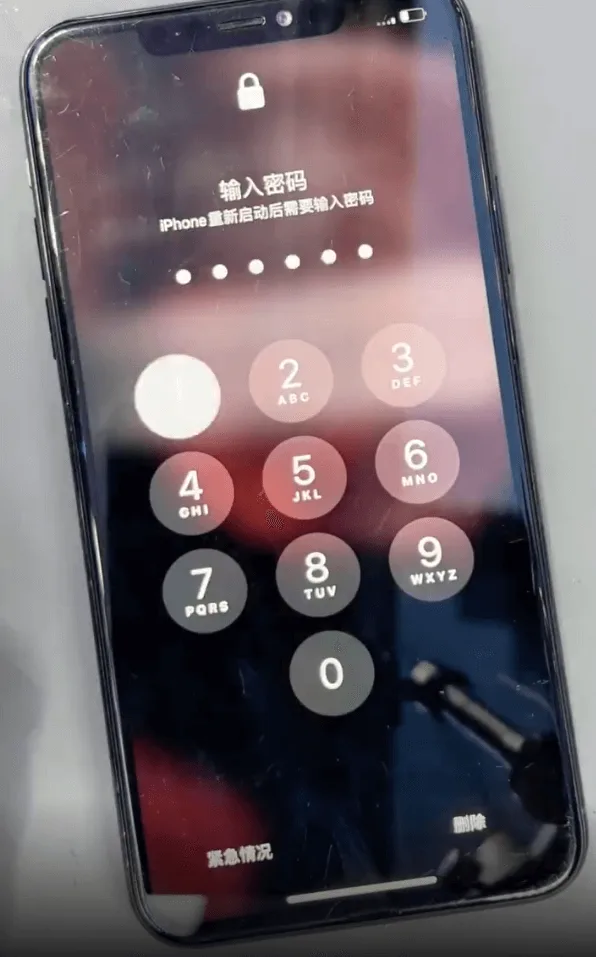
Il recente rilascio di iOS 18 ha introdotto modifiche che possono causare problemi di compatibilità con alcuni schermi aftermarket. Questi problemi derivano principalmente dall'incompatibilità dei dati del circuito integrato (IC) di questi schermi con i nuovi protocolli implementati in iOS 18.
Alcuni sintomi comuni includono:
- Schermi neri
- Nessuna risposta al tocco
- Display con guizzi o sfarfallii
Questi problemi sono stati osservati solo su modelli specifici, in particolare sull'iPhone 13 Pro. Se state riscontrando uno di questi problemi, non preoccupatevi. C'è una soluzione!
Strumenti essenziali di cui avrete bisogno 🛠️
Per riparare lo schermo di terze parti, sono necessari alcuni strumenti specifici:
- Uno strumento di programmazione
- Scheda adattatore/sonda a pinza (specifica per il modello in uso)
Questa guida illustra il processo di programmazione utilizzando l'iPhone 13 Pro. Se avete bisogno di una guida operativa dettagliata, non esitate a contattare i nostri rappresentanti di vendita.
Processo di programmazione passo dopo passo
Seguire questi passaggi per aggiornare i dati IC e ripristinare la compatibilità:
1. Preparare lo strumento di programmazione
Iniziare estraendo il file zip o inserendo l'unità USB contenente i file necessari.
2. Collegare lo strumento di programmazione al computer
Collegare lo strumento di programmazione al computer. Quindi:
- Fare clic con il tasto destro del mouse su "Questo PC" e selezionare "Gestisci".
- Andare a "Strumenti di sistema" > "Gestione periferiche".
- Individuare "Altri dispositivi" > "Dispositivo sconosciuto" e selezionare "Aggiorna driver".
- Scegliere "Cerca i driver nel mio computer".
- Individuare la directory dei file del driver e attendere il completamento dell'installazione.
3. Collegare la sonda a pinza
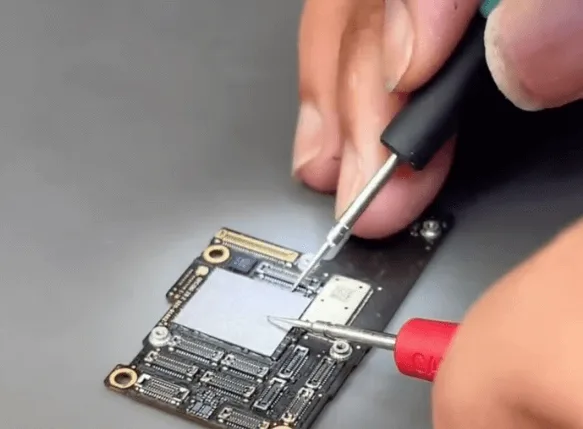
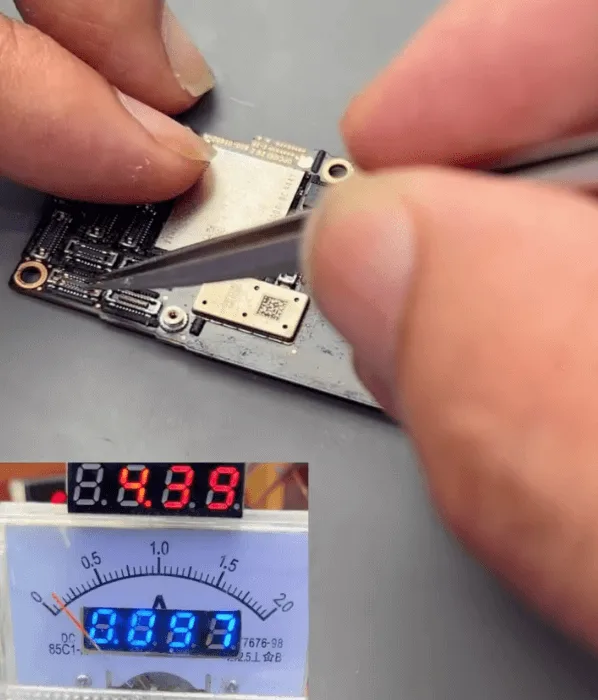
Successivamente, collegare la sonda a pinza allo strumento di programmazione e fissarla sullo schermo per stabilire una connessione sicura.
4. Disattivare qualsiasi software antivirus
Prima di procedere, disattivare qualsiasi software antivirus che possa interferire con il processo di programmazione.
5. Eseguire il file di programmazione
Individuare la cartella decompressa ed eseguire il file "programmer.bat". Seguire questi passaggi:
- Selezionare "Aprire un progetto programmatore esistente" e fare clic su "Sfoglia".
- Scegliete la cartella corretta per l'iPhone 13 Pro.
- Selezionare la versione appropriata del file.
- Scegliere il file ".xcf" e fare clic su "OK".
- Fare clic sul pulsante "Avvia" per iniziare la programmazione.
6. Completare il processo di programmazione ✅
Attendere il completamento della programmazione. Al termine, rimuovere con cautela lo schermo e provarlo sul telefono.
Se il problema persiste, si consiglia di provare altre versioni di file per vedere se risolvono il problema.
Conclusione 🎉
L'aggiornamento dei dati IC tramite lo strumento di programmazione può ripristinare efficacemente la compatibilità dello schermo di terze parti con iOS 18. Se si riscontrano problemi durante il processo o si necessita di ulteriore assistenza, non esitate a contattare il nostro team di vendita per ricevere supporto.
Per ulteriori soluzioni elettroniche e per unirsi al nostro Programma all'ingrosso REWAcontattateci per ottenere sconti speciali e preventivi gratuiti. Siamo qui per aiutarvi con tutte le vostre esigenze di riparazione elettronica!
Non dimenticate di dare un'occhiata al nostro negozio online per i ricambi di alta qualità. Negozio REWA e saperne di più su corsi di formazione sulla riparazione mobile.
 English
 Español
 Français
 Deutsch
 Italiano