Tag: ipad pro

  • Come riparare il problema dell'iPad Pro 2020 che non si accende

    Come riparare il problema dell'iPad Pro 2020 che non si accende

    Se possedete un iPad Pro 11 (2020), potreste trovarvi di fronte a un dilemma inaspettato: il vostro dispositivo non si accende nonostante le sue condizioni immacolate. Annunciato il 18 marzo 2020, l'iPad Pro è stato elogiato per le sue prestazioni eccezionali e il suo design elegante, ma alcuni utenti hanno segnalato improvvisi fallimenti nell'avvio, lasciandoli frustrati e alla ricerca di soluzioni. Sia che abbiate provato il classico riavvio duro tenendo premuti i pulsanti del volume e dell'accensione senza successo, sia che abbiate appena iniziato a indagare su questo problema, questo post vi guiderà attraverso i passaggi di risoluzione dei problemi e le potenziali opzioni di riparazione per riportare il vostro iPad in funzione.

    how repair ipad pro 2020 not turning problem select geo ca fmt whh

    Dettagli telefonici

    Modello: Apple iPad Pro 11 (2020)

    Annunciato: 2020, 18 marzo

    Fenomeno dei difetti

    L'iPad funzionava normalmente, ma improvvisamente non si è avviato il giorno successivo. L'utente ha tentato di riavviare il dispositivo premendo contemporaneamente il tasto del volume e il tasto di accensione per un minuto, ma il dispositivo non si è ancora acceso.

    Risoluzione dei problemi

    1: Ispezione iniziale
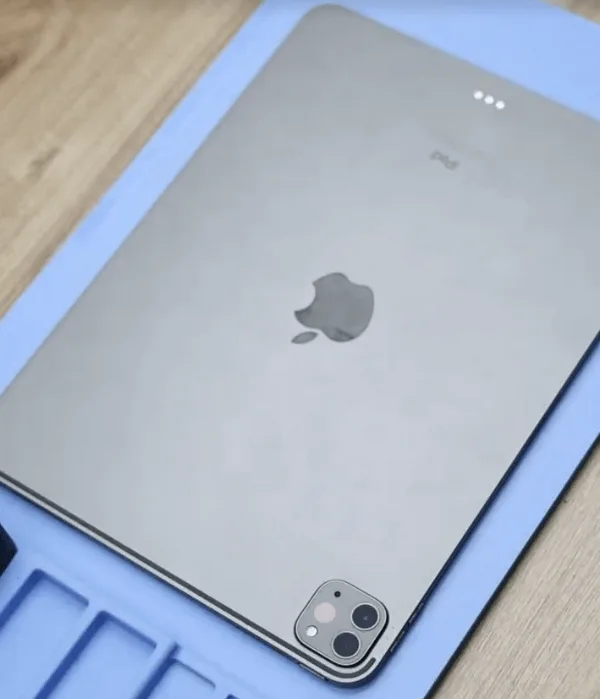
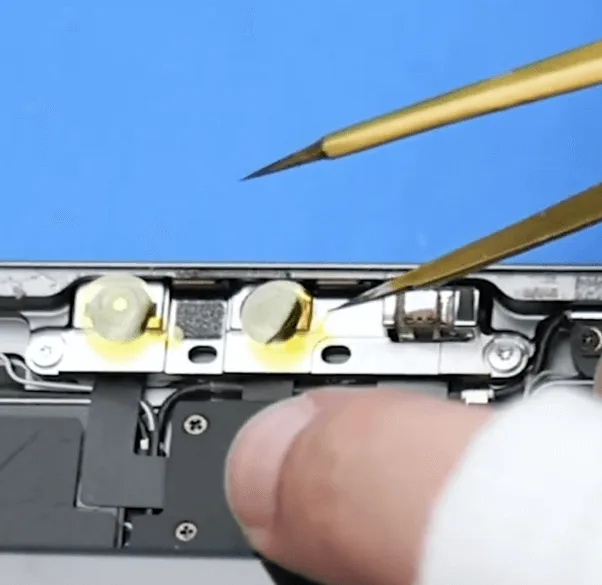
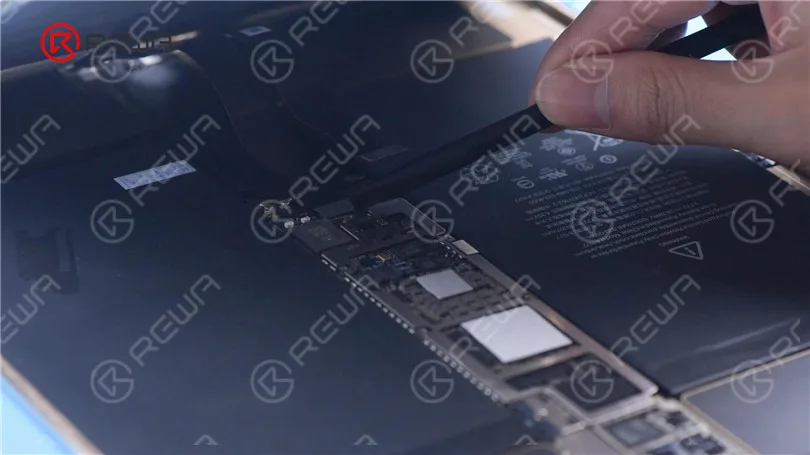
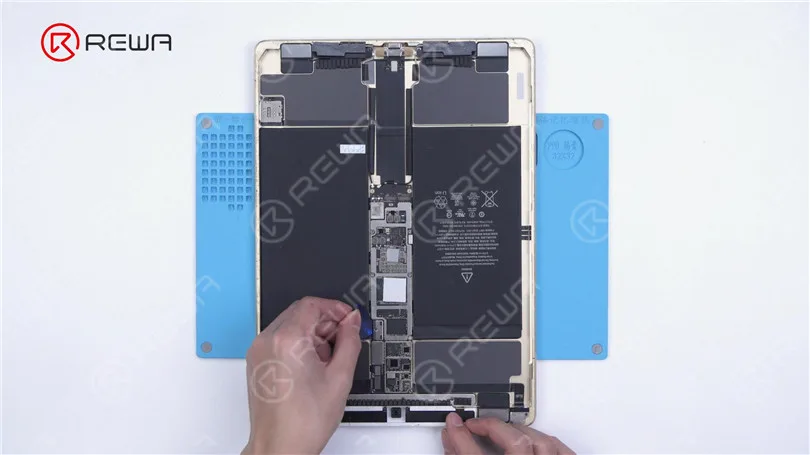
    • Posizionate l'iPad su un cuscinetto riscaldante per ammorbidire l'adesivo all'interno.
    • Dopo aver riscaldato a sufficienza, utilizzare una pinza per separare con cautela lo schermo dal corpo.
    • Proteggere le telecamere con adesivi per evitare danni durante il processo di riparazione.
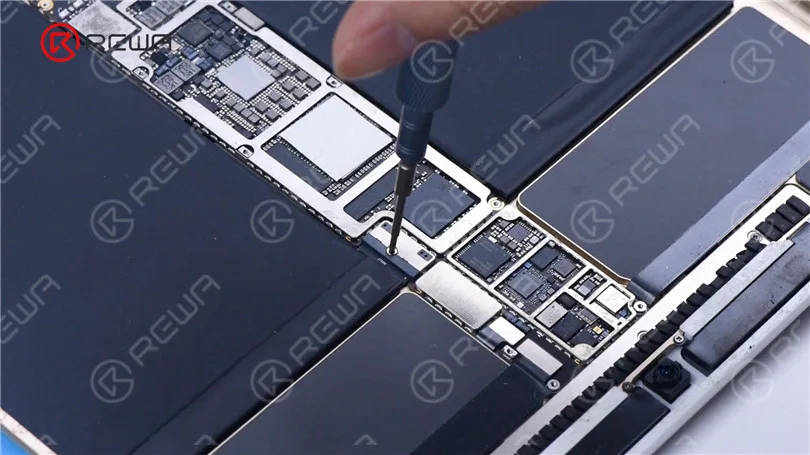
    • Rimuovere le viti che tengono in posizione la scheda madre.

    Ispezionare visivamente la scheda madre, verificando che sia pulita e che non presenti segni di danni causati dall'acqua o da riparazioni precedenti.

    2: Test dell'alimentazione
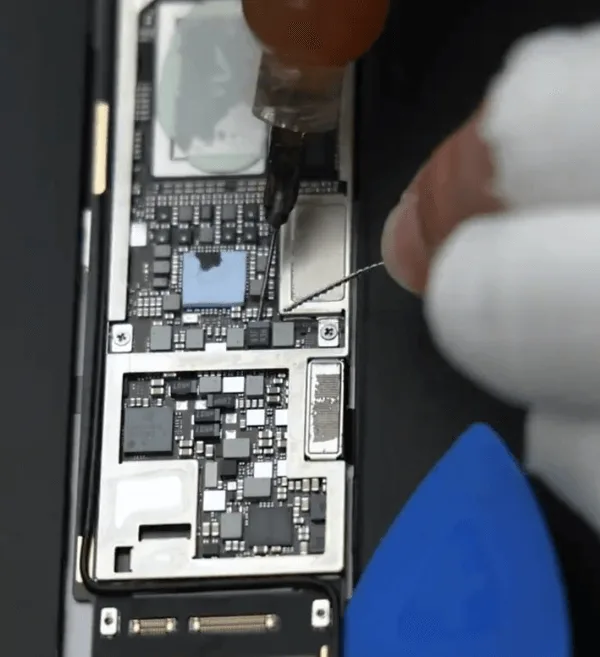
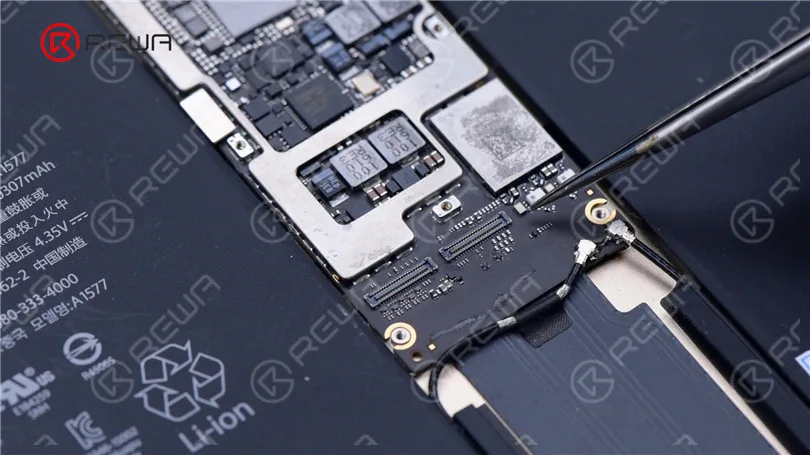
    • Rimuovere il coperchio di schermatura sulla scheda madre.
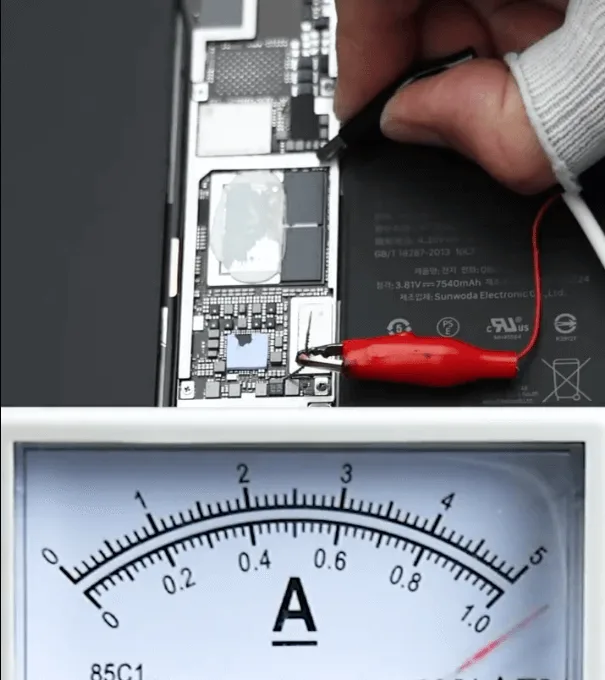
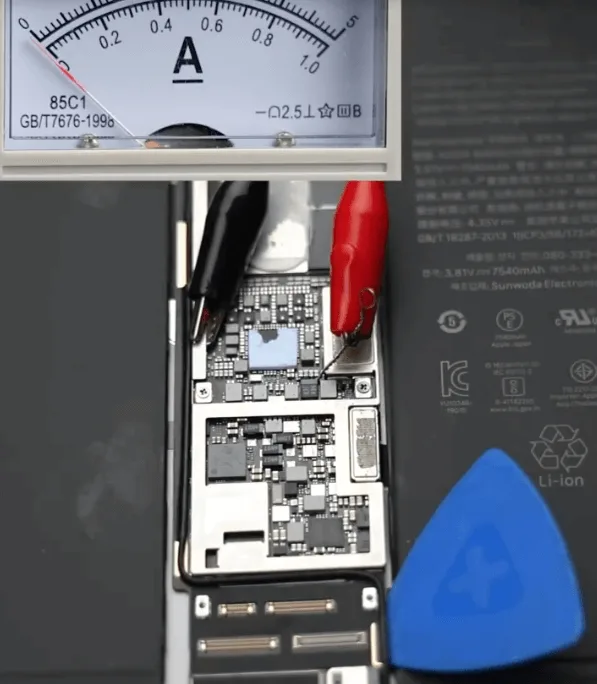
    • Saltare un filo sul binario VDD_MAIN e collegare la scheda madre a un alimentatore CC per il test.

    Osservare che subito dopo il collegamento si verifica un forte flusso di corrente, che indica un cortocircuito nei binari di alimentazione a 4 V CC della scheda madre.

    Processo di riparazione

    1: Identificare il componente in cortocircuito:
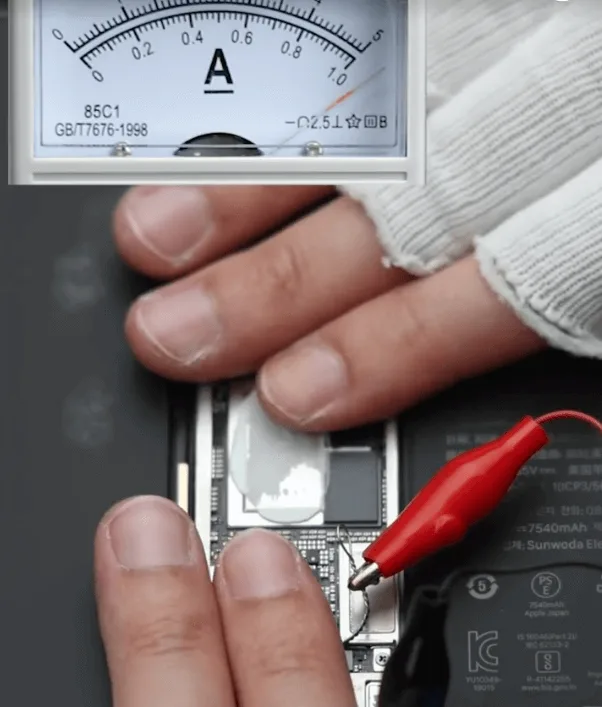
    • Impostare la tensione di alimentazione CC su 1,8V.
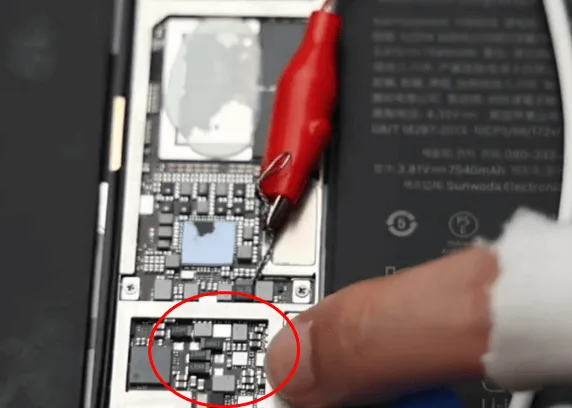
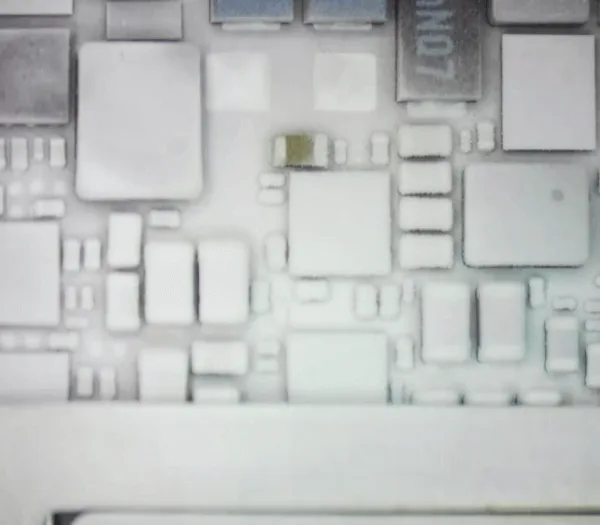
    • Toccare la scheda madre per individuare eventuali aree riscaldate o utilizzare una termocamera per individuare il componente caldo.
    • Concentrarsi sui componenti legati alla carica, dove viene rilevato il calore.
    (è possibile osservare il componente caldo anche con la termocamera).

    2: Individuare il componente difettoso
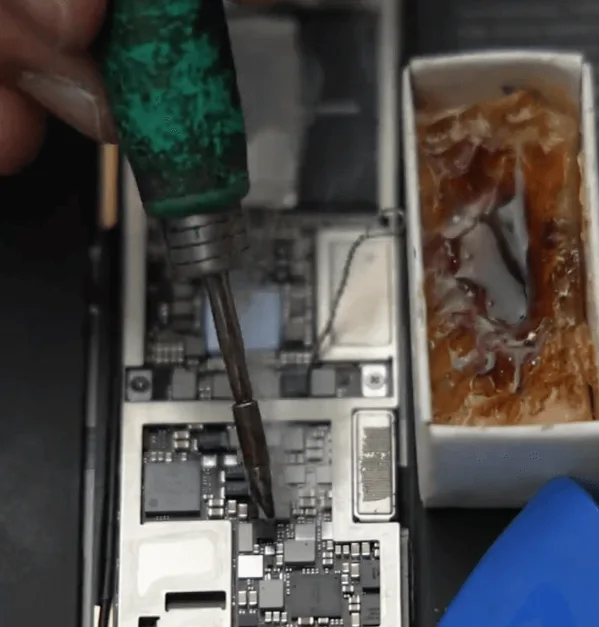
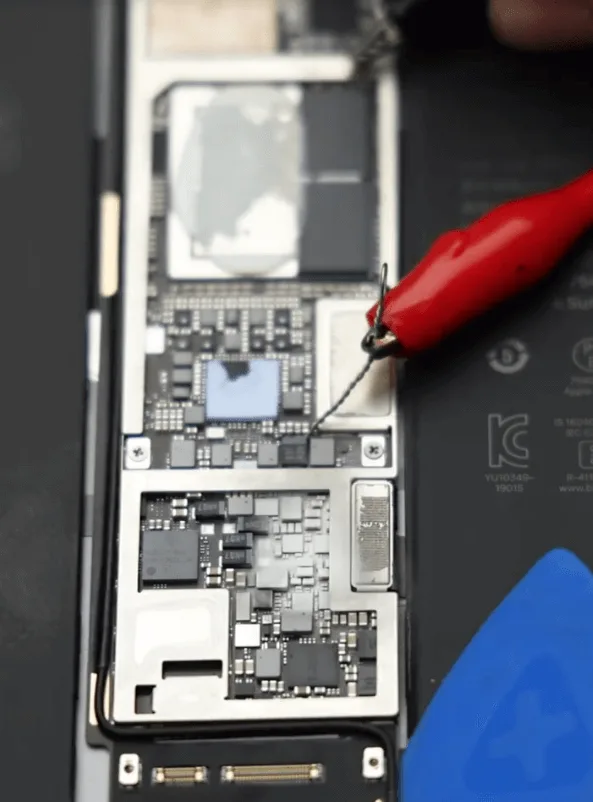
    • Applicare la colofonia sui componenti sospetti della scheda madre.
    • Applicare nuovamente la tensione e osservare la colofonia per identificare il componente in cortocircuito.
    • Un piccolo condensatore di tipo filtrante viene identificato quando la colofonia su di esso si scioglie.

    3: Rimuovere e sostituire il condensatore difettoso
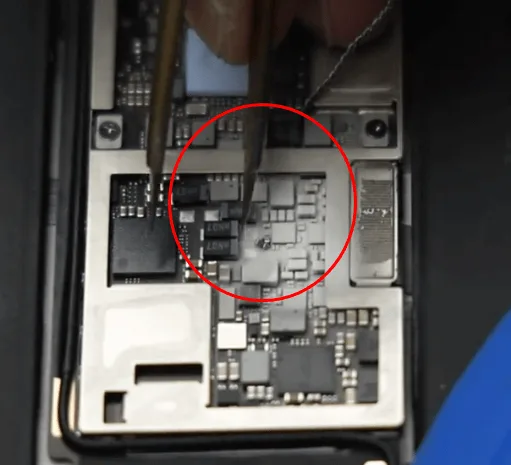
    • Rimuovere con cautela il condensatore difettoso con una pinzetta.
    • Pulire l'area da eventuali residui di colofonia.

    Testare nuovamente la scheda madre avviandola con l'alimentatore CC. Questa volta non ci sono perdite di corrente e l'iPad si avvia normalmente quando si preme il pulsante di accensione.

    4: Riassemblare l'iPad
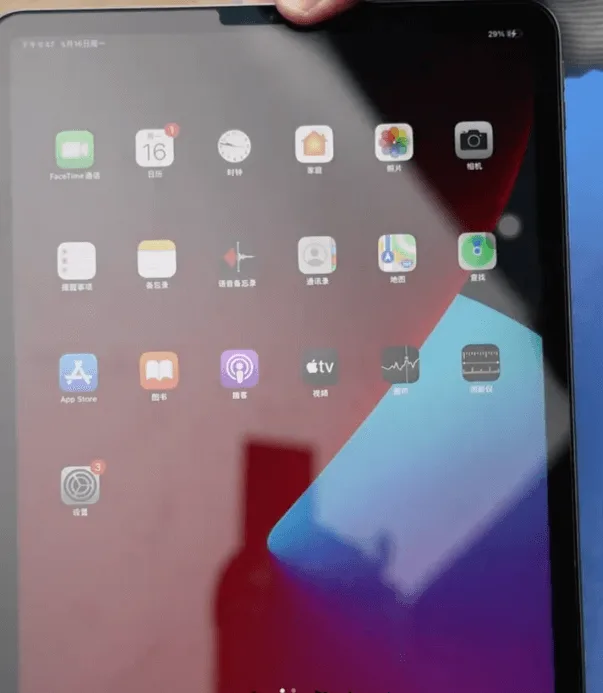
    iPad Pro 2020 non si accende
    • Riapplicare l'adesivo sulla scheda madre e riassemblare l'iPad.
    • Testare nuovamente l'iPad per verificare che si accenda e funzioni correttamente. Il problema si risolve sostituendo il condensatore di tipo filtro difettoso.

    Suggerimenti:

    Per evitare tali problemi, utilizzare sempre un caricatore e un cavo qualificati, evitare di utilizzare il dispositivo durante la ricarica e tenerlo in un ambiente fresco durante la ricarica.

    I guasti improvvisi all'avvio di iPad e iPhone sono spesso causati da danni ai condensatori di tipo filtro, che possono derivare da pratiche di ricarica improprie o dall'uso di caricabatterie e cavi di scarsa qualità.


  • Come riparare un iPad Pro che non si accende - Cortocircuito rilevato dal dosatore di colofonia

    Come riparare un iPad Pro che non si accende - Cortocircuito rilevato dal dosatore di colofonia

    L'iPad Pro è stato danneggiato dall'acqua e non si accende più. Con l'aiuto del dispenser di colofonia, abbiamo trovato il componente in cortocircuito. Dopo aver rimosso il condensatore danneggiato, il guasto è stato eliminato.

  • Riparazione del problema del touch screen dell'iPad Pro che non funziona / schermo non reattivo

    Riparazione del problema del touch screen dell'iPad Pro che non funziona / schermo non reattivo

    Lo schermo dell'iPad Pro di prima generazione non risponde al tocco. Prima di tutto abbiamo provato a sostituire lo schermo, ma continuava a non rispondere. I connettori del touch erano a posto. Quindi abbiamo stabilito che il problema è causato da un guasto alla scheda madre. Ora vediamo come risolvere il problema.

  • iPad Pro Touch Screen Not Working? Learn How to Fix Unresponsive Screen

    iPad Pro Touch Screen Not Working? Learn How to Fix Unresponsive Screen

    In this guide, we’ll explore a detailed step-by-step process for fixing an unresponsive touch screen issue on a 1st Gen iPad Pro. If you’ve encountered this problem, don’t worry; we have a solution that involves diagnosing the issue and making the necessary repairs. Let’s dive into the troubleshooting and repair process.

    Power On the iPad Pro

    Riparazione del problema del touch screen dell'iPad Pro che non funziona / schermo non reattivo

    The first thing to try when your iPad’s screen isn’t responding is a simple restart. Hold down the power button until the “Slide to power off” slider appears. Slide it to turn off the device and then turn it back on. If the screen doesn’t response and can’t turn off then follow the next step.

    Disconnect the Display

    ipad pro touch screen not working learn how fix unresponsive scree 3

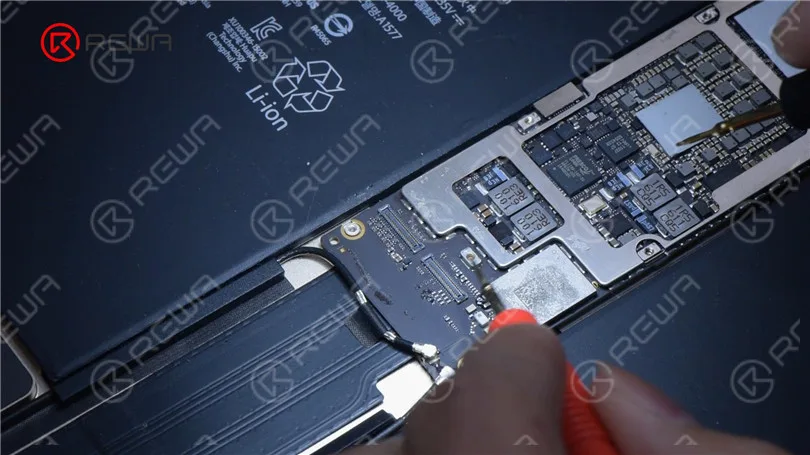
    In some cases, a disconnected or damaged display could be the culprit. To check this, you may need to open up your iPad. If you’re not comfortable with this, it’s best to seek professional help. Remove the battery screw on the motherboard and insert a pry piece to isolate the battery from the motherboard to prevent any circuit damage.

    Install a Known-Good Display

    Riparazione del problema del touch screen dell'iPad Pro che non funziona / schermo non reattivo

    If after disconnecting and reconnecting the display, the touchscreen is still unresponsive, it’s safe to say that the issue is not with the display. Instead, it could be a motherboard fault.

    Inspect Touch Connectors

    Riparazione del problema del touch screen dell'iPad Pro che non funziona / schermo non reattivo

    Check the touch connectors to ensure they are not deformed or damaged. If they appear to be in good condition, proceed to the next step.

    Measure Resistance Values

    Riparazione del problema del touch screen dell'iPad Pro che non funziona / schermo non reattivo

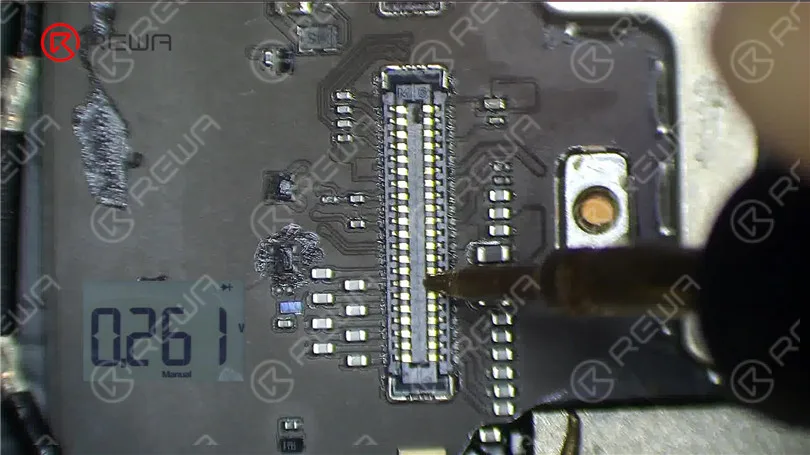
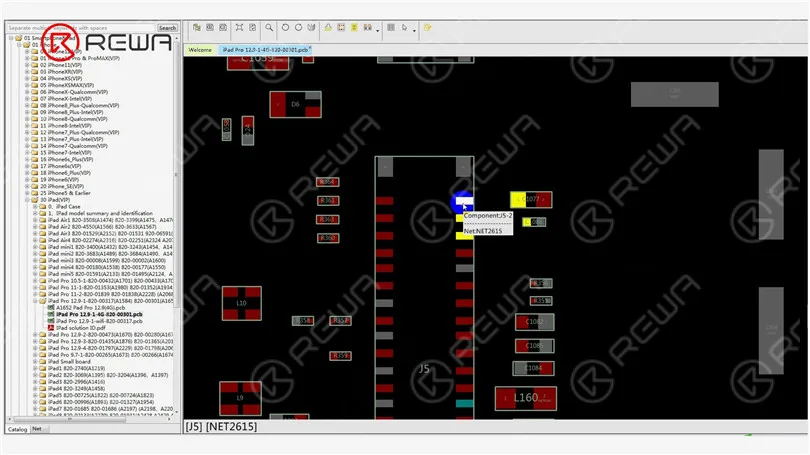
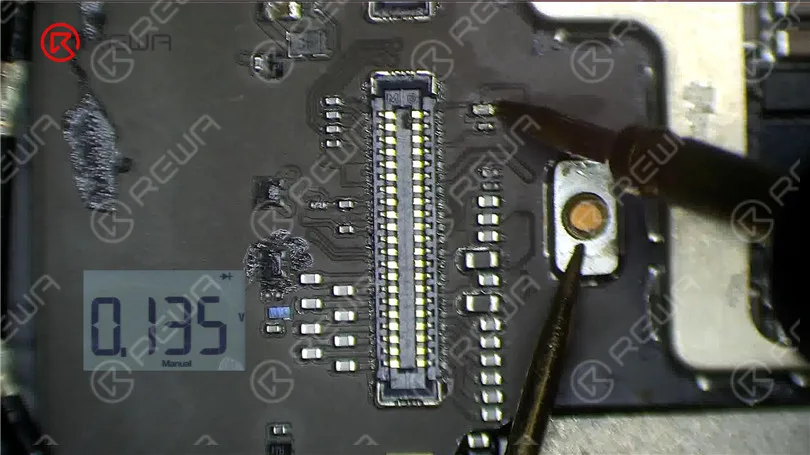
    Using a multimeter, measure the resistance values of pin 2, pin 4, and pin 6. The normal value should be around 144 ohms. If these values are significantly different, you might have identified the issue.

    Examine the Inductor

    ipad pro touch screen not working learn how fix unresponsive scree 7
    ipad pro touch screen not working learn how fix unresponsive scree 8

    Inspect the inductor that connects these pins to the chip. Measure the resistance value of this inductor. If it’s abnormal, the inductor might be damaged, which can happen due to improper operation, such as installing the display with the battery still connected.

    Riparazione del problema del touch screen dell'iPad Pro che non funziona / schermo non reattivo

    Replace the Damaged Inductor

    To fix the issue, you’ll need to replace the damaged inductor. Follow these steps carefully.

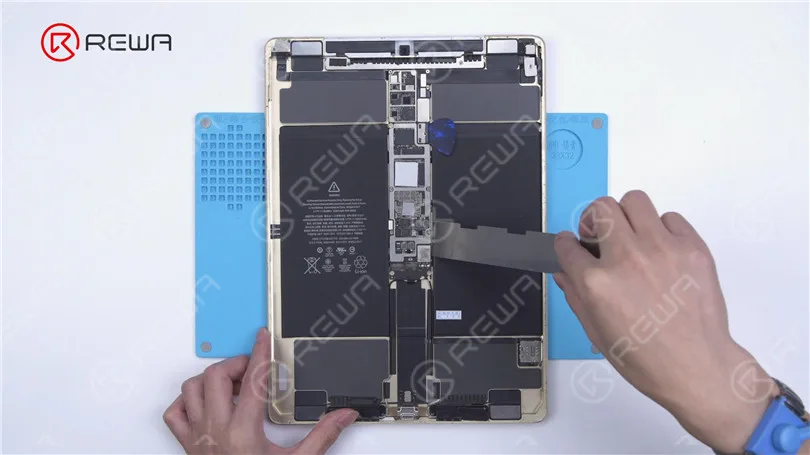
    Pry the motherboard slightly to prevent rapid heat dissipation.

    ipad pro touch screen not working learn how fix unresponsive scree 10

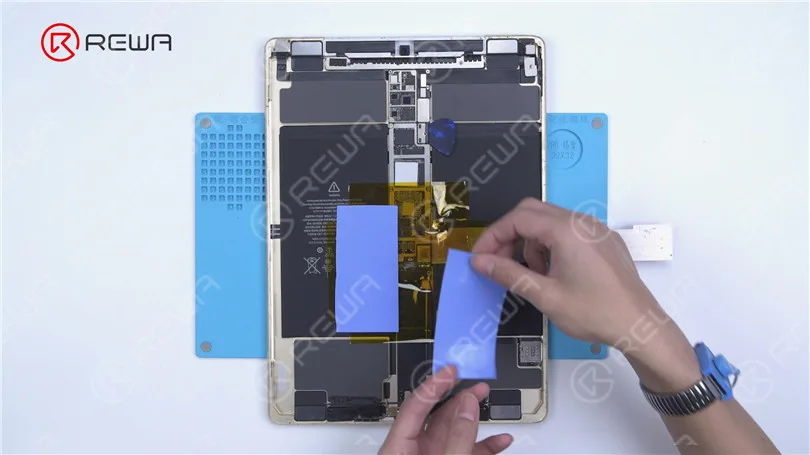
    Apply high-temperature tape and an insulation mat.

    ipad pro touch screen not working learn how fix unresponsive scree 11

    Use paste flux and heat with a Hot Air Gun at 360°C and airflow 2 to remove the damaged inductor.

    ipad pro touch screen not working learn how fix unresponsive scree 12

    Apply a middle-temperature solder paste and continue heating with the Hot Air Gun to lower the melting point of the bonding pad.

    ipad pro touch screen not working learn how fix unresponsive scree 13
    • Remove any remaining solder with a solder wick.
    • Source a replacement inductor from an abandoned board and solder it with the Hot Air Gun at 330°C and airflow 2.
    • Clean the area with a PCB cleaner.
    • Measure the resistance values again to ensure they are normal.
    ipad pro touch screen not working learn how fix unresponsive scree 14

    Test the Screen

    Reassemble your iPad and test the touchscreen. If both the touch and 3D Touch functions work properly, congratulations, you’ve successfully fixed the unresponsive touchscreen issue on your iPad Pro.

    Riparazione del problema del touch screen dell'iPad Pro che non funziona / schermo non reattivo

    Video Guide to Fix ipad pro touch screen not working

    Conclusione:

    Troubleshooting and repairing an unresponsive iPad Pro touchscreen can be a daunting task, but with the right steps and precautions, it’s possible to diagnose and fix the issue. Remember to disconnect the battery when working on your device to avoid any further damage. If you’re unsure about any step, it’s always best to seek the help of a professional technician.

    Please feel free to leave a comment if you have any questions or if there are other repair topics you’d like to learn about. If you’re interested in mastering iPhone motherboard repair, consider enrolling in the Accademia REWA live online course, designed for beginners. Hurry, as only 20 spots are available for each training session. And for iPad replacement parts, visit the REWA Shop.