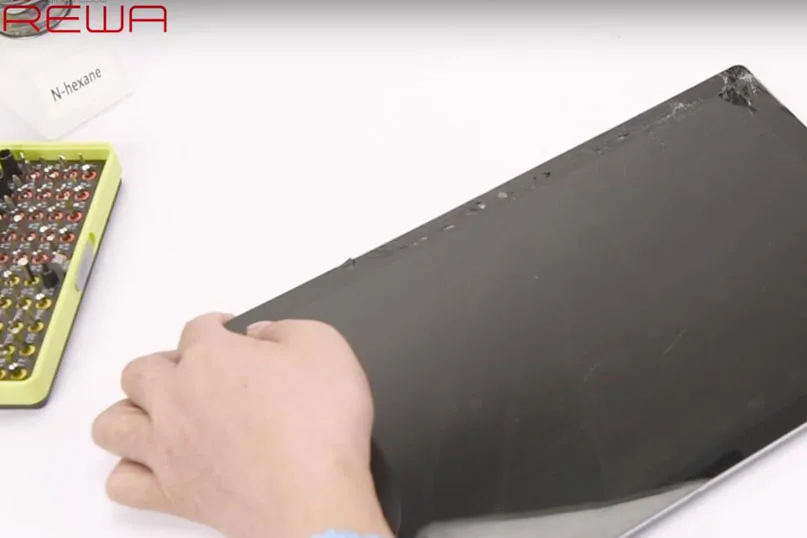
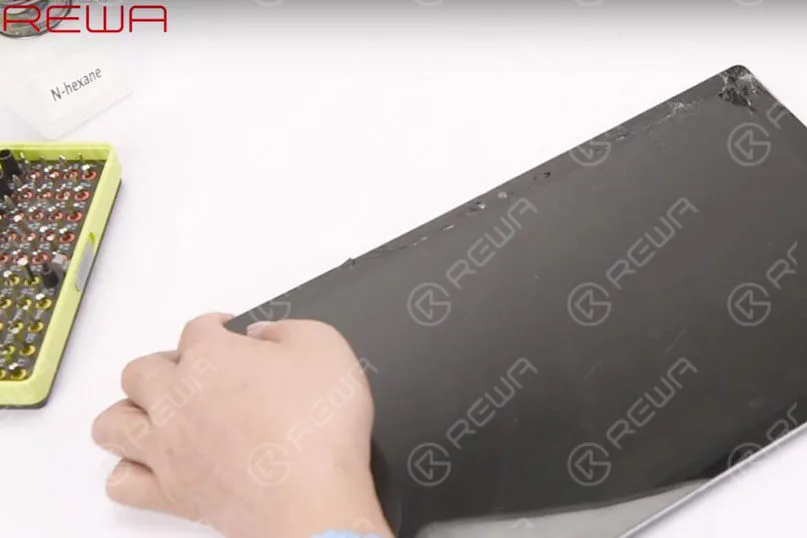
Microsoft Surface Pro 4, the latest model so far in Surface Pro compact laptop family, is expected to perform as a flag for Windows laptop elegant design. Featured as a tablet with a removable keyboard, the front of it is dominated by a 12.3-inch display, which was designed to be viewed, touched, and written on with high contrast and low glare. In other words, the screen is fragile and isn’t exactly known for taking a beating. So here comes the problem, what customers usually do with a broken Surface Pro 4 screen? And surface pro 4 battery replacement issue?
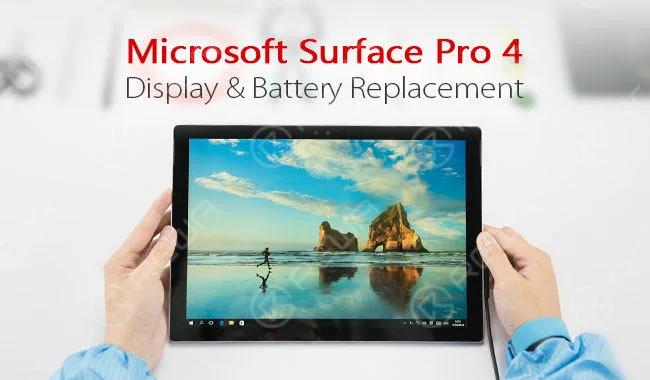
Some may turn to Microsoft for support? The process takes 2-3 Weeks from shipping of the Surface to returning a refurbished unit with a high charge. And they are most likely to lose all settings and documents. Some may change their thinking and look around for help in reality- repair shops. That’s why REWA here presents a Broken screen solution to deal with broken Surface Pro 4 screen (And also, on account of some complaints about Surface Pro 4 terrible standby, we also provide a tutorial on surface pro 4 battery replacement issue at the same time). It’s always great fun to communicate with those of the same interests.Screen ReplacementTestingPower it on, no display at all
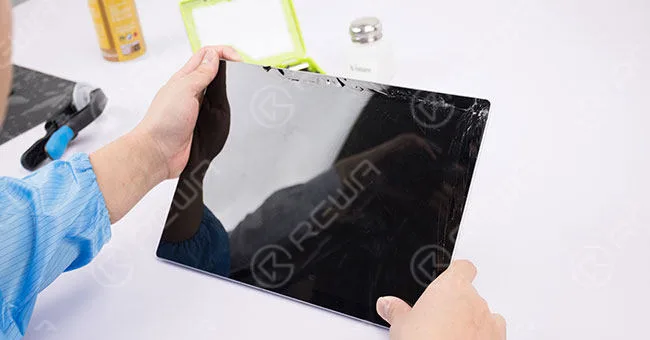
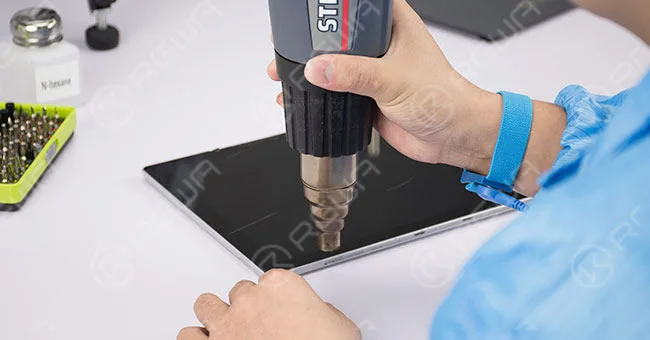
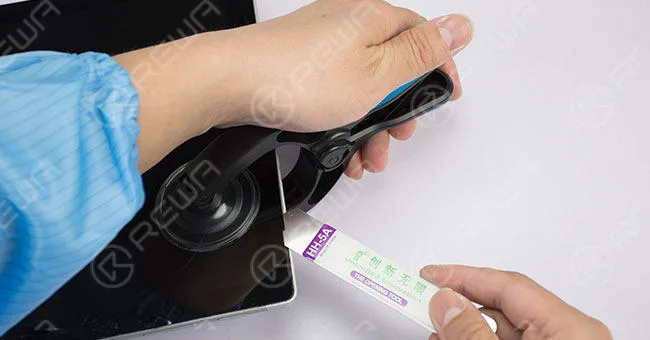
Display SeparatingUse a hot air gun to blow evenly on the four edges of the cracked screen. Then apply the suction cup to pull up one corner and insert pry bar and pry pieces slowly to pry the screen off with the help of hot air gun.
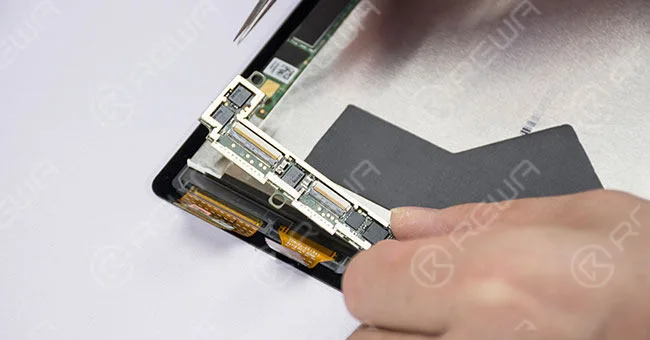
Gently lift up the screen. Be careful about flex cables. Remove the shield plates and disconnect the two display cables and lift the display assembly up.
Device Cleaning
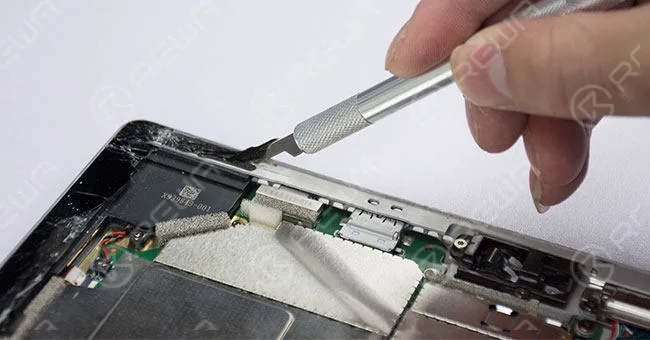
Use a sculpture knife to scrape off glue residue on edges of the Surface Pro.
Preparing
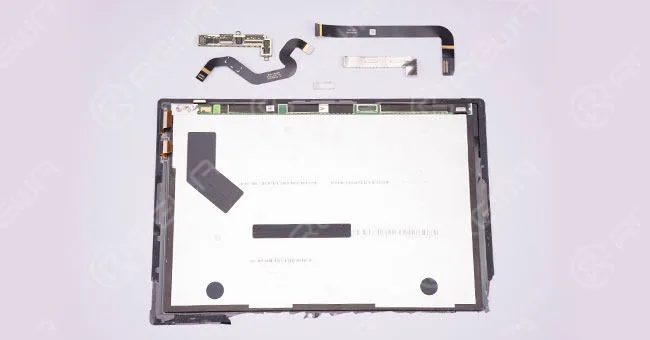
Remove shield plates, flex cables and the board from the cracked screen. Then test the new display assembly before installation.
Installing
Paste double-size glue tape onto edges of the new display assembly, and install the board, flex cables and shield plates to the new display assembly carefully. After that, connect the new display assembly with the two display cables on Surface Pro motherboard
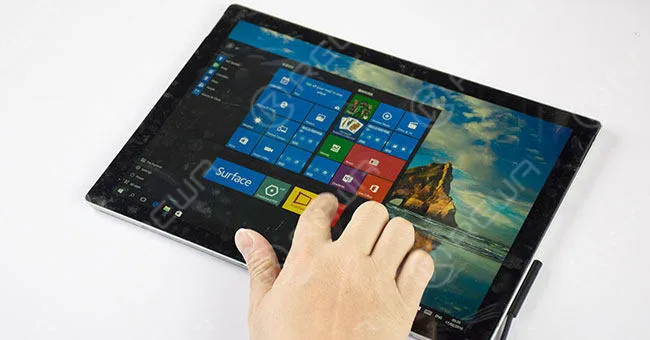
Nouveau test
Power on and test, the new screen functions well.
Surface Pro 4 Battery Replacement
Units RemovingDisconnect the two display cables and lift the display assembly up and away from the rest of the device. Remove the metal casing of the connecting panel by prying around the edges and then lifting the entire piece once it is loose. Remove screws on a heat sink and then remove the entire heatsink by lifting it out.
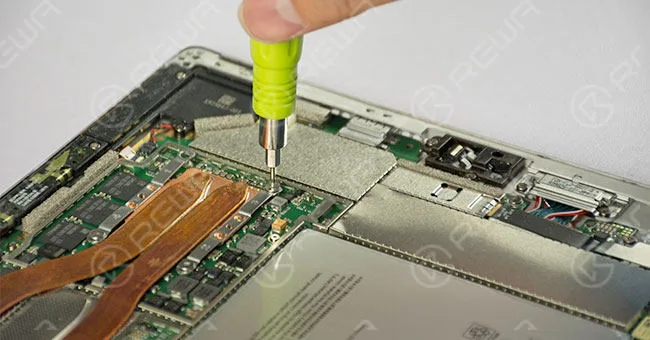
Disconnect cables of a motherboard and remove screws. Then remove accessories and motherboard.
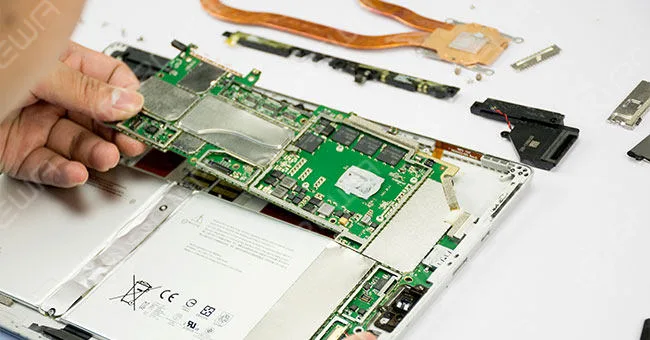
Old Battery Removing
Lift battery cables up with the help of hot air gun. Use the pry piece and 530 cleaner to remove the battery and peel the battery up and away.
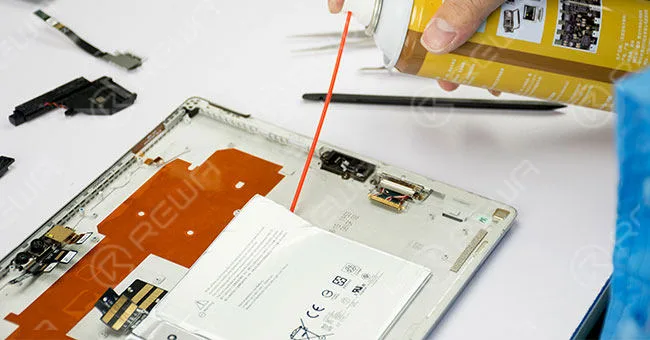
New Battery Aligning
Paste double-size glue tape onto the new battery and the battery cable before aligning them to the right place of the device.
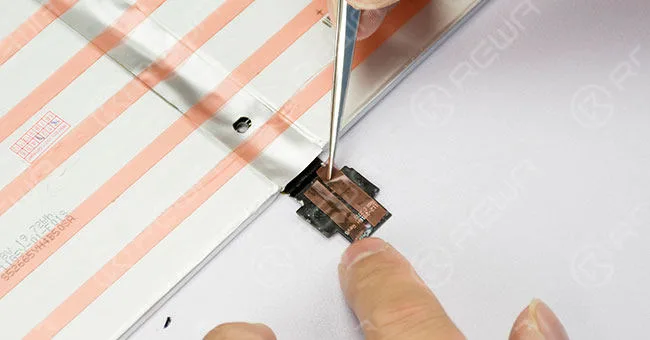
Units Installing
Install the motherboard, accessories and the heat sink.
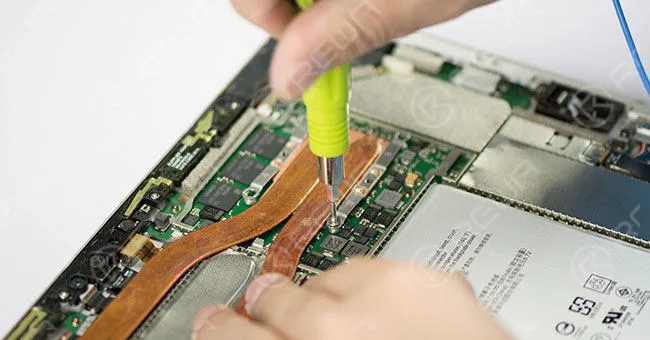
Display Installing
Paste double-size glue tape onto the four edges of the display assembly and connect it with the two display cables on the body of the Surface Pro. Dip some B-7000 glue onto the four edges and align the display assembly to the right place. Then clean it.
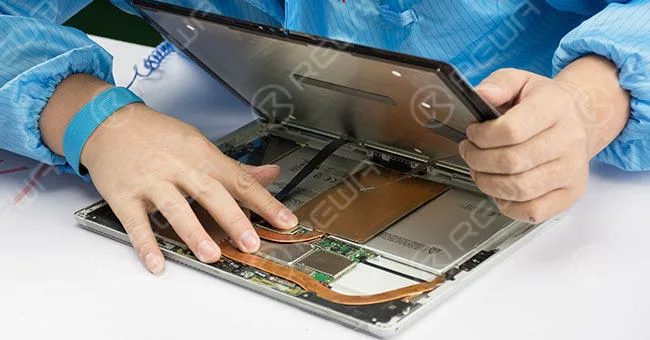
Final Test
Power on and test, both screen and battery work normally.
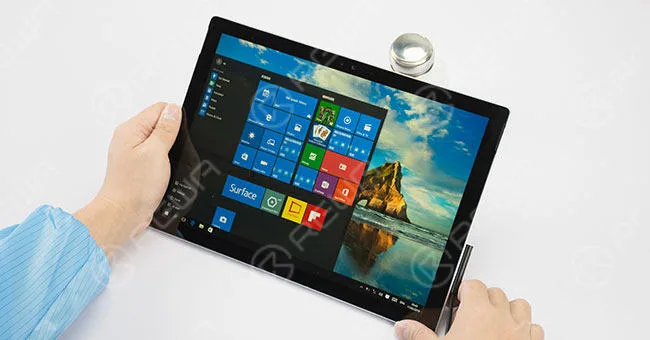
Here is the tutorial video concerning display issue and surface pro 4 battery replacement issue:
Conclusion :
Actually, we have been working on LCD refurbishing projects for flagship models from Apple, Samsung and HUAWEI, and it’s a new experience to move up to Microsoft laptop, and we really appreciate it. For more vivid tutorial concerning display issue and surface pro 4 battery replacement issue, please go to REWA Youtube channel.
 English
 Español
 Français
 Deutsch
 Italiano