Étiquette : iphone XS

  • Fix iPhone XS Won’t Turn On with P12 (NAND Programmer for iPhone 6 – iPhone 11 Pro Max)

    Fixer iPhone XS ne s'allume pas avec P12 (Programmeur NAND pour iPhone 6 - iPhone 11 Pro Max)

    Le remplacement de la NAND est une procédure courante dans la réparation d'un iPhone, que ce soit pour mettre à niveau le stockage ou pour résoudre des problèmes tels que l'impossibilité d'allumer l'appareil en raison d'une NAND endommagée. Pour le remplacement de la carte NAND, un programmateur NAND est nécessaire pour lire et écrire les données de la carte NAND.
    Fixer iPhone XS ne s'allume pas avec P12 (Programmeur NAND pour iPhone 6 - iPhone 11 Pro Max)

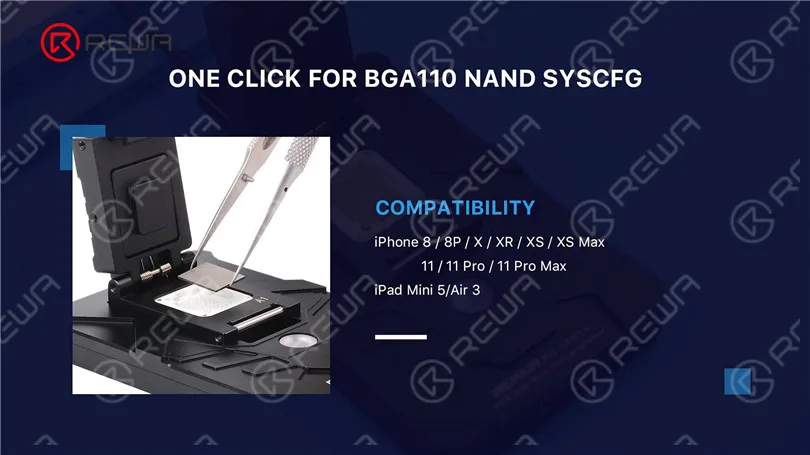
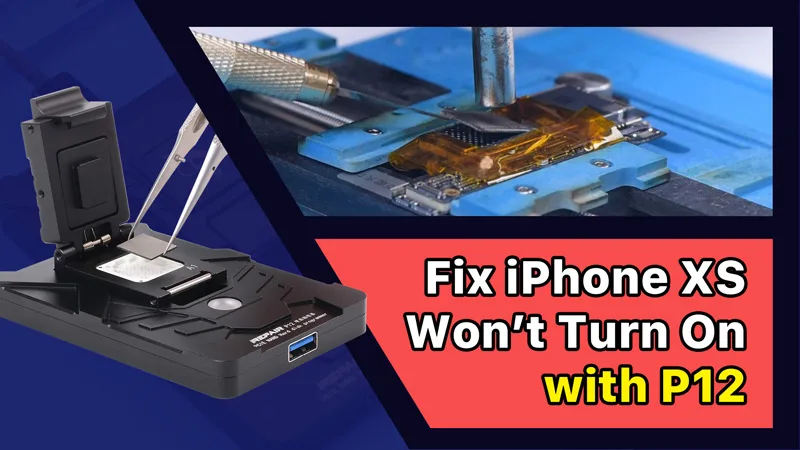
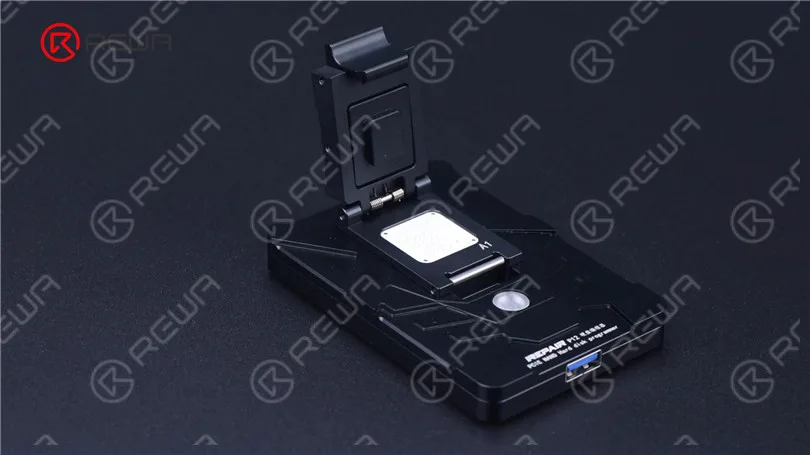
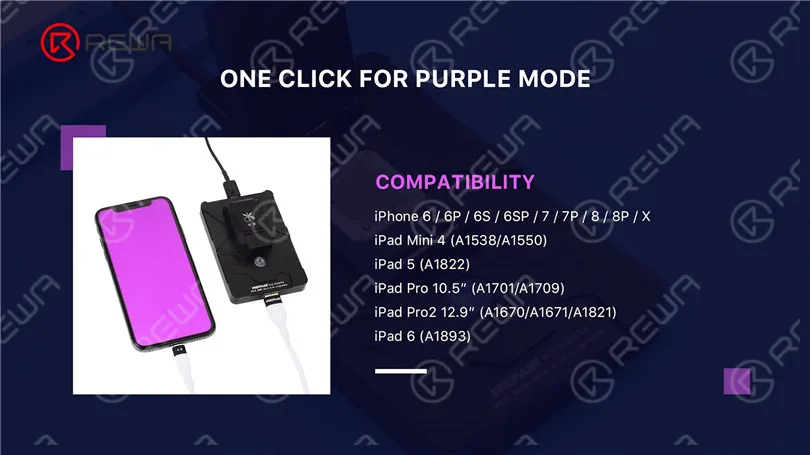
    Aujourd'hui, nous allons réparer un iPhone avec le dernier programmateur NAND. P12Comparé à d'autres programmateurs NAND sur le marché, P12 prend en charge un large éventail de modèles, y compris la lecture et l'écriture NAND et le débridage WiFi pour l'iPhone 6-iPhone 11 Pro Max et certains modèles d'iPad. De plus, P12 peut fonctionner sans connexion Internet et son utilisation est gratuite et permanente.
    Fixer iPhone XS ne s'allume pas avec P12 (Programmeur NAND pour iPhone 6 - iPhone 11 Pro Max)
    Fixer iPhone XS ne s'allume pas avec P12 (Programmeur NAND pour iPhone 6 - iPhone 11 Pro Max)
    Fixer iPhone XS ne s'allume pas avec P12 (Programmeur NAND pour iPhone 6 - iPhone 11 Pro Max)

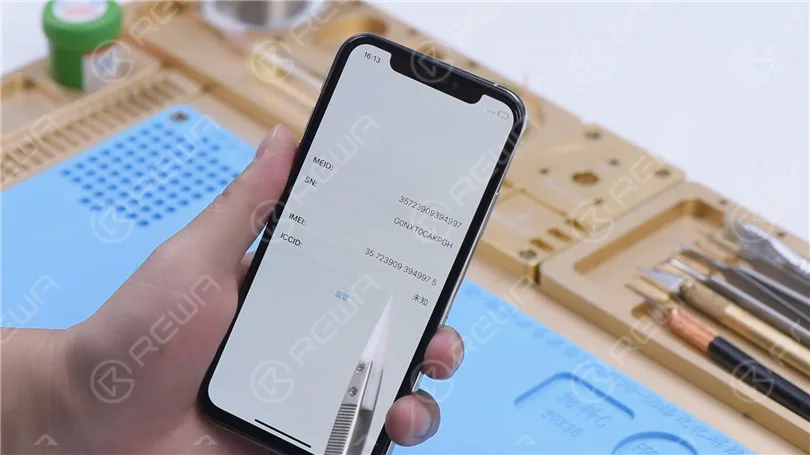
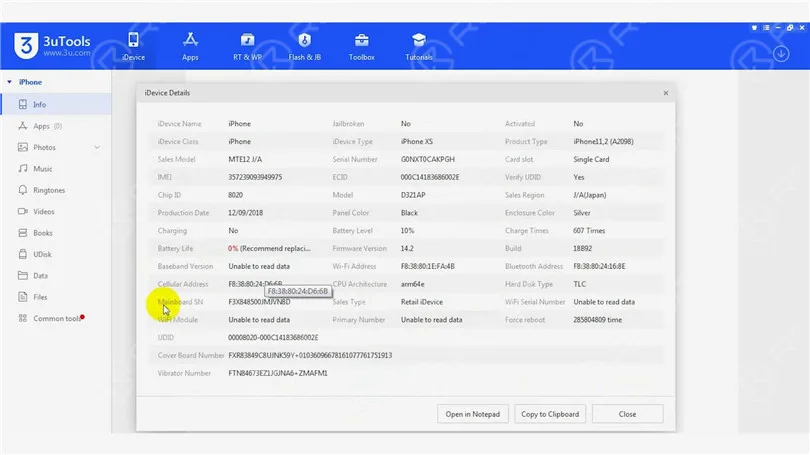
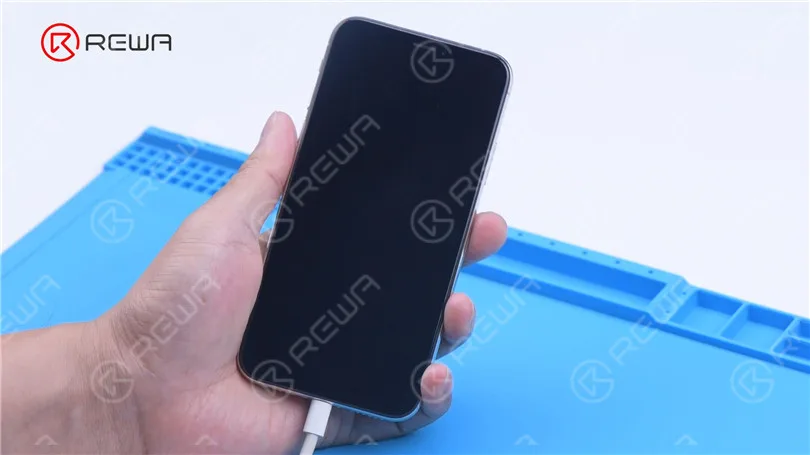
    Ensuite, nous utilisons P12 pour réparer un iPhone XS qui ne s'allume pas. L'iPhone XS ne parvient pas à démarrer.
    Fixer iPhone XS ne s'allume pas avec P12 (Programmeur NAND pour iPhone 6 - iPhone 11 Pro Max)

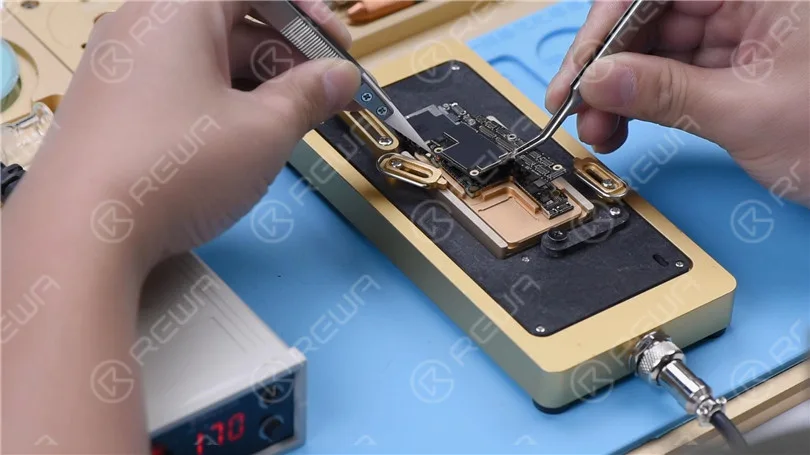
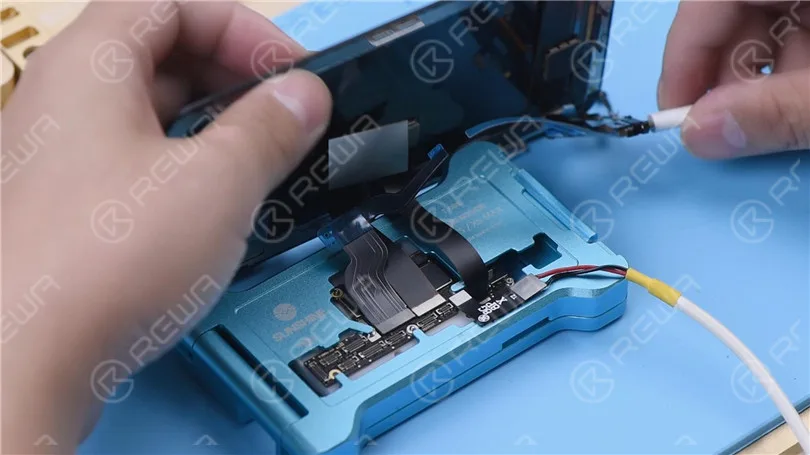
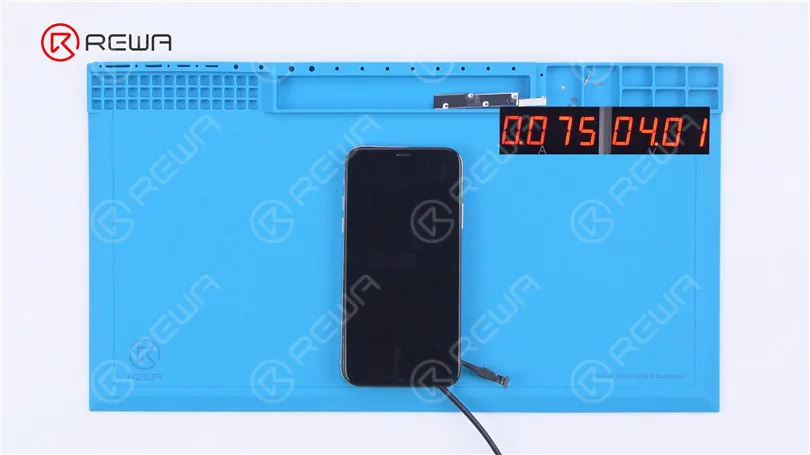
    Ensuite, nous démontons le téléphone pour la suite des tests. Connecter la carte mère avec Câble d'alimentation. Le courant de démarrage n'est que de 75 mA. On peut estimer à priori que le système est défectueux.
    Fixer iPhone XS ne s'allume pas avec P12 (Programmeur NAND pour iPhone 6 - iPhone 11 Pro Max)

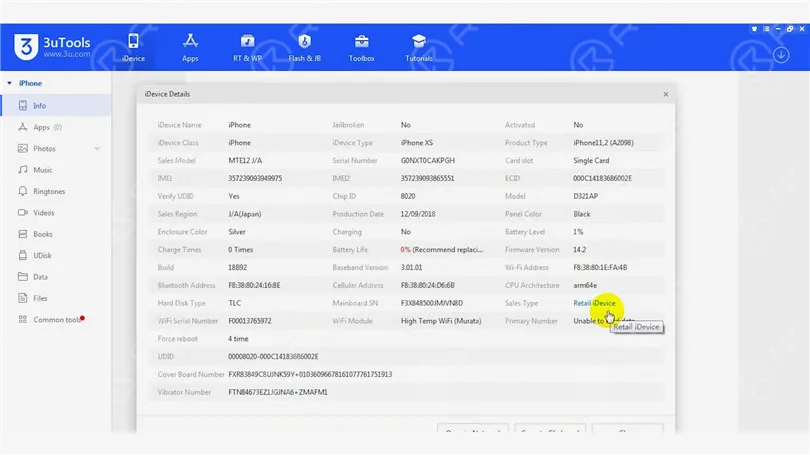
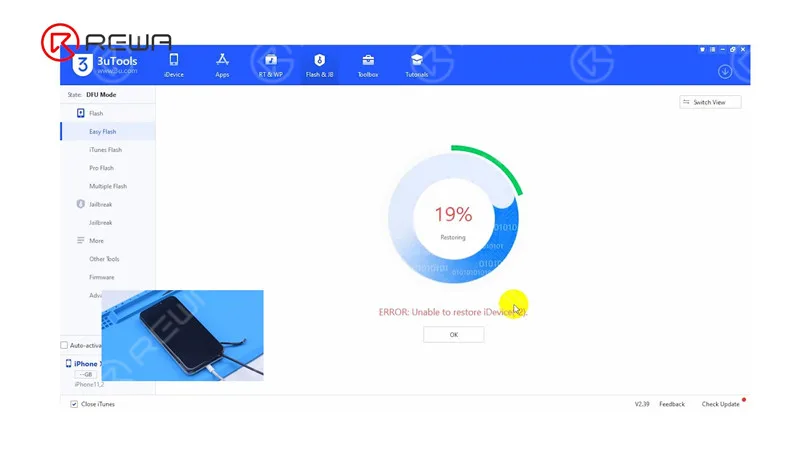
    Ensuite, connectez le téléphone à l'ordinateur. Le téléphone passe automatiquement en mode DFU. Le clignotement reste bloqué à 19%. Nous pouvons maintenant confirmer que le problème de blocage est dû à des circuits défectueux liés à la NAND.
    Fixer iPhone XS ne s'allume pas avec P12 (Programmeur NAND pour iPhone 6 - iPhone 11 Pro Max)

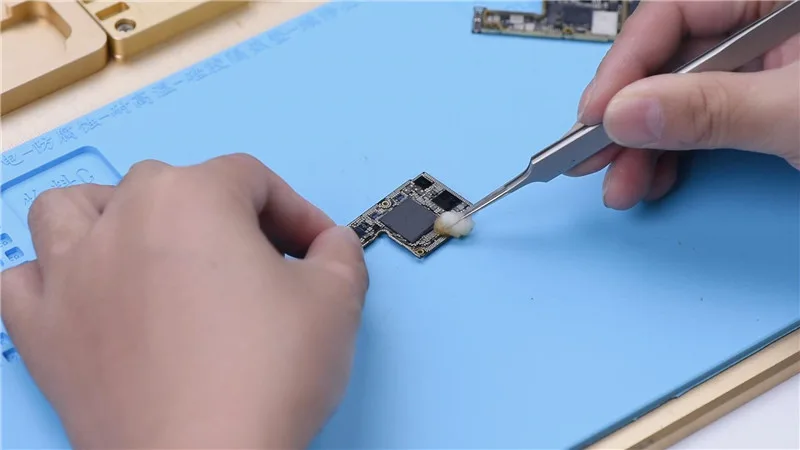
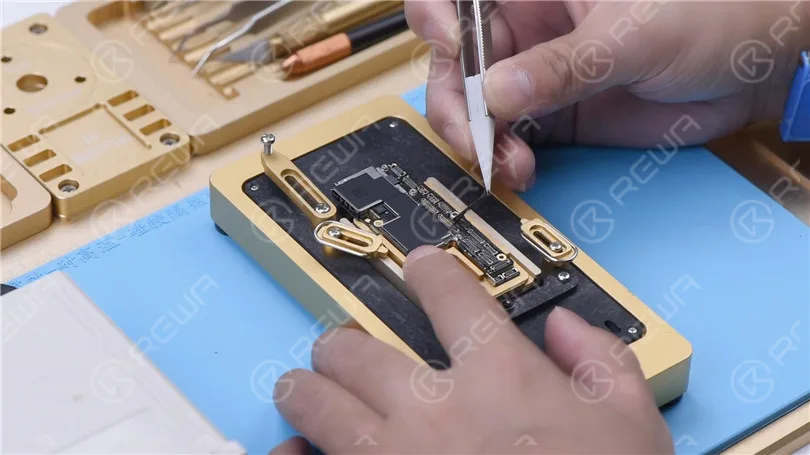
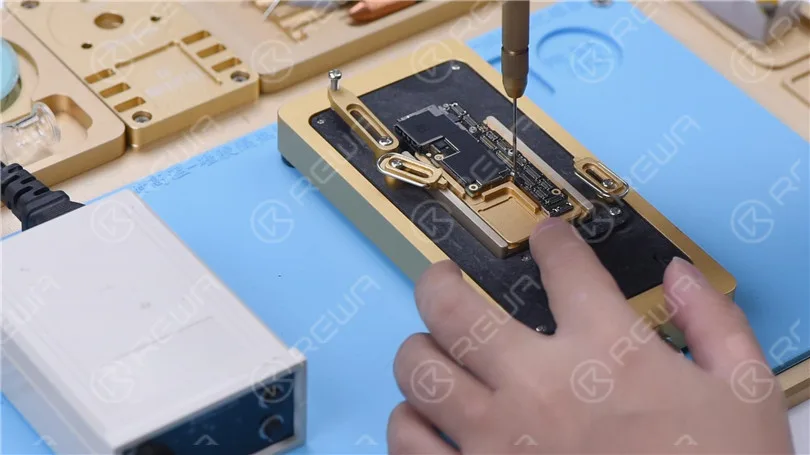
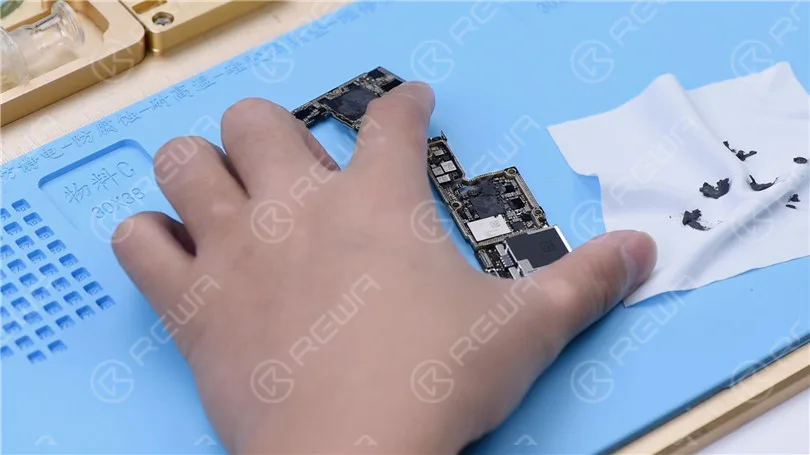
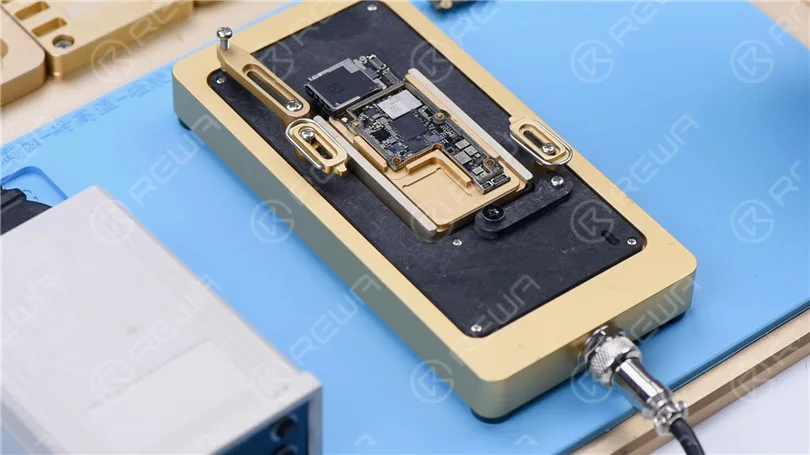
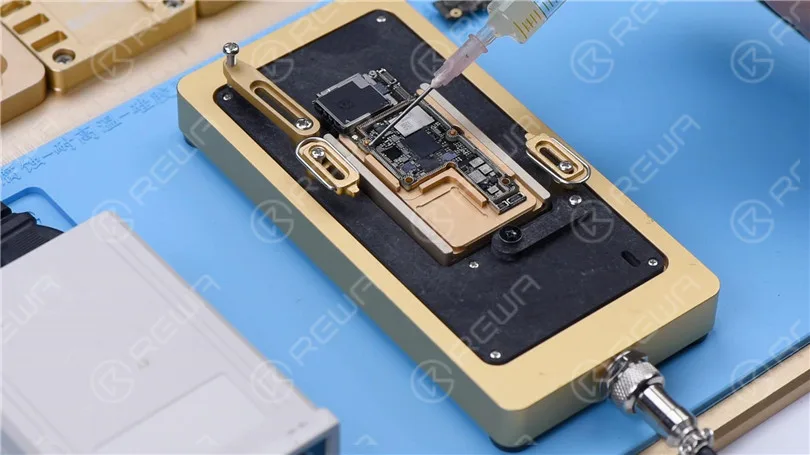
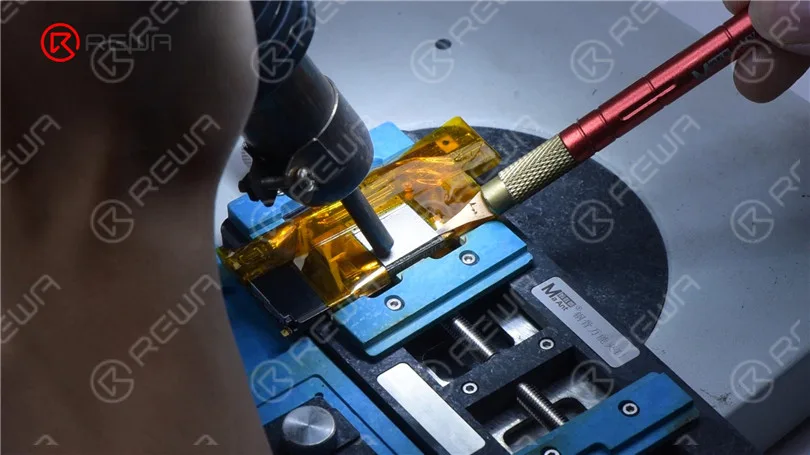
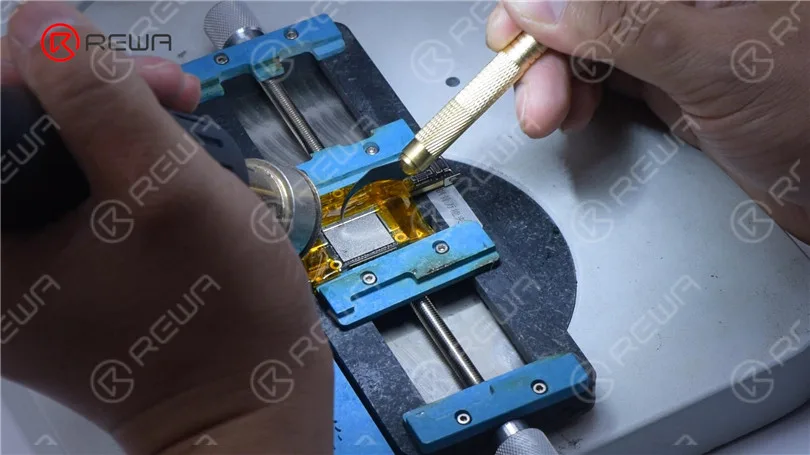
    L'étape suivante consiste à remplacer la carte NAND par une nouvelle. Retirez l'écran et détachez la carte mère. Appliquez du ruban adhésif haute température autour de la carte mère. Tout d'abord, enlevez l'adhésif noir autour de la NAND à l'aide d'un pistolet à air chaud à 280 °C.
    Fixer iPhone XS ne s'allume pas avec P12 (Programmeur NAND pour iPhone 6 - iPhone 11 Pro Max)

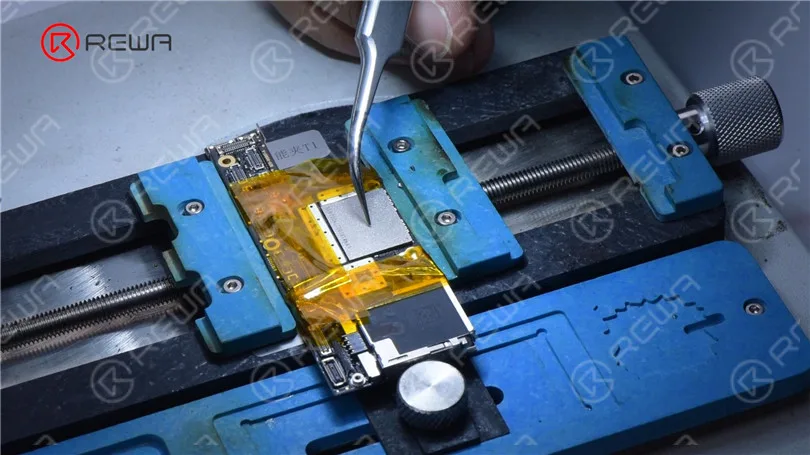
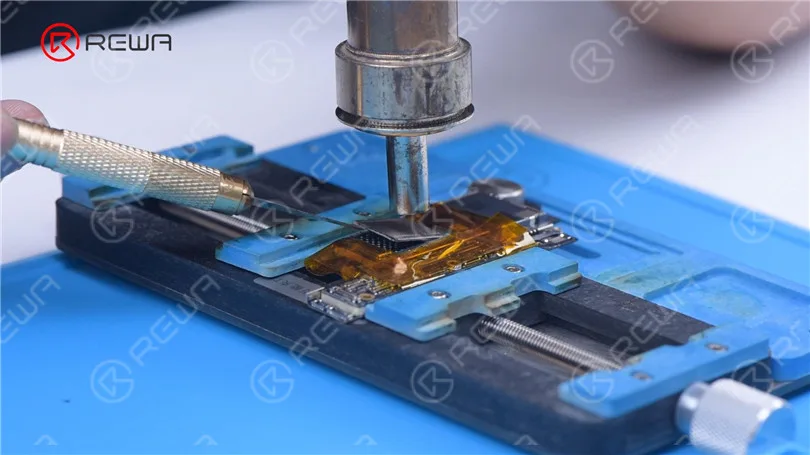
    Décoller le NAND avec un pistolet à air chaud à 400 °C.
    Fixer iPhone XS ne s'allume pas avec P12 (Programmeur NAND pour iPhone 6 - iPhone 11 Pro Max)

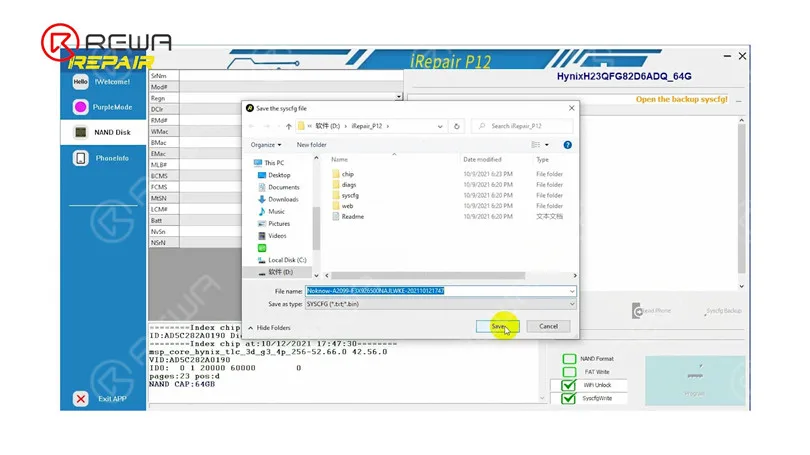
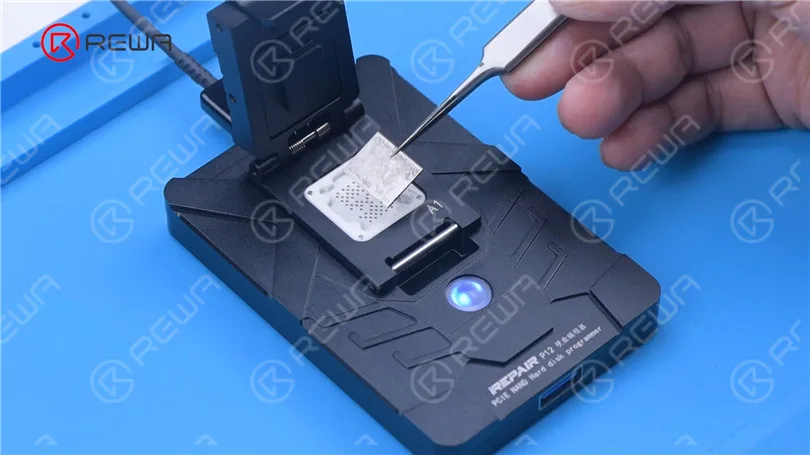
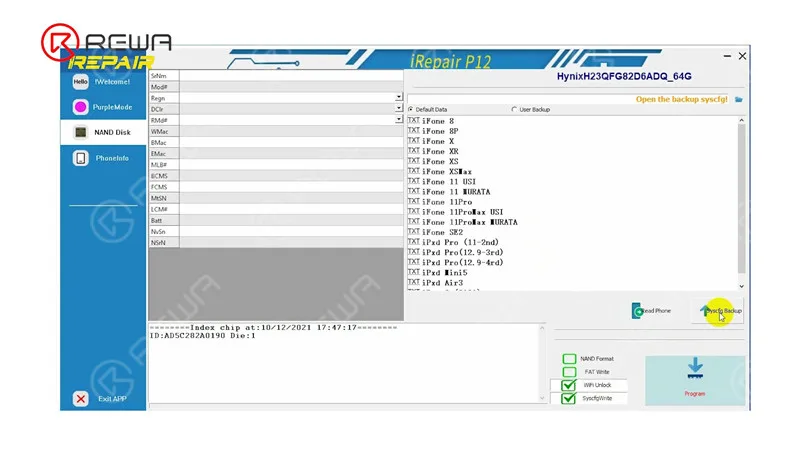
    Fixez la carte NAND à P12. Veillez à aligner la carte NAND avec la broche A1. Cliquez sur "Syscfg Backup". Sauvegardez ensuite les données.
    Fixer iPhone XS ne s'allume pas avec P12 (Programmeur NAND pour iPhone 6 - iPhone 11 Pro Max)
    Fixer iPhone XS ne s'allume pas avec P12 (Programmeur NAND pour iPhone 6 - iPhone 11 Pro Max)
    Fixer iPhone XS ne s'allume pas avec P12 (Programmeur NAND pour iPhone 6 - iPhone 11 Pro Max)

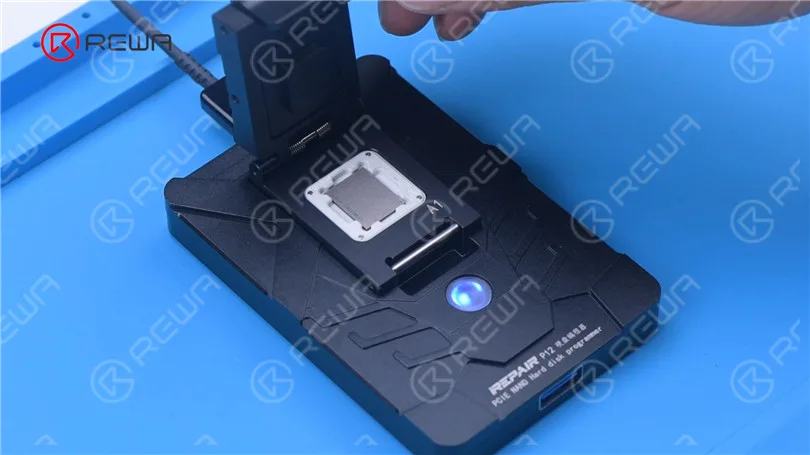
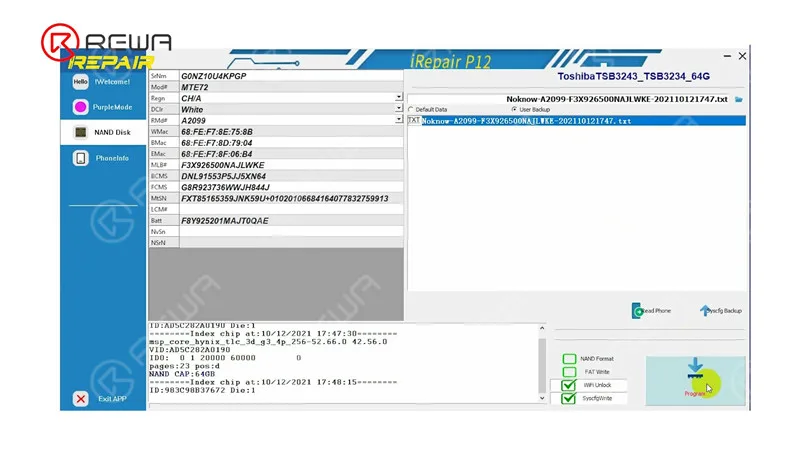
    Retirer la carte NAND. Attachez la nouvelle carte NAND à P12. Sélectionnez "User Backup". Appuyez sur "Program".
    Fixer iPhone XS ne s'allume pas avec P12 (Programmeur NAND pour iPhone 6 - iPhone 11 Pro Max)
    Fixer iPhone XS ne s'allume pas avec P12 (Programmeur NAND pour iPhone 6 - iPhone 11 Pro Max)

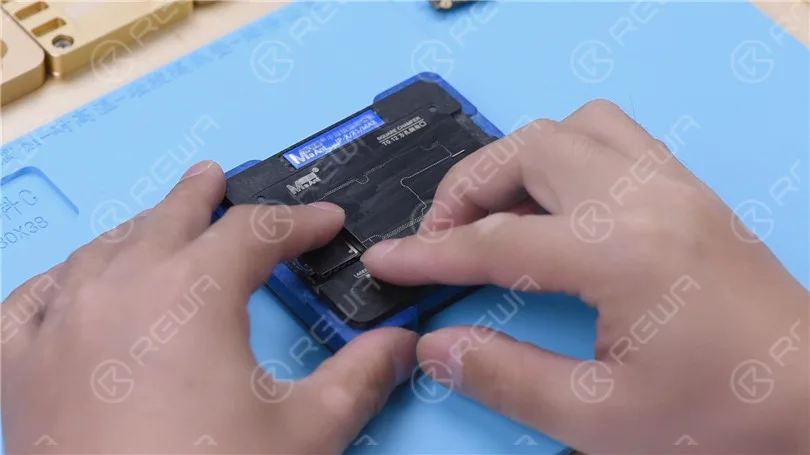
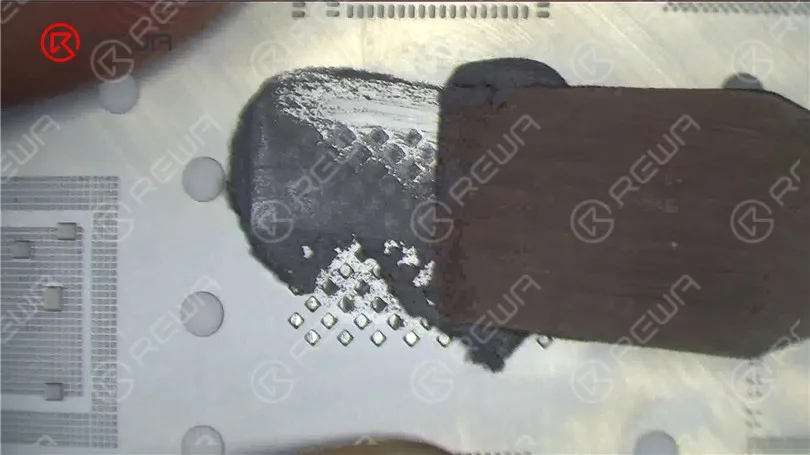
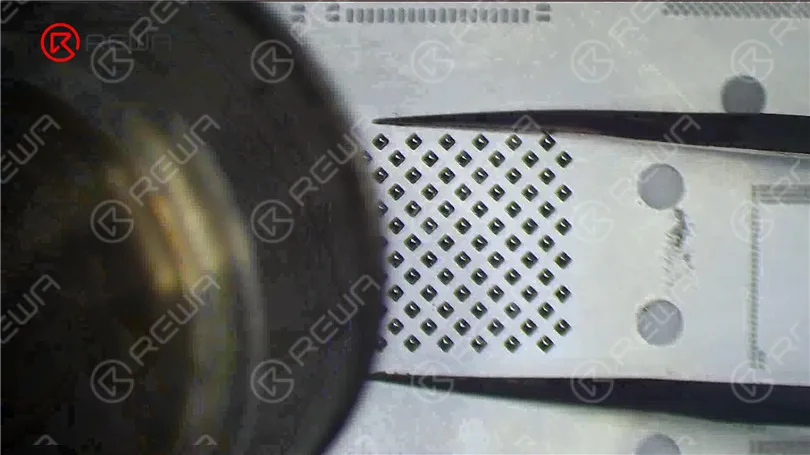
    Ensuite, nous reballons la NAND avec les données écrites. Placez le pochoir de reballage en position. Appliquez uniformément une couche de pâte à braser à température moyenne. Chauffer avec un pistolet à air chaud à 340 °C.
    Fixer iPhone XS ne s'allume pas avec P12 (Programmeur NAND pour iPhone 6 - iPhone 11 Pro Max)
    Fixer iPhone XS ne s'allume pas avec P12 (Programmeur NAND pour iPhone 6 - iPhone 11 Pro Max)

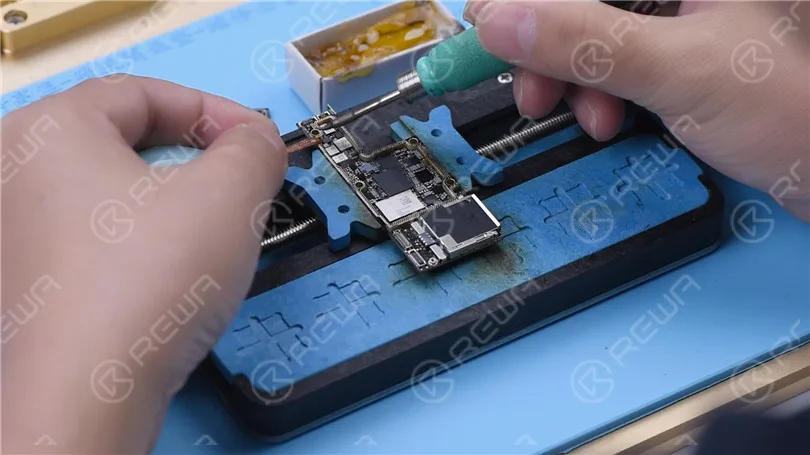
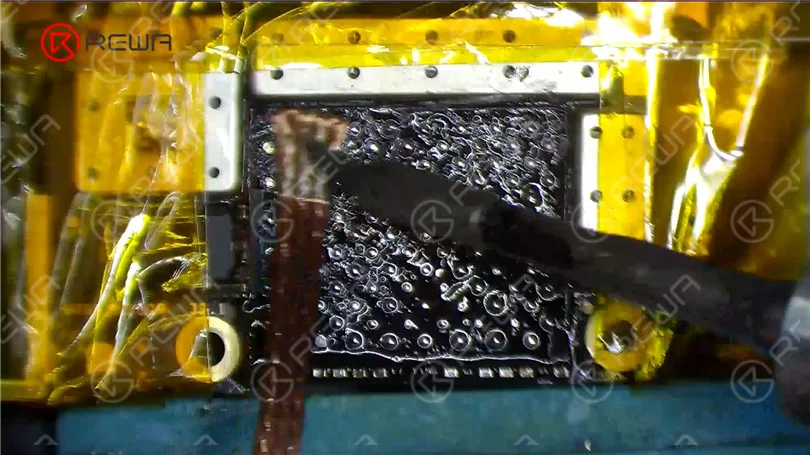
    Avant de souder les cartes NAND, il faut éliminer l'étain sur les patins de liaison. Appliquez de la pâte à souder à température moyenne à l'aide d'un fer à souder. Nettoyez les plages de connexion avec le fer à souder et la mèche à souder.
    Fixer iPhone XS ne s'allume pas avec P12 (Programmeur NAND pour iPhone 6 - iPhone 11 Pro Max)

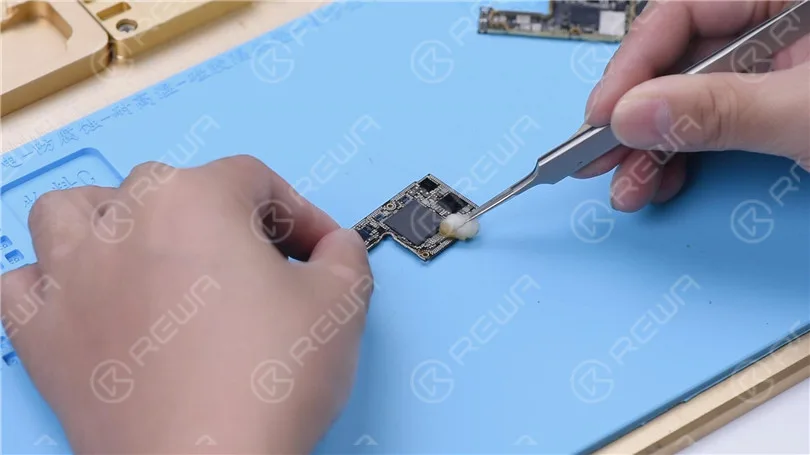
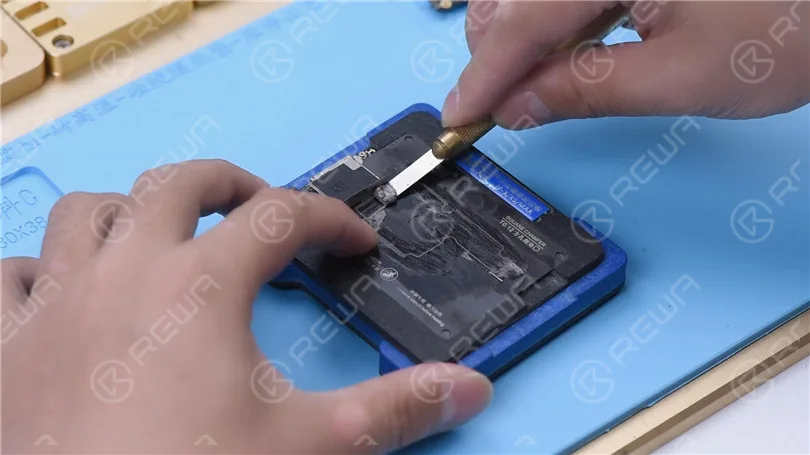
    Enlever l'adhésif noir sur les patins de collage avec le couteau à sculpter. Nettoyer ensuite les plots de collage avec le PCB Cleaner. Après le nettoyage, appliquer un peu de Paste Flux

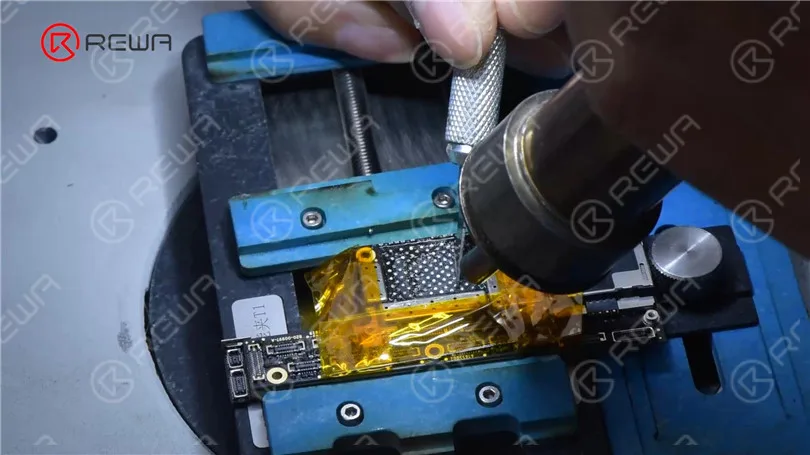
    Aligner la nouvelle carte NAND. Chauffer avec un pistolet à air chaud à 380 °C pour souder.
    Fixer iPhone XS ne s'allume pas avec P12 (Programmeur NAND pour iPhone 6 - iPhone 11 Pro Max)
    Fixer iPhone XS ne s'allume pas avec P12 (Programmeur NAND pour iPhone 6 - iPhone 11 Pro Max)

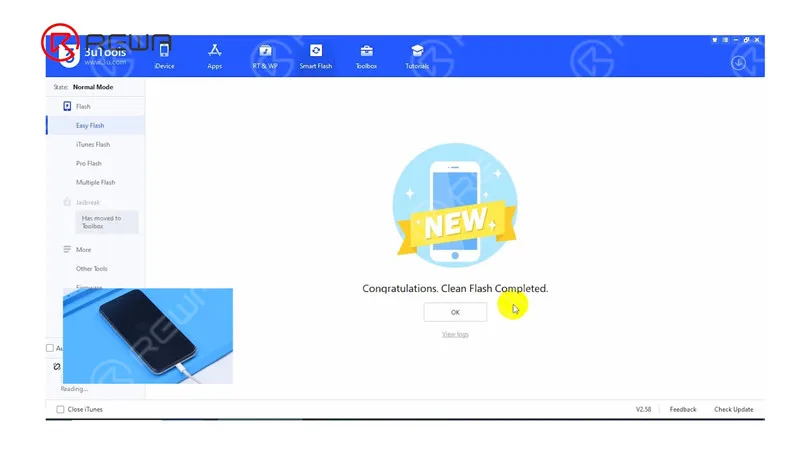
    Ensuite, nous installons la carte mère. Connectez le téléphone à l'ordinateur pour le flashage. Le flashage a réussi.
    Fixer iPhone XS ne s'allume pas avec P12 (Programmeur NAND pour iPhone 6 - iPhone 11 Pro Max)

    Le téléphone s'allume normalement. Après l'activation, le téléphone fonctionne bien.
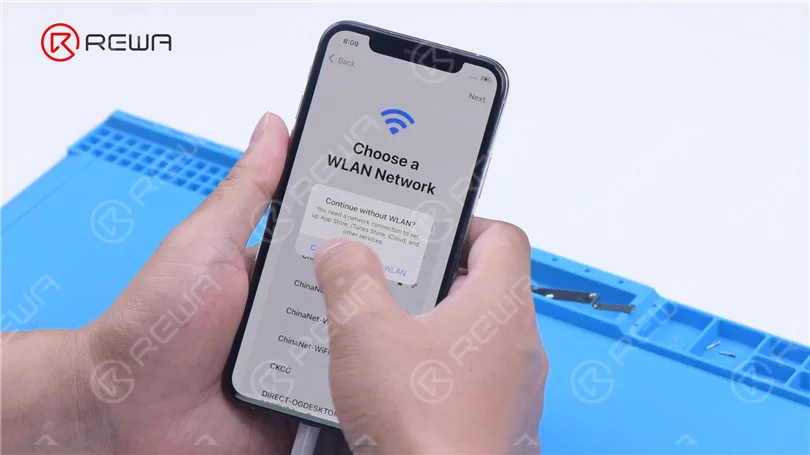
    Fixer iPhone XS ne s'allume pas avec P12 (Programmeur NAND pour iPhone 6 - iPhone 11 Pro Max)
  • Test comparatif complet des écrans de rechange chinois pour iPhone XS

    Test comparatif complet des écrans de rechange chinois pour iPhone XS

    iPhone XS China Aftermarket OLED Screens have emerged in the market, which falls into two types, the flexible one and the rigid one. As usual, REWA LAB has got samples right the first time and conducted strict comparison tests. We are happy to share with you the test result about the iPhone XS Aftermarket Screen in our video today.

  • How to Fix iPhone XS Unresponsive Touch Screen

    How to Fix iPhone XS Unresponsive Touch Screen

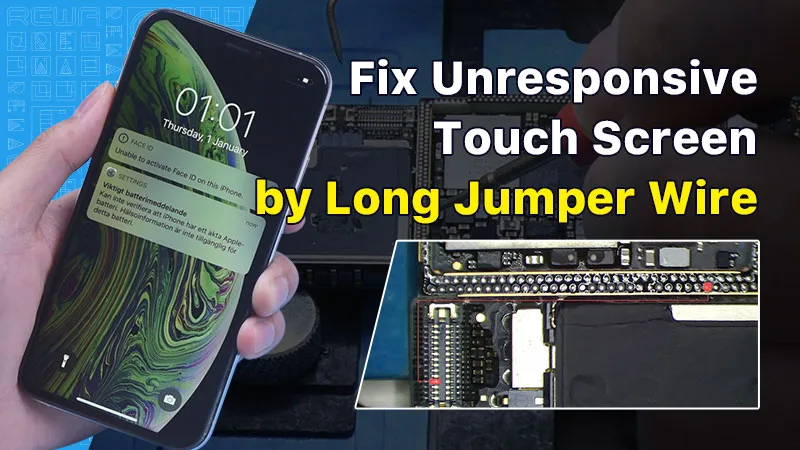
    In this guide, we will explore how to diagnose and repair an iPhone XS with an unresponsive touch screen. An unresponsive touch screen can be a frustrating issue, but by following the steps below, you can potentially resolve the problem.
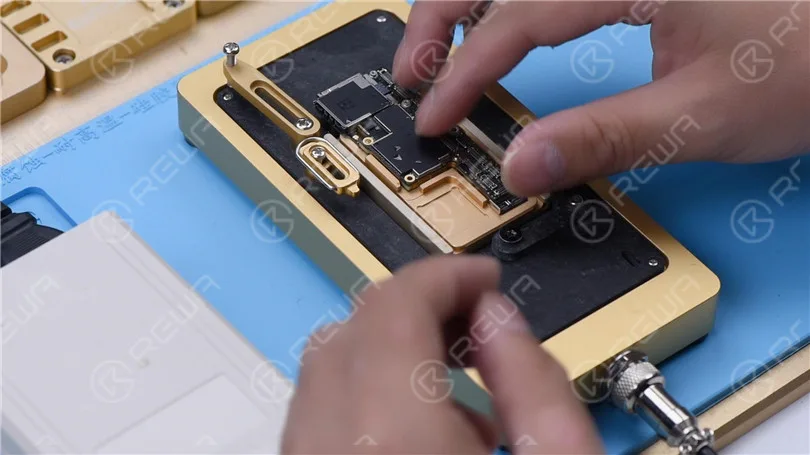
    Inspection initiale

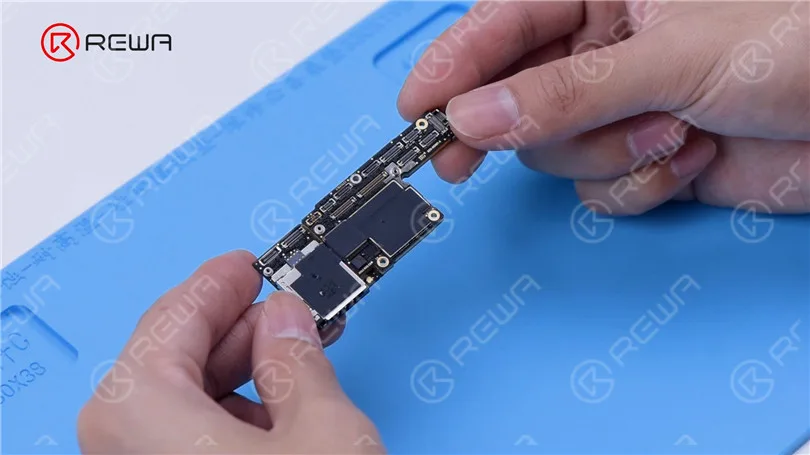
    The first step in diagnosing touch screen issues is to examine the iPhone’s motherboard. Check for any deformities or signs of water damage, as these can often be the root cause of touchscreen problems.

    How to Fix iPhone XS Unresponsive Touch Screen

    Initial Testing

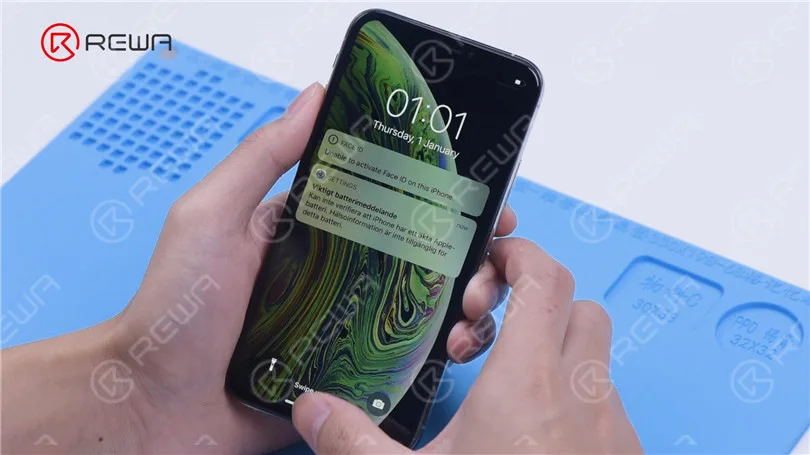
    After ensuring the motherboard is in good condition, install it and connect the display and battery. Power on the phone and check if the touch screen is still unresponsive.

    How to Fix iPhone XS Unresponsive Touch Screen

    Pinpointing the Problem

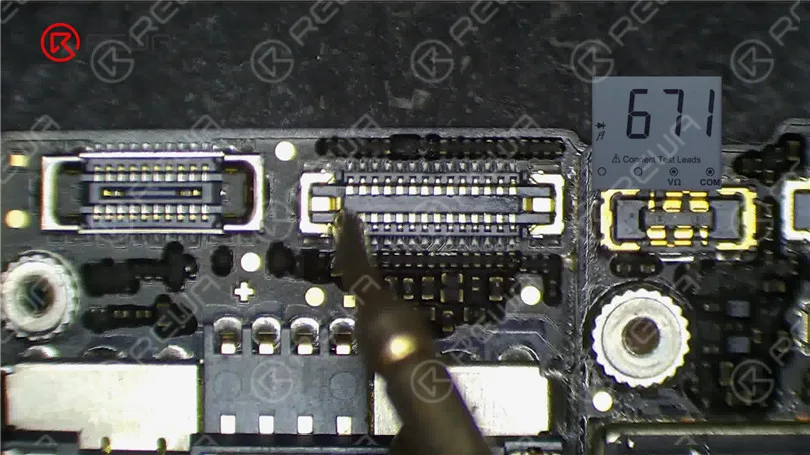
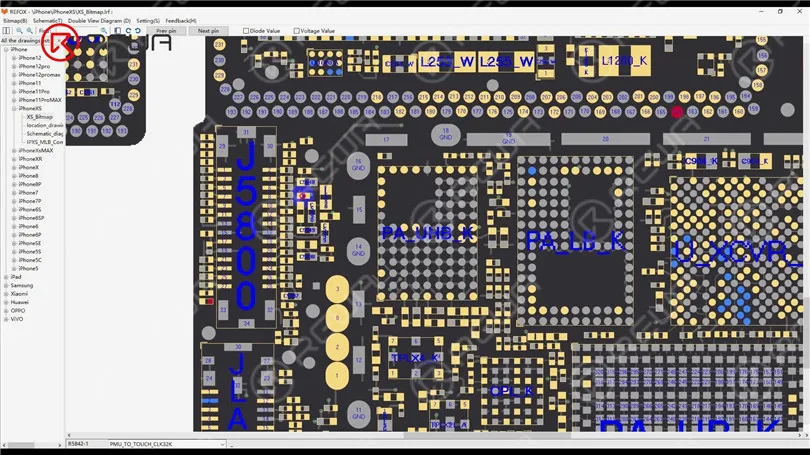
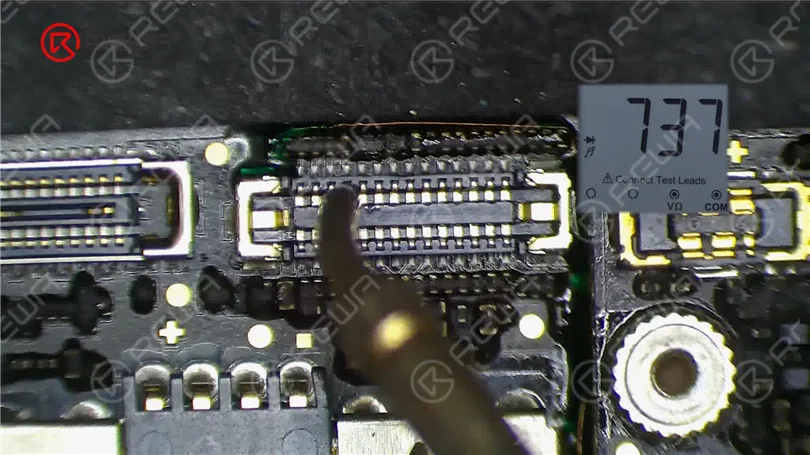
    If the touch screen is still not working, proceed to measure the touch connector. Pin 21 of the connector might be open-circuited, indicating a potential issue in the circuit connected to this pin.
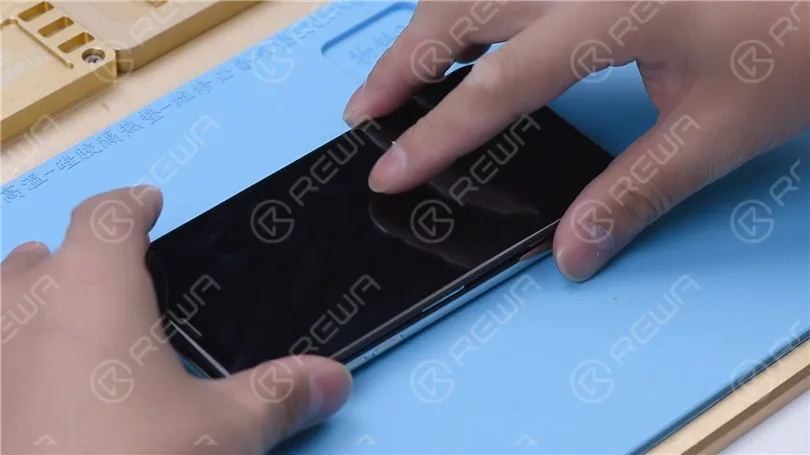
    How to Fix iPhone XS Unresponsive Touch Screen

    Resistor Examination

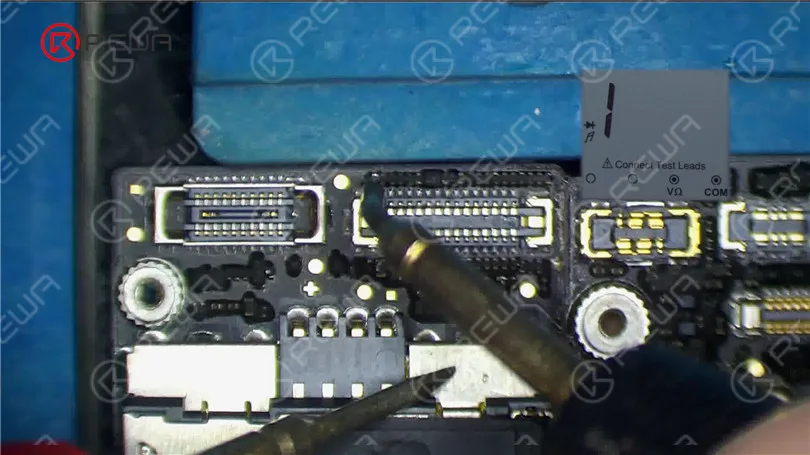
    Pin 21 connects to resistor R5842, which is a safety resistor. Test the resistor’s integrity using a multimeter. If the resistor is intact, the fault likely lies within the middle layer circuit.
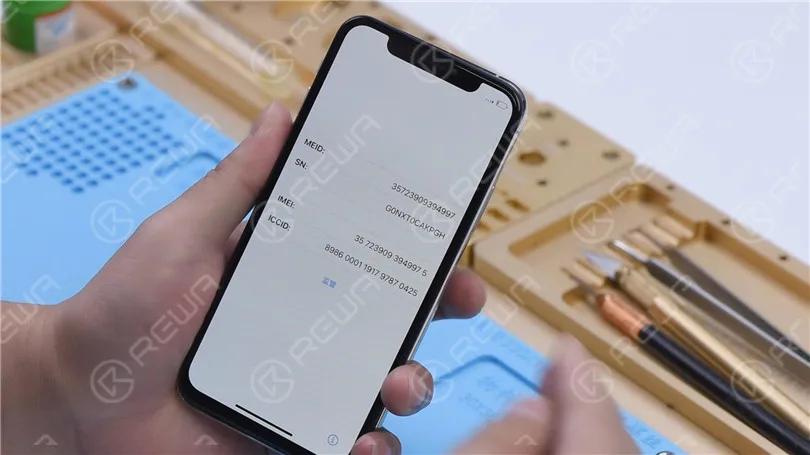
    How to Fix iPhone XS Unresponsive Touch Screen

    Separating the Motherboard

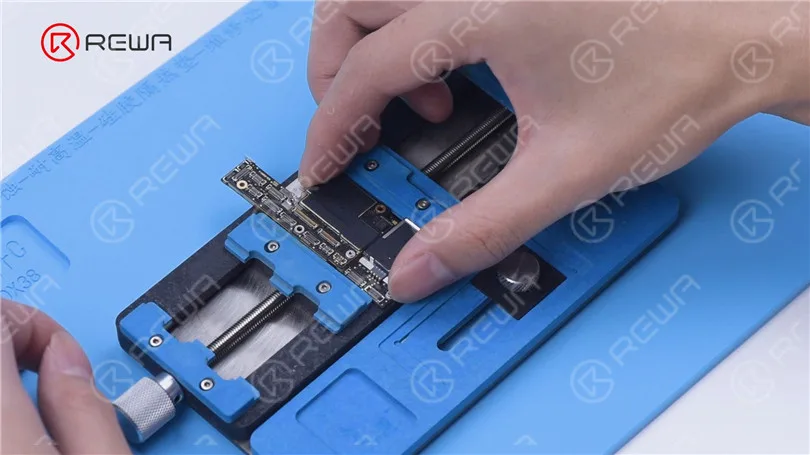
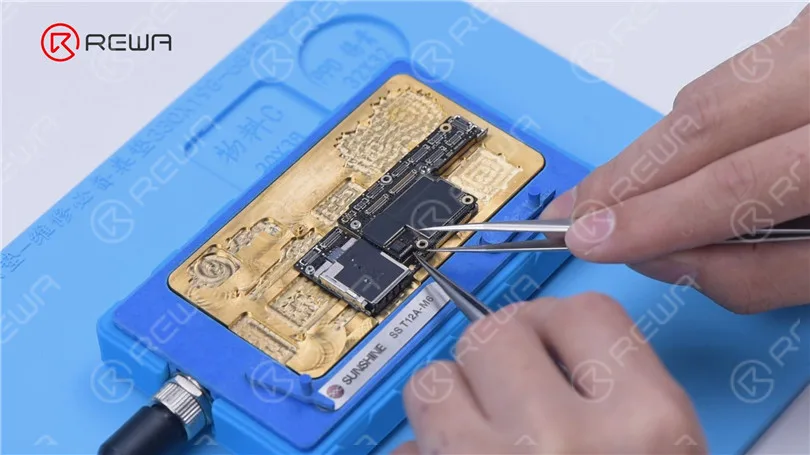
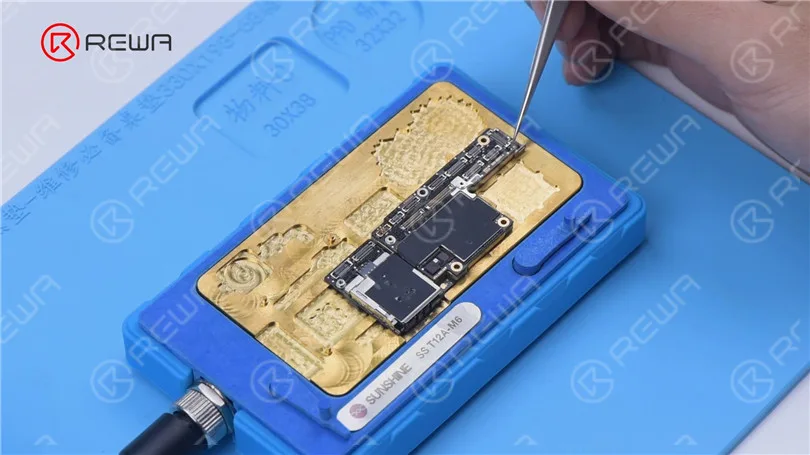
    To access the middle layer circuit, carefully separate the motherboard. Use a heating platform at 160°C, and once the adhesive softens, remove the logic board and signal board with tweezers.

    How to Fix iPhone XS Unresponsive Touch Screen

    Circuit Assessment

    Since the other end of the resistor connects to the power IC through the middle layer, start by checking the circuit on the logic board. Ensure that the resistance value is within the normal range.

    How to Fix iPhone XS Unresponsive Touch Screen

    Then we separate the motherboard. Put the motherboard on the 160 °C Heating Platform to heat. After about one minute, remove the logic board and signal board with tweezers. It can be seen that the motherboard has been separated before.

    How to Fix iPhone XS Unresponsive Touch Screen

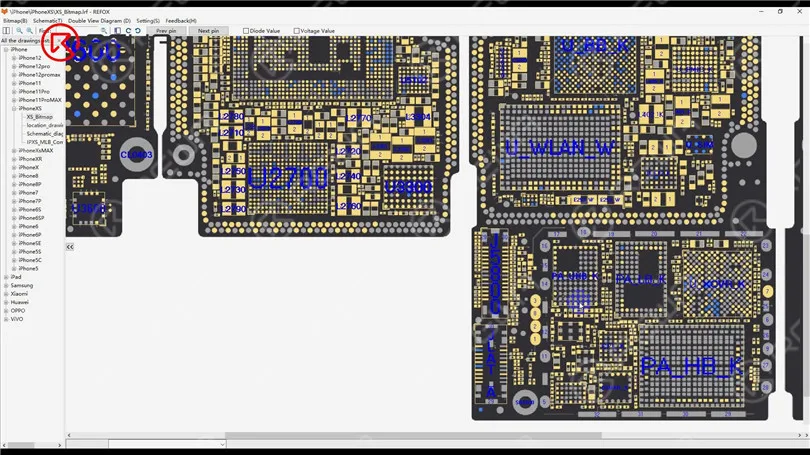
    Open the bitmap. The other end of the resistor is connected to the power IC through the middle layer. Therefore we need to measure the circuit on the logic board firstly. The value of resistance is normal.

    How to Fix iPhone XS Unresponsive Touch Screen

    Identifying the Fault

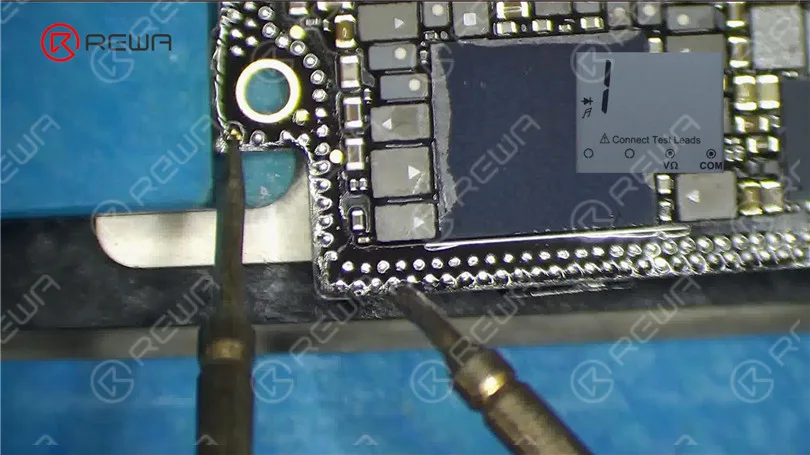
    Measure the circuit between the signal board and the touch connector. An open-circuit condition indicates a problem. To resolve this, you’ll need to perform a jump wire repair.

    How to Fix iPhone XS Unresponsive Touch Screen

    Jump Wire Repair

    Apply Paste Flux to the resistor and solder a copper wire to it using a soldering iron at 360°C. If the two ends are too far apart, secure the copper wire in place with Solder Mask. Use a UV Lamp to solidify the solder mask and then check for its stability.

    How to Fix iPhone XS Unresponsive Touch Screen

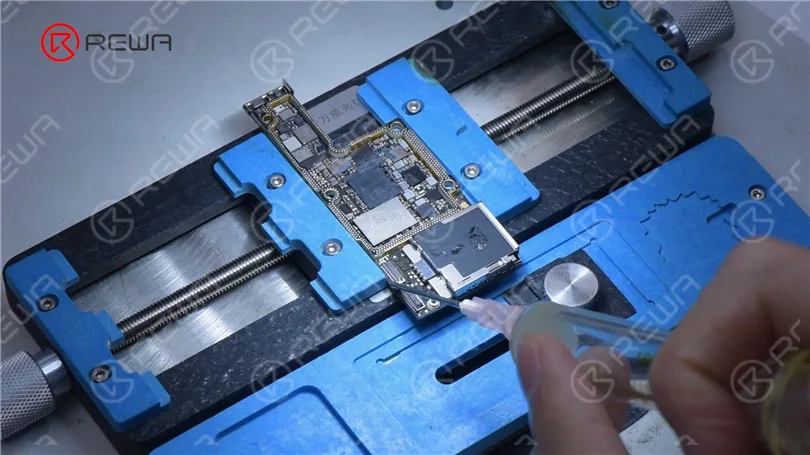
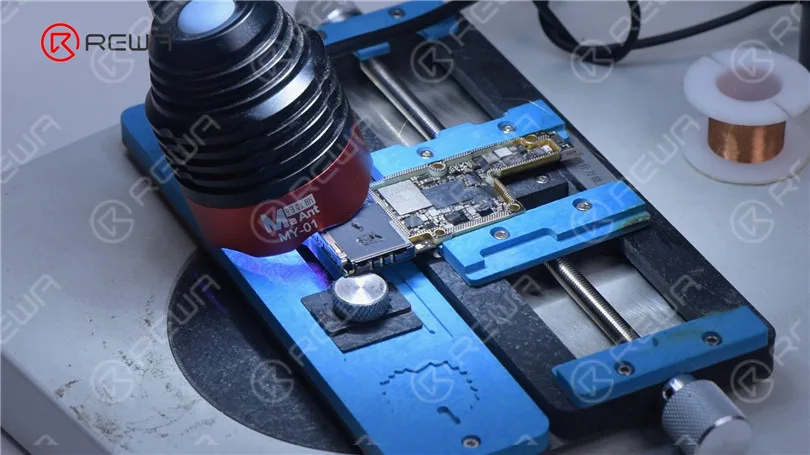
    Because the two ends are too far apart, we need to fix the copper wire in the first place. Apply some Solder Mask. Solidify with UV Lamp. Check if the solder mask is solidified with tweezers. Next, fix the remaining copper wire with Solder Mask.

    How to Fix iPhone XS Unresponsive Touch Screen

    Cut the copper wire. Solder one end of the copper wire to the signal board. Measure with the multimeter. The value of resistance is 0, which indicates that the circuit between the touch connector and signal board is connected. Solidify pads on the signal board with Solder Mask. Scrape to show the pads. Clean the bonding pads with PCB Cleaner.

    How to Fix iPhone XS Unresponsive Touch Screen

    Then we recombine the signal board with the logic board in a direct way. Put the signal board on the 160 °C Heating Platform to heat. Apply some Paste Flux to the bonding pad. Put the logic board in position. Press gently with tweezers during heating. After about a minute, remove the motherboard.

    How to Fix iPhone XS Unresponsive Touch Screen

    Reassembly and Testing

    Carefully recombine the signal board with the logic board using a heating platform at 160°C. Once the motherboard has cooled, measure pin 21 of the connector. If the resistance value is back to normal, you can install the motherboard for a final test. If all went well, the touch screen should now be fully functional.

    How to Fix iPhone XS Unresponsive Touch Screen
    How to Fix iPhone XS Unresponsive Touch Screen

    Conclusion :

    Repairing an iPhone XS with an unresponsive touch screen can be a complex process, but with the right tools and techniques, it’s possible to identify and fix the issue. If you’re interested in learning more about motherboard repair troubleshooting, you can check out REWA Academy’s comprehensive course package. Additionally, they offer live online repair courses for those seeking face-to-face interaction with experienced technicians. Feel free to explore a variety of repair topics and leave comments on subjects that interest you.

    For more repair techniques, visit Académie REWA. It offers a comprehensive motherboard repair troubleshooting course package to enhance your repair skills.

  • Comment optimiser l'autonomie de la batterie de l'iPhone XS

    Comment optimiser l'autonomie de la batterie de l'iPhone XS

    Astuce 1 : Désactiver l'actualisation des applications en arrière-plan

    Vous pouvez commencer par désactiver l'actualisation des applications en arrière-plan. Allez dans Réglages > Général > Utilisation, et enregistrez le temps de veille et d'utilisation restant.

    Désactivez ensuite l'actualisation des applications en arrière-plan et verrouillez le téléphone pour attendre 10 minutes. Retournez ensuite dans Réglages > Général > Utilisation.

    Vous verrez que l'autonomie de la batterie augmentera d'au moins 10 minutes. S'il n'y a pas de changement, vous devez également désactiver une à une toutes les applications en cours d'exécution en arrière-plan.

    Allez dans Réglages > Général > Fermer l'application d'arrière-plan pour voir la liste des APP. Désactivez-les toutes.

    Astuce 2 : Désactiver la notification par courriel

    Les spams sont devenus des virus, et de nombreux utilisateurs ne peuvent plus les tolérer. Vous pouvez essayer de désactiver les notifications par courriel. Allez dans Réglages > Courrier, Contacts, Calendrier > Obtenir de nouvelles données.

    Vous pouvez désactiver ces fonctions. Ou régler toutes les 15 minutes, 30 minutes ou une heure pour que l'iPhone XS vérifie un nouvel e-mail. Vous ne manquerez pas d'e-mails importants. Plus l'intervalle est long, plus vous économiserez de la batterie.

    Astuce 3 : Désactiver les notifications des applications

    Certaines applications vous envoient des notifications. Vous pouvez aller dans Réglages > Notifications pour vérifier en détail. Cliquez sur l'une des applications de la liste pour la désactiver et ne pas recevoir de notifications.

    Conseil 4 : Désactiver le téléchargement automatique

    Si vous réglez la musique, les applications et le système de l'iPhone XS sur la mise à jour automatique, vous consommerez également beaucoup de batterie.

    Cette fonction permet donc d'économiser une partie de l'autonomie de la batterie. Allez dans Réglages > iTunes Store et App Store pour désactiver l'option Données cellulaires. L'iPhone XS sera alors mis à jour avec le Wi-Fi.

    Astuce 5 : Raccourcir le temps de verrouillage automatique de l'écran

    Lorsque vous ne l'utilisez pas, l'écran de votre iPhone XS met un certain temps à s'assombrir. Et vous pouvez aller dans Réglages > Général > Verrouillage automatique.

    Réglez-le sur les valeurs minimales que vous pouvez accepter, ce qui peut également vous permettre d'économiser beaucoup d'énergie en l'utilisant.

    Astuce 6 : Désactiver AirDrop pour économiser la batterie de l'iphone xs

    Personne n'a besoin d'activer AirDrop en permanence. Ainsi, lorsque vous en avez besoin, vous pouvez glisser vers le haut depuis le bas de l'écran et l'ouvrir dans le centre de contrôle.

    Astuce 7 : Utiliser des fonds d'écran et des thèmes noirs et statiques

    Vous pouvez désactiver la luminosité automatique dans le fond d'écran et la luminosité, de sorte que l'écran soit toujours plus sombre, ce qui permet d'économiser beaucoup d'énergie.

    En effet, nous avons besoin de plus de luminosité en cas d'ensoleillement direct. Et cette situation ne se présente pas toujours.

    Astuce 8 : Désactiver l'effet d'animation

    Si vous n'aimez pas l'arrière-plan dynamique, les différences visuelles et l'effet 3D, vous pouvez également les désactiver.

    Une image fixe peut être définie comme fond d'écran dans Papier peint et Luminosité, et l'effet d'animation peut être désactivé dans Général > Auxiliaire.

    Astuce 9 : Désactiver le GPS

    Si la carte ne doit pas être utilisée, le GPS n'est d'aucune utilité et consomme beaucoup d'énergie.

    Vous pouvez aller dans Paramètres > Confidentialité pour désactiver le GPS, ou conserver les applications qui doivent être positionnées et désactiver les autres.

    Astuce 10 : Désactiver Siri

    Si vous n'utilisez pas Siri, vous pouvez le désactiver directement.

    Astuce 11 : Désactiver les vibrations

    Dans Réglages > Son, vous pouvez choisir de désactiver la vibration, et de désactiver la vibration de la notification de nouvel e-mail dans Mail, ce qui vous permettra d'économiser beaucoup de batterie.

     Astuce 12 : Désactiver iCloud

    Allez sur iCloud, vous verrez que la synchronisation dans le nuage consommera beaucoup de données et d'énergie.

    Bien sûr, vous pouvez rouvrir la sauvegarde synchronisée iCloud avec le téléphone connecté à l'alimentation, afin de sauvegarder les données importantes.

    Si vous avez suivi les suggestions ci-dessus, l'autonomie de la batterie de l'iphone xs se vide toujours rapidement.

    Il est possible que la batterie soit en cause. Vous pouvez tester la durée de vie de la batterie dans le magasin de réparation le plus proche.

  • How to Fix iPhone XS No Service

    How to Fix iPhone XS No Service

    Today we will share a case about repairing an iPhone XS that has no service. The phone had no service after being dropped and couldn’t be activated after a system upgrade.

    Firstly, inspect the appearance of the motherboard. The motherboard is not deformed or water damaged.

    Fix iPhone XS No Service

    Then we install the motherboard on the phone to test. Connect the display and battery. Insert the SIM card. The phone can be turned on. However, the ICCID is not showing, which indicates that the SIM card is not read.

    Fix iPhone XS No Service
    Fix iPhone XS No Service

    Connect the phone to the computer. Open 3uTools and view device details. 3uTools is unable to read data of the baseband version and Wi-Fi module.

    Fix iPhone XS No Service

    Because the phone had no service after being dropped. It can be preliminarily judged that the pseudo-soldering of the middle layer may cause the trouble. Next, we need to separate the motherboard. Put the motherboard on the Plate-forme de chauffage and peel off the foam.

    Fix iPhone XS No Service

    To make it easier to remove the logic board after separation, drive a screw on the logic board. Cut through the tape with a sculpture knife.

    Fix iPhone XS No Service

    Set the temperature of the Heating Platform to 180℃ to heat the motherboard. When the temperature reaches 180℃, press the signal board with a pair of tweezers. Clamp the screw to remove the logic board with another pair of tweezers. Then turn off the power and take down the signal board.

    Fix iPhone XS No Service

    Remove thermal grease on the logic board and signal board. Attach the signal board to the holder. Dip rosin with Soldering Iron at 365℃ and solder wick to remove tin on the bonding pad. Remove tin on the logic board with the same method.

    Fix iPhone XS No Service
    Fix iPhone XS No Service

    Clean the logic board with PCB Cleaner and remove the screw. Clean the signal board with PCB Cleaner.

    Fix iPhone XS No Service

    Attach the signal board and logic board to the Testing Fixture. Connect the screen to the motherboard with a Test Extension Cable. Connect the charging port flex cable and power cable. Then turn the phone on by connecting it with the computer.

    Fix iPhone XS No Service

    Open 3uTools and view device details. The baseband version and Wi-Fi module can be read. It can be confirmed that the pseudo soldering causes the absence of the baseband version.

    Fix iPhone XS No Service

    The next thing we need to do is to recombine the logic board and signal board. Put the signal board on the Reballing Platform. Put the Reballing Stencil in position. To prevent the solder paste from flowing into the motherboard crevices, insert a metal plate.

    Fix iPhone XS No Service

    Apply a layer of low-temperature Solder Paste. Wipe off excess solder paste with an anti-static wipe. Remove the Reballing Stencil and signal board.

    Fix iPhone XS No Service

    Put the signal board on the Heating Platform. Set the temperature to 180℃ to heat. After the solder balls are formed, turn off the power and cool the signal board. Apply some Paste Flux. Align the logic board with the signal board. Keep heating the motherboard at 180 ℃. When the temperature has risen to 180℃, keep heating for one minute. Turn off the power and cool the motherboard for five minutes.

    Fix iPhone XS No Service
    Fix iPhone XS No Service
    Fix iPhone XS No Service

    After recombination, install the motherboard on the phone. The phone can be turned on. Insert the SIM card. ICCID is showing. Because the phone has a network lock and we don’t have a SIM card of the carrier. No further tests can be conducted.

    Fix iPhone XS No Service
    Fix iPhone XS No Service

    Conslusion

    The iPhone XS had no service after being dropped. 3uTools couldn’t read the baseband version when we connected the phone to the computer. Through motherboard separation and testing the phone on the testing fixture, we confirmed that the no service trouble was caused by the pseudo soldering of the motherboard middle layer. ICCID came back to normal and the fault was cleared after we recombined the logic board and signal board.

    Please visit our académie to learn more about phone repair knowledge.

  • The Best Features in iPhone XS

    The Best Features in iPhone XS

    The dominance of Apple over other tech brands is due to the fact that it stays at least a couple of years ahead of its competitors, specifically if you spend a moment just talking about iPhone. There are a bunch of reasons behind the success of iPhone. But the newly-launched iPhone XS is exceptional good. Absolutely sensational.

    Is it over-garnishing? Maybe. But let me support my statement, and we’ll appreciate your opposition then.

    Apple Inc. has launched the iPhone XS, XS Max and XR on 12 Sep. Though, XS is an enhanced version of the iPhone X beginning at $999. And if you want to send iPhone from UK to India, go for a well-reputed iPhone shipping company.

    Unequivocally, choosing between these two is not as easy as falling off a log because there is not much difference. But depending upon the understanding of which elements you like and features, you can opt for XS or XS Max or the less costly XR.

    Here, we are going to take a closer look at the just-released iPhone XS. Let’s get into this –

    Unique Features in the latest iPhone XR. 

    Some of the unique features of iPhone XS are as under:

    12-megapixel Dual camera

    An enthusiastic 12-megapixel dual camera system gets more details to iPhone photos as claimed by the Apple. Users will be able to click more sophisticated portraits. If you spend a moment just talking about the video quality, it’s terrific as compared to the output given by any other smartphone out there in the market, Apple says. An add-on Face ID recognition system is something users might lay their eyes on. With faster and super secure Face ID recognition system, the new XS is equipped with the true depth camera. Face ID recognition system will help to unlock the device and accessing Apple Pay. That’s amazing. Isn’t it?

    The A12 ‘Bionic’ chip

    The advantage of this unique A12 Bionic processor is it will enable XS to run nine times faster than the older versions. According to a statement by Apple, the A12 Bionic chip will be able to handle 5 trillion operations per second. Truly amazing. No Ifs Ands or Buts about this. If compared to the previous A11, this new chip will consume 40 percent reduced power. The GPU inside the A12 Bionic chip is 50 percent quicker than the last year’s chip. Overall, this new chip’s addition will bring a bunch of improvements that the older processing systems were lacking. The saying goes, this A12 Bionic chip with first ever 7-nanometer mobile processor is the star performer, iPhone claims. Still less? No way.

    Screen size

    Another unique feature of the latest iPhone XS is the larger screen size it has. Apple offers the largest display (5.8 inches) ever offered in Apple smartphones in the latest iPhone XS. For the case of XS Max, add-on “cinematic” display for an ameliorated view of movies, video and games. Both the XS and XS Max got “Super Retina” display with the improved pixel density of iOS devices. Apple has left no stone unturned in the durability of this new boy XS. According to the company, the front and back glass layout now offered is sturdier than any other smartphone and is much more immune to scratches. Whoa. The brand knows that diversity is the spice of life. On that account, you can go for 6.1-inch iPhone XR or even 6.5-inch iPhone XS Max if you are after the large screen size.

    Battery life

    Battery life is a very important factor while shopping around for a smart phone. If a smartphone runs out of power in a very short time period then it is futile to give it a try. Every smartphone manufacturing brand is just focussing on the longer battery time and life. And Apple once again won the show here. Keeping a close eye on this, the new XS will have 30 minutes of extra battery life as compared to the ongoing iPhone X. And you know the amazing chapter of the story? It’s about the battery life the XS Max will offer, well-nigh 1.5 hours more. Can you believe that? If you talk about the iPhone X’s average battery time, it’s unbeatable 10 hours, 49 minutes on the battery test. If my memory serves me well, this time is nearly 1 hour greater than any typical smartphone. Still and all, the new iPhone XS is a perfect smartphone to buy if you want a phone that gets you through the day on a single charge. That’s tremendous.

    Waterproof tech

    One of the much-needed features in any smartphone is waterproof technology. Keeping a close watch on this factor, both the XS and XS Max are made waterproof. Both the smartphones are tested by the company in beer, wine, tea and other liquids. Apple declares that the aforementioned smartphones are much more repellent to water and dust damage as compared to the iPhone X. Both the iPhone XS and XS Max are offered with a bunch of fruitful additions but IP68 rated water, splash, and dust resistance is the best feature these smartphones are presented with. You can check out by throwing your phone in a swimming pool. I kid you not.

    More colorful OLED screens

    The OLED panel in this new iPhone is identical to the last iPhone X, with much the same 2,436 x 1,125 resolution as before but that’s not the case with iPhone XS Max. There is a sharper resolution in XS Max due to its larger OLED screen. Be that as it may, the new iPhone screens are much more colorful with 60 percent more dynamic range as stated by Apple.

    Faster Face ID

    The Face ID capability was introduced in last year’s iPhone for the first time due to which users are able to unlock the phone using a facial scan. Same is the case with the latest iPhone. Identical to the button free design of iPhone X’s home screen, the XS uses Face ID but at a very faster rate. According to Apple, new algorithms are applied in order to speed up the facial recognition process. Absolutely stunning. What are you waiting for?