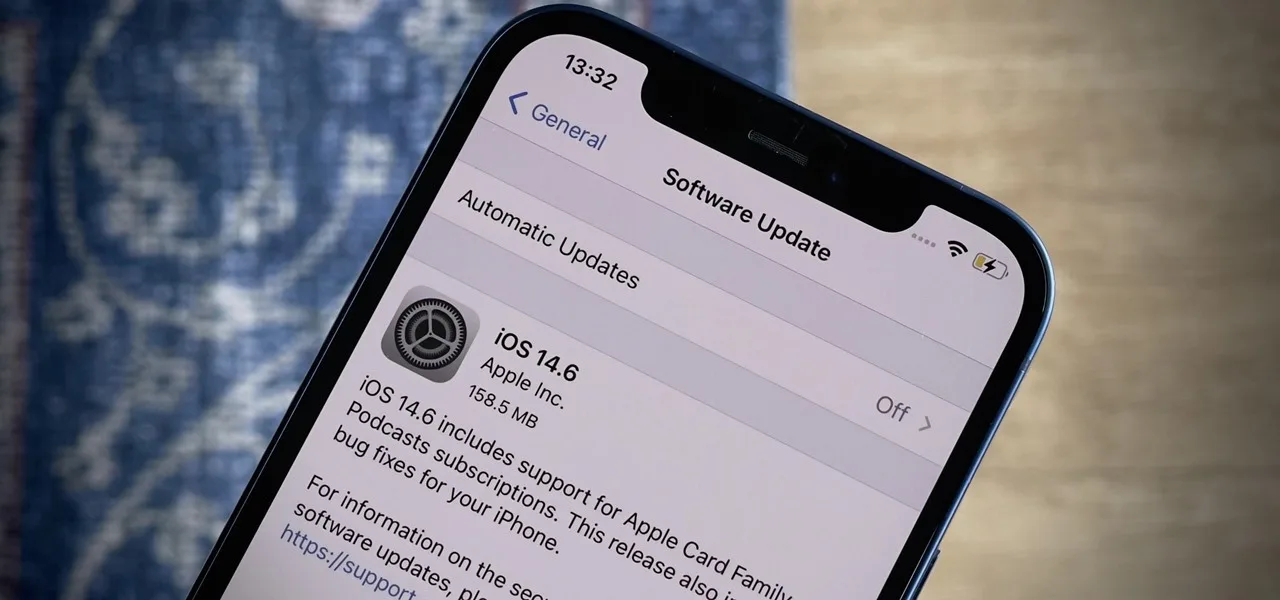
Étiquette : ios 14.6

  • What’s new in ios 14.6 update?

    What’s new in ios 14.6 update?

    iOS 14.6 was released for users not long ago, and many iPhone users find it hard to decide whether to ios 14.6 update or not. What’s new in the update worth our attention? With the question, REWA will bring you the introduction. Let’s take a look
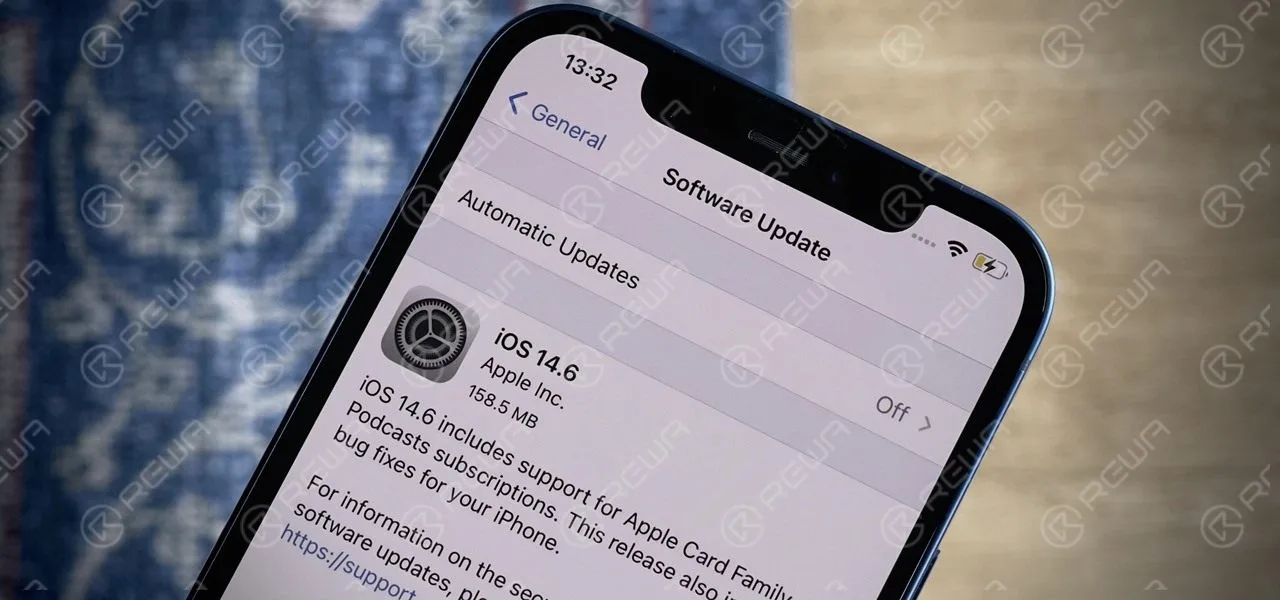
    14.6 update

    iOS 14.6 update content introduction

    1.Apple ios 14.6 download?

    You should have a prompt, telling you iOS 14.6 can now be updated and ask you if you want to download it. You can do the followings:

    a. Go to “Settings”

    b. Select general

    c. Click software update

    Your device will connect to Apple’s servers and prompt you to download and install updates. Follow the prompts to complete the installation. After the device restarts, it will run iOS 14.6.

    Apple ios 14.6 Update Content

    a.For ios 14.6 AirTag , the new beta has added a new feature that allows you to enter the email address as a contact method of the lost mode, not a phone number.
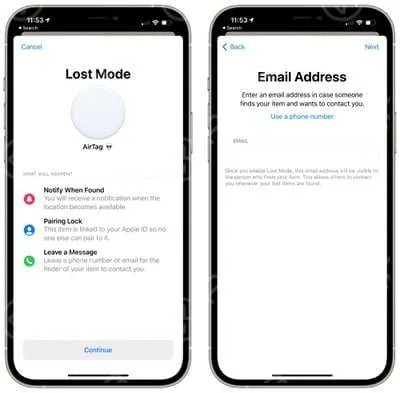
    ios 14.6 AirTag

    b. The update has also laid the foundation for Apple Card Family, which is a feature launched by Apple in April. Apple Card Family allows the spouse to share an Apple Card account, each as a common owner to establish credit.

    c. Apple Card Family also allows parents to share an Apple Card with their children for shopping and have consumption limits and parental control. All the consumption of the family is tracked through a monthly bill, and an Apple Card account can add up to five people over the age of 13 for sharing.

    d. Repair the known bug.

    3. iOS 14.6 Accessibility

    a. Voice Control users can unlock their iPhone for the first time after a restart using only their voice

    4. iOS 14.6 fixes the following issues

    a.After using “Lock iPhone ‘on Apple Watch, unlock with Apple Watch may not work

    b.Reminders may appear as a blank line

    c.Call blocking extensions may not appear in Settings

    d.Bluetooth devices may sometimes disconnect or send audio to other devices during an active call

    e.iPhone may experience reduced performance during startup
  • How to Solve Excessive Battery Drain on iOS 14.6

    How to Solve Excessive Battery Drain on iOS 14.6

    The iOS 14.6 brings a lot of new features, but many users reported excessive battery drain and overheating issues. Why does it happen and how to solve the problem? Let’s check it out!

    After iOS 14.6 update, battery life is draining quickly and the phone is overheating, which is very annoying. It was found that the culprit is the desktop widget or iOS 14 description file. The desktop widgets keep refreshing in the background, so it is very power-consuming. After deleting all the widgets and the description file, the battery only drops 3 % compared to previous 20% drop overnight. In addition, if you find your phone restarting easily, you can try this method. The cause should be the same.

    How is the power consumption of iOS 14.6?

    Although this iOS 14.6 update looks very good, the battery life is still short and the battery drains faster than before. With the previous iOS 14, the battery only drops 15% after using Twitter for more than 20 minutes. The battery still drops shockingly even though you haven’t used the phone for an hour. An 11 minutes’ game only takes 5% before while it takes 7% for an 11 minutes’ game. Apple doesn’t support downgrading this time. So we advise everyone to update with discretion.

    What to do if the battery drains too fast on iOS 14.6?

    1. Turn off the GPS. If the GPS service is on all the time, it will continue to consume the power. Go to Settings > Privacy > Location Services. Set all location services to Never or While Using.
    2. Turn off the background refresh. Go to Settings > General > Background App Refresh. Turn off Background App Refresh
    3. Check the APP automatic update. Go to Settings > App Store to turn off Automatic Downloads.
    4. Use the Dark Mode frequently, especially the OLED screen. Using the Dark Mode frequently can save power, such as iPhone X, iPhone XS, iPhone XS Max, iPhone 11 Pro, iPhone 11 Pro Max. Go to Settings > Display and Brightness.
    5. Check the Motion. Go to Settings > Accessibility > Motion. Turning off this feature may make your system not so smooth.
    6. The desktop widget will have more power consumption. The biggest change in iOS 14 is the desktop widget feature, but this new feature will increase power consumption, if your battery life is draining fast, it is recommended not to use too many widgets.
    7. Battery degradation. Go to Settings > Battery Health. If your battery health is low, less than 80%, the battery life is significantly reduced. This time you should consider going to the Apple store to replace the battery.

    That’s all for how to solve excessive battery drain on iOS 14.6.




