Etiqueta: iphone xs max

  • Troubleshooting iPhone XS Max Face ID Not Working – Dot Projector Repair

    Troubleshooting iPhone XS Max Face ID Not Working – Dot Projector Repair

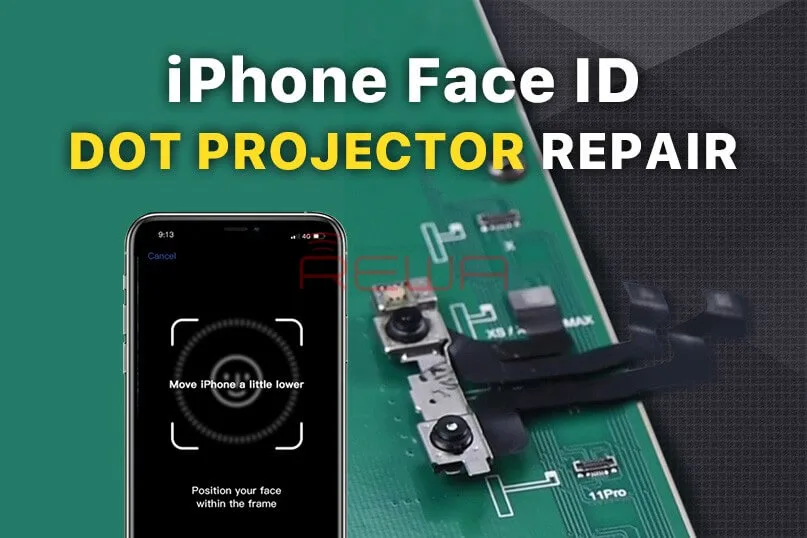
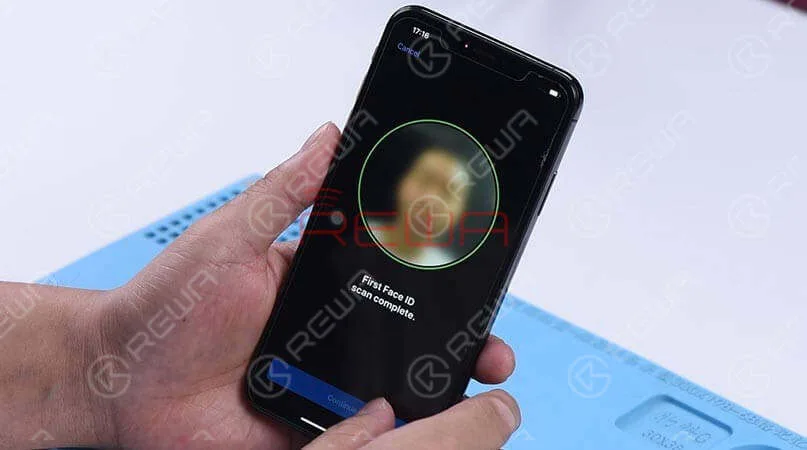
    Face ID Not Working ‘Move iPhone a Little Lower/Higher‘ is usually caused by damage to the dot projector and the problem is confirmed to be almost unrepairable. However, there is finally a solution to fix the problem. Today REWA LAB will show you the latest dot projector repair technique!
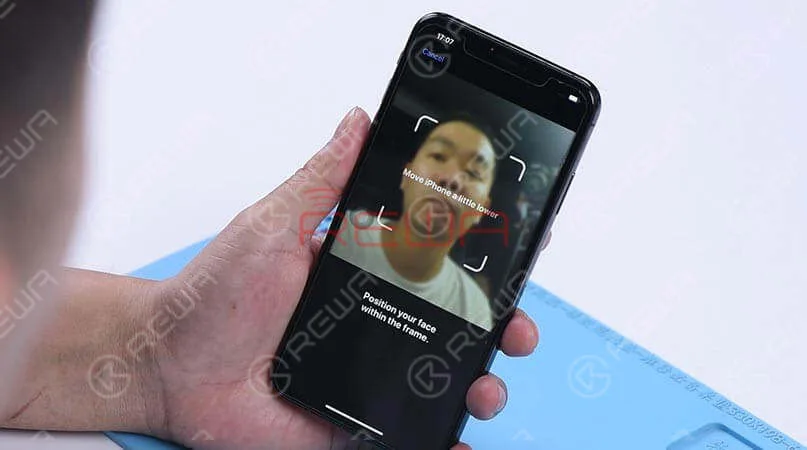
    Face ID Not Working 'Move iPhone a Little Lower/Higher' is usually caused by damage to the dot projector and the problem is confirmed to be almost unrepairable. However, there is finally a solution to fix the problem. Today REWA LAB will show you the latest dot projector repair technique!

    Problema

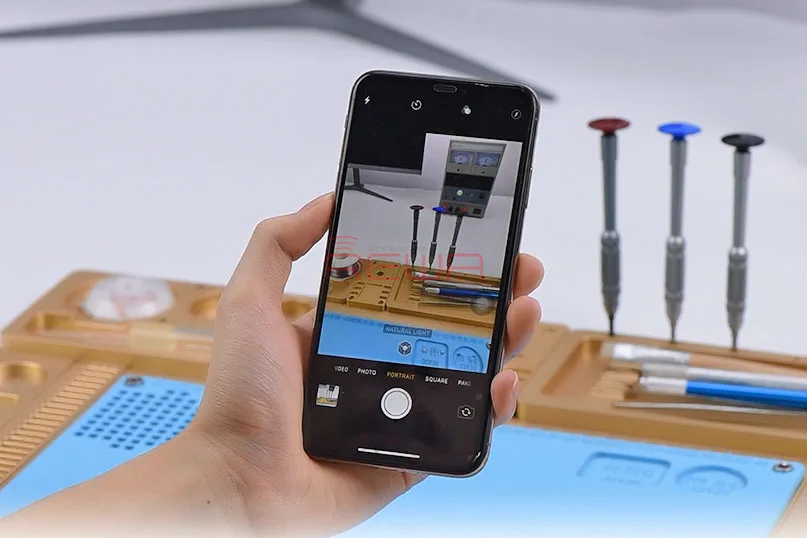
    When trying to set up Face ID on the iPhone, we get the message ‘move iPhone a little lower/higher’. Next, switch to the front camera, we found that the name of the lighting effect ‘Natural Light’ stays the same when the camera detects a person’s face. What’s more, the pop-up notification keeps saying ‘Move farther away’. Normally, when Portrait mode is ready, the name of the lighting effect ‘Natural Light’ should turn yellow. Judging by this, the dot projector or relevant circuits of the dot projector might have malfunctioned.

    When trying to set up Face ID on the iPhone, we get the message 'move iPhone a little lower/higher'. Next, switch to the front camera, we found that the name of the lighting effect ‘Natural Light’ stays the same when the camera detects a person's face. What's more, the pop-up notification keeps saying ‘Move farther away’. Normally, when Portrait mode is ready, the name of the lighting effect ‘Natural Light’ should turn yellow. Judging by this, the dot projector or relevant circuits of the dot projector might have malfunctioned.
    Diagnóstico 

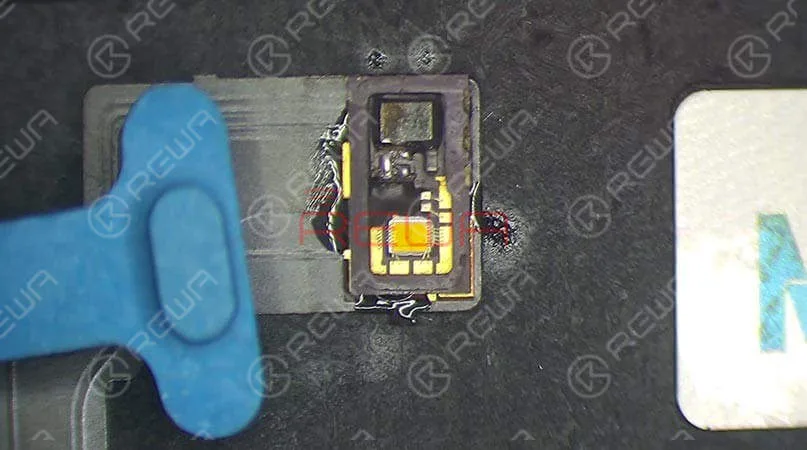
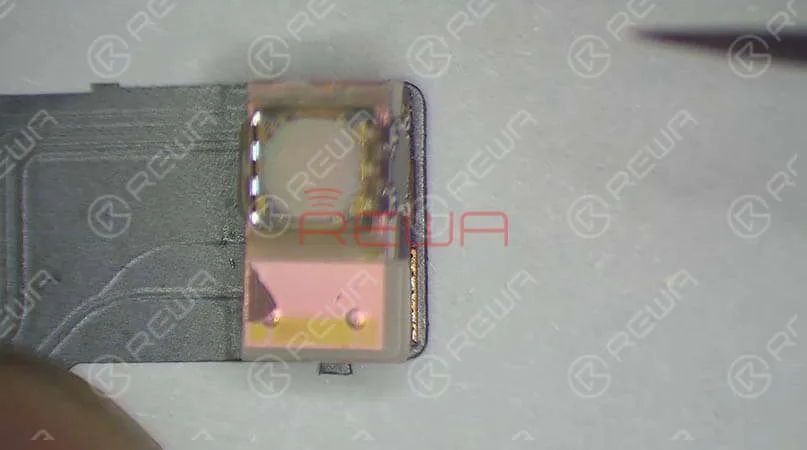
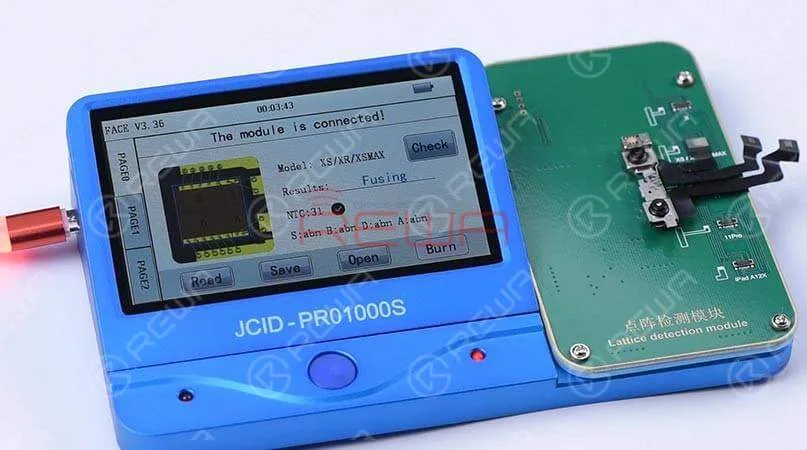
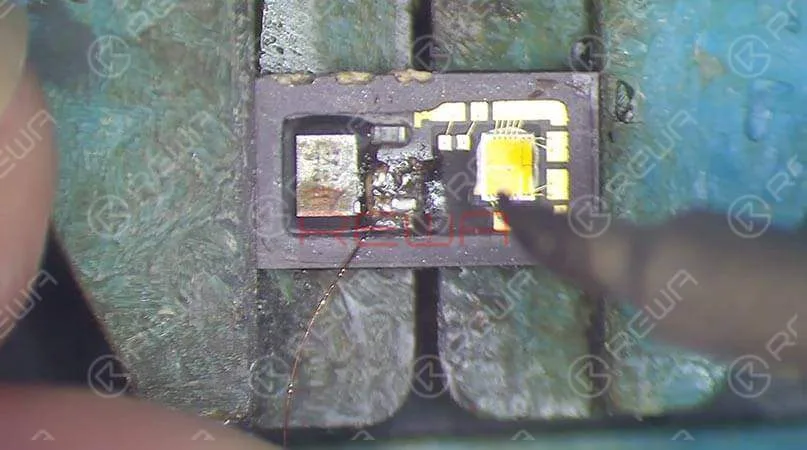
    Take apart the phone and remove the display assembly first. We can see that the dot projector has been water damaged and the crystal on the dot projector is broken. Take out the front camera assembly carefully. Here we recommend using a repair programmer to check the dot projector flex cable. Connecting the dot projector flex cable with the programmer, the results show ‘Fusing’ which means the dot projector flex cable has been damaged. We need to burn data of the original dot projector flex cable onto a new one and then replace the broken crystal.

    Connecting the dot projector flex cable with the programmer, the results show ‘Fusing’ which means the dot projector flex cable has been damaged. We need to burn data of the original dot projector flex cable onto a new one and then replace the broken crystal.
    Connecting the dot projector flex cable with the programmer, the results show ‘Fusing’ which means the dot projector flex cable has been damaged. We need to burn data of the original dot projector flex cable onto a new one and then replace the broken crystal.
    Connecting the dot projector flex cable with the programmer, the results show ‘Fusing’ which means the dot projector flex cable has been damaged. We need to burn data of the original dot projector flex cable onto a new one and then replace the broken crystal.
    Connecting the dot projector flex cable with the programmer, the results show ‘Fusing’ which means the dot projector flex cable has been damaged. We need to burn data of the original dot projector flex cable onto a new one and then replace the broken crystal.

    Solución de problemas   

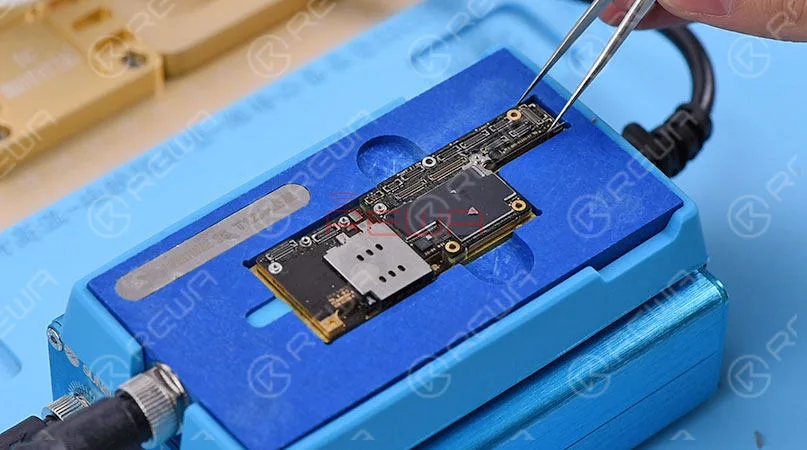
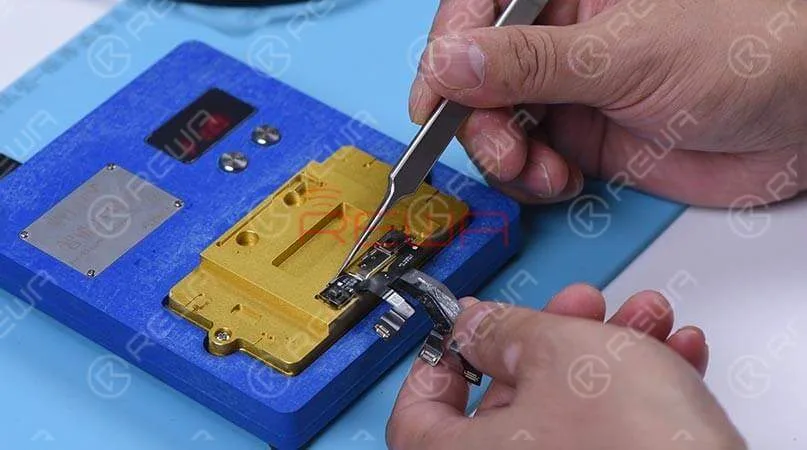
    In the first step, we should separate the crystal from the cable. Compared to traditional operations with a hot air gun, we prefer to use an intelligent preheating platform. Put the dot projector into the matching rubber mold and separate the crystal from the flex cable carefully with the blade.  Next, we use the repair programmer again to burn the origin data onto the new dot projector flex cable. After completing these two steps, we need to solder the dot projector module and glue a known-good crystal. For detailed instructions, click on the video at the bottom of the article
    troubleshooting iphone xs max face id not working dot projector repair 8

    Volver a montar y probar 

    Apply double-sided adhesive tape on the backside of the front camera, and adhere the dot projector flex cable to the right position. Get the front camera assembly installed and get the logic board assembled and buckle the display assembly. Face ID can be set up successfully, and the phone can be unlocked with Face ID this time.  Tips: The double-sided adhesive tape used here is for the test. We need to glue the dot projector module onto the flex cable after fault clearance.

    Herramientas utilizadas

    Visite nuestro tienda en línea for more parts and tools.You can also visit REWA YouTube Channel to check our video.
  • Limpia las almohadillas adhesivas del iPhone XS Max

    Limpia las almohadillas adhesivas del iPhone XS Max

    Limpia las almohadillas de unión del iPhone XS Max con el soldador y la mecha de soldadura

  • iPhone Xs Max Flickering Screen Caused By Mistake | iPhone Repair Tips

    iPhone Xs Max Flickering Screen Caused By Mistake | iPhone Repair Tips

    Develop a good habit and keep a well-organized workspace in daily repair work will help a lot for repair technicians. Today we share a special repair case – iPhone Xs Max flickering screen which caused by the technician’s mistake.

  • Troubleshooting iPhone XS Max Portrait Mode Not Working

    Troubleshooting iPhone XS Max Portrait Mode Not Working

    Many iPhone XS Max users have the complaint that the Portrait Mode on their phones is not working. And it’s not a strange thing to see that questions like ‘Why does my iPhone XS Max Portrait Mode not working’ and ‘How to fix my iPhone XS Max Portrait Mode not working’ have been so frequently searched on Google. If you are one of them, this article will help you to solve this issue. Here REWA is going to tell you how to fix Portrait Mode not working on iPhone XS Max.

    Usually, there are two different causes for Portrait Mode not working on iPhone XS Max. Software problems or hardware problems. Here we have some solutions for software problems.

    Nota: Don’t use portrait mode in dark places or low light. Because portrait mode will not work in low light. And make sure that the distance between the phone and the subject is proper(neither too far nor too close). Keep at least 19 inches distance between the phone and the subject.

    1. Restart your iPhone XS Max or camera app. 2. Upgrading iOS: Go to Set->General->Software Update. 3. Reset all settings: Go to Set->General->Reset-> Reset All Settings. 4. Restore your iPhone XS Max to Factory Settings(Factory Reset): Go to Settings->General->Reset-> Erase All Contents and Settings. Take a backup before resetting your iPhone to Factory Settings, since this action will erase all data from your device.

    So, these are some methods to resolve the iPhone XS Max portrait mode not working issue. You can try them out. However, if nothing works, the possible situation is that the motherboard or the camera has been damaged. In this case, you need to have the damaged one replaced. Well, you can also follow our solution below.

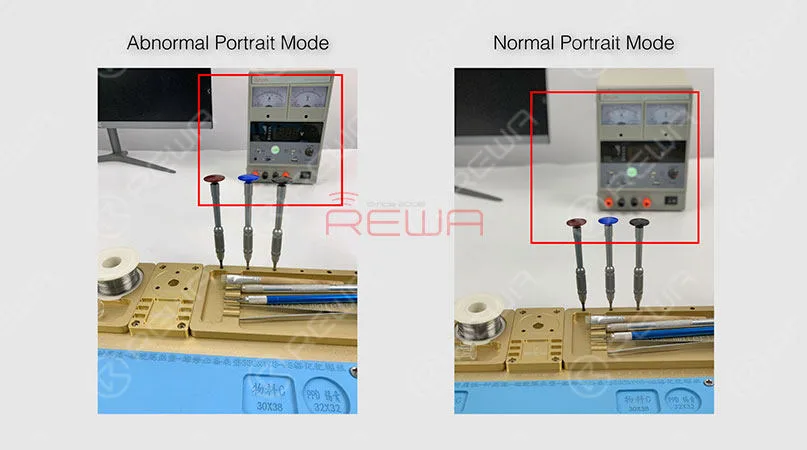
    The first thing we do is to check if the Portrait Mode is in a normal status. Open the camera app and swipe to portrait mode. We can see clearly that the background is not blurred. Which indicates that the wide-angle lens is working normally, while the telephoto lens is not working at all.

    iPhone XS Max Portrait Mode Not Working Troubleshooting

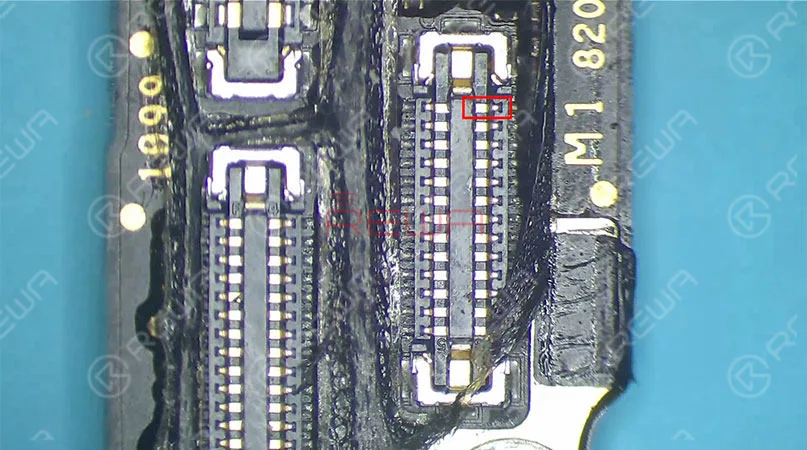
    Take apart the phone and take out the motherboard. Run diode mode measurement of the Tele camera connector J4000. The measured value of Pin 25 is OL, which is abnormal. Which also indicates that Pin 25 relevant circuit has open-circuited(The circuit is formed by a zero-ohm resistor R4006, several capacitors and the camera power supply IC U3700). Since capacitors have nothing to do with the open-circuited condition. So the first thing we do is to check the zero-ohm resistor R4006. Run diode mode measurement of R4006. Judging by the measured value, R4006 has not open-circuited. We can confirm that the fault is probably related to U3700.

    iPhone XS Max Portrait Mode Not Working Troubleshooting

    Try to replace with a new camera power supply IC. You need to separate the upper and the lower layer first. And then detach U3700. Continue to clean the bonding pad and solder a new camera power supply IC. Solder the two layers together later. Detailed steps go as follows:

    iPhone XS Max Portrait Mode Not Working Troubleshooting

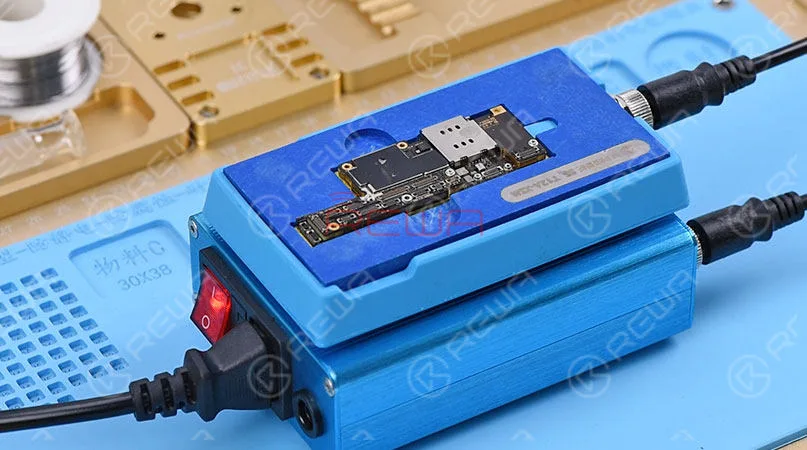
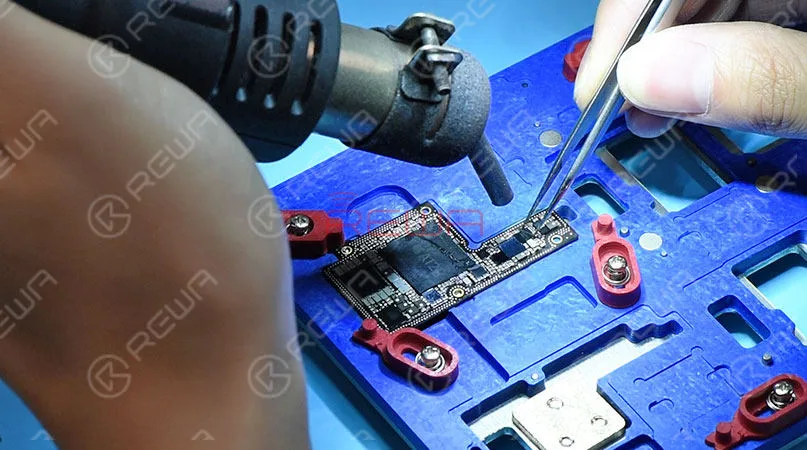
    Place the motherboard on the Heating Platform. This machine can quickly desolder & resolder iPhone XS Max double-layer motherboard. It offers heat evenly that can protect the motherboard from damage. With accurate temperature control and temperature adjustment, it is highly recommended for motherboard repair. Pick up the upper layer with tweezers once solder on the third space PCB has melted, and detach U3700 from the board with Pistola de aire caliente.

    iPhone XS Max Portrait Mode Not Working Troubleshooting

    Apply solder to clean the bonding pad first. Then clean thoroughly with rosin soaked Solder Wick. Clean with PCB Cleaner afterwards. Get a new camera power supply IC in position and solder with Hot Air Gun. Next thing we need to do is to solder the two layers together. Clean the third space PCB with rosin soaked solder wick first, then reball the lower layer. Solidify the third space PCB with Paste Flux afterwards. Once done, apply some BGA Paste Flux to the third space PCB. Get the upper layer and the lower layer in position. Use the iPhone XS Max Motherboard Soldering/Desoldering Rework Station to solder the double-layer motherboard.

    iPhone XS Max Portrait Mode Not Working Troubleshooting

    Once we have confirmed that the motherboard has been soldered successfully, we can assemble the phone and test. Warm tips: get the phone full assembled after confirmation of fault clearance. Get the motherboard and display assembly installed. Connect the battery and press the power button. The iPhone XS Max turns on normally. Open the camera app and swipe to Portrait Mode. We can see that the subject is being focused and the background is blurred. The Portrait mode not working on iPhone XS Max issue has been solved successfully.

    iPhone XS Max Portrait Mode Not Working Troubleshooting

    PLUS:  with our unique teaching system, REWA offline training course can help technicians improve their repair skills by mastering repair thoughts and repair techniques.

    Tools used:

    Estación de soldadura/desoldadura de la placa base del iPhone XS Max

    Explosion-Proof PCB holder for iPhone XS/XS Max

    Estación de retrabajo con pistola de aire caliente - 990AD

    Estación de soldadura - 969A

    Microscopio electrónico - Tipo 1

    Multímetro digital

    Alicates de apertura LCD

    Mecha de soldadura

    Fundente de colofonia

    Pinza recta

    Pinzas de gancho curvo

    Destornillador

    Cepillo suave

    Palanca de plástico antiestática

    Rascador BGA de acero inoxidable

  • Guía de solución de problemas: problemas y soluciones del iPhone XS Max

    Guía de solución de problemas: problemas y soluciones del iPhone XS Max

    Para cada generación de iPhone, actualizaron grandes características a sus nuevos dispositivos. Sin embargo, cada nuevo teléfono se encuentra con problemas específicos de su día de lanzamiento.

    Desde el lanzamiento del iPhone XS/iPhone XS Max, los usuarios han experimentado varios problemas y fallos. Veamos cuáles son los problemas y cómo solucionarlos.

    Línea verde molesta en la pantalla

    Apple pasó a Pantalla OLED desde el iPhone X en 2018.

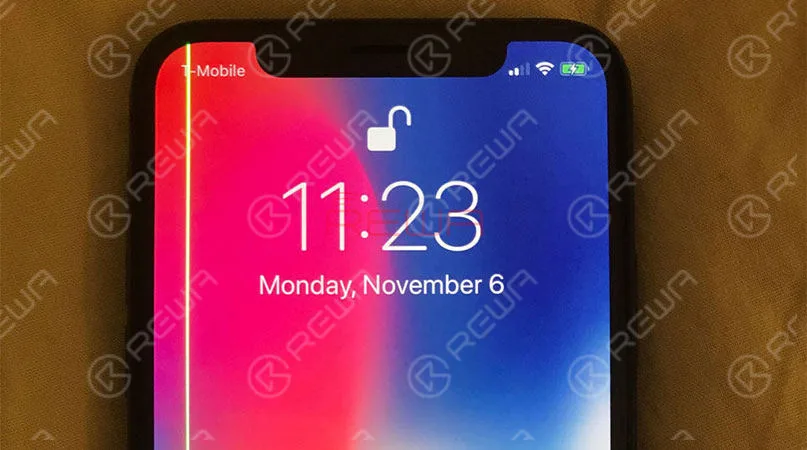
    Sin embargo, un usuario en Australia informó que una línea verde brillante que recorre verticalmente la pantalla de su iPhone XS Max después de un período de uso.

    Varios clientes se encuentran con este problema después de esto.

    Solución

    Para este problema, Apple reemplazará el dispositivo en garantía.

    Si estás experimentando esta línea verde vertical de píxeles en el lateral de tu iPhone, es hora de concertar una cita con la Apple Store.

    troubleshooting guide iphone xs max issues fixes the newest common and

    Mala conexión móvil y velocidad WIFI lenta

    Según los usuarios del iPhone XS/iPhone XS Max, sus dispositivos presentaban menos barras y peor señal en comparación con sus últimas generaciones.

    A veces incluso muestra "sin servicio", especialmente en el área de las señales débiles. Si bien estas afirmaciones están creciendo rápidamente en número, Además de LTE problema, otros usuarios afirmaron que sus dispositivos parecen ser más lenta velocidad WIFI.

    La mayoría de las personas que experimentaban velocidades más lentas descubrieron que sus modelos de iPhone XS estaban conectados a la red de 2,4 GHz en lugar de a la red de 5 GHz.

    Solución

    Algunos especulan con la posibilidad de que el cambio de Qualcomm a Intel para el módem del iPhone sea la causa.

    Otros han señalado que es poco probable que este sea el origen del problema. De todos modos, Apple ha lanzado IOS 12.0.1, que corrige los problemas de LTE y WIFI.

    6 Problemas y soluciones comunes del iPhone XS/iPhone XS Max

    Puerta de carga

    Algunos usuarios tienen problemas para cargar los dispositivos a través de una conexión por cable.

    Encuentran que su iPhone XS no puede cargar con sus puertos de carga enchufados.

    A no ser que desenchufes el cargador, despiertes la pantalla y vuelvas a enchufarlo todo de nuevo, empieza a cargar. Pero no todos los modelos de iPhone XS están experimentando el problema.

    Lo que es más, algunas personas con teléfonos más antiguos están informando con un comportamiento similar. Eso sugiere que el problema podría ser en realidad con la última actualización de software iOS 12.

    Solución

    Eso significa que podría solucionarse con una actualización de software.

    6 Problemas y soluciones comunes del iPhone XS/iPhone XS Max

    Puerta de la belleza

    Los usuarios que acuden a los foros afirman que la nueva cámara selfie del iPhone de Apple suaviza automáticamente la piel en las fotos tomadas desde la cámara frontal, lo que hace que salgan demasiado bien. Y no hay forma de desactivarlo. Esto es lo más inaceptable

    Solución

    Según Apple, el sistema de cámara selfie en el iPhone X utiliza sensores más rápidos chips mejorados, y "algoritmos avanzados" para hacer que tus fotos se vean mejor con una característica llamada "Smart HDR". los usuarios pueden ir a Configuración> cámara> Smart HDR para desactivar el modo de belleza.

    6 Problemas y soluciones comunes del iPhone XS/iPhone XS Max

    Problema de conectividad de audio causado por Bluetooth

    Un pequeño número de propietarios de iPhone XS y iPhone XS Max están sufriendo problemas de conectividad Bluetooth en los que sus iPhones no se comunican correctamente con el sistema de entretenimiento de su coche.

    Solución

    Este problema aún no tiene solución suministrada por Apple.

    6 Problemas y soluciones comunes del iPhone XS/iPhone XS Max

    Polvo en el interior del objetivo de la cámara

    En realidad se trata de un problema menor. Algunos usuarios afirman que el polvo entra en la lente de la cámara continuamente. Lo que hace que la cámara no funcione bien.

    En realidad, el hecho de que estén bien sellados no hace que el iPhone sea inmune al polvo y la suciedad. El entorno también interviene.

    Solución

    Para deshacerte de este problema, llévalo a la Apple Store para que lo limpien.

    6 Problemas y soluciones comunes del iPhone XS/iPhone XS Max

    Si tienes un iPhone XS y XS Max que se enfrentan a cualquiera de los problemas anteriores, háganoslo saber en la sección de comentarios.