Etiqueta: ipad pro

  • Cómo reparar el problema de que el iPad Pro 2020 no se enciende

    Cómo reparar el problema de que el iPad Pro 2020 no se enciende

    Si eres propietario del iPad Pro 11 (2020), puede que te encuentres ante un dilema inesperado: tu dispositivo no se enciende a pesar de estar en perfectas condiciones. Anunciado el 18 de marzo de 2020, el iPad Pro ha sido elogiado por su excepcional rendimiento y elegante diseño, pero algunos usuarios han informado de fallos repentinos al arrancar, dejándoles frustrados y buscando soluciones. Tanto si has probado el clásico reinicio duro manteniendo pulsados los botones de volumen y encendido sin éxito, como si estás empezando a investigar este problema, este post te guiará a través de los pasos de solución de problemas y las posibles opciones de reparación para que tu iPad vuelva a funcionar.

    how repair ipad pro 2020 not turning problem select geo ca fmt whh

    Teléfono

    Modelo: Apple iPad Pro 11 (2020)

    Anunciado: 2020, 18 de marzo

    Fenómeno del defecto

    El iPad funcionaba con normalidad, pero al día siguiente dejó de arrancar. El usuario intentó reiniciarlo pulsando simultáneamente el botón de volumen y el de encendido durante un minuto, pero el dispositivo seguía sin encenderse.

    Solución de problemas

    1: Inspección inicial
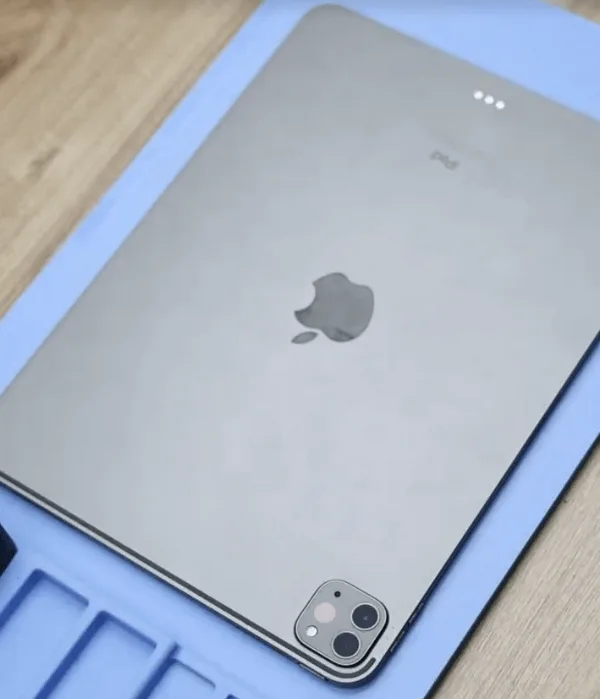
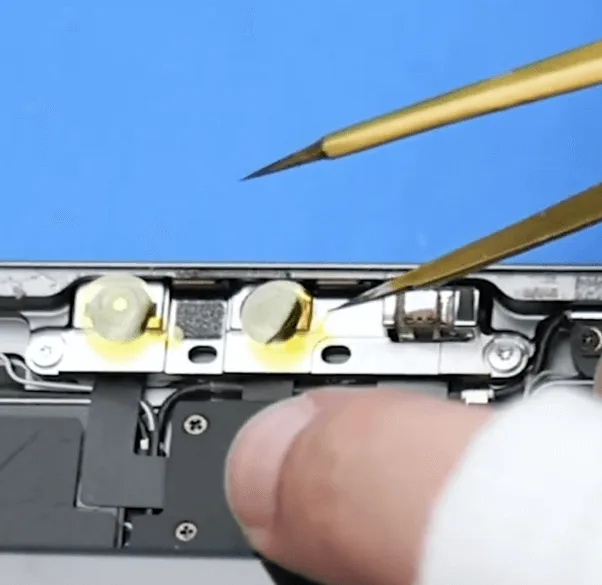
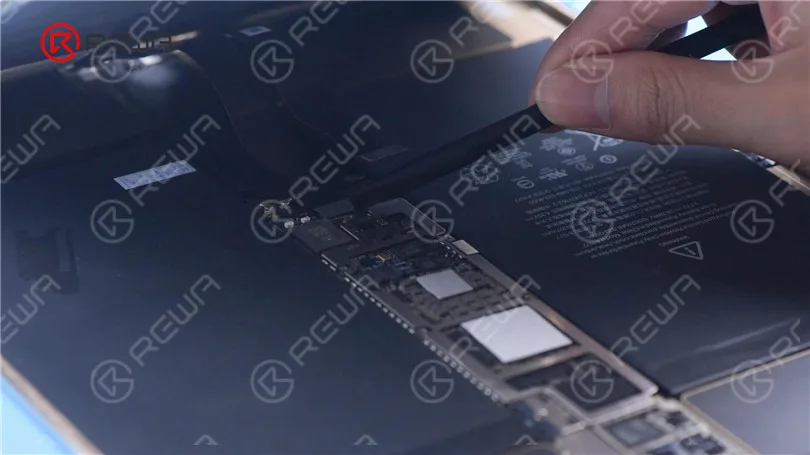
    • Coloque el iPad en un almohadilla térmica para ablandar el adhesivo del interior.
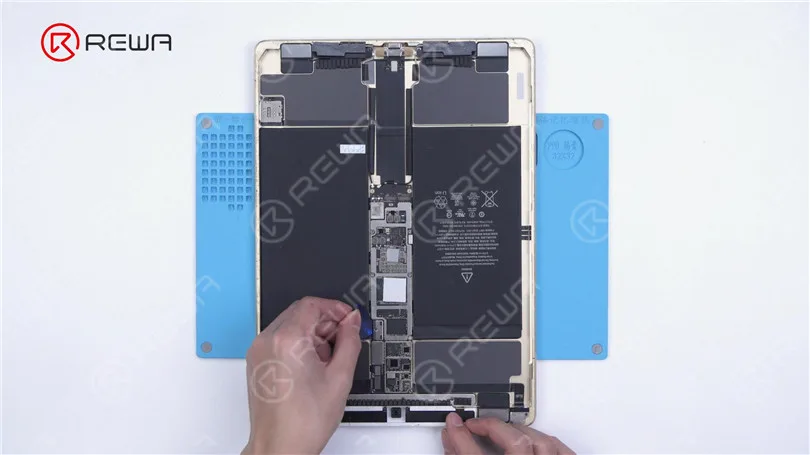
    • Después de calentarla lo suficiente, utilice una palanca para separar con cuidado la rejilla del cuerpo.
    • Proteja las cámaras con pegatinas para evitar daños durante el proceso de reparación.
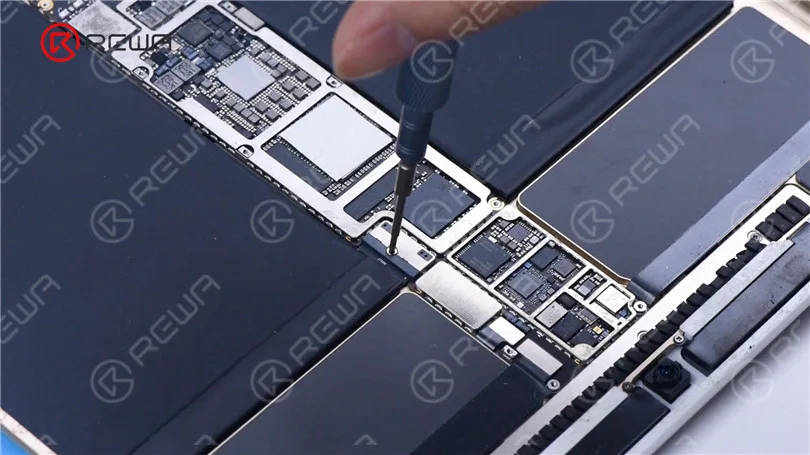
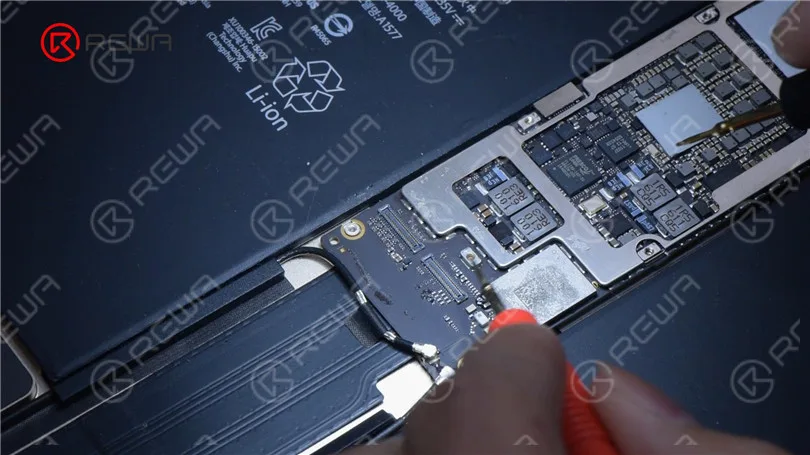
    • Retire los tornillos que sujetan la placa base.

    Inspeccione visualmente la placa base, comprobando que parece limpia, sin signos de daños por agua o reparaciones anteriores.

    2: Pruebas de la fuente de alimentación
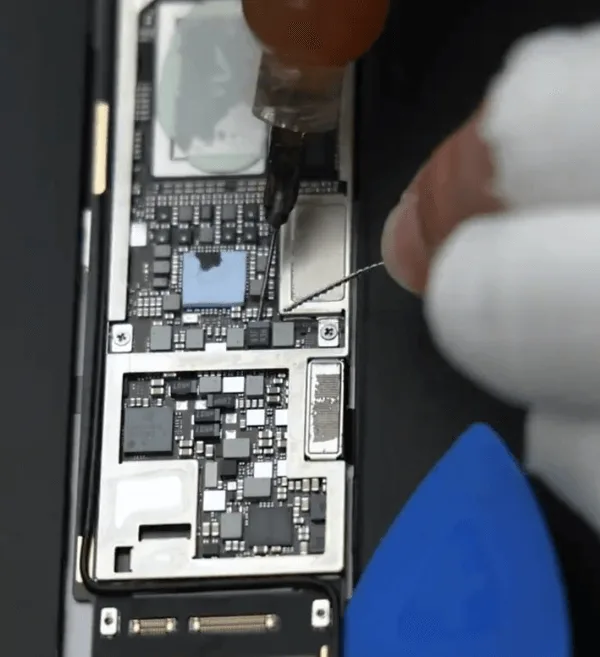
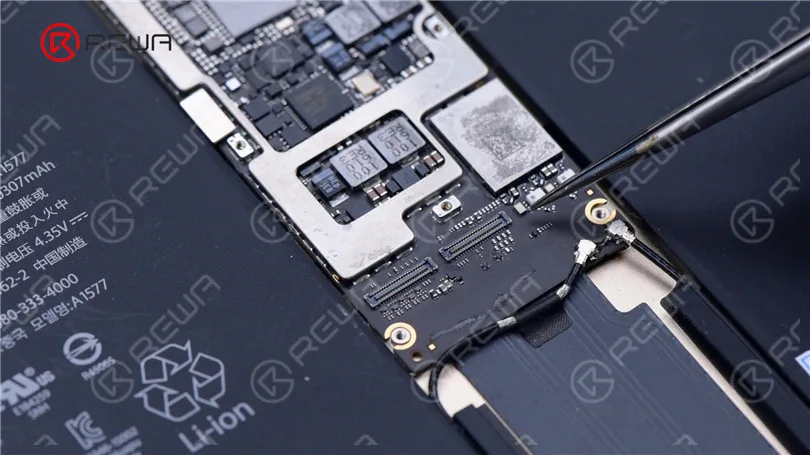
    • Retire la cubierta de protección de la placa base.
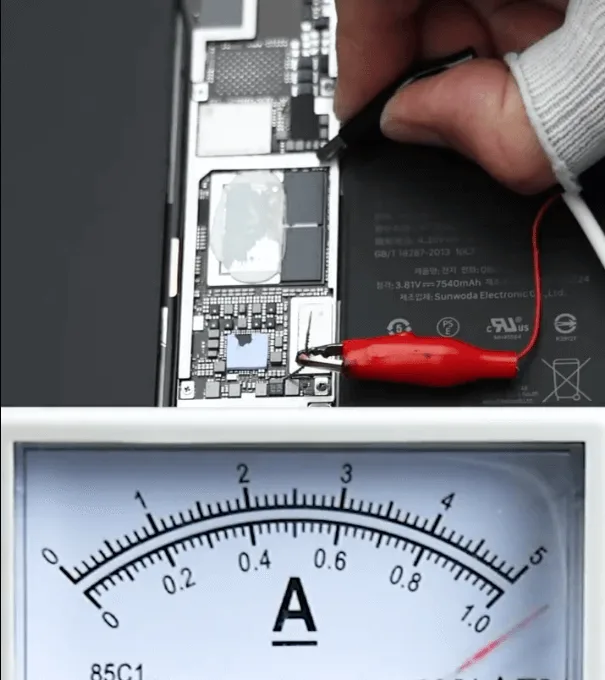
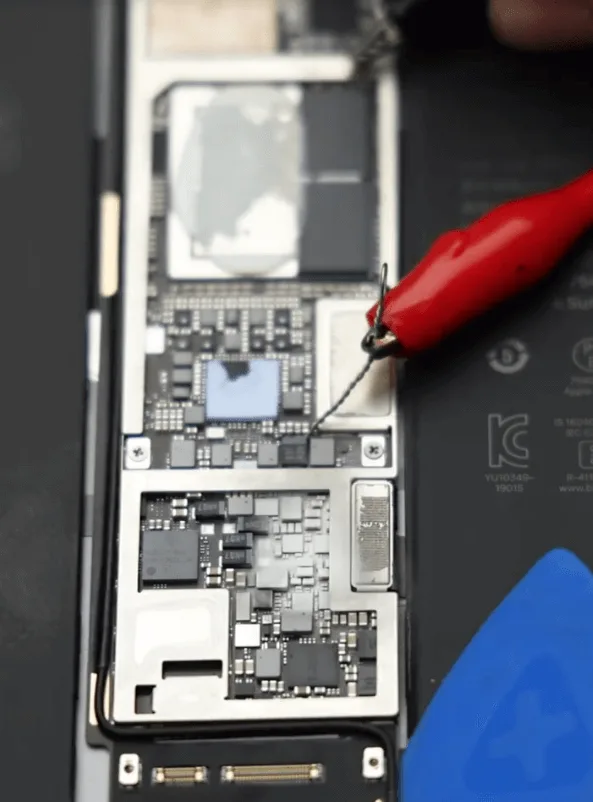
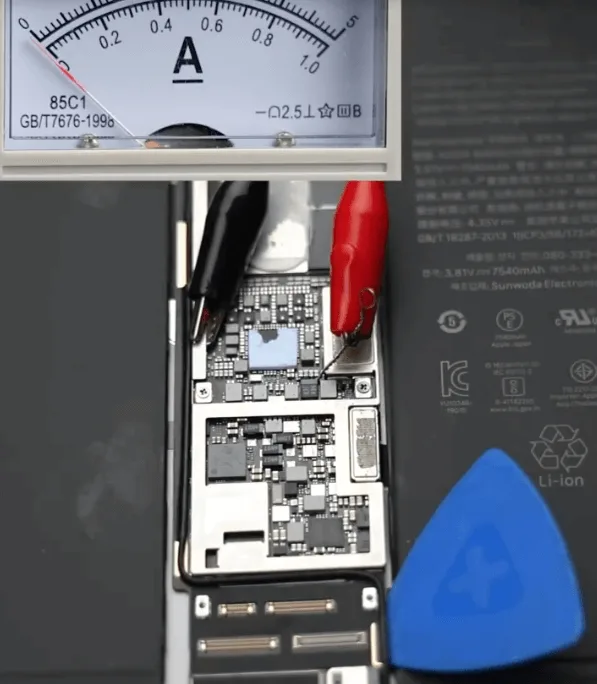
    • Conecte un cable en el carril VDD_MAIN y conecte la placa base a una fuente de alimentación de CC para realizar pruebas.

    Observe que fluye una gran corriente inmediatamente después de la conexión, lo que indica un cortocircuito en los raíles de alimentación de 4 V CC de la placa base.

    Proceso de reparación

    1: Identifique el componente cortocircuitado:
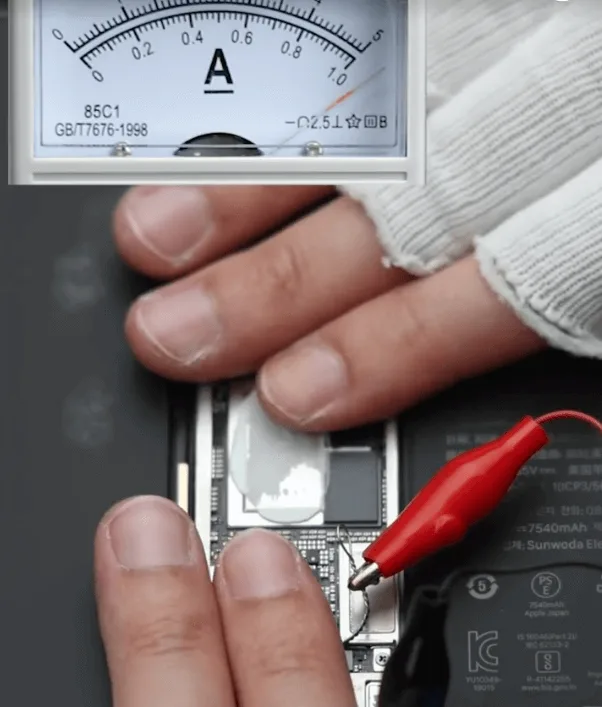
    • Ajuste la tensión de alimentación de CC a 1,8 V.
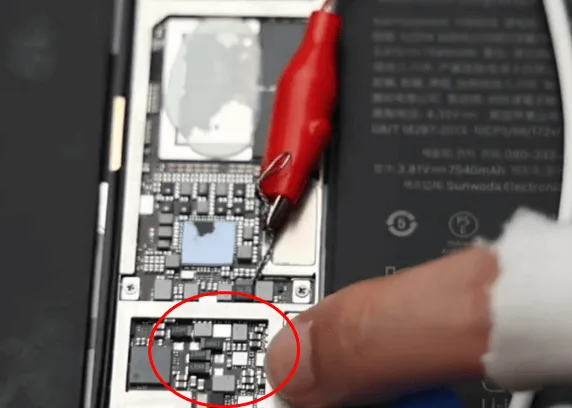
    • Toque la placa base para detectar zonas calientes o utilice una cámara termográfica para localizar el componente caliente.
    • Concéntrese en los componentes relacionados con la carga, donde se detecta el calor.
    (también se puede observar el componente caliente mediante cámara termográfica )

    2: Localizar el componente defectuoso
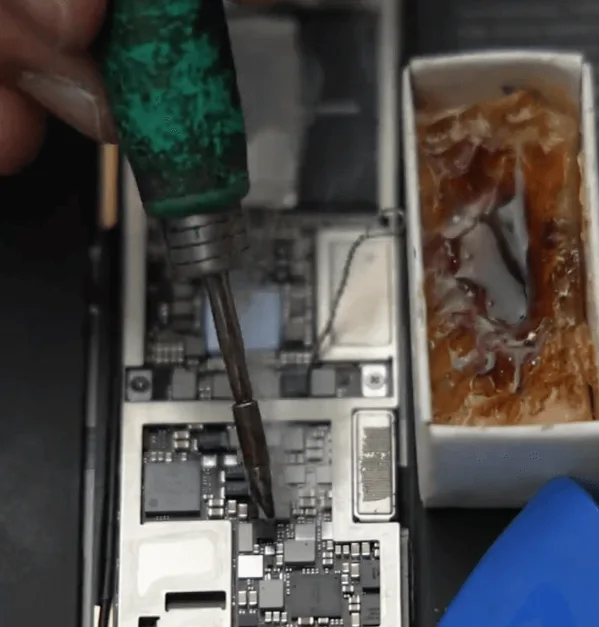
    • Aplique colofonia a los componentes sospechosos de la placa base.
    • Aplique tensión de nuevo y observe la colofonia para identificar qué componente está en cortocircuito.
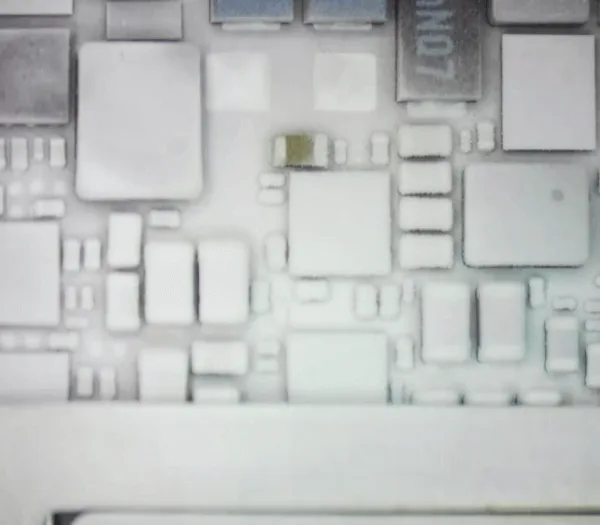
    • Un pequeño condensador de tipo filtro se identifica cuando se funde la colofonia que contiene.

    3: Retirar y sustituir el condensador defectuoso
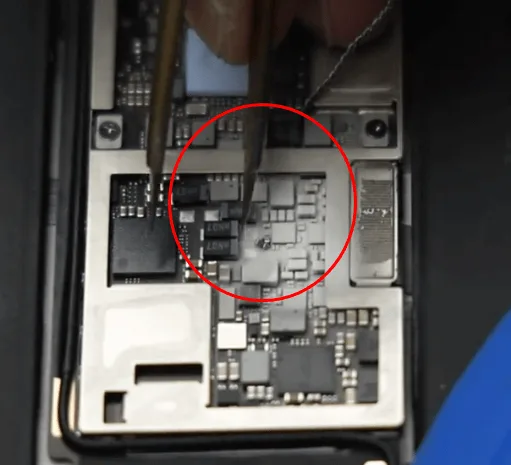
    • Retire con cuidado el condensador defectuoso utilizando unas pinzas.
    • Limpie la zona de cualquier resto de colofonia.

    Vuelve a probar la placa base arrancando con la fuente de alimentación de CC. Esta vez no hay fugas de corriente y el iPad arranca normalmente al pulsar el botón de encendido.

    4: Volver a montar el iPad

    iPad Pro 2020 no se puede encender
    • Vuelva a colocar la pegatina en la placa base y vuelva a montar el iPad.
    • Pruebe el iPad una vez más para asegurarse de que se enciende y funciona correctamente. El problema se resuelve sustituyendo el condensador tipo filtro defectuoso.

    Consejos:

    Para evitar estos problemas, utilice siempre un cargador y un cable cualificados, evite utilizar el dispositivo mientras se carga y manténgalo en un ambiente fresco durante la carga.

    Los fallos repentinos de arranque en iPads y iPhones suelen deberse a daños en los condensadores de tipo filtro, que pueden ser consecuencia de prácticas de carga inadecuadas o del uso de cargadores y cables de mala calidad.


  • Cómo arreglar un iPad Pro que no enciende - Cortocircuito detectado por Rosin Dispenser

    Cómo arreglar un iPad Pro que no enciende - Cortocircuito detectado por Rosin Dispenser

    The iPad Pro was water-damaged and then won’t turn on. With the help of the rosin dispenser, we found the short-circuited component. After removing the damaged capacitor, the fault was cleared.

  • iPad Pro Touch Screen Not Working /Unresponsive Screen Problem Reparación

    iPad Pro Touch Screen Not Working /Unresponsive Screen Problem Reparación

    La pantalla del iPad Pro 1st Gen no responde al tacto.Intentamos reemplazar la pantalla en primer lugar pero la pantalla seguía sin responder. Los conectores táctiles estaban bien. Así que juzgamos que el fallo de la placa base ha causado el problema. A continuación, vamos a ver cómo solucionar el problema.

  • ¿No funciona la pantalla táctil del iPad Pro? Aprende a arreglar una pantalla que no responde

    ¿No funciona la pantalla táctil del iPad Pro? Aprende a arreglar una pantalla que no responde

    In this guide, we’ll explore a detailed step-by-step process for fixing an unresponsive touch screen issue on a 1st Gen iPad Pro. If you’ve encountered this problem, don’t worry; we have a solution that involves diagnosing the issue and making the necessary repairs. Let’s dive into the troubleshooting and repair process.

    Power On the iPad Pro

    iPad Pro Touch Screen Not Working /Unresponsive Screen Problem Reparación

    The first thing to try when your iPad’s screen isn’t responding is a simple restart. Hold down the power button until the “Slide to power off” slider appears. Slide it to turn off the device and then turn it back on. If the screen doesn’t response and can’t turn off then follow the next step.

    Disconnect the Display

    ipad pro touch screen not working learn how fix unresponsive scree 3

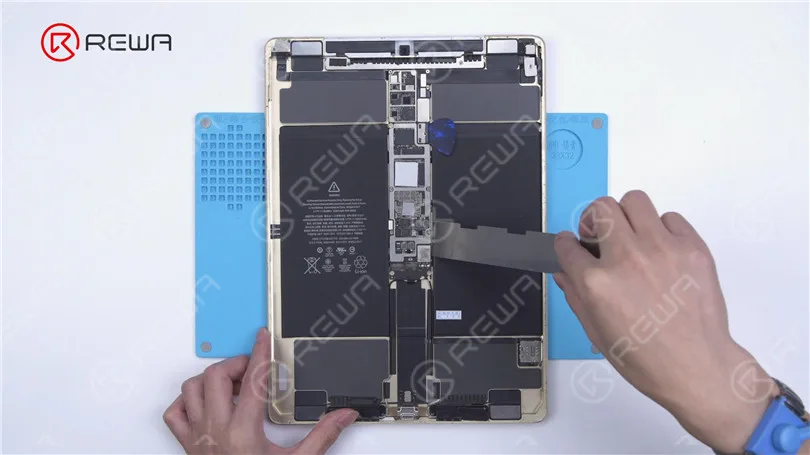
    In some cases, a disconnected or damaged display could be the culprit. To check this, you may need to open up your iPad. If you’re not comfortable with this, it’s best to seek professional help. Remove the battery screw on the motherboard and insert a pry piece to isolate the battery from the motherboard to prevent any circuit damage.

    Install a Known-Good Display

    iPad Pro Touch Screen Not Working /Unresponsive Screen Problem Reparación

    If after disconnecting and reconnecting the display, the touchscreen is still unresponsive, it’s safe to say that the issue is not with the display. Instead, it could be a motherboard fault.

    Inspect Touch Connectors

    iPad Pro Touch Screen Not Working /Unresponsive Screen Problem Reparación

    Check the touch connectors to ensure they are not deformed or damaged. If they appear to be in good condition, proceed to the next step.

    Measure Resistance Values

    iPad Pro Touch Screen Not Working /Unresponsive Screen Problem Reparación

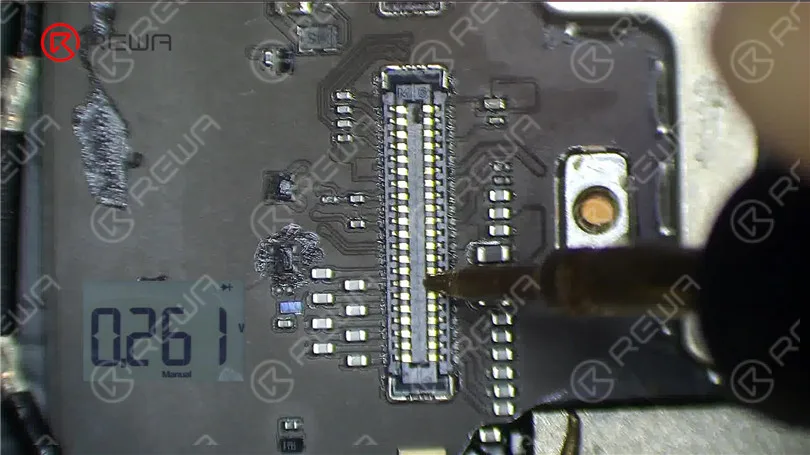
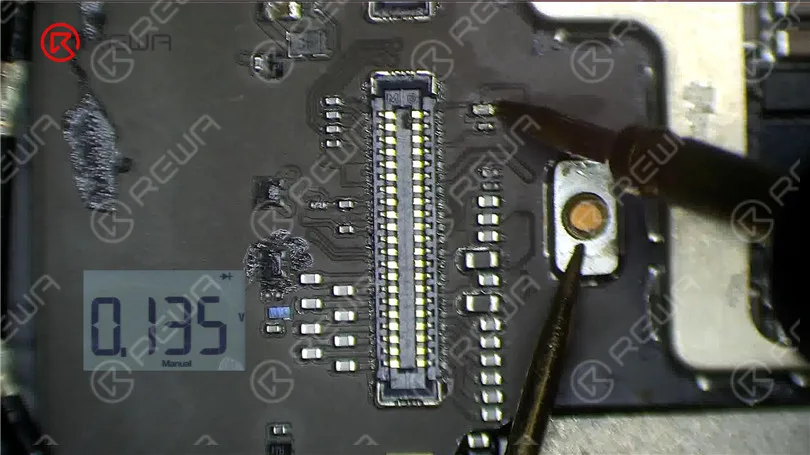
    Using a multimeter, measure the resistance values of pin 2, pin 4, and pin 6. The normal value should be around 144 ohms. If these values are significantly different, you might have identified the issue.

    Examine the Inductor

    ipad pro touch screen not working learn how fix unresponsive scree 7
    ipad pro touch screen not working learn how fix unresponsive scree 8

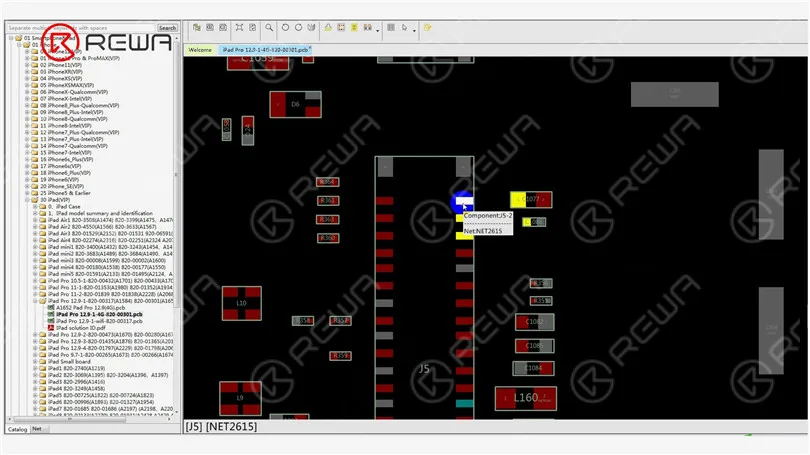
    Inspect the inductor that connects these pins to the chip. Measure the resistance value of this inductor. If it’s abnormal, the inductor might be damaged, which can happen due to improper operation, such as installing the display with the battery still connected.

    iPad Pro Touch Screen Not Working /Unresponsive Screen Problem Reparación

    Replace the Damaged Inductor

    To fix the issue, you’ll need to replace the damaged inductor. Follow these steps carefully.

    Pry the motherboard slightly to prevent rapid heat dissipation.

    ipad pro touch screen not working learn how fix unresponsive scree 10

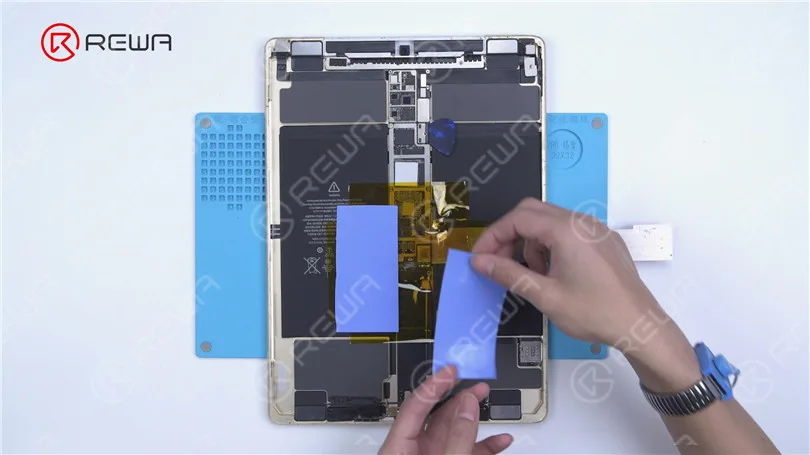
    Apply high-temperature tape and an insulation mat.

    ipad pro touch screen not working learn how fix unresponsive scree 11

    Use paste flux and heat with a Hot Air Gun at 360°C and airflow 2 to remove the damaged inductor.

    ipad pro touch screen not working learn how fix unresponsive scree 12

    Apply a middle-temperature solder paste and continue heating with the Hot Air Gun to lower the melting point of the bonding pad.

    ipad pro touch screen not working learn how fix unresponsive scree 13
    • Remove any remaining solder with a solder wick.
    • Source a replacement inductor from an abandoned board and solder it with the Hot Air Gun at 330°C and airflow 2.
    • Clean the area with a PCB cleaner.
    • Measure the resistance values again to ensure they are normal.
    ipad pro touch screen not working learn how fix unresponsive scree 14

    Test the Screen

    Reassemble your iPad and test the touchscreen. If both the touch and 3D Touch functions work properly, congratulations, you’ve successfully fixed the unresponsive touchscreen issue on your iPad Pro.

    iPad Pro Touch Screen Not Working /Unresponsive Screen Problem Reparación

    Video Guide to Fix ipad pro touch screen not working

    Conclusión:

    Troubleshooting and repairing an unresponsive iPad Pro touchscreen can be a daunting task, but with the right steps and precautions, it’s possible to diagnose and fix the issue. Remember to disconnect the battery when working on your device to avoid any further damage. If you’re unsure about any step, it’s always best to seek the help of a professional technician.

    Please feel free to leave a comment if you have any questions or if there are other repair topics you’d like to learn about. If you’re interested in mastering iPhone motherboard repair, consider enrolling in the Academia REWA live online course, designed for beginners. Hurry, as only 20 spots are available for each training session. And for iPad replacement parts, visit the REWA Shop.