Schlagwort: iphone xs max

  • Troubleshooting iPhone XS Max Face ID Not Working – Dot Projector Repair

    Fehlerbehebung: Face ID am iPhone XS Max funktioniert nicht – Reparatur des Punktprojektors

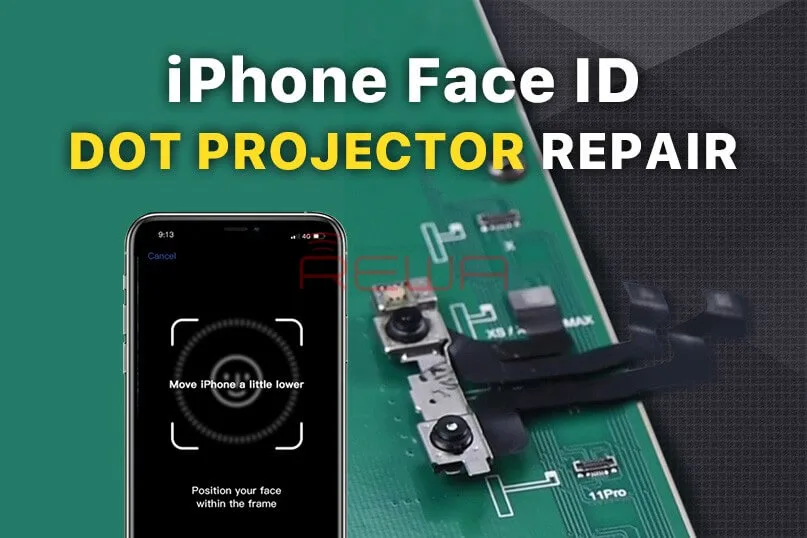
    Face ID Not Working ‘Move iPhone a Little Lower/Higher‘ is usually caused by damage to the dot projector and the problem is confirmed to be almost unrepairable. However, there is finally a solution to fix the problem. Today REWA LAB will show you the latest dot projector repair technique!
    Face ID Not Working 'Move iPhone a Little Lower/Higher' is usually caused by damage to the dot projector and the problem is confirmed to be almost unrepairable. However, there is finally a solution to fix the problem. Today REWA LAB will show you the latest dot projector repair technique!

    Problem

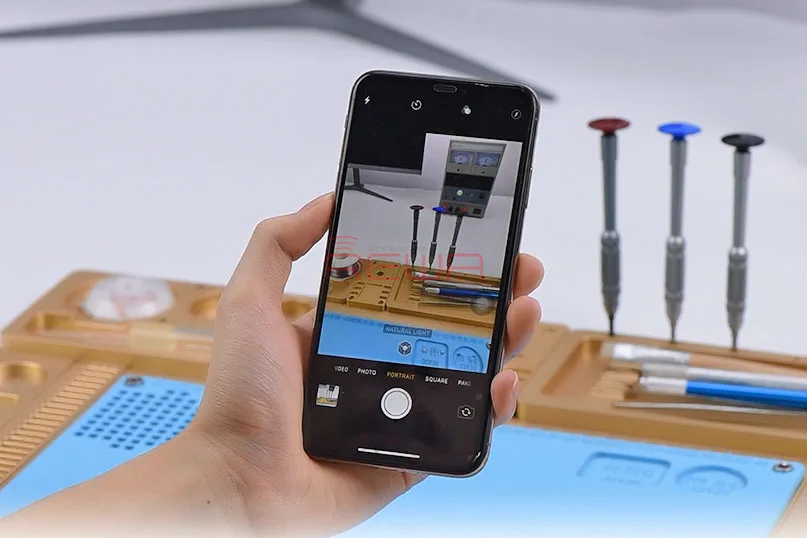
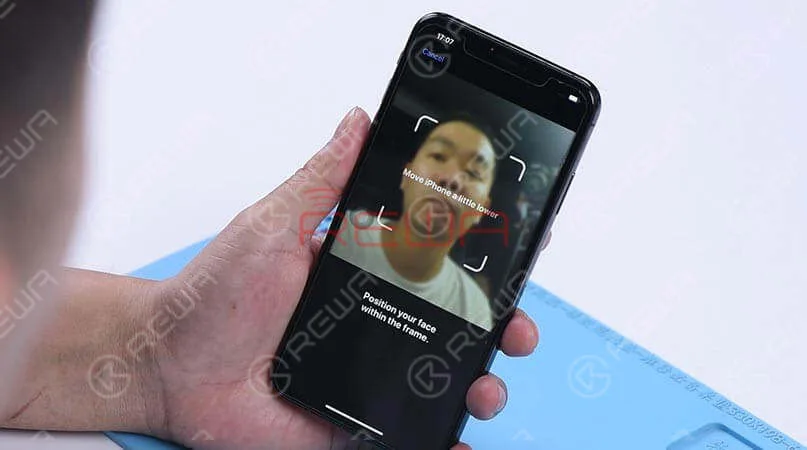
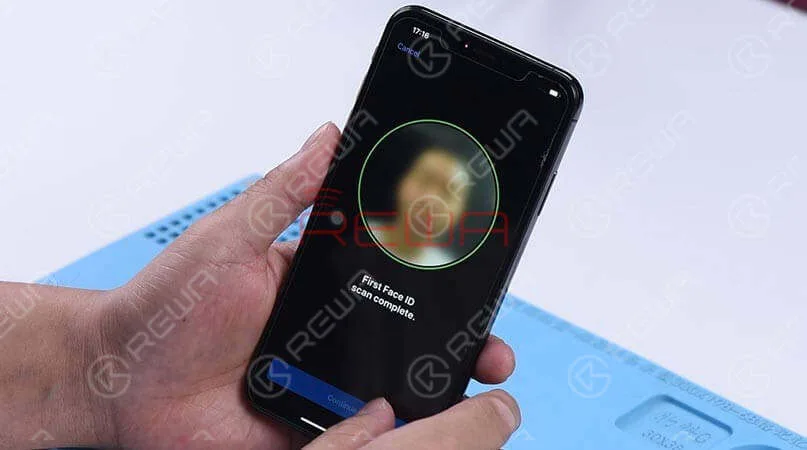
    When trying to set up Face ID on the iPhone, we get the message ‘move iPhone a little lower/higher’. Next, switch to the front camera, we found that the name of the lighting effect ‘Natural Light’ stays the same when the camera detects a person’s face. What’s more, the pop-up notification keeps saying ‘Move farther away’. Normally, when Portrait mode is ready, the name of the lighting effect ‘Natural Light’ should turn yellow. Judging by this, the dot projector or relevant circuits of the dot projector might have malfunctioned.

    When trying to set up Face ID on the iPhone, we get the message 'move iPhone a little lower/higher'. Next, switch to the front camera, we found that the name of the lighting effect ‘Natural Light’ stays the same when the camera detects a person's face. What's more, the pop-up notification keeps saying ‘Move farther away’. Normally, when Portrait mode is ready, the name of the lighting effect ‘Natural Light’ should turn yellow. Judging by this, the dot projector or relevant circuits of the dot projector might have malfunctioned.
    Diagnose 

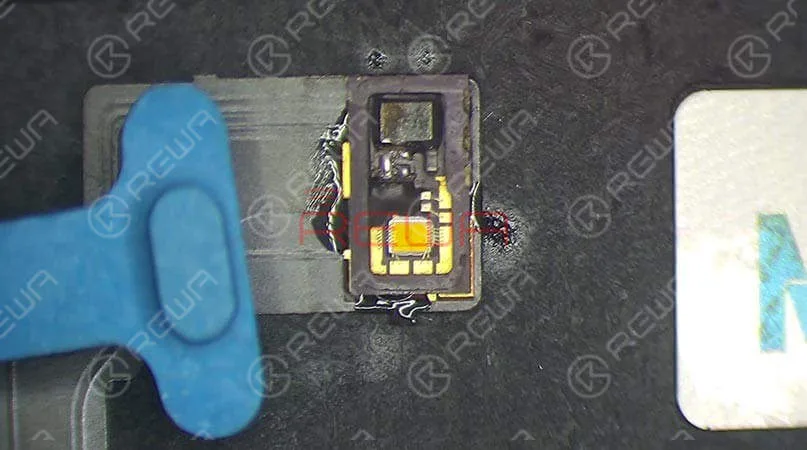
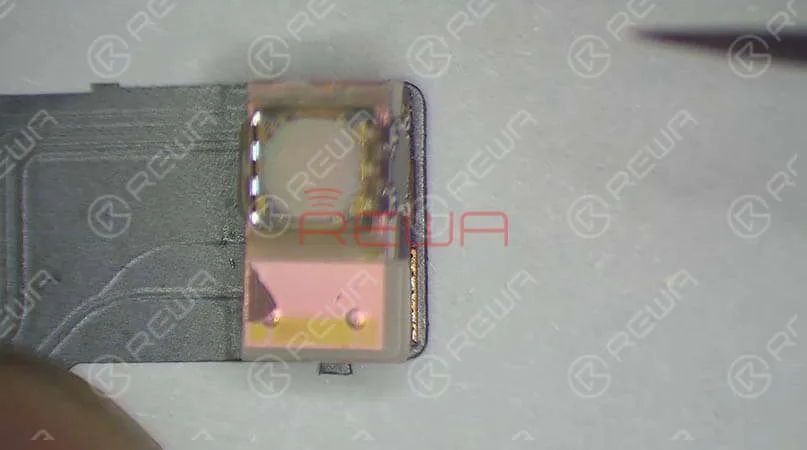
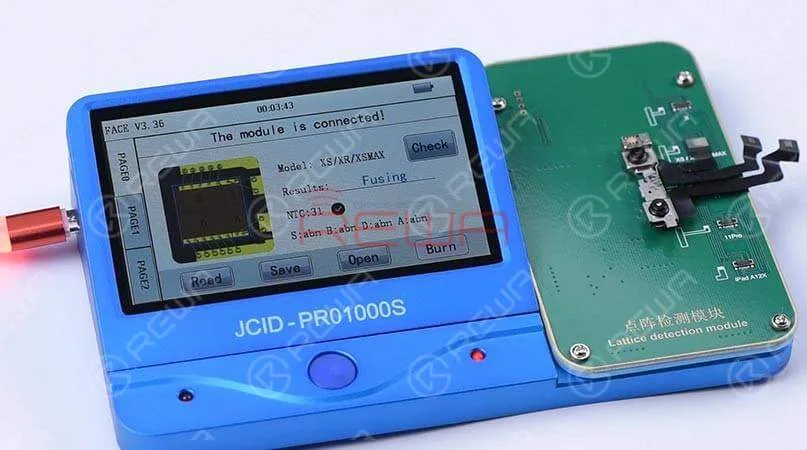
    Take apart the phone and remove the display assembly first. We can see that the dot projector has been water damaged and the crystal on the dot projector is broken. Take out the front camera assembly carefully. Here we recommend using a repair programmer to check the dot projector flex cable. Connecting the dot projector flex cable with the programmer, the results show ‘Fusing’ which means the dot projector flex cable has been damaged. We need to burn data of the original dot projector flex cable onto a new one and then replace the broken crystal.

    Connecting the dot projector flex cable with the programmer, the results show ‘Fusing’ which means the dot projector flex cable has been damaged. We need to burn data of the original dot projector flex cable onto a new one and then replace the broken crystal.
    Connecting the dot projector flex cable with the programmer, the results show ‘Fusing’ which means the dot projector flex cable has been damaged. We need to burn data of the original dot projector flex cable onto a new one and then replace the broken crystal.
    Connecting the dot projector flex cable with the programmer, the results show ‘Fusing’ which means the dot projector flex cable has been damaged. We need to burn data of the original dot projector flex cable onto a new one and then replace the broken crystal.
    Connecting the dot projector flex cable with the programmer, the results show ‘Fusing’ which means the dot projector flex cable has been damaged. We need to burn data of the original dot projector flex cable onto a new one and then replace the broken crystal.

    Fehlersuche   

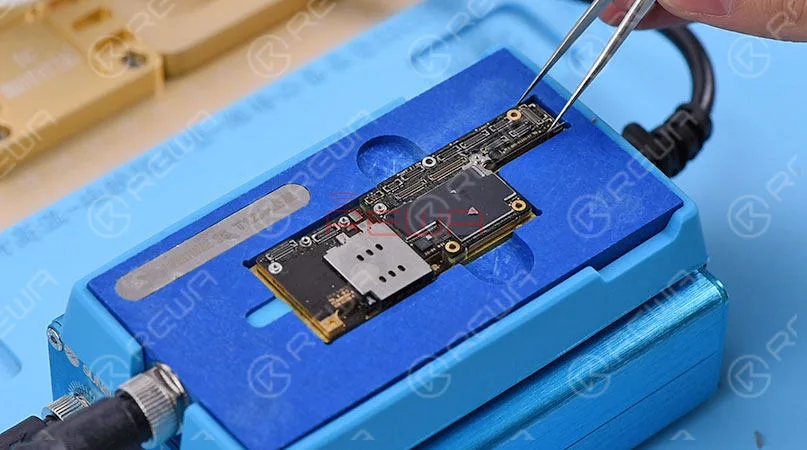
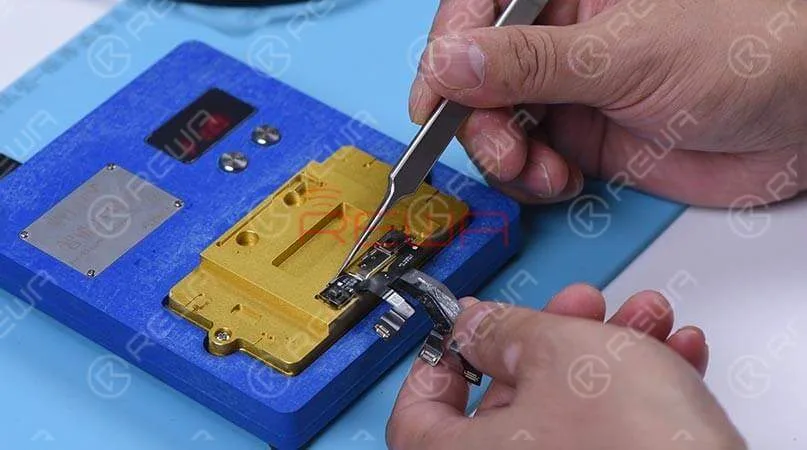
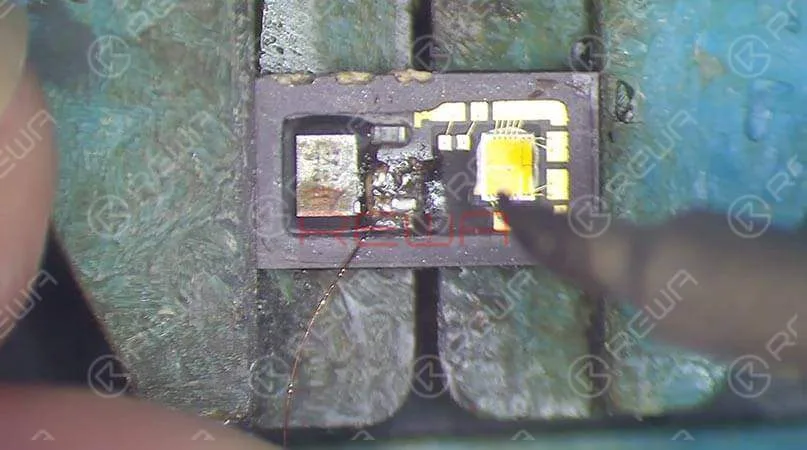
    In the first step, we should separate the crystal from the cable. Compared to traditional operations with a hot air gun, we prefer to use an intelligent preheating platform. Put the dot projector into the matching rubber mold and separate the crystal from the flex cable carefully with the blade.  Next, we use the repair programmer again to burn the origin data onto the new dot projector flex cable. After completing these two steps, we need to solder the dot projector module and glue a known-good crystal. For detailed instructions, click on the video at the bottom of the article
    troubleshooting iphone xs max face id not working dot projector repair 8

    Zusammenbau und Test 

    Apply double-sided adhesive tape on the backside of the front camera, and adhere the dot projector flex cable to the right position. Get the front camera assembly installed and get the logic board assembled and buckle the display assembly. Face ID can be set up successfully, and the phone can be unlocked with Face ID this time.  Tips: The double-sided adhesive tape used here is for the test. We need to glue the dot projector module onto the flex cable after fault clearance.

    Verwendete Werkzeuge

    Besuchen Sie unser Internetshop Für weitere Teile und Werkzeuge können Sie auch die Website REWA YouTube Channel to check our video.
  • Clean the Bonding Pads of iPhone XS Max

    Clean the Bonding Pads of iPhone XS Max

    Clean the bonding pads of the iPhone XS Max with soldering iron and solder wick

  • iPhone Xs Max Flickering Screen Caused By Mistake | iPhone Repair Tips

    iPhone Xs Max Flickering Screen Caused By Mistake | iPhone Repair Tips

    Develop a good habit and keep a well-organized workspace in daily repair work will help a lot for repair technicians. Today we share a special repair case – iPhone Xs Max flickering screen which caused by the technician’s mistake.

  • Troubleshooting iPhone XS Max Portrait Mode Not Working

    Troubleshooting iPhone XS Max Portrait Mode Not Working

    Many iPhone XS Max users have the complaint that the Portrait Mode on their phones is not working. And it’s not a strange thing to see that questions like ‘Why does my iPhone XS Max Portrait Mode not working’ and ‘How to fix my iPhone XS Max Portrait Mode not working’ have been so frequently searched on Google. If you are one of them, this article will help you to solve this issue. Here REWA is going to tell you how to fix Portrait Mode not working on iPhone XS Max.

    Usually, there are two different causes for Portrait Mode not working on iPhone XS Max. Software problems or hardware problems. Here we have some solutions for software problems.

    Anmerkung: Don’t use portrait mode in dark places or low light. Because portrait mode will not work in low light. And make sure that the distance between the phone and the subject is proper(neither too far nor too close). Keep at least 19 inches distance between the phone and the subject.

    1. Restart your iPhone XS Max or camera app. 2. Upgrading iOS: Go to Set->General->Software Update. 3. Reset all settings: Go to Set->General->Reset-> Reset All Settings. 4. Restore your iPhone XS Max to Factory Settings(Factory Reset): Go to Settings->General->Reset-> Erase All Contents and Settings. Take a backup before resetting your iPhone to Factory Settings, since this action will erase all data from your device.

    So, these are some methods to resolve the iPhone XS Max portrait mode not working issue. You can try them out. However, if nothing works, the possible situation is that the motherboard or the camera has been damaged. In this case, you need to have the damaged one replaced. Well, you can also follow our solution below.

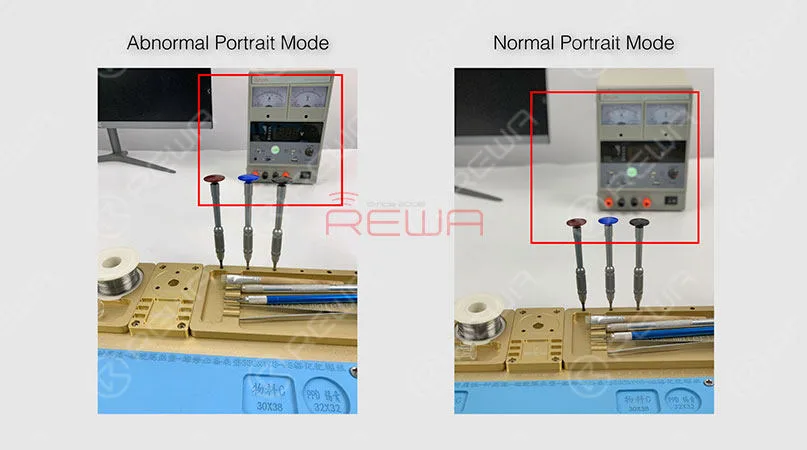
    The first thing we do is to check if the Portrait Mode is in a normal status. Open the camera app and swipe to portrait mode. We can see clearly that the background is not blurred. Which indicates that the wide-angle lens is working normally, while the telephoto lens is not working at all.

    iPhone XS Max Portrait Mode Not Working Troubleshooting

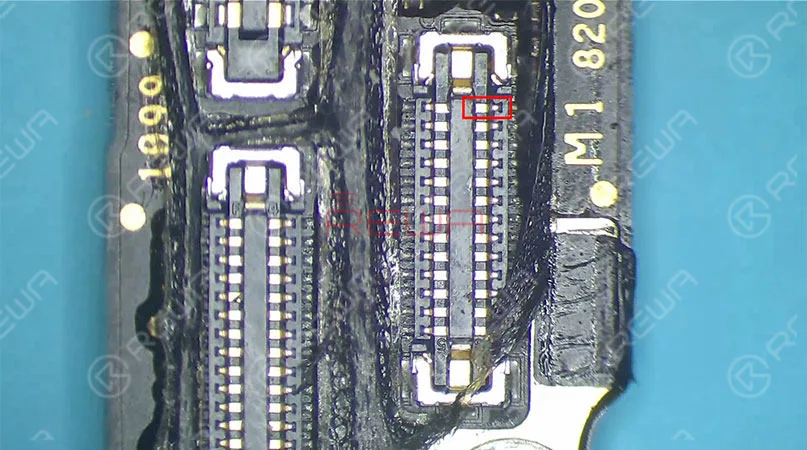
    Take apart the phone and take out the motherboard. Run diode mode measurement of the Tele camera connector J4000. The measured value of Pin 25 is OL, which is abnormal. Which also indicates that Pin 25 relevant circuit has open-circuited(The circuit is formed by a zero-ohm resistor R4006, several capacitors and the camera power supply IC U3700). Since capacitors have nothing to do with the open-circuited condition. So the first thing we do is to check the zero-ohm resistor R4006. Run diode mode measurement of R4006. Judging by the measured value, R4006 has not open-circuited. We can confirm that the fault is probably related to U3700.

    iPhone XS Max Portrait Mode Not Working Troubleshooting

    Try to replace with a new camera power supply IC. You need to separate the upper and the lower layer first. And then detach U3700. Continue to clean the bonding pad and solder a new camera power supply IC. Solder the two layers together later. Detailed steps go as follows:

    iPhone XS Max Portrait Mode Not Working Troubleshooting

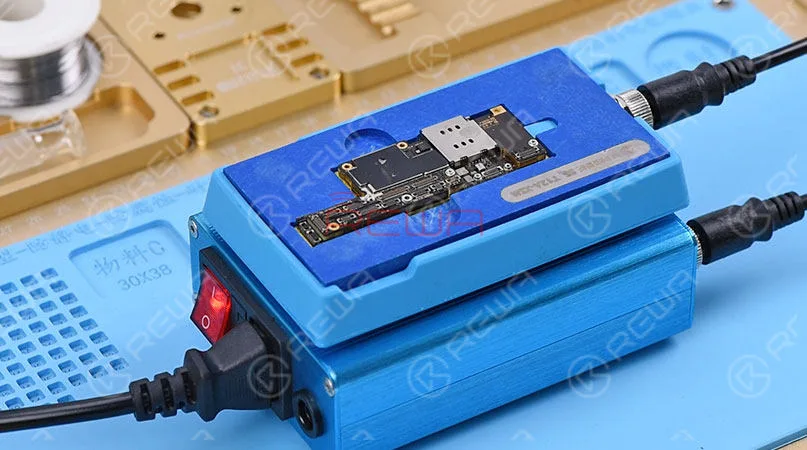
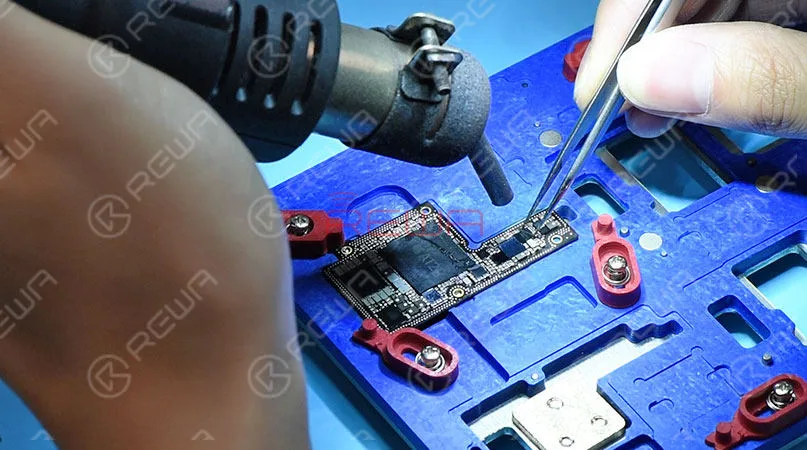
    Place the motherboard on the Heating Platform. This machine can quickly desolder & resolder iPhone XS Max double-layer motherboard. It offers heat evenly that can protect the motherboard from damage. With accurate temperature control and temperature adjustment, it is highly recommended for motherboard repair. Pick up the upper layer with tweezers once solder on the third space PCB has melted, and detach U3700 from the board with Heißluftpistole.

    iPhone XS Max Portrait Mode Not Working Troubleshooting

    Apply solder to clean the bonding pad first. Then clean thoroughly with rosin soaked Solder Wick. Clean with PCB Cleaner afterwards. Get a new camera power supply IC in position and solder with Hot Air Gun. Next thing we need to do is to solder the two layers together. Clean the third space PCB with rosin soaked solder wick first, then reball the lower layer. Solidify the third space PCB with Paste Flux afterwards. Once done, apply some BGA Paste Flux to the third space PCB. Get the upper layer and the lower layer in position. Use the iPhone XS Max Motherboard Soldering/Desoldering Rework Station to solder the double-layer motherboard.

    iPhone XS Max Portrait Mode Not Working Troubleshooting

    Once we have confirmed that the motherboard has been soldered successfully, we can assemble the phone and test. Warm tips: get the phone full assembled after confirmation of fault clearance. Get the motherboard and display assembly installed. Connect the battery and press the power button. The iPhone XS Max turns on normally. Open the camera app and swipe to Portrait Mode. We can see that the subject is being focused and the background is blurred. The Portrait mode not working on iPhone XS Max issue has been solved successfully.

    iPhone XS Max Portrait Mode Not Working Troubleshooting

    PLUS:  with our unique teaching system, REWA offline training course can help technicians improve their repair skills by mastering repair thoughts and repair techniques.

    Tools used:

    iPhone XS Max Motherboard Soldering/Desoldering Rework Station

    Explosion-Proof PCB holder for iPhone XS/XS Max

    Heißluftpistole Nachbearbeitungsstation - 990AD

    Lötkolben-Aufbereitungsstation - 969A

    Elektronenmikroskop - Typ 1

    Digitales Multimeter

    LCD-Öffnungszange

    Lötdocht

    Kolophonium-Lötflussmittel

    Gerade Pinzette

    Gebogene Hakenpinzette

    Schraubenzieher

    Weiche Bürste

    Antistatische Plastik-Hebeleisen

    BGA-Schaber aus Edelstahl

  • Anleitung zur Fehlerbehebung: iPhone XS Max Probleme und Lösungen

    Anleitung zur Fehlerbehebung: iPhone XS Max Probleme und Lösungen

    Mit jeder neuen iPhone-Generation wurden großartige Funktionen auf die neuen Geräte übertragen. Allerdings ist jedes neue Mobiltelefon mit spezifischen Problemen aus seiner Veröffentlichung Tag begegnet.

    Seit der Markteinführung des iPhone XS/iPhone XS Max sind bei den Nutzern verschiedene Probleme und Fehler aufgetreten. Lassen Sie uns sehen, was sind die Probleme sind und wie man sie beheben.

    Lästige grüne Linie auf dem Display

    Apple verlegte sich auf OLED-Display seit dem iPhone X im Jahr 2018.

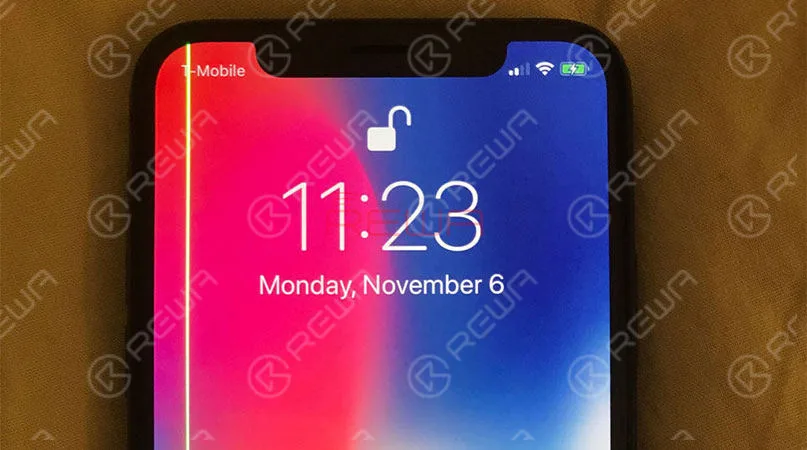
    Ein Nutzer in Australien berichtete jedoch, dass nach einer gewissen Zeit der Nutzung eine helle grüne Linie vertikal über den Bildschirm seines iPhone XS Max verläuft.

    Bei einer Reihe von Kunden tritt dieses Problem danach auf.

    Lösung

    Bei diesem Problem wird Apple das Gerät im Rahmen der Garantie ersetzen.

    Wenn Sie diese vertikale grüne Linie von Pixeln auf der Seite Ihres iPhones bemerken, ist es an der Zeit, einen Termin im Apple Store zu vereinbaren.

    troubleshooting guide iphone xs max issues fixes the newest common and

    Schlechte Mobilfunkverbindung und langsame WIFI-Geschwindigkeit

    Laut den Nutzern des iPhone XS/iPhone XS Max hatten ihre Geräte weniger Balken und ein schlechteres Signal im Vergleich zu den letzten Generationen.

    Manchmal zeigt sogar "kein Service", vor allem im Bereich der schwachen Signale. Während diese Ansprüche sind schnell wachsende Zahl, Zusätzlich zu LTE-Problem, andere Benutzer behauptet, dass ihre Geräte zu sein scheinen langsamer WIFI Geschwindigkeit.

    Die Mehrheit der Personen, die langsamere Geschwindigkeiten erlebten, stellten fest, dass ihre iPhone XS-Modelle mit dem 2,4-GHz-Netz und nicht mit dem 5-GHz-Netz verbunden waren.

    Lösung

    Einige spekulierten, dass Apples Wechsel von Qualcomm zu Intel für das iPhone-Modem daran schuld sein könnte.

    Andere wiesen darauf hin, dass es unwahrscheinlich ist, dass dies die Ursache des Problems ist. Wie auch immer, Apple hat IOS 12.0.1 veröffentlicht, das die LTE- und WIFI-Probleme behebt.

    6 Häufige Probleme und Lösungen für das iPhone XS/iPhone XS Max

    Ladetor

    Einige Benutzer haben Probleme, die Geräte über eine Kabelverbindung aufzuladen.

    Sie stellen fest, dass sich ihr iPhone XS nicht aufladen lässt, wenn der Ladeanschluss eingesteckt ist.

    Es sei denn, Sie ziehen das Ladegerät ab, wecken den Bildschirm auf und schließen es dann wieder an, dann beginnt es zu laden. Aber nicht bei allen iPhone XS-Modellen tritt das Problem auf.

    Was mehr ist, einige Leute mit älteren Handys sind mit ähnlichen Verhalten zu berichten. Das deutet darauf hin, dass das Problem tatsächlich mit dem neuesten Software-Update iOS 12 sein könnte.

    Lösung

    Das bedeutet, dass das Problem durch ein Software-Update behoben werden könnte.

    6 Häufige Probleme und Lösungen für das iPhone XS/iPhone XS Max

    Schönheitspforte

    In den Foren berichten Nutzer, dass die neue Selfie-Kamera des iPhones von Apple die Haut auf Fotos, die mit der Frontkamera aufgenommen wurden, automatisch glättet, so dass sie zu gut aussehen. Und es gibt keine Möglichkeit, dies zu deaktivieren. Das ist das inakzeptabelste

    Lösung

    Laut Apple verwendet das Selfie-Kamerasystem des iPhone X einen schnelleren Sensor, verbesserte Chips und "fortschrittliche Algorithmen", um Ihre Fotos mit einer Funktion namens "Smart HDR" besser aussehen zu lassen. Nutzer können unter Einstellungen > Kamera > Smart HDR den Beauty-Modus deaktivieren.

    6 Häufige Probleme und Lösungen für das iPhone XS/iPhone XS Max

    Audio-Verbindungsproblem durch Bluetooth verursacht

    Eine kleine Anzahl von iPhone XS- und iPhone XS Max-Besitzern hat Probleme mit der Bluetooth-Verbindung, bei der ihre iPhones nicht richtig mit dem Entertainment-System ihres Autos kommunizieren können.

    Lösung

    Für dieses Problem gibt es noch keine von Apple bereitgestellte Lösung.

    6 Häufige Probleme und Lösungen für das iPhone XS/iPhone XS Max

    Staub im Objektiv der Kamera

    Dies ist eigentlich ein kleines Problem. Einige Benutzer behaupteten, dass ständig Staub in das Objektiv der Kamera gelangt. Das macht die Kamera nicht gut funktionieren.

    Nur weil sie gut verschlossen sind, ist das iPhone nicht immun gegen Staub und Schmutz. Auch die Umwelt spielt eine Rolle.

    Lösung

    Um dieses Problem zu beheben, bringen Sie das Gerät in einen Apple Store, um es reinigen zu lassen.

    6 Häufige Probleme und Lösungen für das iPhone XS/iPhone XS Max

    Wenn Sie ein iPhone XS und XS Max haben, die mit einem der oben genannten Probleme konfrontiert sind, lassen Sie es uns im Kommentarbereich wissen.